

At a glance
The app editor has 2 main areas: the AI chat on the left, and your app on the right. The controls you use most sit in the bar above them. Hover over or tap a number to see what each part does.Chatting with AI
The AI chat on the left is where you build. Describe what you want in plain words, and the AI updates your app. The message box also lets you attach files, choose a model, and set custom instructions. Learn more about using the AI chat. The AI chat has 2 modes. Switch between them with the mode button in the message box, or press Cmd+. (Mac) or Ctrl+. (Windows):- Build: The AI changes your app as you chat.
- Discuss: Ask questions or plan your next change. The AI doesn’t change your code until you approve.
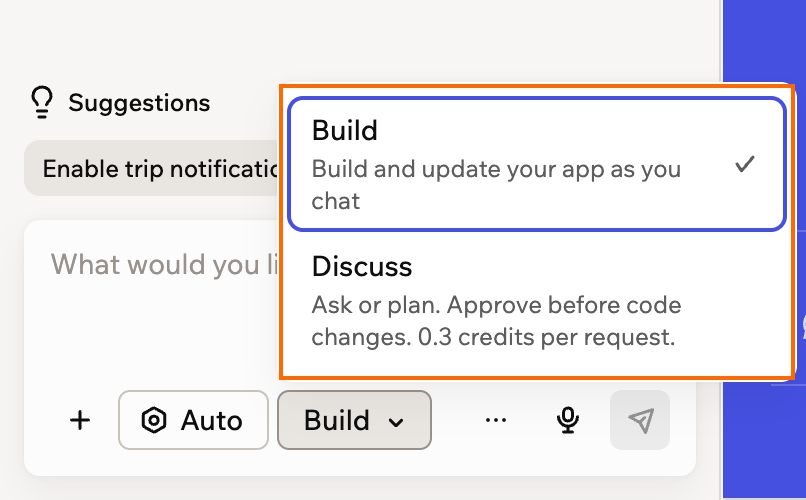
Choosing between Build and Discuss in the AI chat
Previewing your app
The preview on the right shows your app as the people using it see it. Click through it to test your app as you build. At the top of the preview, you can:- Open another page: Type a page path in the page field, for example
/home. Learn more about managing your pages. - Refresh the preview: Click the refresh icon at the start of the page field.
- Check other screen sizes: Click the device icon at the end of the page field to switch between desktop, tablet, and mobile.
- Edit by hand: Click Edit, then click any element in your app to change its text, colors, fonts, or spacing without using the AI chat. Learn more about designing your app.
- See every page at once: Click the Canvas icon to lay out all your pages on one board, add sticky notes and drawings, and send ideas to the AI chat. Learn more about using the canvas.
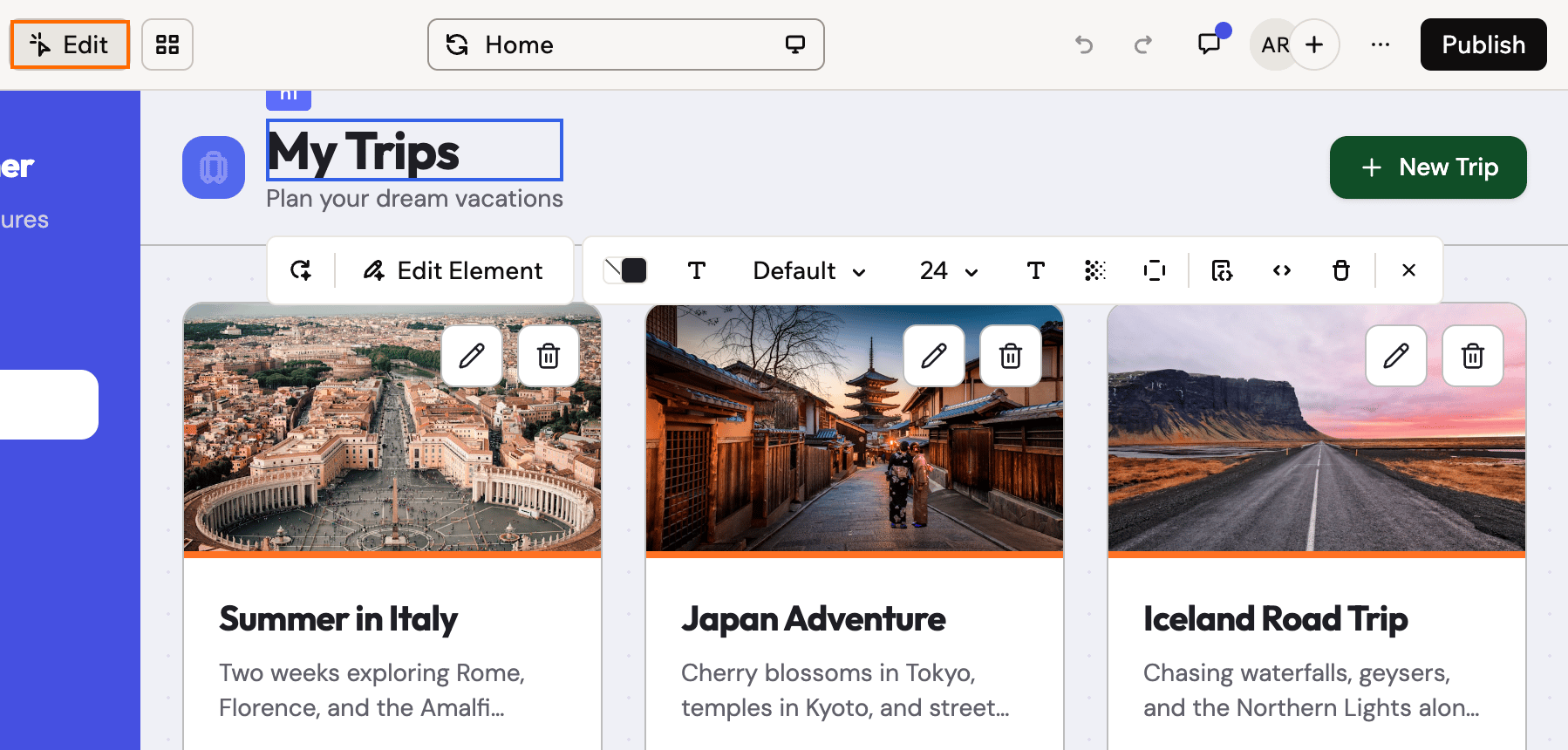
Selecting an element in Edit mode to open its style options
Undoing changes
Every change is saved as a version, so you can always go back. Pick the way that fits what you want to undo:- One AI change: Hover over the message in the chat and click the Revert icon under it. Your app goes back to how it was before that message, and later changes are undone too.
- A change you made by hand: In Edit or Canvas, click the undo button in the bar, or press Cmd+Z (Mac) or Ctrl+Z (Windows).
- A lot at once: Click the Version history icon above the AI chat to preview any earlier version, restore it to the app editor, or publish it directly while you keep working on your draft.
Using the Dashboard
Click Dashboard at the top of the preview to manage everything behind your app, such as its data, users, domains, and settings. Each section opens from the sidebar on the left. Some sections only appear when your app uses them. For example, Payments appears after you connect a payment provider, and Secrets appears when your app has backend functions.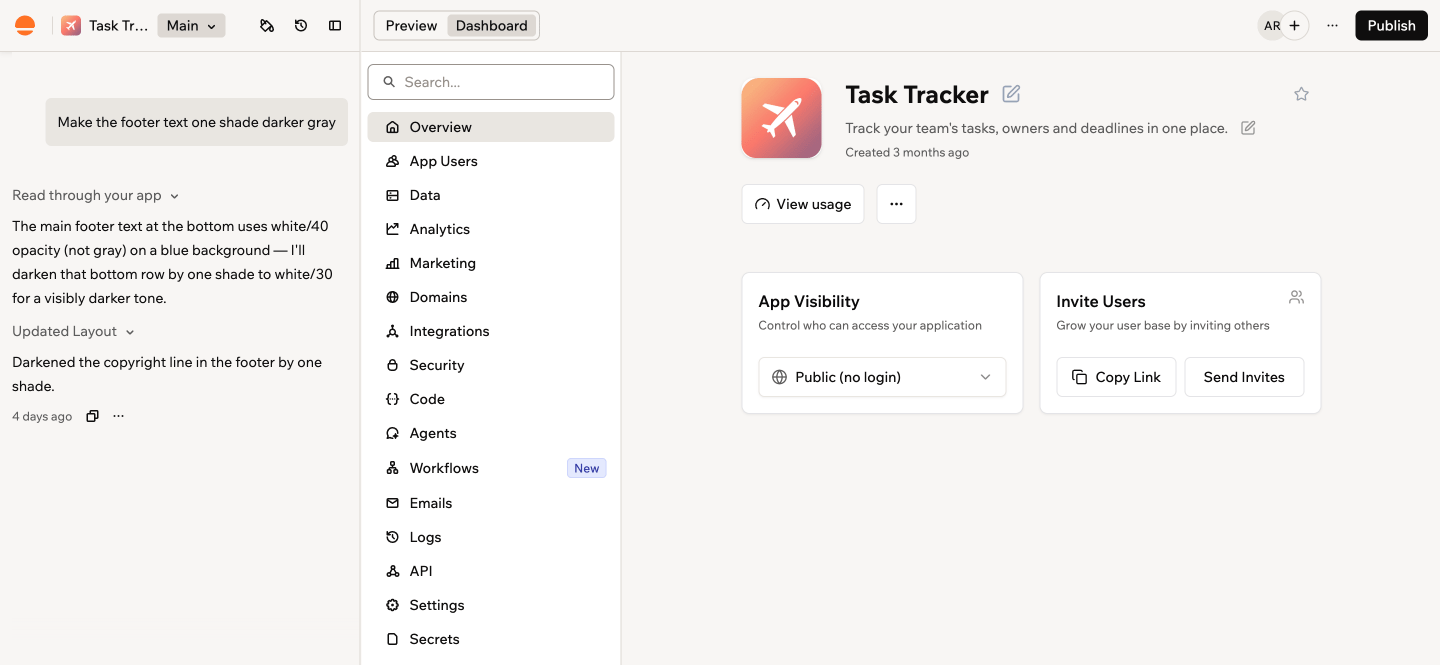
The Dashboard, open on Overview
Publishing your app
When your app is ready, click Publish at the top right to put it live. In the Publish Your App panel, you can copy your app’s link, choose who can open it with App visibility, and connect a custom domain.Your live app only changes when you publish. Keep building in the app editor, then click Publish again whenever you want people to see your latest version.
Working with others
Click Add collaborator (+) next to the avatars at the top right to invite someone to build with you. Everyone sees the same draft, and the avatars show who’s in the app editor right now. Use Comments at the top of the preview to leave feedback on a specific part of a page. Learn more about working with collaborators and commenting on your app.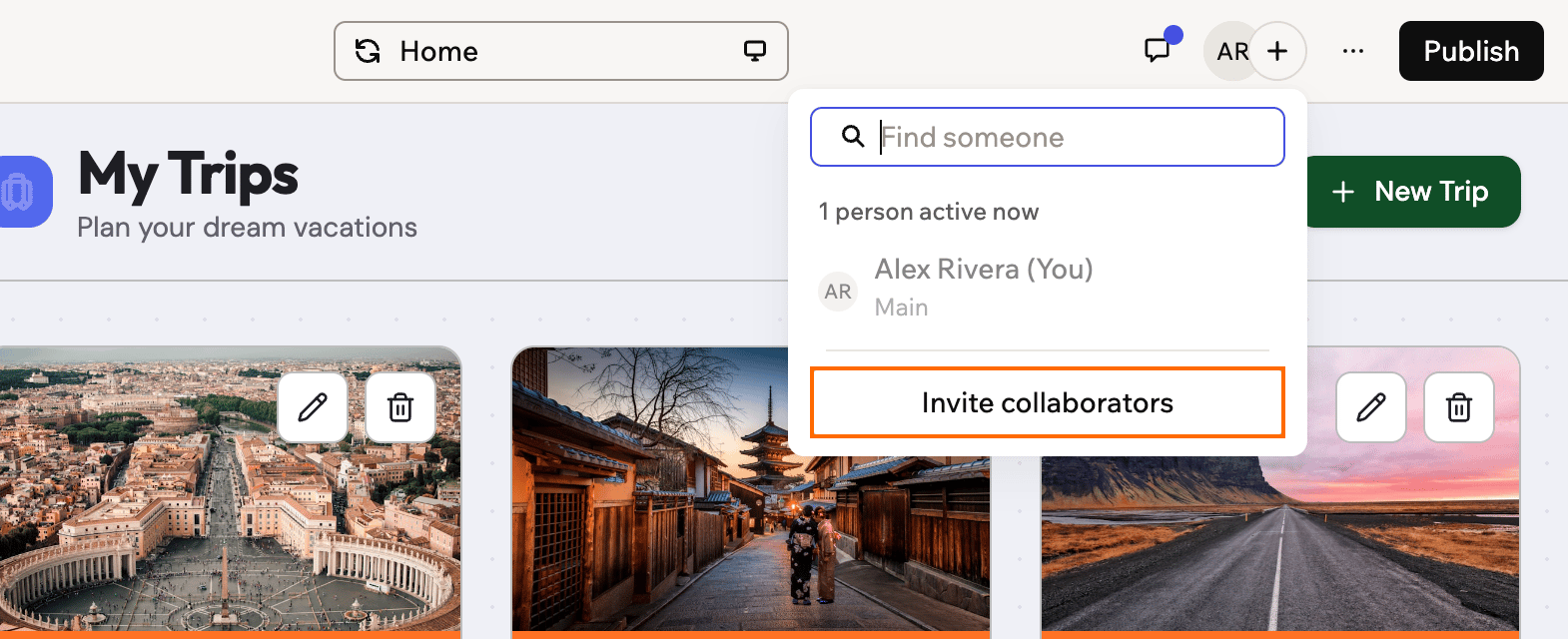
The collaborators menu in the app editor
Trying ideas safely
Want to try a redesign or a risky new feature without putting your working app at stake? Build it on a branch. A branch is a separate copy of your app, so you can experiment freely while your main version stays exactly as it is. If you like the result, merge it back in. If not, delete the branch and nothing has changed. To create one, click Main next to your app’s name above the AI chat. Learn more about working with branches.Additional actions
The More actions icon at the top right holds tools you use less often.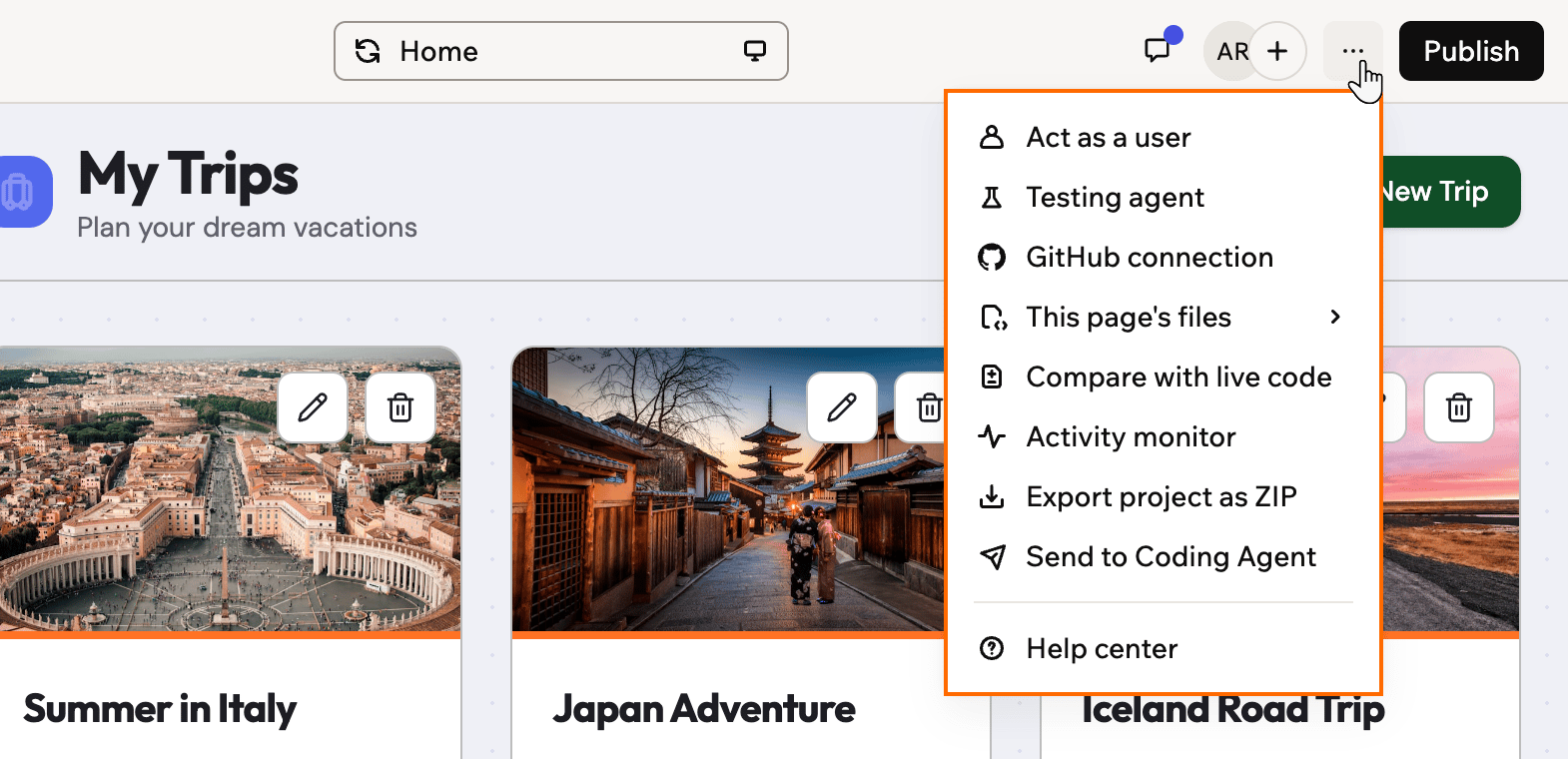
The More actions menu in the app editor
Moving around faster
Press Cmd+K (Mac) or Ctrl+K (Windows) to open the command palette. Search for pages, files, and data, jump straight to an action such as publishing your app or inviting a collaborator, or search the Base44 docs, all without leaving the app editor. The command palette also works on your workspace home page.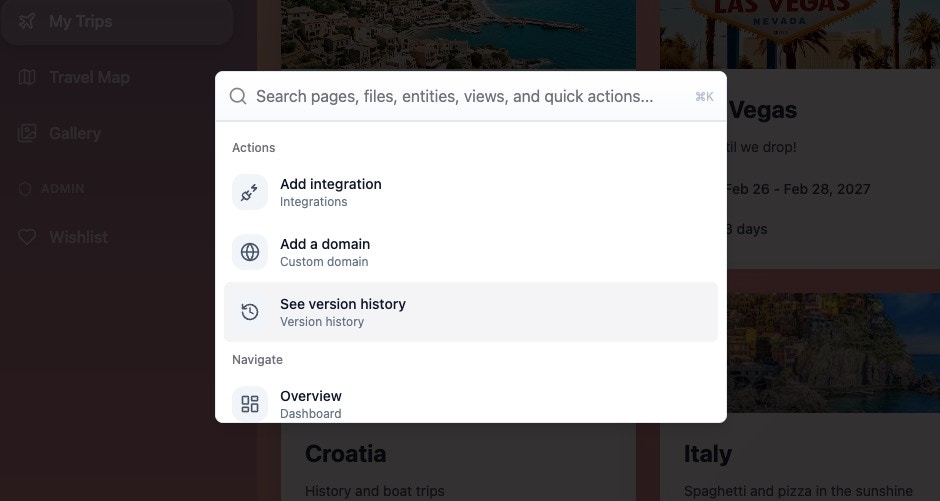
The command palette in the app editor
You can swap the Enter and Shift+Enter shortcuts in your account preferences. The canvas has its own set of drawing and layout shortcuts.
FAQs
Click a question below to learn more about finding your way around the app editor.Can I use the app editor on my phone?
Can I use the app editor on my phone?
Yes. You can build from your phone’s browser by opening base44.com and signing in, or from the Base44 app for iOS and Android. On a phone, your app’s preview fills the screen, and you tap Chat to Edit to open the AI chat.Some features are only available on desktop, including Edit mode, data permissions, editing code, working with APIs, and app templates. Learn more about using Base44 on mobile.
Do I need to save my work?
Do I need to save my work?
No. Your work in the app editor is kept as you go, and every AI change becomes a version you can return to. Your live app only changes when you click Publish.
Can people see my app before I publish it?
Can people see my app before I publish it?
No. The preview is only for you and your collaborators. Nobody else can open your app until you publish it, and after that, who can open it depends on your app visibility.
What should I do if the app editor won't load?
What should I do if the app editor won't load?
Try refreshing the page, clearing your browser cache, turning off browser extensions, or opening Base44 in a private window or another browser. If it still won’t load, see troubleshooting.
Related topics
Go deeper into the parts of the app editor you use most.Using the AI chat
Build and Discuss modes, models, Auto approve, and reverting changes.
Designing your app
Change colors, fonts, and layout with Edit mode and themes.
Managing your app data
View, edit, import, and export the data your app stores.
Choosing who can access your app
Set visibility, invite users, and add collaborators.