

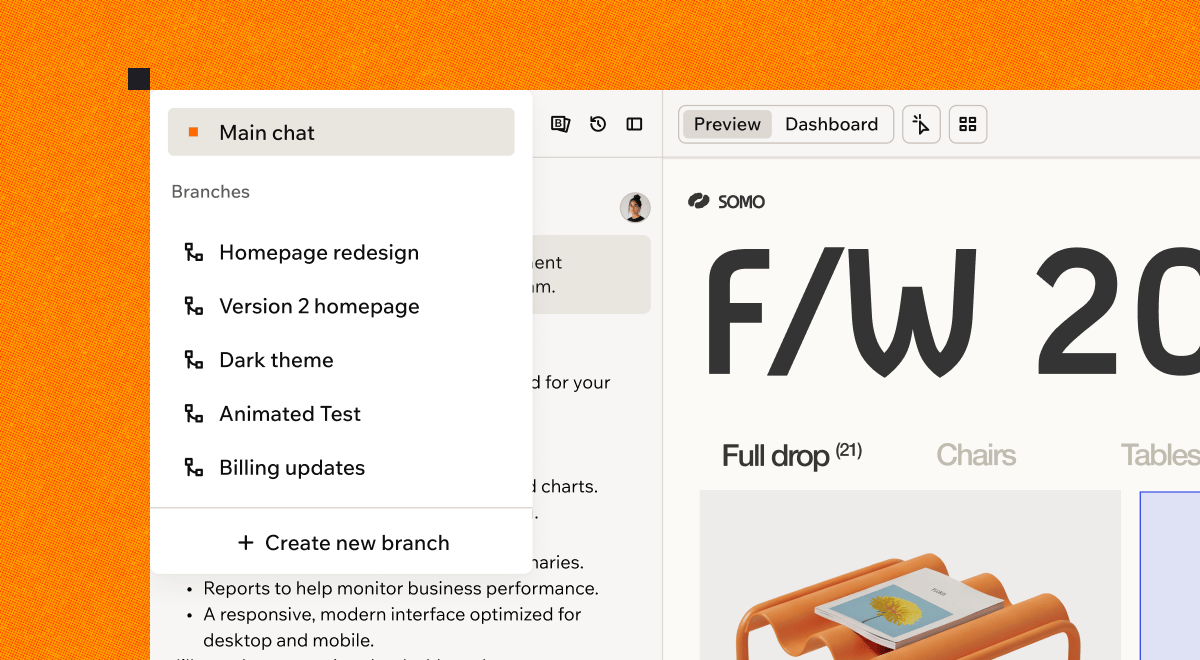
Work on several branches alongside your main app
Ways to use a branch
- Test a redesign. Try a new look for your app and compare it with the current version. If you change your mind, leave the branch behind.
- Keep your live app ready. When a small fix comes up mid-project, fix and publish it from main right away. Your bigger work in progress stays safely on its branch.
- Build a feature that launches later. Work ahead of a release and keep the feature on a branch until launch day.
- Work in parallel. Build on several branches at the same time, and work with your team on different ideas at once, each on their own branch.
How branches work
Your app’s main version is called main. When you create a branch, Base44 starts a separate line of work from the current state of main. Branches run in parallel, so you can try changes without touching main. Some parts of your app belong to each branch, and others are shared with main:Creating a branch
Describe what you want to build, and Base44 creates the branch and starts building right away. Base44 names the branch from your first message. Names are 3 words or fewer and always in English, whatever language you write in. You can’t rename a branch. You can also use branches on your phone, in a mobile browser or the Base44 app. The branch menu only appears once your app has a branch, so create your first branch on a computer. After that, you can switch branches, build, and merge from your phone.Starting a new branch
Start a branch from the branch menu when you have a new idea to build. To create a branch:- Open your app in the app editor.
- Click Main, or the name of the branch you’re on, at the top of the AI chat.
- Click Create new branch.
- Pick one of the suggestions, or type what you want to build in the chat box.
- Send the message.
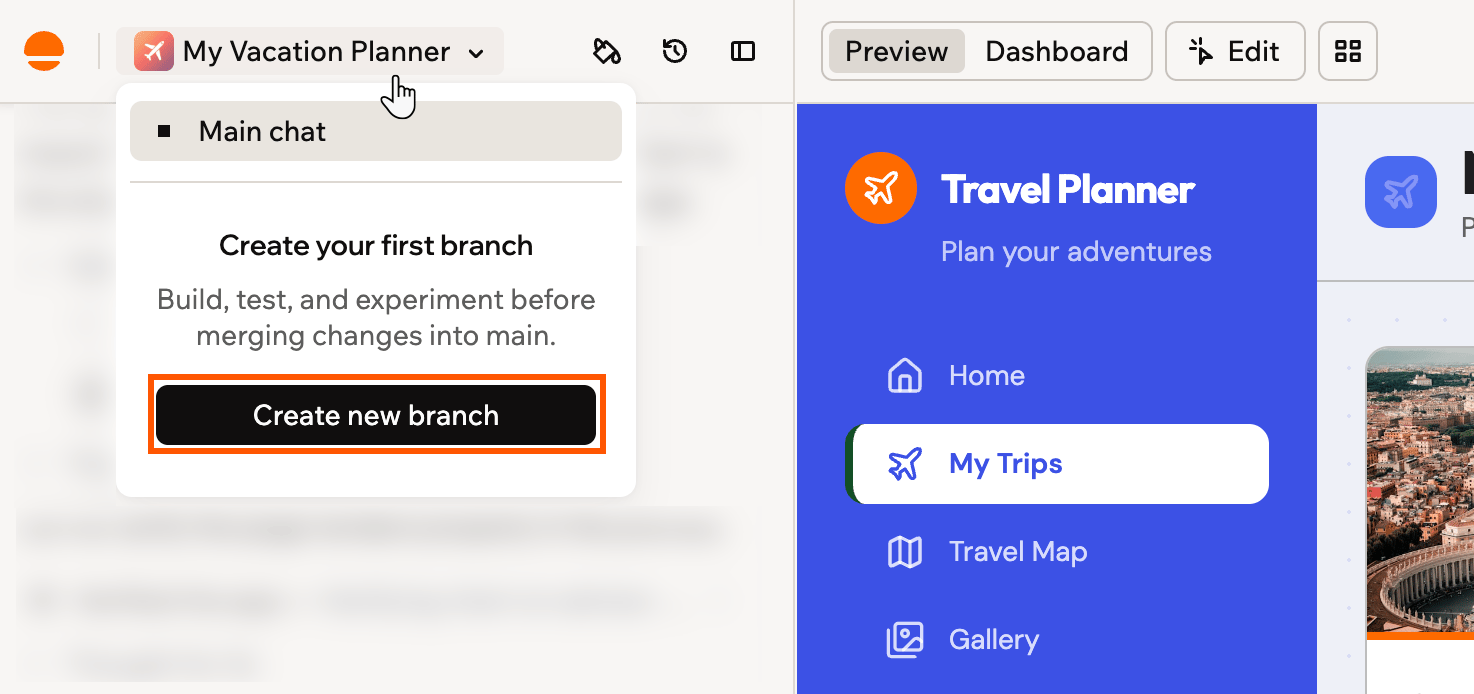
Creating your first branch from the branch menu
Creating a private branch
Make a branch private when you want to work on an idea before anyone else sees it. Anyone who can edit the app can create one. A private branch and its chat are visible only to you, so the app’s owner and your other collaborators don’t see your work in progress. It shows a lock next to its name in your branch menu. When you merge it, your changes appear on main for everyone as usual. You choose whether a branch is private when you create it, and you can’t change it later. If you’re removed as a collaborator on the app, your private branches are deleted. To create a private branch:- Open your app in the app editor.
- Click Main, or the name of the branch you’re on, at the top of the AI chat.
- Click Create new branch.
- Select Private branch above the chat box.
- Pick one of the suggestions, or type what you want to build in the chat box.
- Send the message.
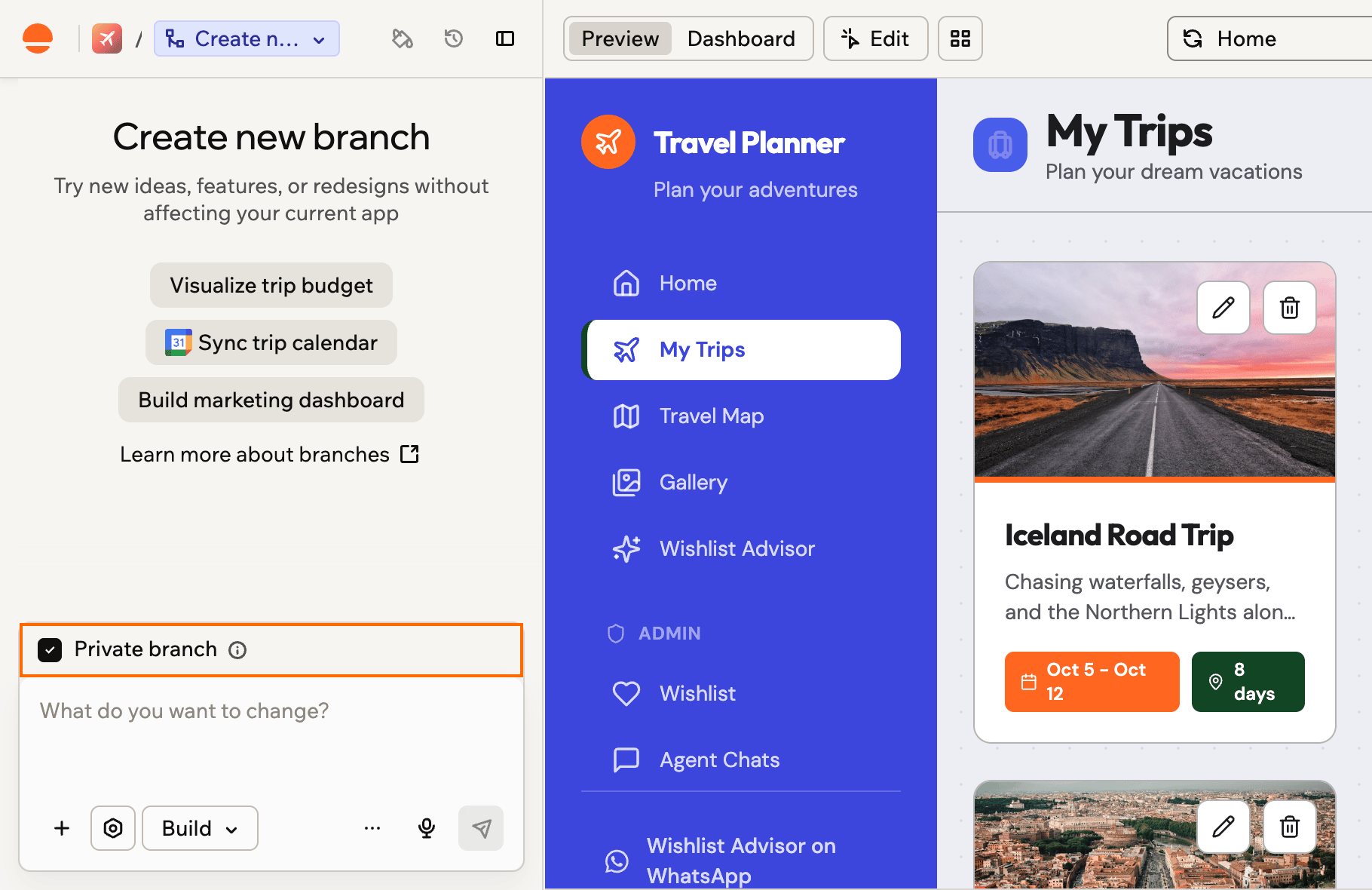
Selecting Private branch before you send your first message
Branching from a message
Branch from any message you sent in the main chat to try a different direction from that point. The new branch starts from your app as it was at that message, and you stay on main while it’s created. This option is available on main in a desktop browser, but not while your app is building. To branch from a message:- Open your app in the app editor.
- Hover over a message you sent in the main chat.
-
Click the Branch from here icon under it.
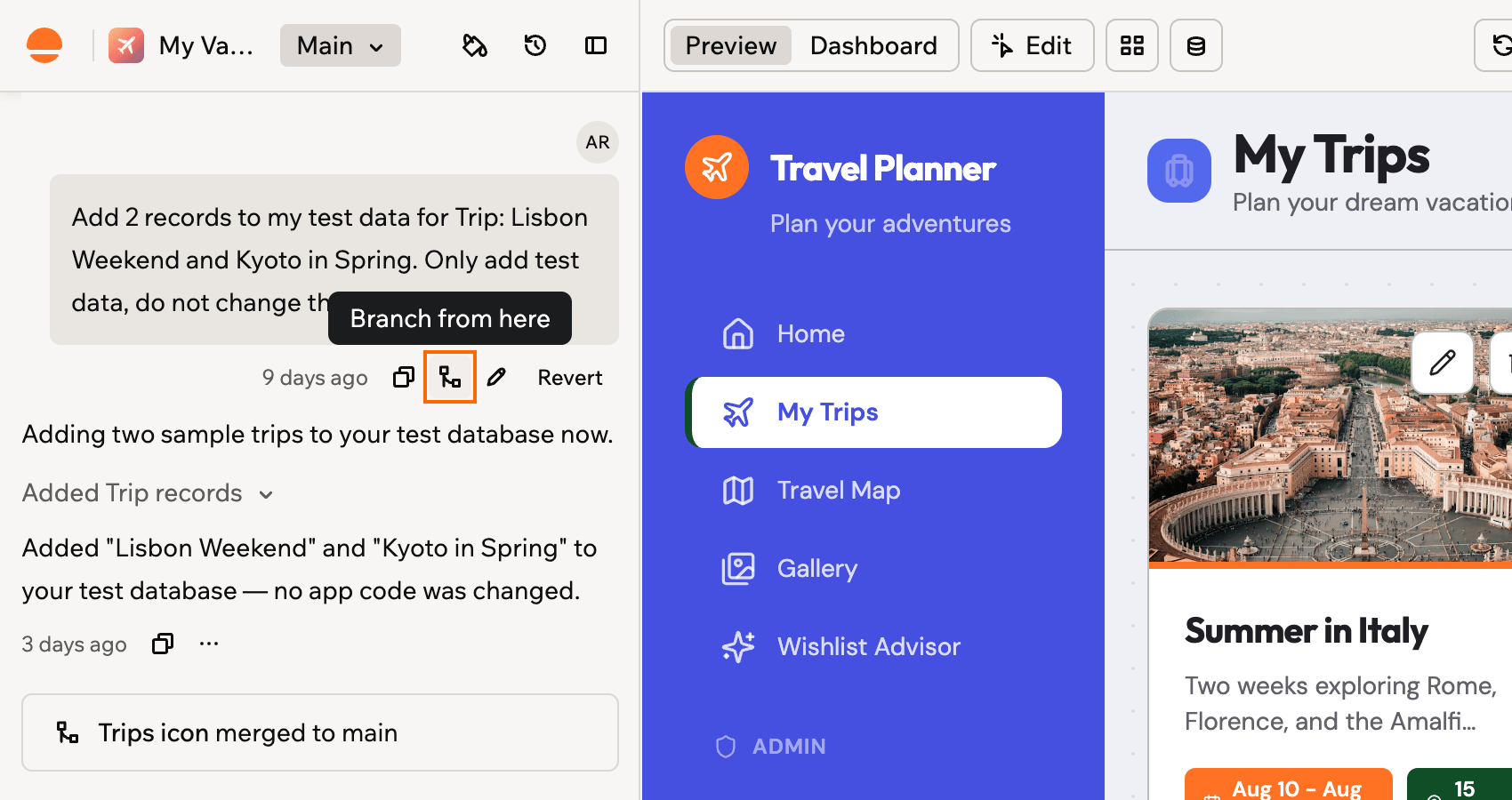
The Branch from here icon under a message you sent
- When the branch is ready, open it from the branch menu at the top of the chat panel.
Branching a queued prompt
When the AI is busy building on main, you can move a waiting prompt from the queue to its own branch, so it runs now instead of waiting its turn. The branch starts from your last saved version, without the changes that are still building. So this works best for changes that don’t depend on what’s building now. You can do this on main, in a desktop browser, on apps you build on your own. Apps with collaborators share one queue, which doesn’t offer it. To run a queued prompt on a branch:- Open your app in the app editor.
- Click the Run in a parallel branch icon on the queued prompt you want to move, in the queue above the chat input.
- Click Run on a branch, or click Keep in queue to leave it where it’s.
- Click Open branch in the chat to follow the prompt on its new branch.
Importing from GitHub
When your app is connected to GitHub, you can build on a branch that already exists in your repository. Base44 works on that branch itself, so your changes and Base44’s go to the same branch in your repository. To import a branch from GitHub:- Open your app in the app editor.
- Click Main, or the name of the branch you’re on, at the top of the AI chat.
- Click Import from GitHub.
- Search for the branch you want, then select it.
- Click Import.
Working on a branch
While you’re on a branch, the branch’s name replaces your app’s name at the top of the chat panel, and a spinning icon shows when the AI is working. You build on a branch the same way you build on main: describe what you want in the chat. Selecting an element and making a visual edit saves to the branch you’re on too, the same as your chat changes. A few things work differently on a branch:- Merge to main replaces the Publish button. You publish changes from main after merging.
- The preview shows the branch’s version of your app.
- The page URL includes the branch, so you can share a link that opens the app editor on that branch.
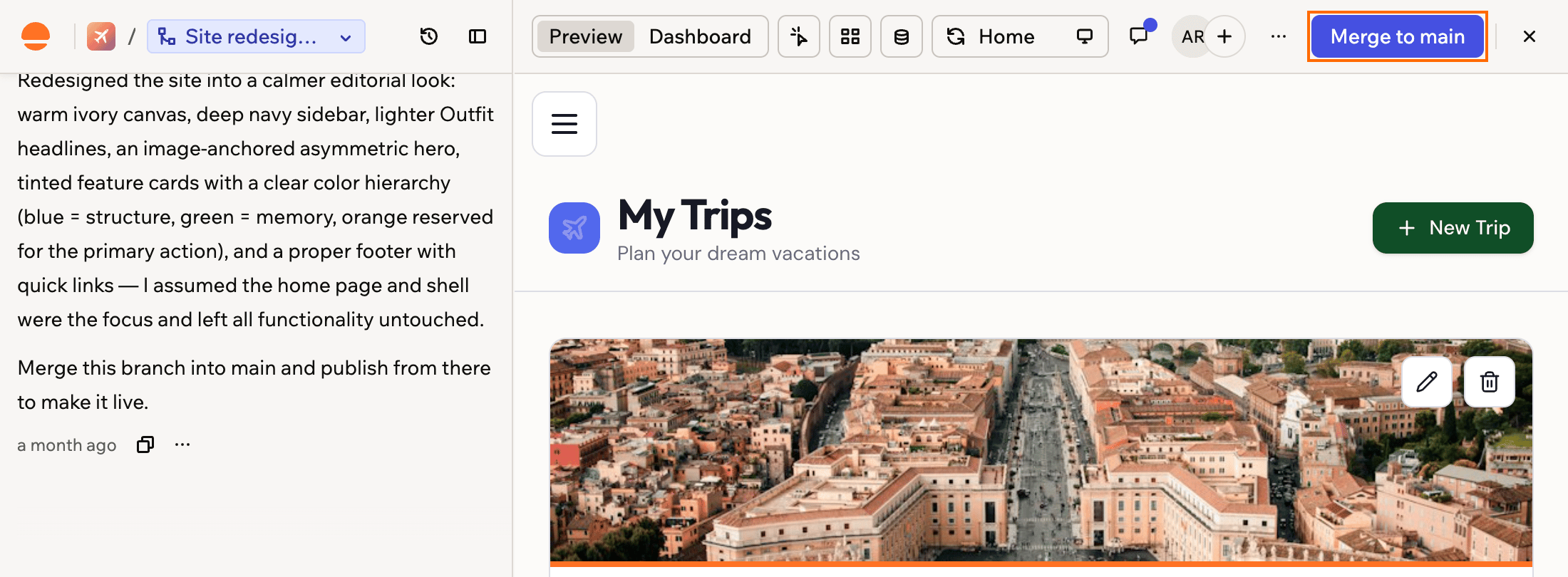
Working on a branch, with Merge to main in place of Publish
Switching branches
You can move between main and your branches at any time, and every branch keeps its changes until you merge it. On a branch, you can also click the X next to Merge to main to exit back to main. The icon next to each branch shows its current status. Hover over the icon to see the label:- Open your app in the app editor.
- Click Main, or the name of the branch you’re on, at the top of the AI chat.
- Select a branch from the list, or select Main chat to return to main.
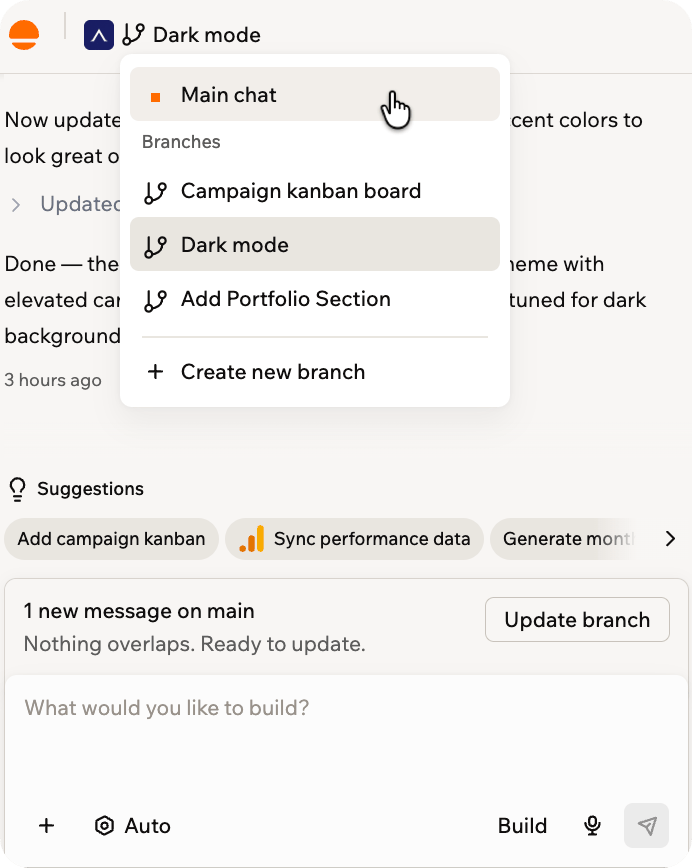
Switching between main and your branches
Joining a collaborator’s branch
When you work on an app with others, the avatars at the top of the app editor show which branch each person is on. You can jump straight to a collaborator’s branch, and when someone joins the branch you’re on, Base44 shows a short message saying they joined your branch. To join a collaborator’s branch:- Open your app in the app editor.
-
Hover over a collaborator’s avatar at the top of the app editor to see their name and branch.

A collaborator's avatar showing which branch they are on
- Click the avatar to open the branch they are on.
What stays on main
You do most of your building on a branch, but some actions affect your whole app, not just one branch. Those always happen on main, even while you’re working on a branch:- Publishing your app
- Creating or changing secrets, connectors, automations, and workflows
- Changing your app’s theme settings
- Undoing a message in the chat, or editing and resending one
- Adding a page from Figma
- Asking the AI to add, change, delete, or import records
Using test data
Test data lets you try things on a branch without touching your live records. Your app has 1 set of test data that main and every branch share, so a new branch doesn’t get its own copy and doesn’t start empty. It shows the same test records as main, and test records you add from any branch show up everywhere. The AI chat doesn’t add or change records from a branch. To have the AI add test data for you, ask it on main. To add test data while you work on a branch:- Open your app in the app editor.
- Click Main, or the name of the branch you’re on, at the top of the AI chat.
- Select your branch.
- Click Preview.
- Click the Turn on test data icon at the top of the preview.
- Add records as you use your app.
Entities
Some entity changes work on a branch, and others happen on main. On a branch, you can:- Create entities: You set everything, including the entity’s data permissions.
- Add fields to existing entities: Make new fields optional, because your existing records don’t have them yet.
- Remove an entity or a field.
- Change an existing field’s type, or whether it’s required.
- Change data permissions.
Backend functions
You can add and change backend functions on a branch. The branch gets its own copy of each function you change, including any shared code it uses. When you merge the branch, your changes are deployed to main. Which version of a function runs in the branch preview depends on who’s using it:- You or an editor, signed in to the app: The branch’s version.
- Anyone else, such as a signed-out visitor or an app user: The version from your last publish. A flow that relies on one of them can’t use the branch’s changes until you merge and publish.
- Your app’s first backend function is created on main. After that, you can work on functions from a branch.
- In an app imported from GitHub, backend changes always happen on main.
In-app agents
You can create, edit, and delete in-app agents on a branch, from the AI chat or from the Agents page in your app’s dashboard. On a branch, the Agents page shows the branch’s agents, and your changes stay on the branch until you merge it. Your app, including the branch’s preview, keeps running main’s agents until then. If your app’s main branch is protected, the agent editor on main is view-only. To make changes, create a branch. When you click Add Agent on main and send the request, Base44 moves it to a new branch for you.Code
The Code tab shows your app’s files as they are on the branch you’re on. You can edit them there, and what you save stays on the branch until you merge it. Most files save straight to the branch, including the files behind your pages, layout, styling, and backend functions, so main stays untouched. A few files change your whole app, not just one branch. If you try to save one of these, Base44 stops the save and tells you what to do instead:- Entity files: Ask for the change in the branch’s chat, or switch to main. See entities on a branch for what a branch can change on its own.
- Anything that would change your live app: Make the change on main, and your branch picks it up with no merge needed.
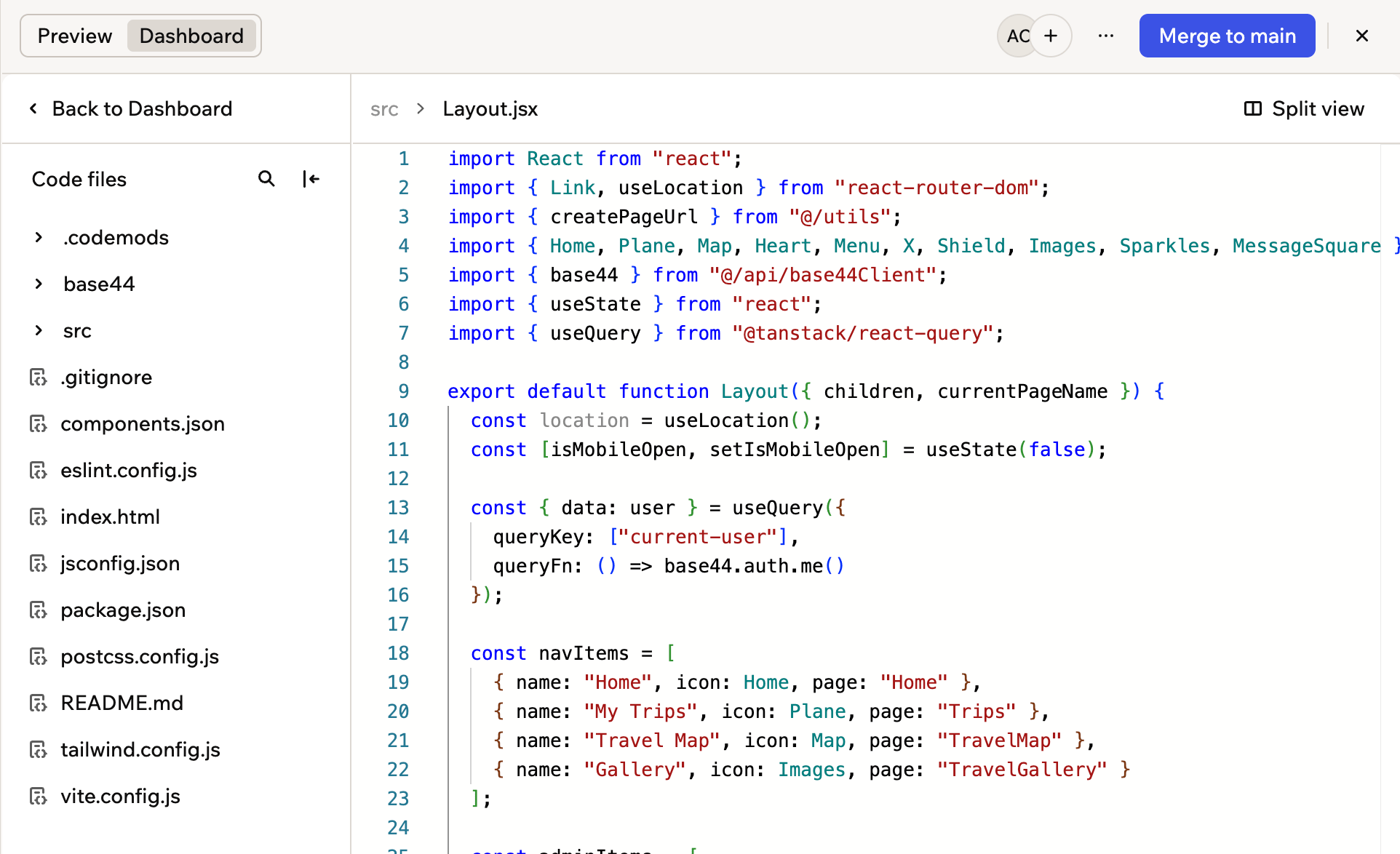
The Code tab on a branch, showing that branch's own files
- It happens on main: When you edit a backend function on main, you save it with Save & Redeploy. On a branch, the button is Save, so switch to main to redeploy a function.
- Your live app keeps its published version: Redeploying updates the function in your preview and when you test it in the editor. Your live app keeps running the version from your last publish until you publish again.
- Publishing sends everything on main live: You can’t publish one function on its own. When you publish, all your changes on main go live together, including the redeployed function.
- Automations and workflows use the new version right away: When an automation or workflow calls the function, it runs the latest version without a publish.
Using version history
Each branch has its own version history. Use it to look back at how the branch developed, compare it with main, and return to any earlier point.Restoring a version
Restoring a version changes that branch only. Main stays exactly as it’s.- What goes back: The branch’s pages, design, entities, and backend functions return to that version, and its chat returns to the message that created it.
- What stays: Your records, because they’re shared with main. Your later versions also stay in the list, so you can move forward again.
- Open your app in the app editor.
- Click Main, or the name of the branch you’re on, at the top of the AI chat, then select the branch.
- Click the Version History icon at the top of the chat panel.
- Click a version in the list to load it in the preview.
- Click the More options icon next to that version.
- Click Revert to this version.
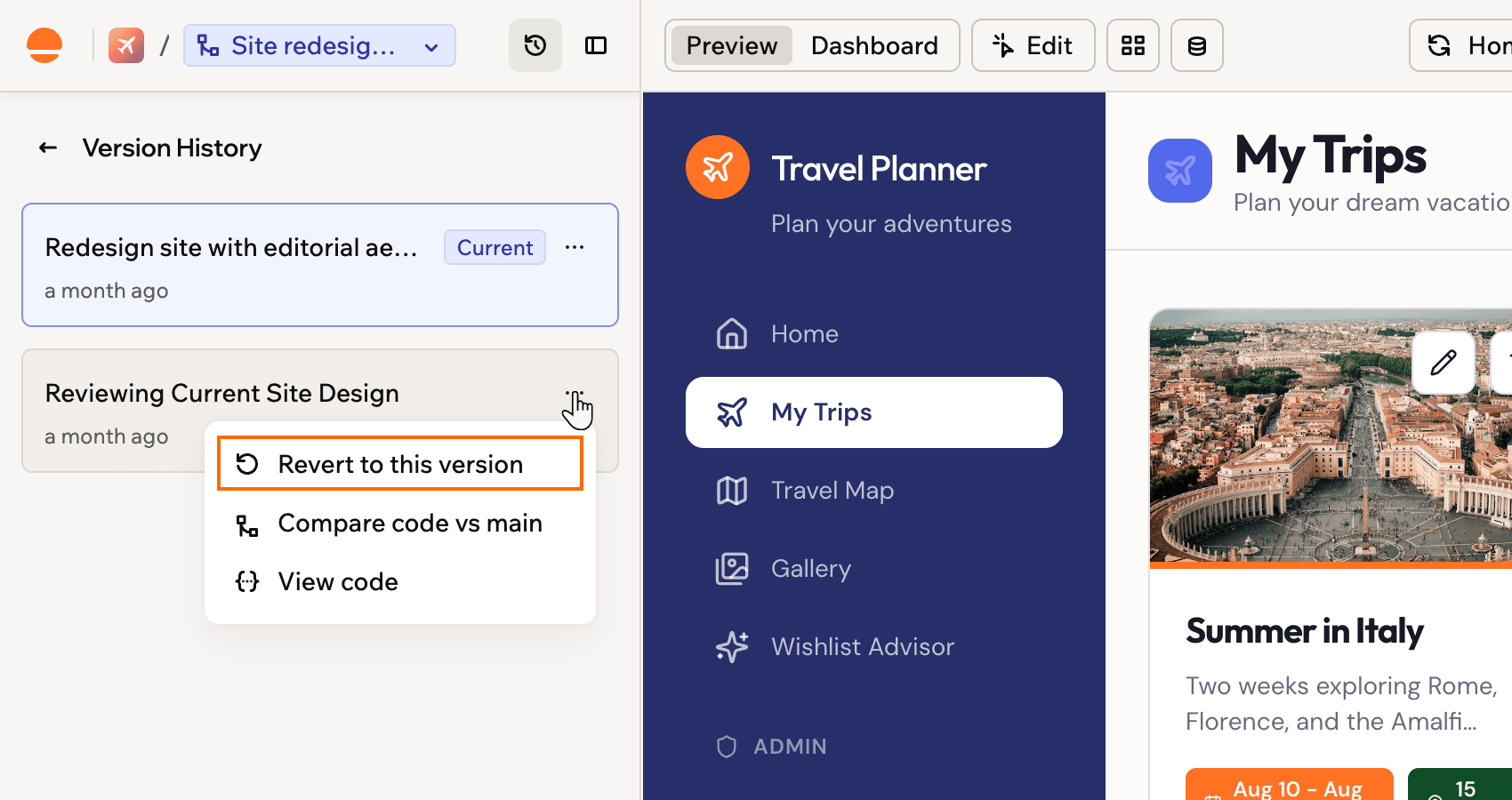
Restoring an earlier version of a branch
- Publish this version is available on main only, because publishing always ships your main app. To release work from a branch, merge it into main and publish from there.
- Restore a version once the branch has finished building and any update from main is complete. If the branch is busy, Base44 tells you so, and you can restore as soon as it finishes.
Comparing with main
Before you merge, you can check exactly how a version’s code differs from main. Base44 opens a Changes compared with main window that lists every file that differs and what changed in each one. To compare a branch version with main:- Open your app in the app editor.
- Click Main, or the name of the branch you’re on, at the top of the AI chat, then select the branch.
- Click the Version History icon at the top of the chat panel.
- Click the More options icon next to the version you want to compare.
-
Click Compare code vs main.
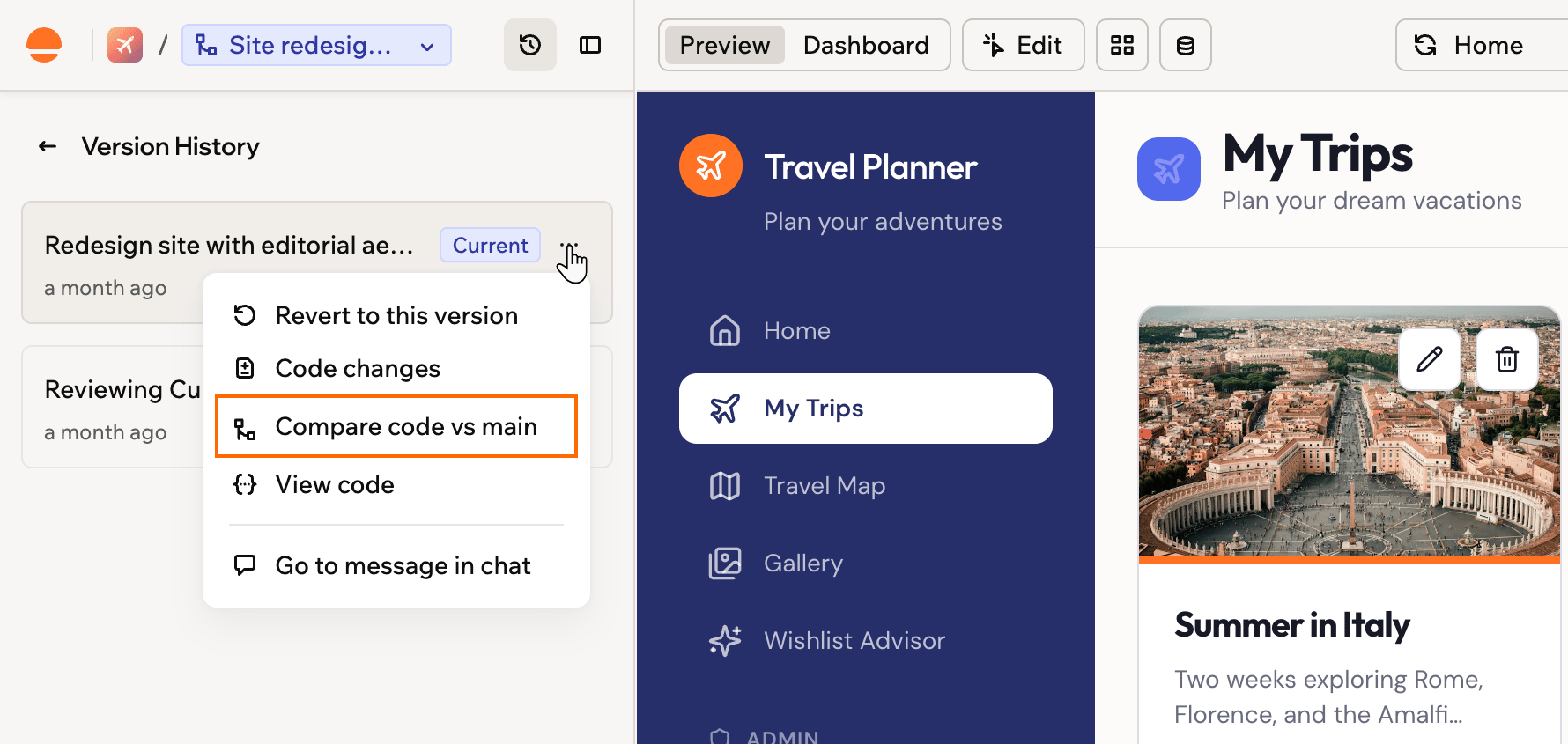
Comparing a branch version with main
-
Click a file in the list to see what changed in it.
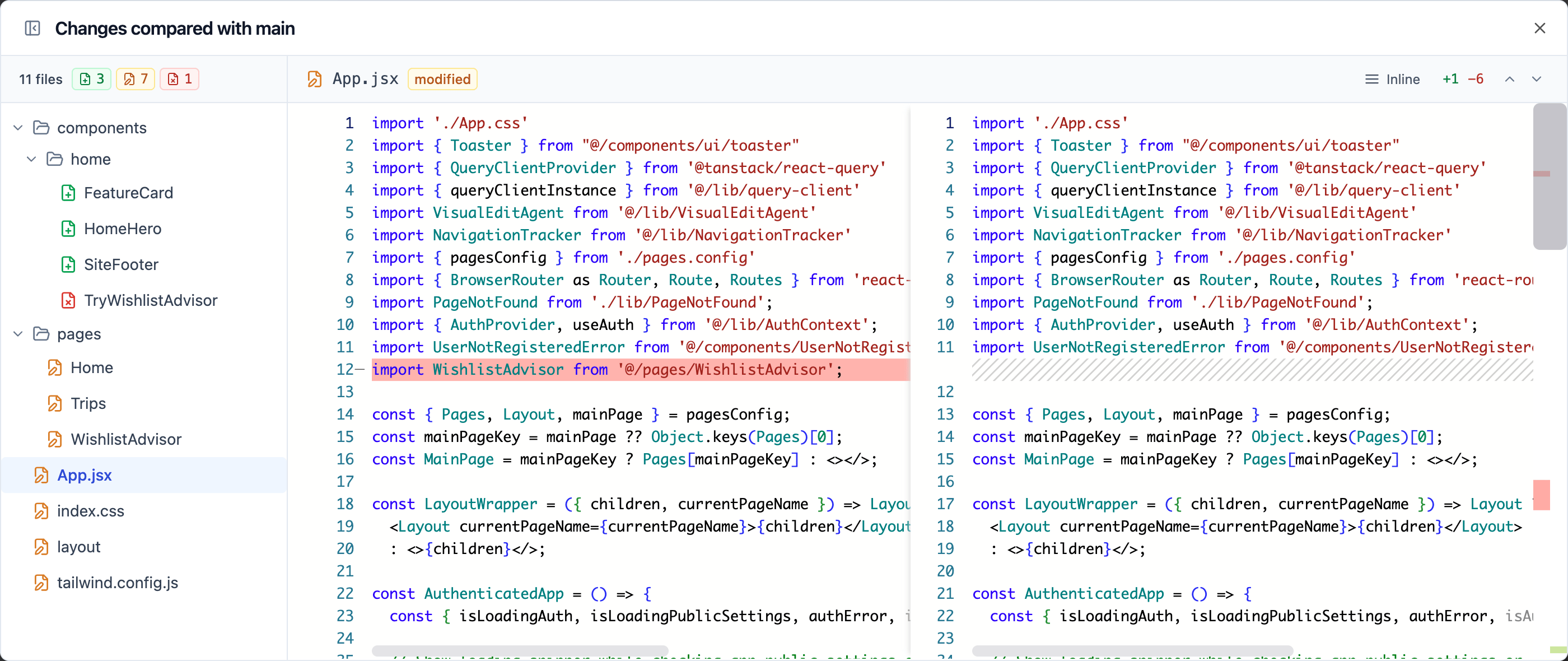
The Changes compared with main window
Updating from main
If main changes while your branch is open, a card appears above the chat box on the branch. It tells you how much changed on main and whether any of it overlaps with your branch. When you update, the AI combines main’s changes with your branch. If some changes overlap, the AI resolves them for you. If the 2 versions genuinely conflict, the AI asks you a question in the chat so you can decide what to keep. You can also start an update from the branch menu. Click the More actions icon next to a branch, then click Update from main. To bring main’s latest changes into your branch:- Open your app in the app editor.
- Click Main, or the name of the branch you’re on, at the top of the AI chat, then select the branch.
- Click Update branch on the update card above the chat box.
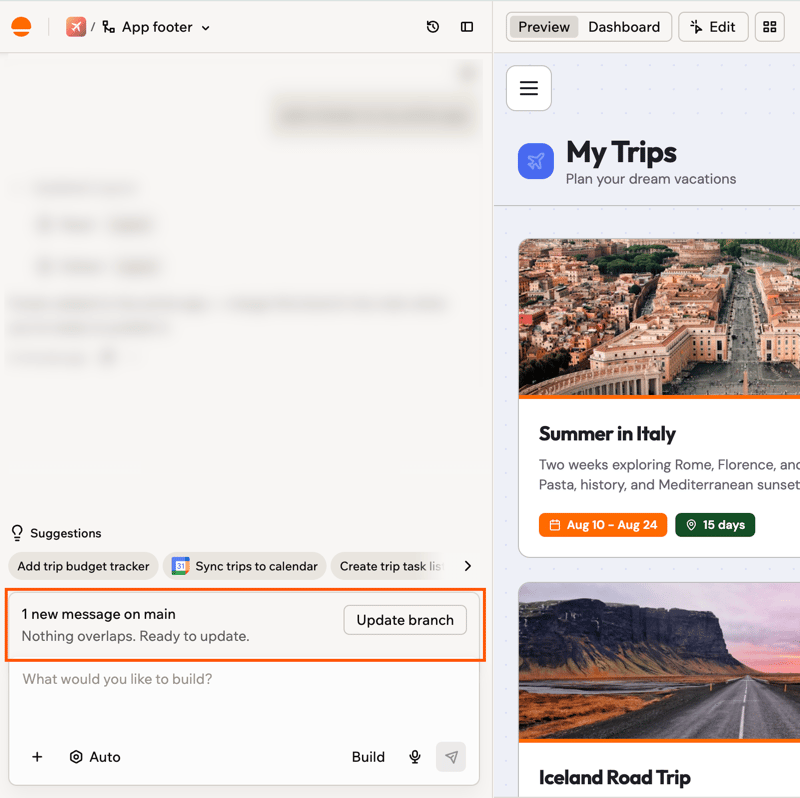
The update card that appears above the chat box when main has changed
Merging into main
Merging brings everything you built on the branch into main. Your changes only reach your app’s users when you publish from main, so you decide what goes out and when. On an app imported from GitHub, you merge through a pull request instead. See working with pull requests. After the merge:- Main’s chat shows a summary of the branch’s changes.
- The branch stays in your branch list as merged. You can still read its chat, but its code is read-only, and its preview shows main as it’s now.
- To ask about the branch’s work, open it and close the notice. The AI chat reopens in Discuss mode, so the AI can answer questions about the branch’s code without changing it. To go back, click Open main chat.
- Open your app in the app editor.
- Click Main, or the name of the branch you’re on, at the top of the AI chat, then select the branch.
- Click Merge to main under the AI’s latest reply or at the top of the editor.
- Review the confirmation, then click Merge to main.
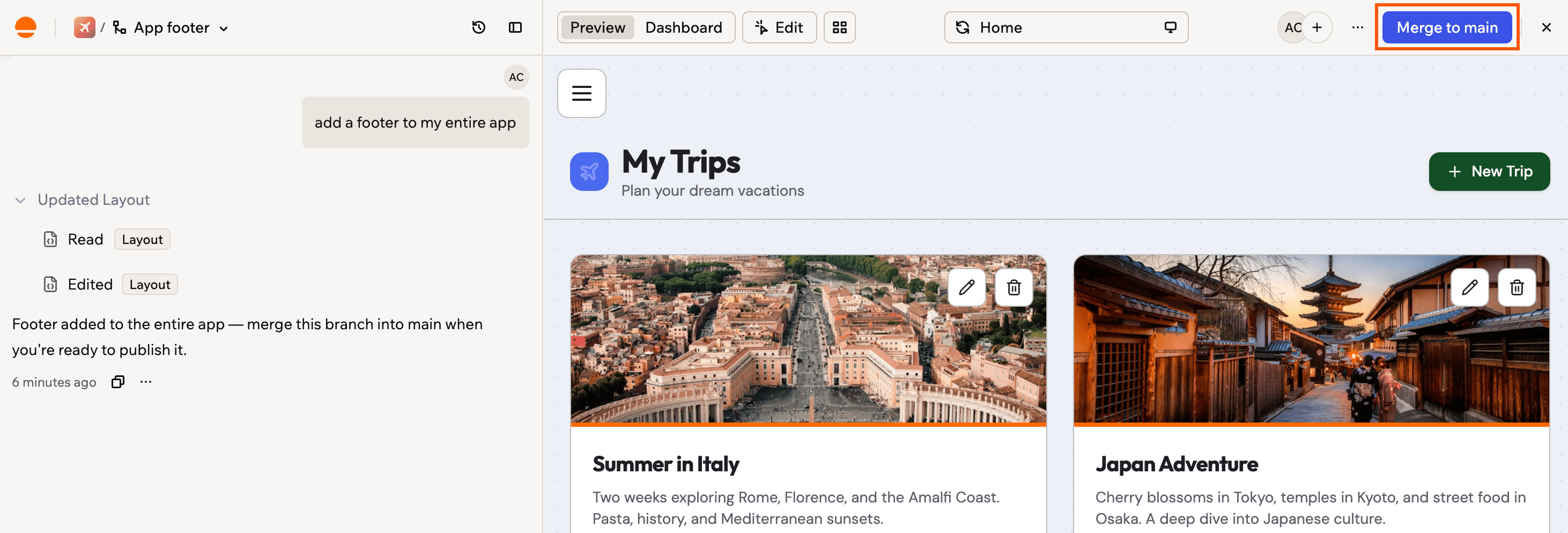
Click Merge to main at the top of the editor, then publish from main when you're ready
Deleting a branch
Delete a branch when you’re done with an idea and want to clear it from your list. Your app and your other branches stay as they are. To delete a branch:- Open your app in the app editor.
- Click Main, or the name of the branch you’re on, at the top of the AI chat.
- Click the More actions icon next to the branch you want to delete.
- Click Delete.
- Review the confirmation, then click Delete branch.
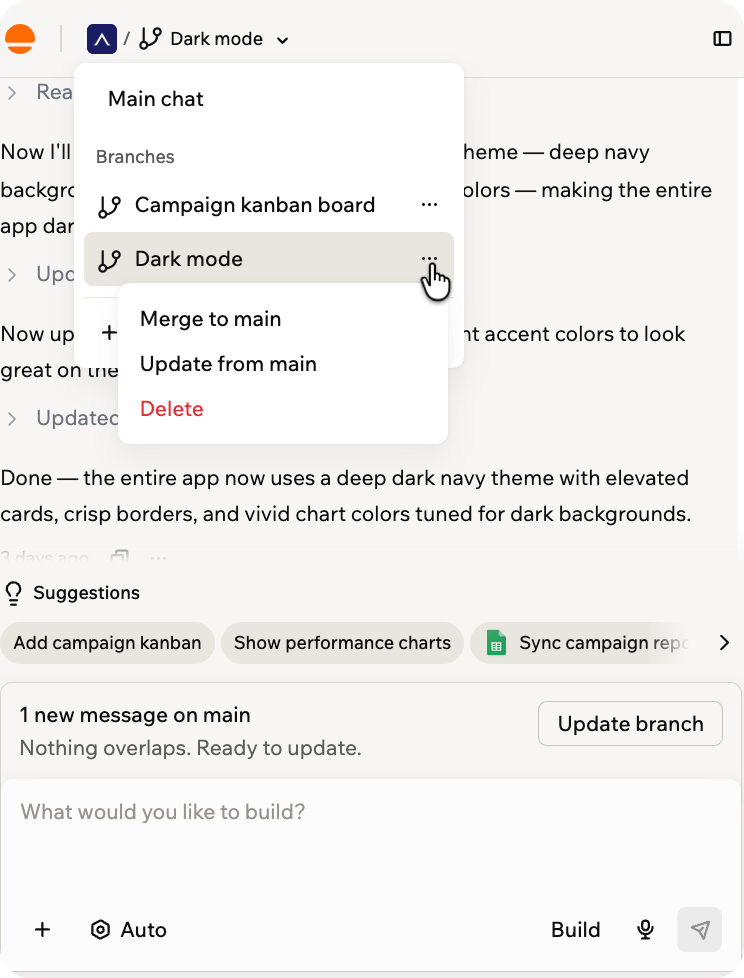
Opening the More actions menu on a branch
FAQs
Find answers to common questions about branches.How many branches can I have?
How many branches can I have?
Can my team and I work on different branches at the same time?
Can my team and I work on different branches at the same time?
Do branches use extra credits?
Do branches use extra credits?
Can I connect my app to GitHub while I have branches?
Can I connect my app to GitHub while I have branches?
Can I use branches on an app I migrated into Base44?
Can I use branches on an app I migrated into Base44?