

Using the AI chat to set permissions
You don’t need to configure permissions manually. Tell the AI chat how your app should work in plain language, and it sets up the right rules for you. This works when you are first building your app and at any point later when your needs change. If it needs to update existing rules, it asks for your approval first. Here are some examples of prompts you can use:Customizing permissions manually
If you want to review or fine-tune the permissions on a specific data table, you can do that from the table’s Permissions page in your dashboard. The page opens in a read-only view showing your current rules. Click Edit to make changes. To customize permissions for a data table:- Click Dashboard in your app editor.
- Under Data, click the table you want to manage.
- Click Permissions in the top right of the page. If there are permission issues, you see a warning icon on the button.
- Click Edit to open the Configure permissions panel.
- Check the boxes for the actions you want each rule to cover: Create (add records), Read (view records), Update (edit records), and Delete (remove records).
- If you check a box for Entity-User Field Comparison, enter the field from this table to compare in Entity field, then choose the matching user property from the User field dropdown.
- If you check a box for User Property Check, choose the user property from the User property dropdown and set the required value.
- Click Save.

Managing permissions for your data
Permission rule types
You do not usually need to add rules manually. The AI sets them up when it creates your data tables, and the Permission recommendations panel suggests fixes when something looks off. This section is here if you want to understand what each rule does before applying a recommendation, or if you need to fine-tune something specific.How Entity-User Field Comparison works
This rule checks whether a field on the record matches a property of the signed-in person’s account. If they match, access is granted. You set 2 things:- Entity field: The name of a field that already exists on this data table. To find your field names, go to Dashboard, click the table under Data, and look at the columns listed there. Type the field name exactly as it appears. For example,
assigned_toorowner_email. - User field: The property from the signed-in person’s account to compare it with, selected from a dropdown. For example, their email address.
assigned_to field that stores the email of whoever the task belongs to. Set Entity field to assigned_to and User field to email. Now each person only sees the tasks assigned to them.
You can add multiple Entity-User Field Comparison rows if you need to match on more than one field pair.
How User Property Check works
This rule checks a property on the signed-in person’s account and grants access only if it matches a value you set. You set 2 things:- User property: The account field to check, such as User Role, User Email, or Full Name.
- Required value: The value it must match. For User Role, you can choose Admin or User from a dropdown. For other fields, you type the value directly.
Applying permission recommendations
If the AI detects a potential risk in your current setup, a Permission risks detected banner appears directly on the data table page. It shows a summary of the risk and the recommended fix. You can act on it in 2 ways:- Click Fix to go straight to the recommendations and apply them in one step.
- Click More details to open the full Permission recommendations panel, where you can review the changes before applying them.

A permission issue on a table

Permission recommendations panel
Testing your permissions
After you change a table’s permissions, test them to check that each person can reach only what they should. Testing opens your app’s preview as the people you choose, so you see your rules the way they do. Changes you make while testing are saved to that person’s data, so test with sample people where you can. To test your permissions:- Click Dashboard in your app editor.
- Under Data, click the table you want to test.
- Click Permissions in the top right of the page.
- Click Edit, change the rules, and click Save. Learn more about customizing permissions manually.
- Click Test Permissions in preview, next to Edit. Your app’s preview opens on a page that uses this table, with the list of people already open.
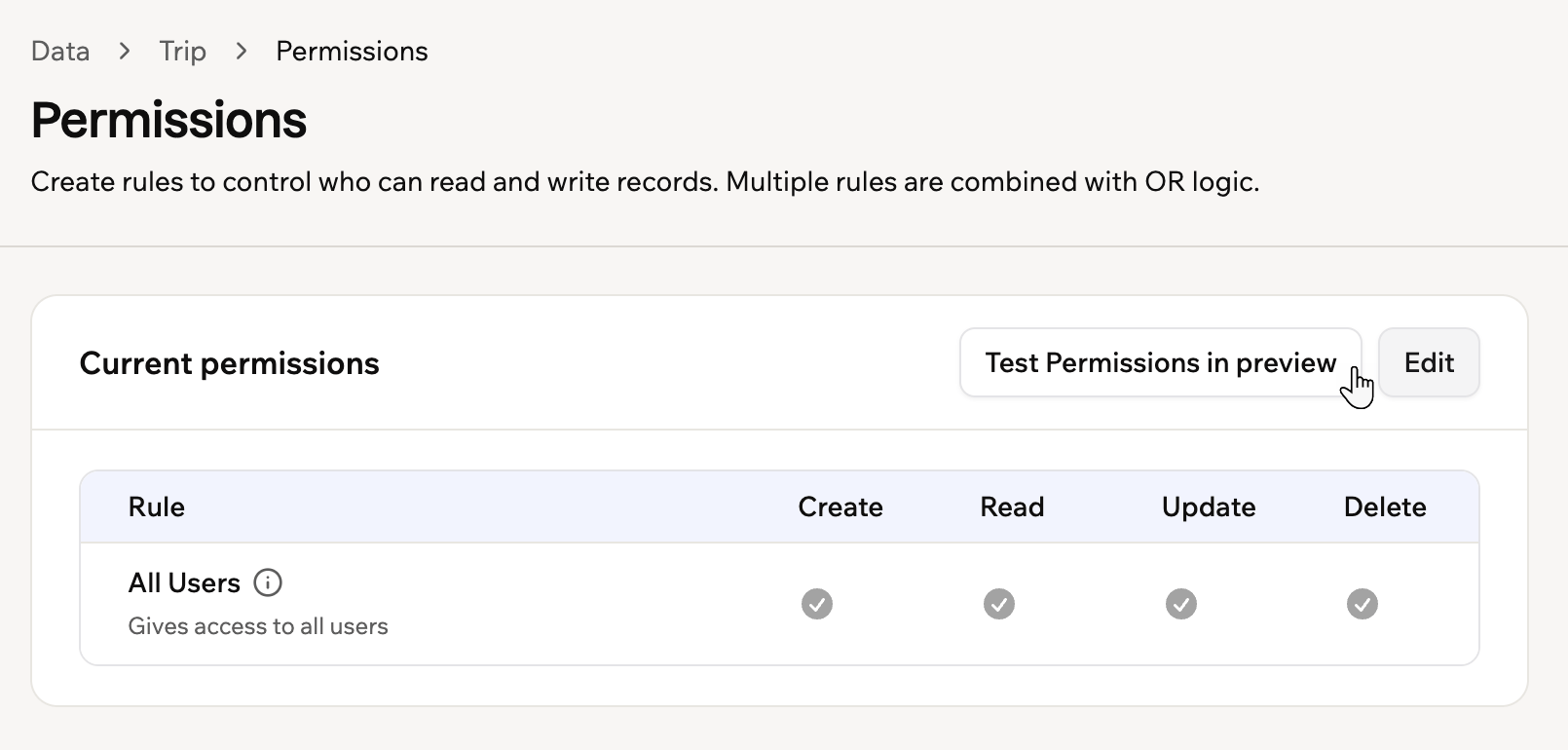
Testing your permissions after you save them
- Select a person to see the app as them.
- Check what they can see and do. To compare, select someone else from the drop-down next to You’re acting as.
- Click Exit mode when you’re done.
Permission examples by app type
Not sure how to set up permissions for your app? Use these common scenarios as a starting point. You can also ask the AI chat to review your setup and suggest the right rules.Public site with a contact or inquiry form (for example, a business landing page)
Public site with a contact or inquiry form (for example, a business landing page)
- App visibility: Public.
- Require login: No.
- Permissions: For the form submissions table, use All Users on Create so anyone can submit. Use User Property Check on Read, Update, and Delete, restricted to your admin role, so only your team can view and manage the incoming messages.
Internal team dashboard (for example, HR, sales, or project tracking)
Internal team dashboard (for example, HR, sales, or project tracking)
- App visibility: Workspace.
- Require login: Yes.
- Permissions: Use User Property Check to restrict sensitive tables, such as salary data or performance reviews, to a manager role. For general content like announcements or shared resources, use All Users on Read so the whole team can view it.
User portal (for example, an expense tracker or personal dashboard)
User portal (for example, an expense tracker or personal dashboard)
- App visibility: Public or Workspace, depending on whether you want open sign-up or invite-only access.
- Require login: Yes.
- Permissions: Use Creator Only on Read, Update, and Delete for every personal data table. This ensures each person can only access records they created.
Blog or content site with private editing
Blog or content site with private editing
- App visibility: Public.
- Require login: No, unless you want to gate certain content.
- Permissions: Use All Users on Read so anyone can view content. Use User Property Check on Create, Update, and Delete, restricted to your editor or admin role, so only your team can manage content.
Multi-tenant app (for example, a SaaS platform or school system)
Multi-tenant app (for example, a SaaS platform or school system)
- App visibility: Public or Workspace, depending on your setup.
- Require login: Yes.
- Permissions: Use Entity-User Field Comparison to match a field on each record to a property on the signed-in person’s account. For example, if each record has a
company_idfield and each user account has a matchingcompany_idproperty, set Entity field tocompany_idand User field tocompany_id. Each person only sees records that belong to their company. For admin access within a group, combine this with a User Property Check on the admin role.
FAQs
Do I need to set up permissions myself?
Do I need to set up permissions myself?
Why aren't my permissions restricting access correctly?
Why aren't my permissions restricting access correctly?
Will changing permissions affect people already using my app?
Will changing permissions affect people already using my app?
Can I create more roles than just user and admin?
Can I create more roles than just user and admin?
department or access_level) to your User table and define values like manager or viewer. Then use User Property Check rules on that field to give each role the right level of access. You can ask the AI chat to set this up for you.Can I restrict access to specific fields in a record?
Can I restrict access to specific fields in a record?
The permissions editor is showing JSON instead of the rule matrix. What happened?
The permissions editor is showing JSON instead of the rule matrix. What happened?
I changed permissions through the API, and my change disappeared. Why?
I changed permissions through the API, and my change disappeared. Why?