

About the template marketplace
The template marketplace is your shortcut to building great apps on Base44. Browse a wide range of ready-made templates created by talented creators in the community. If you are unsure where to start or want to skip hiring a partner, templates make it easy to get going right away. Just choose a template and customize it to fit your needs. If you prefer to keep templates private to your team, you can create workspace templates instead of listing them publicly. Workspace templates reuse your app across a single workspace without appearing in the public marketplace. Learn how to create and manage workspace templates. You can also publish your own public templates for others to use, reaching a wider audience while showcasing your skills. For internal-only use, keep templates as workspace templates so they are available only to your team.Accessing templates
Go to App Templates in the Community tab in your workspace to browse all available templates. Templates with reviews display an average rating to help you evaluate them before choosing one. App Templates include:- Community: Templates shared by the community and available to all Base44 users.
- Workspace: Templates created and saved by your team. Workspace templates are private to your workspace, and only members of your workspace can see them.
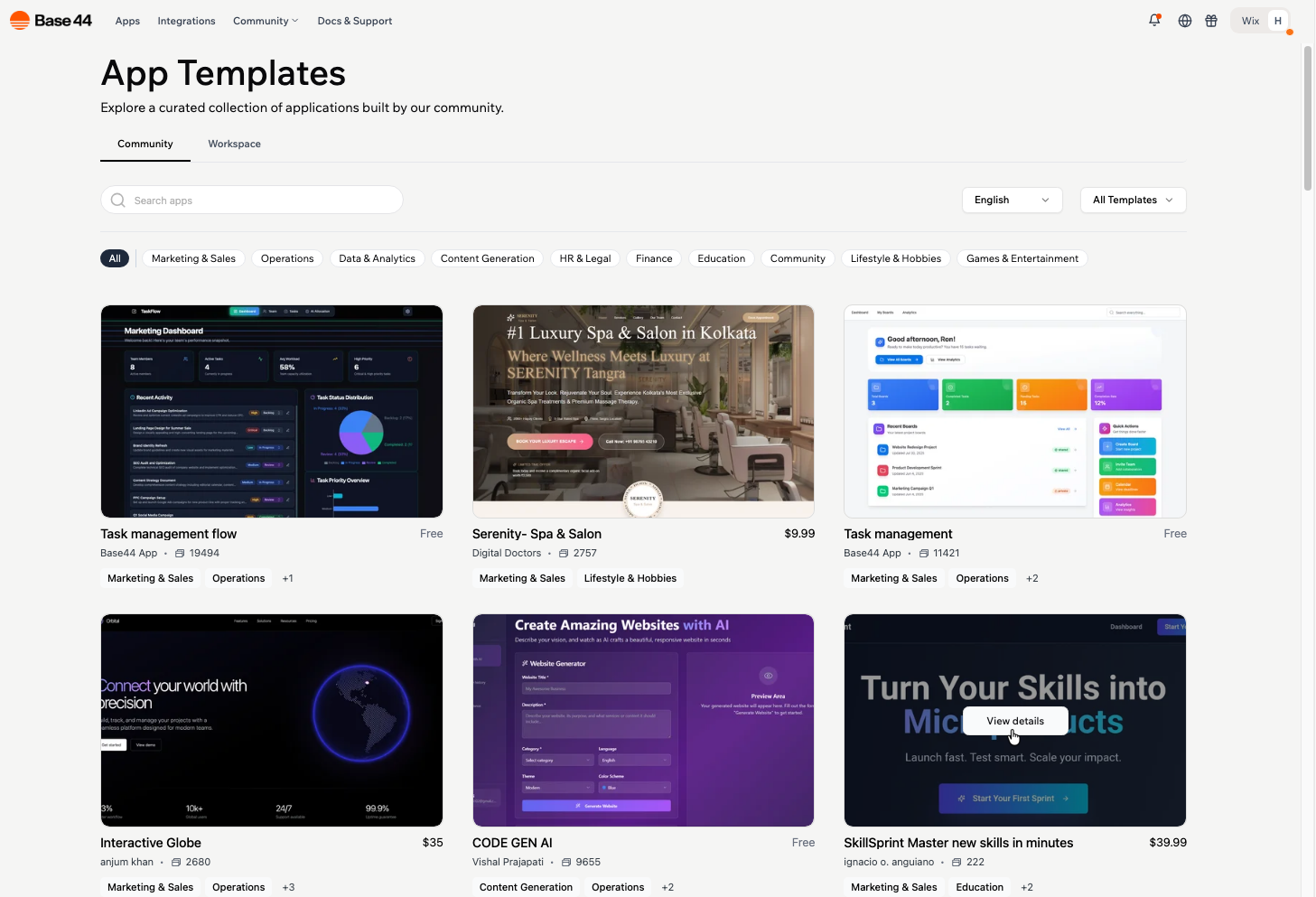
App Templates in Base44
- In your Base44 workspace, go to App Templates.
- Hover over a template and click View details to see more information, images, usage stats, ratings, and reviews.
- (Optional) Use the Workspace tab to view templates created and saved in your workspace. These templates are only visible to members of your workspace.
- Click Use Template.
Creating public templates
You don’t need to create something complex to share as a public template. Simple apps, reusable layouts, or creative tools can all be helpful to others. If you have made something useful or fun, you can add it to the community app templates library. You can share your template with the whole Base44 community for free. Before you start, check that your app qualifies. You need to own the app and have published it at least once, and you need to be an admin of the workspace that owns it. An app you started from someone else’s template cannot be listed again. When someone uses your template, it is copied into their workspace and your original app stays the same. Base44 works out what kind of app you have and suggests a category for you, so check the suggestion fits before you publish, and add any others that apply. Categories are how people find your template, so pick the ones that genuinely describe it rather than casting the net wide. You start a template from your app’s dashboard settings.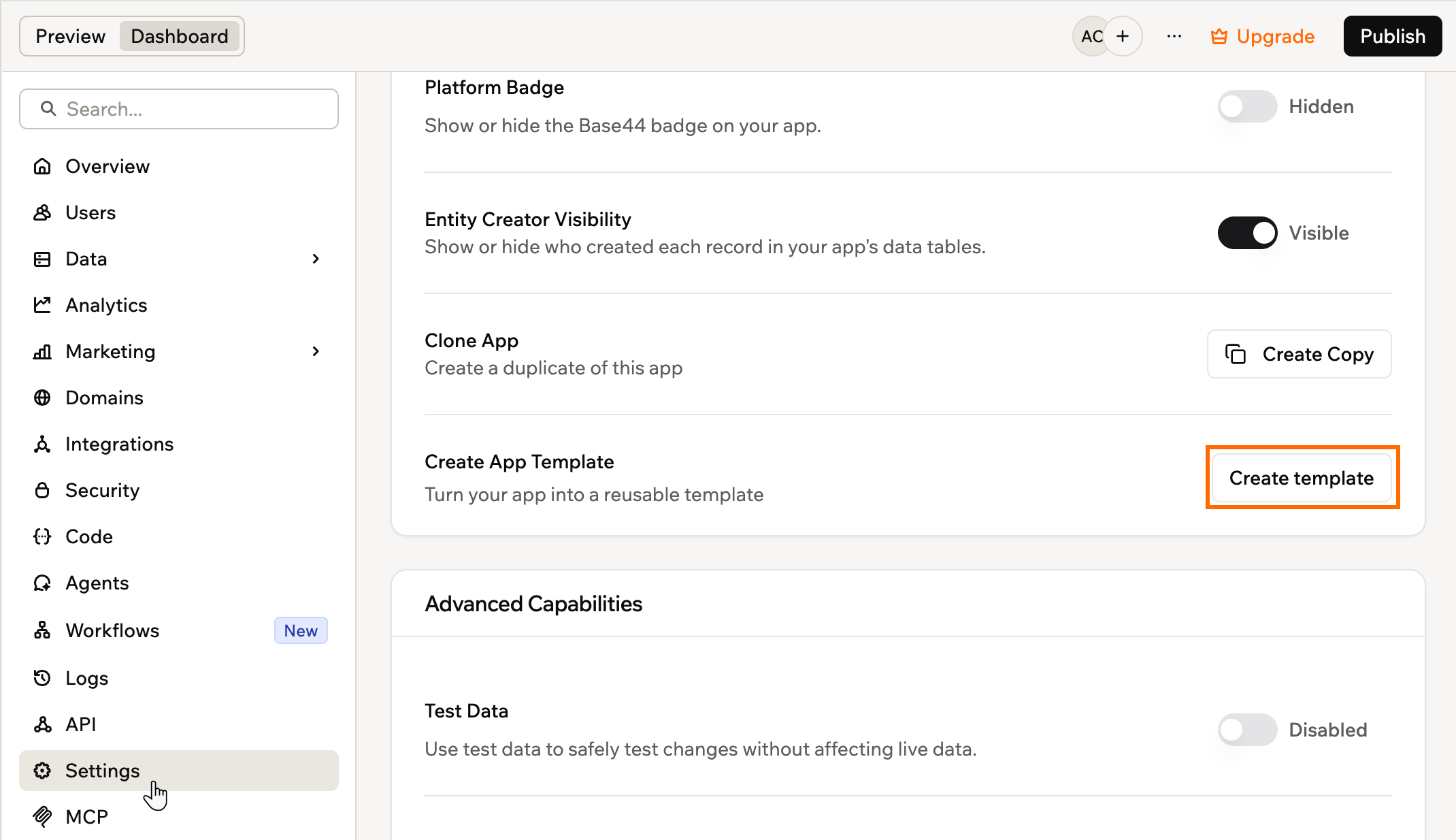
Creating a template from your app's settings
- Click Dashboard in your app editor.
- Click Settings.
- Next to Create App Template, click Create template.
- Select Public template, then click Continue.
- Under Basic info, enter a Template name and a Description of what makes your app worth trying.
- Under Categories, click Choose categories and subcategories and select at least one. Expand a category to see its subcategories, then click Done.
- Under Template screenshots, click Add screenshot and upload at least 3 screenshots, up to 7.
- Select the I agree to the Base44 Terms and Marketplace Terms checkbox.
- Click Create template at the top right.
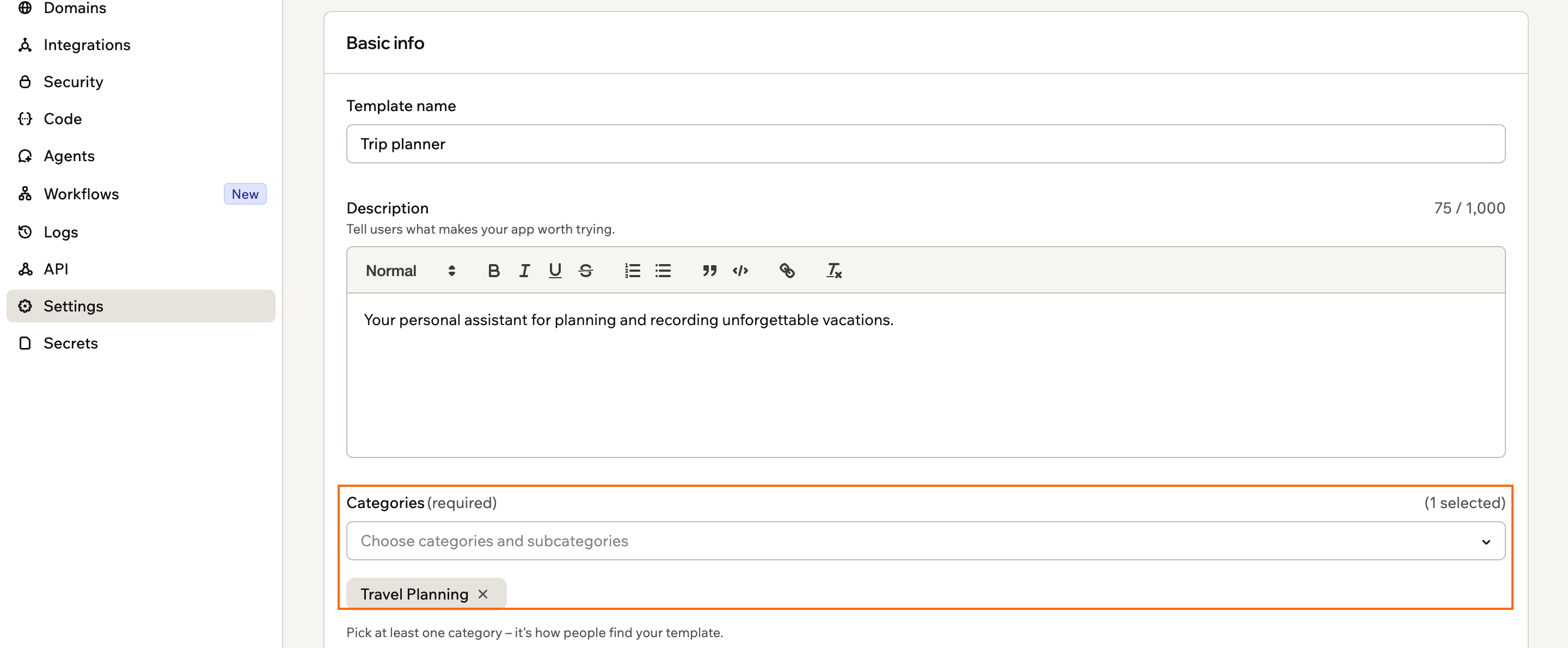
The public template listing form
Screenshot guidelines
- Your first screenshot is the template’s cover and must be 16:9, such as 1920x1080. Use the crop icon if it is not.
- To take fresh captures, click Preview app to open your published app.
- Show your app in action with real-looking data, and use clean, full-screen views.
- Avoid blurry or empty screens.
Improving your listing
If you want your template to stand out, start by focusing on solving a clear problem for others and choosing a catchy title. Add a helpful image and description that show your app in action and make its purpose easy to understand. The most successful templates have clear and friendly language, and include strong visuals that highlight your app’s value.Tips for improving your listing
Description:
- Say clearly what your app is for and who it helps
- Use short, friendly sentences
- Avoid overly technical or complex language
- Pick the categories that genuinely describe what your app does, like productivity or e-commerce
- Only choose categories that match your app, because a mismatch is a common reason listings are declined
The approval process
After you submit your listing, the Base44 team reviews it to make sure it meets community guidelines. Listings that don’t follow these guidelines may be rejected. If your app is approved, it appears in App Templates for others to discover and use. Base44 may decline or remove a listing if:- Spam or broken: The app listing is spam or is not functioning.
- Private setting: The app is set to private, which prevents others from viewing it.
- Community rules violation: The app includes content that breaks community rules.
- Screenshots do not match: The submitted screenshots do not reflect the actual appearance or features of the app.
- Missing security settings: Apps must complete a security check to be eligible for publishing.
- Broken functionality: Some features in the app are not working as intended.
- Invalid or non-compliant app name: The app name uses terms like “template,” version numbers, or other values not allowed by store policy.
- Duplicated app without chat: If your app is a duplicate and does not include chat functionality, please send the original app with chat history.
- Mismatched categories: The categories selected do not match the app’s purpose or functionality.
- App has never been published: Apps must be published at least once before being submitted for review.
Updating your template
Your template stays linked to the app you created it from, so what you need to do depends on what changed.- App functionality or design: Publish your app as usual. Anyone who uses your template from then on gets the latest version, and you do not need to resubmit it.
- Listing details: Changes to the name, description, categories, or screenshots go back through review before they appear in the catalog.
Either way, people who already added your template keep their own copy, and your changes do not reach it.
- Click Dashboard in your app editor.
- Click Settings.
- Next to App Template, click Submit Update.
- Make your changes to the listing.
- Click Submit Update to confirm.
You cannot submit another update while a previous one is still in review.
Managing your listings
From your app’s dashboard you can manage your template listing. To manage a template listing:- Go to your app’s editor.
- Click Dashboard.
- Click Settings.
- Click App Template.
- Choose what you want to do:
- See your app in the marketplace: Click the More actions icon and click See on App Templates.
- Remove your template from the marketplace: Click the More actions icon and click Remove from App Templates.
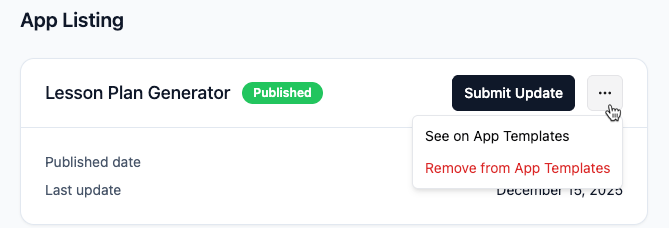
Managing your app template listing on Base44
FAQs
Click a question below to learn more.Can I still sell my templates?
Can I still sell my templates?
We are in the process of removing the option to sell templates. Paid templates stay available until 30 September 2026, and we unlist them after that date. You can still share your templates with the community for free, and anything you publish stays in App Templates for others to find and use.
Can I see how many people used my template?
Can I see how many people used my template?
Yes! When you click your template in App Templates, you can see how many times your app has been used.
Can I publish multiple templates?
Can I publish multiple templates?
Yes, you can publish any number of templates, and each listing is reviewed individually to ensure it meets Base44’s guidelines.
Where can I see all my template listings?
Where can I see all my template listings?
In App Templates, click the My Templates tab to see the listings you created. Templates that other people shared in your workspace are on the Workspace tab.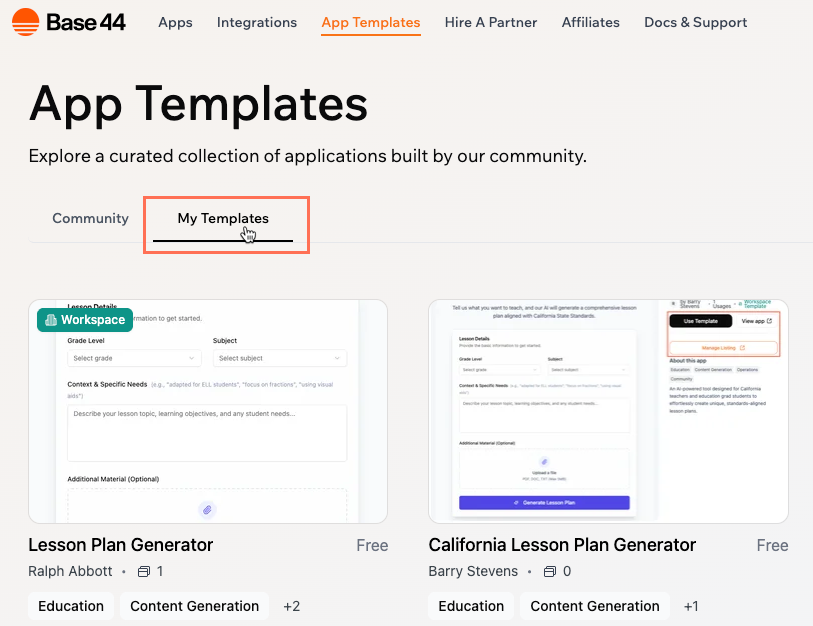
If I remove my template listing, does it affect people who already used it?
If I remove my template listing, does it affect people who already used it?
No, removing or hiding your template does not impact anyone who has already added it to their workspace.
What happens if my template has backend functions and secrets?
What happens if my template has backend functions and secrets?
For a public template, backend functions and secrets do not transfer. Each user sets up their own in their own workspace, for security and privacy.For a workspace template you can choose otherwise. Use Integration secrets on the listing form to pick which API keys and secrets are copied when a member clones it. See creating and using workspace templates.
What happens if my template uses paid third-party integrations or APIs?
What happens if my template uses paid third-party integrations or APIs?
If your template uses paid third-party services, anyone who adds your template to their workspace needs to set up their own accounts and connect those services themselves.
Can I limit the number of apps a user can create from my template?
Can I limit the number of apps a user can create from my template?
No. Once someone adds your template, they can create as many copies as they wish.