

Connecting a payment method
Ask the AI chat to connect a payment method, then follow the steps below to complete your setup.Step 1 | Connect payments
- Go to your app editor.
- Ask the AI chat to set up payments. For example:
- Click Connect Payments.
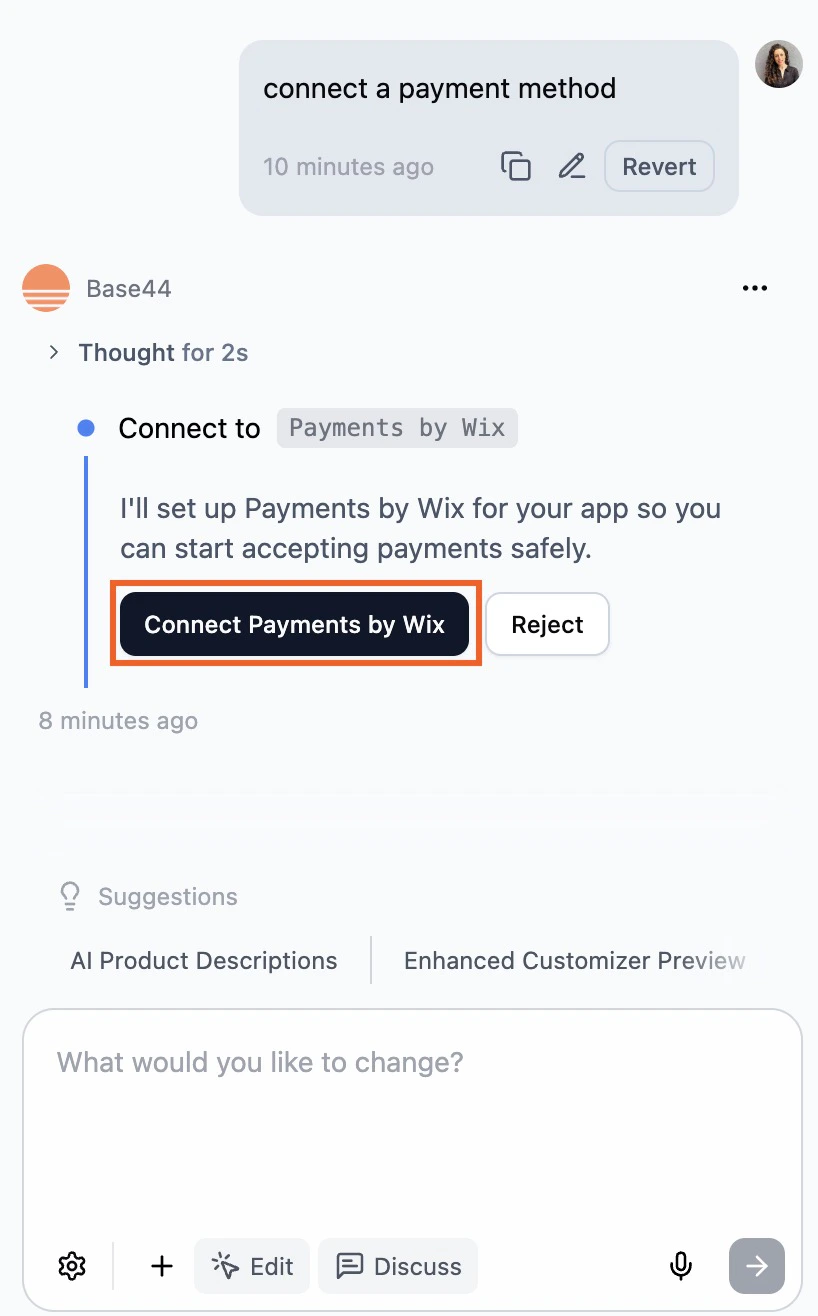
Connecting payments in your Base44 app for Israel
Step 2 | Choose a payment method
- Click Dashboard.
- Click Overview.
- Click Manage next to Payments to open the Payments dashboard.
- Click Manage Payment Methods.
- Click Connect next to your preferred payment method and follow the steps below.
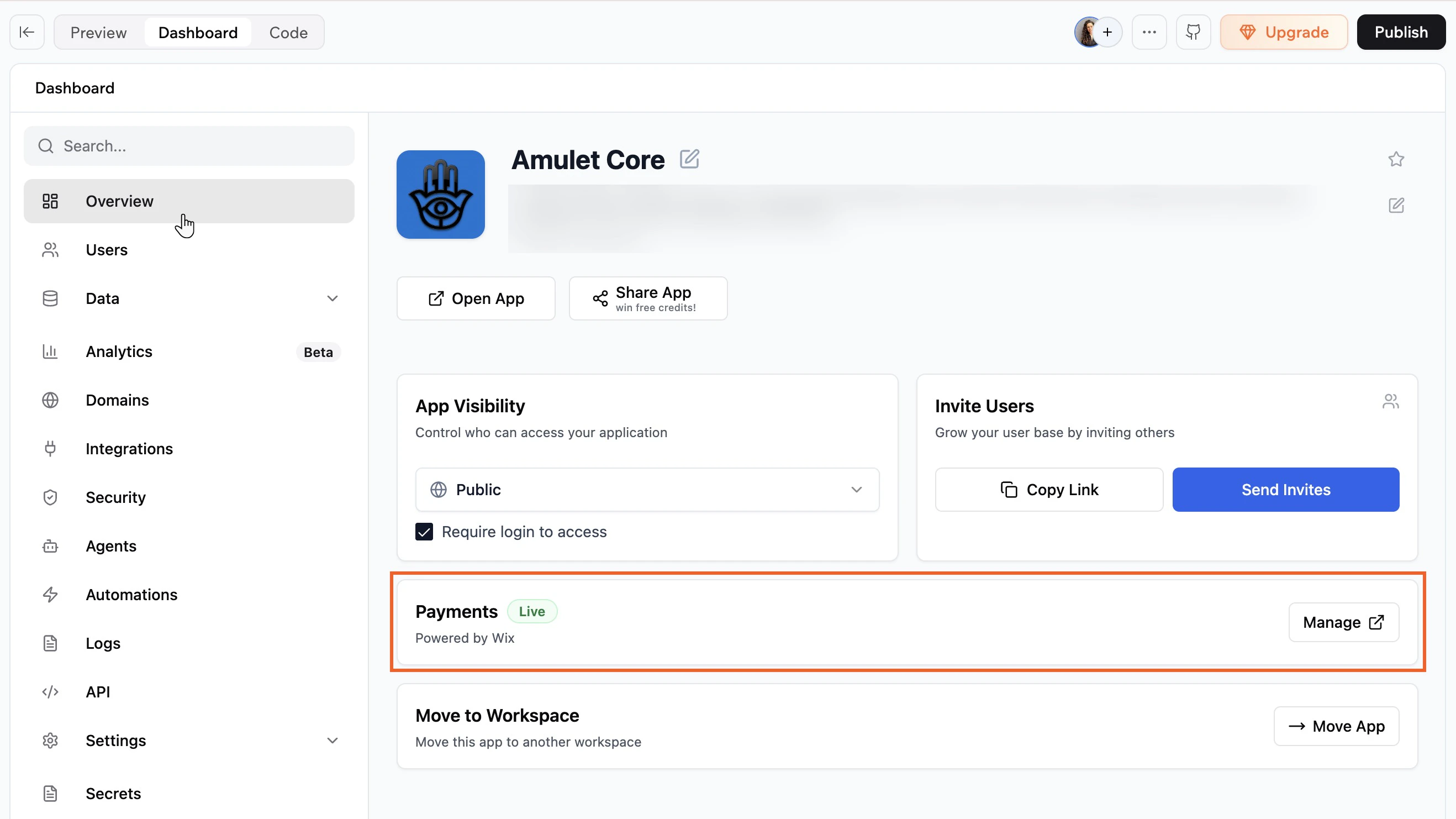
Managing your payments for your app
Tranzila
Tranzila is an Israeli payment gateway supporting credit and debit cards, Bit, Apple Pay, Google Pay, installments, and recurring payments.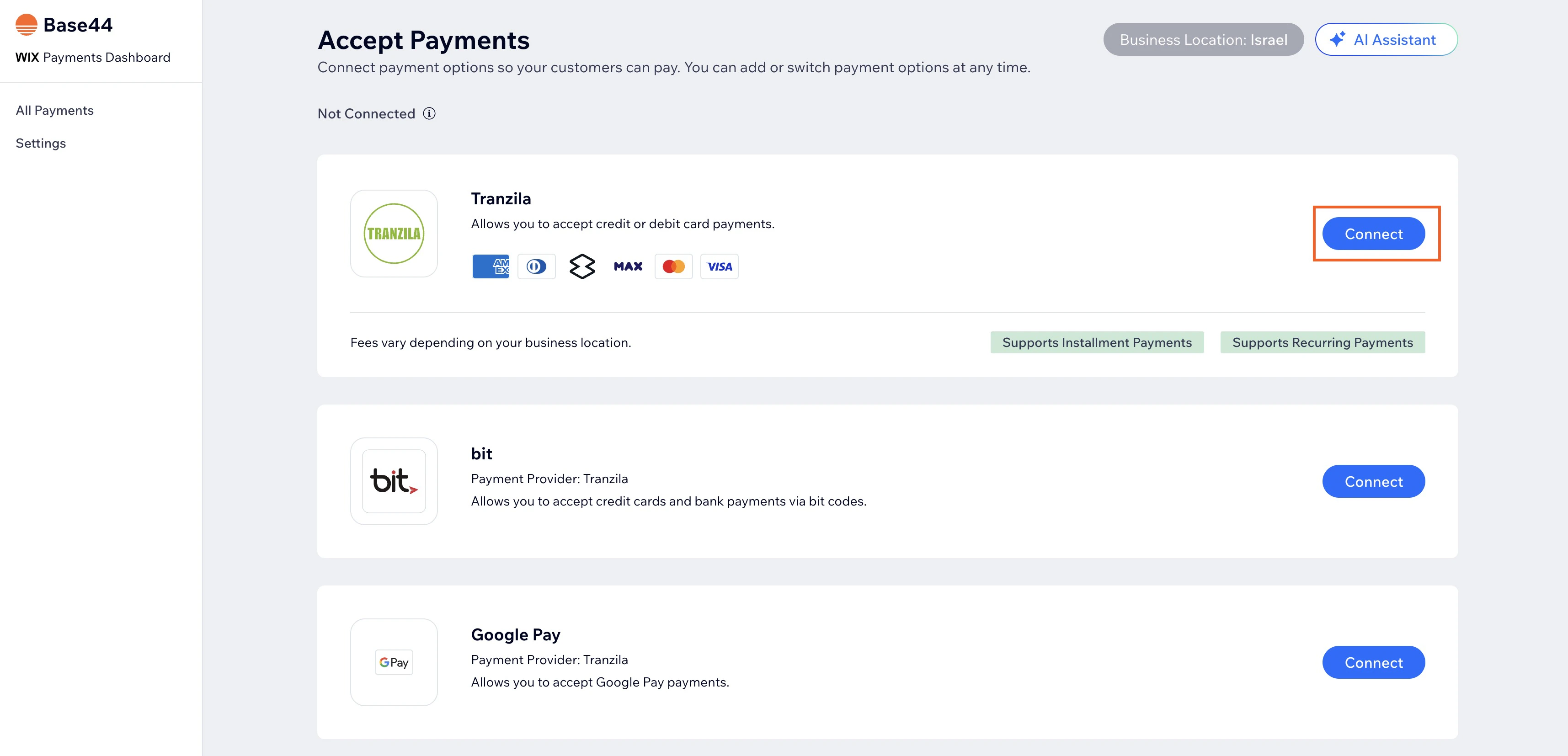
Connecting Tranzila
I have a Tranzila account
I have a Tranzila account
- Enter your Terminal and Registered email.
- Click Connect.
I don't have a Tranzila account
I don't have a Tranzila account
- Click Create Tranzila account.
- Fill in the registration form.
- Wait for an email or chat message from Tranzila with your Terminal and Registered email.
- Return to the Payments page in your Base44 dashboard and follow the steps in the I have a Tranzila account section above.
Max by Hyp
Max by Hyp is one of Israel’s leading credit card companies, offering merchants a full payment processing solution including cards, digital wallets, installments, and recurring billing.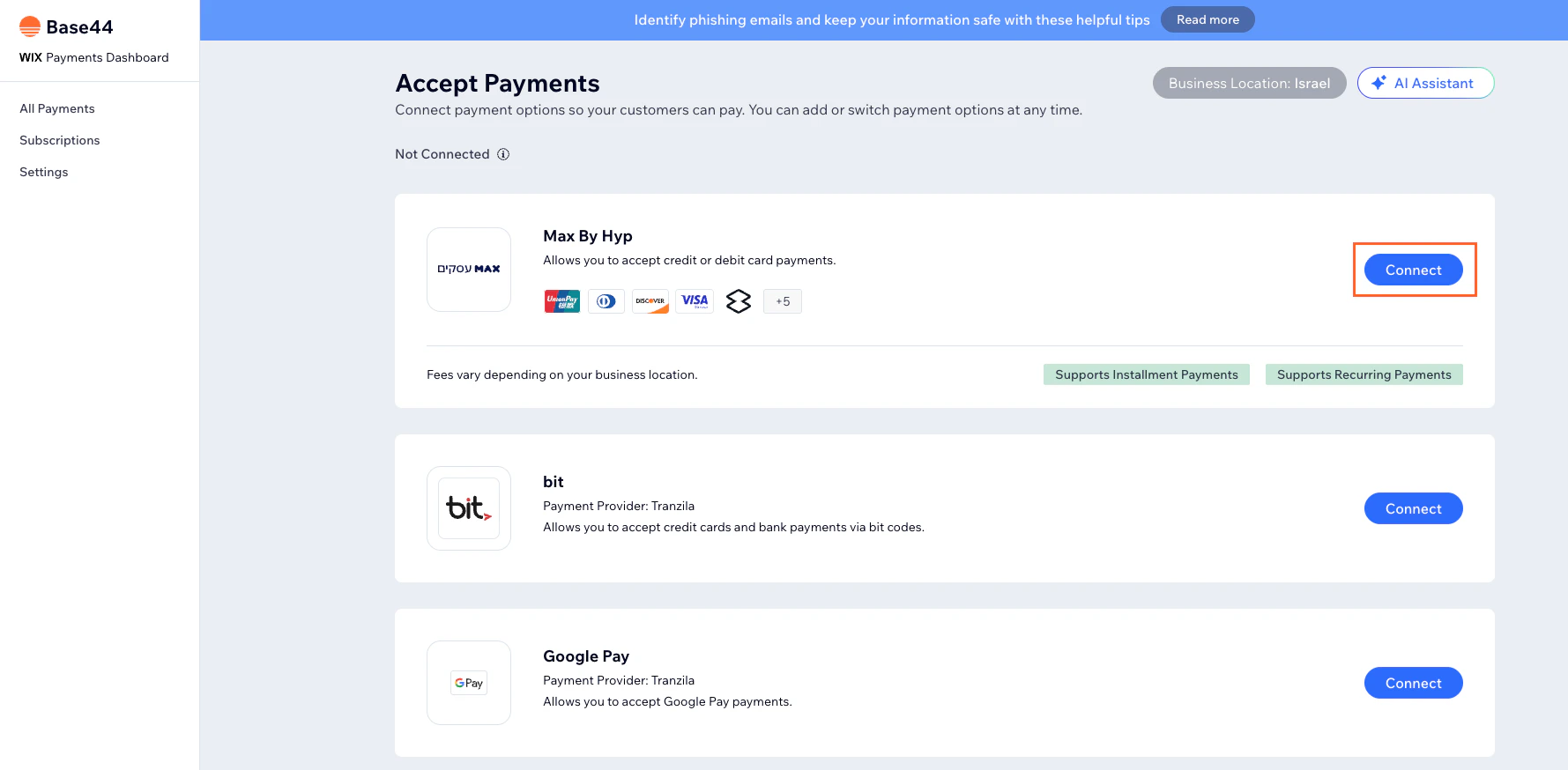
Connecting Max by Hyp
I have a Max by Hyp account
I have a Max by Hyp account
- Enter your Masof (merchant unique ID) and API Key.
- Enable the Installments toggle if you want to offer installment payments.
- Click Connect.
I don't have a Max by Hyp account
I don't have a Max by Hyp account
- Click Create Max By Hyp account.
- Follow the steps to register.
- Return to the Payments page in your Base44 dashboard and follow the steps in the I have a Max by Hyp account section above.
Managing your payment methods
You can enable or disable individual payment methods such as cards, Apple Pay, Google Pay, and Bit.- Log in to Base44.
- Click Dashboard in your app editor.
- Click Overview.
- Click Manage next to Payments to open the Payments dashboard.
- Click Manage next to the payment method you want to update.
- Enable or disable the toggle next to the payment method you want to change and enter the relevant details.
FAQs
Can I accept Google Pay payments without accepting card payments?
Can I accept Google Pay payments without accepting card payments?
No. To accept Google Pay payments, you must also have card payments enabled.
Can I enable 3D Secure (3DS) payments with Tranzila?
Can I enable 3D Secure (3DS) payments with Tranzila?
Yes. 3DS can be enabled within your Tranzila account. For more information, contact Tranzila.
How can I tell if a payment method is active?
How can I tell if a payment method is active?
To accept online payments, you must connect a payment provider. Once connected, your checkout will be active for your chosen payment methods. You also need to have your account successfully verified to receive payouts.
What is the minimum payment amount?
What is the minimum payment amount?
Some payment methods have a minimum payment threshold — payments below this amount will not be processed. Tranzila requires a minimum transaction amount of 5 ILS for payments made using the Bit payment method.
Can I offer recurring payments?
Can I offer recurring payments?
Yes. Recurring payments are supported with both Tranzila and Max by Hyp.
Can I offer installment payments?
Can I offer installment payments?
Yes. Installment payments are supported with both Tranzila and Max by Hyp. You can enable installments when connecting or managing your payment method.
How do I get my payouts?
How do I get my payouts?
Payouts are managed by your connected payment provider, not Base44. Contact your payment provider directly for more information.
How can I troubleshoot payment issues in my Base44 app?
How can I troubleshoot payment issues in my Base44 app?
If nothing happens when someone clicks a Pay or Checkout button, check the Function Logs in your Base44 dashboard to diagnose the issue.
- Click Dashboard in your app editor.
- Click Code, then Functions.
- Find the function related to your payment flow (e.g., create Checkout for a store).
- Click the function, then scroll to the Logs section.