

How it works
Wiz scanning runs as part of your app’s security scan and adds to Base44’s existing checks rather than replacing them. Base44 runs the Wiz CLI against your app’s code in an isolated, single-use sandbox, then shows the results in your Security tab. Your Wiz credentials are used only to run the scan. Wiz checks 2 areas:- Dependencies (SCA): Third-party packages your app uses that have known vulnerabilities.
- Code (SAST): Patterns in your source code that could introduce a security risk.
Step 1: Connect Wiz
Connecting Wiz takes 2 steps: get your credentials from Wiz, then add the connector in Base44. After it is connected, every app in the workspace can include Wiz results in its security scan.Get your credentials
Wiz provides a Client ID and Client Secret when the Base44 integration is installed in your tenant. You need both to set up the connector in Base44. To get your Wiz credentials:- Install the Base44 integration in your Wiz tenant from the Wiz portal.
- Copy the Client ID and Client Secret that Wiz generates.
- Store the Client Secret somewhere secure, because Wiz shows it only once.
Add the connector
Once you have your Wiz credentials, add the connector in your workspace settings. To add the Wiz connector:- Click your workspace name at the bottom left of your account.
- Click Settings.
- Under Plugins in the left sidebar, click Connectors.
- Find Wiz under Connectors For App Builders.
- Click Add.
- In the Connect Wiz dialog, paste your Client ID into the Client ID field.
- Paste your Client Secret into the Client Secret field.
- Click Connect.
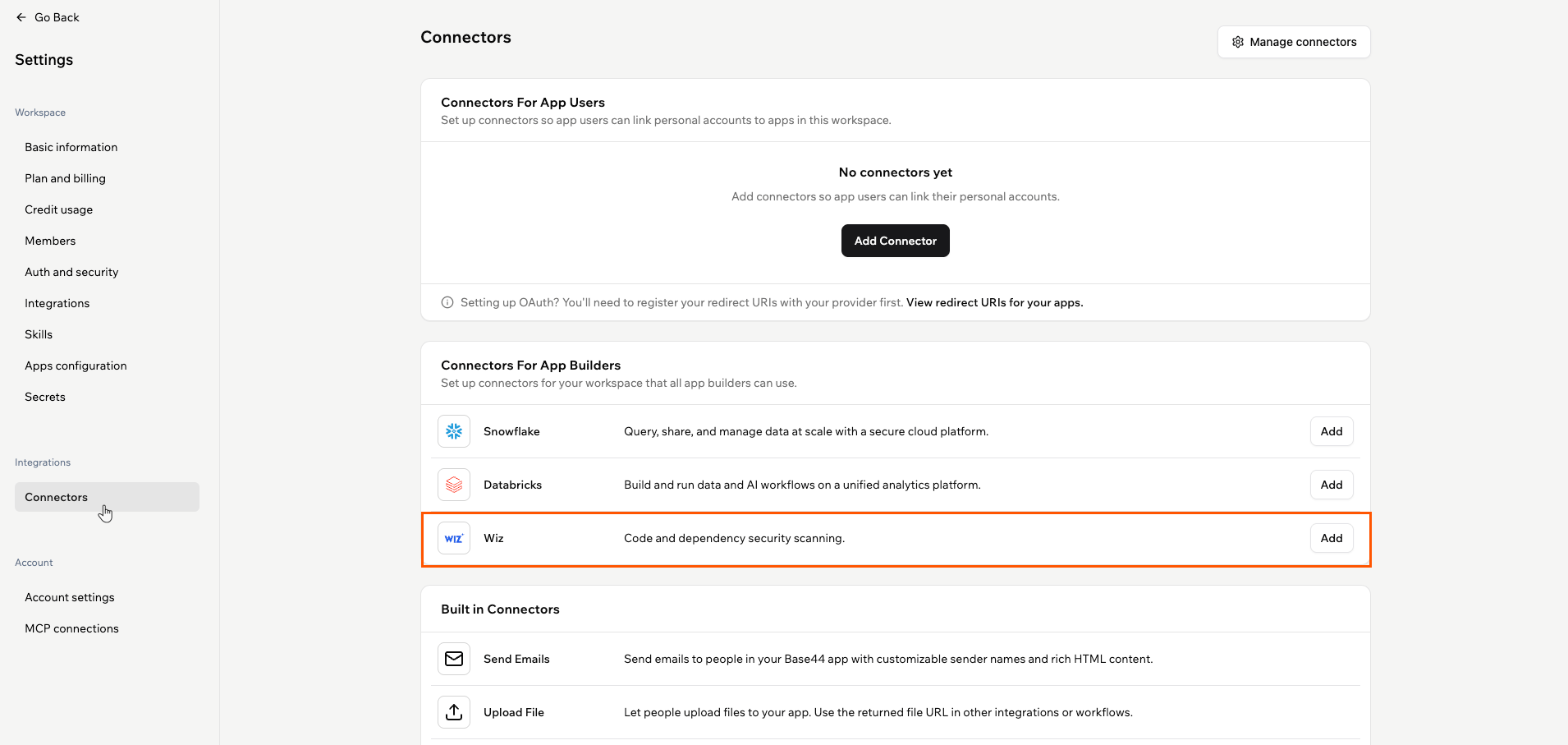
The Wiz connector in your workspace Connectors settings
Base44 checks your credentials with Wiz before saving the connection. If Wiz rejects them, you see an error and the connection is not saved.
Step 2: Run a scan
After Wiz is connected, it runs automatically whenever you run a security scan. To run a security scan with Wiz:- Click Dashboard in your app editor.
- Click Security.
- Click Run Security Scan.
Base44’s own results appear first, and the Wiz sections fill in when the Wiz scan finishes. The Security tab flags when your results are out of date, so run the security scan again after you make changes.
Step 3: Review findings
Wiz results appear in 2 sections on the Security tab. Use View report in Wiz to open the full results in your Wiz tenant, and findings that your Wiz policy blocks are labeled as blocked by policy.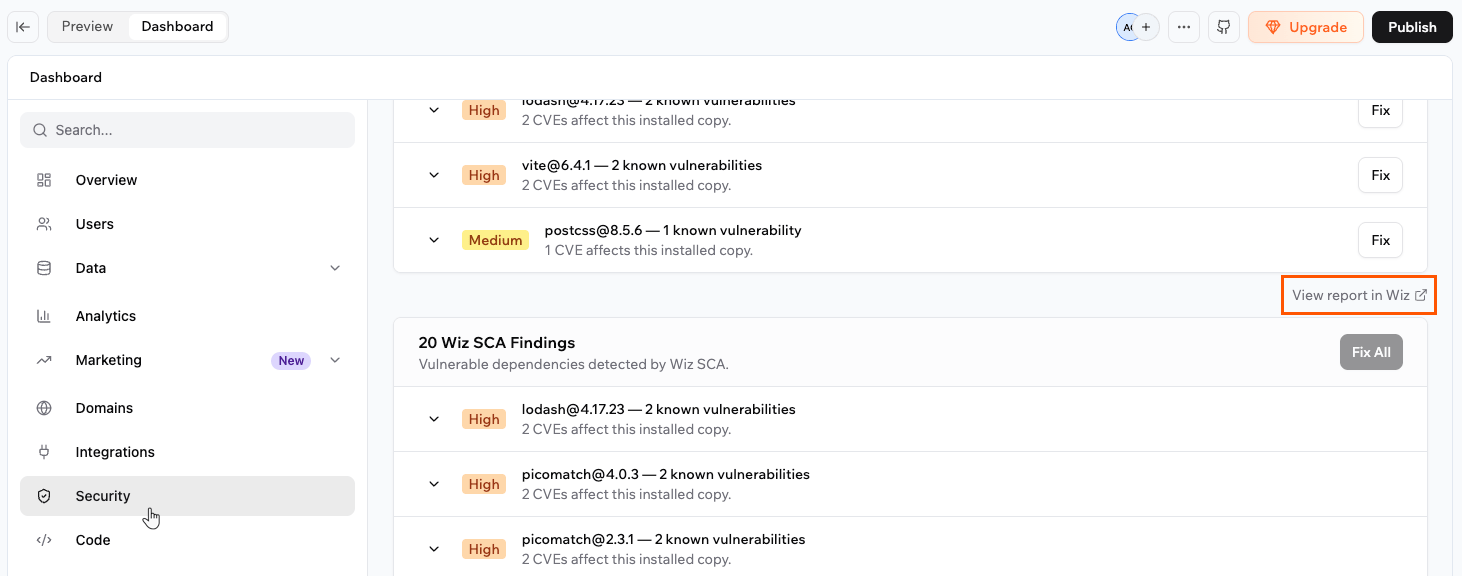
The View report in Wiz link opens the full results in your Wiz tenant
Dependency findings (SCA)
The Wiz SCA Findings section lists vulnerable dependencies, grouped by package. Each entry shows the package and version, how many known vulnerabilities affect it, and the severity. Expand a finding to see each CVE, its advisory link, and the version that fixes it. Where a safe upgrade is available, you can apply the fix the same way you fix Base44’s own dependency findings. Where none of the vulnerabilities has a fixed version yet, the finding offers Resolve with AI, which asks your AI chat to find and apply a secure replacement.Code findings (SAST)
The Wiz SAST Findings section lists code-level issues, each tied to a file in your app. Expand a finding to see its security category, the affected code, and recommended remediation. Click Fix to send the finding to the AI chat to resolve it.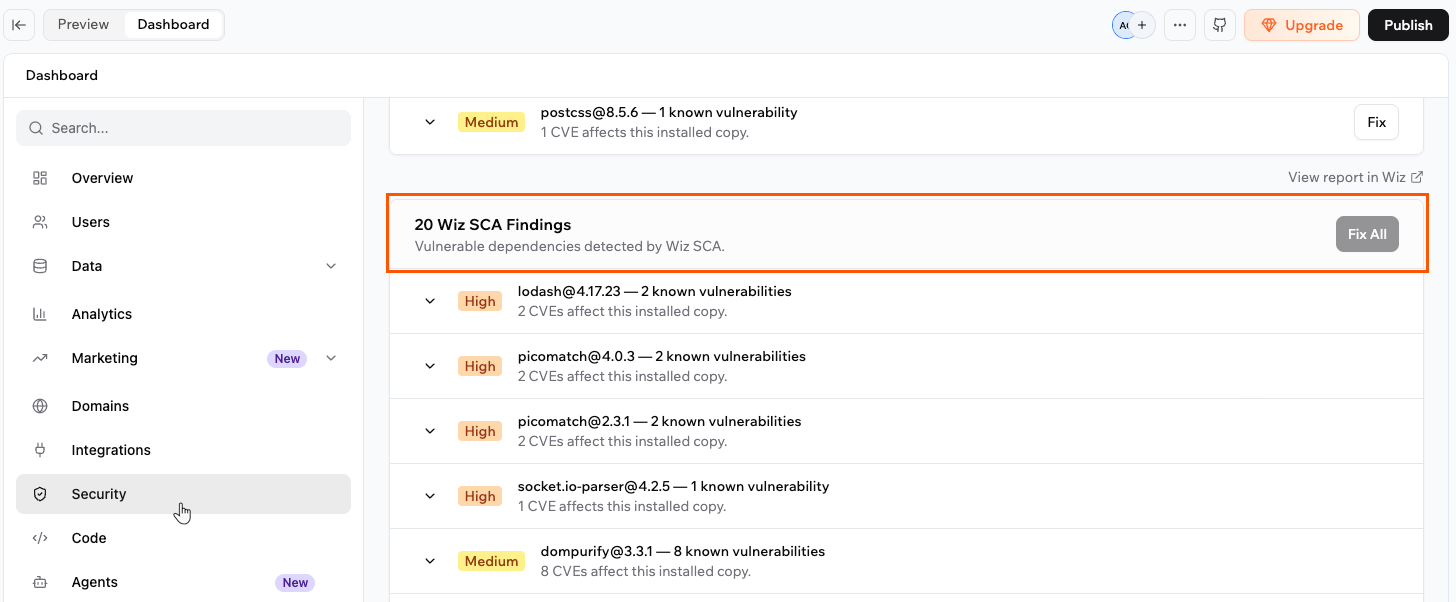
Wiz SCA and SAST findings on the Security tab
Some Wiz categories, such as secrets and infrastructure as code, are not shown in Base44. Open the full report in Wiz to see every finding.
Manage the connection
Workspace owners and admins can update or remove the Wiz connection at any time.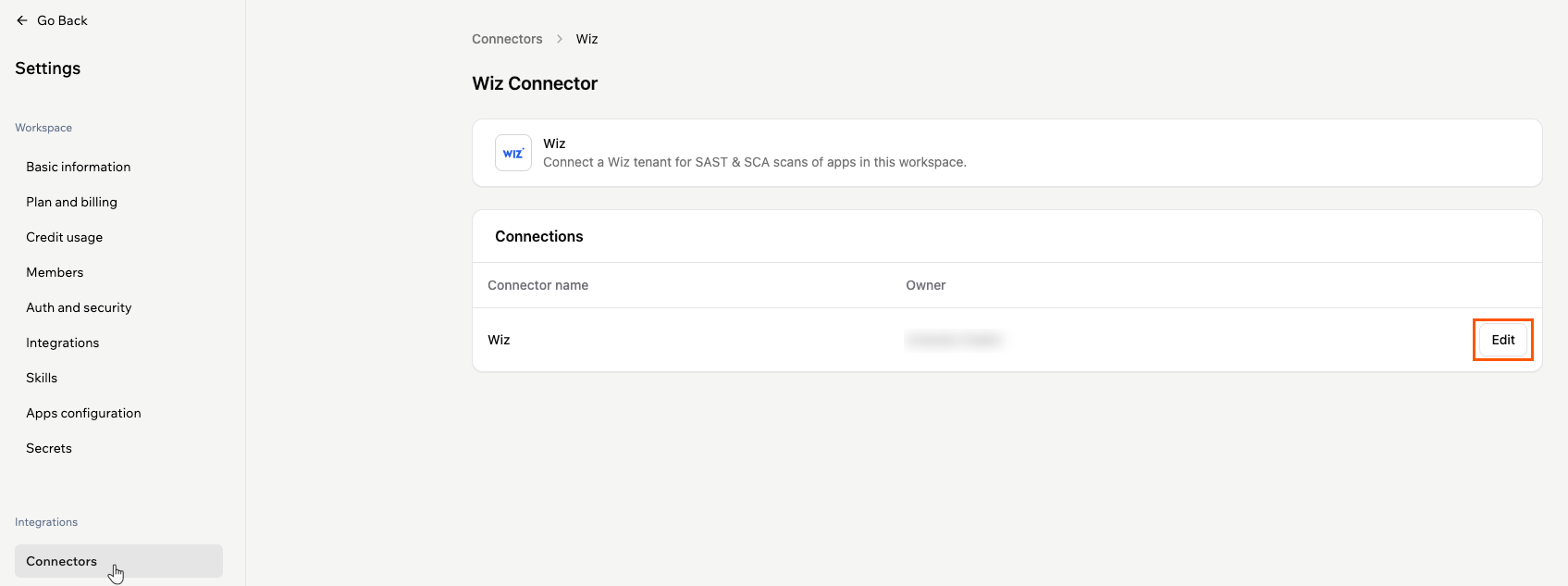
Managing the Wiz connection from the connector page
Update your credentials
Update your stored credentials if they change in Wiz, or if Wiz stops accepting the ones you saved. To update your Wiz credentials:- Click your workspace name at the bottom left of your account.
- Click Settings.
- Under Plugins in the left sidebar, click Connectors.
- Find Wiz, then click View.
- In the Connections table, click Edit.
- Enter a new Client Secret, and a new Client ID if it changed.
- Click Save Changes.
Delete the connection
Deleting the connector stops Wiz scanning for every app in the workspace, so remove it only when you no longer want Wiz to scan your apps. To delete the Wiz connector:- Click your workspace name at the bottom left of your account.
- Click Settings.
- Under Plugins in the left sidebar, click Connectors.
- Find Wiz, then click View.
- In the Connections table, click Edit.
- Click Delete Connector.
- Review the confirmation message, then click Delete Connector to confirm.
FAQs
Click a question below to learn more about Wiz security scanning.Who can see Wiz findings?
Who can see Wiz findings?
Anyone in your workspace with access to the app, including app collaborators, can see the Wiz findings when they run a security scan. The people who use your published app do not see scan results.
Does my code leave Base44?
Does my code leave Base44?
No. The Wiz scan runs entirely within an isolated Base44 sandbox, with no AI model involved. Base44 connects to Wiz only to authenticate, fetch your Wiz rules, and upload lightweight scan metadata, never your source code.
Does running a Wiz scan cost credits?
Does running a Wiz scan cost credits?
No. Wiz scanning does not consume Base44 credits. Scans run against your own Wiz tenant and count toward your Wiz usage, which is part of your Wiz license.
Why can't I fix some dependency findings?
Why can't I fix some dependency findings?
Some vulnerable dependencies come from Base44’s own packages rather than code you added. A finding on a package you installed shows a fix you can apply, while a finding on a package the Base44 SDK brings in is fixed by Base44 centrally, so the fix reaches every app at once.