

Important information
Before you connect an external domain, keep the following in mind:- Custom domains are available on the Starter plan and above.
- If you add your DNS records manually, make sure they match exactly what is shown in your Base44 dashboard.
- Remove any AAAA (IPv6) records for hostnames used with Base44, as they can block connections.
- Remove or update any CAA records that could block certificate authorities used by Base44.
- The SSL certificate is issued automatically once your domain is verified and DNS is resolving correctly.
- If you are reusing an old domain from an app deleted before June 5, 2025, contact support so we can clear it from our system.
Connecting your domain
There are 2 ways to connect a domain you own. Base44 can set up your DNS for you, and this is the option that opens by default. You sign in to your domain provider and approve the changes, then Base44 adds the records. You can also add the records manually at your provider, and you can switch between them at any time.Setting up your DNS with Base44
Base44 offers to set up your DNS straight after you add your domain, so you stay in your app instead of copying record values across. To set up your DNS with Base44:- Click Dashboard in your app editor.
- Click Domains.
- Click Connect existing domain.
- Enter your domain or subdomain, for example
mycoolapp.com, then click Add. - In the window that opens, click Continue with [your provider], for example Continue with GoDaddy, then sign in to your domain provider.
- Review the DNS changes and approve them to add the records to your domain.
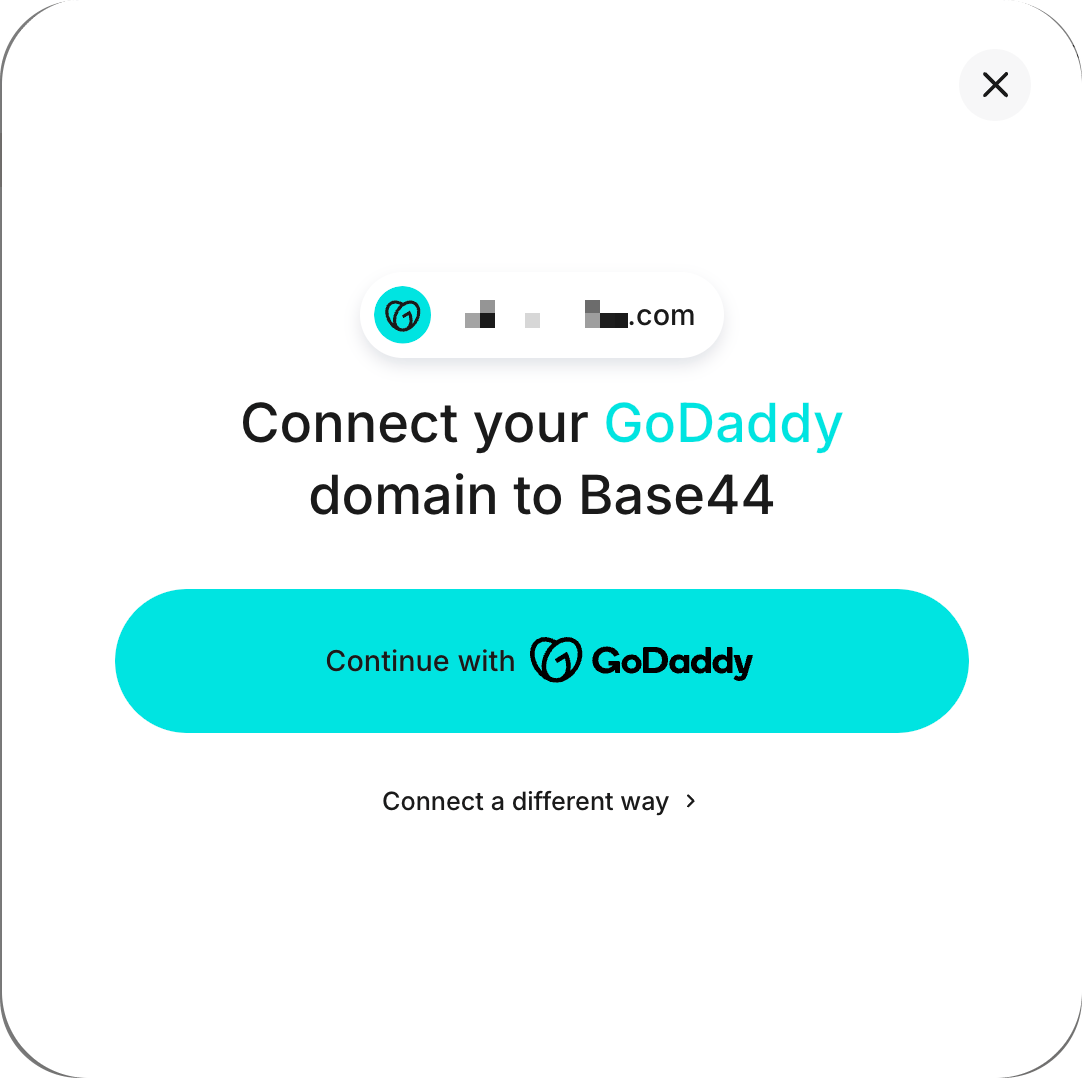
Signing in to your domain provider to set up your DNS
If you are the workspace owner, you may also see an offer to add a business email on your new domain. See Buying a business email.
Manually adding your DNS records
Add the records at your domain provider when you prefer to make the change there, when your DNS is managed by someone else on your team, or when your provider is not shown in the setup window. Step 1 | Add your domain- Click Dashboard in your app editor.
- Click Domains.
- Click Connect existing domain.
- Enter your domain name (for example,
mycoolapp.com), then click Add. - Open the (•••) menu next to your domain and click DNS instructions.
Use ANAME or ALIAS for your root domain (recommended)
Use ANAME or ALIAS for your root domain (recommended)
Set your root domain to point directly to Base44 while keeping it flexible if Base44 updates its infrastructure later.
- Root domain (@)
- www subdomain
ANAME or ALIAS lets your root domain point to Base44 without locking it to a fixed IP address. Your DNS host handles the underlying IPs for you.
Use an A record for your root domain (no ANAME/ALIAS option)
Use an A record for your root domain (no ANAME/ALIAS option)
If your provider does not support ANAME or ALIAS, use an A record for the root domain and a CNAME for
www.- Root domain (@)
- www subdomain
Make sure this is the only A record for your root domain. Remove any other A records added by your provider, such as parking or default records.
Use nameserver delegation only (for example, some .ar domains)
Use nameserver delegation only (for example, some .ar domains)
Some country registries such as NIC.ar for
.ar domains only let you set nameservers. They do not provide a full DNS zone editor where you can add A or CNAME records directly.In this case, you can use a DNS provider such as Cloudflare between your registry and Base44:- Create an account with a DNS provider like Cloudflare.
- Add your domain to the DNS provider.
- Copy the nameservers they give you.
- In your registry portal, set those nameservers in the delegation settings for your domain.
- Wait for the nameserver change to propagate.
- In your DNS provider, add the Base44 records:
- For the root domain:
A @to216.24.57.1(or ANAME/ALIAS tobase44.onrender.comif supported). - For
www:CNAME wwwtobase44.onrender.com.
- For the root domain:
- Remove any AAAA and conflicting CAA records, and keep the Base44 related records as DNS only if your DNS provider offers proxying.
- Click Dashboard in your app editor.
- Click Domains.
- Click Verify next to your domain.
- Allow up to 48 hours for DNS propagation if you use an external registrar or DNS host.
Claiming a domain another workspace used
If your domain was connected to an app in a different workspace, Base44 keeps it reserved for that workspace even after that app is deleted. You can take it over yourself by proving you control the domain, so there is no need to contact support. Moving a domain between apps in your own workspace is different, and connects straight away. When you click Add, the dialog tells you the domain is registered to another workspace and shows you a TXT record to publish. Adding that record proves the domain is yours today, which the DNS records pointing at Base44 cannot do on their own. To claim a domain another workspace used:- Click Dashboard in your app editor.
- Click Domains.
- Click Connect existing domain.
- Enter your domain, then click Add. If the domain is reserved, the dialog shows the record you need to add.
- Copy the Type, Name, and Value of the record, using Copy to clipboard on each row. The name looks like
_b44-verify.yourdomain.com, and the value starts withbase44-domain-claim=. - Add that TXT record at your domain provider, and allow time for it to propagate.
- Back in Base44, click Add again. Your domain connects, and you carry on setting up your DNS as usual.
Finishing your claim:
- The record is issued to your workspace and to the domain you entered, so finish the claim from the same workspace. Changing the domain in the dialog clears the record, and you get a new one when you try again.
- If the domain is still connected to a live app, you see an error saying the domain already exists instead of the record. Whoever owns that app needs to remove the domain from it first.
Connecting a subdomain
You can connect a subdomain you already own, such asapp.yourdomain.com, to give your Base44 app its own address while your main domain keeps serving whatever is already there.
Enter the full subdomain in Connect existing domain and both options work the same way as they do for a root domain. Base44 adds the record for you, or you can add it manually using the values below.
To add the subdomain record manually:
- Go to your domain provider’s DNS settings.
- Add a new CNAME record with:
- Type: CNAME
- Name:
[your subdomain](for example,subdomainif you wantsubdomain.yourdomain.com) - Value:
base44.onrender.com
- To make sure both
subdomain.yourdomain.comandwww.subdomain.yourdomain.comwork, add an additional CNAME record:- Type: CNAME
- Name:
www.subdomain - Value:
base44.onrender.com
FAQs
Click a question below to learn more about connecting an external domain.Should I set up my DNS with Base44, or add the records manually?
Should I set up my DNS with Base44, or add the records manually?
Setting up your DNS with Base44 is the quickest option, and it is the one that opens by default once you add your domain. Base44 detects your domain provider and displays it in the setup window. You sign in to your provider and approve the changes, then Base44 adds the records and verifies the domain, so there are no values to copy.Add the records manually when you prefer to make the change at your provider, when your DNS is managed by someone else on your team, or when your provider is not shown in the setup window. The record values are always available from the More actions icon next to your domain.If someone else on your team manages your DNS, you can also click Connect a different way in the setup window, then click Send login link to admin to email them a setup link.
My domain still says Pending verification. What now?
My domain still says Pending verification. What now?
Refresh your Domains page first. A domain that finished setup can still show Pending verification until the status is re-checked, and the setup message can stay on screen after your domain is live. Open your domain in a browser, and if your app loads, your domain is connected.If it still shows Pending verification after a refresh, both options are available to you. Hover the badge and click Set up DNS for me to open the setup window again, then sign in to your domain provider and approve the changes. You can also open the (•••) menu next to your domain and click DNS instructions to get the record values and add them manually.If you added the records manually, click Verify next to your domain, and allow up to 48 hours for DNS propagation.
What is DNS propagation and how do I check it?
What is DNS propagation and how do I check it?
When you update your DNS settings, the changes need to spread to servers around the world. This process is called DNS propagation. It can take up to 48 hours, although it is often much faster.You can check the progress by visiting whatsmydns.net, entering your domain, and selecting the record type (A, CNAME, etc.) to see which locations have updated.
Can I reuse a domain from a deleted app?
Can I reuse a domain from a deleted app?
Yes. If the domain was used in an app deleted before June 5, 2025, contact Base44 support to clear it from our records before you add it again.
Is there a way to set up domain redirects in Base44?
Is there a way to set up domain redirects in Base44?
Yes. You can send one page to another, or send a whole domain to another domain on the same app, from your app’s Domains page. See Setting up 301 redirects.
Can I disable the redirect from www.domain.com to domain.com?
Can I disable the redirect from www.domain.com to domain.com?
No. There is no setting in Base44 to stop or reverse the
www → root redirect.You may want www to be your primary domain for SEO or personal preference. From Google’s perspective, both www and the root domain are treated the same as long as your canonical setup is consistent.As a workaround, make sure you have a CNAME record for www pointing to base44.onrender.com in your DNS settings. This ensures www.domain.com loads your app. If you need finer control over redirect behavior, set this up with your DNS or hosting provider outside of Base44.If you want more control over this feature in the future, you can submit a feature request to the Base44 product team.How do I fix issues with my domain connection?
How do I fix issues with my domain connection?
If you are experiencing problems with your domain, see our troubleshooting steps. Check your DNS records, make sure there are no AAAA or conflicting CAA records, confirm that your domain is not on hold at your registrar, and verify that your records are set to DNS only if you use Cloudflare.