

Designing your app with AI
How design works
You do not need a design tool or any design experience. Your app’s design is part of its code, and the AI changes that code for you: every design change is a request in plain language, from “make the buttons rounder” to “redesign this whole page”. There are 3 ways to make a design change, and choosing the right one saves you time:
A good order for a full redesign:
- Set the overall look first: colors and fonts in the Theme panel.
- Ask the AI for page-level changes, one page at a time.
- Polish individual elements in Edit mode.
Designing in the chat
The AI chat is ideal for global changes and design decisions that affect many parts of your app. You can define a persona and brief once, then build on that:- Ask for a critique before asking for changes.
- Ask for a plan in Discuss mode, approve it, and then ask AI to implement it.
- Always clarify the scope of the design: the whole app, one page, or one element.
Choosing a design option
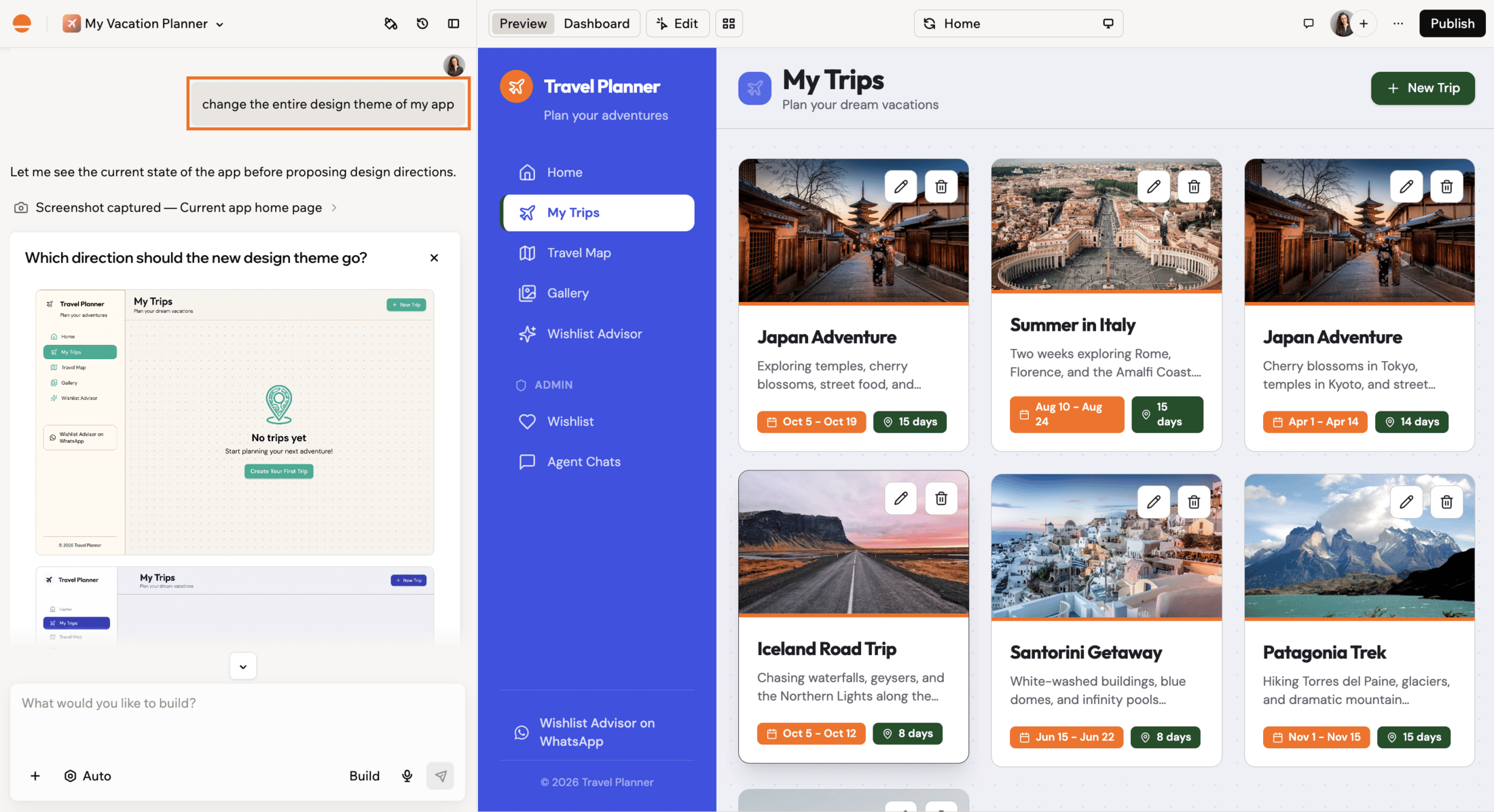
When you ask the AI to change the design or layout of a section or element, it may present visual options for you to choose from instead of applying a change right away. Each option shows a preview so you can see what it will look like before committing. You can also click the Expand icon on an option to view it in full mode and refine it before choosing.
Choosing from AI design options

Refining a design option in the expanded view
Exploring design directions
You can use the AI chat to explore different directions before you commit. You do not need to describe your current design: the AI takes a screenshot of your page and reviews what is actually there. Critique loop:Using Edit mode
Edit mode is ideal when you want to adjust what you see without rewriting everything.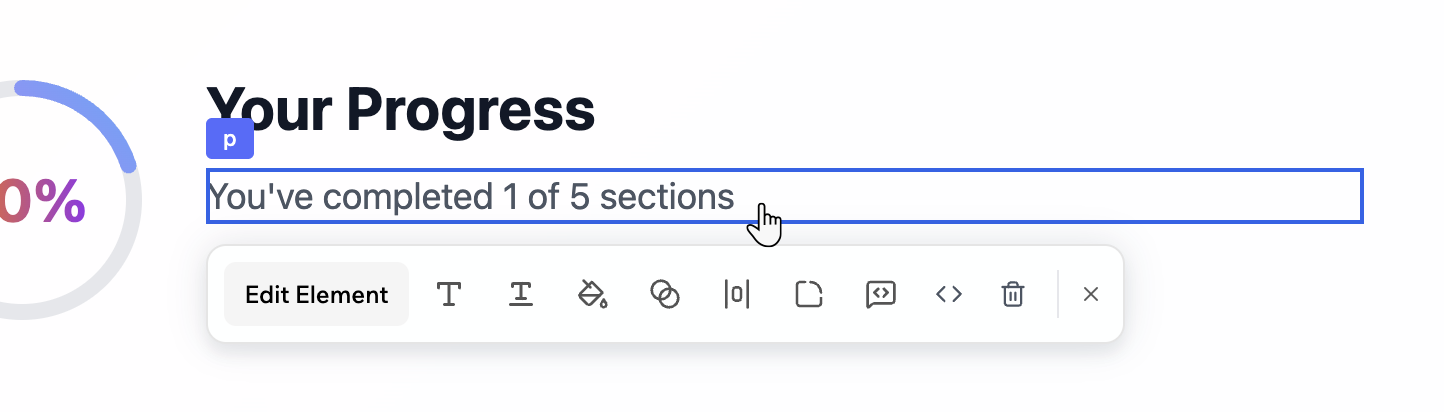
Editing a selected text element
- Select a section and adjust colors, spacing, and layout visually.
- Ask AI to restyle just one component instance.
- Delete elements you no longer need using the Delete icon .
- Use it as a safe sandbox before you roll a pattern out to the rest of your app.
Using AI Controls
Use the AI Controls in the chat to guide and protect your design. You can:- Set design guidelines that apply to every prompt.
- Freeze specific files or pages so AI does not change them.
- Establish a tone such as minimal, bold, or playful.
- Use AI Controls to freeze specific files or pages so AI does not change them.
- Use the Revert option on individual prompts to undo a single change.
- Use version history to roll back to an earlier state.
FAQs
Click a question below to learn more about designing with AI.Do AI design changes use credits?
Do AI design changes use credits?
Yes. Design prompts are AI chat messages, so they use your message credits the same way as any other request in the chat.
What is the difference between Edit mode and the Theme panel?
What is the difference between Edit mode and the Theme panel?
Edit mode styles one element or section at a time. The Theme panel changes colors and fonts across your entire app at once. To learn more about the Theme panel, see Customizing the design of your app.