

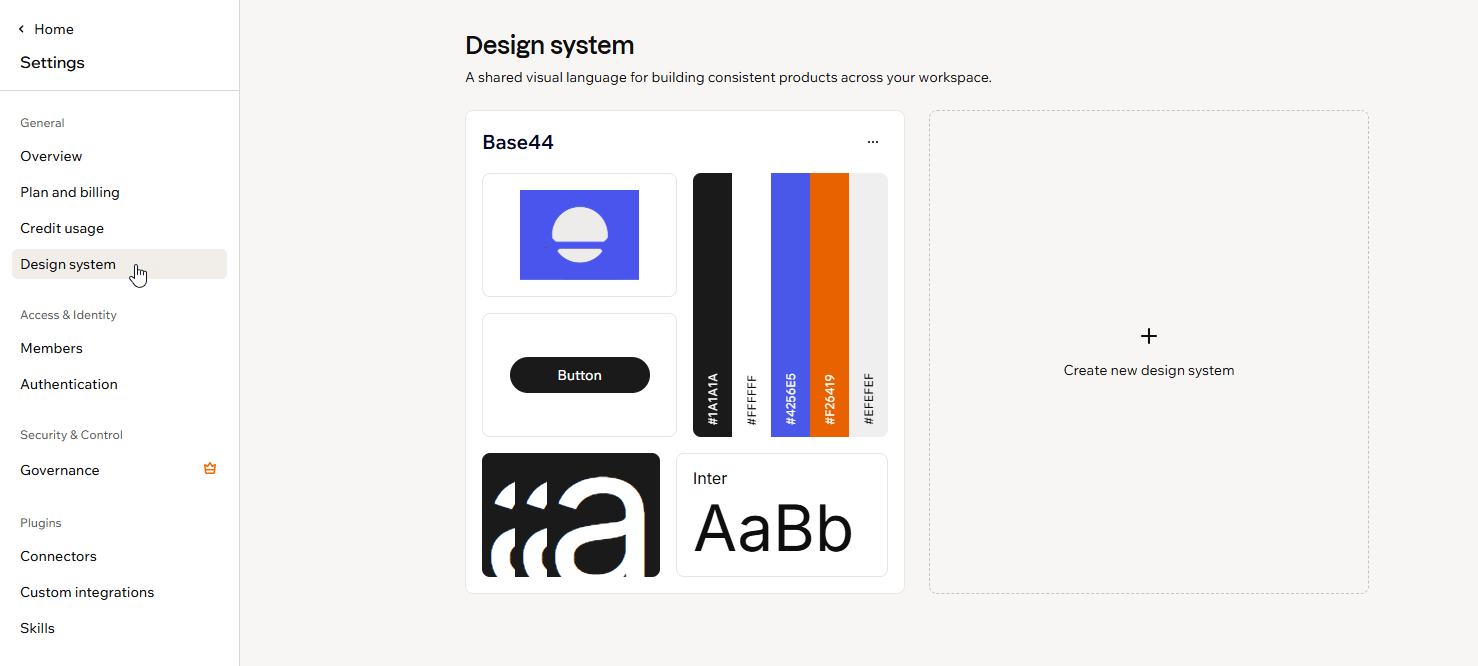
Your design systems in workspace settings
What’s included
When you create a design system, Base44 fills in everything that keeps your apps looking consistent and on brand, and shows it all in a live preview. Change a color or a font, and every example updates right away, so you always see how it looks.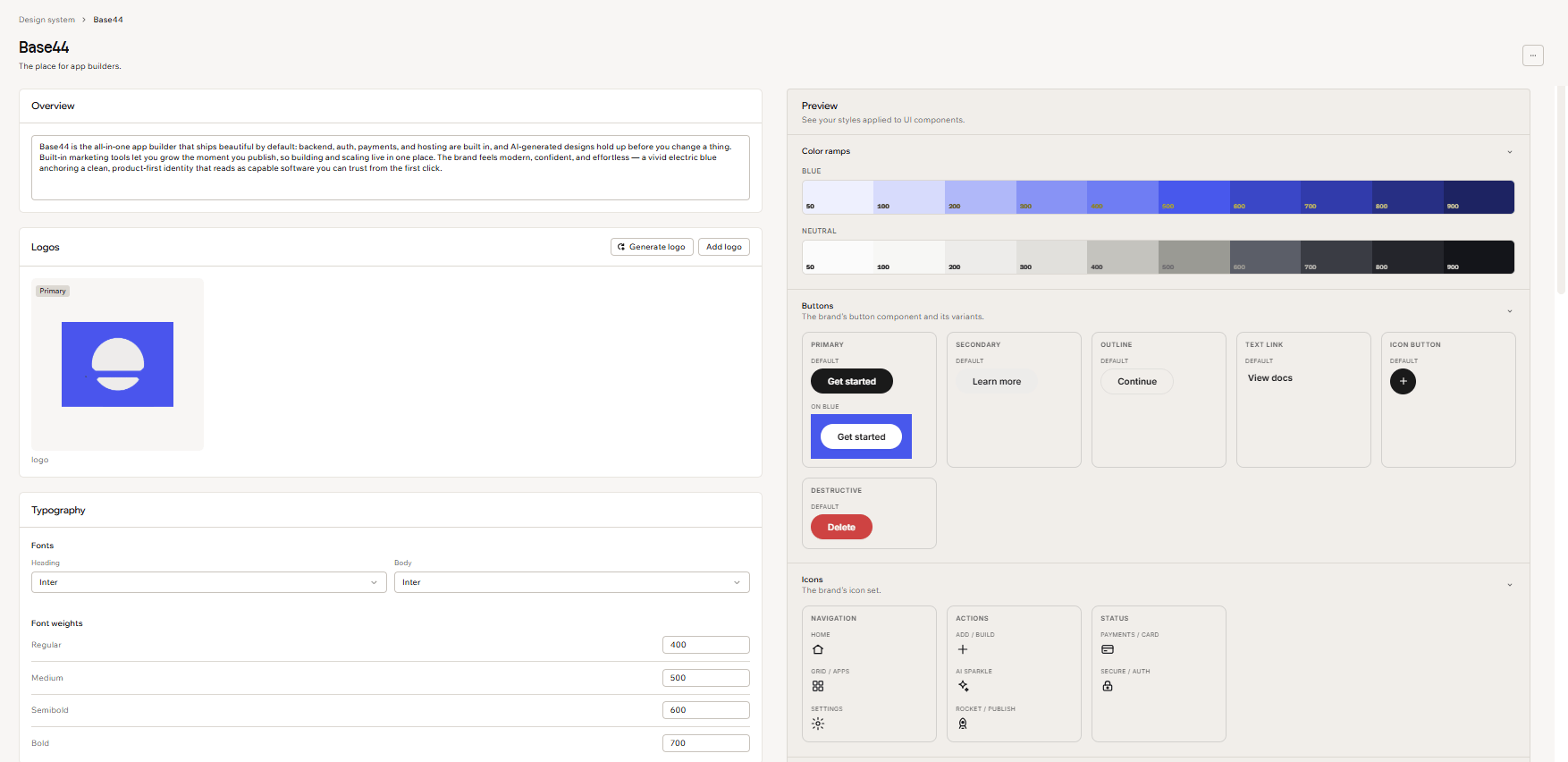
A design system and its live preview
- Your brand basics: Your logo, brand name, tagline, and a short description, plus your brand’s core values, tone of voice, and design guidelines for how it should look.
- Your look and feel: Your colors, your fonts, how rounded your corners are, how much shadow sits under things, and how much space goes between them.
- Ready-made pieces: A complete set of components that already match your brand and are ready to drop into any app, including buttons, icons, cards, navigation, forms, and page sections, each styled for its interactive states.
Creating a design system
Workspace owners and admins create design systems from the workspace settings. In one form you can combine a short description, your logo, an import from Figma, a website, or an npm package, and your own design files, and Base44 generates a complete design system from whatever you provide. To create a design system:- Click your workspace name at the bottom left, then click Settings.
- Click Design system.
- Click Create. If your workspace already has a design system, click Create new design system instead.
- In Create your design system, add any of the following:
- Describe your brand: Write a short description of your brand, and add your logo in the square beside it.
- Import an existing source: You can use one source per design system. Switch between the tabs:
- Figma file: Drop or browse a
.figfile, up to 1.9 GB, and attach all of its pages and frames or choose specific ones. Base44 downscales oversized images and prepares large files in the background, and does not store the original file. - Website URL: Paste a website address. Only use URLs where you have the rights to the content.
- NPM package: Enter a published package by name, name@version, or an npmjs.com link. It resolves from the public npm registry by default, or click Private registry to add a registry URL, an access token, and any scopes that should resolve there. Your access token is used once to fetch the package and is not stored.
- Figma file: Drop or browse a
- Upload your design resources: Add images, fonts, a
design.mdfile, or other design files, up to 10 files.
- Click Create. Generating your design system can take a few minutes, and you can leave and come back while it runs.
- Review the generated design system in the preview, then adjust anything you want.
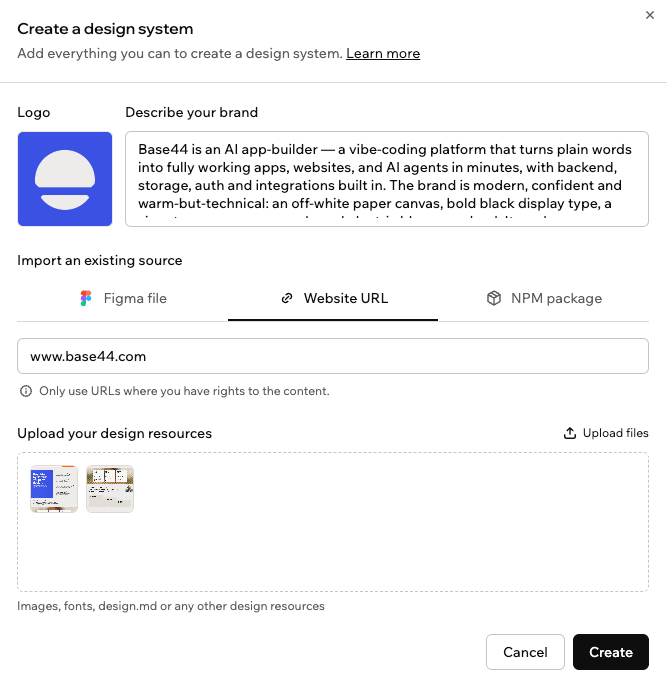
Creating a design system from your brand's materials
Editing your design system
When you open a design system, you edit it in a two-panel editor. On the left are all of your brand and design settings. On the right, a live Preview shows those styles applied to real buttons, icons, and cards, the way they look in your app or website. As you change a setting on the left, the preview updates instantly. Your design system’s name and tagline sit at the top of the page. Click either one to edit it in place. On the left, you can edit each part of your design system:Overview
Overview
Logos
Logos
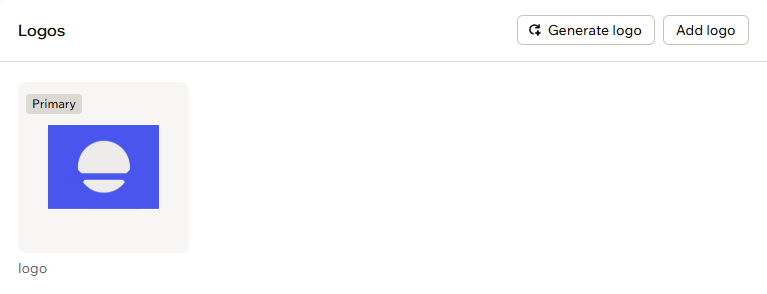
Editing your brand logos
Typography
Typography
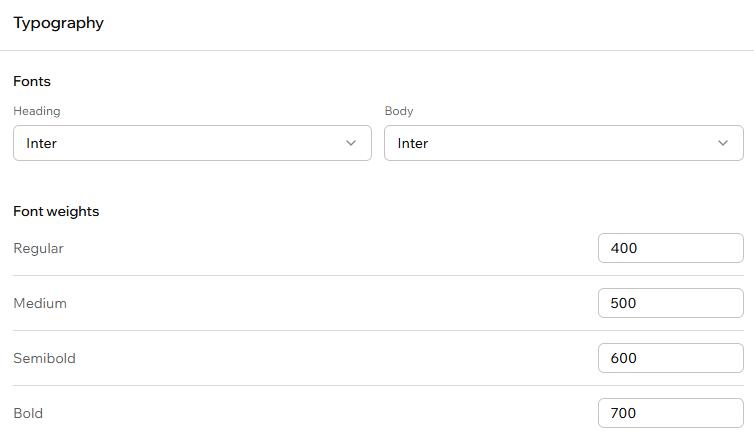
Choosing your heading and body fonts
Color palette
Color palette
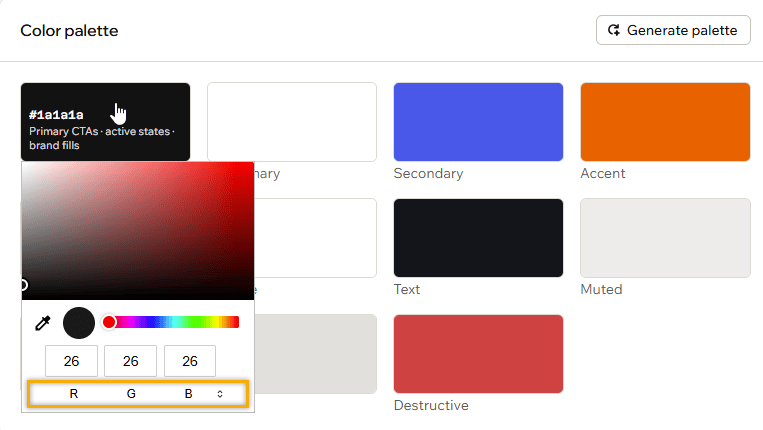
Editing a color in the palette
Tone of voice
Tone of voice
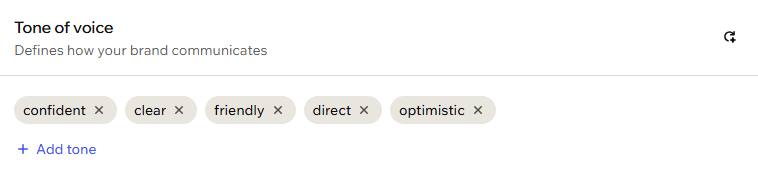
Adding tone of voice traits
Core values
Core values
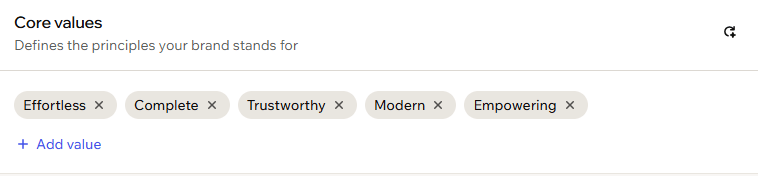
Adding your core values
Corner radius
Corner radius
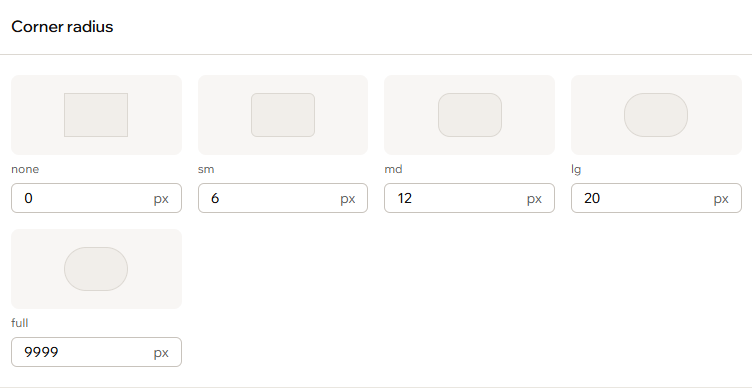
Setting your corner radius values
Spacing scale
Spacing scale
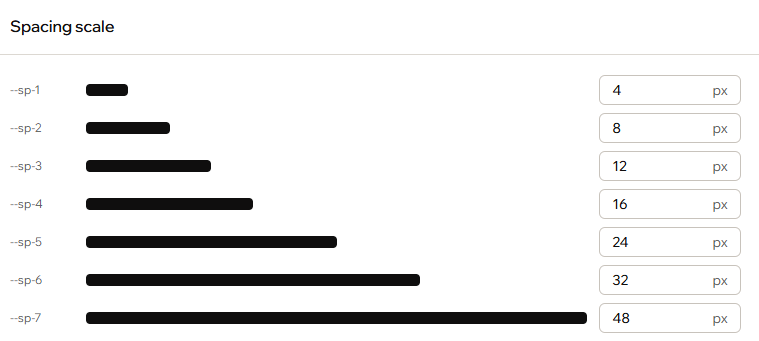
Fine-tuning your spacing scale
Shadow
Shadow
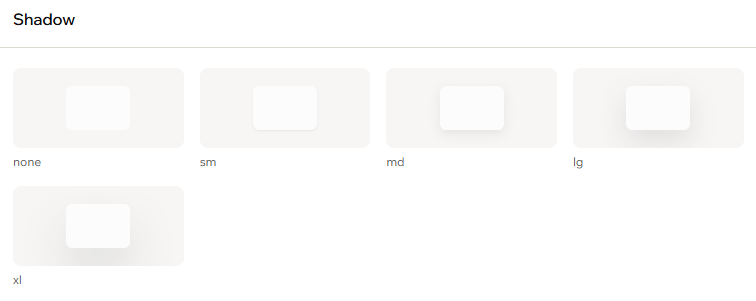
Setting your shadow values
Design guidelines
Design guidelines
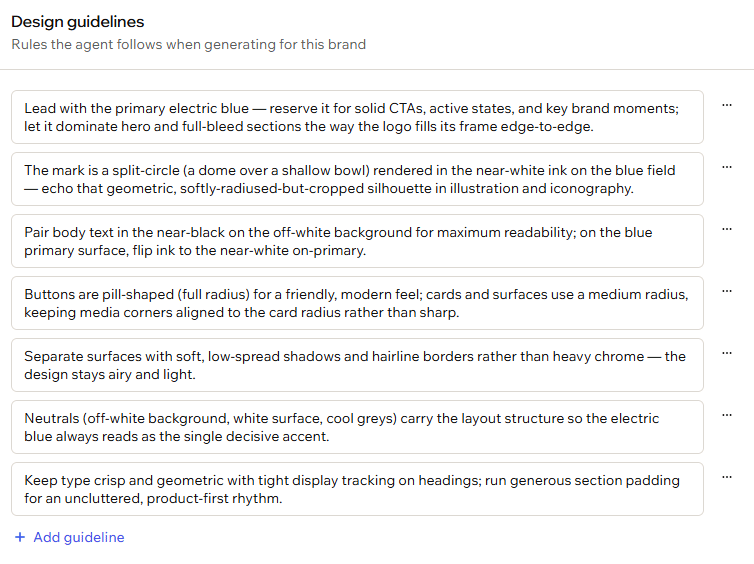
Editing your design guidelines
Managing your design systems
Manage a design system from its card in the Design system section. Open the More actions icon on a design system to edit it, set it as your default, or delete it.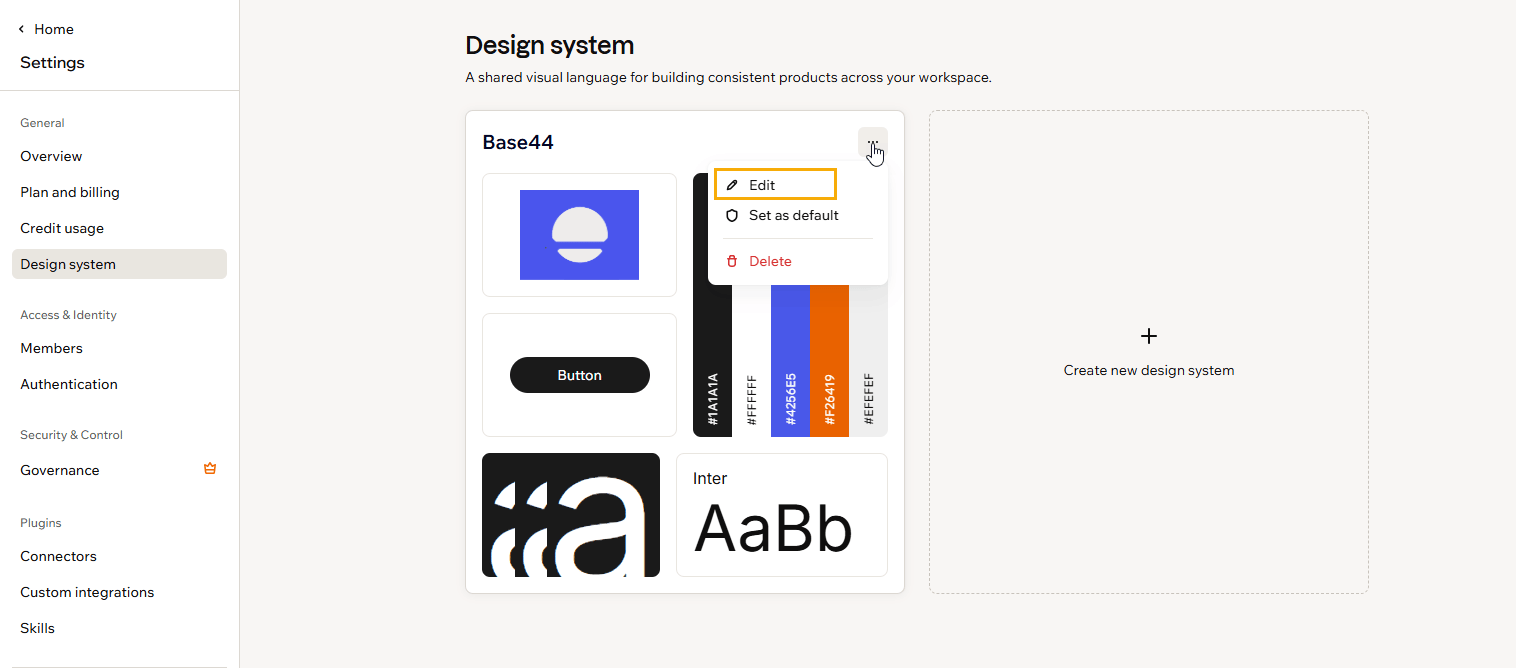
Opening a design system for editing
Setting a default design system
Set a design system as your workspace default so new apps start with it automatically. To set your default design system:- Click your workspace name at the bottom left, then click Settings.
- Click Design system.
- On the design system you want, click the More actions icon and click Set as default.
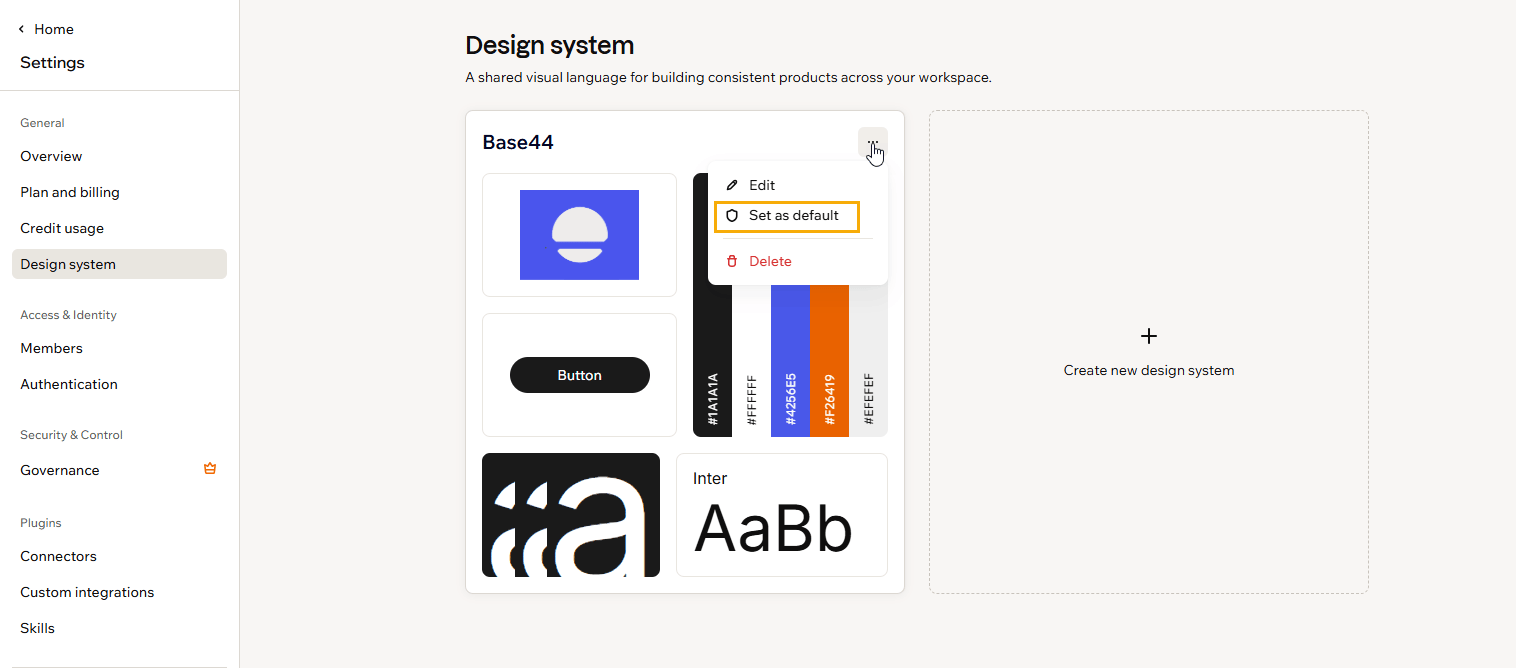
Setting a workspace default
Deleting a design system
Delete a design system you no longer need. To delete a design system:- Click your workspace name at the bottom left, then click Settings.
- Click Design system.
- On the design system you want, click the More actions icon and click Delete.
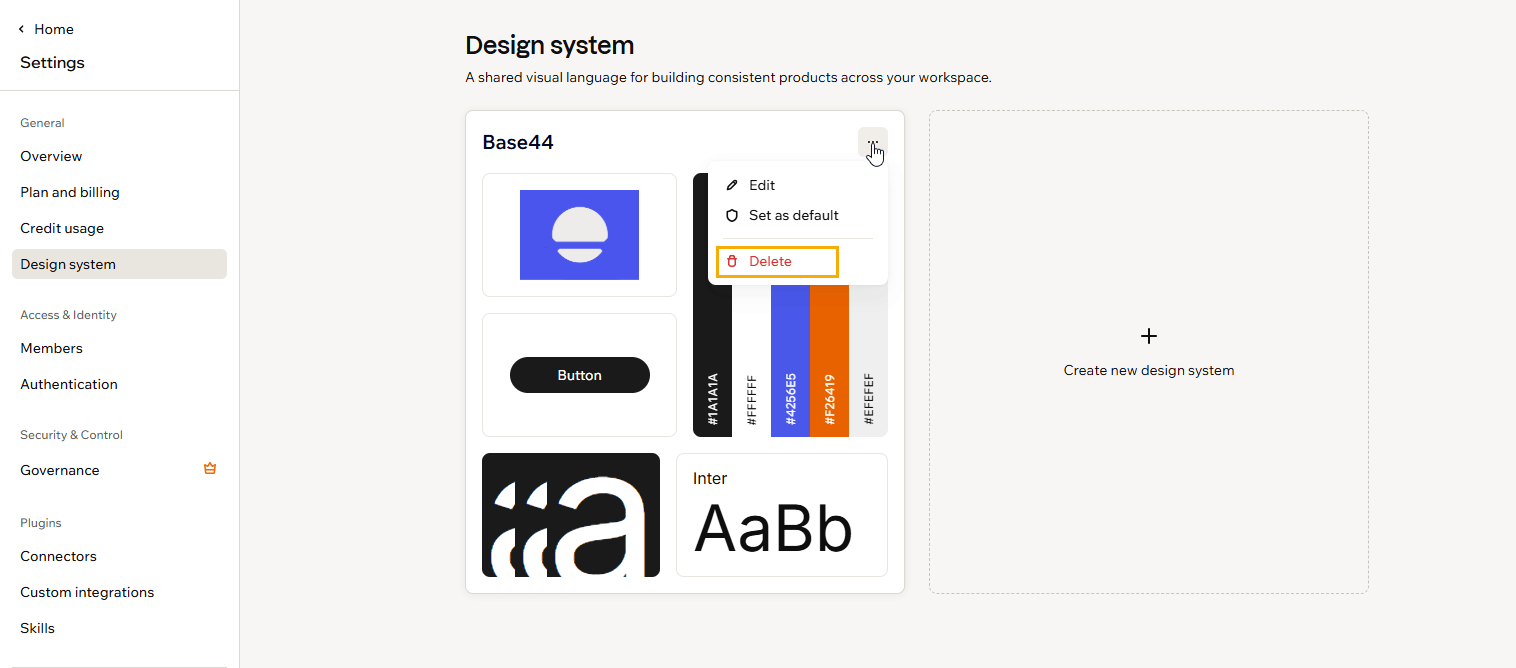
Deleting a design system
Using your design system when building
When you start a new app, your default design system is preselected, so the app is built to match your brand from the first prompt. To choose a different design system, click the Add icon in the AI chat, select Use a design system, then pick the one you want.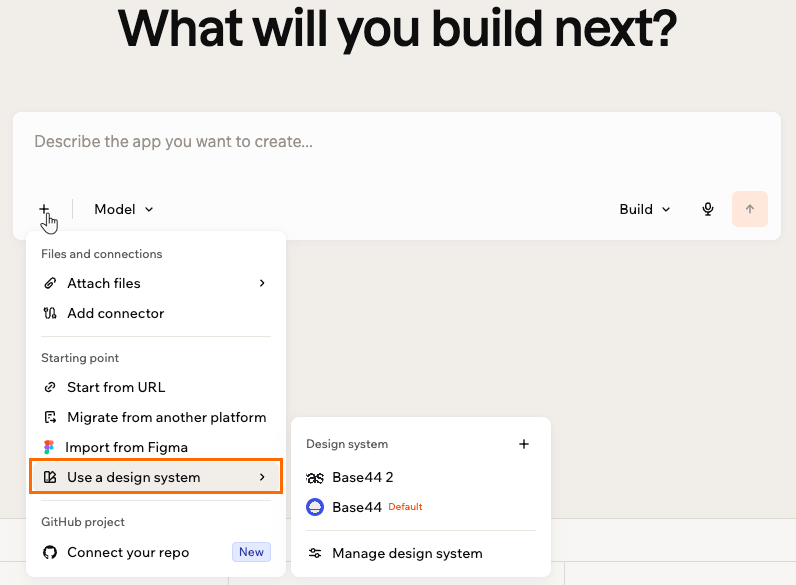
Choosing a design system when starting a new app
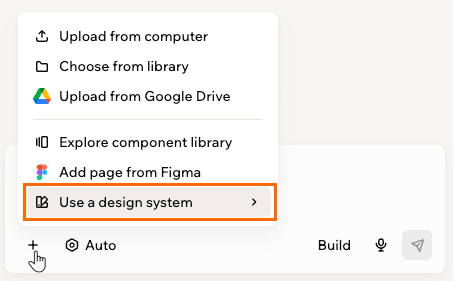
Applying your design system from the AI chat
FAQs
Click a question below to learn more about design systems.Do I need design skills to create a design system?
Do I need design skills to create a design system?
Can each client or project have its own design system?
Can each client or project have its own design system?