

Choosing a plan
As you build and grow your app, it’s important to choose the right plan to accommodate your needs. The available plans have different features. Read below to learn more about each plan. Business and Enterprise are Base44’s Enterprise plans, for organizations that need security, governance, and compliance controls. Learn more about choosing Business or Enterprise.Free
Free
- 25 message credits / month
- 100 integration credits / month
- Up to 5 message credits a day, within your monthly total
- Up to 5 apps
Starter
Starter
- 100 message credits / month
- 2,000 integration credits / month
Builder
Builder
- 250 message credits / month
- 10,000 integration credits / month
Pro
Pro
- 500 message credits / month
- 20,000 integration credits / month
Elite
Elite
- 1,200 to 8,200 message credits / month
- 50,000 to 300,000 integration credits / month
Business
Business
- 2,400 to 5,400 message credits / month
- 96,000 to 216,000 integration credits / month
Enterprise
Enterprise
Ready to upgrade your plan?
Purchasing a plan
Purchase a Base44 plan from the Plans page or follow the steps below. To purchase a plan:- Click your workspace name at the bottom left of your account.
- Click Settings.
- Under General, click Plan & Subscriptions.
- Click Upgrade on a plan (Upgrade to Pro on the recommended plan), or click Compare Plans to see them all. The plans open in a new tab.
- Click Get on the plan that’s right for you, for example Get Builder.
- Select your preferred billing cycle:
- Yearly: Save with an annual discount and extra benefits.
- Monthly: Pay month to month.
- Click Continue to checkout and complete your purchase.
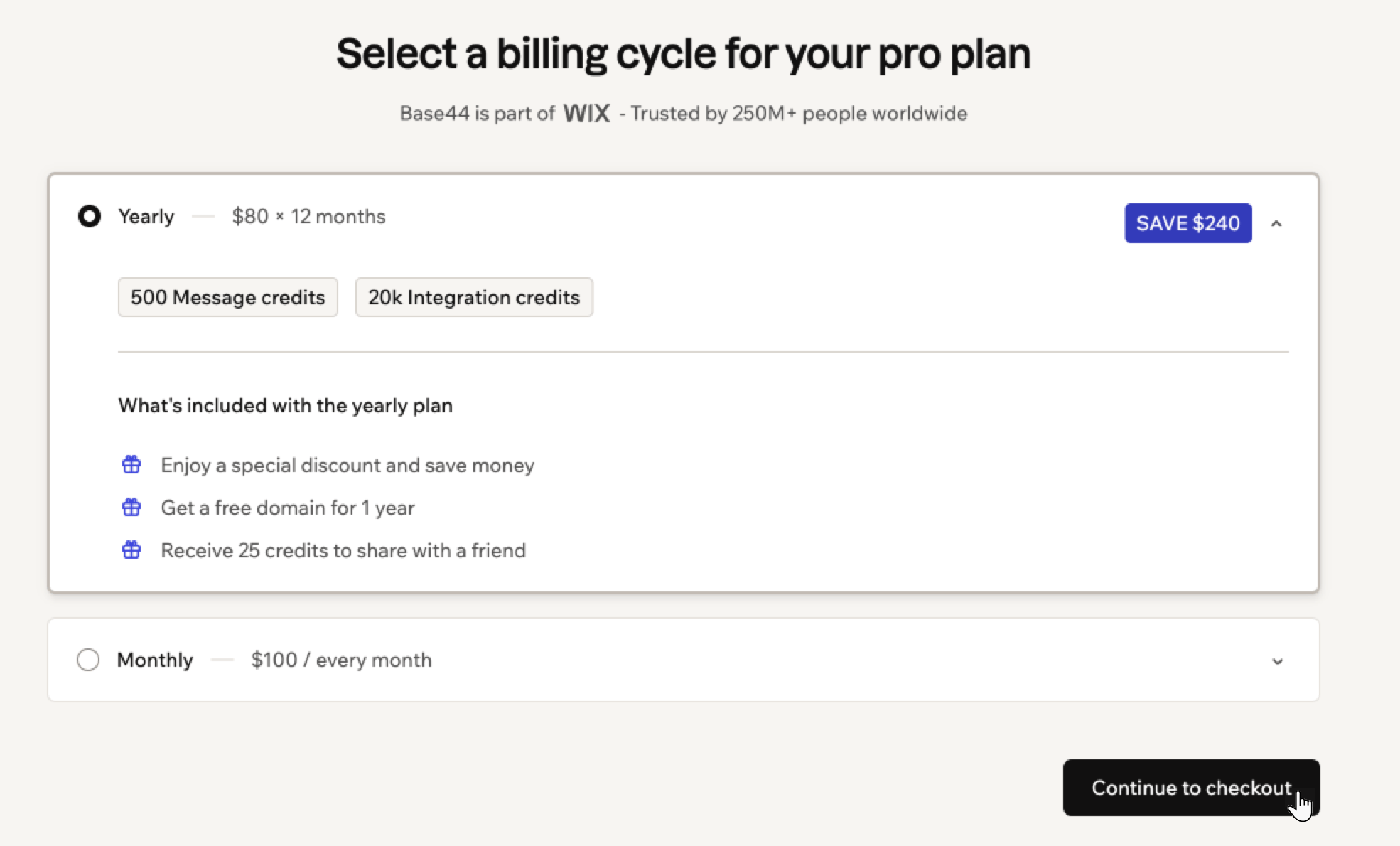
Choosing a billing cycle
Upgrading an existing plan
You can upgrade your plan from the Plans page or follow the steps below. Your plan’s features and usage limits update right away, and billing is automatically adjusted. To upgrade an existing plan:- Click your workspace name at the bottom left of your account.
- Click Settings.
- Under General, click Plan & Subscriptions.
-
Click Upgrade Plan.
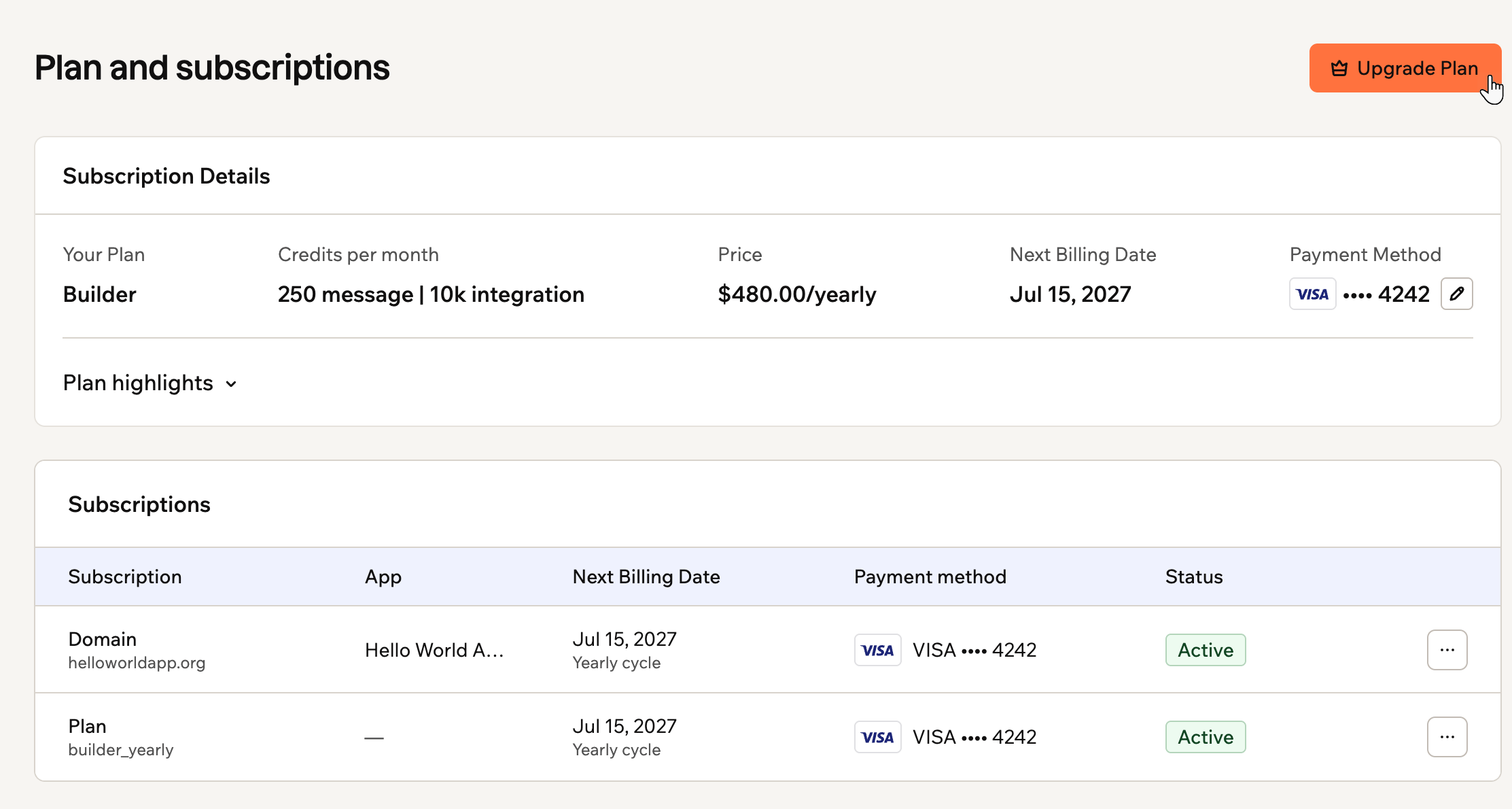
Your plan and subscriptions in workspace settings
- Click Upgrade to on the plan you want, for example Upgrade to Pro.
- If you pay monthly, choose Yearly or Monthly, then click Confirm subscription upgrade.
- Review the price and confirm the upgrade.
Downgrading your plan
You can downgrade to a lower plan anytime. The change takes effect at the end of your current billing period, so you keep your current plan until then. To downgrade your plan:- Click your workspace name at the bottom left of your account.
- Click Settings.
- Under General, click Plan & Subscriptions.
- Click Upgrade Plan.
-
Click Downgrade to on the plan you want, for example Downgrade to Starter.
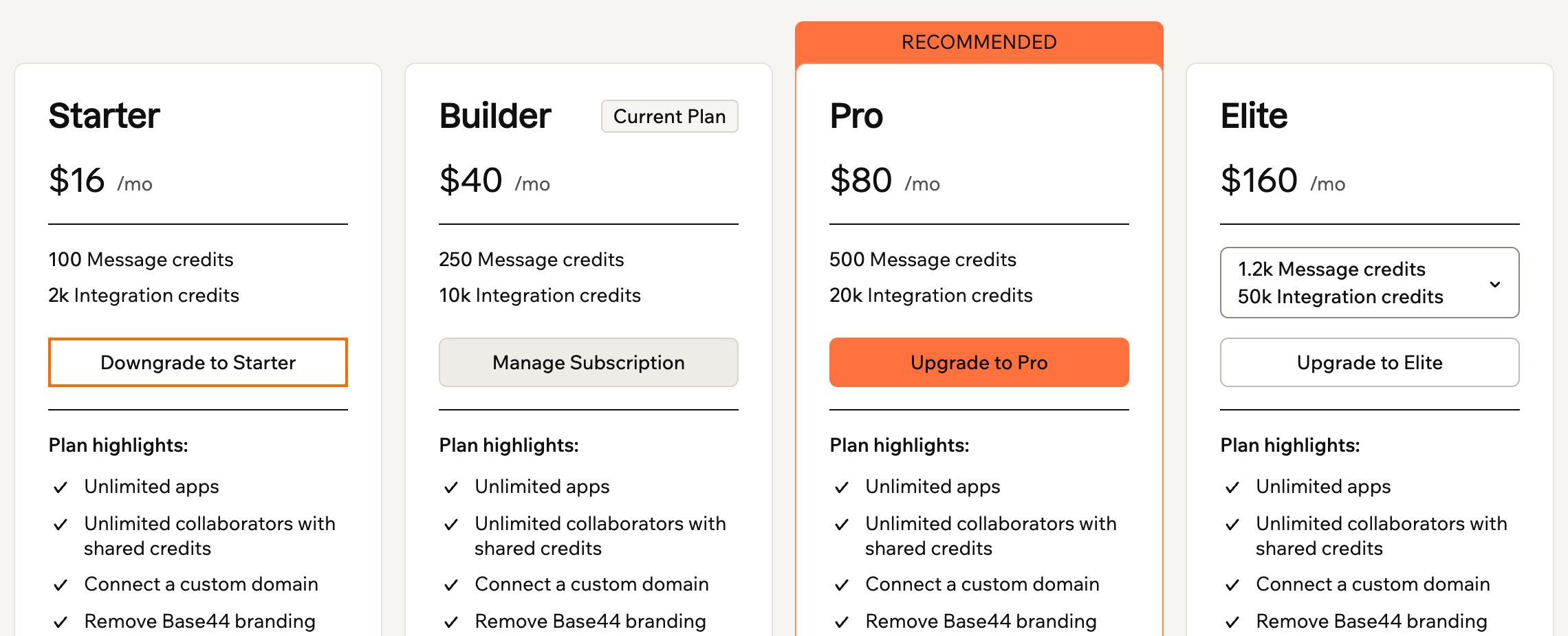
Choosing a lower plan
- Click Confirm Downgrade.
Managing your billing and payments
Manage your Base44 payment details, update your billing cycle, download invoices, cancel your subscription, and more.Switching from monthly to yearly
Upgrade to a yearly plan anytime and save with annual pricing. Your new billing cycle starts immediately. To switch from a monthly to a yearly plan:- Click your workspace name at the bottom left of your account.
- Click Settings.
- Under General, click Plan & Subscriptions.
- Click Upgrade Plan.
- Click Manage Subscription on your current plan.
-
Click Upgrade to Yearly.
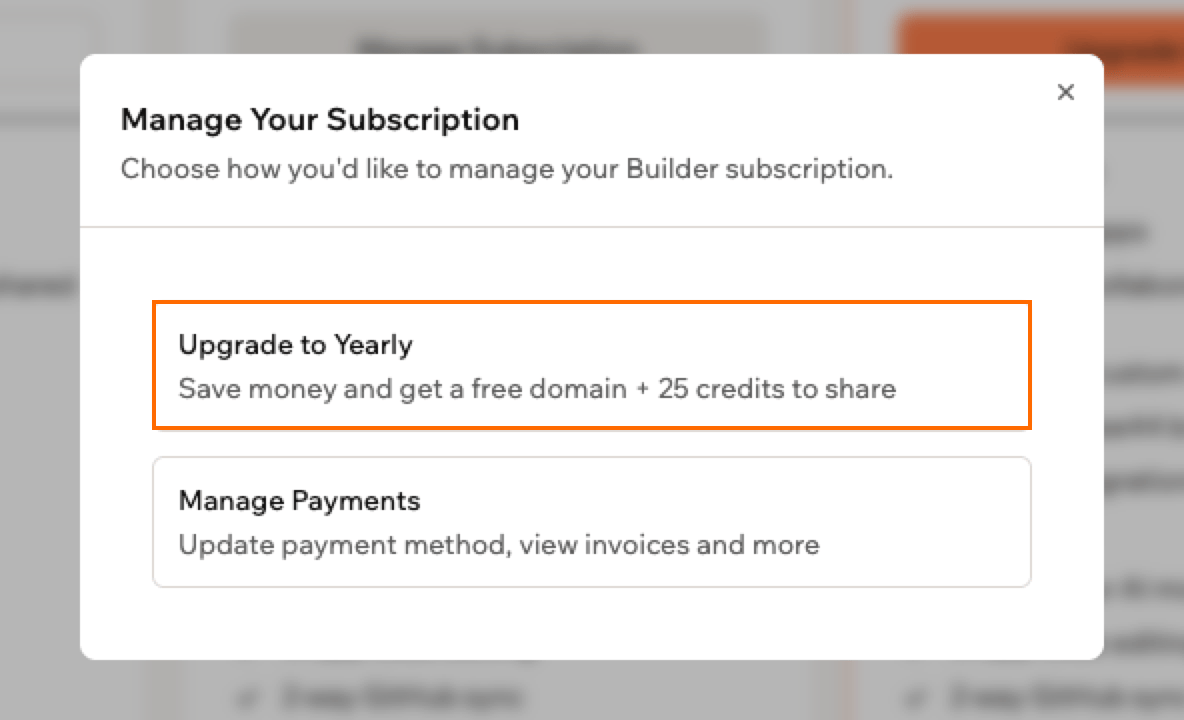
Upgrading your monthly plan to yearly
- Review the yearly plan pricing, benefits, and prorated charge.
- Click Confirm Upgrade.
- To change your plan and billing cycle together, for example from Starter monthly to Pro yearly, upgrade your plan and choose Yearly when you’re asked for a billing cycle.
- You can’t switch from a yearly plan to a monthly one. If you’re already on a yearly plan, Manage Subscription opens the page where you manage your payment details instead.
Viewing and downloading invoices
View your billing history and download your invoices to keep records of your payments. Each invoice appears as soon as your payment is processed. To view and download an invoice:- Click your workspace name at the bottom left of your account.
- Click Settings.
- Under General, click Billing History.
-
Next to the relevant invoice, click its invoice number, or click the More actions icon and click Open invoice. You can view and download the invoice from there.
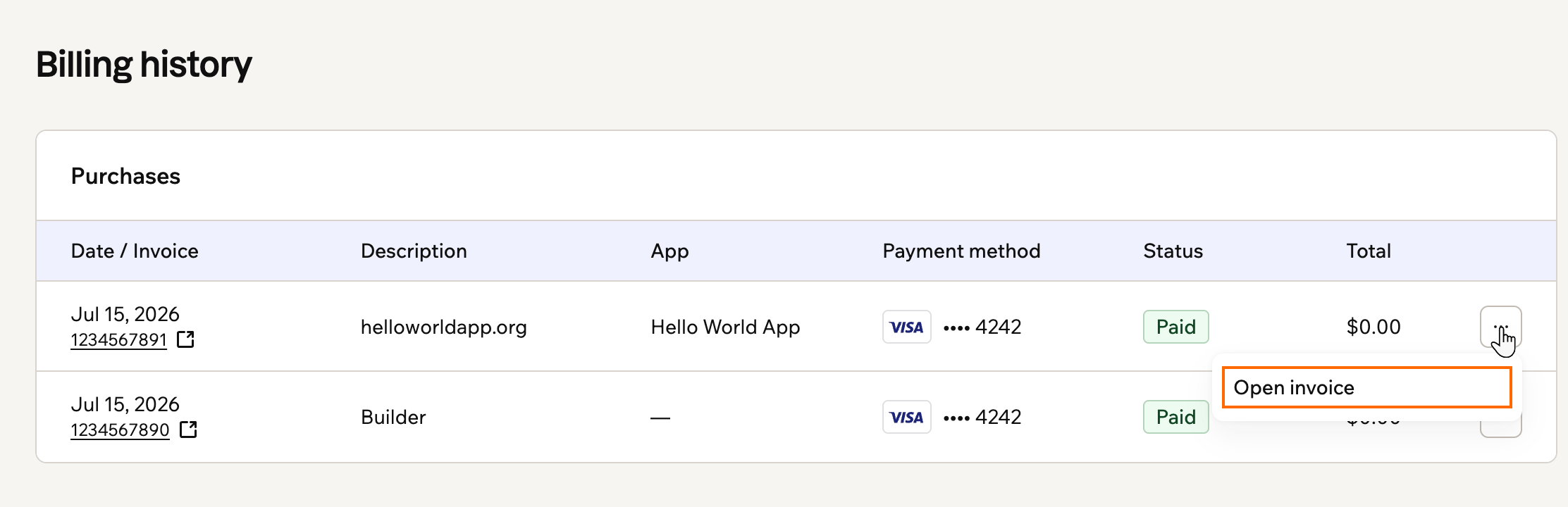
Opening an invoice from your billing history
Updating your billing information
You can update your name and billing address on any paid plan. You can’t change your tax ID after you’ve bought a plan. To update your information:- Click your workspace name at the bottom left of your account.
- Click Settings.
- Under General, click Plan & Subscriptions.
- Click the More actions icon on your plan’s row in the Subscriptions table.
-
Click Update payment method.
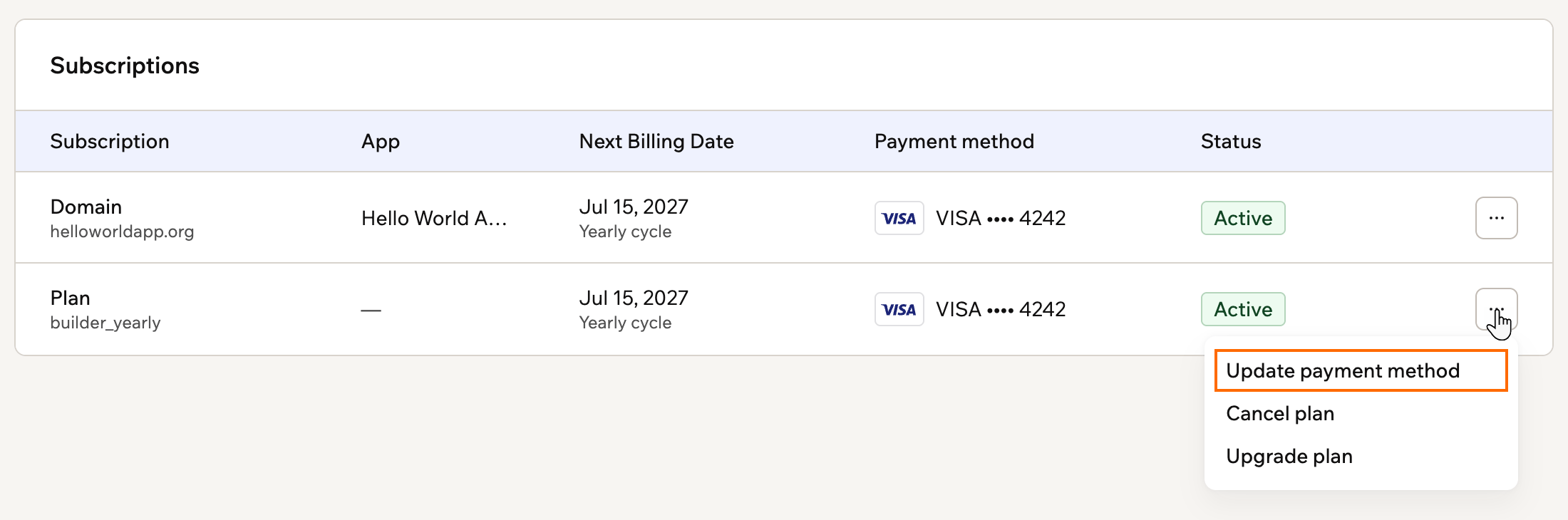
Updating the payment method for your plan
- In the page that opens, update your name and billing address.
Canceling your subscription
You can cancel your subscription anytime. You’ll have complete access until the end of your billing period. If you’ve scheduled a plan change, such as a downgrade, click Cancel Change on the Plan & Subscriptions page before you cancel.- Canceling a subscription stops future renewals, but it does not issue a refund for the current subscription period.
- When you cancel, your workspace downgrades to the free plan at the end of your billing period. This limits features and capabilities, including a maximum of 5 apps. If you have more than 5 apps, you choose which 5 stay published, and the others are unpublished when your plan ends. You may also lose access to features that are only available on paid plans. Your Superagent keeps working, but its phone number, if it has one, is released. Learn more about what happens to your Superagent.
- If your workspace is on a custom Enterprise contract, your plan’s row has no More actions icon. Contact the Base44 team to make changes.
- Click your workspace name at the bottom left of your account.
- Click Settings.
- Under General, click Plan & Subscriptions.
- In the Subscriptions table, click the More actions icon on your plan’s row.
- Click Cancel plan.
- Follow the prompts to confirm.
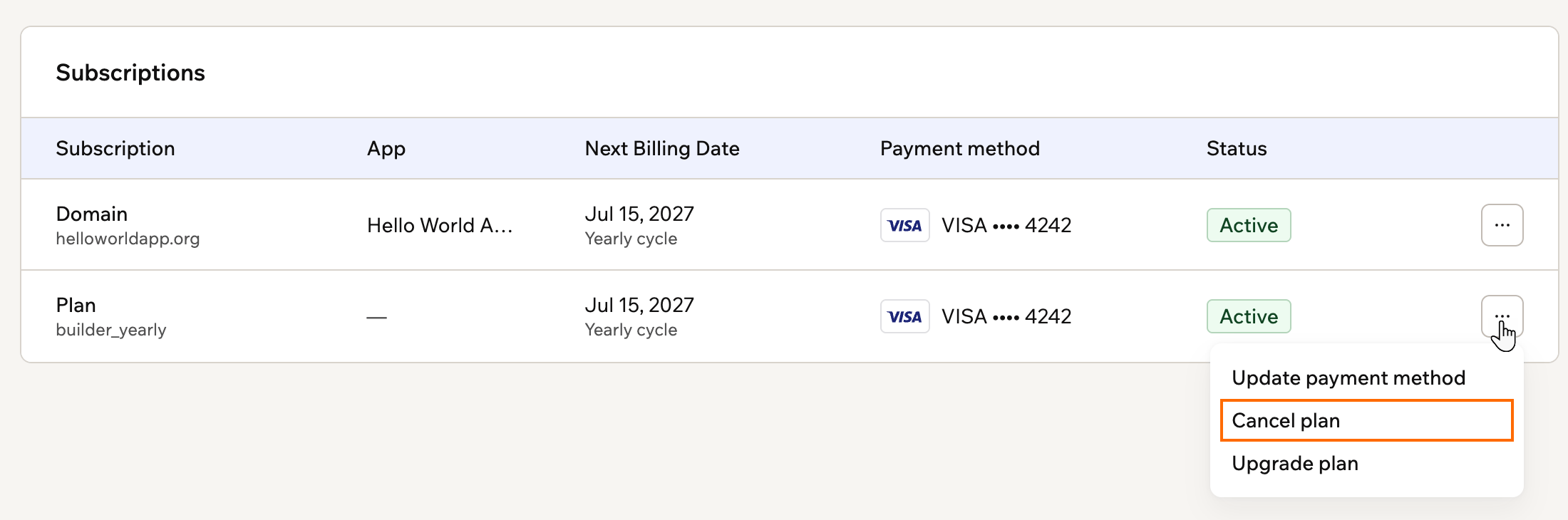
Canceling a plan from the Subscriptions table
Apple App Store subscriptions
If you subscribed to Base44 through the iOS app, your plan is managed through the Apple App Store. Apple handles the billing, so some actions work differently from a plan purchased on the web. As with Google Play, you can only buy in the app while you are on the Free plan. If you already have a plan bought on the site, the app asks you to manage it there instead. To change or cancel an App Store subscription, use your Apple device:- Open Settings on your iPhone or iPad.
- Tap your name.
- Tap Subscriptions.
- Select your Base44 subscription.
How App Store subscriptions work
- One platform at a time: You can hold an active paid plan on only one platform, either the Apple App Store or the Base44 site, never both at once. While your Apple subscription is active, you cannot also upgrade or buy a plan on the site. To move to a web plan, first cancel your Apple subscription, wait for your account to return to the Free plan, and then purchase your plan on the site.
- Cancellations, refunds, and billing: Apple handles all billing for App Store subscriptions, so Base44 cannot process or help with cancellations, refunds, or plan changes. Cancel using the steps above, and request refunds directly from Apple.
- Upgrade billing: When you upgrade, Apple charges the full price of the new plan upfront and issues a prorated refund for the unused portion of your previous plan. Your billing date resets to the day you upgraded, so you may see 2 separate transactions in your payment history: a charge for the new plan and a refund for the time left on your old plan. This is expected Apple behavior and is not something Base44 controls.
Google Play subscriptions
You can buy a Base44 plan inside the Android app, and Google Play then handles the billing. To buy a plan in the Android app:- Open the Base44 app on your Android device, then tap your profile.
- Tap Upgrade your plan.
- Choose your plan and complete the purchase through Google Play.
How Google Play subscriptions work
- Which plans you can buy: The Starter, Builder, and Pro plans are available, monthly or yearly. The Elite and Business plans are not sold through Google Play, so buy them on the site instead.
- One platform at a time: A plan bought in Google Play cannot run alongside one bought on the site. While your Google Play plan is active, the site asks you to manage it in Google Play, and to move to a web plan you cancel in Google Play first and wait for your account to return to Free.
- Changing or canceling: Manage the subscription in Google Play, the same way as any other subscription on your device. Google handles the billing, so Base44 cannot process cancellations or refunds for you.
Gift cards
Base44 gift cards are no longer available to buy. If you already have one, you can still redeem it as a discount toward a Base44 subscription. Learn how to redeem a gift card.FAQs
Click a question below to learn more about billing and plans.Plans and subscriptions
Questions about choosing, changing, and canceling your plan.Can I pause my current subscription?
Can I pause my current subscription?
Does my plan include a free domain?
Does my plan include a free domain?
What if I chose the wrong plan or billing cycle?
What if I chose the wrong plan or billing cycle?
How much storage space can I use with my plan?
How much storage space can I use with my plan?
Can I make private apps?
Can I make private apps?
Can I cancel and resubscribe to the same plan?
Can I cancel and resubscribe to the same plan?
Are there paid plans for using the Base44 backend?
Are there paid plans for using the Base44 backend?
Payments and billing
Questions about paying for Base44, failed payments, and discounts.What should I do if my payment fails or is overdue?
What should I do if my payment fails or is overdue?
- Click Update Payment on your plan’s row, or Update payment method in the message.
- Add a valid card and complete the payment.
What happens if I dispute a charge with my bank?
What happens if I dispute a charge with my bank?
- Your workspace moves to the Free plan, so paid features such as backend functions, connectors, and the model picker stop working.
- Your plan credits are unavailable.
- Custom domains on your apps are disabled.
- You cannot buy, upgrade, or change a plan, or open the billing portal. You can still cancel your plan or turn off auto-renewal.
Can I get a refund?
Can I get a refund?
What payment methods does Base44 accept?
What payment methods does Base44 accept?
- PayPal
- Bank transfers
- Wire transfers
- Virtual cards
- Cryptocurrency
- Check with your bank about any international transaction limits or blocks.
- Try a different card if you have one available.
- Make sure your card is enabled for international online transactions.
Do you offer student or academic discounts?
Do you offer student or academic discounts?
I subscribed through the Apple App Store. Where are my receipts?
I subscribed through the Apple App Store. Where are my receipts?
- Open Settings on your iPhone or iPad and tap your name.
- Tap Media & Purchases, then tap View Account.
- Tap Purchase History.
Why does my App Store price differ from the price on the Base44 site?
Why does my App Store price differ from the price on the Base44 site?