

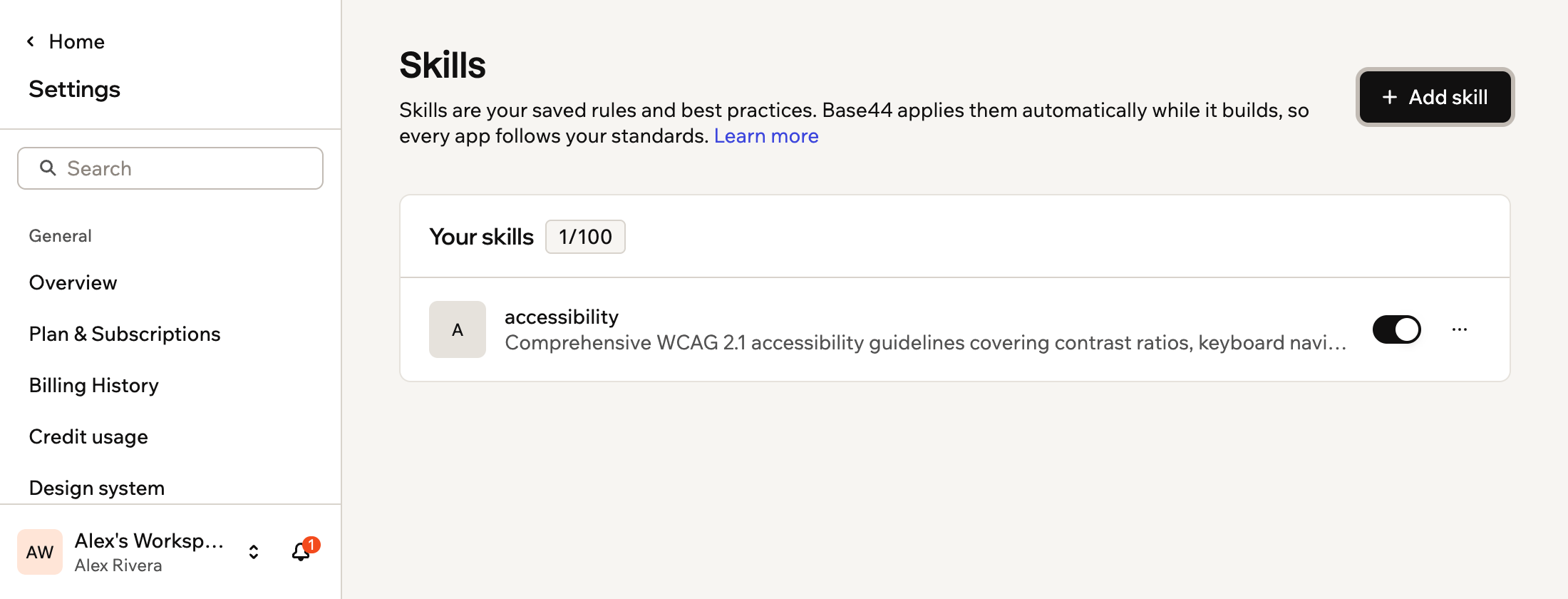
Skills saved to a workspace
- Design skill: Help the AI think like a designer by applying layout logic, spacing rules, hierarchy, and component best practices as it builds your UI.
- Copy skill: Help the AI focus on clear headlines, product descriptions, landing pages, and in-app text that match your tone and goals.
- Data skill: Help the AI behave like an analyst, interpret metrics, spot patterns, and reason about decisions using your structured data.
Adding a workspace skill
You can upload a skill file, start from a template, or create a skill from scratch.Each workspace can have up to 100 skills. If you reach this limit, you must delete an existing skill before adding a new one.
- Click your workspace name at the bottom left of your account.
- Click Settings.
- Under Build tools, click Skills.
-
Click Add skill.
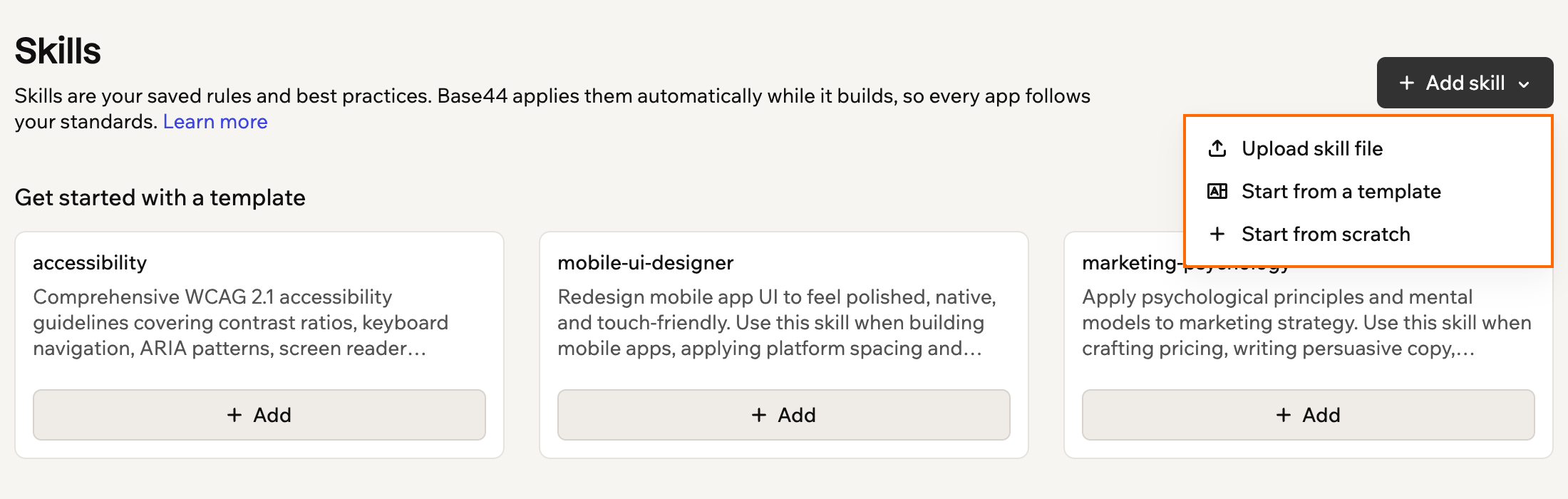
Choosing how to add a skill
-
Choose how you want to start:
- Upload skill file: Upload a
.zipor.skillfile with aSKILL.mdfile at its root. The name, description, and instructions fill in from the file, so you can check them in the next steps. - Start from a template: Click Add on one of the preset skills.
- Start from scratch: Create a completely custom skill.
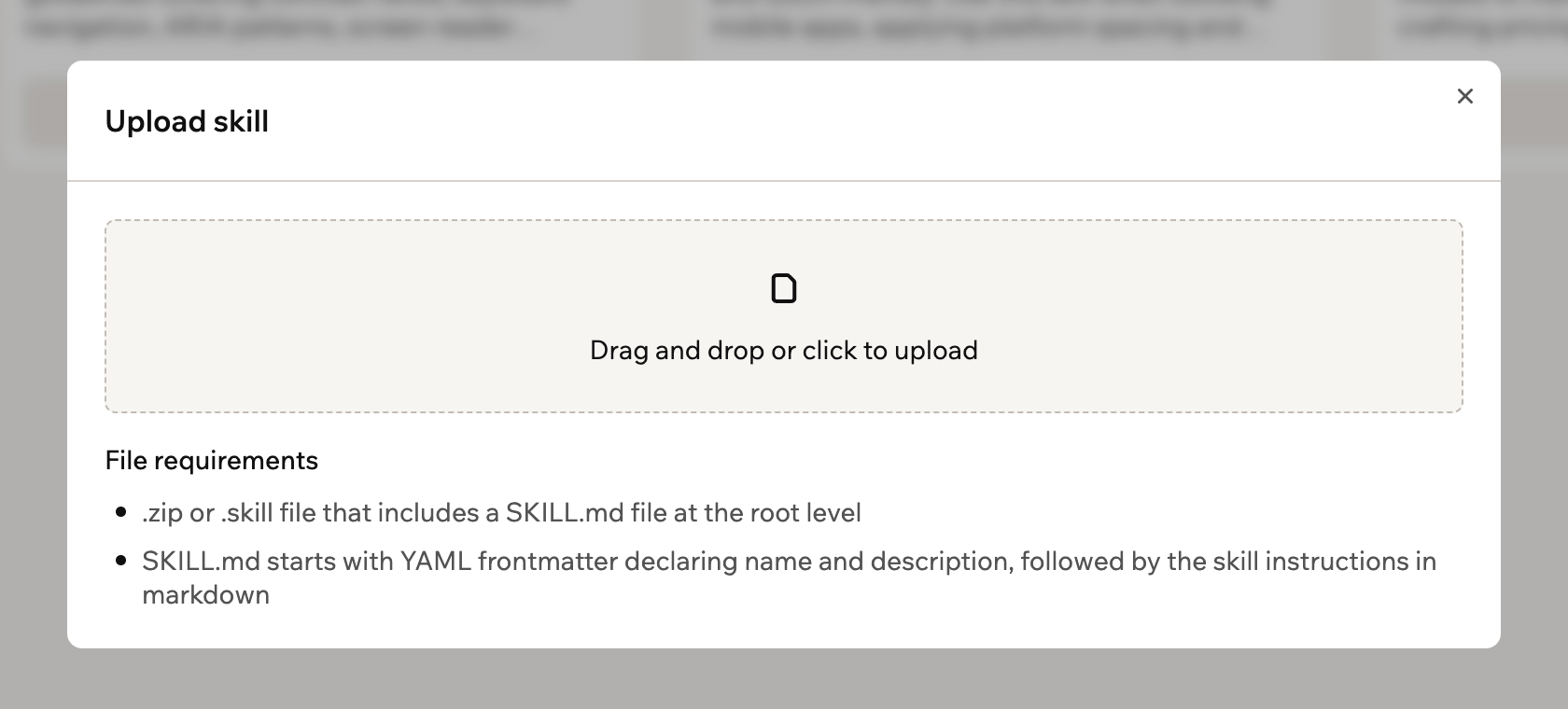
Uploading a skill file
- Upload skill file: Upload a
-
In the Skill name field, enter a short, recognizable name, such as
brand-guidelinesorcheckout-copy-style. - In the Description field, describe when the AI should use this skill. For example, explain which pages or tasks it applies to, or which team or brand it belongs to.
- In the Instructions field, add the step-by-step rules the AI should follow when the skill activates. Treat this like training a new team member, with clear headings, examples, and priorities.
- (Optional) Click Refine & Review to have the AI refine and adjust the skill description and instructions while keeping your intent.
-
In the Review your skill window, compare the refined version with your original text:
- Click Back to Original if you prefer your original version.
- Click Save Skill to save the refined version, or Cancel to close the review window without saving changes.
- Click Add skill to add the skill to your workspace.
Turning a workspace skill on or off
You can temporarily disable a skill without deleting it. When a skill is off, the AI ignores its rules during conversations. To turn a workspace skill on or off:- Click your workspace name at the bottom left of your account.
- Click Settings.
- Under Build tools, click Skills.
- Click the toggle on the relevant skill to enable or disable that skill.
Editing or deleting a workspace skill
Update a skill when your guidelines change, or delete it if you no longer need it.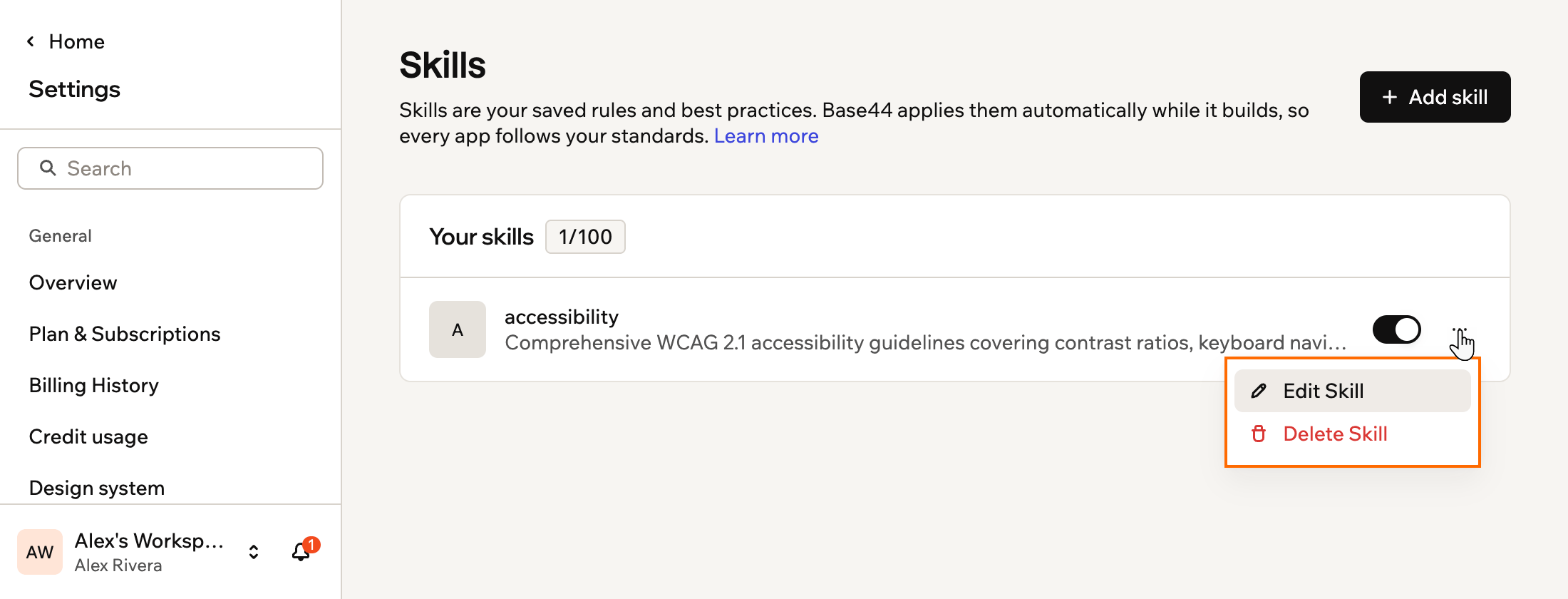
Editing or deleting a workspace skill
- Click your workspace name at the bottom left of your account.
- Click Settings.
- Under Build tools, click Skills.
- Next to the relevant skill, click the More actions icon .
- Choose what you want to do:
- Edit Skill: Open the skill editor to make changes. You can update the Skill name, Description, or Instructions, and optionally click Refine & Review again to have the AI improve your updates before you save.
- Delete Skill: Remove the skill from your workspace.
Best practices for writing skills
Skills are static text. They cannot pull live data, check current conditions, or adapt based on what is in your app. For live data needs, use MCP connections instead. Skills influence AI behavior in the editor chat only. They do not enforce code standards, access controls, or data policies at the platform level.
- Keep each skill focused on one concern. Skills for design, copy, data, and security are easier to maintain, toggle, and invoke precisely than a single broad skill that tries to cover everything.
- Edit and update rather than delete and rebuild. As your standards evolve, update the skill’s instructions. Deleting and starting over loses your history and risks gaps.
- Avoid complex conditional logic. Instructions like “if X then Y, but if Z then W” can produce inconsistent results. Keep rules clear and direct.
- Mention the skill in your prompt for best results. The AI can invoke skills automatically, but being explicit (for example, “Apply the brand-guidelines skill to this page”) produces more reliable results.
FAQs
Click a question below to learn more about workspace skills.When does the AI use a workspace skill?
When does the AI use a workspace skill?
The AI decides whether to use a skill based on your prompt and the skill’s description and instructions. It can invoke relevant skills automatically when they match what you are trying to do.For best results, mention the skill or its purpose directly in your prompt, such as “Apply our accessibility skill to this form.”
Do workspace skills apply to all apps in my workspace?
Do workspace skills apply to all apps in my workspace?
Yes. Workspace skills are available to the AI chat in every app in that workspace for anyone who can work in that workspace.
How do workspace skills relate to MCP connections?
How do workspace skills relate to MCP connections?
Workspace skills define shared rules and best practices for how the AI builds apps in a specific workspace.MCP connections are configured once per account and let the AI chat use external tools and live data across all the apps and workspaces your account can access.Learn how to add MCP connections.
What happens if I delete a workspace skill?
What happens if I delete a workspace skill?
When you delete a skill, the AI chat no longer uses its rules in any app in that workspace. You need to recreate the skill if you want to restore those guidelines in the future.