

About credits in Base44
Credits are the units Base44 uses when you interact with Base44’s AI or connect your app to external tools. Credit usage adjusts dynamically based on how much work the AI needs to do behind the scenes.Types of credits
Base44 uses 2 types of credits to support your app building and operations:Message credits
Message credits
- Asking the AI to add or refine a small feature.
- Debugging or fixing logic in a specific part of your app.
- Getting the AI to rewrite copy or microcopy.
- Applying AI-suggested changes from the chat.
Integration credits
Integration credits
How credits are used
There is no set credit amount used per message. Different actions use credits in different ways, depending on what you ask the AI to do. Short, focused prompts usually require less work behind the scenes, while broader prompts that touch several pages or components can require more. Manual visual edits, such as dragging elements, changing layouts, or editing text directly in the editor, do not use credits. Even when a request looks simple or your message is very short, the AI still has a lot to do in the background. It needs to read what you already built, understand your request, figure out the safest way to change it, and apply the update without breaking other parts of your app. Credits are based on how much work the system has to do, not on how small the change looks. This is why something that feels like a quick tweak, such as “translate the whole app” or “rebuild this page for mobile,” can still use a few credits as the AI has to review many files and make complex updates that you do not always see.Message credit examples
These are rough ranges, not a quote. The exact number of credits is worked out after each message runs and can vary depending on a number of factors, including the work involved and the model you are using. Treat your credit usage as the source of truth for what you actually spent.Integration credit examples
Each call to a Base44 built-in service uses integration credits. Open a category below to see the typical cost for each integration.Built-in integrations
Built-in integrations
In-app agents
In-app agents
Workflows
Workflows
Backend functions
Backend functions
- Whether an invocation uses credit, and how much, can differ between workspaces. If you are not seeing these charges, yours is billed differently.
- Your app’s usage page shows a Backend functions figure under By source. Check your credit balance to see what you were actually billed.
Viewing credits used per message
You can see how many credits a prompt used. Click the More actions icon under your prompt to open the menu, then look under Credits Used to see the cost for that specific message.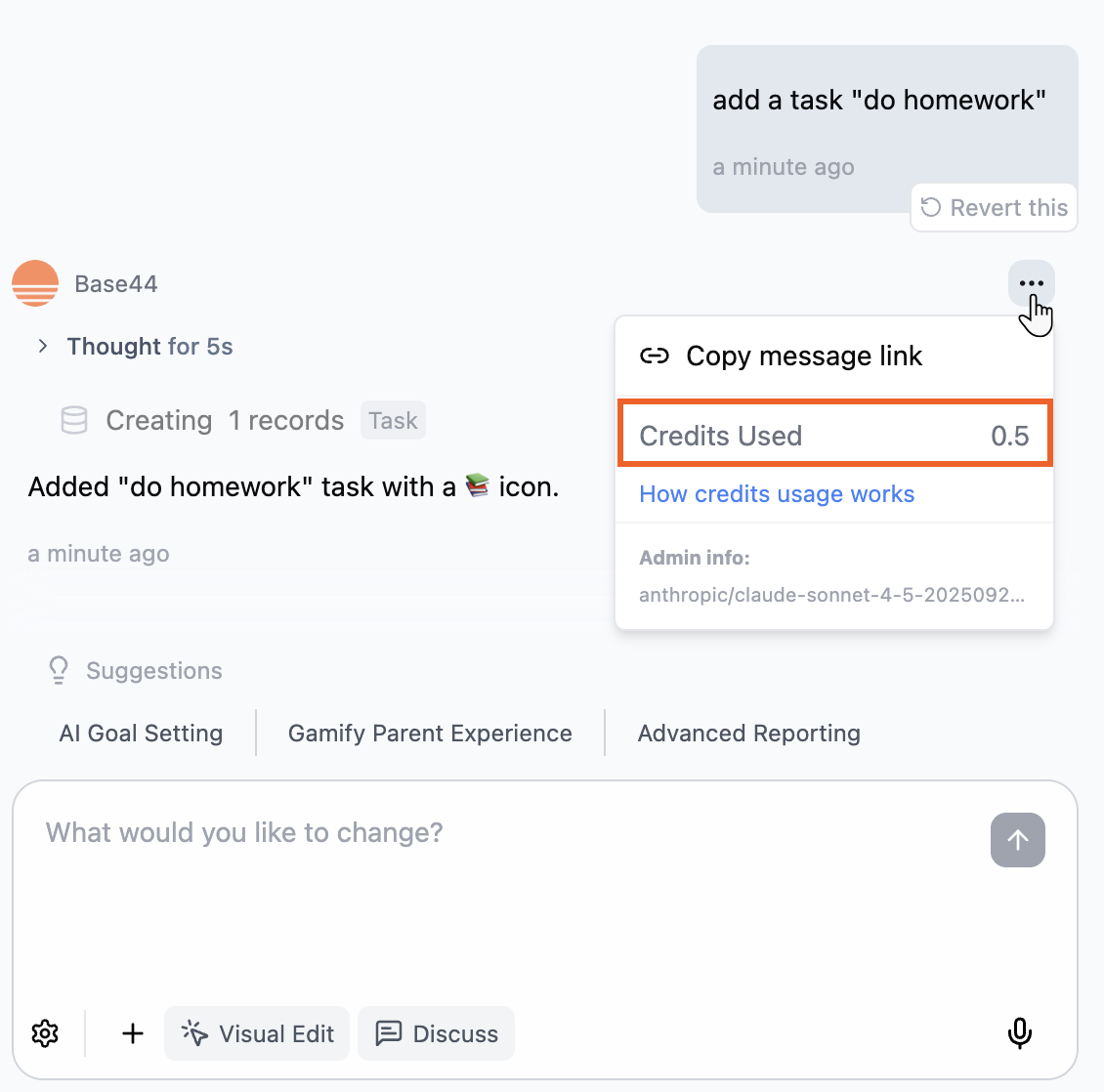
Checking a message's credit usage
Maximizing your credits
Get more out of your Base44 credits with these practical tips. Open each tip below to see how you can save credits and keep your workflow efficient.Plan your builds before prompting
Plan your builds before prompting
Use the automatic AI model
Use the automatic AI model
Keep your prompts focused
Keep your prompts focused
Update the Home page text to match the new pricing plan.Use Discuss mode to explore ideas
Use Discuss mode to explore ideas
Use Edit mode
Use Edit mode
Avoid repeated automatic fixes
Avoid repeated automatic fixes
Add and test features in small steps
Add and test features in small steps
Track your credit usage
Track your credit usage
Credit resets
Your credits refresh automatically on a set schedule, and any credits you have not used expire when they reset.When credits reset
How often your credits refresh depends on your plan:- Free plan: You can use up to 5 credits a day, up to 25 credits a month. When you reach the daily limit, features that use credits pause until your daily balance resets, as long as you still have monthly credits left. Daily credits reset at midnight in the workspace owner’s local timezone, or at midnight UTC if the workspace has no recorded timezone or you are not its owner.
- Paid plans: Your message and integration credits reset once a month, on the same day of the month you subscribed. For example, if you subscribed on July 5, your credits reset on the 5th of every month.
Running out of credits
When you reach your credit limit, actions that use credits pause until your next reset. If you do not want to wait, upgrade or adjust your plan from your billing dashboard.Upgrading mid-cycle
When you upgrade before your reset date, you get the new plan’s extra credits right away. What you pay, and whether your unused credits carry over, depends on your billing period:Checking your credit balance
The Credit usage page shows how many credits your workspace has used this billing cycle, what used them, and who. Use it to see how much is left, find out what’s using the most, and catch unexpected spend early. To check your credit usage:- Click your workspace name at the bottom left of your workspace.
- Click Settings.
- Under Workspace, click Credit usage.
- Review the card at the top of the page for the credits used out of your workspace’s total. If other people share your workspace, Your usage shows your own part, and a Near limit or Limit reached badge shows when credits are running out.
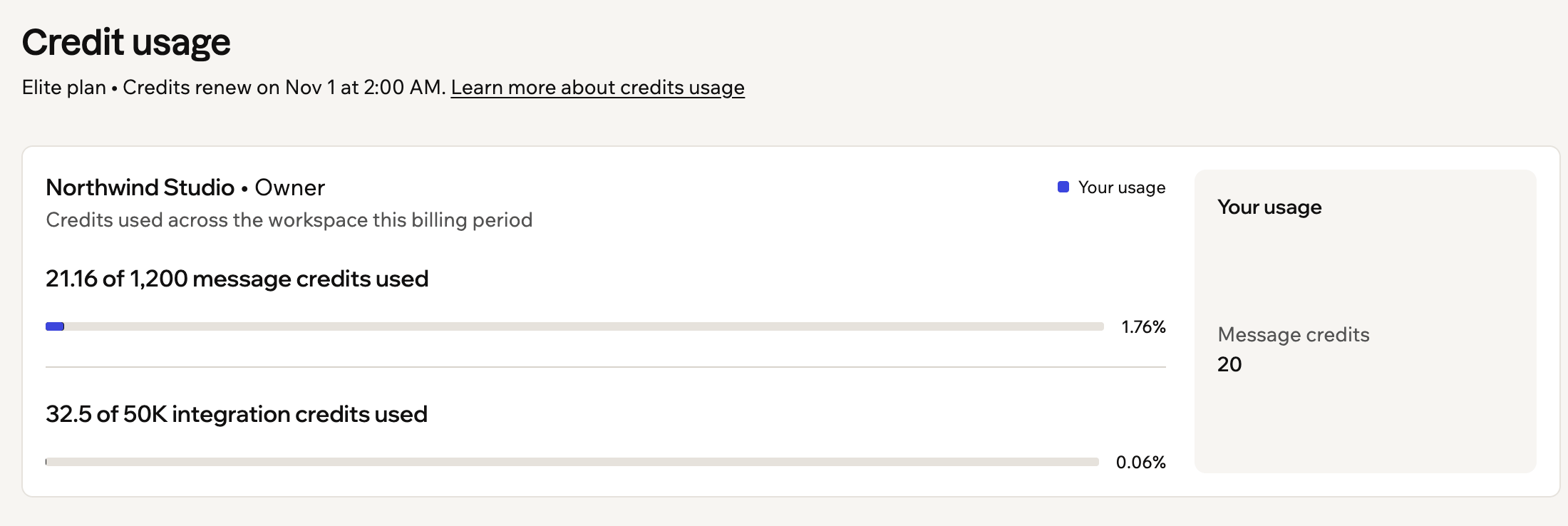
The usage card at the top of the Credit usage page
Tracking usage over time
Usage over time charts the credits used each day, so you can spot busy days and spikes. Use the filters above the chart to change what it shows:- Date range: Choose This billing cycle, Last 7 days, Last 30 days, Last year, or Custom.
- Type: Show Apps & Superagents, Apps only, or Superagents only.
- Members: Owners and admins can narrow the chart to specific people.
- Message credits and Integration credits: Switch between them with the tabs.
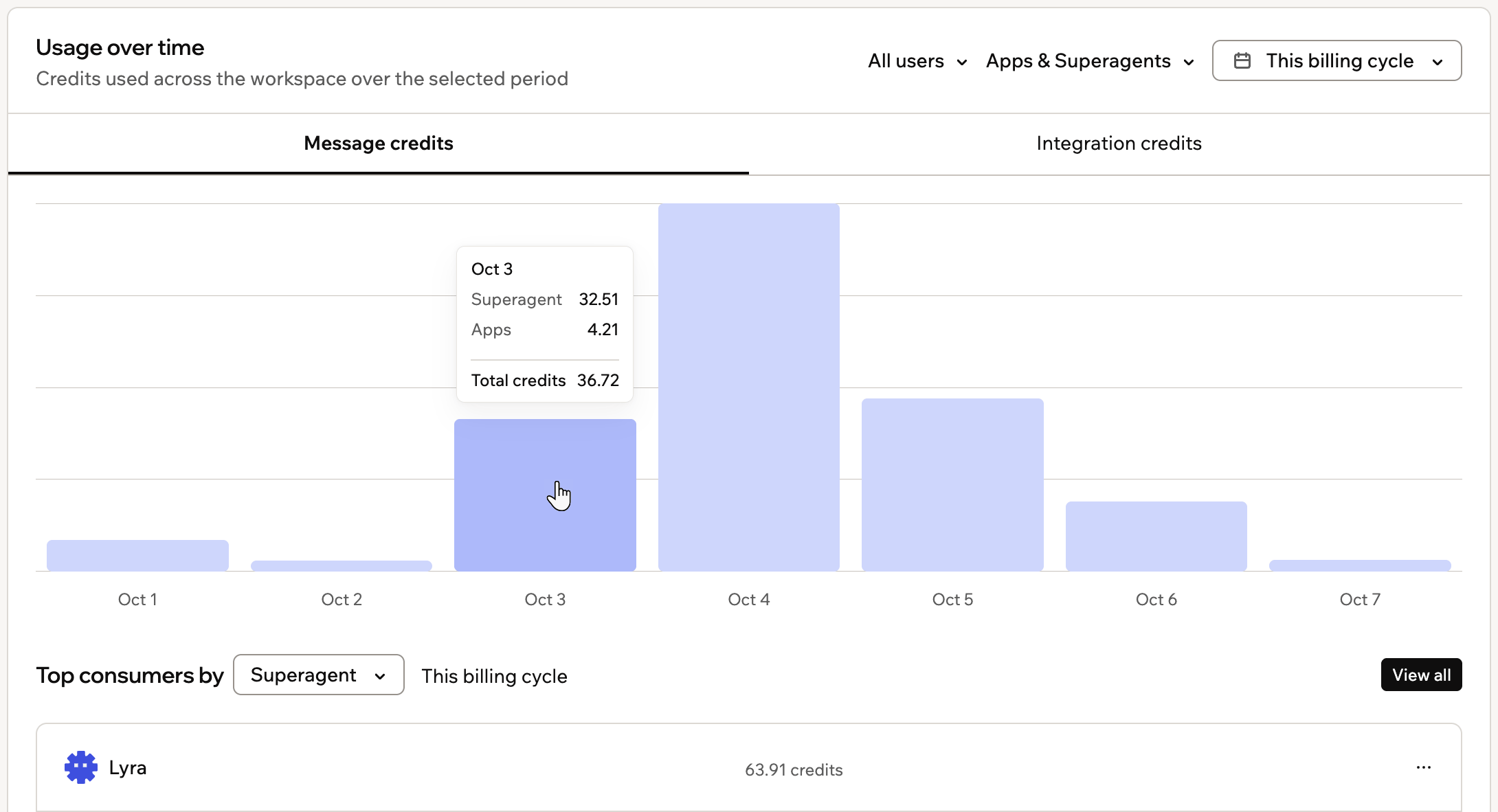
Hovering over a day in Usage over time to see its credit breakdown
Finding top consumers
Under the chart, Top consumers lists the 5 that used the most credits in the dates you chose. You can rank them by:- Member: The people who used the most. Only owners and admins see this option.
- App or Superagent: The apps or Superagents that used the most.
- Source: What the credits paid for, such as emails or AI calls. It’s on the integration credits tab, and each source shows how many apps and Superagents used it. Click the count to see which ones.
Viewing usage details
Click a member, app, or Superagent in the list to open its details for the same dates.- Apps: The Overview tab shows whether the app is published, who can see it, when it was last edited, and who builds it. The Credit usage tab shows the app’s total, how it splits between message credits and integration credits, and which actions used its integration credits. Only the app’s builders and workspace admins can see these details.
- Superagents: See where a Superagent’s message credits come from, such as Base44 chat, the API, WhatsApp, Telegram, Slack, automations, and workflows.
- Members: Owners and admins can see a person’s credits, the apps and Superagents they work on, and their recent activity. On plans with member credit limits, click Set credit limit or Edit credit limit to cap how many credits they can use. Learn more about credit limits.
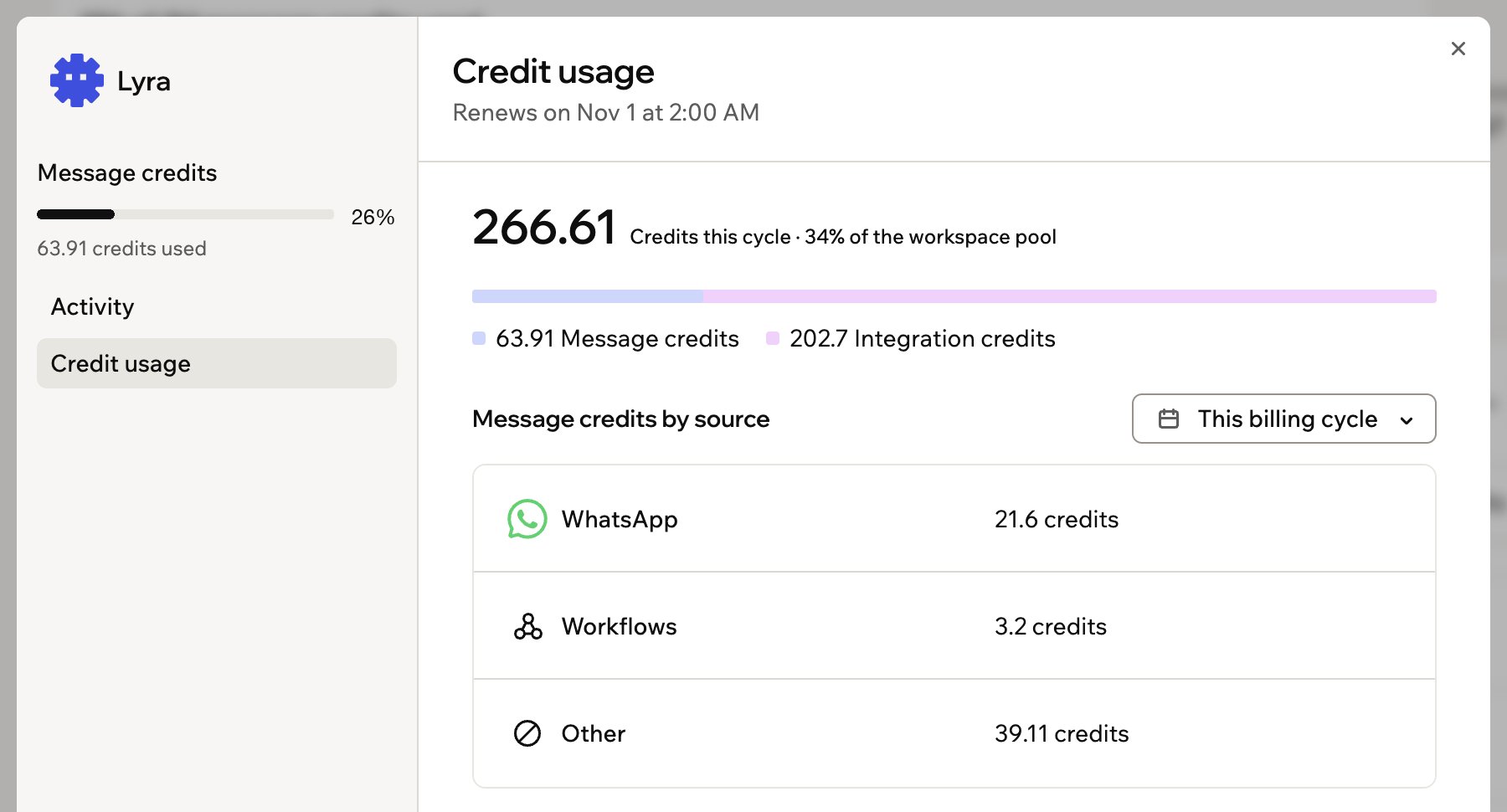
A Superagent's message credits, broken down by source
Spotting unusual spend
A sudden jump in credits usually means something changed, such as an app getting more visitors, a workflow running more often than you planned, or a Superagent answering more messages. If you’re a workspace owner or admin, 2 cards under the chart help you catch it early:- Unusual spend: Compares the message credits used in the last 7 days with the 7 days before, and lists the apps and Superagents whose spend changed the most. It needs 14 days of usage before it shows a comparison.
- Members near their limit: On plans with member credit limits, lists the people closest to their limit this billing cycle.

The Unusual spend card on the Credit usage page
Viewing usage for a single app
See how many credits one app has used this billing cycle, and what used them. You can check it from your workspace settings or from inside the app.Viewing from your workspace
The Credit usage page shows any app in your workspace next to everything else that uses credits, so you can compare them. To view an app’s usage from your workspace:- Click your workspace name at the bottom left of your workspace.
- Click Settings.
- Under Workspace, click Credit usage.
- Under Top consumers, choose App.
- Click the app you want to check. To find an app that isn’t in the top 5, click View all.
- Click the Credit usage tab.
Viewing from your app
The App usage page breaks down your app’s message and integration credits for the current billing cycle. It’s the only place that splits an app’s message credits by branch. Credits are shared across every app in the workspace, and the date they renew is shown at the top of the page. To view an app’s usage from your app:- Click Dashboard in the app editor.
- Click Overview.
- Click View usage.
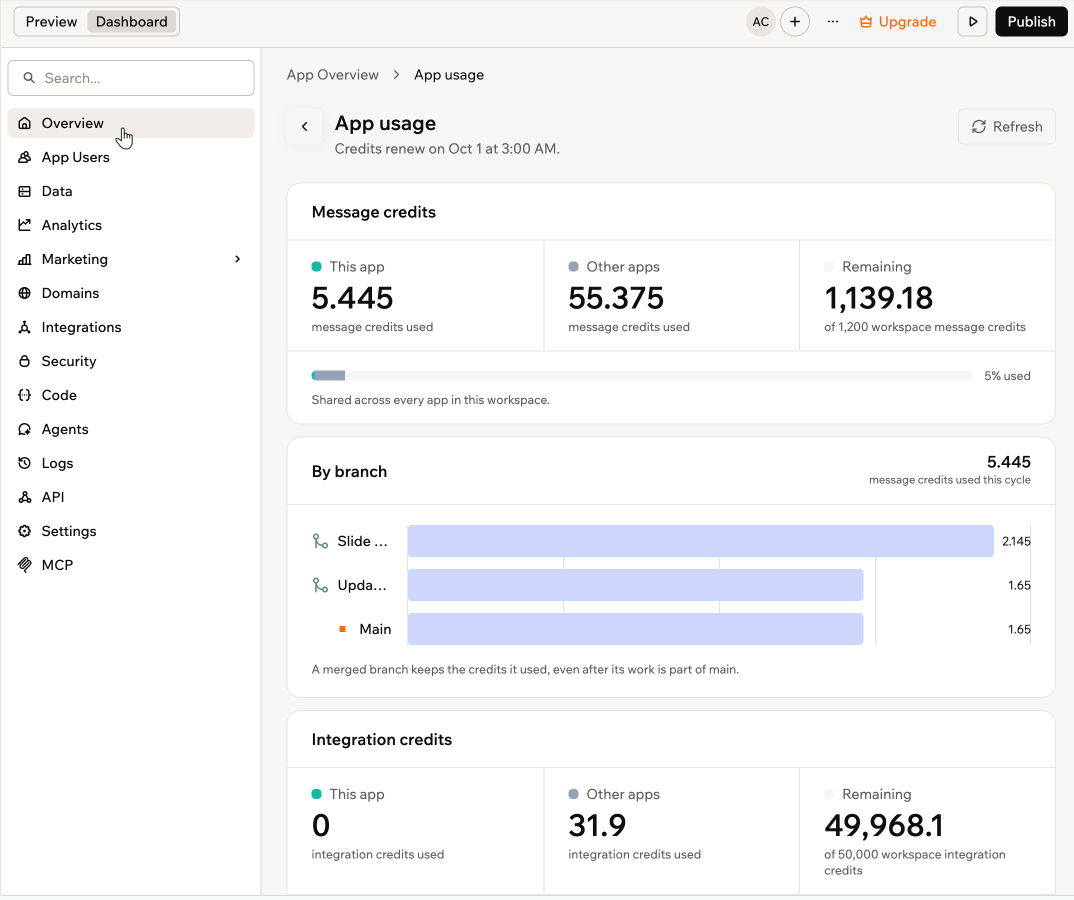
App usage for a single app in Base44
- This app: Credits this app has used in the current cycle.
- Other apps: Credits used by every other app in your workspace.
- Remaining: Credits left out of your workspace total.
- By branch: Under Message credits, a bar for Main and one for each branch you have built on, with the total for this cycle.
- By source: Under Integration credits, what spent them this cycle, such as workflows, AI, and tools. Select Show details for a ranked list of the sources and how many credits each one used.
- Database: How much of your plan’s database limit the app uses.
- A merged branch keeps the credits it used, even after its work is part of main, and a branch that no longer exists is shown as Removed branch.
- By branch appears once you have built on a branch, so an app that has only ever used Main does not show it.
- Integration credits are not broken down this way. They are charged when your published app runs, which every branch shares, so there is no branch to attribute them to.
Coupons and gift cards
Coupons and gift cards lower what you pay for Base44. A coupon code can add credits to your workspace, a gift card takes its value off your subscription, and a promotion code gives you a discount when you buy a plan.Adding coupon credits
Base44 sometimes gives out coupon codes that add credits to your workspace. You redeem them from the Credit usage page. To redeem a coupon code:- Click your workspace name at the bottom left of your workspace.
- Click Settings.
- Under Workspace, click Credit usage.
- Click Redeem coupon or gift card at the top of the page.
- Enter your code and click Apply.
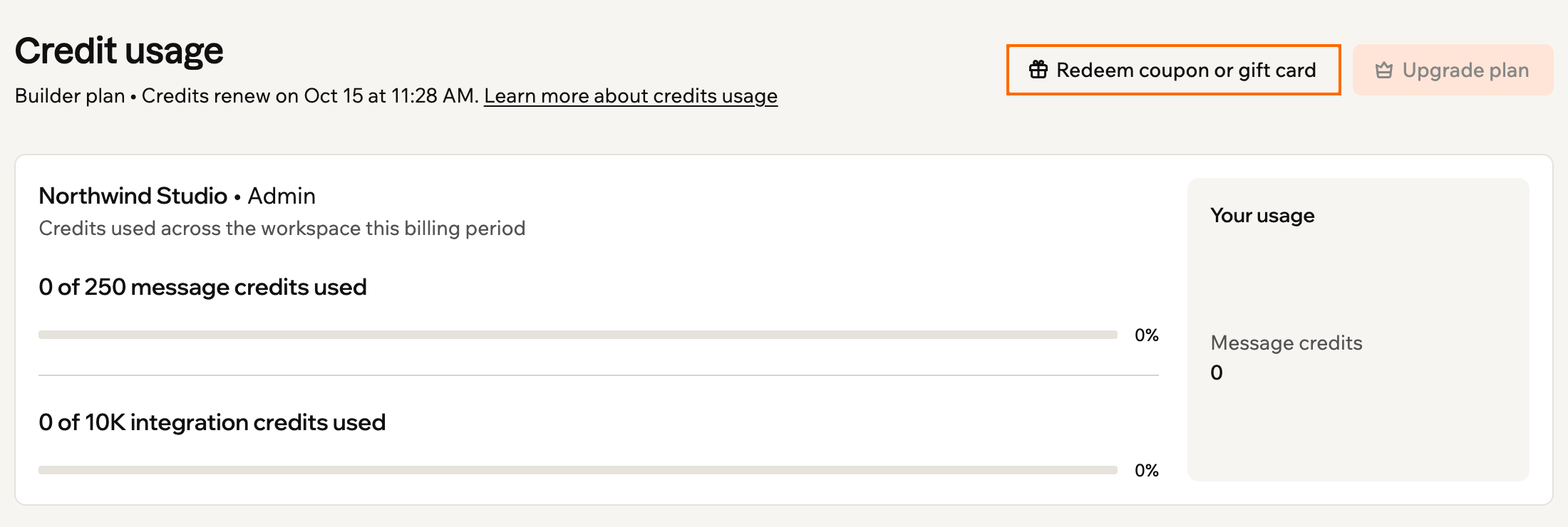
Redeeming a coupon from the Credit usage page
Redeeming a gift card
Base44 gift cards are no longer available to buy. If you already have one, you can still redeem it as a discount toward a Base44 subscription. Gift cards expire 5 years from the date of purchase. Gift cards bought before April 12, 2026 added message credits to your account instead, and they keep working as message credits until they expire. How it works depends on whether you already have a plan:- If you don’t have a plan yet: The gift card value is applied as a discount at checkout. For example, a $100 gift card covers 1 month of a plan that costs $100 per month, 2 months of a plan that costs $50 per month, and so on. If the card value doesn’t cover a full month, it applies as a partial discount toward your next invoice.
- If you already have an active plan: The gift card value is applied to your next invoice automatically. You can see the pending credit in Settings under Plan & Subscriptions.

Checking your gift-card credit
- Click your workspace name at the bottom left of your workspace.
- Click Settings.
- Under Workspace, click Credit usage.
- Click Redeem coupon or gift card, enter your gift card code, and click Apply.
- Choose what to do next:
- If you don’t have a plan yet: Go to Plan & Subscriptions, choose your plan and click Subscribe. Review the discount shown at checkout and click Subscribe to complete your purchase.
- If you already have an active plan: Your gift card value is applied to your next invoice automatically.
Applying a plan discount
If you have a promotion code for a discount on a plan, apply it at checkout before you upgrade, change, or renew your plan. To apply a promotion code:- Go to the Plans page.
- Choose your plan.
- On the checkout page, click Add promotion code and enter your code.
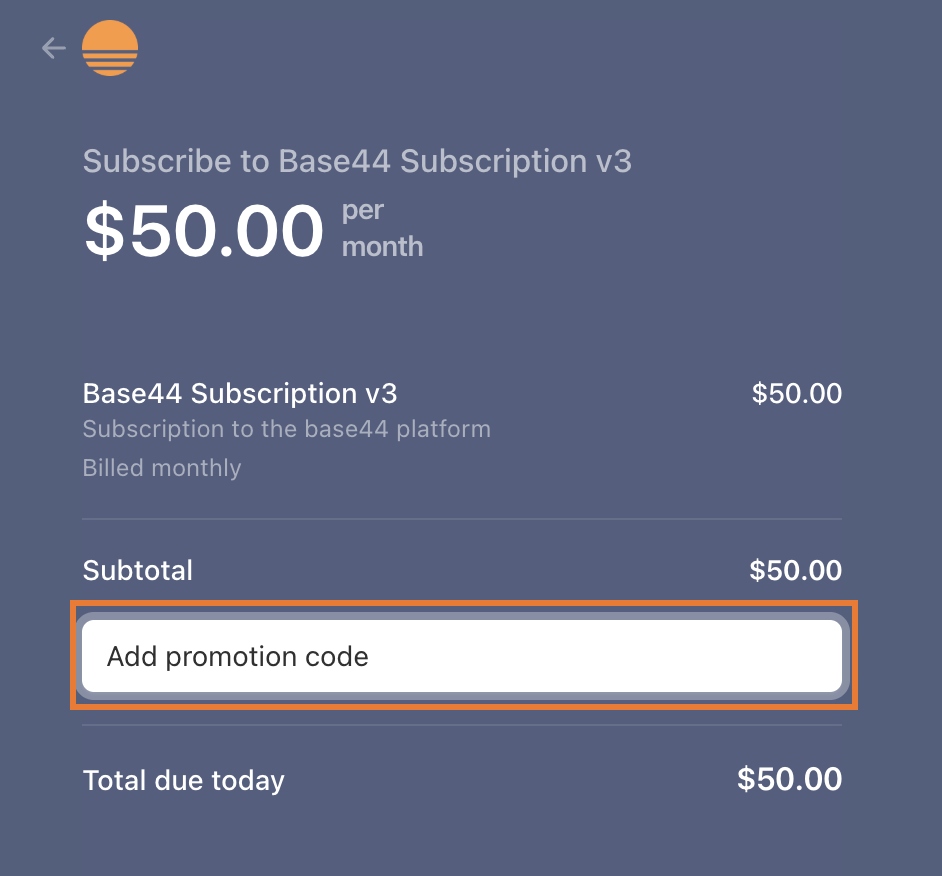
Adding a promotion code during checkout
Using credits with teams
Credits in your workspace are shared across everyone you invite. When any member builds or uses apps, credits are drawn from the workspace’s shared pool.- Message credits: Drawn from the workspace pool whenever anyone in the workspace sends a prompt.
- Integration credits: Drawn from the workspace pool whenever an app triggers a built-in Base44 service, such as sending an email, generating an image, or calling an LLM.
Sharing your app and earning credits
Share your Base44 project on LinkedIn or X and claim 20 message credits for your personal workspace. You can do this once per Base44 account, and the credits work like any others. This is separate from the referral program, which earns you credits when friends you invite sign up and start building. When you claim, Base44 opens your post and checks it against the guidelines. Paste a link to the post itself on X or LinkedIn. A shortened LinkedIn link works too.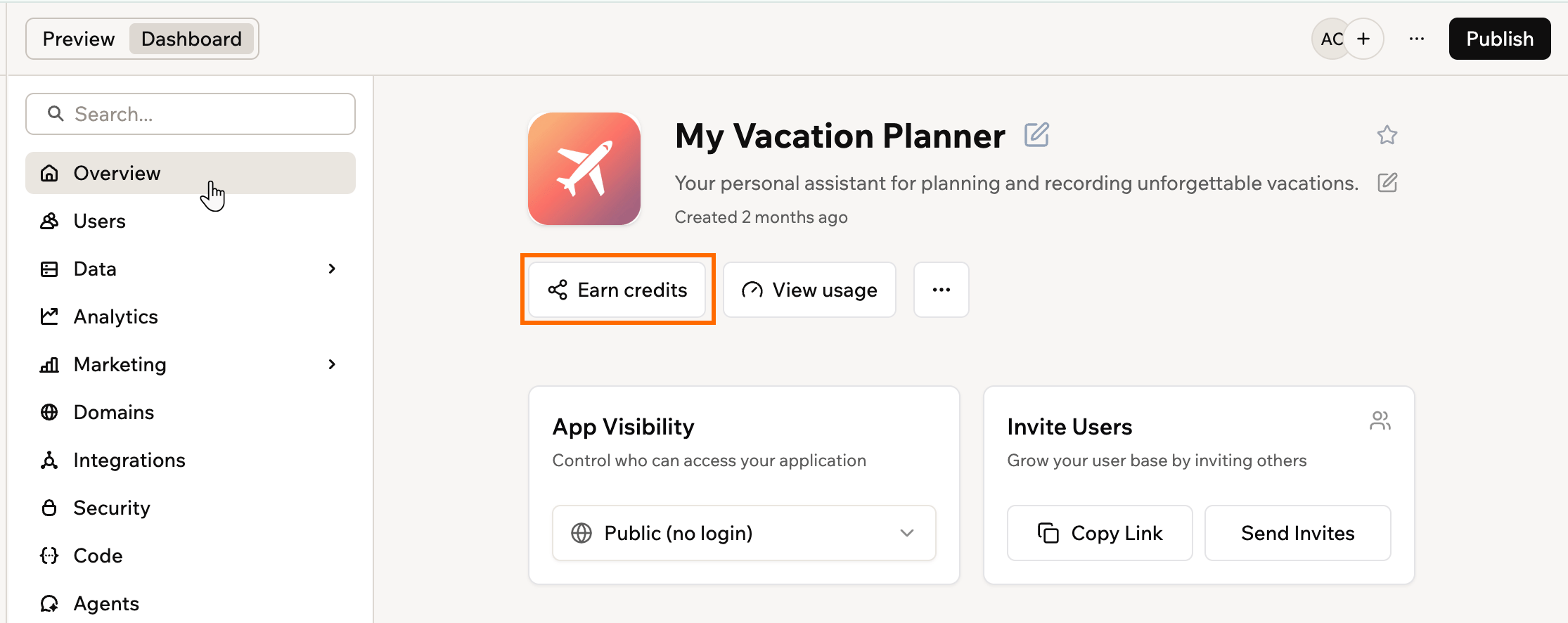
Opening Earn credits from your app's Overview
- Click Dashboard in your app editor.
- Click Overview.
- Click Earn credits.
- Review the Sharing Guidelines, then click Share on LinkedIn or Share on X (Twitter).
- Write your post so it meets the guidelines:
- Tag @base44.
- Write at least 200 characters about your experience building with Base44.
- Post from an account with over 100 followers.
- (Optional) Add a screenshot or video of your project, and a link to it.
- Copy the link to your published post.
- Back in the Earn credits panel, paste the link into Post link and click Claim 20 credits.
- When your post passes the checks, your credits arrive in your personal workspace straight away.
- When it does not, the panel tells you what to change, so you can update your post and claim again.
- If Base44 cannot check your post, or you disagree with the result, click Open support ticket. Your post link is filled in for you, and someone reviews the post by hand.
FAQs
Click a question below to learn more about credits.How does credit usage differ between prompts?
How does credit usage differ between prompts?
Is there a minimum or maximum number of integration credits per action?
Is there a minimum or maximum number of integration credits per action?
Do database queries cost integration credits?
Do database queries cost integration credits?
Why does Base44 use 2 types of credits?
Why does Base44 use 2 types of credits?
Why were credits deducted for AI mistakes, and how do I request a refund or reset?
Why were credits deducted for AI mistakes, and how do I request a refund or reset?
What are promotional and free credits?
What are promotional and free credits?
Do automatic AI fixes use credits?
Do automatic AI fixes use credits?
Am I charged if I stop the AI mid-response?
Am I charged if I stop the AI mid-response?
What happens if I run out of message credits?
What happens if I run out of message credits?
What happens if I run out of integration credits?
What happens if I run out of integration credits?
- We email you when your integration credits run out.
- Any action you perform that requires integration credits fails and shows an error that you have used all your integration credits.
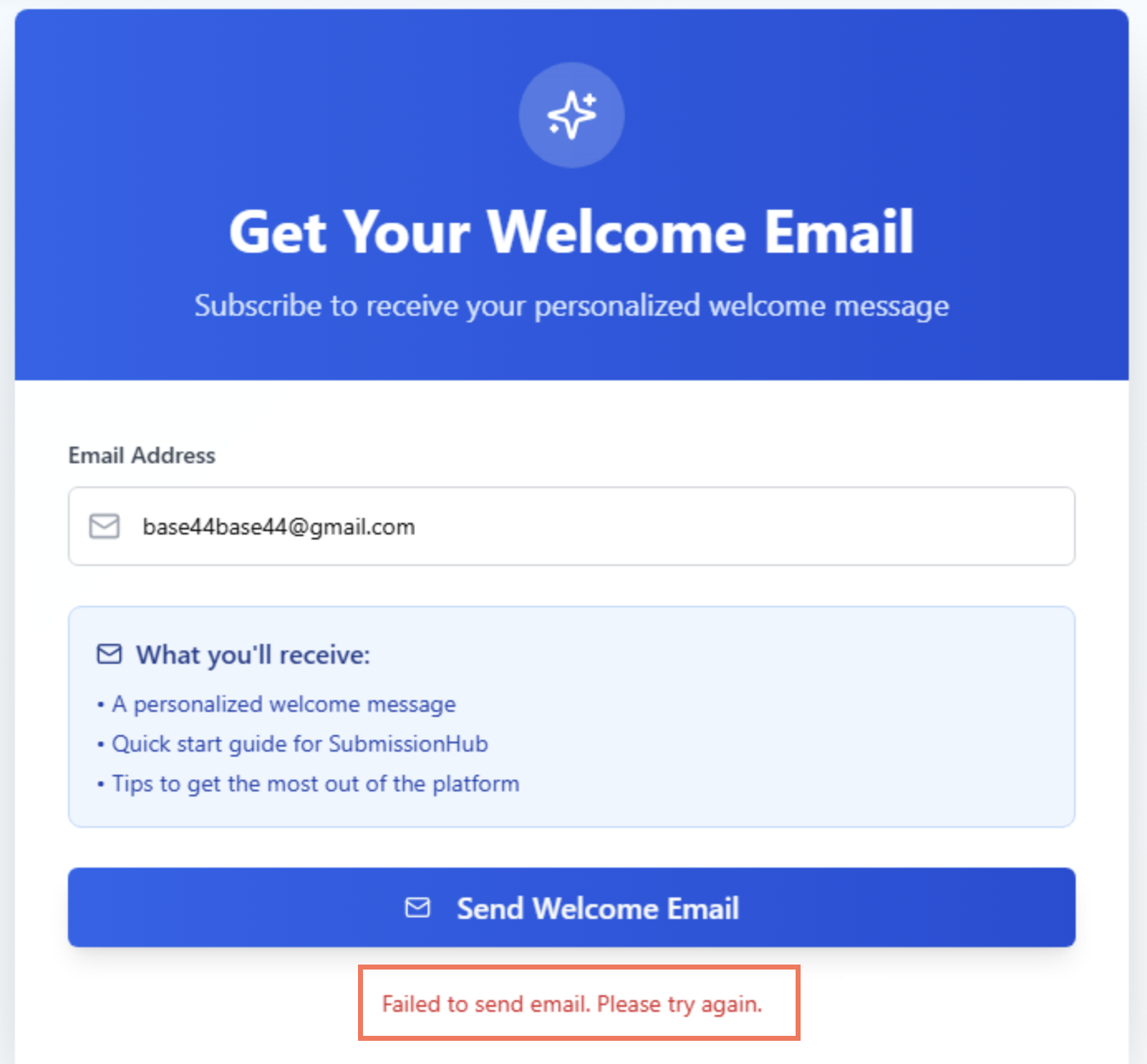
When an app action fails
Why haven't my credits refreshed yet?
Why haven't my credits refreshed yet?
Why are my backend functions blocked on a paid plan?
Why are my backend functions blocked on a paid plan?
What should I do if the AI chat gets stuck or will not revert changes?
What should I do if the AI chat gets stuck or will not revert changes?