

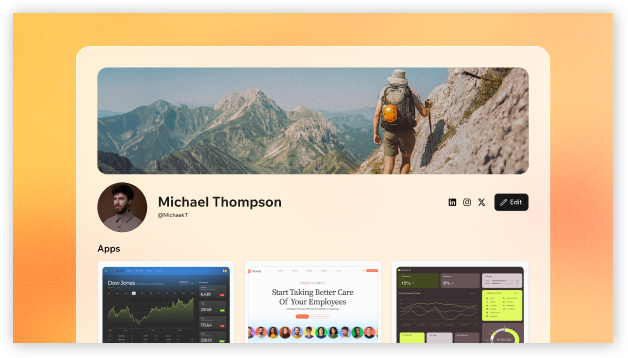
A public Base44 profile
Your profile is public. Share only details you want people to see when they visit your profile.
Setting up your profile
Start by adding the details you want to include, such as your bio, links, location, and apps. You can update your profile at any time. To set up your profile:- Log in to Base44.
- Click your profile icon.
- Click View Profile.
- Click Edit.
- Fill in any of the following:
- Cover image: Choose one of our custom gradients or upload your own banner image at the top of your profile. Use a wide image for best results.
- Profile photo: Your public profile photo.
- Username: Your Base44 handle, used in your profile URL.
- Bio: A short public bio about yourself, up to 750 characters.
- Location: Your geographic location.
- Display your account email: Choose whether to display your account email.
- Social links: Add links for Instagram, LinkedIn, X, and custom links.
- Click Choose from my apps to select the apps you want to showcase, and then click Save.
- Toggle Show on profile next to Activity to choose whether to display your activity heatmap.
- Click Save changes.
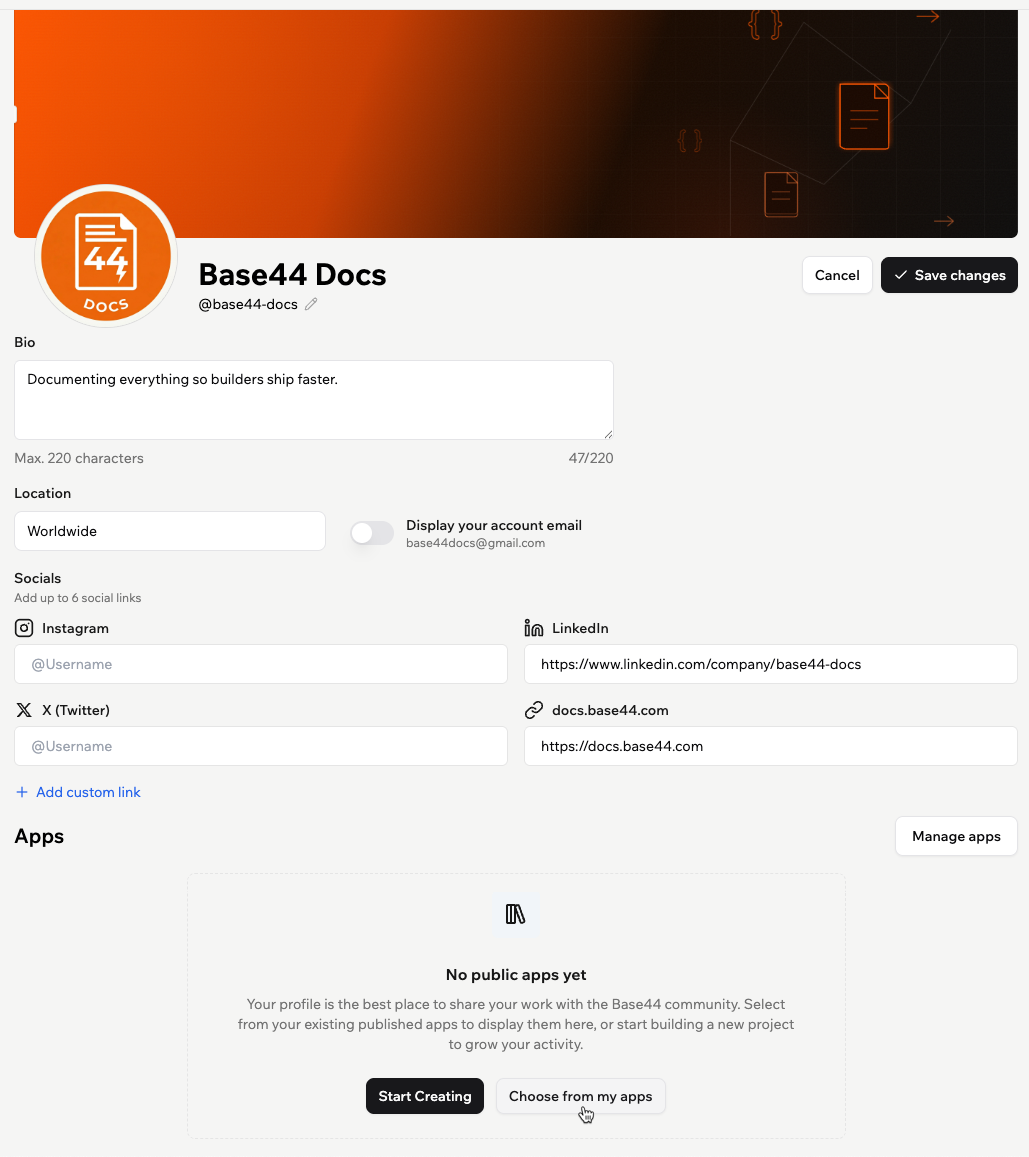
Editing your Base44 profile
Only published apps appear for selection. You can still share your profile before adding apps, and add published apps later.
Tracking your milestones
Your profile includes a Milestones tab that shows your badges, levels, and progress as you build in Base44. Complete milestones to advance through 5 levels: Explorer, Maker, Specialist, Architect, and Legend. Milestones reflect actions and outcomes across Base44, such as creating your first app, publishing apps, earning your first sale, using Superagents, connecting integrations, getting real users, generating revenue, and reaching activity streaks.
Milestones on a Base44 profile
Connecting Base44 to LinkedIn
You can connect Base44 to LinkedIn from the Milestones tab to show what you’ve achieved as a builder. Base44 appears as a connected app on your LinkedIn profile, with a capabilities summary based on your Base44 activity. Your Base44 details on LinkedIn update automatically as your Base44 progress changes.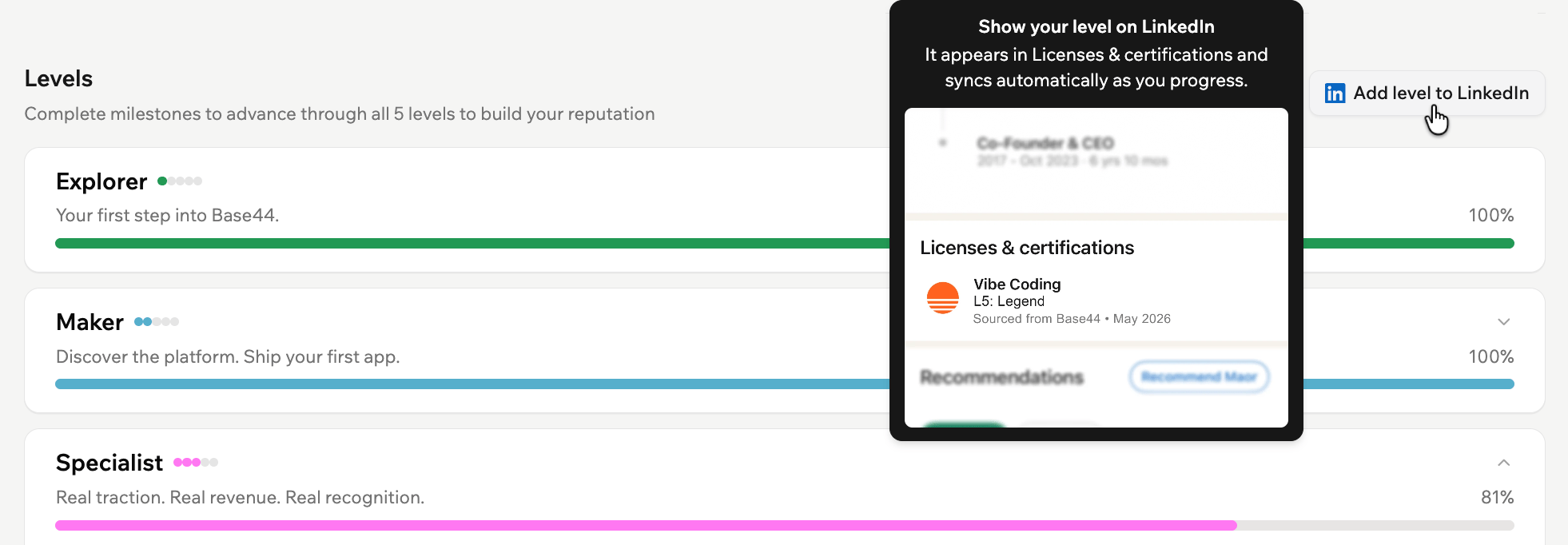
Connecting Base44 to LinkedIn
- Click your profile icon.
- Click View Profile.
- Click the Milestones tab.
- Click Add level to LinkedIn.
- Sign in to LinkedIn and review the requested permissions.
- Click Allow.
Earning rewards with achievements
Turn your Base44 contributions into rewards. Once you reach Maker, complete tasks through your profile to earn points, then redeem them for credits, swag, and perks. Your points and completed tasks are only visible to you. To complete a task:- Go to the Achievements tab in your profile.
- Click Start on a task.
- Review the reward, details, and steps.
- Complete each step, then select its checkbox.
- Add the requested proof. This may be a screenshot, link, video, or short written note.
- Click Submit.
By submitting a task, you agree that Base44 may publish your story for marketing purposes. You are solely responsible for complying with applicable platform rules and laws. Base44 may adjust or revoke points and task rewards at its sole discretion, including in cases of suspected manipulation.
Sharing your profile
Anyone with the link can view your profile without logging in to Base44. Your profile can also show up in search engines like Google, so people can discover you and your work even without a link. This happens once your profile has content, such as a bio or showcased apps. An empty profile doesn’t appear in search results. To copy your profile link:- Go to your profile.
- Click View Profile.
- Copy the link from your browser’s address bar.
- Profile header: Your cover image, profile photo, name, username, and level badge.
- Bio: Your short public bio.
- Joined date: The month and year you joined.
- Displayed apps: The apps you selected to showcase.
- Activity section: A heatmap of your activity in Base44.
- Public links: Your social and custom links.
- Milestones: Your badges, reputation level, and completed milestones.
Managing your profile
You can update your profile at any time, including your bio, display name, username, displayed apps, and activity. If you’ve joined the Partner Program, you can also manage your partner details from your profile. See creating your partner profile.Showcasing your apps
Choose which published apps to showcase on your profile. You can also reorder them to control how they appear. To manage your displayed apps:- Click your profile icon.
- Click View Profile.
- Click Manage apps.
- Select the published apps you want to show.
- Click Save.
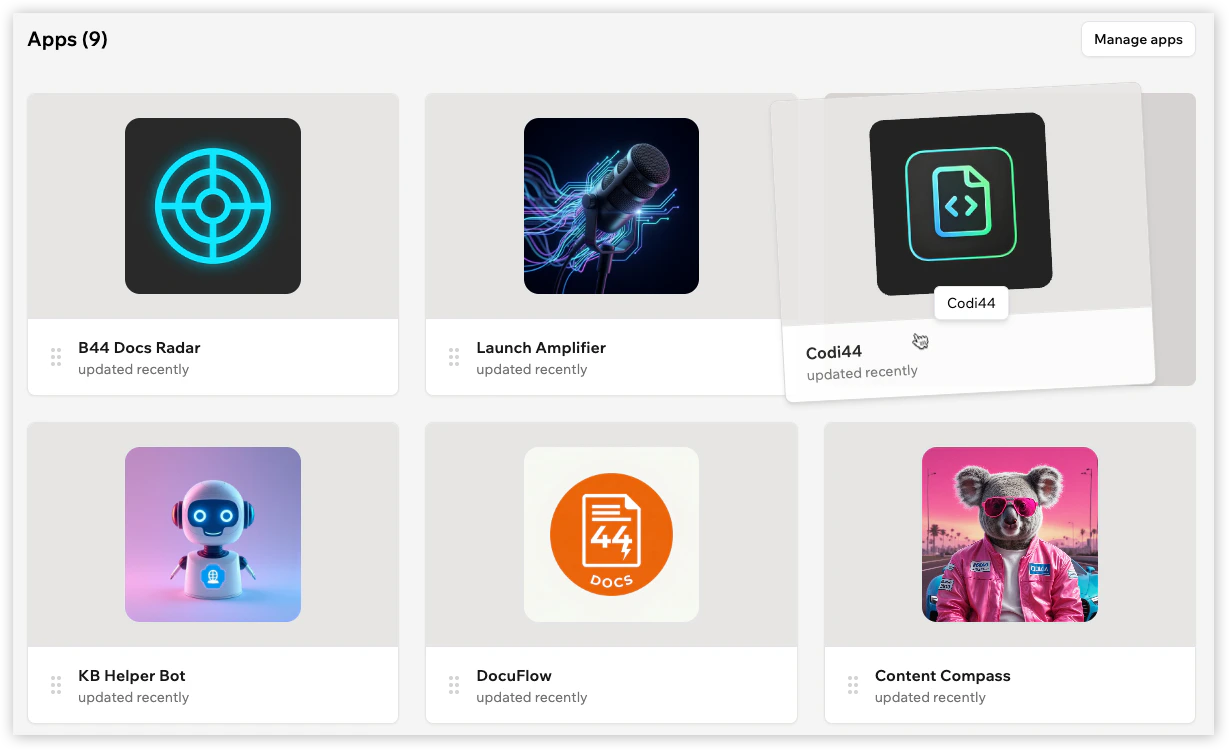
Choosing apps to display on your profile
Showing activity
Activity includes your streak and a heatmap that reflects your building activity over the last 6 months. Choose whether to show your Activity on your profile, and whether to display 6 Months or 1 Year. To show or hide your activity:- Click your profile icon.
- Click View Profile.
- Click Edit.
- Scroll to Activity.
- Toggle Show on profile on or off, then select 6 Months or 1 Year to choose how much activity to display.
- Click Save changes.
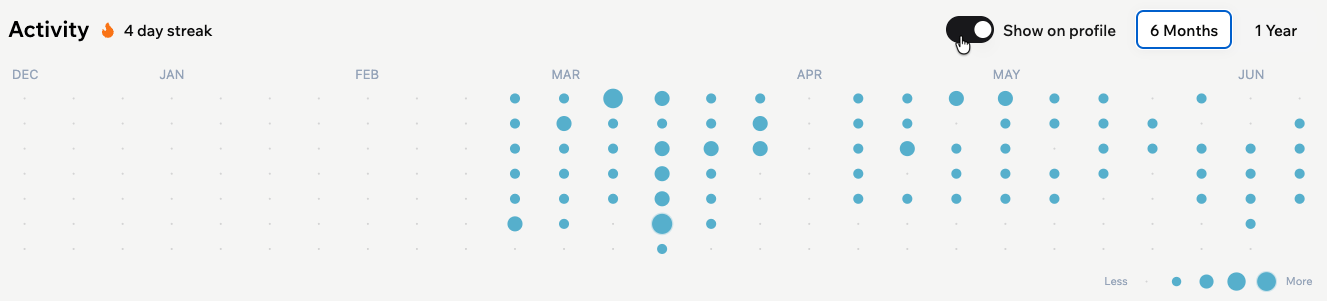
Activity on a Base44 profile
Updating your display name
Change the name shown at the top of your profile at any time. To update your display name:- Click your profile icon.
- Click View Profile.
- Click Edit.
- Click the Edit icon next to your name.
- Enter a display name of up to 100 characters.
- Click Save changes.
Updating your username
Change your username from the profile editor. Your username is part of your public profile URL:https://app.base44.com/@yourusername.
Base44 checks availability before you can claim a new username. Once saved, your profile URL updates automatically.
To change your username:
- Click your profile icon.
- Click View Profile.
- Click Edit.
- Click the Username field.
- Enter a username to check if it’s available.
- Click Claim Username.
- Click Save changes.
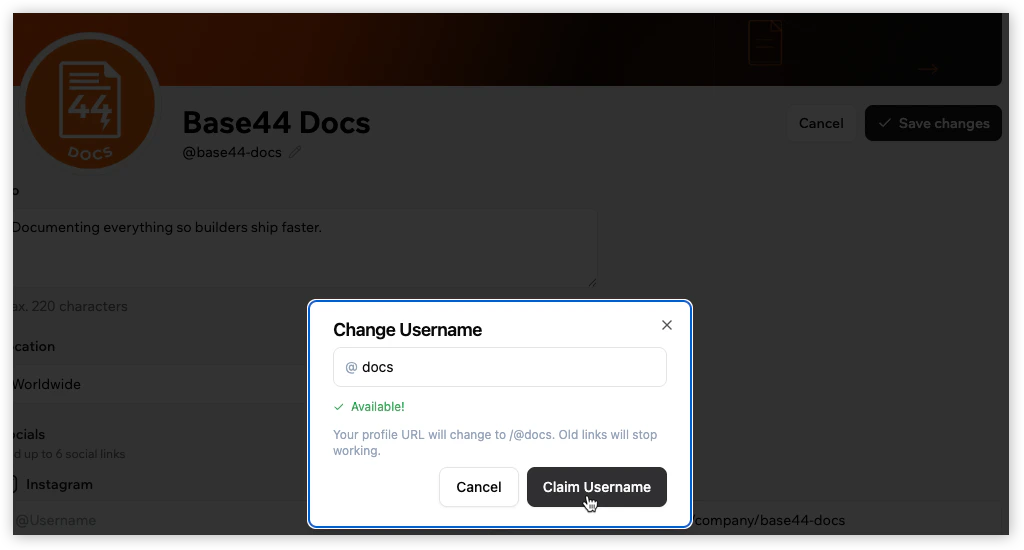
Changing your username
Changing your username also updates your profile URL.
FAQs
Click a question below to learn more about your Base44 profile.Can anyone see my Base44 profile?
Can anyone see my Base44 profile?
Yes. Your public profile is visible to anyone, including people who aren’t logged in to Base44.
Can I change my username?
Can I change my username?
Yes. You can update your username from the profile editor. Changing your username also changes your public profile URL, and old links will stop working.
What can I add to my profile?
What can I add to my profile?
You can add a cover image, profile photo, username, bio, location, social links, custom links, and choose whether to display your account email.
How do I choose which apps to show on my profile?
How do I choose which apps to show on my profile?
Click Manage apps to choose which of your published apps appear on your public profile.
How do I show my email on my profile?
How do I show my email on my profile?
You can turn Display your account email on or off in the profile editor.
What activity does my profile show?
What activity does my profile show?
Your public profile can include an Activity section with your streak and a heatmap view of your activity in Base44. You can choose to show activity from the last 6 Months or 1 Year.
Can I hide my activity heatmap?
Can I hide my activity heatmap?
Yes. Go to your profile and click Edit. Scroll to Activity and toggle off Show on profile.
What are milestones?
What are milestones?
Milestones are achievements you complete as you build in Base44. They can include actions and outcomes like creating your first app, publishing apps, earning your first sale, using Superagents, connecting integrations, getting real users, generating revenue, and reaching activity streaks.
How do levels work?
How do levels work?
Levels show your progress as a Base44 builder. Complete milestones to advance through levels and build your reputation.
Where does Base44 appear on LinkedIn?
Where does Base44 appear on LinkedIn?
Base44 appears in the Connected apps section of your LinkedIn profile. LinkedIn shows a capabilities summary based on your Base44 activity.
How does Base44 update on LinkedIn?
How does Base44 update on LinkedIn?
After you connect Base44 to LinkedIn, your Base44 details on LinkedIn update automatically as your Base44 progress changes.
How do I stop showing Base44 on LinkedIn?
How do I stop showing Base44 on LinkedIn?
You can disconnect LinkedIn from Account Settings in Base44. Base44 is removed from your LinkedIn profile and no longer syncs as you progress.