

Tracking client payments in your workspace
Before you begin: You must be an approved Base44 partner in a supported location to request and receive client payments.
Connecting your payment account
Connect Wix Payments once before sending your first payment request. Complete account verification and set up payouts in the Wix Payments dashboard. Learn more about the Wix Payments verification process. To connect your payment account:- In your workspace, click Partners in the sidebar.
- Click Messages.
- Click Payments.
- If prompted, enter your legal name in the First name and Last name fields.
- Review the Wix Payments terms of service and service fees.
- Select the I agree to the Wix Payments terms of service checkbox.
- Click Connect Wix Payments.
- Follow the instructions in the Wix Payments dashboard to verify your account and set up payouts.
Requesting a payment
Send a payment request directly from the relevant client conversation. Your client receives a Payment request card in the conversation and can pay through a secure checkout page. To request a payment:- In your workspace, click Partners in the sidebar.
- Click Messages.
- On the Clients tab, open the relevant client conversation.
- Click Request payment.
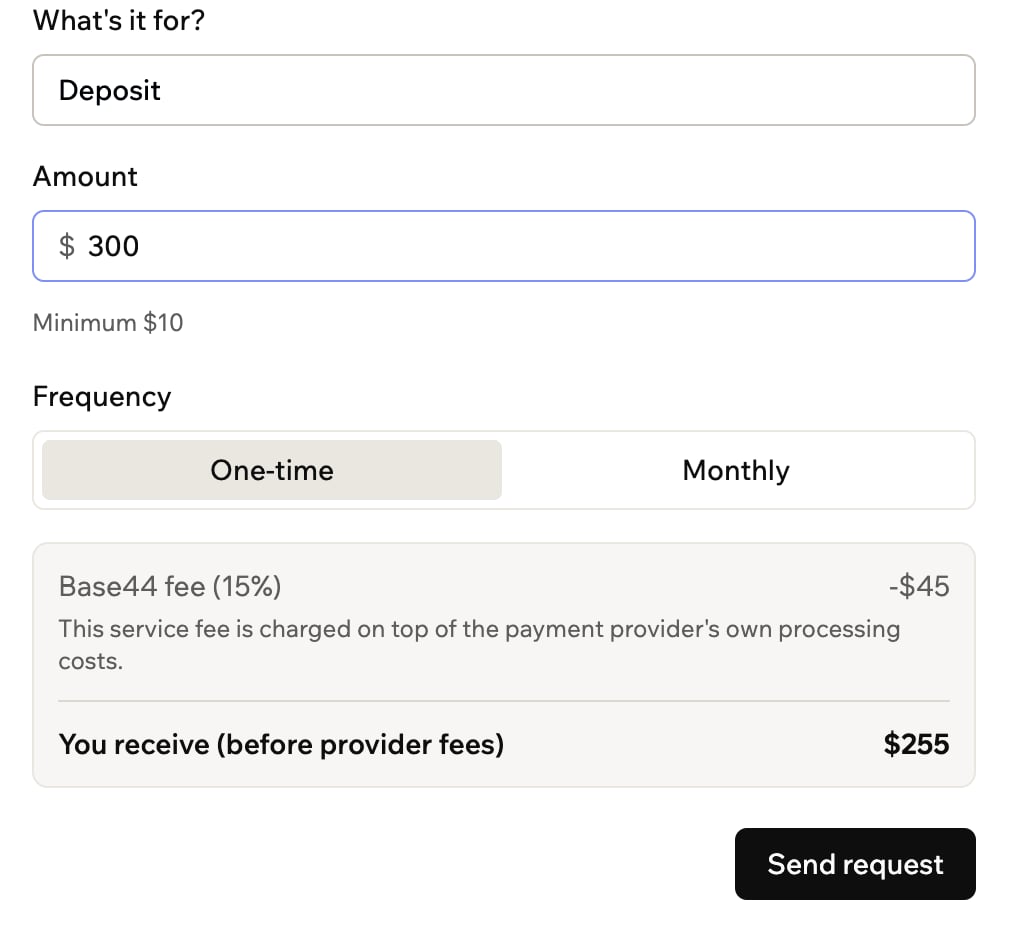
- Enter what the payment covers in the What’s it for? field.
- Enter the payment amount in the Amount field. The minimum payment amount appears below the field.
- Select a Frequency:
- One-time: Request a single payment.
- Monthly: Request monthly payments until you or your client cancels the plan.
- Review the Base44 fee (15%) and the amount under You receive (before provider fees).
- Click Send request.
Requesting a payment from a client
You receive (before provider fees) reflects the payment amount after the 15% Base44 fee. Your payment provider deducts its processing fees separately.
Managing your payments
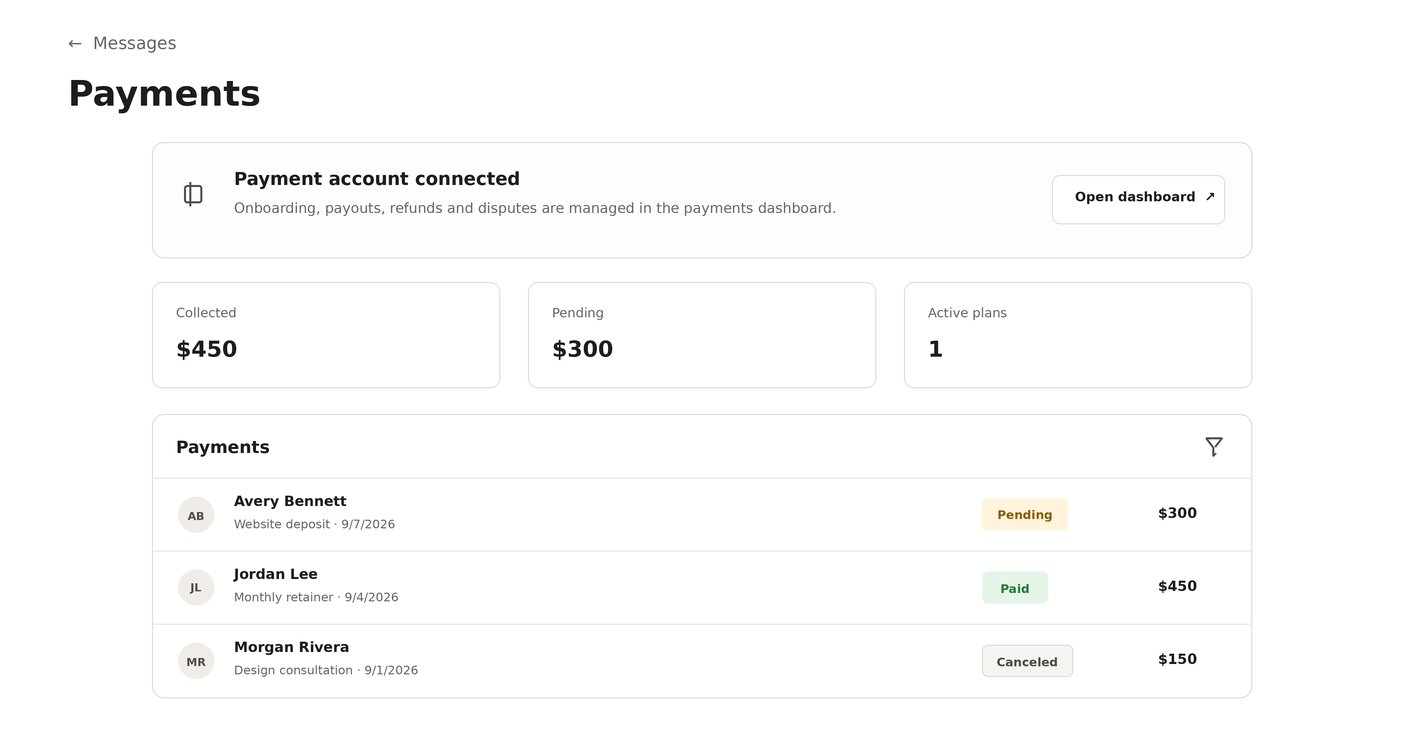
Track payment requests and monthly plans, follow up on pending payments, and manage payouts, refunds, and disputes. To manage your payments:- In your workspace, click Partners in the sidebar.
- Click Messages.
- Click Payments.
- Choose what you want to do:
- Filter the list: Show All, Pending, Paid, or Canceled payments.
- Send reminder: Remind your client about a pending request.
- Cancel request: Cancel a pending payment request.
- Cancel plan: Stop future charges for a monthly plan.
- Click Open dashboard to manage account verification, payouts, refunds, and disputes. Learn more about receiving payouts from Wix Payments.
FAQs
What currency do payments use?
What currency do payments use?
All payment requests use the currency of your payment account.
Is there a minimum payment amount?
Is there a minimum payment amount?
Yes. The minimum amount is 10 in the currency of your payment account. It appears below the Amount field when you create a payment request.
How does my client pay?
How does my client pay?
Your client opens a secure checkout page from the Payment request card in your conversation. They can also view and pay requests and see upcoming monthly payments from their Payments tab.
Can my client cancel a monthly plan?
Can my client cancel a monthly plan?
Yes. Your client can click Cancel service from their Payments tab. Their plan remains active until the end of the current billing period and does not renew. You can also cancel it from your Payments tab.