

Accessing your account settings in Base44
Signing in to Base44
You can sign in to Base44 with Google, Apple, or an email and password. If your workspace has SSO set up, you can also sign in through your organization’s identity provider. You use one Base44 account everywhere. Once you sign in, you have access to everything you are part of, including your workspaces, apps, and Superagents, all from the same account.Resetting your password
Reset your password when you forget it or want to change it. There’s no option to change your password in Account preferences, so you use the reset flow from the login page, even when you can still sign in. If you created your account with Google or Apple, the same flow adds a password to that account, so you can also sign in with your email and password.Requesting a reset link
Base44 sends the reset link to the email address on your account. To reset your password:- Go to the Base44 login page.
- Enter your email address and click Continue with email.
- Click Forgot your password?
- Check that Login email shows the address you sign in with, then click Verify Email.
- Open the email from Base44 with the subject “Reset your password for Base44” and click the link in it.
- Enter and confirm your new password, then click Reset Password.
Finding the reset email
Reset emails can take a few minutes to arrive. If yours doesn’t show up, try these:- Check your spam, junk, and promotions folders.
- Make sure you entered the email address on your Base44 account. Base44 only sends a reset email when an account with that address exists, and the page looks the same either way.
- Click Resend email on the confirmation page to get a new link.
- If you signed up with Apple and chose to hide your email, your account uses a private address from Apple. Sign in with Apple instead.
Finding the right account
Each email address has its own Base44 account, with its own workspaces and apps. Signing in with Google or Apple takes you to the same account as your email and password, as long as the email address is the same. If your apps seem to be missing, you’re usually signed in with a different email address or looking at a different workspace. You can end up in a different account when you sign in with:- Another Google account: Google asks which account to use each time, so picking a different one signs you in with that email address.
- Apple’s Hide My Email: If you chose to hide your email when you signed up with Apple, your account uses a private address from Apple. It’s separate from any account under your real email.
- A work or personal email: An account under your work email is separate from one under your personal email.
Checking your account
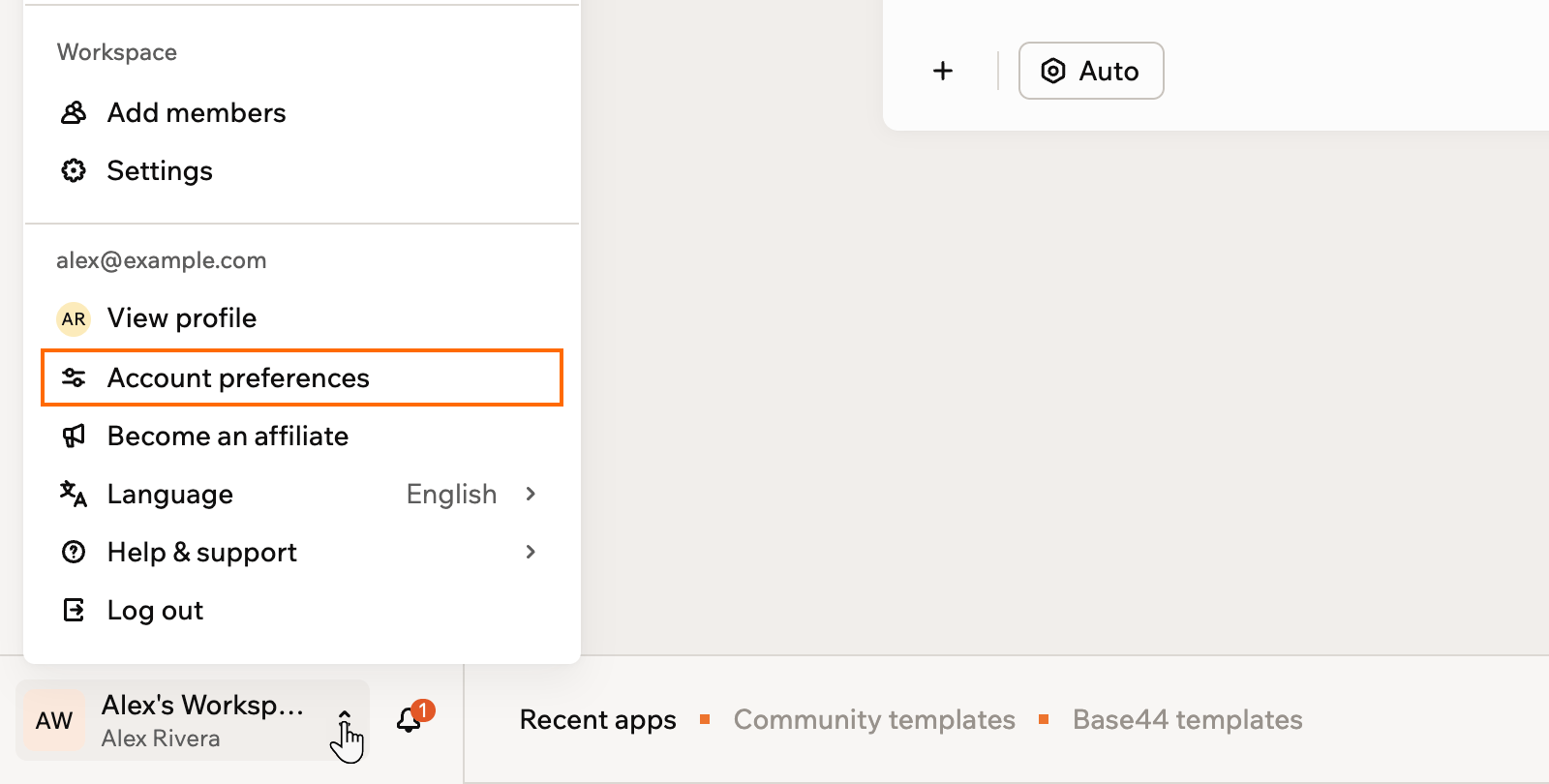
Your email address appears in the menu at the bottom left, so you can see which account you’re in at any time. To check which account you’re signed in to:- Click your workspace name at the bottom left of your account.
- Find your email address above Account preferences.
Switching accounts or workspaces
Once you know which account you’re in, sign in with the right email address or switch to the workspace your apps are in. If you still can’t find your apps, contact Customer Care. Choose what you want to do:Sign in with a different account
Sign in with a different account
Log out and sign back in with the email address your apps are under.To sign in with a different account:
- Click your workspace name at the bottom left of your account.
- Click Log out.
- Sign in with the email address your apps are under. The login page marks the method you used last in this browser with Last Used.
Switch to another workspace
Switch to another workspace
Apps belong to workspaces, so the app you’re looking for may be in another workspace on the same account.To switch to another workspace:
- Click your workspace name at the bottom left of your account.
- Click the workspace name at the top of the menu.
- Choose the workspace your apps are in.
Accessing your account settings
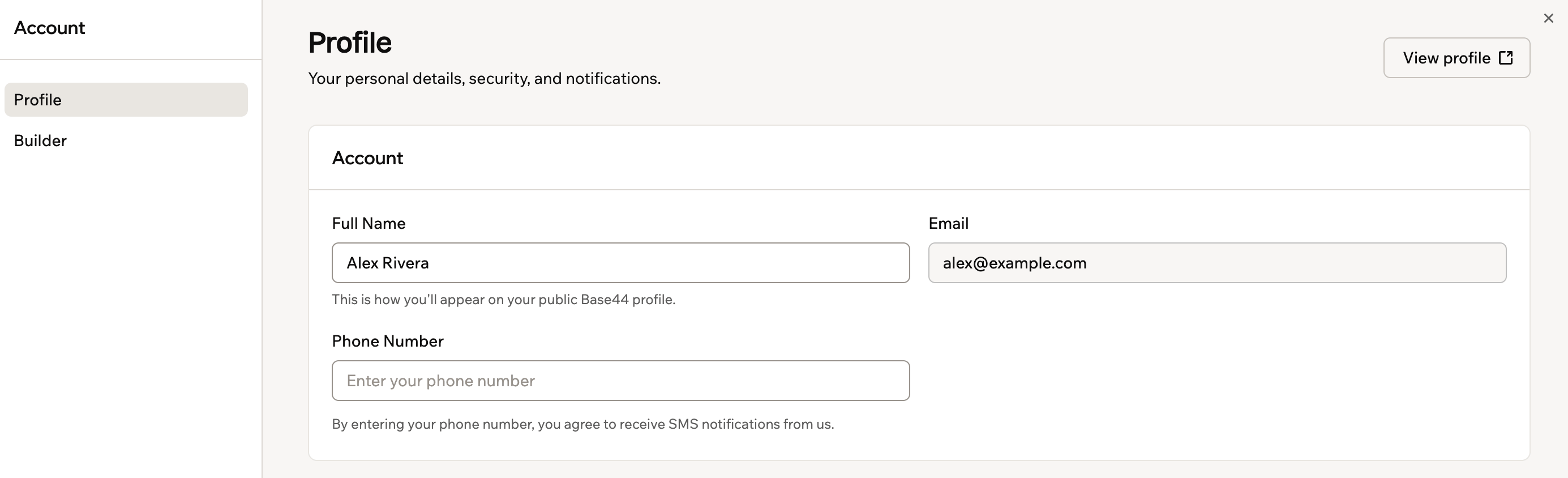
Your account settings are separate from your workspace settings, so they follow you across every workspace you belong to. Account preferences has 2 pages:- Profile: Your personal details, two-factor authentication, chat notifications, email preferences, and account deletion. If your account was created before September 15, 2026, your API key is here too.
- Builder: How the app editor works for you, including connected accounts such as Google Drive and LinkedIn, keyboard shortcuts, default settings for new apps, partner settings if you’re in the Partner Program, and MCP connections.
- Click your workspace name at the bottom left of your account.
- Click Account preferences.
- Click Profile or Builder to switch between the 2 pages.
Accessing your account details
Updating your account details
Keep your personal details up to date so teammates know who you are and how to reach you. Your email address is shown but can’t be edited, because it’s the address you sign in with. To use a different email, see changing your email address. To update your details:- Click your workspace name at the bottom left of your account.
- Click Account preferences.
- Update the relevant fields including name, phone number and profile image.
Changing your email address
You can’t change the email address on your Base44 account yourself, because it’s the address you sign in with. To use a different email, create a new Base44 account with that email and bring your apps over. Once your apps are on the new account, you can manage or cancel the plan on your original account from its billing settings.If you sign in with SSO, your email comes from your organization’s identity provider. When your organization changes it there, Base44 updates your account the next time you sign in with SSO.
Move an app to your new account
Move an app to your new account
Move an app to your new account when you want to keep its data, its app users, and its live URL.To move an app to your new account:
- Create a Base44 account with your new email.
- From the new account, invite your original email to your workspace with an editor role or higher.
- Sign in with your original account and move the app to your new account’s workspace.
- Invite your new email as a collaborator on the app, then transfer app ownership to it.
- Sign in with your new email and accept the transfer.
Copy an app to your new account
Copy an app to your new account
Copy an app when you want to start fresh on your new account with the same app structure. The copy doesn’t include the app’s data or app users, so export any data you need and import it into the copy, and ask people to sign up again. Reconnect any secrets and integrations in the copy too.To copy an app to your new account:
- Sign in with your original account and show the Base44 badge on your app, then publish it.
- Sign in with your new account and open the app’s live link.
- Click the Edit with Base44 badge and follow the prompts to copy the app.
Managing default settings for new apps
Default settings control how new apps behave the moment you create them. Turn on test data for new apps, so they start with test data and you can experiment without affecting live data. To manage default settings for new apps:- Click your workspace name at the bottom left of your account.
- Click Account preferences.
- Click Builder.
- Under Default settings for new apps, turn Enable test data for new apps by default on or off.
Account API keys
Account API keys used to let external tools and scripts access your Base44 account. Personal access tokens replace them, and they do the same job with more control over what each token can reach.Customizing your chat settings
Chat settings control how you send messages and when you hear sound notifications in Base44 chats. Keyboard shortcuts are on the Builder page, and chat notifications are on the Profile page.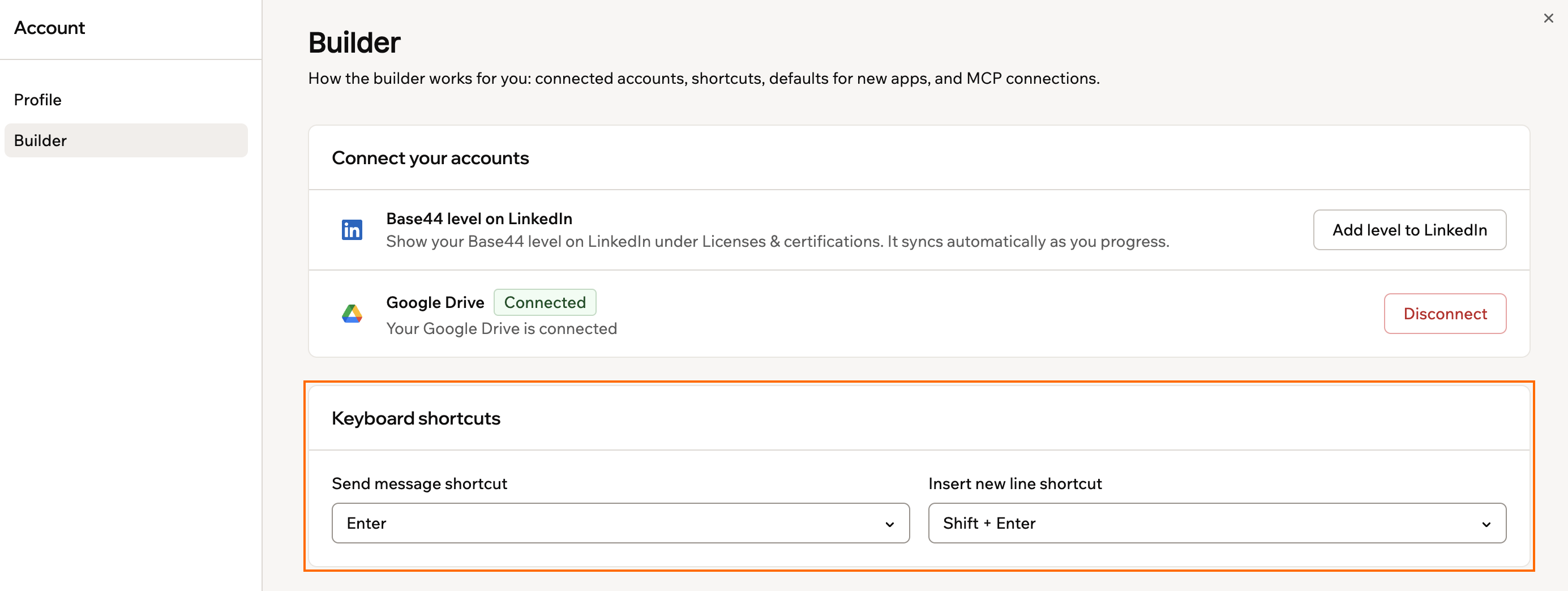
Customizing your chat settings for your account
Keyboard shortcuts
- Click your workspace name at the bottom left of your account.
- Click Account preferences.
- Click Builder.
- Under Keyboard shortcuts, click the Send message shortcut drop-down and choose how you want to send messages (for example, Enter or Shift + Enter).
- Click the Insert new line shortcut drop-down and choose how you want to insert a new line in a message.
Sound preferences
- Click your workspace name at the bottom left of your account.
- Click Account preferences.
- Under Chat notifications, click the Sound Preferences drop-down.
- Choose when you want to hear notification sounds:
- On first prompt only: Play a sound only when the first response in a conversation is ready.
- On every prompt completion: Play a sound every time a response finishes.
- Disable notification sounds: Turn off all chat notification sounds.
Browser notifications
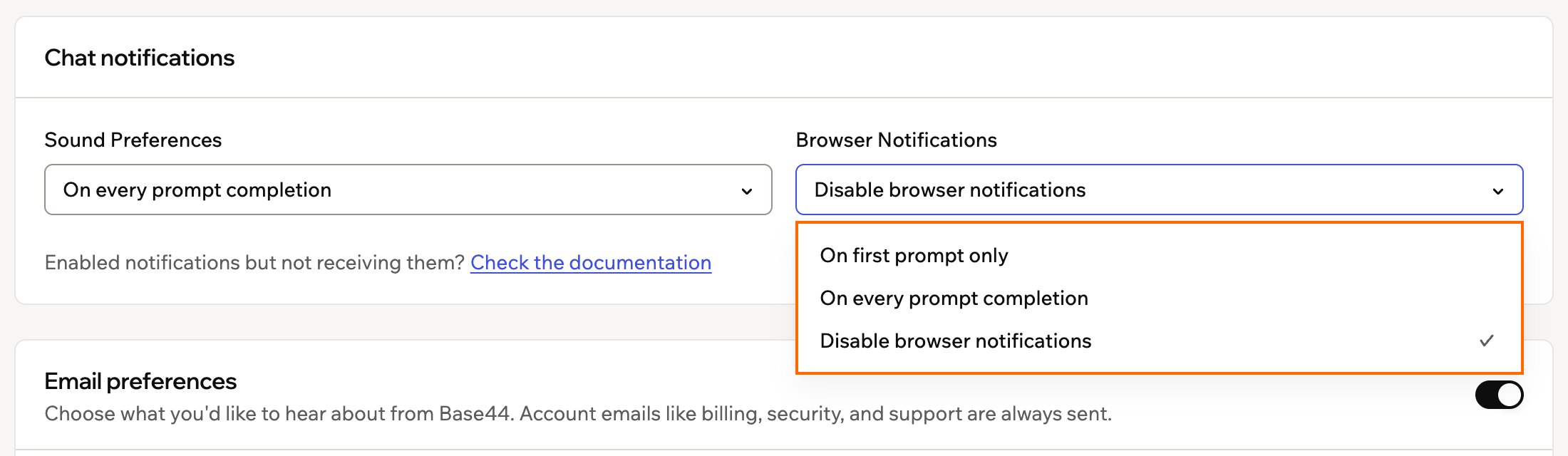
Use the Browser Notifications setting to control when you receive browser alerts when prompts finish running. To set your browser notifications:- Click your workspace name at the bottom left of your account.
- Click Account preferences.
- Under Chat notifications, choose an option from the Browser Notifications drop-down:
- On first prompt only: Receive a browser notification when the first prompt in your session finishes.
- On every prompt completion: Receive a browser notification each time a prompt finishes.
- Disable browser notifications: Turn off all browser notifications from Base44.
Setting up Base44 notifications on your browser
Checking your notifications
Base44 keeps you posted with a notification center. Click the bell icon in your workspace to see updates about your apps, your account, and activity across the platform. A badge on the bell shows how many unread notifications you have. The notification center has 2 tabs:- Notifications: Your alerts, newest first, such as an app finishing a build, a collaboration request, or a credit warning.
- Latest news: The latest Base44 product updates, so you can see what is new on the platform.
Looking for the pop-ups your browser shows when a prompt finishes building? That is a separate feature. See Browser notifications.
Two-factor authentication
Two-factor authentication adds an extra layer of protection when you sign in to Base44. After you turn it on, Base44 asks for both your password and a verification code each time you sign in. Some workspaces require two-factor authentication. If a workspace you belong to does, you need it turned on to open that workspace, and Base44 warns you before you turn it off. Learn more about requiring two-factor authentication. You can choose one or both verification methods:- Authenticator app: Use an app like Google Authenticator or Duo to generate secure sign-in codes on your phone.
- Text messages: Get sign-in codes sent to your phone by text message. Standard message and data rates may apply when you receive text messages.
Text message (SMS) verification is available on paid plans only. If you are on the Free plan, the text message option does not appear, so secure your account with the authenticator app instead.
- Click your workspace name at the bottom left of your account.
- Click Account preferences.
- Under Two-factor authentication, click Enable next to each method you want to use and follow the on-screen instructions to complete setup:
- Authenticator app: Base44 generates a QR code and a manual key that you add to your authenticator app.
- Text messages: Confirm your phone number so Base44 knows where to send verification codes.
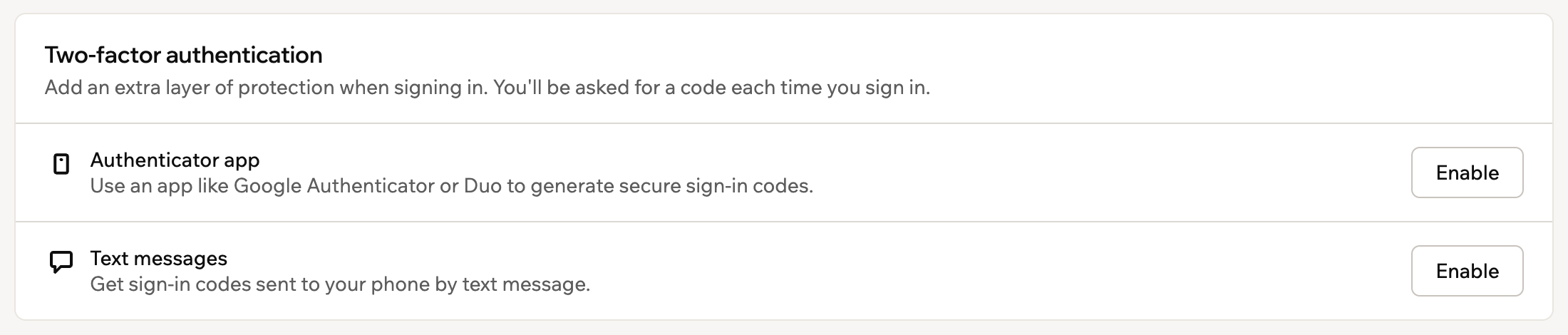
Two-factor authentication options in Base44 account settings
Managing your email preferences
Choose which marketing emails you receive from Base44, so you get the updates you care about. Your preferences are personal to your account and save automatically when you make changes. You can turn each of these topics on or off:- Product updates: New features and releases.
- Tips and inspiration: How to build and grow with Base44.
- Special offers: Promotions, sales, and discounts.
- Events & community: Find out about events, contests, and what’s happening in the community.
Account emails like billing, security, and support are always sent. Your email preferences only control marketing emails.
- Click your workspace name at the bottom left of your account.
- Click Account preferences.
- Under Email preferences, select the topics you want to receive, or click the Email preferences toggle to turn all marketing emails on or off.
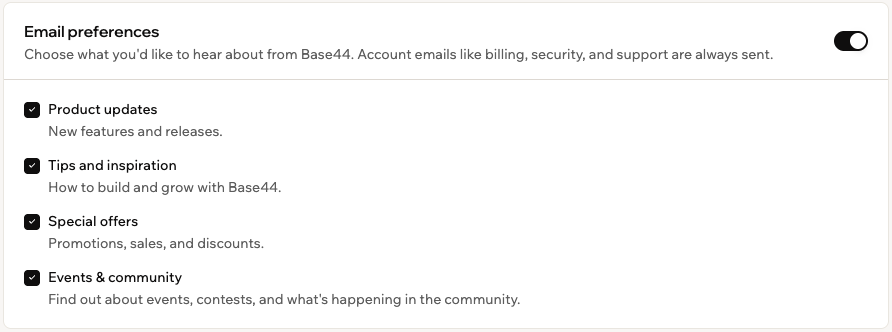
Email preferences in your account settings
Unsubscribing from Base44 marketing emails
Every marketing email from Base44 includes 2 links in its footer:- Unsubscribe: Stops all marketing emails and opens a confirmation page.
- Email preferences: Opens your account settings, where you can choose which topics you receive.
Deleting your Base44 account
Deleting your Base44 account schedules your account, personal information, and all associated data for permanent deletion. Your account is scheduled to be permanently deleted 7 days after you request deletion.What gets deleted
When your deletion completes, Base44 permanently removes your account and everything you own. This can’t be undone, and you can’t reopen your account or restore anything afterward.Good to know:
- Base44 also deletes your personal data from its service providers, such as SendGrid and Stripe, as part of a GDPR-compliant deletion, so you don’t need to request this separately.
- Base44 may keep data it’s legally required to keep, or data needed to establish, exercise, or defend legal claims.
- You can’t delete your account while you’re a member of a workspace on the Enterprise plan. Ask your organization’s admin to manage your account.
Requesting account deletion
To request account deletion:- Click your workspace name at the bottom left of your account.
- Click Account preferences.
- Click Delete account at the bottom of the page to expand the section.
- Click Delete Account.
- Complete the dialog that appears:
- Cancel subscriptions before deleting your account: Click Manage subscriptions and cancel each active subscription, then return to Account preferences and start again.
- You own workspaces: Review the workspaces you own and click Delete anyway, then type each workspace name to confirm and click Delete Account.
- You will leave these workspaces: Review the workspaces you lose access to and click Continue with deletion, then click Delete Account in the Delete Your Account dialog.
- Delete Your Account: Review what is deleted and the scheduled deletion date, then click Delete Account.
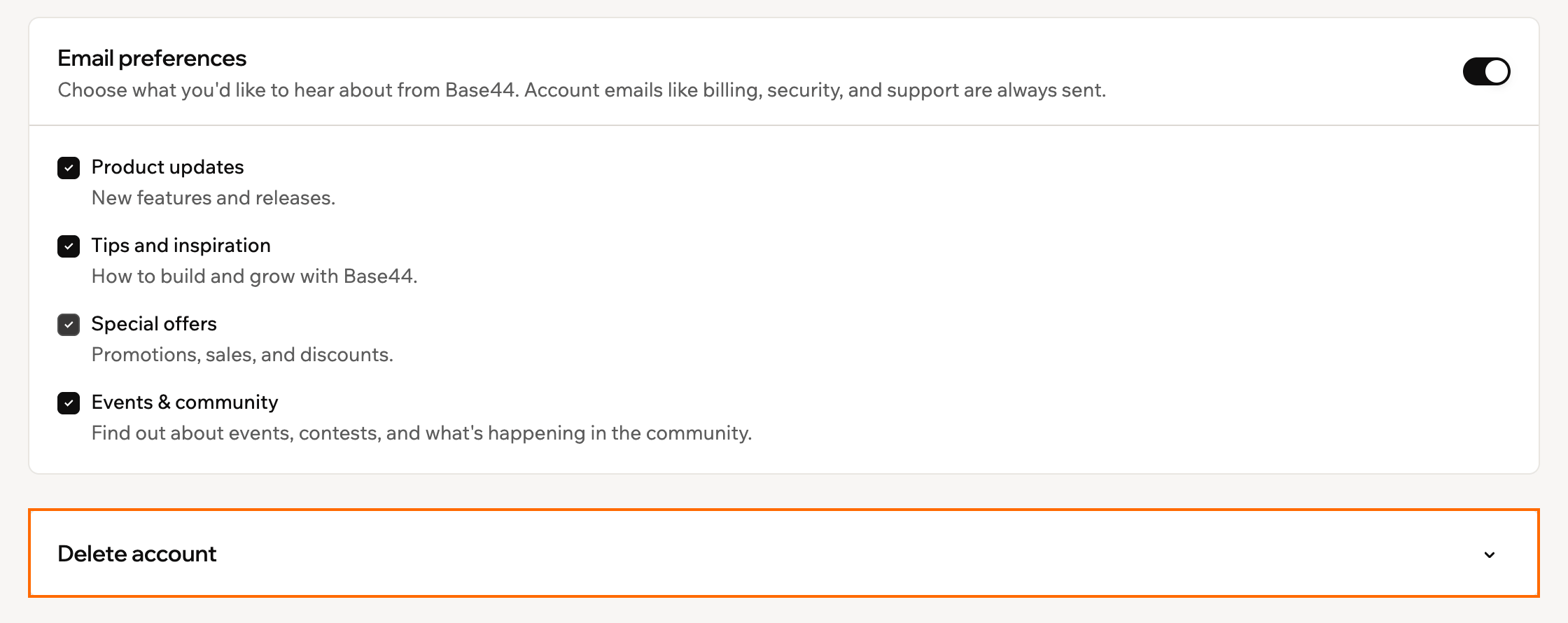
Deleting your account in Base44
What happens after you request deletion:
- Your account is scheduled to be permanently deleted in 7 days from the request date. You continue to have access to your account for those 7 days. At the end of the 7 days, your account and data are permanently deleted.
- You can cancel the deletion request until processing begins. While a request is pending, the Delete account section opens automatically, so go back to Account preferences and click Cancel request. The confirmation email also explains how to cancel.
FAQs
Click a question below to learn more about your account.What kinds of notifications appear in the notification center?
What kinds of notifications appear in the notification center?
The notification center collects activity from across the platform, including:
- Credits and billing: When your credits run low or run out, and updates to your subscription.
- Collaboration and access: Invitations to an app or workspace, and requests to access or publish your app.
- Your apps: When an app finishes building, and when an app transfer or ownership change happens.
- Automations and workflows: When an automation or workflow is paused after repeated failures.
- Security: When an uploaded file is removed as a threat, or a workspace admin changes connector credentials.
- Support: Replies and resolutions on your support tickets.
- Other activity: Marketplace sales, reviews, and domain purchases.
Notifications used to work but stopped. What changed?
Notifications used to work but stopped. What changed?
This usually means something changed in one of the 3 layers that control notifications.Common reasons include:
- You changed Browser Notifications in Account preferences to Disable browser notifications.
- You blocked notifications for your Base44 domain in your browser.
- Your operating system turned on a focus or “Do Not Disturb” mode that hides notifications for your browser.
Why am I not receiving browser notifications even though they are enabled?
Why am I not receiving browser notifications even though they are enabled?
Browser notifications only appear when all of the following are enabled:
- Browser Notifications in Account preferences is set to On first prompt only or On every prompt completion.
- Your browser allows notifications for your Base44 domain.
- Your operating system allows notifications for your browser and is not blocking them with a focus or “Do Not Disturb” mode.
Do I need to contact Base44 separately to delete my data for GDPR?
Do I need to contact Base44 separately to delete my data for GDPR?
No. When you delete your Base44 account, Base44 starts a GDPR compliant deletion process for your personal data across all systems and subprocessors, including services such as SendGrid and Stripe. You do not need to submit an extra deletion request.