

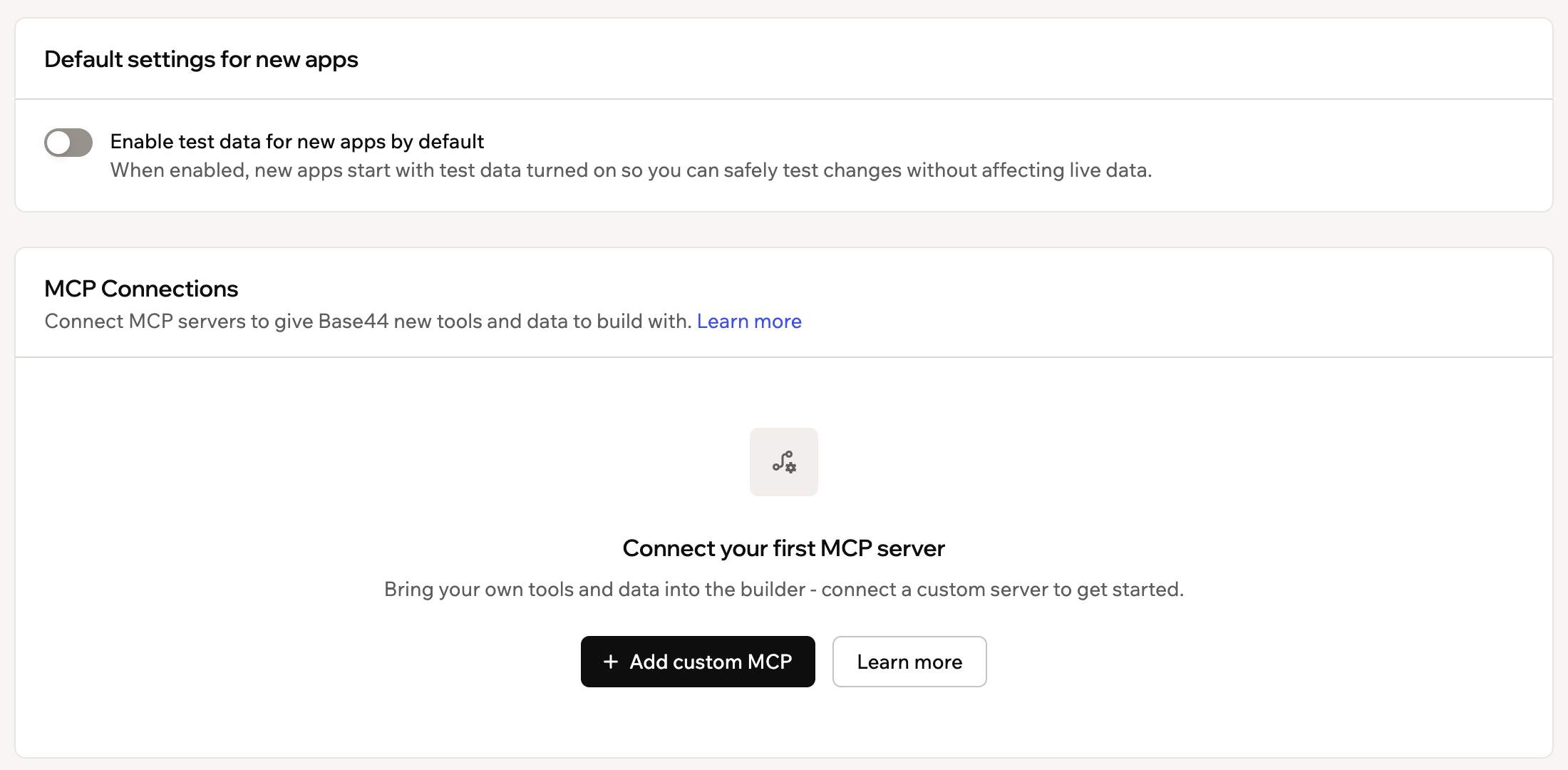
Adding custom MCP connections to your Base44 account
What you can use MCPs for
MCPs work best when you want to bring real, structured data from a third-party service into your app build. Common examples include:- Amplitude or Mixpanel: Build dashboards pre-loaded with your actual product metrics
- Linear or Jira: Scaffold a project tracker from your real backlog and issue structure
- Salesforce or HubSpot: Build CRM apps that reflect your live data model
- Figma: Pull design components and apply them while building
- Internal MCP servers: Connect proprietary tools, enforce company dev guidelines, or load enterprise-specific data schemas
Use Base44 from Claude, ChatGPT, or Cursor
Base44 also works in the other direction. Connect Base44 as an MCP server so external AI tools like Claude, ChatGPT, and Cursor can create and manage your apps directly.
How MCP connections work
Base44’s AI treats MCP connections as tools it can call when your request requires external data or actions. It decides when to use them based on your prompt and the MCP’s description. You do not have to name an MCP explicitly, but it usually works best if you say what you want to use, such as “Use the GitHub MCP to list open issues.” Each connection stores the server URL, authentication method, and any headers that need to be sent with every request. Base44 also sends anX-Base44-App-Id header with every request, set to the ID of the app you are building. Your connections work across all your apps, so if your own MCP server backs several of them, it can use this header to tell which app is calling. A custom header with the same name cannot replace it.
Using MCP connections can increase your credit usage, because the AI processes more information when it connects to external apps and data sources.
Adding a custom MCP connection
Each account can connect up to 20 MCP servers. If you reach this limit, you must remove an existing server to add a new one. To add a custom MCP connection:- Click your workspace name at the bottom left of your account.
- Click Account preferences.
- Click Builder and scroll to MCP Connections.
- Click Add custom MCP.
- Enter the details for your MCP:
- Name: Enter a clear name for your MCP server so collaborators can recognize it.
- URL: Enter the MCP server URL, such as
https://mcp.deepwiki.com/sse. - Authentication: Choose how Base44 should connect:
- Not required: Select this option if the server does not require credentials.
- OAuth: Select this option if the server uses OAuth. You complete the authorization in the next step after testing and adding the server.
- Custom headers (optional): Add any headers that need to be sent with every request, such as API keys:
- Click Add header.
- Enter the Header name.
- Enter the Header value.
Add a header only if your MCP server requires one, such as an API key or bearer token. Check your MCP server or API documentation to see if a header is needed. If nothing is mentioned, leave this section empty and test the connection.
- Click Test to check that Base44 can reach the MCP server with the configuration you entered.
- Click Test & add to test the connection and save the new MCP server to your account.
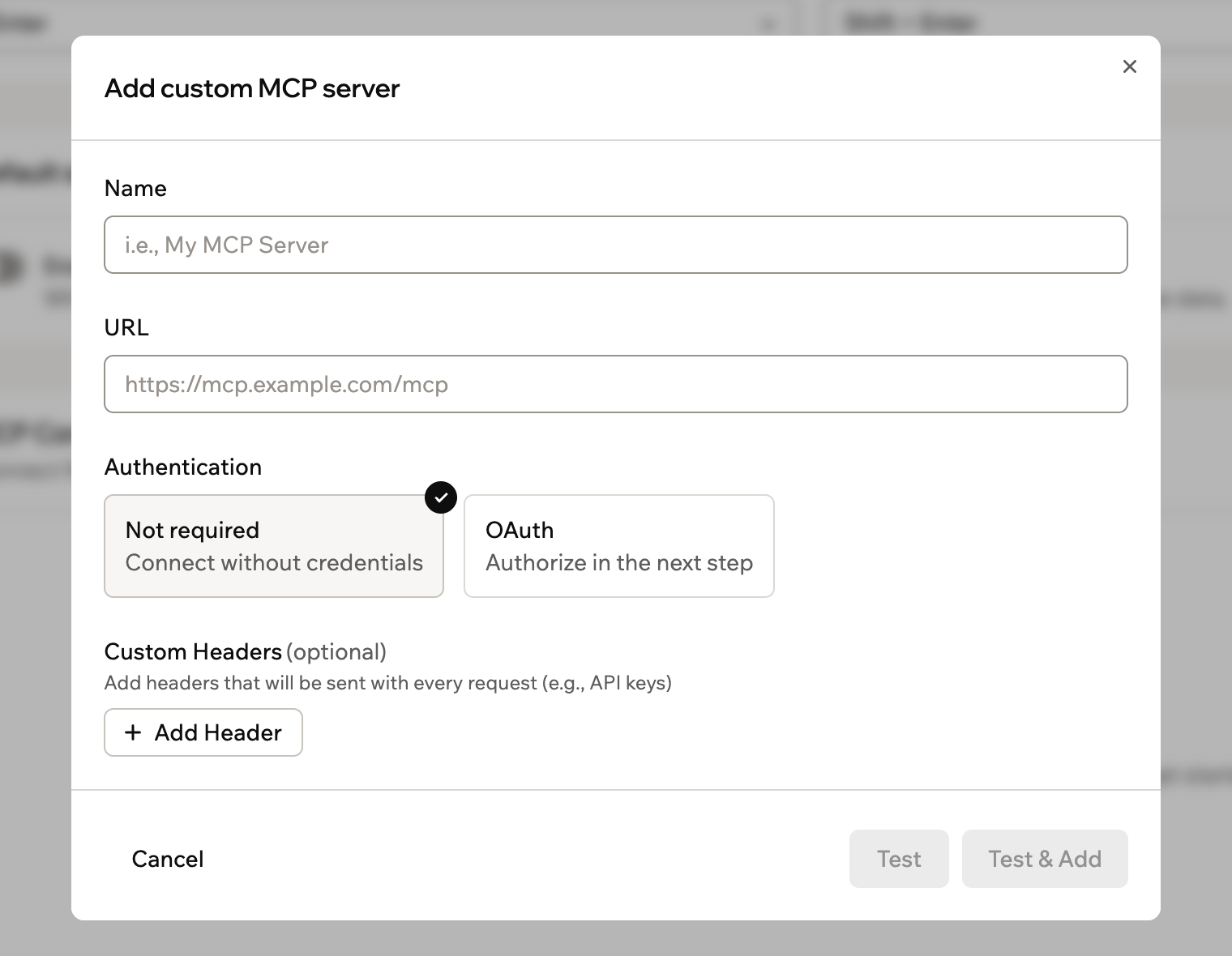
Adding a custom MCP
Turning a custom MCP on or off
Turn an MCP connection on or off without removing its configuration. To turn a custom MCP connection on or off:- Click your workspace name at the bottom left of your account.
- Click Account preferences.
- Click Builder and scroll to MCP Connections.
- Find the relevant MCP server in the list.
- Click the toggle on the right to enable or disable that server for your account.
Editing or removing a custom MCP
Make changes to an existing MCP connection or remove it completely from your account.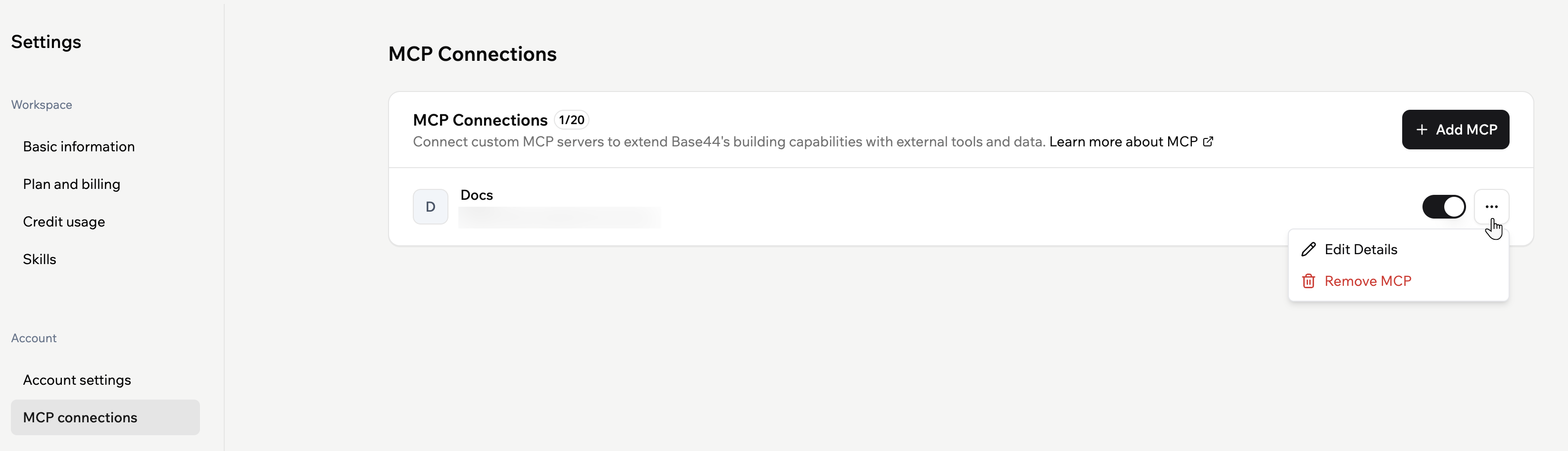
Managing an MCP connection
- Click your workspace name at the bottom left of your account.
- Click Account preferences.
- Click Builder and scroll to MCP Connections.
- Next to the relevant MCP server, click the More actions icon .
- Choose what you want to do:
- Edit Details: Update the server name, URL, authentication, or custom headers, then save your changes.
- Remove MCP: Permanently remove the MCP server from your account.
FAQs
Click a question below to learn more about MCP connections.Does my app call MCP servers directly?
Does my app call MCP servers directly?
No. MCP connections only control what the AI chat can access while you build. Your app code, APIs, and other integrations do not call MCP servers through this settings page.The AI chat uses an MCP server only when your prompt asks for something that requires that server. It does not call every connected MCP for each message.
Can I use MCP connections in app logic or workflows?
Can I use MCP connections in app logic or workflows?
No. MCP connections are only available in the editor chat while you build. They cannot be called from app flows, workflows, backend functions, or via invokeLLM at runtime. If you need to connect to an external service from within your live app, use connectors instead.
Does data the AI pulls from an MCP update live in my published app?
Does data the AI pulls from an MCP update live in my published app?
No. When the AI uses an MCP to fetch data while you build, that data is written into your app at build time. It does not refresh automatically when your published app is running. If you need live data in your app, connect the data source as a connector or custom integration instead.
My MCP is not responding in the editor chat. What should I check?
My MCP is not responding in the editor chat. What should I check?
Try the following steps in order:
- Go to Account preferences → Builder → MCP Connections and confirm the MCP is toggled on.
- Click Test next to the MCP server to check that Base44 can still reach it.
- If the MCP uses OAuth, try re-authenticating. Your session may have expired.
- Check that the server URL and any custom headers are still correct.
- Be explicit in your prompt. Name the MCP and describe what you need it to fetch, for example:
Use the GitHub MCP to list open issues.
Can I temporarily disable an MCP server without removing it?
Can I temporarily disable an MCP server without removing it?
Yes. Go to Account preferences → Builder → MCP Connections and use the toggle next to the relevant MCP server to turn it off. When it is off, the AI chat no longer uses that server.You can turn the same server back on later without re-entering its configuration.
Who can use my MCP connections?
Who can use my MCP connections?
Any collaborator who can open the AI chat for an app you can access can benefit from your MCP connections in that chat. Because MCP connections are configured per account, they are available in all apps and all workspaces that your account has access to. The AI decides when to use each MCP based on the prompt and the MCP configuration.
How do I connect Base44 to Claude, ChatGPT, or Cursor?
How do I connect Base44 to Claude, ChatGPT, or Cursor?
Base44 exposes its own MCP server so external AI tools can interact with your workspace directly. See Using Base44 as an MCP server for setup instructions for each supported client.
Does the Base44 MCP server work with third-party MCP gateways?
Does the Base44 MCP server work with third-party MCP gateways?
No. The Base44 MCP server supports direct connections from Claude, ChatGPT, and Cursor only. Third-party MCP gateway tools are not supported at this time.
Can AI assistants connect to an app I built?
Can AI assistants connect to an app I built?
Yes, and that is a separate feature. A published app can expose its own MCP server so assistants can use that app’s data, agents, and tools. See Connect AI assistants to your app.