

Setting up an IP allowlist
You can enable and configure your IP allowlist from Governance in your workspace settings. Turning it on with no addresses yet opens the form and shows Editing, and nothing is blocked until you add your first address, when it shows Active. Removing the last address turns the allowlist off again. To set up an IP allowlist:- Click your workspace name at the bottom left of your account.
- Click Settings.
- Click Governance.
- Under Network access, find IP Allowlist.
- Turn on the IP Allowlist toggle.
- In the IP address field, enter the IP address or range you want to allow.
- (Optional) In the Note field, add a description to help you recognize the entry later.
- Click Add.
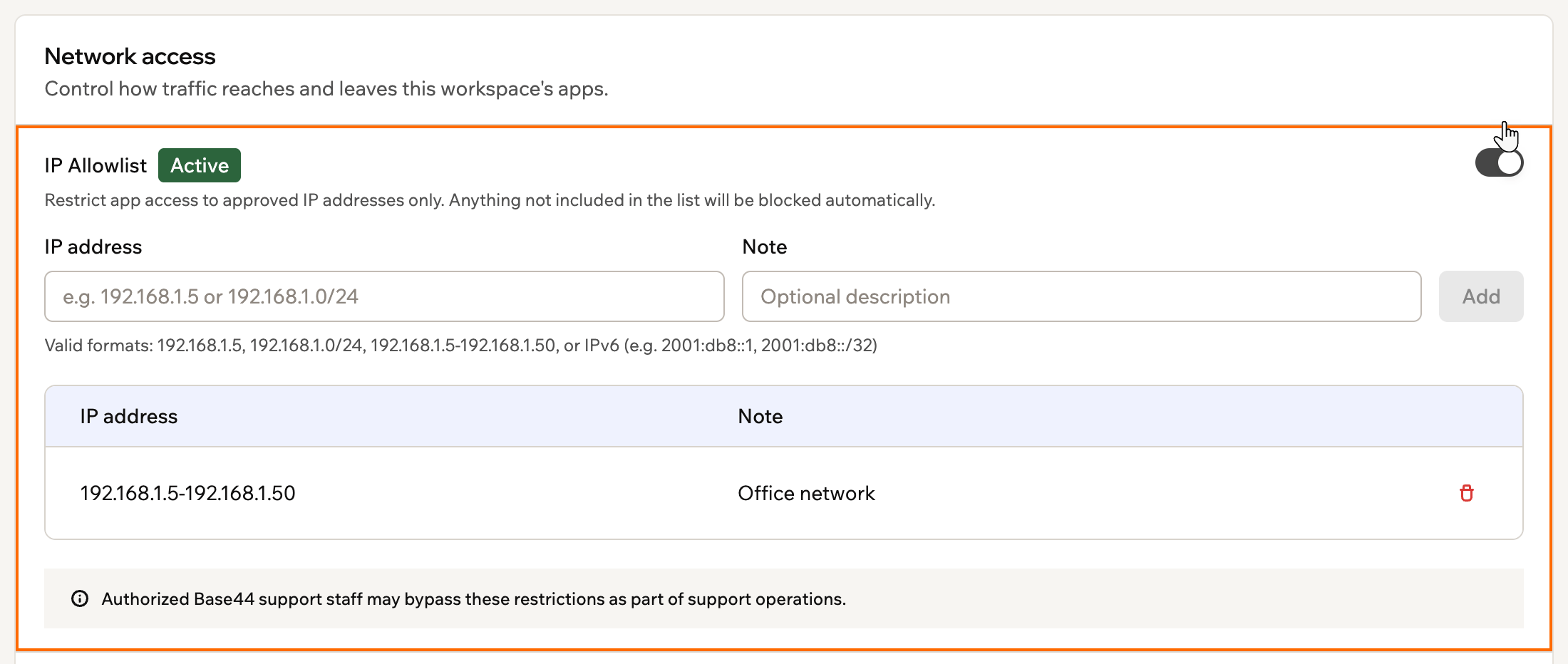
Adding an IP address to the IP allowlist
FAQs
Click a question below to learn more about using IP allowlist for your workspace.What if my internet provider changes my IP address?
What if my internet provider changes my IP address?
If your public IP changes, you need to update the allowlist with the new IP. If your IP changes often, it is usually better to route access through a stable VPN endpoint or office network instead of adding individual home IPs.
Does IP allowlist replace authentication or SSO?
Does IP allowlist replace authentication or SSO?
No. IP allowlist adds a network-level restriction on top of your existing sign-in and SSO setup. People still need valid credentials to sign in, even if they connect from an allowed IP.
Does IP allowlist affect outgoing connections from my apps?
Does IP allowlist affect outgoing connections from my apps?
No. IP allowlist controls who can access your workspace and its apps. It does not block or filter outbound connections that your apps make to external services or APIs.