

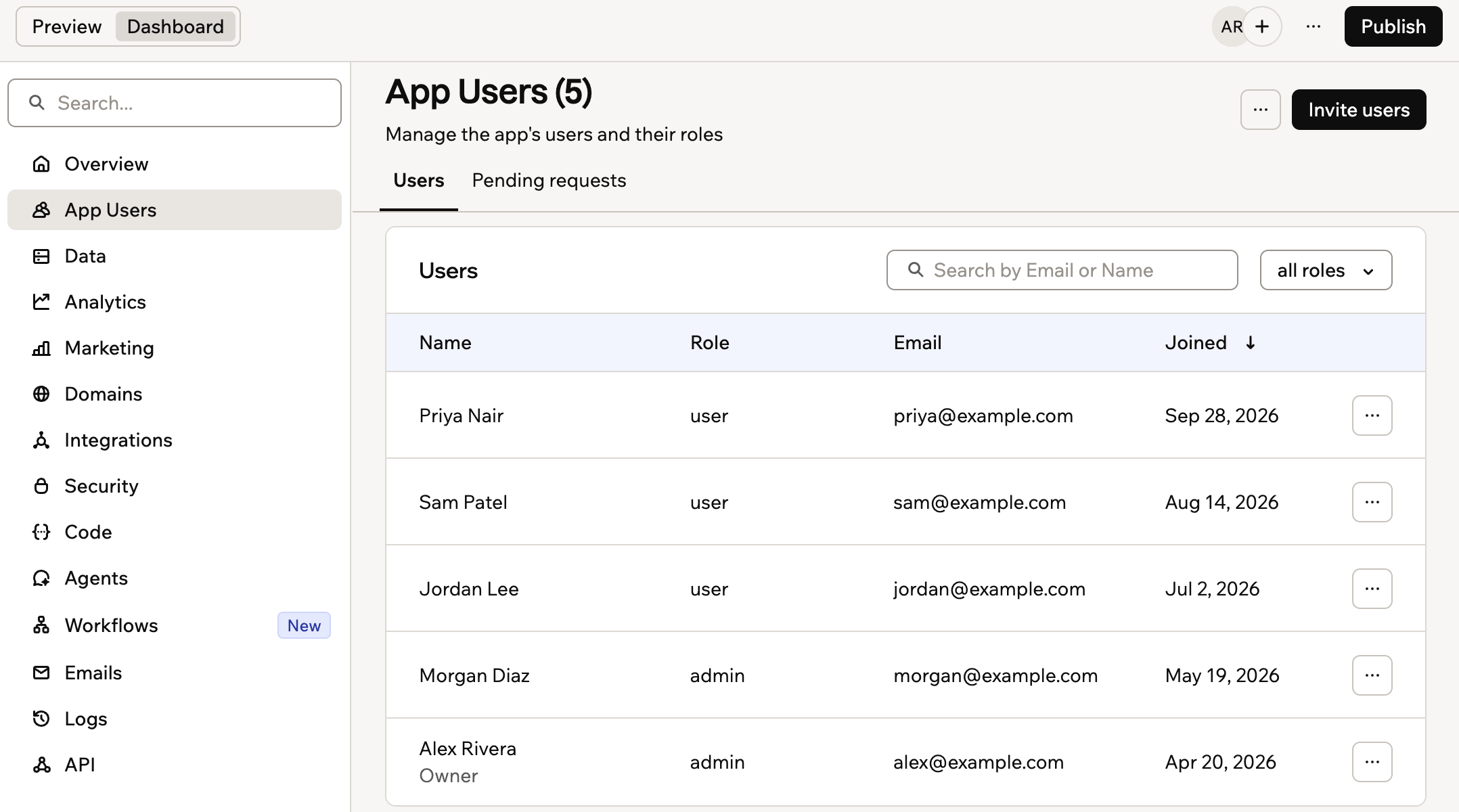
Managing your app users and their roles
Setting your app visibility
App visibility decides who can open your app and whether they need to sign in. Pick the level that fits your app. Visibility is only about who can get in. How people sign in, such as with email and password or Google, is a separate setting on the Authentication page. Learn more about managing login and registration. Base44 uses smart app visibility to suggest a starting point for you. Apps that act like public sites, such as landing pages or portfolios, are automatically set to Public without requiring login. You can change this setting at any time.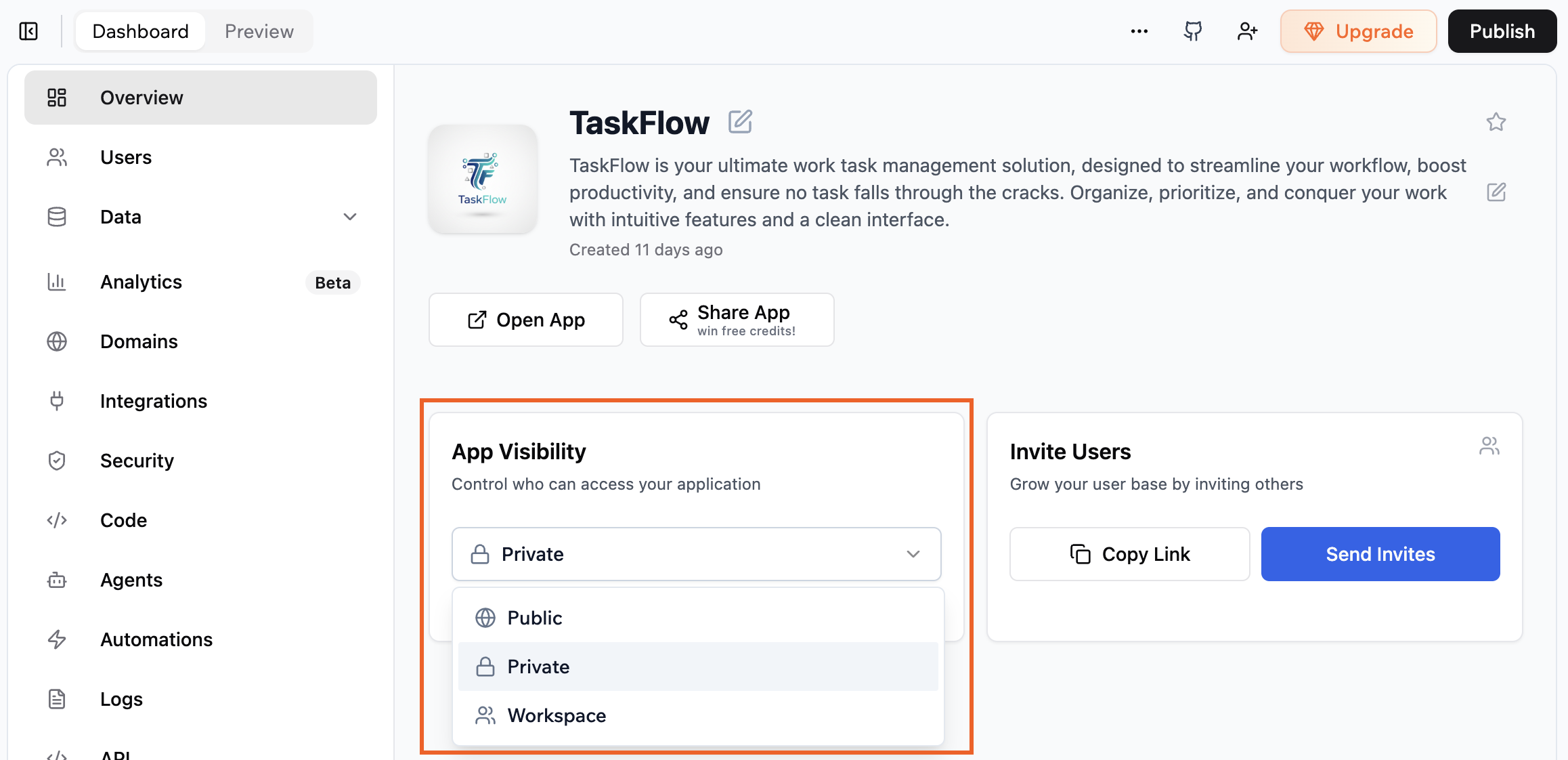
Choosing your app visibility from your app's dashboard
- Go to your app’s Dashboard.
- Click Overview.
- Click the App Visibility drop-down.
- Select a visibility level.
- If your app does not require login, it cannot identify who each visitor is. Features that depend on user identity, such as user profiles or saved per-user data, don’t work.
- If your workspace enforces SSO, people sign in to public apps through your identity provider. On an app that offers both public options, select Public (login required) so sign in matches the rest of your workspace, because Public (no login) is unavailable while enforcement is on. Learn more about Enterprise SSO and app visibility.
Showing the Base44 badge
The Base44 badge is a small “Edit with Base44” label at the bottom right of your live app. It shows people you built the app with Base44, and anyone who clicks it can copy your app into their own account and edit their own version. The badge only appears when your app is public, and hiding it also stops people copying your app.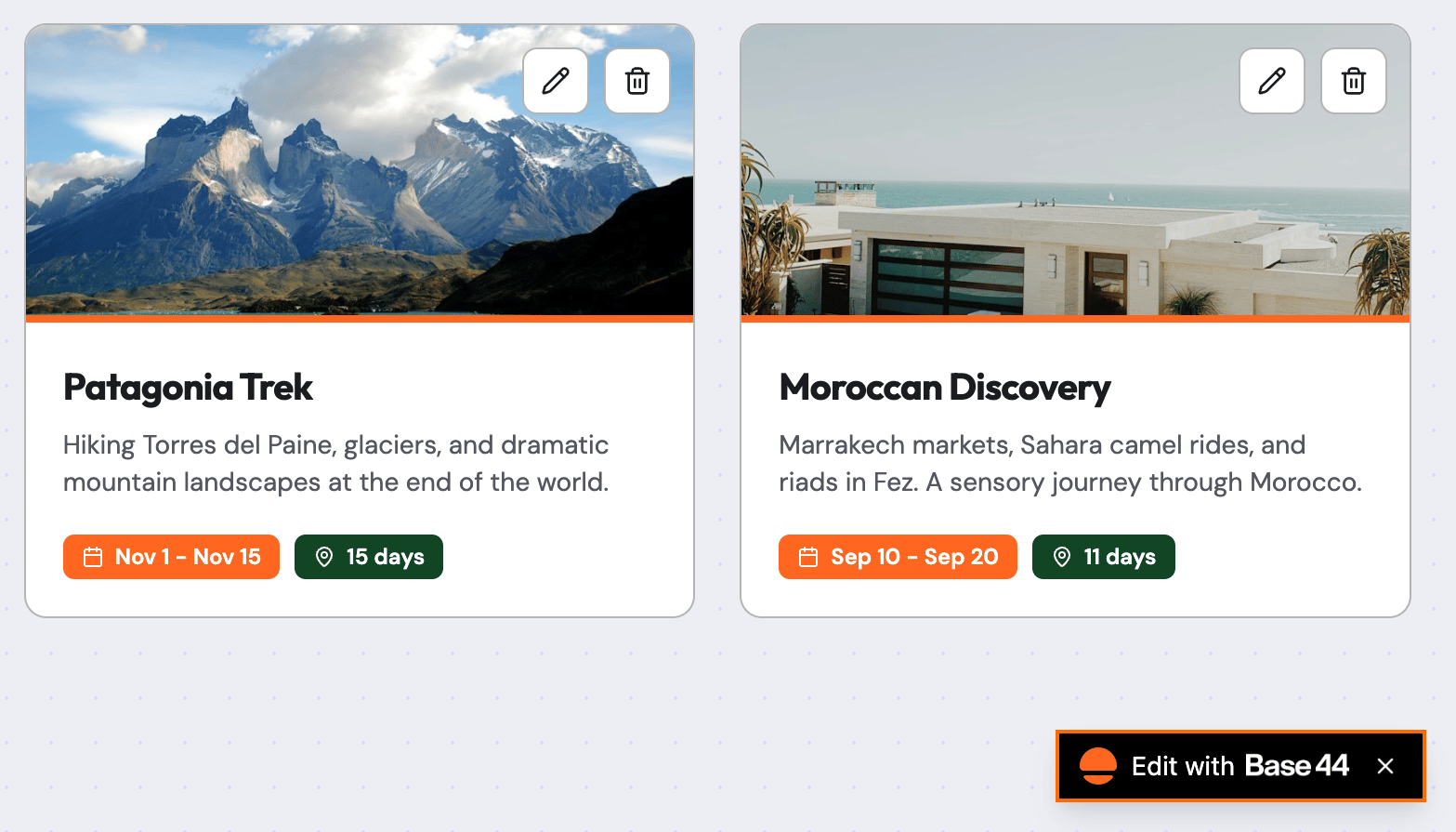
Where the badge appears
- Click Dashboard in your app editor.
- Click Settings in the left menu.
- Turn the Platform Badge toggle on or off.
Inviting users to your app
Invite people to use your app by sending them an email invitation from your dashboard or from inside your app. Inviting someone as a user or admin controls what they can do in the live app. It does not give them access to the app editor or your app’s dashboard.- If your app is set to Workspace visibility, all workspace members automatically have access and do not need individual invites.
- If your app is private, SSO is its only sign-in method, and auto-admit is on, people are added automatically when they sign in and do not need individual invites.
- If your app is not published yet, the invitation dialog shows Your app isn’t published yet. You can still send the invitations, but invitees cannot access the app until you publish it.
- Invite permissions depend on your app’s visibility:
- Private app: Only admins can invite people and can choose whether the role is user or admin.
- Public app: Admins can invite people and choose roles. People with the user role can invite other people.
From your dashboard
Send invitations from your app’s dashboard and choose the role for each person. To invite people from your dashboard:- Click Dashboard in your app editor.
- Click Overview.
- In the Invite Users section, click Send Invites.
- Enter the email address for each person you want to invite.
- Click the Access level drop-down and choose a role.
- Click Send Invitation.
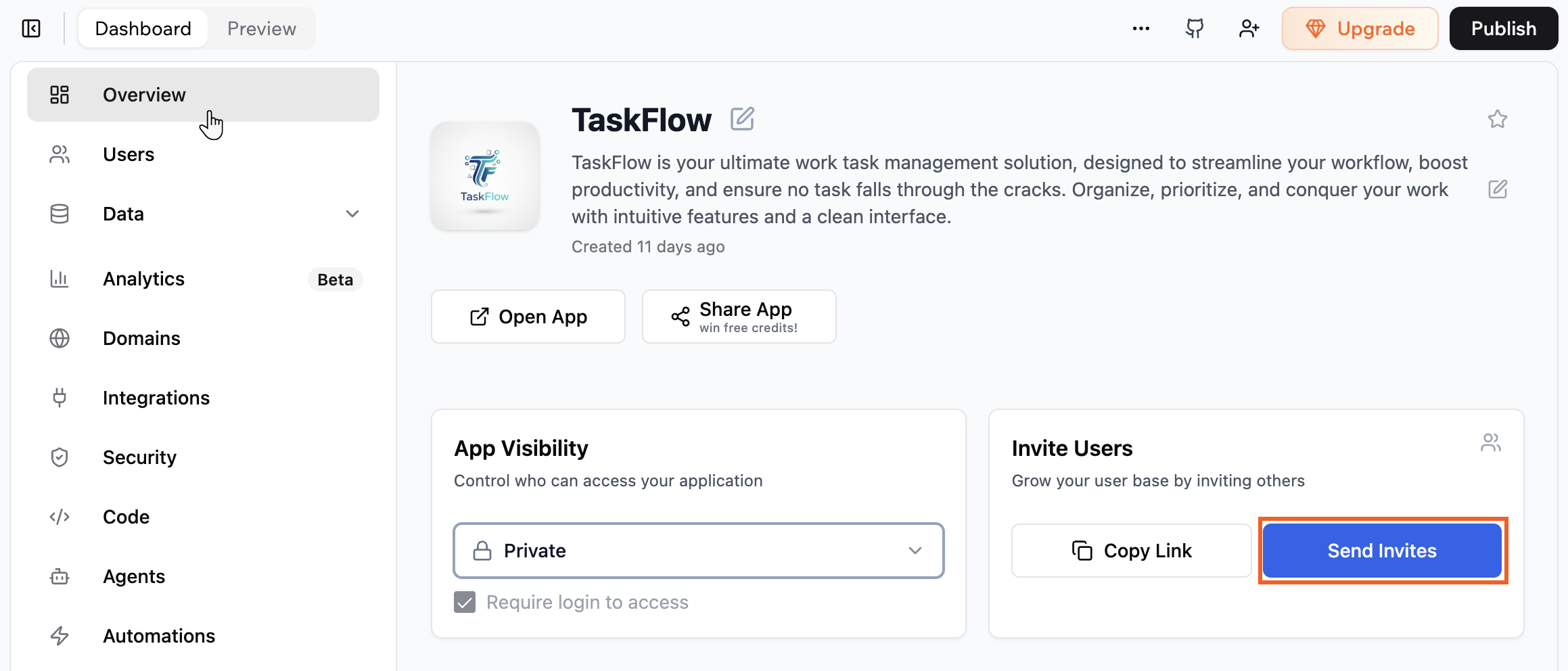
Inviting people to your app from your dashboard
From your app
You can also invite people directly from inside your app by asking the AI chat to set up in-app invites. Use the invite option it adds to enter each person’s email address and, if prompted, choose the role you want to give them. Example prompt:Add the option to invite users to the app from inside the app
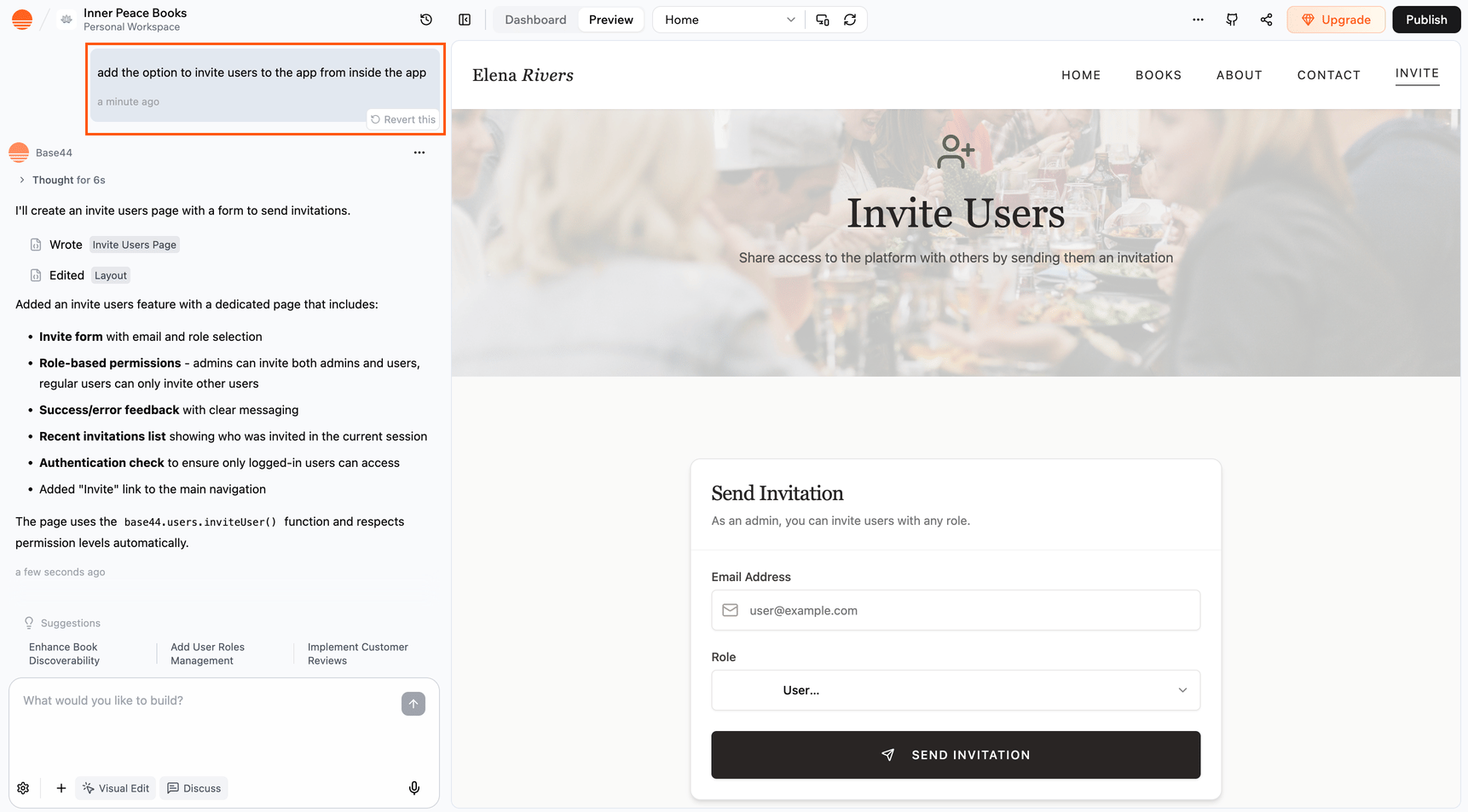
Adding in-app invites with the AI chat
Sharing your app link
Share a link to your app so people can access it directly. To share your app link:- Click Dashboard in your app editor.
- Click Overview.
- In the Invite Users section, click Copy Link.
- Share the link wherever you want people to access your app.

Sharing a link to your app
Managing your app users
The App Users page lists everyone who has signed up for your app or been invited to it. Use it to see who’s using your app, find a specific person, and keep their details up to date. It always shows your live app users, even when you’re working with test data.Viewing your app users
Open the App Users page to see everyone in your app, then open a person’s details to check their account information and update their role or custom fields. Each row shows the person’s name, role, email address, and the date they joined, along with any custom fields you’ve added for your app users. People you invited who haven’t signed in yet show Never in the Joined column. To view and edit an app user’s details:- Click Dashboard in your app editor.
- Click App Users.
- Click the person’s row.
- Check their user ID, name, email address, and the date they joined. To copy their ID, click the copy icon next to it.
- Under Edit User, change their role or any custom fields.
- Click Save.
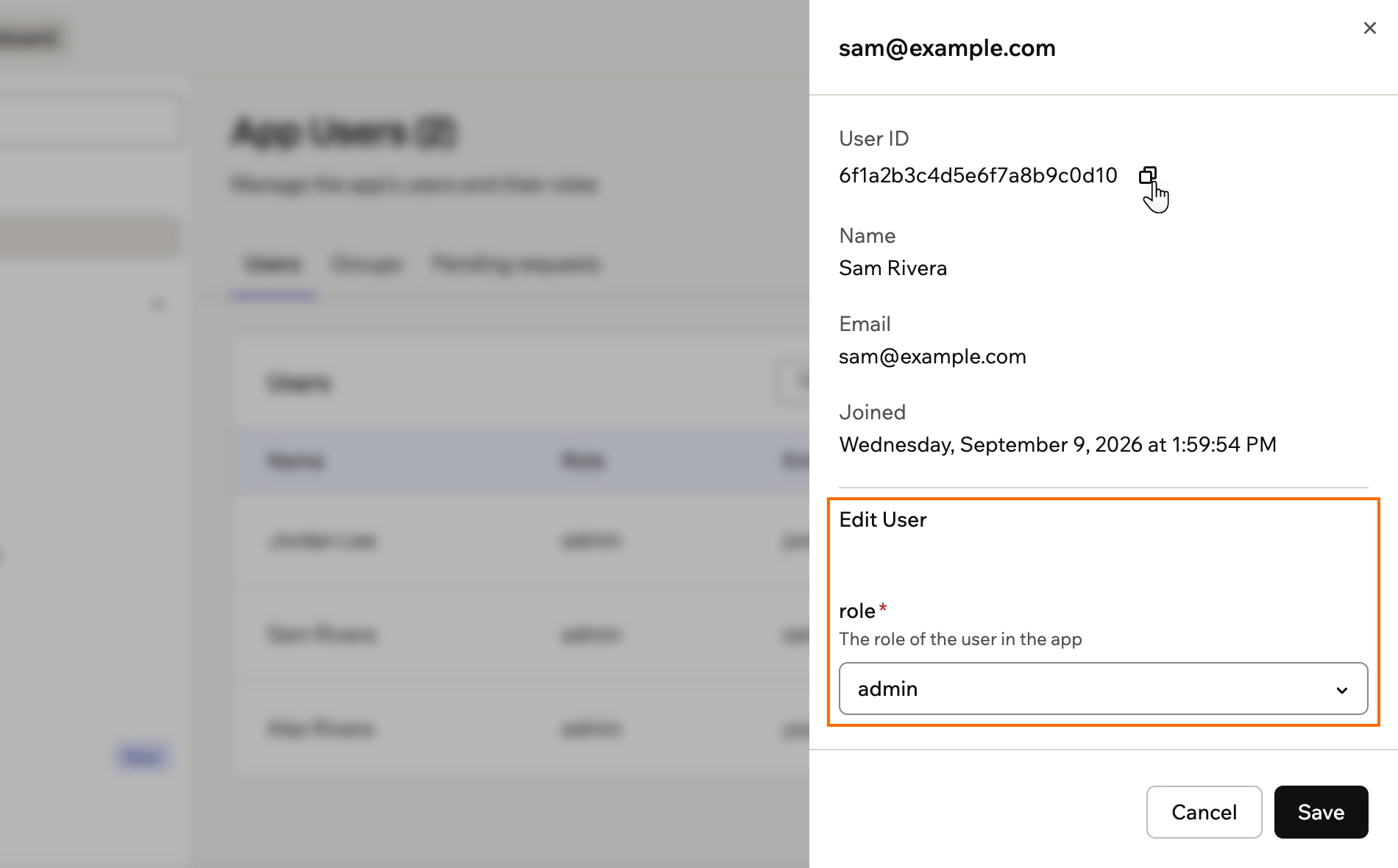
Checking and editing an app user's details
Finding an app user
Search the list when you need to check whether someone has signed up or find their account quickly. Type a name or email address in the Search by Email or Name box. To see only the people with a certain role, click the role drop-down next to the search box and choose a role. To see people waiting for you to approve their access, click the Pending requests tab.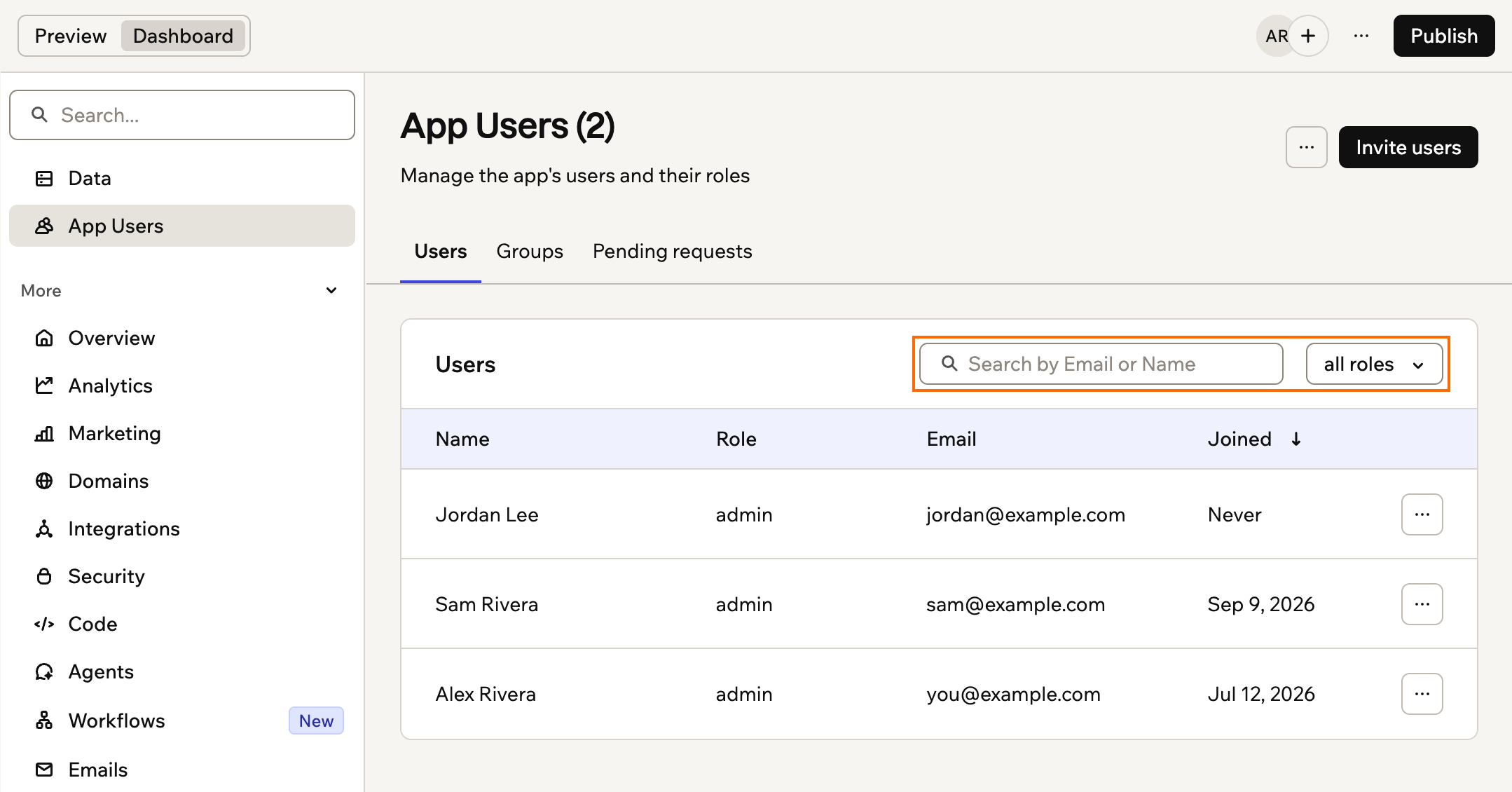
Searching and filtering your app users
Changing an email address
You can’t change an app user’s email address or name, either from the App Users page or by editing their details. Base44 uses the email address to identify each person, so a different address means a different account. If someone needs to use a new email address, give that address access and remove the old account. The new account starts fresh, so custom field values don’t carry over, and records the old account created still show the old address under Created by in your data. To move an app user to a new email address:- Invite the new email address with the same role. On a public app, the person can also sign up with the new address themselves.
- After they sign in with the new address, remove the old account.
Removing an app user
Remove someone when they should no longer use your app. Removing them signs them out right away, stops their password and sign-in codes from working, and moves their profile to Recently deleted. It stays there for 30 days, so you can restore them if you removed them by mistake. After 30 days, it’s permanently deleted. To remove an app user:- Click Dashboard in your app editor.
- Click App Users.
- Click the More actions icon next to the person.
- Select Remove user. For someone who hasn’t accepted their invite yet, select Cancel invite instead.
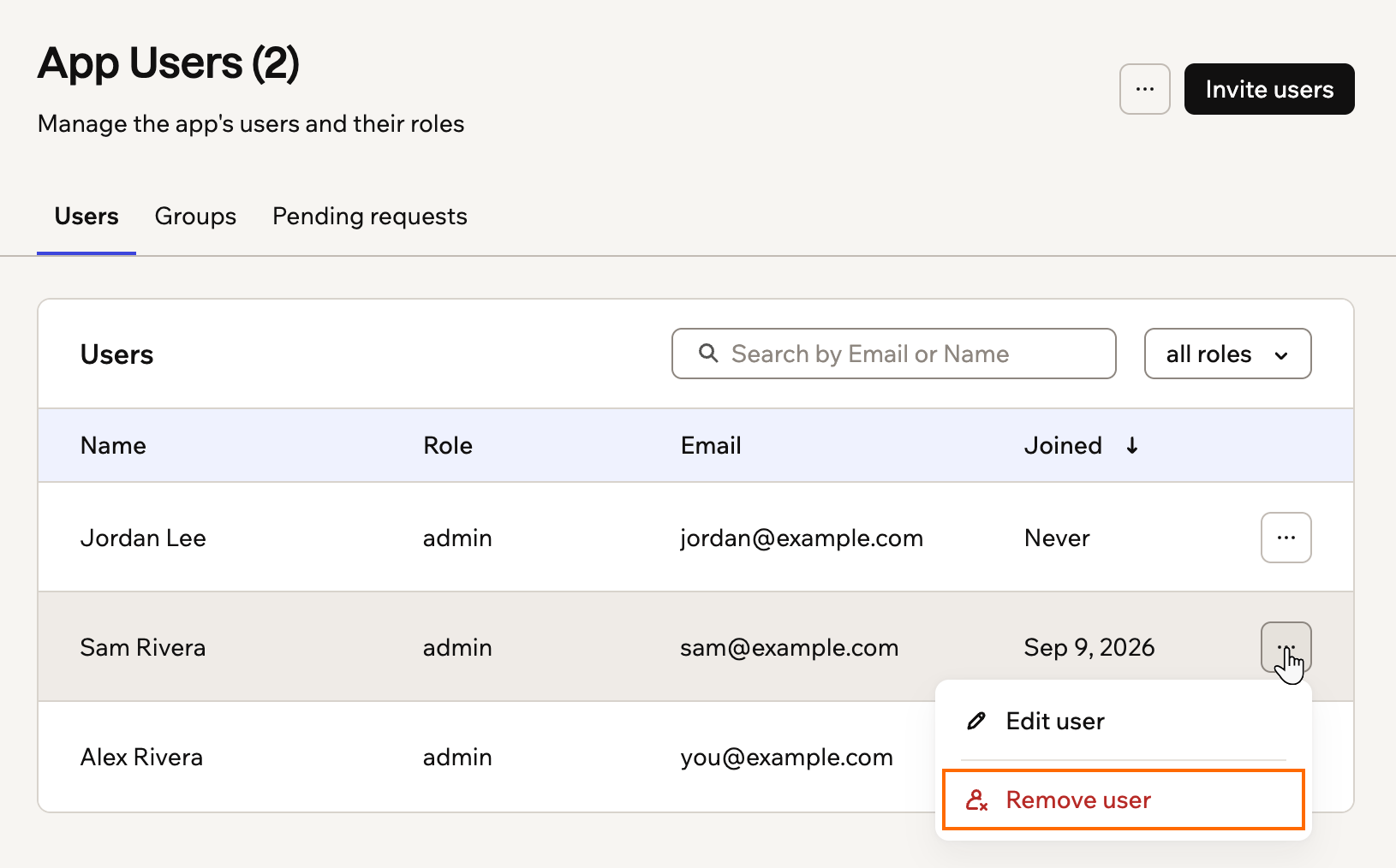
Removing an app user from the More actions menu
Restoring an app user
If you removed someone by mistake, restore them from Recently deleted within 30 days. Their profile, user ID and app role come back, so the records they created stay linked to them. You need to give them collaborator access again if they had it.- Their email address already belongs to an active user, for example because they signed up again.
- They lost access through a workspace group or the workspace itself. Add them back there first, then restore them.
- Click Dashboard in your app editor.
- Click App Users.
- Click the More actions icon at the top of the page and select Recently deleted.
- Click the Restore icon next to the person.
Permanently deleting a user
Permanently delete someone’s profile when you don’t want to wait the 30 days, for example when they asked you to delete their data. You can’t restore it afterwards. To remove everything else they left in your app, see deleting your app’s user data. To permanently delete a removed user:- Click Dashboard in your app editor.
- Click App Users.
- Click the More actions icon at the top of the page and select Recently deleted.
- Click the Delete icon next to the person.
- Click Delete permanently to confirm.
Choosing your users’ roles
Roles control what each person can do on your live app. By default, every app includes 2 roles:- Admin: Can manage areas that are restricted to admins on the live app.
- User: Can view and use the app with no special permissions.
- Click Dashboard in your app editor.
- Click App Users.
- Select the user whose role you want to change.
- Click the Role drop-down and choose Admin or User.
- Click Save.
Giving a group access to your app
Instead of adding people one at a time, you can give a whole workspace group access to your app at once. Everyone in the group gets access with the role you choose, and access stays in sync automatically as people join or leave the group.- Sharing your app with a group needs an Enterprise plan (Business or Enterprise). Sharing identity-provider (IdP) groups also needs SSO and the Enterprise plan, which the Business plan doesn’t include. Learn more about workspace groups.
- Groups are created and managed in your workspace settings, not in your app, so you can only share groups that already exist there.
- On a private app, all members of the invited groups get access to your app and receive an email letting them know.
- On a workspace app, everyone already has access, so inviting a group only sets the role for its members.
Adding a group
Invite a workspace group from your app’s Groups tab and choose the role its members get. To give a group access to your app:- Click Dashboard in your app editor.
- Click App Users.
- Click the Groups tab.
- Click Invite group.
- In the Search for a group box, find the group you want to add and select its checkbox.
- Click the Assign role to group drop-down and choose the role you want everyone in the group to have.
- Click Invite group.
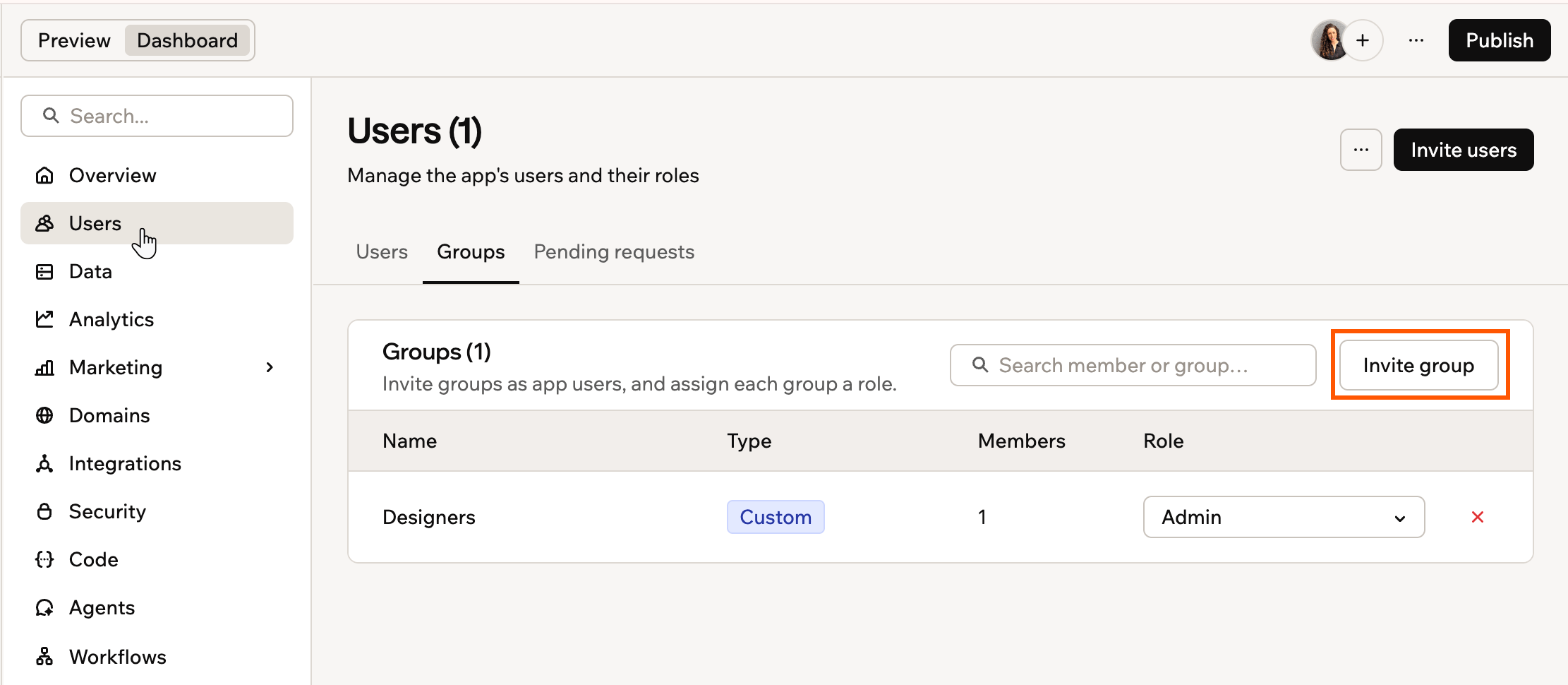
Inviting a group to your app
Managing group access
The Groups tab lists every group that has access, along with its type, member count, and role. From there, you can change a group’s role or remove its access at any time. To manage group access:- Click Dashboard in your app editor.
- Click App Users.
- Click the Groups tab.
- Do one of the following:
Change a group's role
Change a group's role
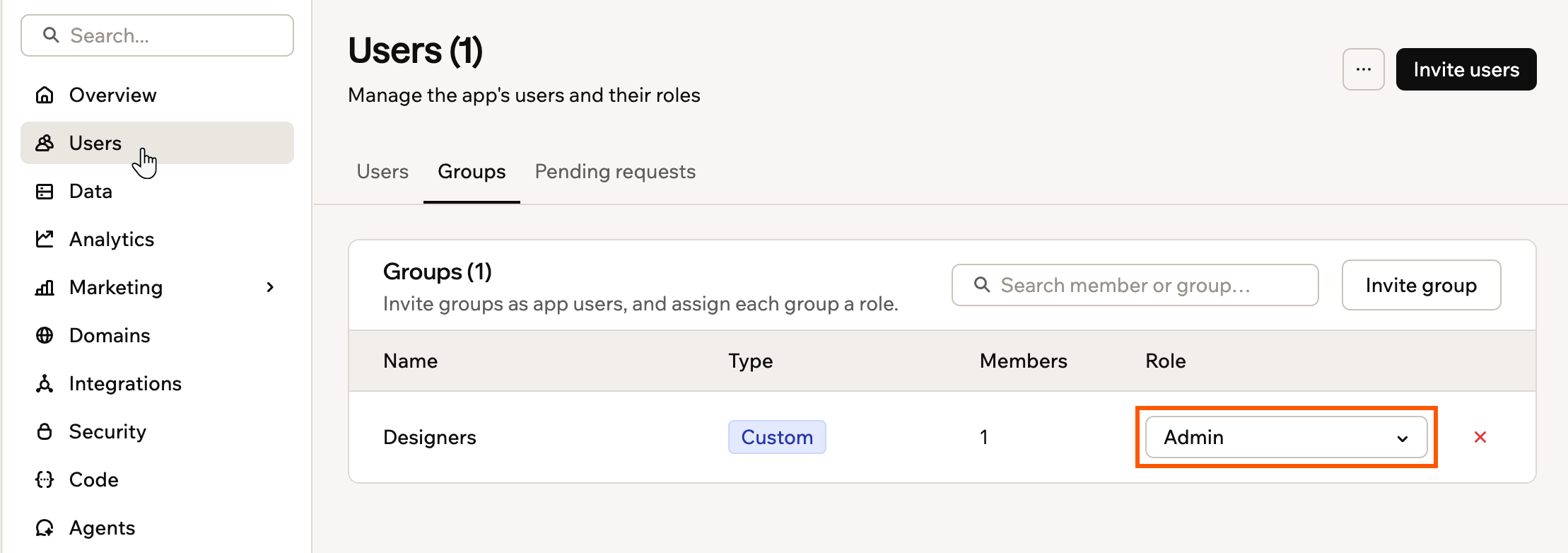
Changing a group's role in your app
Remove a group's access
Remove a group's access
- On the group’s row, click the remove icon.
- In the confirmation window, click Remove group.
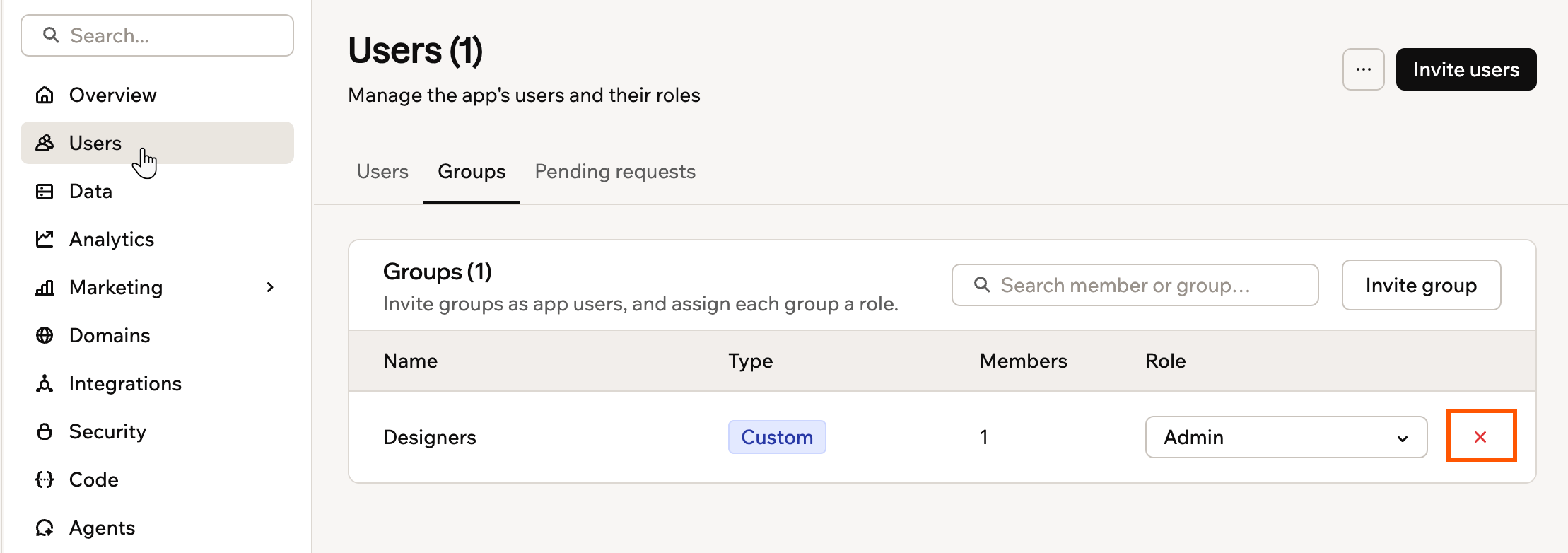
Removing a group from your app
Working with collaborators
Collaborators are people who help you build your app in your app editor. Add collaborators when you want someone to design, configure, or maintain the app with you.- Collaborators
- Can open the app editor and your app’s dashboard.
- Help you design pages, change logic, connect data, and configure settings.
- Are invited from the Invite collaborators icon in the app editor.
- Admins
- Sign in to the live app.
- Access admin-only areas on the live app, such as protected reports or management tools.
- Cannot open the app editor or your app’s dashboard unless they are also collaborators.
Inviting collaborators
Invite collaborators directly from your app editor. If your app lets workspace members join on their own, people in your workspace do not need an invite.- Go to your app editor.
- Click the Add collaborator icon at the top. If more people are working on the app than fit in the top bar, click the number next to their avatars instead.
-
Type the person’s email address in the search box, then click Invite followed by their email. To invite several people at once, click Invite collaborators instead.
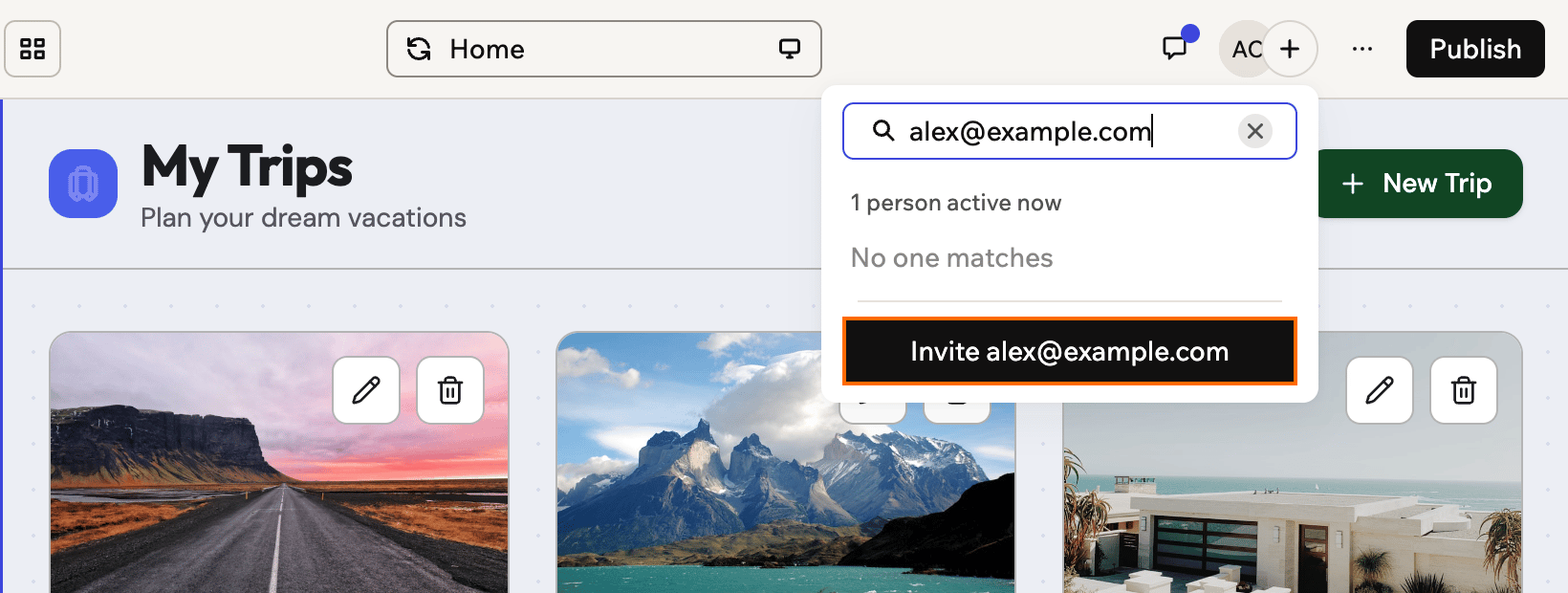
Inviting a collaborator by email from the Add collaborator menu
- Add other people by typing their email, or start typing a workspace member’s name and pick them from the list. The list shows members of your workspace who aren’t collaborators on this app yet. Separate email addresses with commas.
- Click Invite.
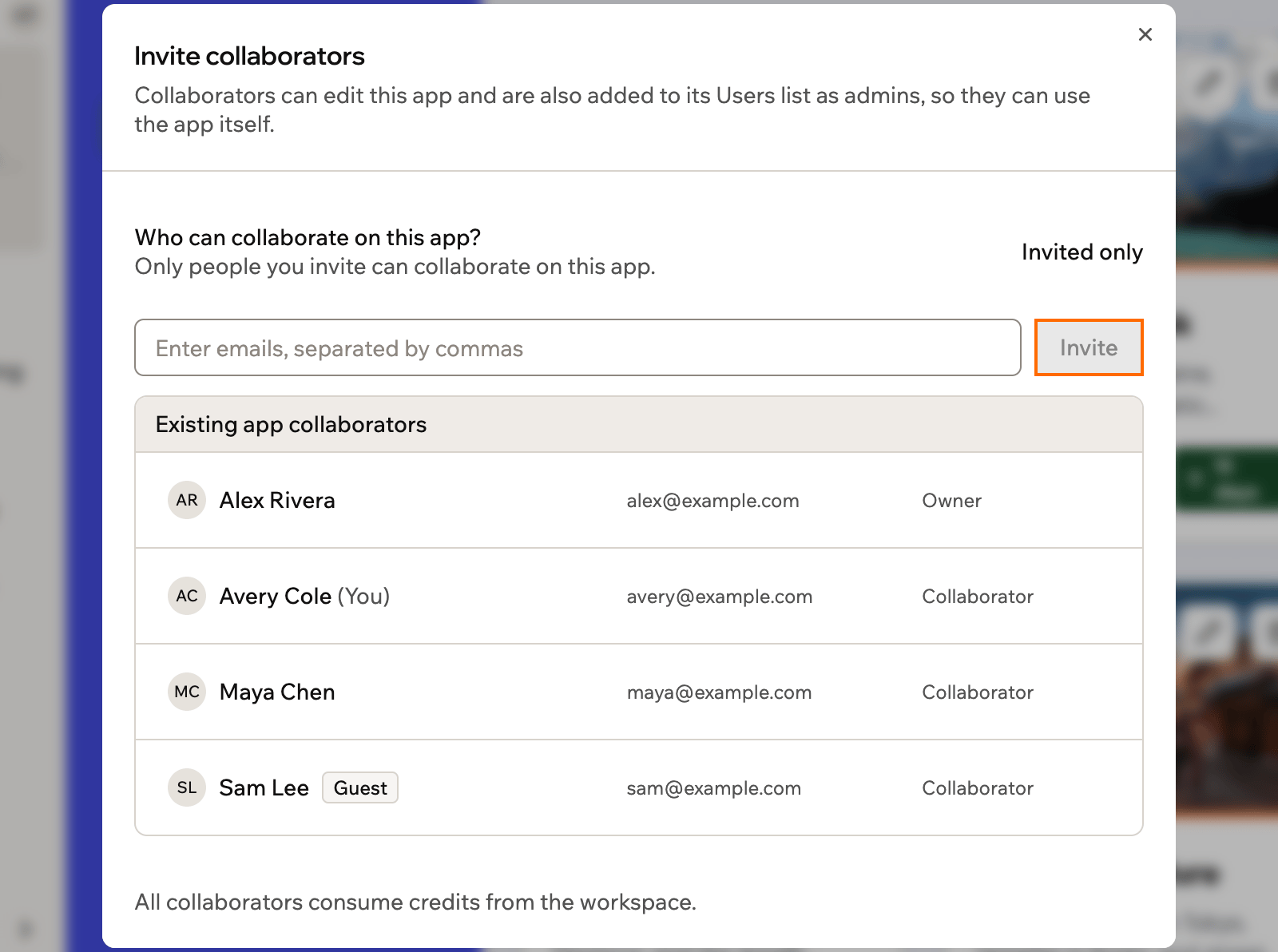
Inviting collaborators to your app in Base44
Choosing who can collaborate
Decide whether people need an invite to collaborate on your app, or whether anyone in your workspace can join on their own. Base Code apps let workspace members join by default. All other apps start with invited people only, so they work as before until you change the setting. To choose who can collaborate on your app:- Go to your app editor.
- Click the Add collaborator icon at the top.
- Click Invite collaborators.
- Next to Who can collaborate on this app?, select an option:
- Workspace members: Anyone in your workspace becomes a collaborator when they open the app. Workspace guests still need an invite, and you can still invite people by email.
- Invited only: Only people you invite can collaborate on the app.
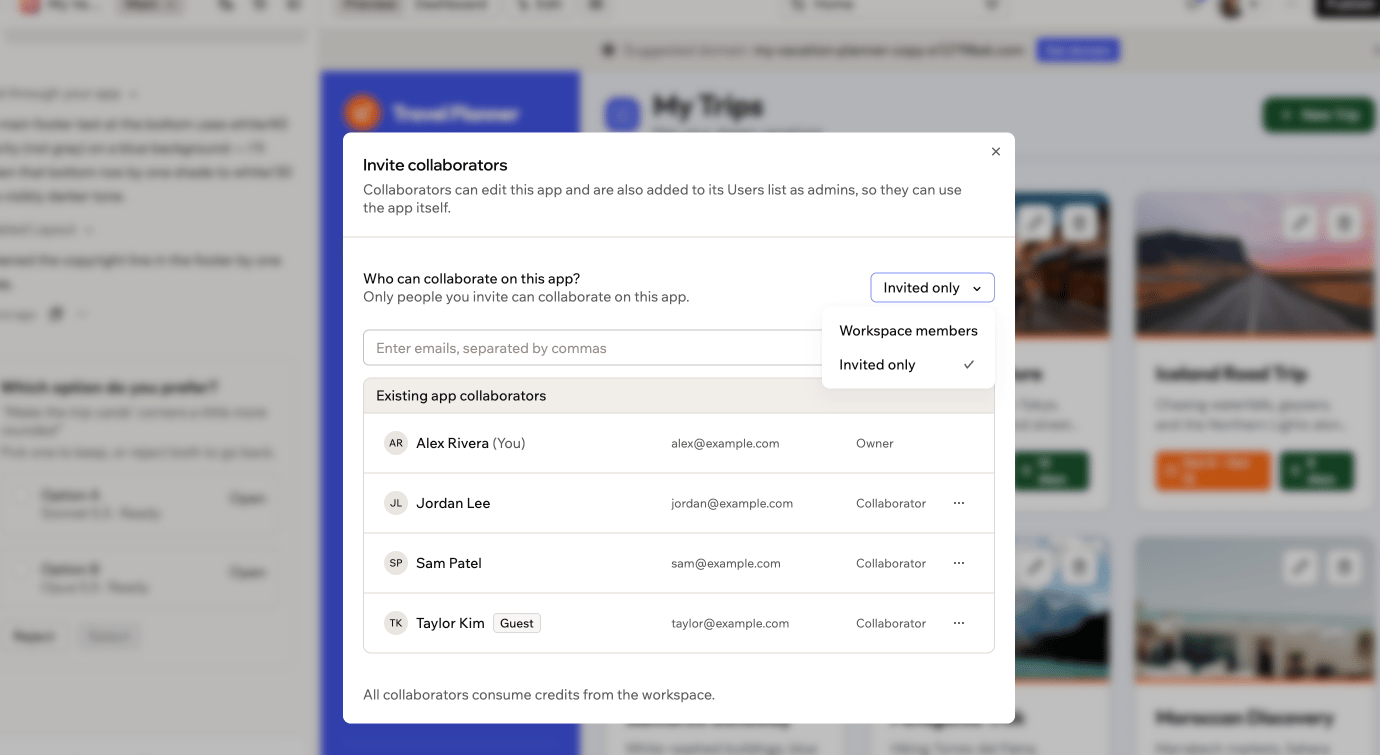
Choosing who can collaborate
Managing collaborators
Remove a collaborator when they no longer need access to the app editor. To manage collaborators:- Go to your app editor.
- Click the Add collaborator icon at the top.
- Click Invite collaborators.
- Find the relevant collaborator and click the More actions icon.
- Click Remove collaborator.
- In the confirmation window, select an option:
- Remove collaborator access only: Immediately revoke their access to the app editor and prevent them from making changes, but keep them in the App Users list with their existing role so they can still use the live app.
- Remove from app entirely: Revoke their collaborator access and remove them from the App Users list so they can no longer sign in or use the app.

Collaborator avatars in the top bar
Restricting external collaborator invites
By default, any workspace member can invite people from outside the workspace to collaborate on apps. You can limit this so only workspace owners and admins can send these invitations.Testing your app as a user
View and interact with your app as any user or role to check permissions, troubleshoot issues, or test user flows.Why would you want to test your app as a user?
- Realistic testing: Test the app exactly as a specific user or role sees it
- Permission visibility: Quickly verify what each role or user can and cannot access
- Faster troubleshooting: Reproduce and debug reported issues in the person’s real context
- Flow validation: Run end to end checks, such as onboarding and key tasks, before releases
- Go to your app editor.
- Click the More actions icon at the top right.
- Select Act as a user.
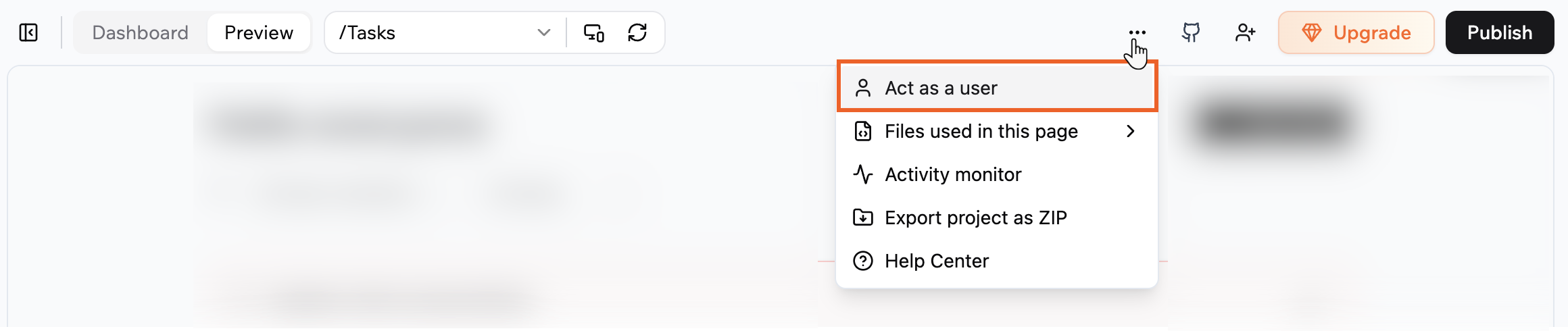
Selecting "Act as a user" in the Base44 app editor
- Click the drop-down next to You’re acting as and select the relevant user.
- Preview and interact with the app as that user.
- Click Exit mode when you’re done testing as another user.
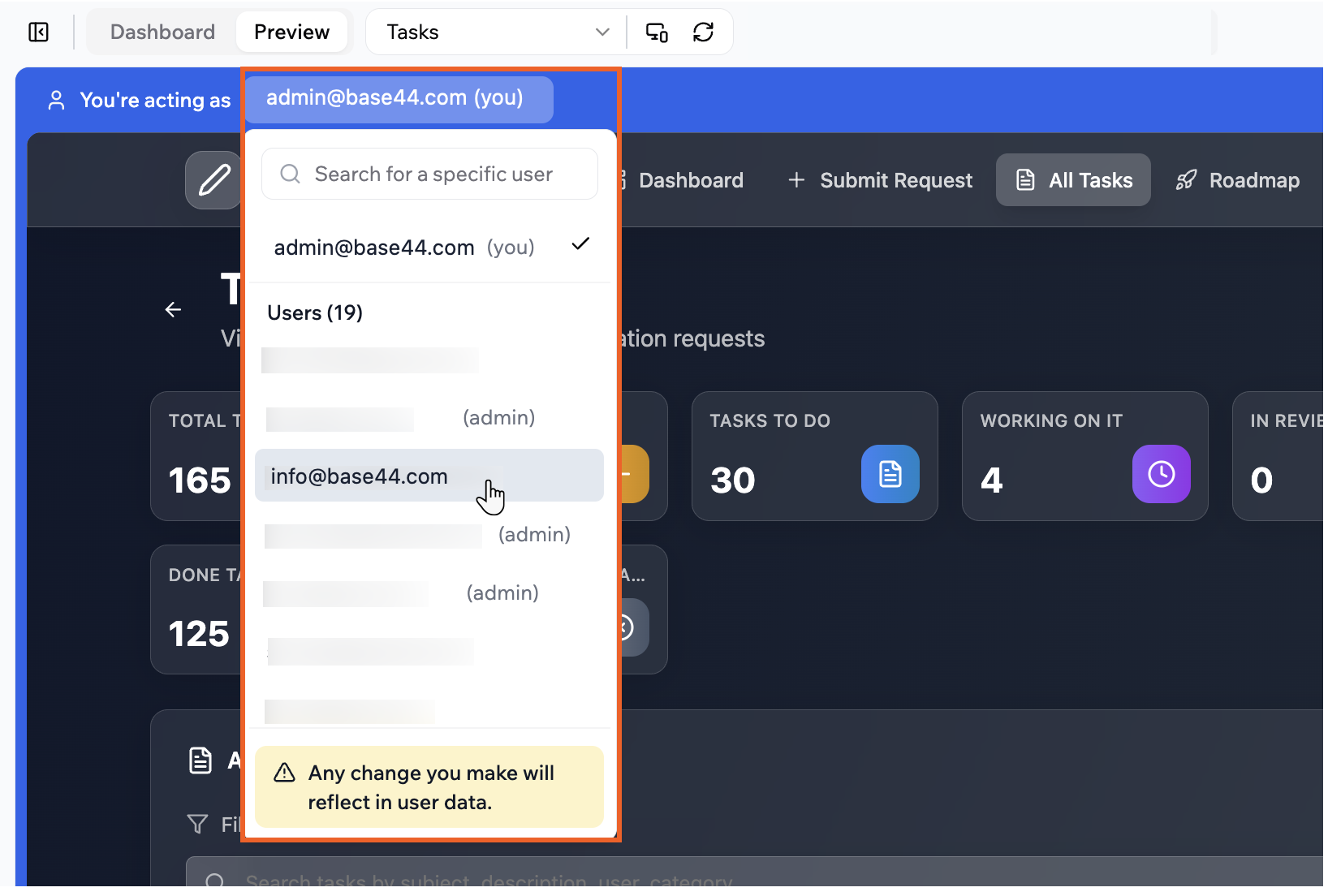
Testing your app as a user in Base44
FAQs
Click below to learn more about managing access to your app.Can people sign up to use my app on their own?
Can people sign up to use my app on their own?
Can I require login on only some pages of a public app?
Can I require login on only some pages of a public app?
How can I protect a public app?
How can I protect a public app?
What visibility options do apps created before custom login pages have?
What visibility options do apps created before custom login pages have?
How do I review access requests for my private app?
How do I review access requests for my private app?
- Click the notifications icon in your workspace.
- Click Review to open the request and decide whether to grant access.
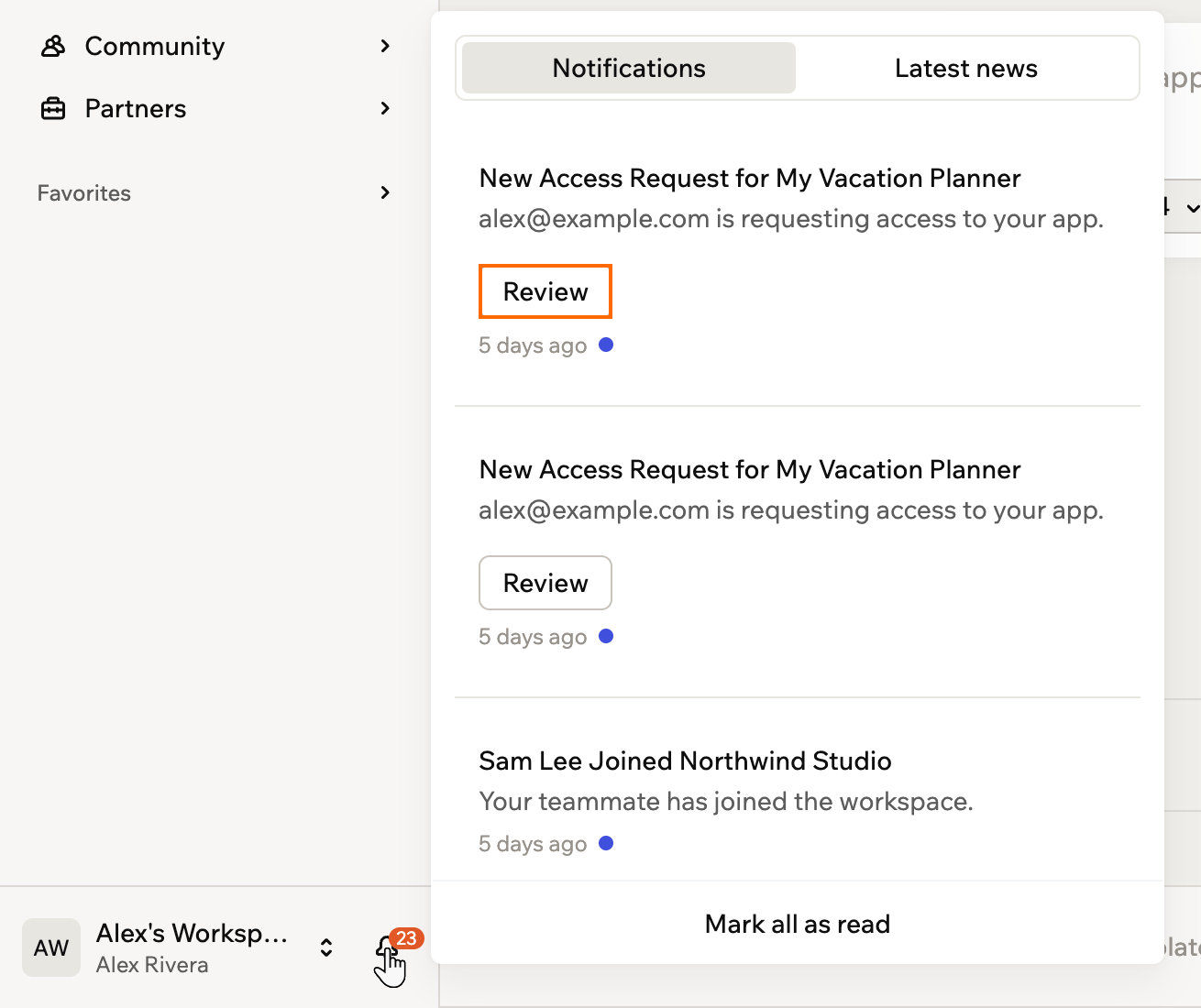
Reviewing an access request
What is the difference between an app user and a collaborator?
What is the difference between an app user and a collaborator?
Do I need to make someone an admin in Users so they can edit my app?
Do I need to make someone an admin in Users so they can edit my app?
How can I manage app security settings?
How can I manage app security settings?
Why does a feature I built for members only work for admins?
Why does a feature I built for members only work for admins?
Users list to protect sign-in data, so only collaborators and the app owner can read it. Any feature that reads from the Users entity, such as a member profile page or personalized content, works for admins but not for regular members. Reading it directly can also trigger an Authentication required to view users error.The fix is to store member data in a separate entity, such as UserProfile, and point your features at that instead of the built-in Users entity.To set this up, paste this prompt into the AI chat:Create a new entity called UserProfile. Move custom fields from the Users entity to UserProfile. Establish a 1:1 relationship between Users and UserProfile. Ensure a UserProfile is automatically created when a new user signs up. Update the app to fetch user details from UserProfile instead of Users. Set permissions so users can only edit their own profile, but anyone can read it.After the AI makes the changes, go to your app’s Dashboard, click Data, open your new UserProfile table, and click Permissions to make sure its rules match the access you intended.How can I create fake users to safely test user flows?
How can I create fake users to safely test user flows?
- Go to your app’s Dashboard.
- Click App Users.
- Click Invite users to send an invitation, or register a new account using your app’s public signup page.
- Assign the desired role or permissions to the test profile.