

Before you begin
Setting up Base44 Payments is quick, and you can start selling straight away. All you have to do is:- Connect Base44 Payments using the AI chat in your app editor.
- Publish your app and go live.
- Start accepting payments from customers immediately.
- Complete setup and verification to start receiving payouts.
Important information
- You can use Base44 Payments for one-time payments or recurring subscriptions.
- You need a Builder plan or higher.
- Your app must be published and accessible during verification.
- You must have a business and bank account based in one of the supported countries listed below.
- Base44 Payments powered by Wix is available to eligible customers in these countries and currencies:
- United States: USD
- United Kingdom: GBP
- Germany: EUR
- Netherlands: EUR
- Spain: EUR
- Switzerland: CHF
- Belgium: EUR
- Portugal: EUR
- Finland: EUR
- Lithuania: EUR
- Austria: EUR
- Italy: EUR
Prohibited products and services
To keep payments safe and compliant, some products and services cannot be sold via Base44 Payments powered by Wix. Examples include:- Illegal products or services
- Certain financial services, investment schemes or high-risk lending
- Some adult content or services
- Weapons, some types of ammunition and related accessories
- Certain gambling or betting services
- Products that encourage hate or violence
Connecting Base44 Payments
Once Base44 Payments is connected to your app, securely accept payments from customers using:- Major credit and debit cards
- Apple Pay
- Google Pay
- PayPal (United States only)
- Buy now, pay later services: Affirm, Klarna, and Afterpay/Clearpay
- Local payment methods: iDEAL, Bancontact, and Twint
Buy now, pay later services and local payment methods depend on the country where your business is based. Learn more in Alternative payment methods.
- Go to your app editor.
- Prompt the AI chat to connect to a payment method. For example:
Enable online payments.If you are eligible, you will be prompted to connect Base44 Payments. - Click Connect to accept Base44 Payments terms of use and service fees.
- Click Dashboard.
- Click Overview.
- Click Manage next to Payments to open the Payments dashboard.
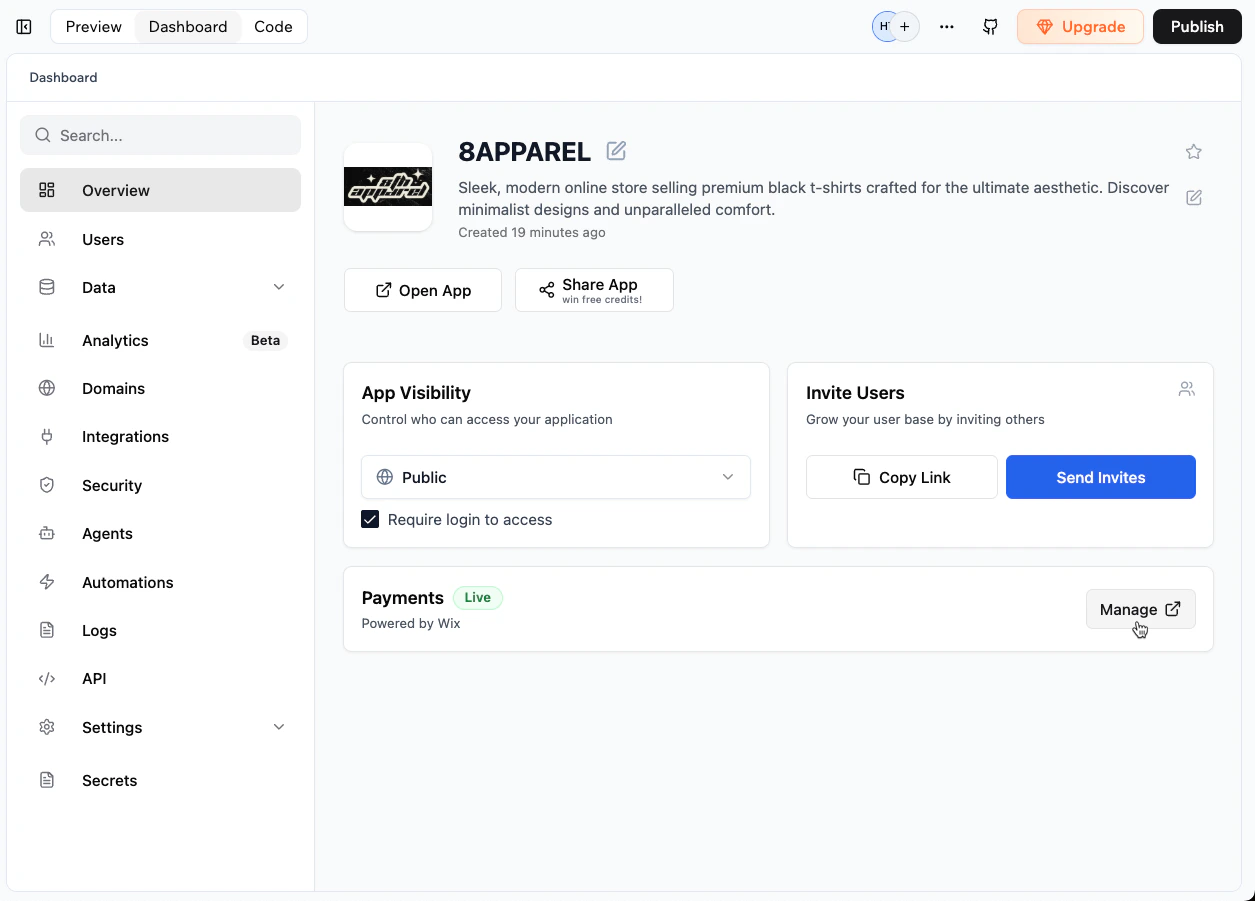
Opening the Payments dashboard from your app dashboard
Alternative payment methods
In addition to cards and digital wallets, Base44 Payments powered by Wix supports buy now, pay later services and local payment methods. The methods available to your customers depend on the country where your business is based.Accepting a method
Alternative payment methods are not switched on for you. On the Accept Payments page in your Payments dashboard, each one shows an Accept button, and you accept the methods you want to offer. Each also links to its own qualification and terms. See Managing payment methods.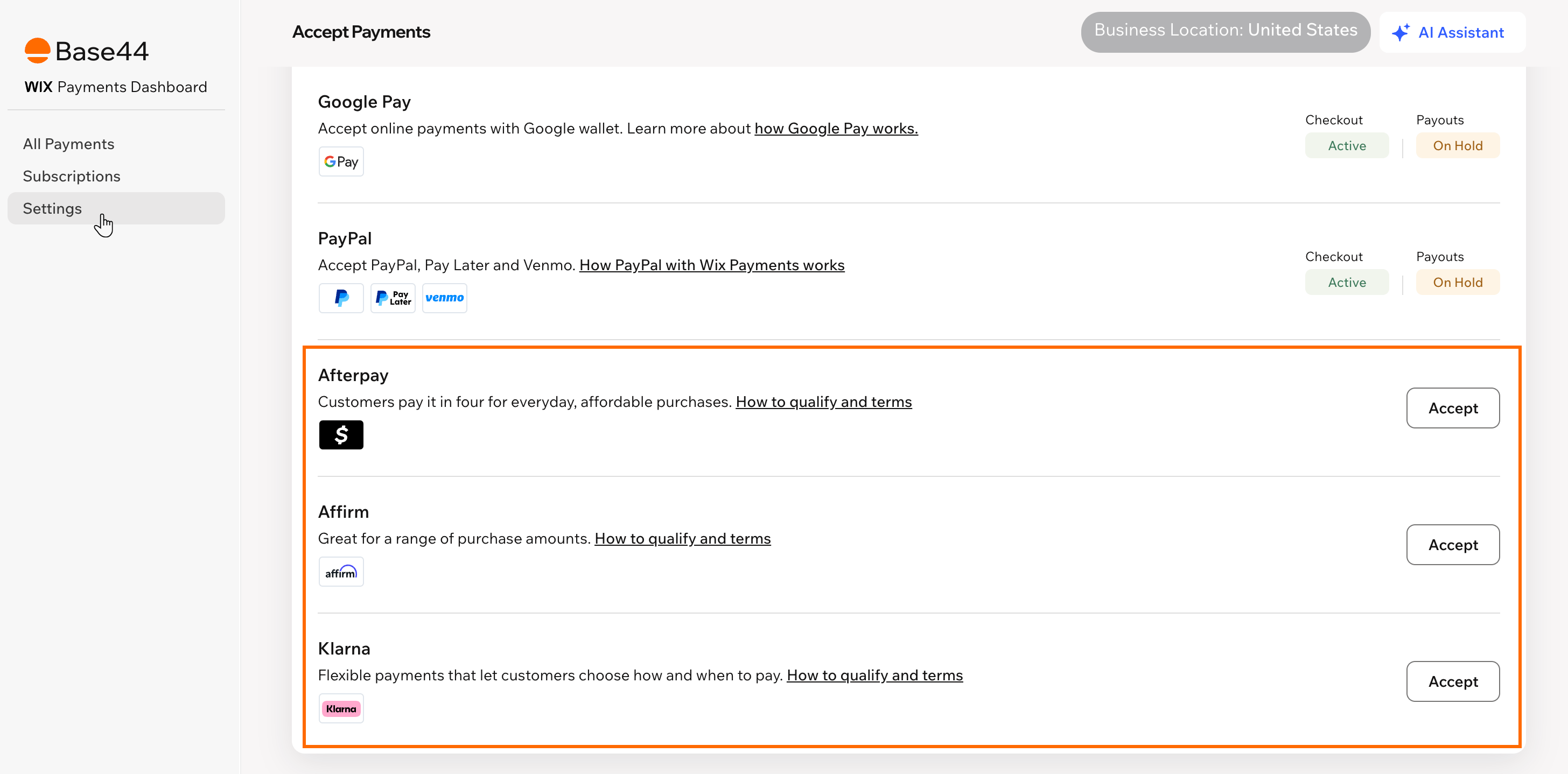
Accepting alternative payment methods in your Payments dashboard
Qualification and terms
Affirm, Klarna, and Afterpay/Clearpay each set their own qualification criteria, prohibited products, and terms of use, in addition to the prohibited products and services policy. By accepting payments with one of these services, you agree to that provider’s terms. Review the qualification requirements, supported currencies, and service fees for each service before you start selling:- Affirm qualification and terms of use
- Klarna qualification and terms of use
- Afterpay/Clearpay qualification and terms of use
Affirm reviews your app in English. If your app is in another language, create a version of your app that can be reviewed in English before selling with Affirm.
Completing the setup
Complete your Base44 Payments account setup and verification before receiving payouts. Details include:- Your business type and legal name.
- Your business address in one of the supported countries.
- The main contact person’s details.
- The bank account where you want to receive payouts.
Getting ready to sell
Before accepting payments with Base44 Payments powered by Wix, make sure your app includes clear business information and policies. This builds customer trust and helps ensure your Base44 Payments account passes verification without delays.Business contact details
Add your business name and easy-to-find contact details so customers can reach you if needed. Best practices include:- Display your business name clearly, using your legal name or “Doing Business As” name exactly as provided during Base44 Payments setup.
- Add your physical business address, including the country. Post office boxes and mail-forwarding addresses are not considered valid.
- Provide customer service contact details such as an email address and phone number.
Required business policies
Your app should include relevant policies to inform and protect customers, such as:- Terms and conditions.
- Privacy policy.
- Refund, return, or cancellation policy.
- Shipping, fulfillment, or delivery policy.
Product and pricing details
Provide clear and transparent details about what you sell, including:- Detailed product or service descriptions.
- Clear pricing and purchase currency.
- Transparent terms for subscriptions or recurring payments, including billing intervals and cancellation options.
If you display card logos on your app, make sure card scheme brands such as Visa and Mastercard appear in full color. These are already shown automatically at checkout.
Best practices
Following best practices helps you build trust with customers, reduce disputes and chargebacks, and keep your Base44 Payments account in good standing.Contact information
Contact information
Add clear and easy-to-find contact details in your app.
- Display your legal business name or Doing-Business-As name.
- Include a physical address or mailing address.
- Provide multiple contact methods such as email, phone number, contact form, or social channels.
- Reply to customers in a timely manner.
- Keep records of all customer communication, especially for disputes.
Clear pricing
Clear pricing
Make sure your pricing is transparent and easy to understand.
- Show full prices including currency.
- Clearly display shipping, handling or additional fees before checkout.
- Ensure prices are readable across devices and screen sizes.
Refund and return policies
Refund and return policies
Keep your refund policy visible and compliant.
- Make the policy concise and easy to understand.
- Display it wherever customers confirm their purchase.
- Ensure it complies with applicable laws.
- Keep it accessible in a central Policies or Help section.
Shipping and delivery information
Shipping and delivery information
Clearly explain how and when customers receive their items.For physical goods:
- Display shipping costs clearly.
- Specify delivery methods and timelines.
- Provide tracking information if available.
- Clarify return shipping responsibilities.
- Explain how delivery works after payment.
- Clarify download access and traceability.
- Describe available support or refund options.
Privacy policy and terms
Privacy policy and terms
Provide a clear privacy policy and terms and conditions, including:
- What data you collect.
- How you use and store it.
- How long you retain data.
- How customers can request access or deletion.
Disputes and chargebacks
Disputes and chargebacks
Handle disputes quickly to reduce chargebacks.
- Respond to customers promptly.
- Consider refunding early to prevent escalation.
- Keep delivery confirmations and communication records.
- Minimize chargebacks to protect your merchant standing.
Managing payments and payouts
Manage payments, payouts, refunds, and reports from your Payments dashboard, with full visibility into your cash flow. You can also track your app’s revenue, transactions, and subscriptions from your app dashboard. See Tracking payments in your app.Viewing payments
From the Payments dashboard:- View each transaction, including its amount, date, payment method, and status.
- Filter by date range, status, or payment method.
- Search for a specific payment using the customer name, order ID, or transaction ID.
- Click Dashboard in your app editor.
- Click Overview.
- Click Manage next to Payments.
- Click All Payments.
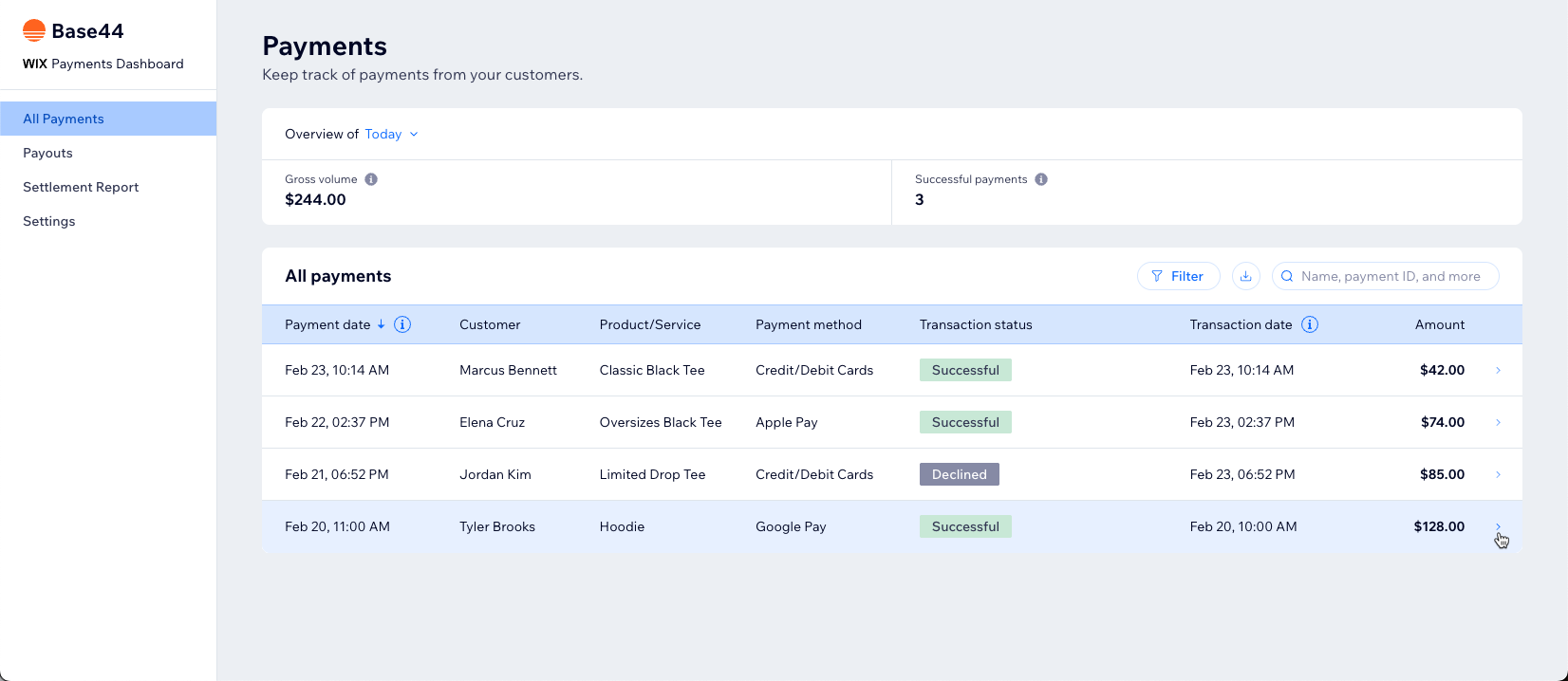
Payments dashboard showing payment history and transaction details
Understanding payouts
Base44 Payments powered by Wix groups your successful customer payments into payouts that are deposited into your bank account.- Payment processing: There is a standard delay between when a customer pays and when the funds are deposited into your bank account. This gives time for processing, refunds and disputes. Processing typically takes 2 to 5 business days.
- Payout schedule: You can usually choose how often you get paid. This can be daily, weekly or monthly, as preferred.
- Payout destination: Payouts go to the bank account you add during setup. You can change this account later, if needed.
- Failed payouts: If a payout fails, your Payments dashboard shows a message explaining what went wrong, for example incorrect bank details.
- Click Dashboard in your app editor.
- Click Overview.
- Click Manage next to Payments.
- Click Payouts.
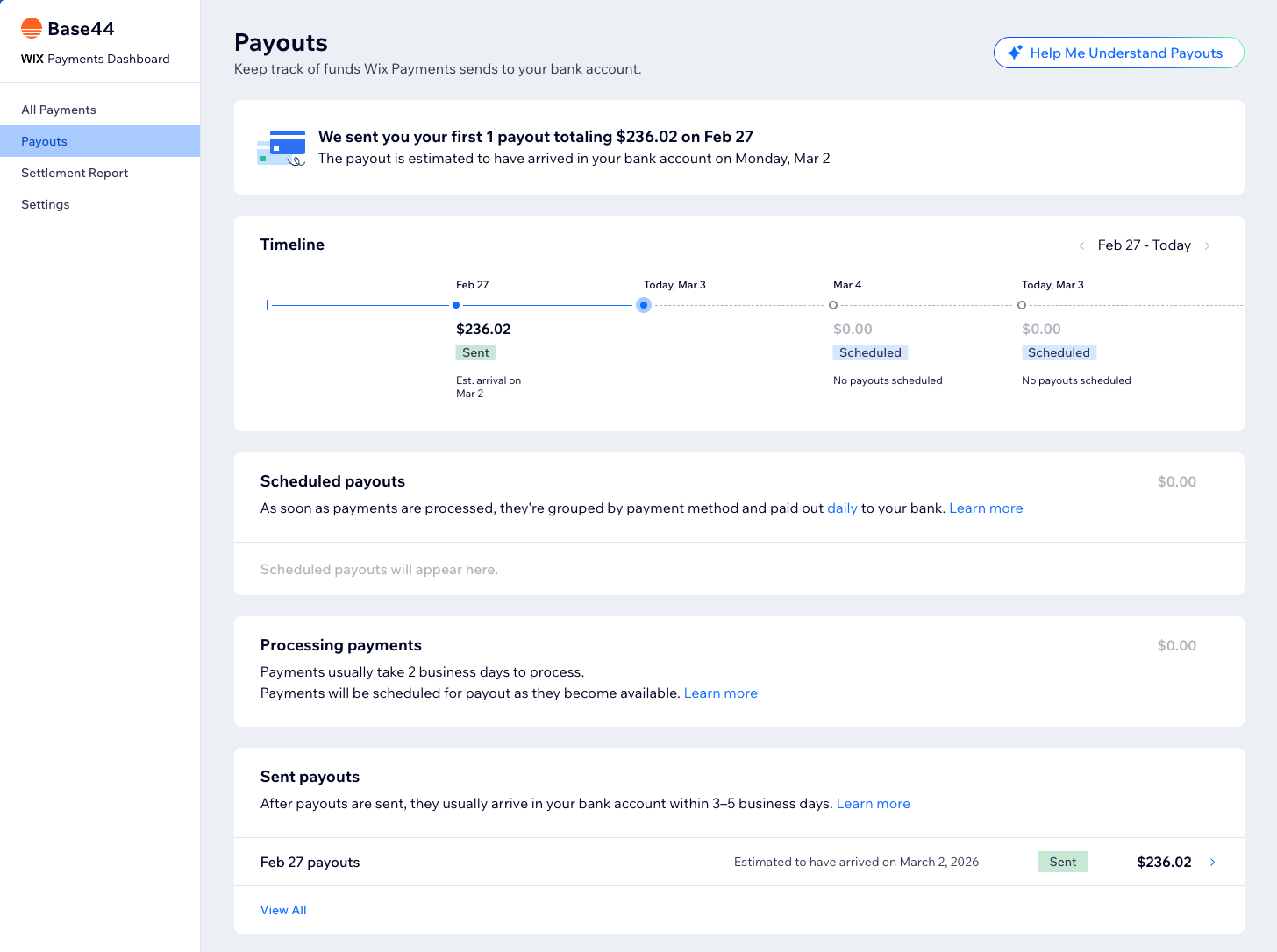
Tracking payout status in the Payments dashboard
Issuing refunds
You can refund your customers directly from your Payments dashboard. When you issue a refund:- The refunded amount is taken from your Base44 Payments balance.
- If your balance does not cover the full refund, the remaining amount may be taken from upcoming payments or from your next payout.
- Refunds may take several business days to reach your customer, depending on their bank or payment method.
- Refunds reduce your available balance and may affect the size and timing of your next payouts.
- Click Dashboard in your app editor.
- Click Overview.
- Click Manage next to Payments.
- Click All Payments.
- Click the payment you want to refund.
- Click Refund.
- Enter the amount and a note (if needed), then click Refund.
Handling a negative balance
Your Base44 Payments balance can become negative if you issue refunds or incur chargebacks that amount to more than your available funds. If your balance is negative:- New successful payments go toward covering the negative amount.
- Payouts are paused until your balance returns to a positive amount.
- You do not have enough funds to cover any additional refunds or chargebacks that may occur.
- You can return to a positive balance by adding funds to your account using a credit or debit card.
- Click Dashboard in your app editor.
- Click Overview.
- Click Manage next to Payments.
- Click Payouts.
- Click Add Funds.
- Enter your payment details.
- Click Add Funds.
Managing payment methods
From the Payments dashboard, you can choose which payment methods you offer your customers. Cards and wallets show their current checkout and payout status. Alternative payment methods show an Accept button instead, which you click to start offering that method. The page shows your Business Location, which is what decides the methods available to you. To manage payment methods:- Click Dashboard in your app editor.
- Click Overview.
- Click Manage next to Payments.
- Click Settings to see your payment methods.
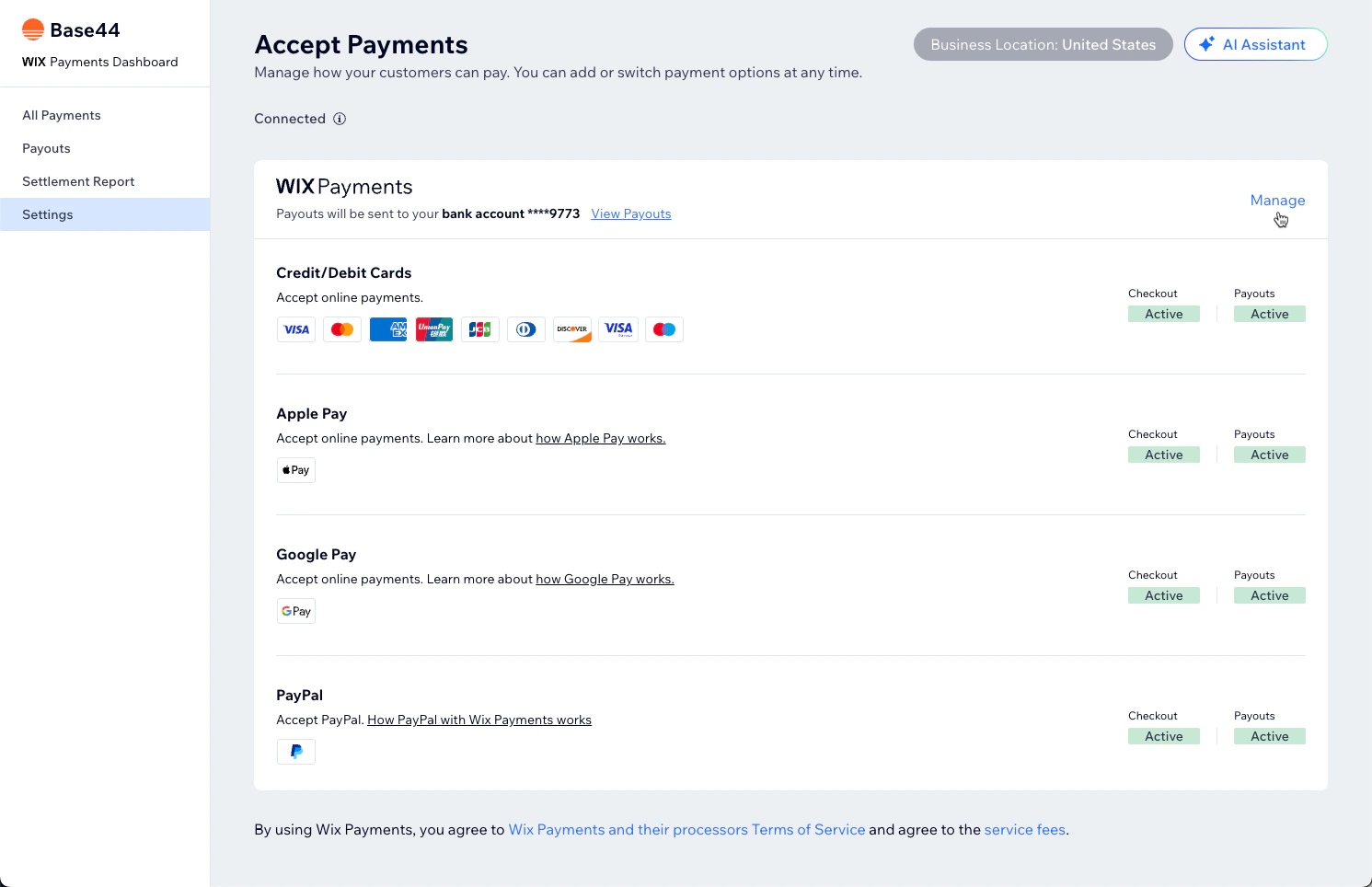
Managing payment methods in the Payments dashboard
Your customers only see the wallet buttons that are supported on their device. For example, Apple Pay appears for customers using Safari on supported Apple devices.
Viewing subscriptions
If your app sells recurring subscriptions, the Subscriptions page lists them and shows your total and active subscription counts. You can filter the list and search for a customer. To view your subscriptions:- Click Dashboard in your app editor.
- Click Overview.
- Click Manage next to Payments.
- Click Subscriptions.
Setting a grace period
A grace period keeps a subscription active for a while after a payment fails, so you have a chance to recover the customer instead of losing them. Grace periods stay off until you turn them on. You choose how long the period lasts, anywhere from 1 to 14 days, and whether the customer’s payment method is retried automatically during that time. To set a grace period:- Click Dashboard in your app editor.
- Click Overview.
- Click Manage next to Payments.
- Click Subscriptions.
- Click Subscription Settings.
- Turn on Grace period.
- Under General settings, enter the number of days.
- (Optional) Turn on Retry a customer’s payment method automatically during grace period.
Accessing settlement reports
Settlement reports give you a detailed, exportable list of all transactions processed through Base44 Payments powered by Wix.- See each transaction, its status and the related payout.
- View the Base44 Payments service fee for each transaction.
- Download a CSV file of the full report for accounting or tax purposes.
- Filter by date range or transaction type before you download.
- Click Dashboard in your app editor.
- Click Overview.
- Click Manage next to Payments.
- Click Settlement Report.
- (Optional) Filter the report, or click Download Detailed Table.
Troubleshooting
If Base44 Payments powered by Wix cannot verify your app, payments and payouts may be delayed. Review the topics below for common verification issues and solutions.Common verification issues
Common verification issues
- Your app is not published: Click Publish in the app editor and publish your app.
- Your app was deleted: Restore or recreate the app so Base44 Payments powered by Wix can scan it.
- Your domain has expired: Renew your domain through Base44 or your domain provider.
- Your domain is still propagating: DNS changes may take up to 48 hours to complete.
- SSL issues: Fix any security certificate errors on your domain.
- Geographic restrictions: Remove any third-party apps or code blocking access from certain regions.
App accessibility in certain regions
App accessibility in certain regions
Base44 Payments powered by Wix must be able to access your app globally during verification.If your app is restricted in certain regions by third-party tools or custom code, Base44 Payments powered by Wix may not be able to verify your account. This can disrupt payment processing and payouts.To resolve this:
- Remove geographic restrictions from any third-party apps or custom code.
- Republish your app after applying the changes.
FAQs
Click a question below to learn more about using Base44 Payments powered by Wix with Base44.When do I receive my payouts?
When do I receive my payouts?
After a customer pays, there is usually a short delay before the money is sent to your bank account. The exact timing depends on your payout schedule and on factors such as weekends and bank holidays. You can see the expected payout date for each payout in your Payments dashboard. Your Base44 Payments account must also be fully verified before you can receive payouts.
Can I change the bank account where I receive payouts?
Can I change the bank account where I receive payouts?
Yes, you can update your payout bank account details from your Payments dashboard. Be aware that when you update your Base44 Payments account details, your account may need to be reverified and your payouts may be put on hold until verification is complete.
Does Base44 Payments support recurring subscriptions?
Does Base44 Payments support recurring subscriptions?
Yes, you can offer recurring subscriptions alongside one-time payments. Ask the AI chat to set up subscription payments on your app. See Viewing subscriptions.Read more: Creating and managing subscriptions
Can I accept donation payments with Base44 Payments powered by Wix?
Can I accept donation payments with Base44 Payments powered by Wix?
Yes, you can use Base44 Payments powered by Wix to accept donations.To accept donations through Base44 Payments powered by Wix:
- Your cause must be registered as a charity.
- You may not accept donations on behalf of someone other than yourself. For example, you may not collect donations in the name of a well-known charity.
- A donation must be tied to a specific charitable purpose that you, or your team, are committing to accomplish and donations must be used for the charitable purpose described to the donor.