

Before you begin
- A published Base44 app with a stable URL
- An Apple Developer Program account with access to App Store Connect and API keys
- A Google Play Console developer account
- Permission to create and manage apps in both accounts (if you are working in a team)
- A logo that meets Apple and Google icon requirements, or a clear prompt to generate one with AI
- A privacy policy and terms of use page that explain how your app handles data and device permissions, and that are reachable from your main app pages
- Physical goods and services: Using Stripe is allowed in the app stores.
- Digital goods (for example, subscriptions or in-app features): Do not use Stripe for payments inside your mobile app. Apple and Google require their own billing systems for digital content. If your app uses Stripe for digital content, your app is rejected. We are working on a built-in integration for StoreKit and Google Play Billing to handle digital purchases and keep your app compliant.
Step 1 | Create your developer accounts
Before you can generate store files and submit your app, you need active Apple and Google developer accounts. These accounts let you own your listings, manage releases, and handle reviews directly in each store.Apple Developer account
Use your Apple Developer account to submit your iOS app in App Store Connect and manage releases. Make sure you have an Apple ID you can use for your business. To create your Apple Developer account:- Go to the Apple Developer enrollment page.
- Sign in with your Apple ID and start the enrollment process.
- Choose the account type that fits your situation:
- Individual: Select this if you are publishing as yourself.
- Organization: Select this if you are publishing on behalf of a company. Apple may ask for your legal business name and D-U-N-S number.
- Review and accept Apple program terms.
- Complete the payment to activate your Apple Developer Program membership.
- After your enrollment is approved, sign in to App Store Connect with the same Apple ID to manage your apps.
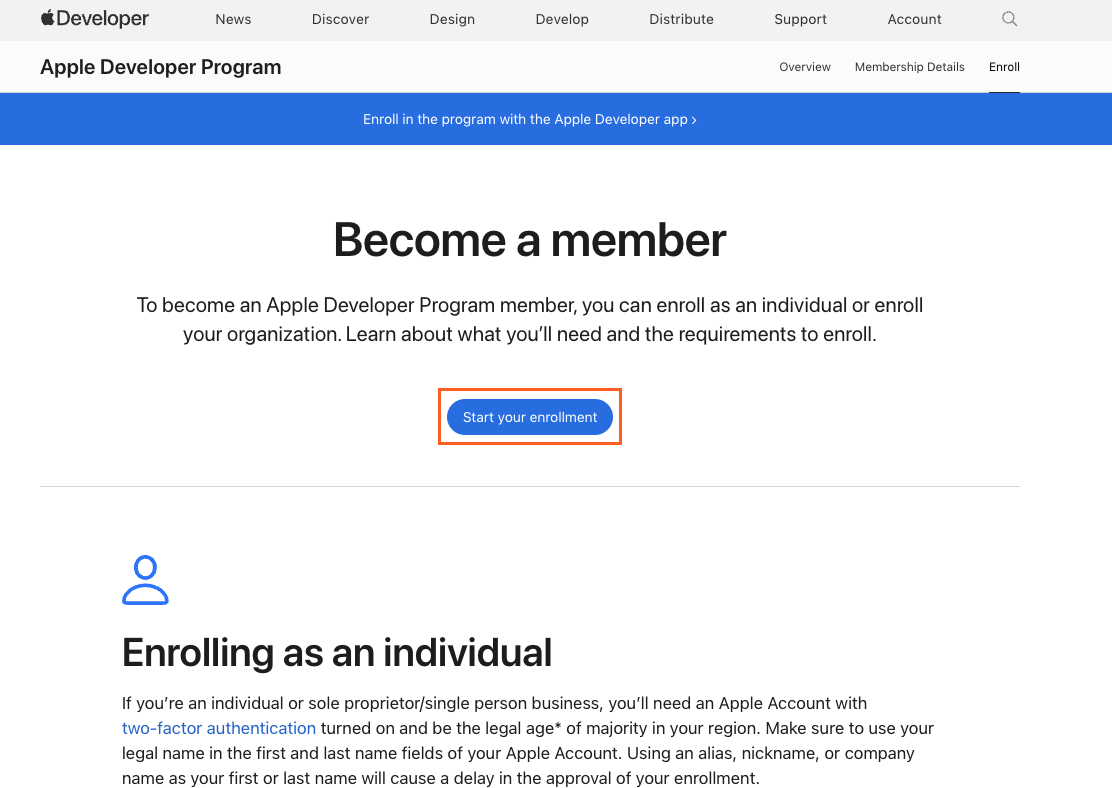
Creating an Apple Developer account
Google Play developer account
Use your Google Play developer account to submit your Android app in Google Play Console and manage releases. Make sure you have a Google account you can use for your business. To create your Google Play developer account:- Go to Google Play Console in your browser.
- Sign in with your Google account and start the registration flow.
- Enter your developer profile details, such as your developer name, contact email, and website if you have one.
- Review and accept Google Play Play terms and policies.
- Complete the registration payment to create your Google Play developer account.
- After setup finishes, sign in to Google Play Console and confirm that you can create a new app.
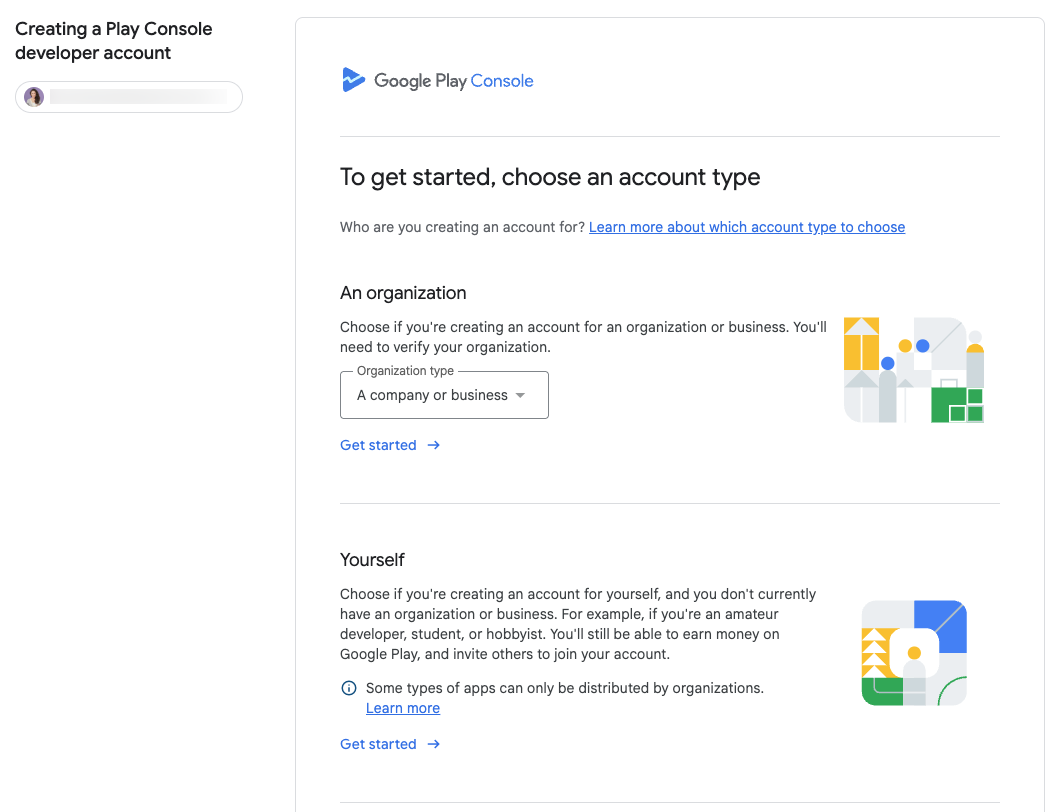
Creating a Google Play developer account
Step 2 | Scan your app for issues
From the app editor in Base44, scan your app against the latest App Store and Google Play guidelines. To run a scan:- Go to your app editor.
- Click Publish at the top-right.
- Click the Mobile app tab.
- Click Check Your App, then click Run App Scan and select what you want to scan your app against:
- App Store guidelines
- Google Play guidelines
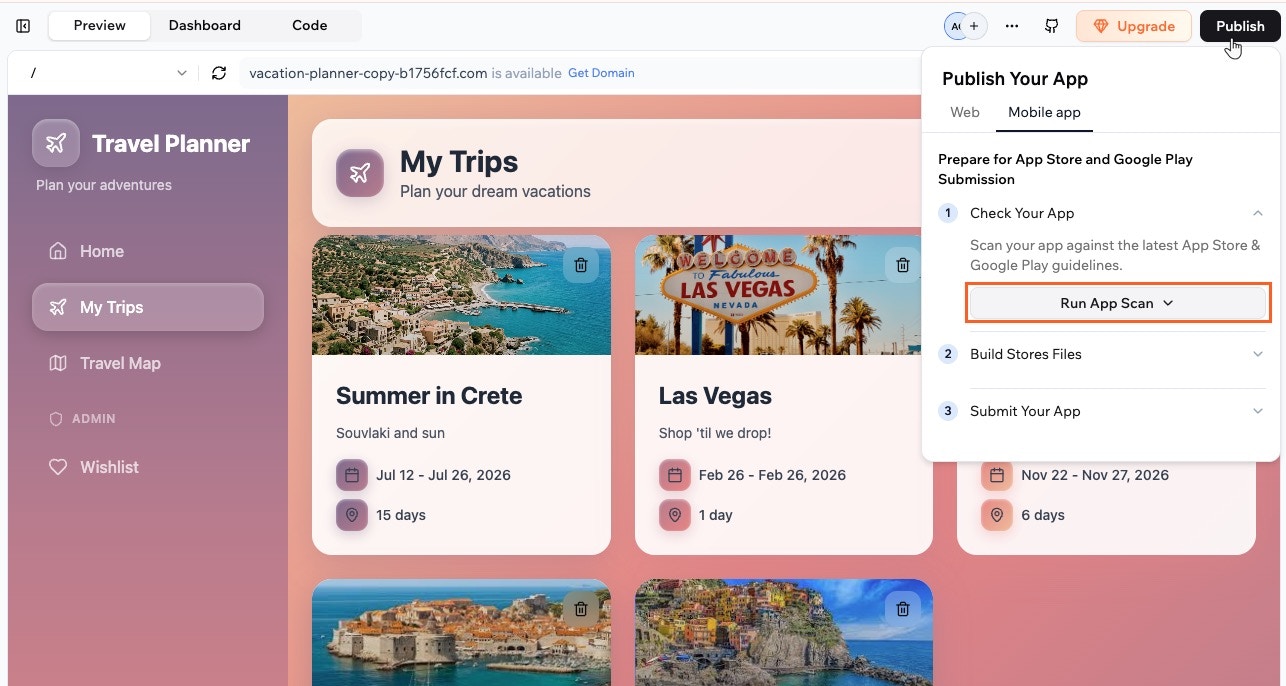
Running an app scan from the Mobile app tab
Step 3 | Use AI to fix issues
After the scan finishes, use the results panel to see how ready your app is for the stores and let the AI chat suggest fixes. You can review each issue, apply recommended changes, and rerun the scan until you are happy with your score.- Look at your Readiness Score and the number of passed, partial, and failed checks in the scan results panel.
- Choose how you want to fix the issues:
- Apply with AI: Open the AI chat with a tailored fix prompt based on your scan results.
- Copy Fix Prompt: Copy the fix prompt so you can paste it into the AI chat yourself and edit it first.
- Let the AI chat apply the suggested changes.
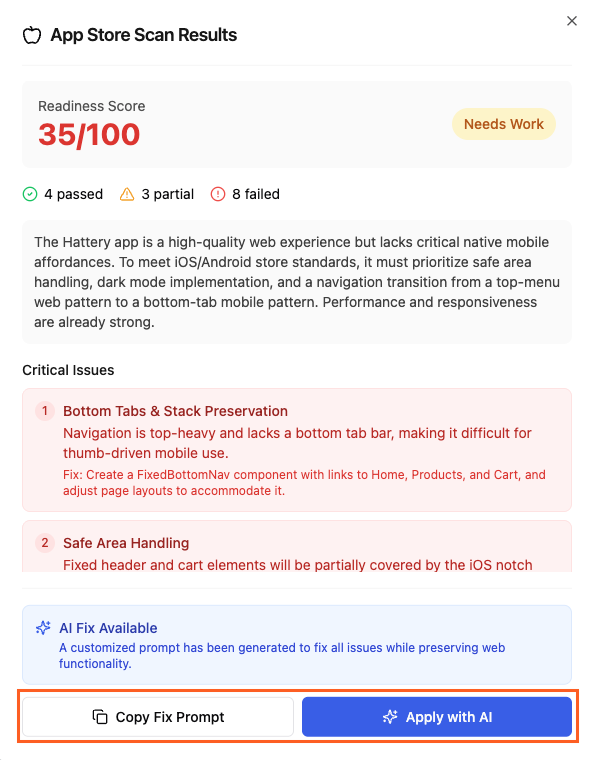
Using AI to fix issues for app submission to stores
Step 4 | Generate your app files
Generate the files for each store directly from the Mobile app tab so you do not have to leave the app editor. Use your scan-ready app to create the files you need to submit in the App Store and Google Play.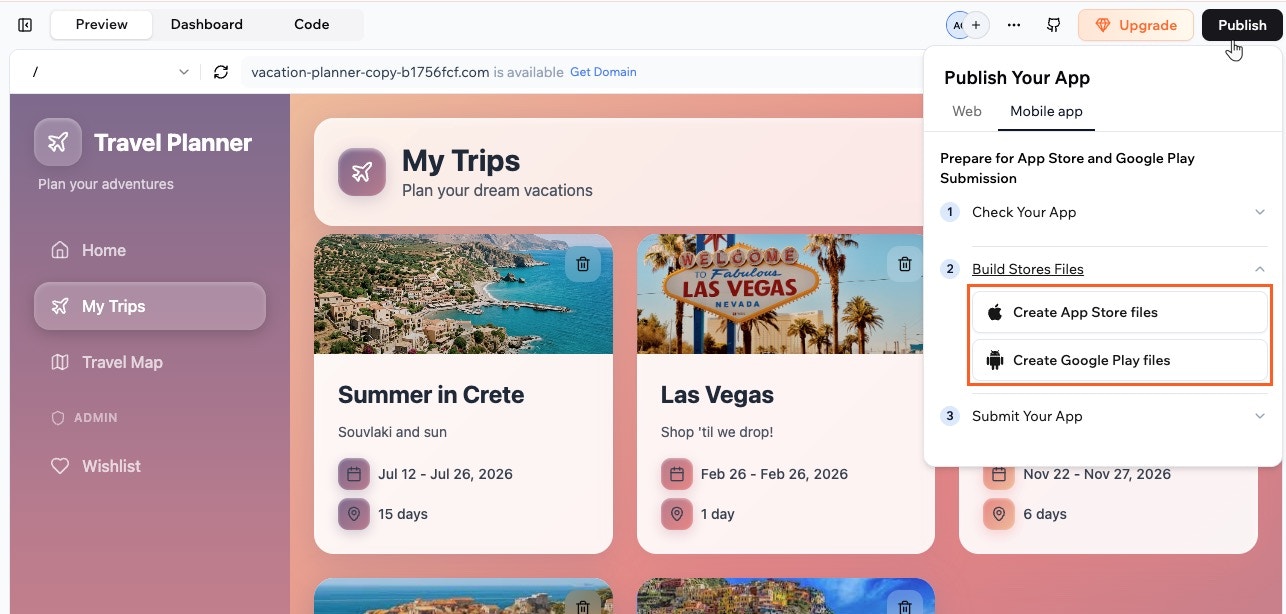
Creating App Store and Google Play files from the Mobile app tab
Creating App Store files
When your app is ready for iOS, use your Apple Developer credentials in the Mobile app tab to generate an App Store ready IPA bundle. When generation completes, download the file from Base44, keep it in a secure location, and use it when you upload your app to App Store Connect. To create App Store files:- Go to your app editor.
- Click Publish at the top-right.
- Click the Mobile app tab.
- Click Build Stores Files, then Create App Store files.
-
Add your Issuer ID, Key ID, Team ID, and upload the
.p8API key file from App Store Connect, then click Continue.Note: To send push notifications from your app, turn on Add push notifications in this window before you continue. See adding push notifications.Where do I find my IDs and API key file?
You need to generate your API key and then add the details to Base44. To generate your key:- Go to App Store Connect and sign in with your Apple Developer account.
- Click Users and Access.
- Click Integrations .
- Click + to create a new API key.
- Enter a name for the key and choose the appropriate access role (for example, Admin or App Manager).
- Click Generate to create the key. To find your Apple IDs and download the API key file (.p8):
- Go to App Store Connect and sign in with your Apple Developer account.
- Click Users and Access.
- Click Integrations .
- Find your Issuer ID and Key ID.
- Click Download to save the
.p8file to your computer and store it in a secure location. To find your Team ID: - Go to your Apple Developer account.
- Look for the Team ID value listed under Membership details.
- Review your app logo. Upload a new logo from your computer or generate one with AI, then click Generate Files.
- When your files are ready, click Download.
Creating Google Play files
When your app is ready for Android, use the Mobile app tab to generate a Google Play ready AAB bundle. After generation, download the file from Base44, keep it in a secure location, and upload it in your Google Play Console release. To create Google Play files:- Go to your app editor.
- Click Publish at the top-right.
- Click the Mobile app tab.
- Click Build Stores Files, then Create Google Play files.
-
Follow the on-screen steps to review your app logo, upload a new logo from your computer, or generate a new one with AI.
Notes:
- Changing the logo in the Generate Google Play files window also updates the logo you currently use for your app. Make sure you are happy with the logo before you generate the files.
- To send push notifications from your app, turn on Add push notifications in this window before you generate your files. See adding push notifications.
- Click Generate Files to create the AAB bundle.
- When your files are ready, click Download.
Adding push notifications
Push notifications appear on someone’s phone even when your app is closed. You turn them on in the same window where you generate your store files, then upload credentials from your Apple Developer account or your own Firebase project. iOS and Android are separate, so do both to reach everyone using your app.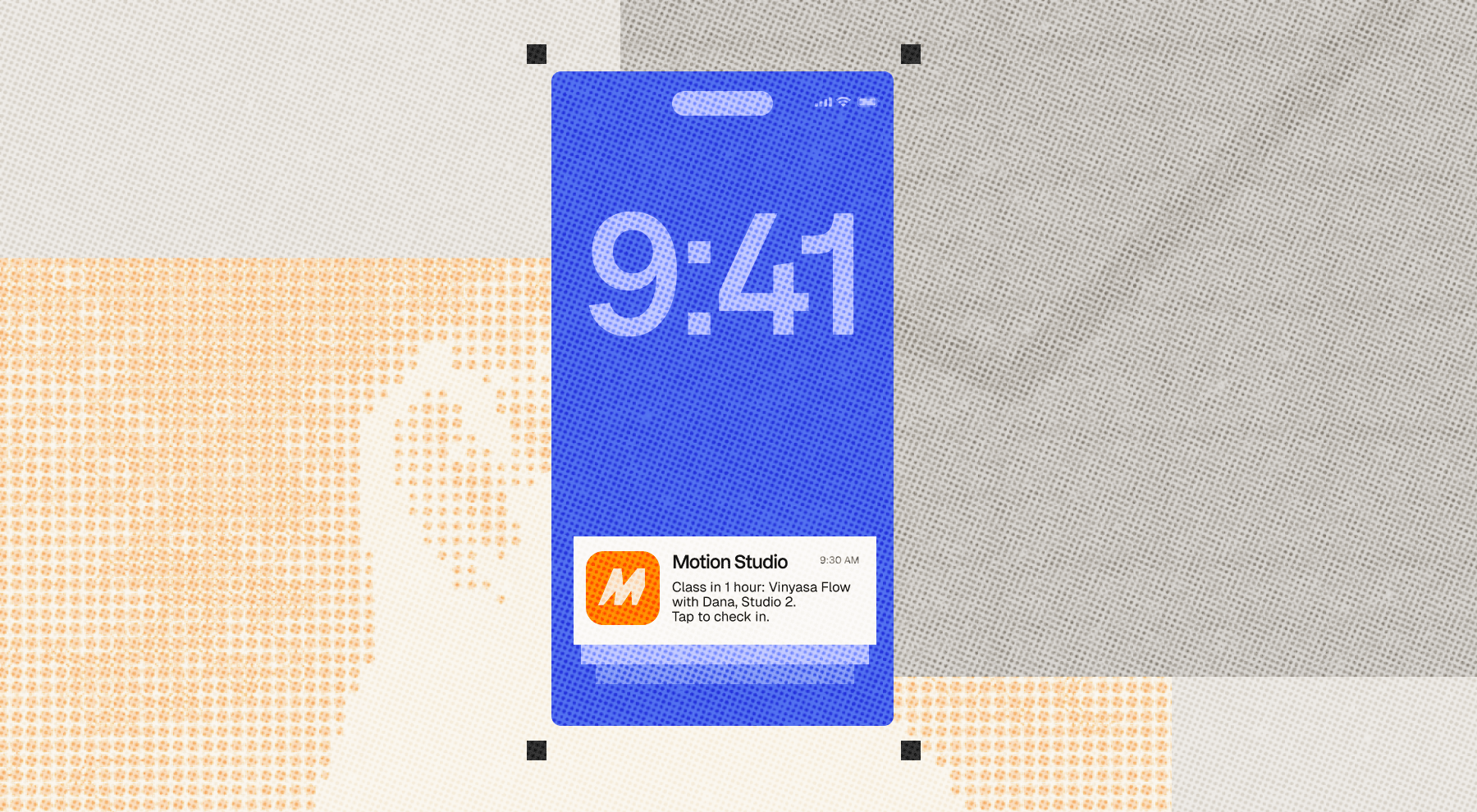
Setting up push notifications for iOS
Setting up push notifications for iOS
.p8 file and a 10-character Key ID.This is a separate key from the App Store Connect API key you add earlier in the same window. Each has its own Key ID, and both files end in .p8, so keep track of which is which as you download them.To add your iOS push credentials:- Start creating your App Store files and fill in your App Store Connect credentials.
- Turn on Add push notifications.
- Click How to create an APNs auth key for the Apple steps, if you still need to create your key.
- Upload your key under Upload the APNs auth key (.p8).
- Check the APNs Key ID field. Base44 fills it in when you upload your key. If it stays empty, paste the Key ID you copied.
- Click Continue, then finish the flow to generate and download your files.
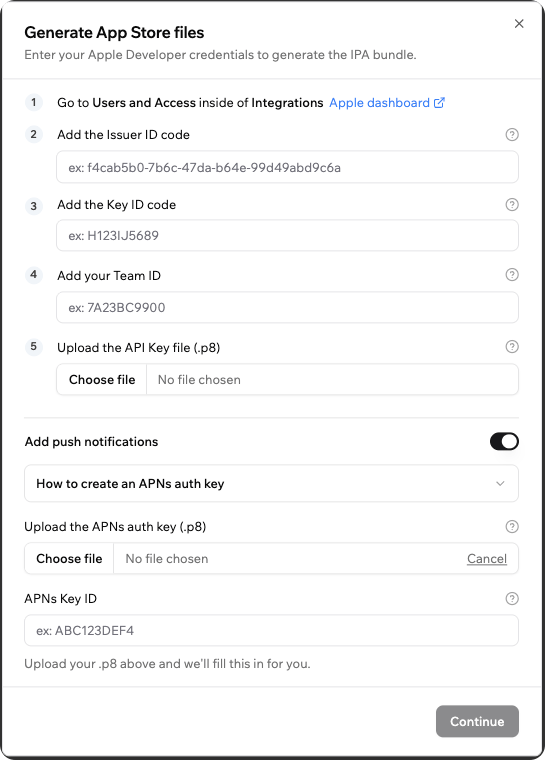
Adding your APNs auth key in the Generate App Store files window
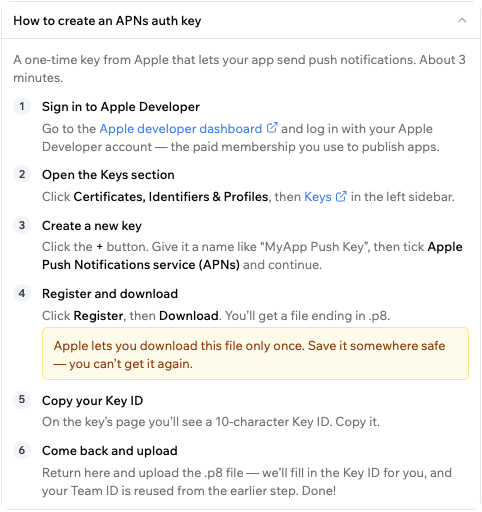
The built-in guide for creating an APNs auth key
Setting up push notifications for Android
Setting up push notifications for Android
google-services.json file is built into your app so it can receive notifications, and your service account key lets Base44 send them. Create your project in the Firebase console, register your Android app against the package name Base44 shows you, then download both files from that same project.To add your Android push credentials:- Start creating your Google Play files and review your app logo.
- Turn on Add push notifications.
- Click How to set up Firebase & download your files for the Firebase steps, if you still need to create your project.
- Upload your
google-services.jsonfile under Upload google-services.json. - Upload your service account key under Upload the service account key (.json).
- Click Generate Files, then download your files when they are ready.
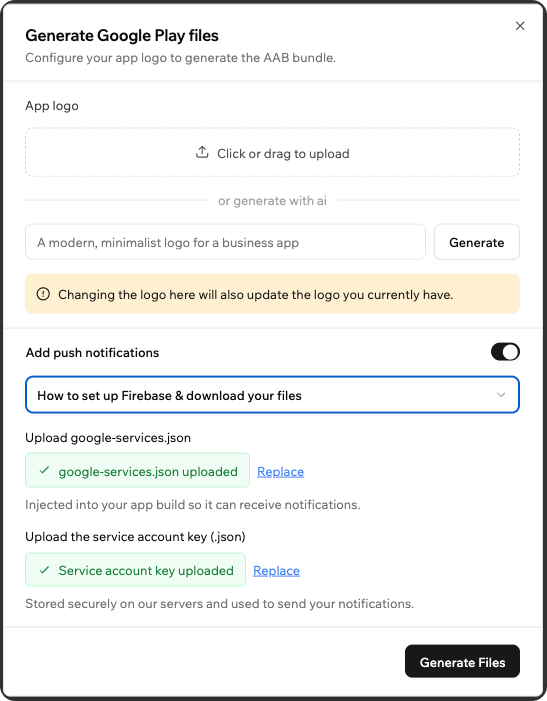
Adding your Firebase files in the Generate Google Play files window
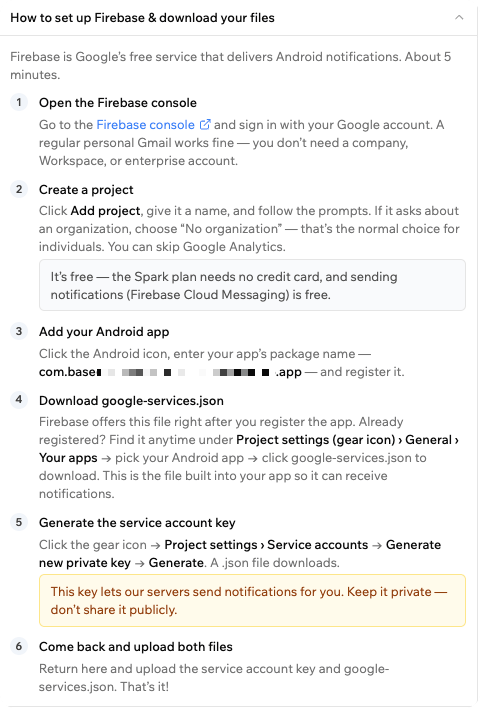
The built-in guide for setting up Firebase
Sending your notifications
You send notifications from your app’s backend with the SendPushNotification integration. Each one carries a title, a message, an optional action button label, and an optional link to a specific page in your app. The first time someone opens your app, they choose whether to allow notifications. You can send to everyone who accepts. Learn more about sending push notifications.Adding Google Play SHA
If your app uses login with Google, you need to add the Google Play App Signing SHA-256 fingerprint to Base44 so that Google login works in the version people install from Google Play. To find your SHA-256 fingerprint in Google Play Console:- Go to Google Play Console and sign in with your developer account.
- In the side panel, go to Setup, then click App integrity.
- Under App signing key certificate, copy the SHA-256 fingerprint value.
- Go to your app editor.
- Click Publish at the top-right.
- Click the Mobile app tab.
- Click Build Stores Files, then in the Google Play files section, click the More Actions icon .
- Click Add Google Play SHA.
- Paste your SHA-256 fingerprint into the SHA-256 Fingerprint field.
- Click Save.
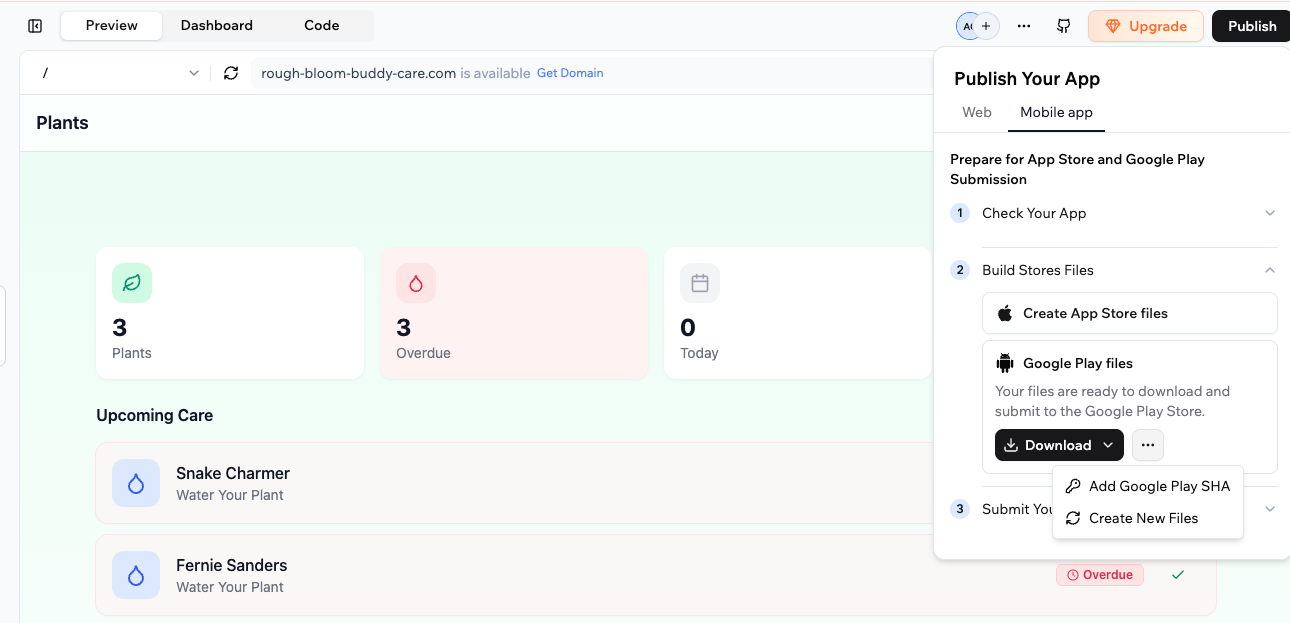
Adding your Google Play App Signing SHA from the Mobile app tab
Adding a Google Snippet
When you register your package name in Google Play Console, Google may provide an ADI registration snippet to verify your package name ownership. If prompted, you need to add this snippet to your Base44 app. Google is rolling out this requirement gradually, so not all accounts are affected yet. To add your Google Snippet in Base44:- Go to your app editor.
- Click Publish at the top-right.
- Click the Mobile app tab.
- Click Build Stores Files, then in the Google Play files section, click the More Actions icon .
- Click Add Google Snippet.
- Paste your ADI snippet into the Google Snippet field.
- Click Save & Build.
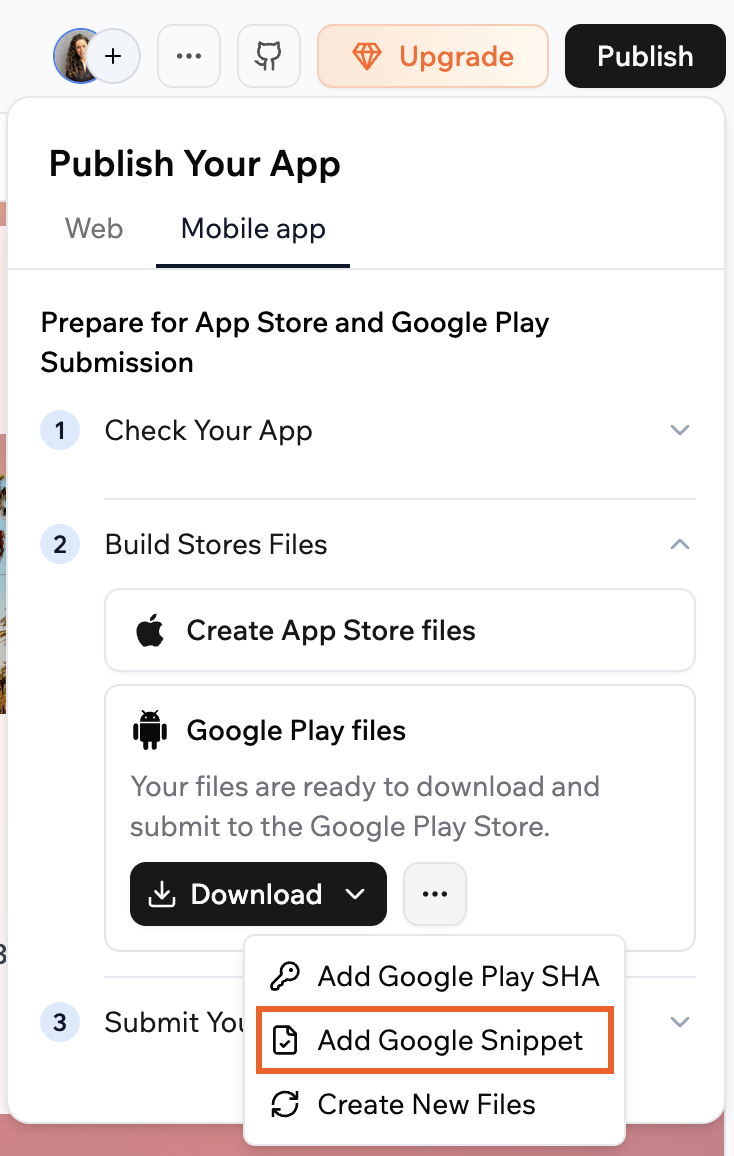
Adding Google snippets for your app submission.
Step 5 | Submit your app
After you generate your App Store and Google Play files, complete submission in your Apple and Google dashboards. Base44 helps you get your app ready, but everything that happens after you submit in App Store Connect or Google Play Console is between you and the app stores. You are responsible for checking your submission status, responding to store emails, and applying any changes the stores request. Follow our step-by-step visual guide for submitting your app to Apple App Store and Google Play Store.com.base[app-id].app, where [app-id] is your Base44 app ID. You can find your app ID in the URL when you are in your app editor. For example, if your editor URL contains 69e0c4bdd31bdu8fda51775g, your package name is com.base69e0c4bdd31bdu8fda51775g.app.Prepare your store listing assets
- A short and long description for your app
- Screenshots of your app on common phone sizes, and tablet screenshots if you plan to support tablets. You can capture screenshots by opening your published app on a device or simulator, navigating through your main flows, and taking native device screenshots that you upload in each store.
- Your app icon and any required feature graphics that follow Apple and Google size and format guidelines
- A support URL and privacy policy URL from your Base44 app
Troubleshooting submission issues
Use this section to resolve common issues.Error 401 when generating iOS IPA files
Error 401 when generating iOS IPA files
- Go to App Store Connect and sign in with your Apple Developer account.
- Click Users and Access, then click Integrations.
- Check that the Issuer ID, Key ID, and Team ID values you entered in Base44 match the values shown in App Store Connect.
- Confirm that the
.p8API key file you uploaded is the correct file and that the key has not been revoked or expired. - If anything looks incorrect, generate a new API key in App Store Connect, download the new
.p8file, update all fields in Base44, and try generating the files again.
Error 403 when generating iOS IPA files
Error 403 when generating iOS IPA files
- Go to App Store Connect and sign in with your Apple Developer account.
- Click Users and Access, then Integrations.
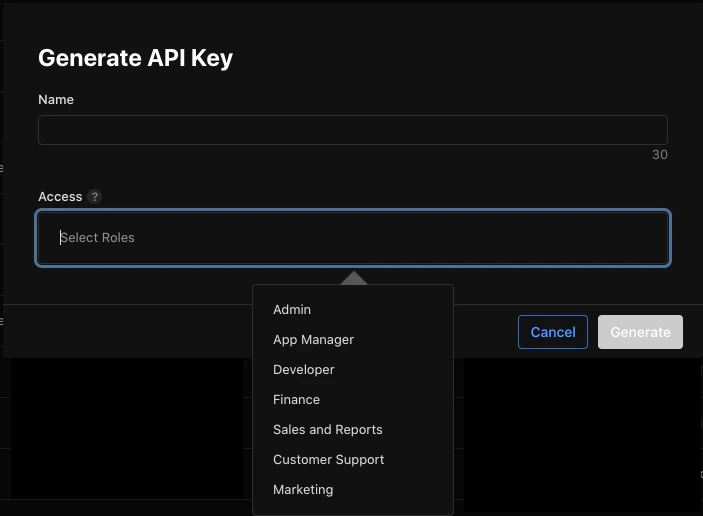
- Check the Access role for the API key you are using.
- If the key is not set to Admin, create a new key:
- Click + to add a new key.
- Enter a name and select the Admin role.
- Click Generate and download the
.p8file.
- In Base44, update the Issuer ID, Key ID, Team ID, and upload the new
.p8file, then try generating the App Store files again.
Error 409 when generating iOS IPA files
Error 409 when generating iOS IPA files
- Go to your Apple Developer account and open Certificates, Identifiers & Profiles.
- Click Certificates and filter to iOS Distribution certificates.
- Revoke at least one iOS Distribution certificate that you no longer need.
- Try generating the App Store files again from the Mobile app tab in Base44.
- An iOS Distribution certificate can usually be revoked after an app has been approved, without affecting people who already installed the app.
- Apple typically allows:
- Up to 3 active production/distribution certificates for the standard Apple Developer Program
- Up to 2 active enterprise distribution certificates
- Up to 12 development certificates
App Store or Google Play rejection for charging through Stripe
App Store or Google Play rejection for charging through Stripe
- Move the purchase to the web version of your app, so people pay there rather than inside the mobile app.
- Keep the paywall in your mobile app, but have it tell people to go to your website. Remove any button that opens a Stripe checkout, and make sure any link you keep opens a browser rather than a payment flow inside the app.
- Have your mobile app check who has paid and show or hide the content accordingly.
- Publish the change and generate your app files again.
- Reply to the reviewer through Apple’s Resolution Center or Google Play’s appeals process, explaining that the purchase now happens on the web.
- Resubmit your app.
Google Play rejection for a missing billing permission
Google Play rejection for a missing billing permission
com.android.vending.BILLING permission, this is not something you can add. The permission sits at the platform level rather than in your app, so no change in Base44 clears it.Contact Base44 support with your app ID. This one needs a platform-level fix.App Store rejection due to HealthKit entitlement
App Store rejection due to HealthKit entitlement
NSHealthShareUsageDescription key in Info.plist, this is caused by a HealthKit entitlement included in the iOS build.Base44 does not support HealthKit, and there is currently no way to add NSHealthShareUsageDescription to the build configuration. If your app does not use HealthKit, you do not need to take any action on your end. This is a known limitation of the current iOS build.Bundle ID or signing key mismatch when uploading an update
Bundle ID or signing key mismatch when uploading an update
- Review the existing app listing in App Store Connect or Google Play Console and compare the Bundle ID and signing key with the values from your Base44 build.
- If they do not match and you cannot update the existing listing, create a new app entry in the store and submit the Base44 build as a new app.
- Update your icon, app name, or description if needed so people can clearly identify the new app.
Permissions, privacy policy, and app review feedback
Permissions, privacy policy, and app review feedback
- Read the rejection email carefully to see which permission or behavior the store is concerned about.
- Update your privacy policy and terms pages on your Base44 app so they:
- Describe the types of data your app collects (for example, location, camera, or microphone)
- Explain why you collect the data and how people can contact you about privacy
- Make sure links to your privacy policy and terms appear before people register or sign in (for example, in your home page footer or login screen).
- Resubmit your app after updating the content.
Main URL and access to legal pages
Main URL and access to legal pages
- Make sure your privacy and terms pages are live on your Base44 app.
- Add visible links to these pages from the entry page of your app, such as in the footer or a menu.
- If your app uses a gated or members-only home page, ensure that privacy and terms links are still accessible before sign-up (for example, from the login or sign-up page).
FAQs
Click a question below to learn more about submitting your Base44 app to the Apple App Store and Google Play.Do I need to reach a readiness score of 100 before I submit?
Do I need to reach a readiness score of 100 before I submit?
Can I submit to only one store, not both?
Can I submit to only one store, not both?
What happens if the scan still shows failed checks after fixes?
What happens if the scan still shows failed checks after fixes?
Can Base44 submit my app to the stores for me?
Can Base44 submit my app to the stores for me?
Can Base44 support check on my submission or talk to the app stores for me?
Can Base44 support check on my submission or talk to the app stores for me?
Do I need a custom domain to submit my app?
Do I need a custom domain to submit my app?
Do I need to resubmit my app every time I update my Base44 app?
Do I need to resubmit my app every time I update my Base44 app?
Which native features does the Base44 mobile app support?
Which native features does the Base44 mobile app support?
- Full offline mode and HealthKit are not supported yet.
- Some native capabilities may still require additional review by Apple or Google, depending on the permissions your app needs.
Can I charge for digital content in my mobile app?
Can I charge for digital content in my mobile app?
- Premium or subscription tiers
- Unlocking features or content inside your app
- Virtual currency, credits, or extra AI generations
- A physical product you ship
- Booking a real-world service, such as an appointment or a table
- A service delivered outside your app, such as coaching
- Donations
How long do people stay logged in to the app?
How long do people stay logged in to the app?