

What are npm packages?
Use npm packages to add powerful features and tools to your Base44 applications without having to build everything yourself. Base44 is an ai app builder that gives you access to reliable, up-to-date code libraries for things like animations, data formatting, and charts, all created by expert developers. When you use npm packages, you can add advanced features in minutes, rely on well-tested code, and focus on creating what makes your app unique.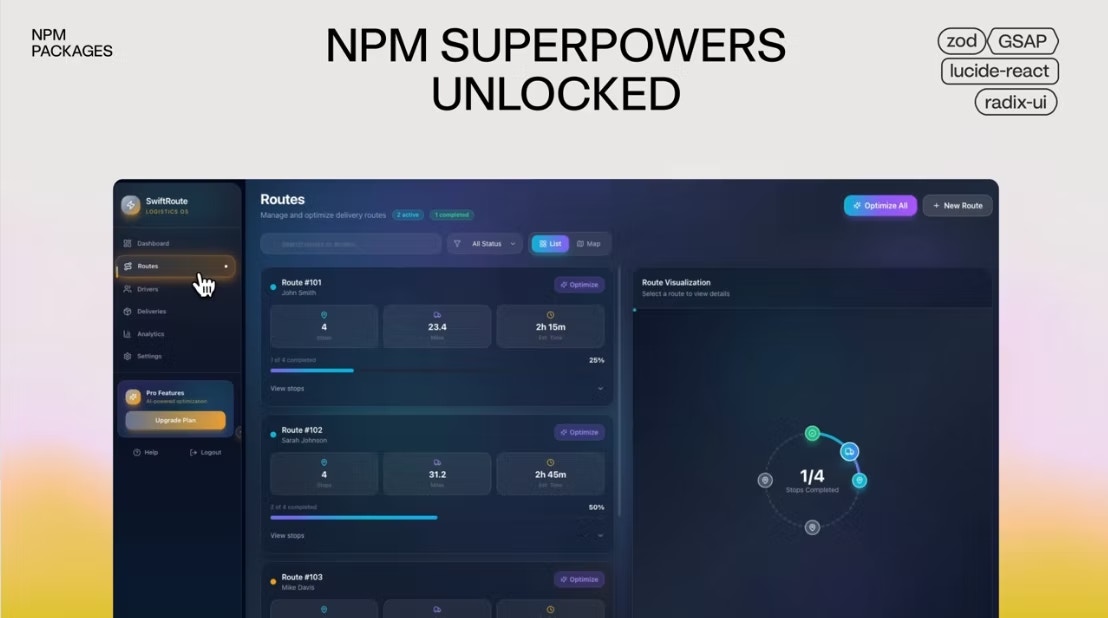
Packages you can add to your app
Examples of npm packages
- Animation libraries (for example, anime.js)
- Chart and graph utilities
- Date and time helpers
- UI components
- Drag and drop logic
Browsing npm packages
You can find npm packages in the public registry. Each package README includes detailed instructions, usage examples, and peer dependency details, so you can get started right away. To browse Base44 npm packages:- Go to npmjs.com to see all available public packages.
- Click the package you want to use to open its details page.
Adding an npm package to your app
In Base44, you can add npm packages by chatting with the AI. No terminal or manual install commands required. To add an npm package to your app:- Go to your app editor.
- Type in the AI chat the npm package you want to install.
- When prompted, click Approve in the chat.
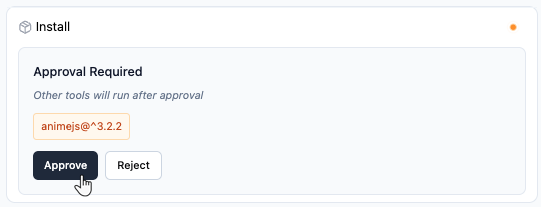
The approval window in the AI chat when installing an npm package
Example of using an npm package
You can use anime.js to create polished entrance animations for your app’s pages and elements. For example, you might want to animate cards, buttons, or charts when a page loads to make your site feel more engaging. Simply add a prompt such as: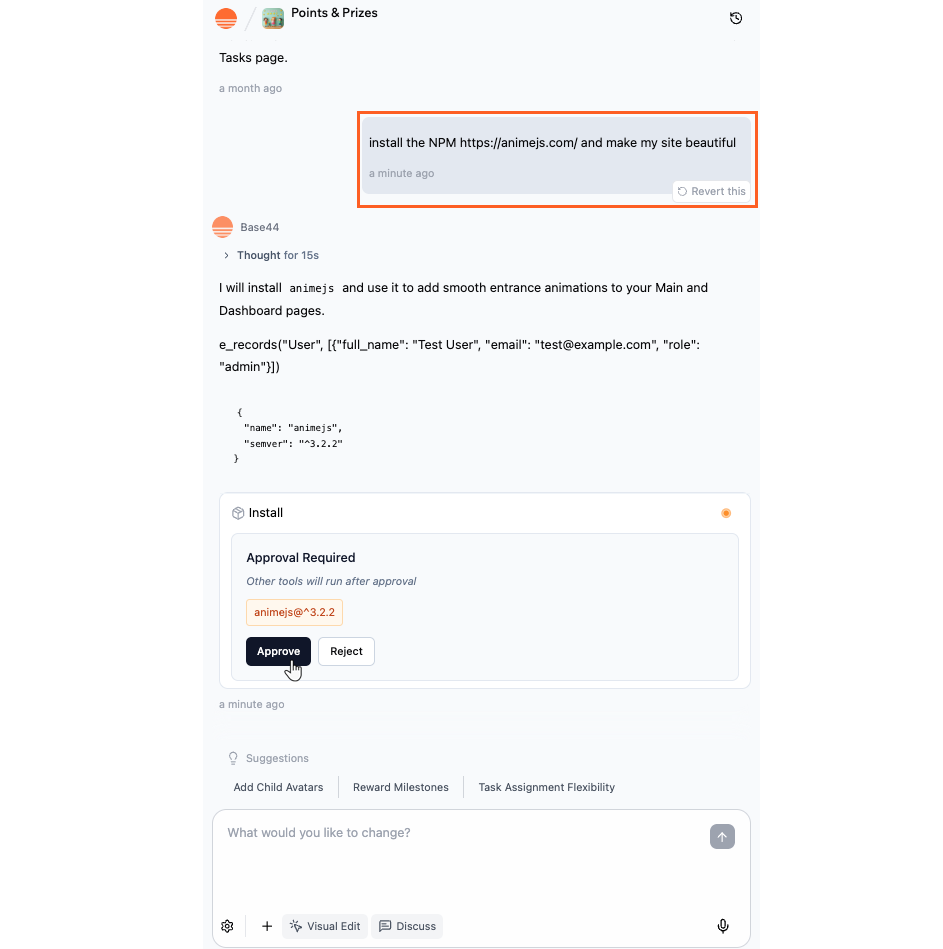
Installing an npm package to your app in Base44
FAQs
Click a question below to learn more.Is there an official Base44 SDK?
Is there an official Base44 SDK?
Base44 does not currently offer a public SDK. However, you can vote for this feature on our Product Roadmap.For advanced developers, the
npm-base44/sdk package is available. This package allows you to perform specific backend functions.What should I do if an NPM package fails to install?
What should I do if an NPM package fails to install?
If your npm package does not install or gets stuck on pending, try these steps:
- Check the chat messages for error details. Sometimes, the AI chat explains dependency or compatibility issues with the package you are requesting to install.
- Make sure your request matches the exact package name and version.
- If install requires approval, verify that you have approved the request in the chat panel.
- If the install fails, try re-requesting the package using the chat.
Can I remove or update a package after installing it?
Can I remove or update a package after installing it?
Yes. You can ask the AI chat in your app editor to remove or update an npm package for you. To remove a package, tell the chat which package to uninstall. To update one, ask the chat to update it.Removing a package is a good way to keep your dependencies tidy, though an unused package that stays installed has no effect on how your app runs.
Can I see which packages are installed?
Can I see which packages are installed?
To find out which npm packages you have installed on your app, you can ask the AI chat.
How can I choose reliable npm packages?
How can I choose reliable npm packages?
Choose the right npm packages by following the recommendations below. Doing a little research on each package, instead of installing it immediately, can help you find reliable options and prevent issues down the line.
- Download statistics: Look up how many downloads the package has on npm. Packages with a strong download history are generally seen as dependable within the development community.
- Documentation quality: Well-documented packages usually make setup and troubleshooting much easier. Look for clear usage instructions, examples, and API references.
- License type: Make sure the package’s license fits your project’s requirements, especially if you’re building something commercial or open-source.
- Bundle size and dependencies: Consider how the package will affect your app’s performance and whether it adds many new dependencies. Lightweight, focused packages reduce potential conflicts and bloat.
- Update activity: Review the project’s repository, such as on GitHub, to see if updates are recent and if maintainers are addressing questions or bug reports. Packages that are kept up to date are usually safer and more compatible with modern tools.
- Community input: Explore comments, ratings, and discussions from npm, GitHub, or programming forums. Other developers’ experiences can alert you to potential issues or give you a better sense of how the package performs in practice.