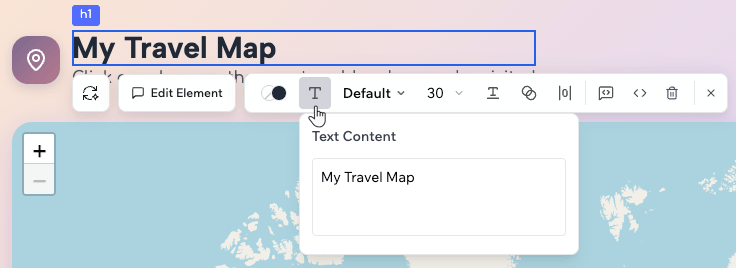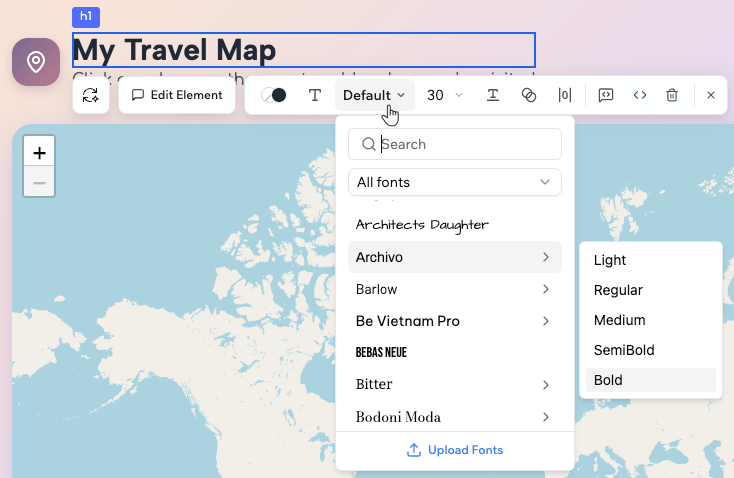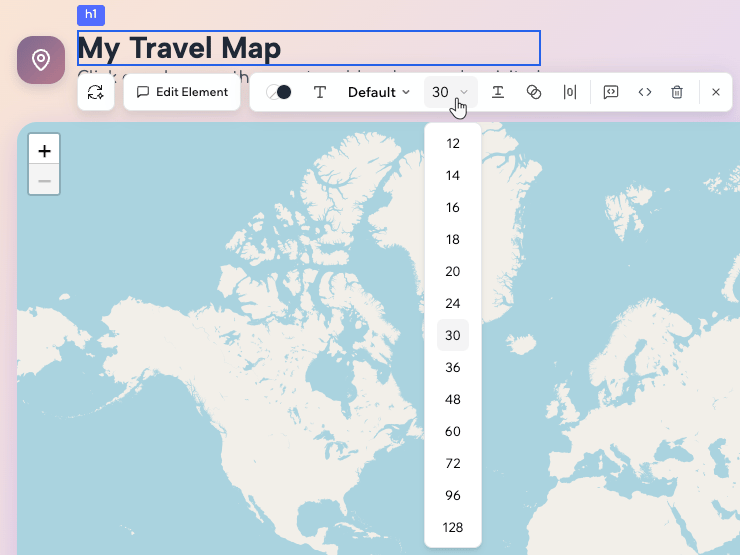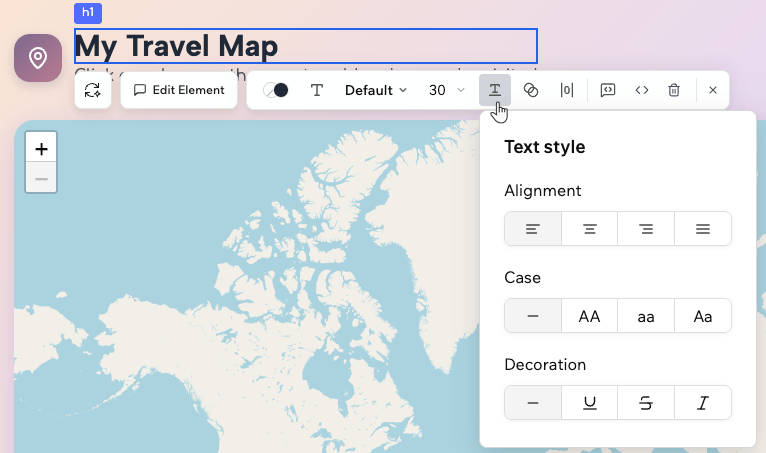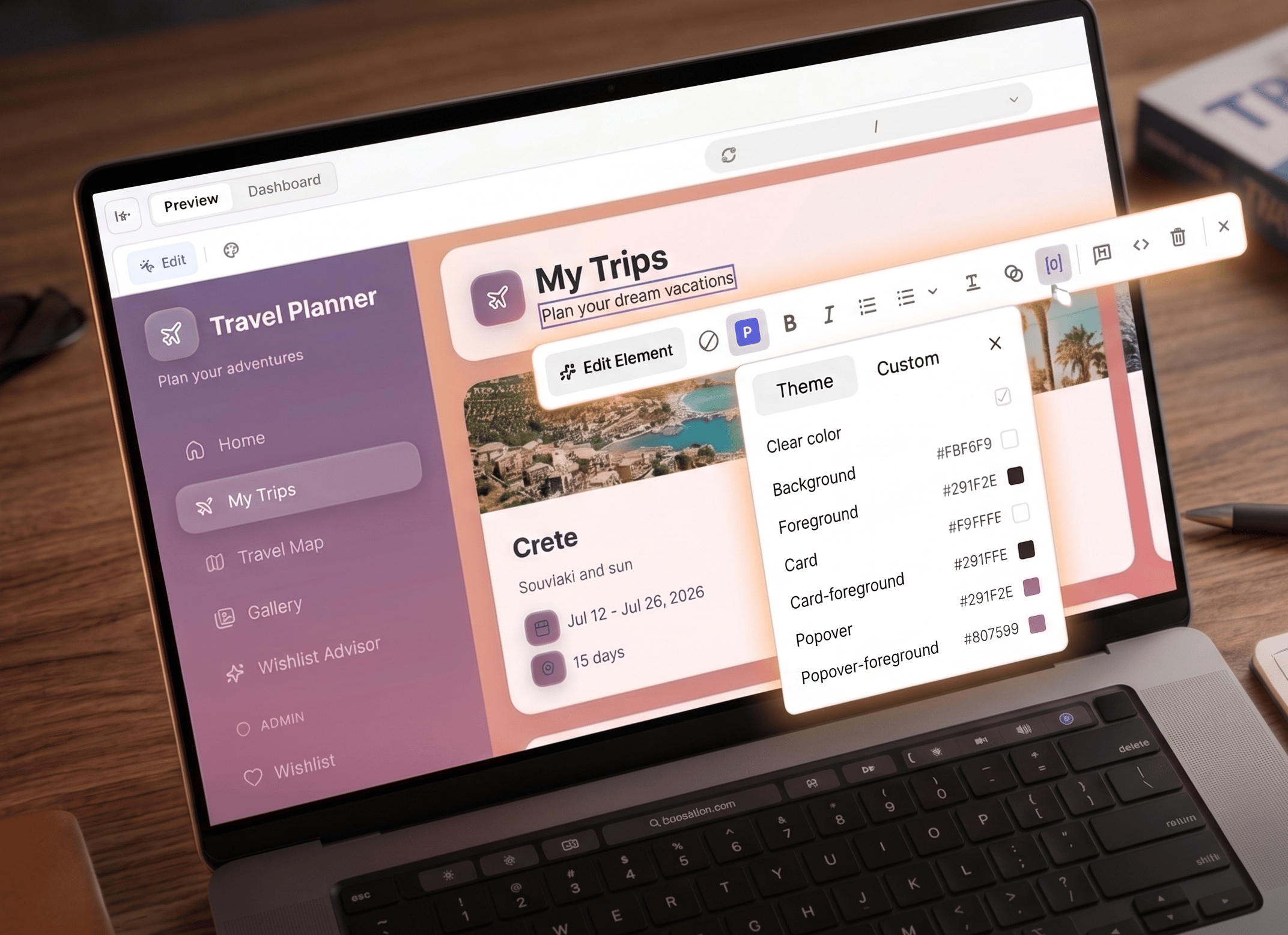
Design is one of the quickest ways to level up your app. In Base44, you can create a clear, on brand experience by combining AI chat, Visual Edit, your own code, and npm packages. This guide is organized into sections so you can jump straight to what you need, with practical tips and copy‑paste prompts throughout.

Working with AI on design

AI is at the center of how you design in Base44. You can just describe what you want in natural language, and AI updates code, styles, and components for you. Visual Edit lets you tweak what you see on screen, and AI Controls help you set boundaries.
The AI chat is ideal for global changes and design decisions that affect many parts of your app. You can define a persona and brief once, then build on that:
You are my product designer for this app.
Design brief:
- Purpose: Help content teams plan, write, and ship articles faster.
- People: Busy content leads and writers on laptops during the workday.
- Feel: Calm, focused, modern, trustworthy.
Use this brief as the basis for all design suggestions and decisions.
Helpful patterns:
  • Ask for a critique before asking for changes.
  • Ask for a plan in Discuss mode, approve it, and then ask AI to implement it.
  • Always clarify the scope of the design: the whole app, one page, or one element.
Example:
Critique the design of this dashboard only.
Focus on layout, hierarchy, color, typography, and spacing.
Then propose a short plan of small changes.
Wait for my approval before you apply anything.
After you review:
Apply the plan you proposed for this dashboard.
Make changes in small groups and describe each group briefly as you go.
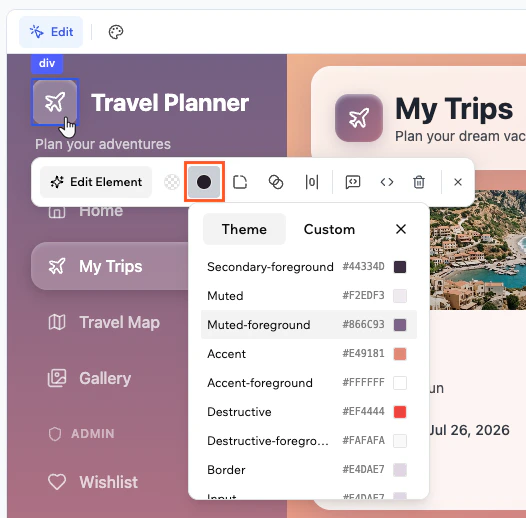
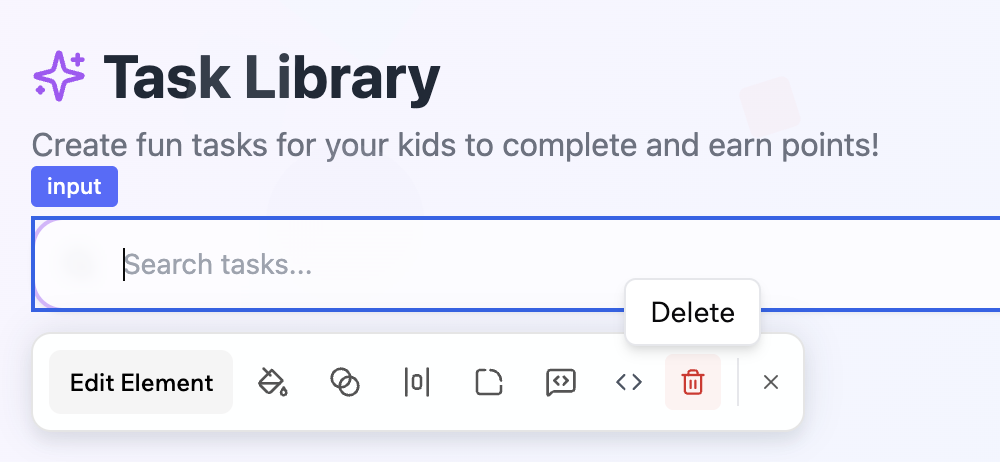
Visual Edit is ideal when you want to adjust what you see without rewriting everything.You can:
  • Select a section and adjust colors, spacing, and layout visually.
  • Ask AI to restyle just one component instance.
  • Use it as a safe sandbox before you roll a pattern out to the rest of your app.
Examples:
In this selected section:
- Lighten the background slightly
- Increase vertical spacing between the heading and content
- Use the primary button style for the main action and secondary style for the others
For this card only:
- Increase padding
- Move the icon to the left of the title
- Use a softer shadow that matches other cards in the app
Use the AI Controls in the chat to guide and protect your design.You can:
  • Set design guidelines that apply to every prompt.
  • Freeze specific files or pages so AI does not change them.
  • Establish a tone such as minimal, bold, or playful.
Example guidelines:
Global design guidelines:
- Prefer calm, minimal visuals with plenty of white space
- Use rounded corners with radius 12 on cards and buttons
- Avoid heavy gradients and glass effects
- Keep animations subtle and respect reduced motion preferences
You can use the version history and the Revert option whenever you need to roll back changes quickly if you do not like the result.
You can use the AI chat to explore different directions before you commit.Critique loop:
Act as a senior product designer.
Review this page and describe three specific visual issues.
For each issue, write a Base44 prompt that would fix it.
Do not make any changes yet.
Alternative directions:
Create two visual options for this dashboard:
- Option A: very minimal, mostly neutral with a single accent color
- Option B: more expressive, with richer color and slightly larger typography
Keep content and layout the same.
Describe each option in a short summary and wait for me to choose.
Once you pick an option, you can ask AI to apply that direction to similar pages.

Design foundations

A simple design system makes every later change more coherent. Instead of styling each page from scratch, you define a few core rules and let AI help you apply them consistently.

Color system

Color is one of your strongest tools to set mood and guide attention. Start by defining roles rather than random hex codes. Aim for:
  • 1 primary brand color
  • 1 secondary color
  • 1 accent color for highlights
  • 3 to 5 neutral grays for backgrounds, surfaces, and borders
  • Clear colors for success, warning, and error states
You can ask AI to propose and apply a system:
Create a color system for this app:
- 1 primary brand color
- 1 secondary color
- 1 accent color for highlights
- 4 neutral grays for backgrounds, surfaces, and borders
Map colors to roles such as primary, surface, border, success, warning, error.
Ensure text on backgrounds meets accessibility contrast levels.
Apply this system across the app and replace one off colors.
If you already have hex codes from a brand guide or a an external tool, paste them in and let AI map them to roles:
Use this palette and assign each hex to a role:
- #1D4ED8
- #6366F1
- #10B981
- #F3F4F6
- #111827
Define which are primary, secondary, accent, and neutral roles.
Replace hard coded colors with tokens or Tailwind classes that follow these roles.
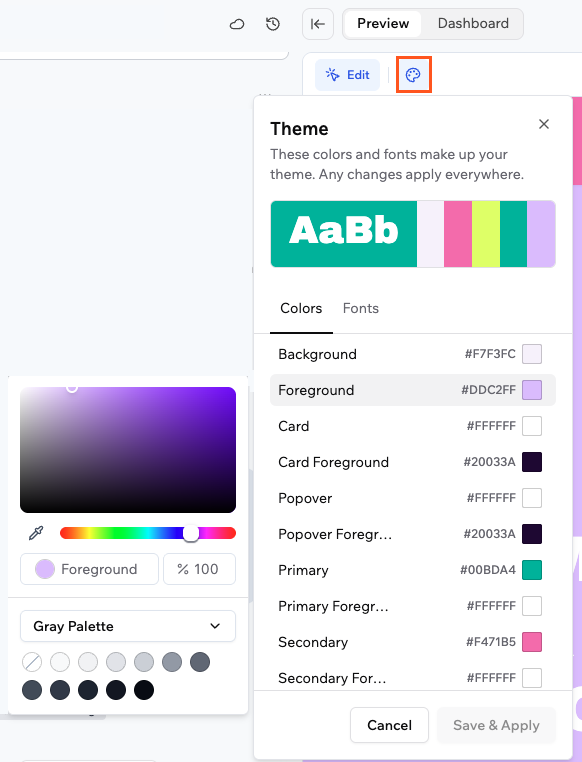
You can even upload the colors as a screenshot and ask the AI chat to use them.
Changing the color palette of a Base44 app
Tip: Keep color meaning consistent. For example, only use your success color for positive states and your error color for problems, not for decoration.

Typography system

Typography controls how readable and scannable your app feels. It is better to have a few clear text styles than many similar ones. Define roles such as:
  • Page title
  • Section heading
  • Body text
  • Small metadata such as labels and timestamps
You can ask the AI to set this up and apply it everywhere:
Set up a typography system:
- Page titles: largest size, bold, modern sans serif
- Section headings: medium size, semibold
- Body text: standard size, regular weight
- Metadata: small uppercase with extra letter spacing
Apply these roles consistently across all pages and remove ad hoc font sizes.
You can also target sizes more directly:
Make typography more readable:
- Increase base body text size slightly
- Increase line height for paragraphs
- Ensure headings are at least 1.4x the size of body text
Keep font families the same.
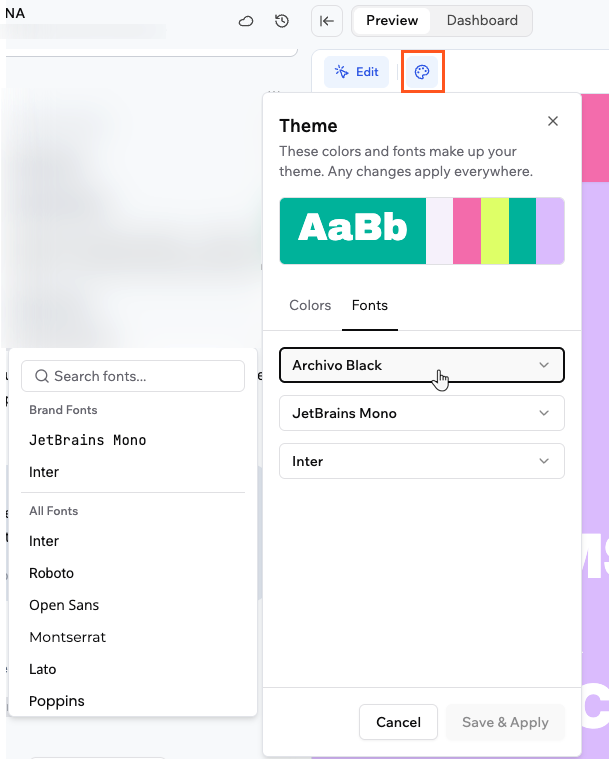
You can use custom fonts and apply them through your layout.
  1. Get the embed snippet (for example from Google Fonts at https://fonts.google.com).
  2. Ask AI to add it to Layout.js and wire it into your type system.
Example prompt:
Import the "Raleway" font from Google Fonts.
Use it for page titles and section headings.
Keep the current body font for paragraphs.
Update styles across the app to follow this rule.
Using a custom font in the Base44 layout file
Tip: Try to limit yourself to one or two font families. Too many fonts make the interface feel unstructured and harder to maintain.

Spacing and density

Spacing and density control how comfortable your app feels to use. A simple spacing scale prevents random gaps and cramped sections. You can define a scale such as 4, 8, 12, 16, 24 and ask AI to apply it:
Normalize spacing using this scale: 4, 8, 12, 16, 24.
- Use larger values between major sections
- Use medium values inside cards and panels
- Use small values between labels and inputs
Reduce areas that feel cramped and avoid random spacing values.
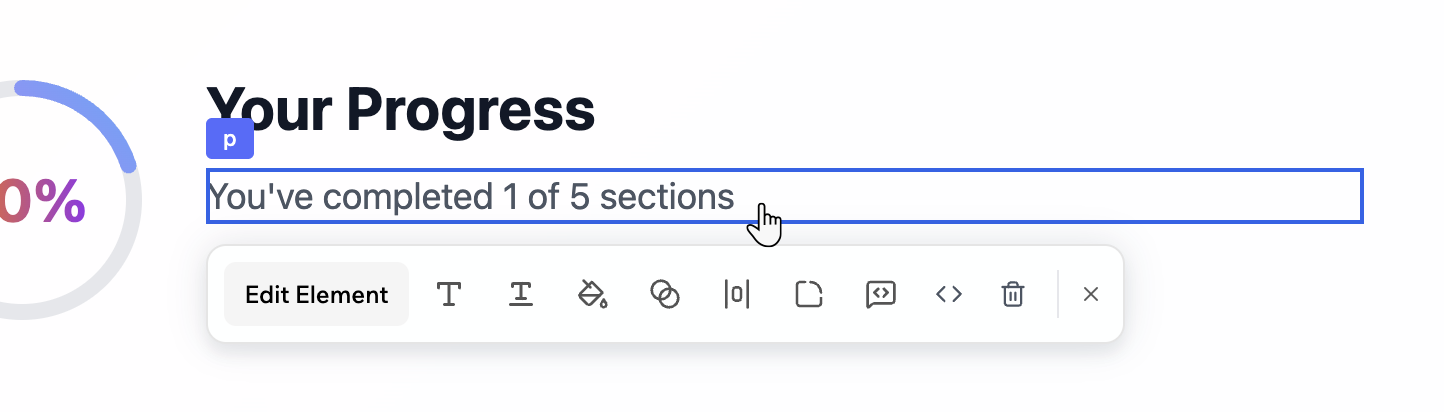
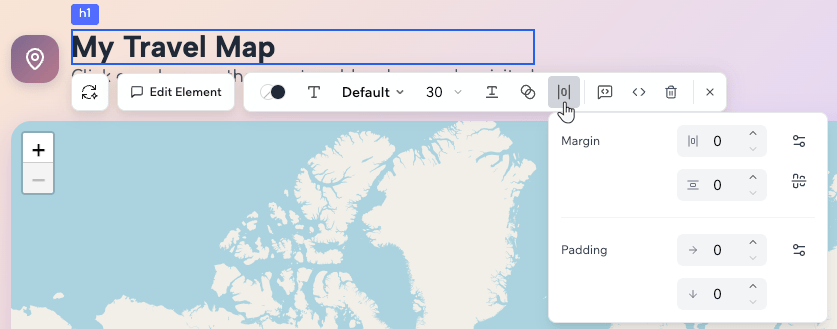
You can fine tune spacing for a section with Visual Edit and the Spacing icon . Editing spacing of elements in Base44 If a page feels crowded or too empty, you can let the AI chat diagnose and fix it:
Look at this page and adjust spacing:
- Add more top and bottom padding around each section
- Increase the gap between rows of cards
- Ensure long paragraphs have a comfortable line length
Keep the existing colors and content.

Core elements and states

Once color, type, and spacing are in place, standardize the building blocks you use everywhere. Focus on:
  • Buttons (primary, secondary, and text only)
  • Cards and panels
  • Navigation bars and sidebars
  • Form fields (default, focus, error, disabled)
  • Chips, tags, and badges if you use them
You can ask AI to detect and unify patterns:
Standardize core elements:
- Buttons: define primary, secondary, and text only styles
- Cards: define corner radius, padding, shadow, and header/body layout
- Navigation: define active, hover, and disabled states
- Form fields: define default, focus, error, and disabled states
Apply these patterns across the app and replace mismatched styles.
This gives you a reusable language so new pages look like they belong to the same product.

Images and visual assets

Images and icons carry a lot of emotional and structural weight in your design. AI can help you place them, but you can still wire them to real data and code.
Upload images to the AI chat or ask it to create images for your app.You can ask the AI chat to add hero images directly to your pages:
Add a full width hero image to the homepage that matches the current color palette.
Use a placeholder image that suggests a modern analytics dashboard.
Hero image example in a Base44 appTo replace a placeholder image:
  1. Open the relevant page file such as Store.js in code view.
  2. Find the <img> tag.
  3. Update the src attribute with your own image URL.
You can also upload images for entities in the Data section and bind them to components so cards and lists display the right images automatically.Managing entity images in the Base44 Data section
Reference images help you steer design visually rather than describing every detail in text.Before and after example using a reference image to restyle a Base44 app
  1. Click the Upload icon (+) on the AI chat.
  2. Upload an inspiration image or screenshot.
  3. Tell AI exactly what you want to borrow and what to ignore.
Prompt ideas:
Use this reference as inspiration.
Keep my layout and content, but:
- Match the button shapes and shadows
- Match the card corner radius and border style
- Apply a similar soft gradient only to the top header
Do not copy the exact colors, just the structure and feel.
From this screenshot, extract design rules for:
- Color roles
- Font sizes and weights
- Corner radius and shadows
- Spacing between sections and cards
Explain the rules, then apply a similar style using my current brand colors.
You can copy visual styles directly from a design tool such as Figma and ask Base44 to apply them, instead of trying to describe every detail in words.To copy from Figma:
  1. In Figma, select the element whose style you want to copy.
  2. Switch to Dev mode and view the Code panel.
  3. Copy the relevant CSS line, for example a gradient background: background: linear-gradient(180deg, #C2C9B5 -1.25%, #EBEBEB 68.58%, #E6FC88 104.25%);
  4. In Base44, open Visual Edit and select the matching element.
  5. Paste the style into an AI prompt and tell Base44 exactly what to change, for example:
Change the background style of this element to:
background: linear-gradient(180deg, #C2C9B5 -1.25%, #EBEBEB 68.58%, #E6FC88 104.25%);
Keep all other styles the same.
This lets you match gradients, shadows, borders, and other styles from your design file very precisely.Figma Dev mode showing CSS and gradient background for a selected element
Icons should support meaning, not just decoration. Consistency is key.Common tasks:
  • Replace generic icons with more meaningful ones.
  • Align icon sizes and stroke widths.
  • Pair icons with text labels where clarity matters.
You can use icon libraries such as Lucide and ask the AI chat to wire them in:
Replace generic icons with more meaningful ones:
- Use icons that clearly match each navigation item and main action
- Keep icon size and stroke width consistent
- Align icons neatly with labels in navigation, lists, and buttons
Update all primary call to action buttons:
- Use the "sparkles" icon to the left of the label
- Keep icon size small and padding even
- Do not add icons to secondary or destructive buttons

Layout and responsiveness

Layout controls how information is grouped and scanned. Responsiveness ensures that layout works on every device.
Think in page types rather than one off screens:
  • Landing and marketing pages
  • Dashboards
  • Lists and tables
  • Detail pages
  • Forms and wizards
  • Settings and profile pages
You can ask the AI chat to detect and standardize patterns:
Identify the main page types in this app (landing, dashboard, list, detail, form, settings).
For each type:
- Propose a consistent layout structure
- Suggest which existing components to reuse
Apply those layouts to all pages of the same type, without changing content.
Hierarchy and white space help people see what matters at a glance.Ideas you can ask AI to apply:
Improve visual hierarchy and white space on this page:
- Make the page title clearly stand out above other text
- Use consistent section headings to group content
- Add more top and bottom padding around each section
- Increase the gap between rows of cards
Avoid adding new colors or fonts.
Whitespace is especially important for dense content such as dashboards and tables, so give key elements room to breathe.
Your app needs to feel natural on phones, tablets, and desktops.You can encode responsive rules in a single prompt:
Make this layout responsive:
- On phones, use a single vertical column and stack sections
- On tablets, use two columns for cards where space allows
- On desktops, use three or four columns for cards
Keep images in a 4:3 aspect ratio.
Collapse the sidebar into a top menu on smaller screens.
Avoid horizontal scrolling at all breakpoints.
Use the device preview in the Base44 editor to check how these rules behave on different screen sizes, then refine them with follow up prompts.

Page types

Different page types need different design choices. You can use these patterns as starting points and adapt them with AI.
Focus on a clear promise, one main call to action, and strong visual hierarchy.Design tips:
  • Use a simple header with minimal navigation.
  • Make the hero section clear and focused, with a short headline and one primary button.
  • Use supporting sections for benefits, features, and social proof.
  • Keep forms short and above the fold when possible.
Prompt example:
Design the homepage as a focused landing page:
- Clean hero section with a short headline, one supporting sentence, and one primary call to action
- Follow with three key benefits in cards
- Add a simple social proof section with logos
- Keep navigation minimal
Use my existing color and typography system.
Dashboards should answer “How am I doing?” at a glance.Design tips:
  • Put the most important metric or status near the top left.
  • Group related metrics in cards with clear titles and short descriptions.
  • Avoid too many chart types on one screen, reuse a few standard ones.
  • Keep filters and time ranges clearly visible and consistent.
Prompt example:
Restructure this dashboard:
- Place the main KPI at the top left in a prominent card
- Group related metrics into a 2x2 grid of cards
- Move filters and date range controls into a clean top bar
- Reduce visual noise in charts by using consistent colors and styles
Lists and tables let people scan and act on many items.Design tips:
  • Use clear column headings with enough spacing.
  • Keep row height comfortable, not too tight.
  • Use zebra striping or subtle row separators for large tables.
  • Keep actions either at the end of the row or in a consistent menu.
  • Add empty, loading, and error states.
Prompt example:
Clean up this table view:
- Increase row height slightly
- Use subtle row separators or zebra striping
- Align actions in a consistent column at the end
- Add a clear empty state with a short message and primary action
Detail pages should make the main object and its key actions obvious.Design tips:
  • Put the object title and primary actions near the top.
  • Use a clear layout with one main content column and optional side panel.
  • Group related information with headings or tabs.
  • Keep destructive actions visually distinct and placed carefully.
Prompt example:
Improve this detail page:
- Move the main title and primary actions to the top of the page
- Use a two column layout with main content on the left and secondary info on the right
- Group related fields under small headings
- Make destructive actions clearly labeled and visually distinct
Forms are where many key flows happen. They should feel simple and forgiving.Design tips:
  • Group related fields under headings.
  • Use a single column layout for most forms.
  • Show progress for long, multi step flows.
  • Place error messages near the fields and make them clear.
  • Use clear labels and helper text.
Prompt example:
Redesign this form for clarity:
- Use a single column layout
- Group related fields under short headings
- Add clear labels and helper text where needed
- Show inline error messages under each field when validation fails
Use my existing typography and spacing system.

Themes and modes

Visual direction is the overall tone of your app. Themes are ways to express that tone using depth, color, and effects. In Base44, you can lean into a theme and still keep your brand intact.

Design themes

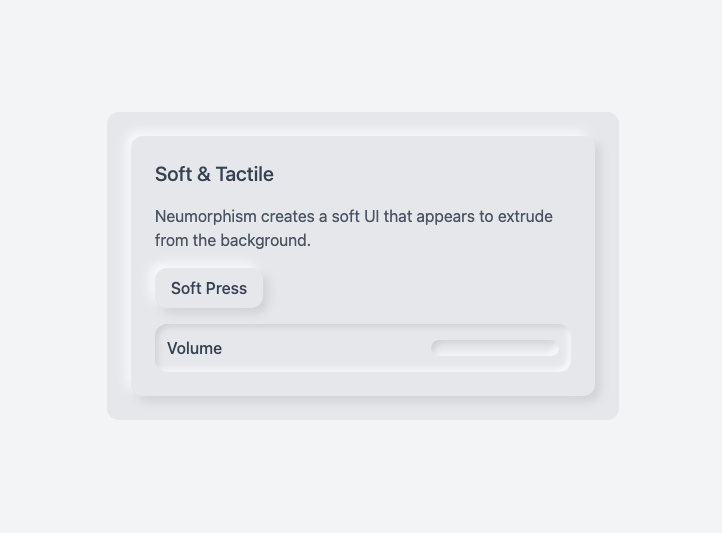
Neumorphism style interface example in Base44Soft, extruded elements that look pressed into or raised from the background.Best for calm tools with simple content.Key features:
  • Subtle inner and outer shadows
  • Soft, monochromatic palettes
  • Minimal depth and clean shapes
Prompt idea:
Give this app a soft neumorphic touch:
- Keep the current color palette
- Add subtle shadows to cards and primary buttons
- Avoid heavy contrast backgrounds
- Keep text contrast high for readability
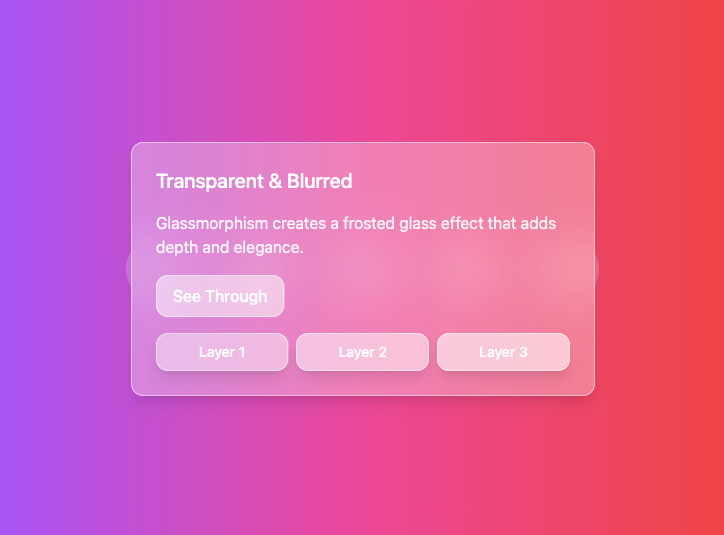
Glassmorphism style interface example in Base44Frosted glass surfaces with transparency and blur effects.Best for overlays, side panels, and selected cards.Key features:
  • Backdrop blur
  • Transparent panels with subtle borders
  • Light glow and reflection effects
Prompt idea:
Apply a subtle glass effect to overlays and side panels only:
- Use translucent surfaces with blur and a thin border
- Keep backgrounds simple so text remains readable
- Maintain strong text contrast on glass surfaces
Do not apply glass effects to all cards or main content.
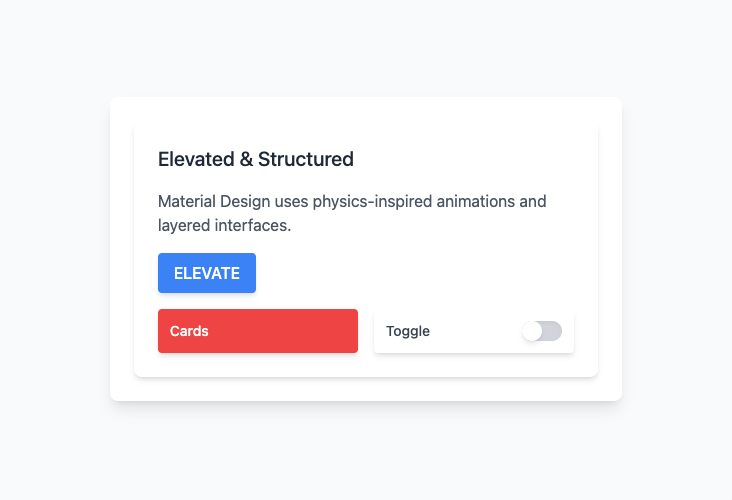
Material style interface example in Base44Structured, grid based layout with clear elevation and bold color.Best for dashboards, admin tools, and data heavy apps.Key features:
  • Clear elevation layers
  • Clean grids and alignment
  • Purposeful motion
Prompt idea:
Move this app toward a soft material style:
- Use clear card elevation for key sections
- Clean up alignment and grids so content lines up
- Use bold, flat colors rather than strong gradients
- Keep transitions subtle and purposeful
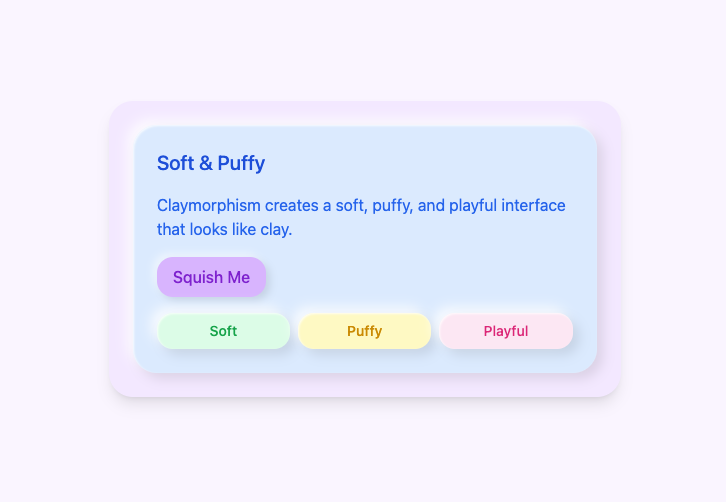
Claymorphism style interface example in Base44Soft, puffy elements with rounded shapes and gentle shadows.Best for playful apps, onboarding, or lighter experiences.Key features:
  • Rounded corners
  • Pastel or soft color palettes
  • Soft, even shadows
Prompt idea:
Add a light clay feel to key components:
- Round the corners of cards and primary buttons more
- Use softer shadows under those components
- Keep backgrounds neutral so the app remains readable
Apply this style only to interactive elements, not long text sections.
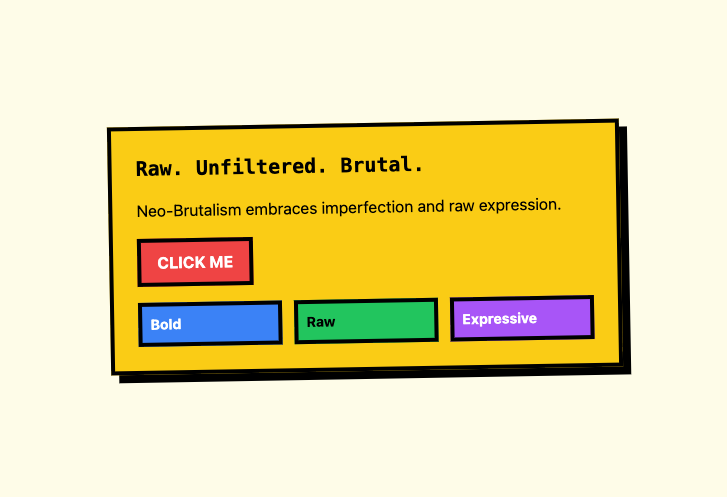
Neo brutalism style interface example in Base44Deliberately bold, with strong color blocks and thick borders.Best for landing pages and internal tools where personality matters more than subtlety.Key features:
  • High contrast color combinations
  • Thick borders and strong shapes
  • Raw typography and simple grids
Prompt idea:
Apply a controlled neo brutalist feel to the marketing pages:
- Use one bold accent color, one dark, and one light neutral
- Add thick borders and clear sections
- Make headings large and confident
- Keep body text highly readable
Do not apply this style to data tables or dense forms.

Light and dark themes

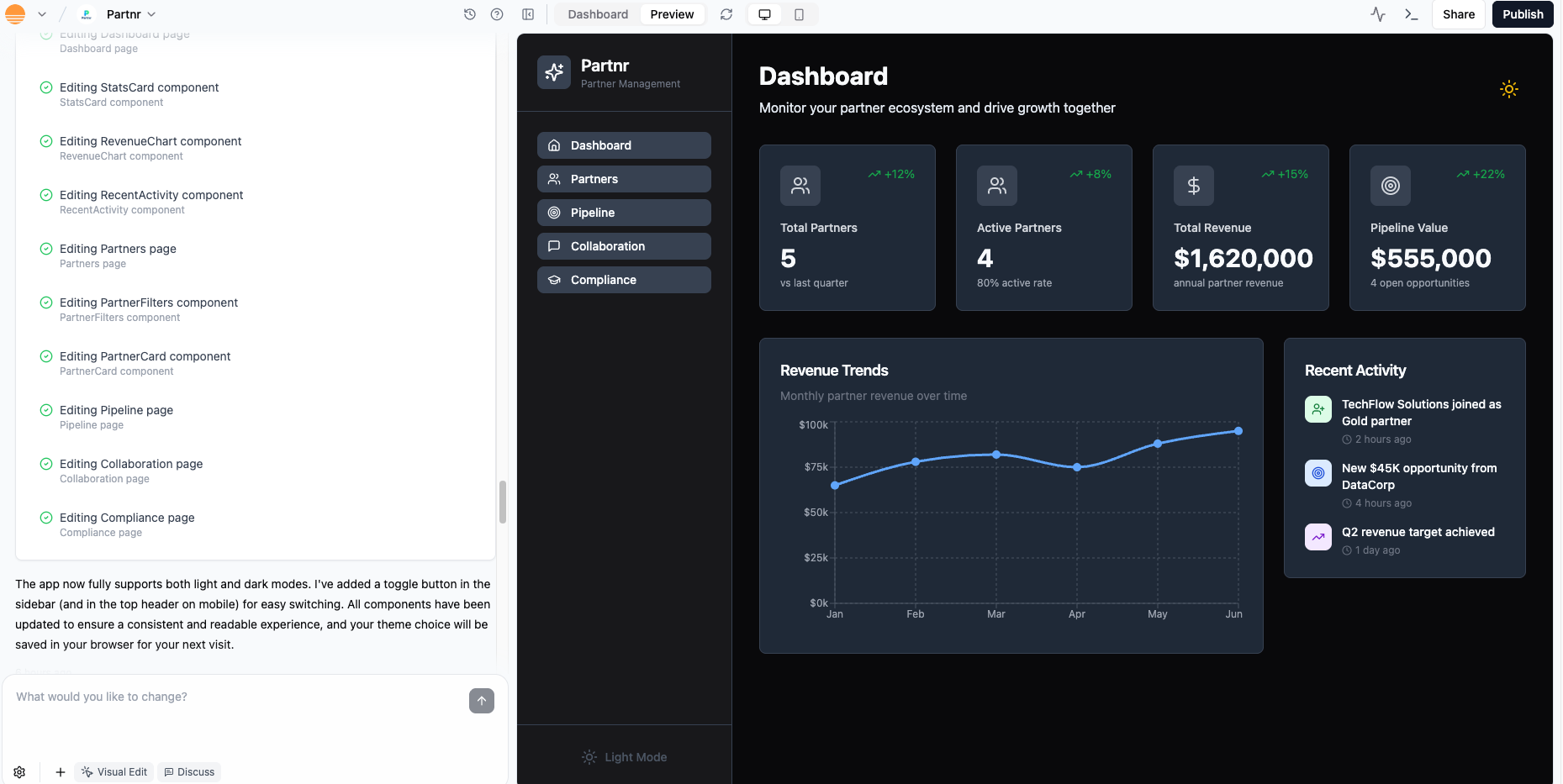
Light and dark themes let people choose what feels best and can help in different environments. You can ask the AI chat to add theme support and a toggle. Light and dark mode themes in a Base44 app Code example for theme handling in a Base44 app Prompt:
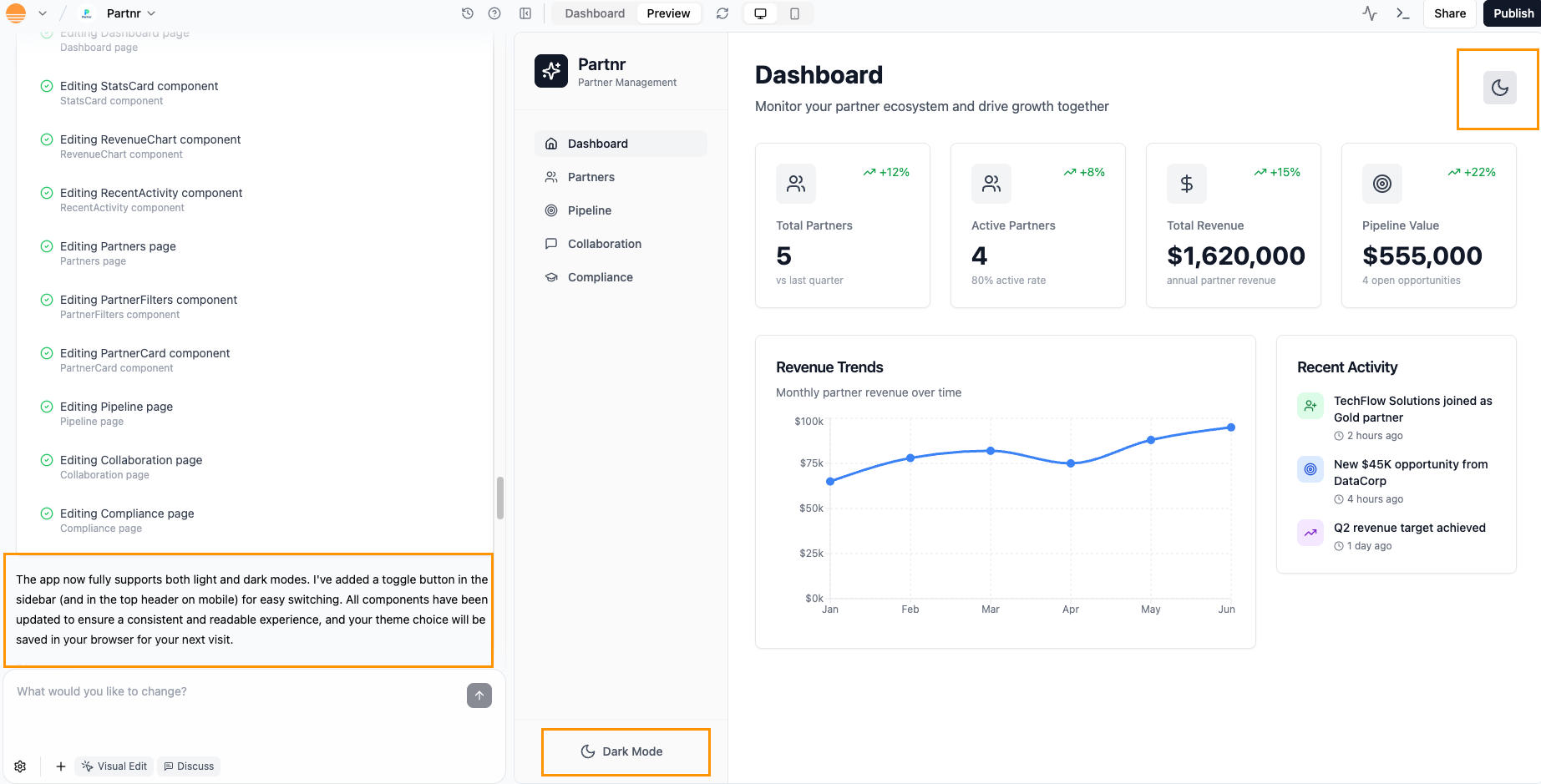
Add light and dark mode support:
- Light mode: soft gray backgrounds and dark text
- Dark mode: near black backgrounds, light text, and subtle borders
- Primary and accent colors should remain readable and consistent in both modes
Add a theme toggle in the header and remember the choice per visitor.
Note: Theme support touches many components, so it can take AI some time to wire everything up. You can also specify changes that should apply only in light mode or only in dark mode.

Local vs global changes

In Base44, the same design idea can apply at different scopes. It helps to be explicit about where you want a change to take effect.
Global changes affect many pages or the whole app. Use AI chat and AI Controls for:
  • Color system and typography
  • Shared components such as buttons, cards, and navigation
  • Page templates for common page types
Examples:
Apply this header and navigation layout to all top level pages.
Keep the content of each page the same.
Update the primary button style and propagate it to all places where the primary button component is used.
Do not change secondary buttons.
AI Controls can help you set guidelines that shape every future change, for example “avoid glass effects” or “keep animations subtle.”
Local changes affect only one page, section, or component. Use Visual Edit and targeted prompts for:
  • Tweaking a specific hero section
  • Adjusting spacing on a single page
  • Restyling one card type or form
Examples:
Update only the hero section on the homepage:
- Change the background to a soft gradient
- Increase the heading size
- Use the primary button style for the main call to action
Do not change other sections or pages.
On the settings page only, reduce the visual weight of secondary actions and move them below the primary action.
Sometimes you are happy with a page and want to protect it while you experiment elsewhere.You can:
  • Use AI Controls to freeze specific files or pages so AI does not change them.
  • Use the Revert option on individual prompts when you want to undo one action.
  • Use version history to roll back to an earlier state.
This lets you explore bold ideas on some parts of your app while keeping others stable.

Motion and feedback

Motion and feedback help people understand what is happening on screen. You can use them to make clicks feel responsive, show that something is loading, and explain what to do next. In Base44, AI can add these patterns for you, so you do not have to hand code every animation. Use this section when your app already works, but feels a bit flat or “static,” and you want it to feel more alive and reassuring.
Micro interactions are small visual reactions to what someone does, for example:
  • A button that slightly grows and brightens on hover.
  • A card that lifts when you move the mouse over it.
  • An icon that gives a small checkmark animation when something is saved.
These effects make the app feel responsive without turning it into a cartoon.You can ask AI to introduce a consistent set of interactions:
Add subtle interactions:
- Fade in each page on load with a short duration
- Make primary buttons gently grow and brighten on hover and focus
- Add a small lift effect to cards on hover
Respect reduced motion preferences and avoid any rapid flashing.
For marketing or promo pages, you can use a stronger tone:
On marketing pages only:
- Slide hero sections in from the side on first load
- Animate icons when a feature card becomes focused or hovered
- Keep animations short so the page still feels fast
Tip: Add motion after you are happy with colors, layout, and typography. Motion should support clarity, not hide weak structure.
Loading, empty, and error states are the places where people often feel stuck. Good feedback here can make your app feel much more polished and forgiving.Examples:
  • Loading: skeleton shapes that match the final layout instead of a generic spinner.
  • Empty: a friendly message that explains what will appear here and a button to create or connect something.
  • Error: a short, human explanation and a clear way to retry or get help.
You can ask AI to create these patterns across the app:
Improve feedback states:
- For each main list and dashboard, add a skeleton loader that matches the layout
- Design an empty state with an icon, one line explanation, and a primary action
- Add a clear error state with a short message and a retry button where relevant
Use the existing color and typography system.
These changes do not affect your data or logic, they only change how your app “talks back” to people when something is loading, missing, or has gone wrong.

Advanced customization

When you want to go beyond what AI and Visual Edit give you out of the box, you can bring in your own code and npm packages. AI can still help you wire and align everything.
You can use npm packages to bring richer motion, visual effects, and interactive components into your Base44 app without building everything from scratch. Packages come from the public npm registry and are installed through the AI chat in your app editor, so you stay inside the same workflow.Design-focused examples include:
  • Animation libraries (for example, anime.js) to add transitions, hover effects, and micro interactions.
  • UI component or motion libraries to handle modals, tooltips, carousels, or step flows with built in interaction patterns.
  • Chart and graph utilities to visualize data with custom colors, typography, and spacing that match your app.
  • Drag and drop or gesture libraries to make layouts feel more tactile and interactive.
  • Date and time helpers to format timestamps and schedules in a way that fits your UI.
After a package is installed, you can use AI chat to:
  • Import the right functions or components from the package.
  • Wire them into your existing layout and design tokens (colors, typography, spacing, radius).
  • Adjust props, variants, and motion so they feel consistent with the rest of the app.
  • Check accessibility details like focus states, keyboard navigation, and reduced motion preferences.
Prompt example
I added the framer-motion npm package. Refactor the existing card grid so each card animates on hover using framer-motion:
-Keep the current layout and copy
-Use the existing color tokens, border radius, and typography
-Respect prefers-reduced-motion and keep keyboard focus outlines clear
Important: All npm packages are third party code. Base44 cannot guarantee their quality or security, so make sure you review the package README, test it in your app, and confirm it meets your project’s design and performance requirements.
Base44 apps often use Tailwind CSS utilities. AI can help you refactor messy styles into something more systematic.Tasks you can ask AI to do:
  • Replace inline styles with Tailwind utilities.
  • Extract repeated patterns into reusable components.
  • Map color values to design tokens and Tailwind config.
Example:
Refactor these components to use consistent Tailwind classes:
- Replace inline style attributes with Tailwind utilities
- Use the design tokens for colors, spacing, and typography
- Document the main class combinations for navigation, cards, and buttons
Sometimes you want precise control over layout, animation, or component structure. You can open code files directly and either edit them yourself or ask AI to do it.Common design related edits:
  • Updating Layout.js to change global wrappers, headers, or footers.
  • Adjusting theme providers or context.
  • Changing how components are composed and which props they accept.
To edit the code:
  1. Open the relevant file.
  2. Paste a code snippet into AI chat.
  3. Ask for a change, then review the diff or preview.
Example:
Here is my Layout.js component.
Adjust it so:
- The header is sticky on scroll
- The main content has a max width and is centered on large screens
- The background color uses the surface token from my design system
Explain what you changed in comments.
Design choices affect performance, especially when you introduce packages and heavy visuals.Keep in mind:
  • Use optimized image sizes rather than huge background assets.
  • Avoid loading many heavy animations or large libraries on initial load.
  • Lazy load rarely used sections such as deep reports or advanced filters.
  • Reuse shared components instead of many near copies.
You can ask AI for a performance focused review:
Review this app's design from a performance perspective:
- Identify heavy visual or code related elements that might slow loading
- Suggest lighter alternatives that keep the same overall look
- Propose specific places where lazy loading or code splitting would help

Accessibility

Accessibility is part of good design. It helps more people use your app comfortably and can improve clarity for everyone.
Color choices have a direct impact on readability.Good practices:
  • Use strong contrast between text and background.
  • Avoid using color alone to convey meaning.
  • Keep interactive elements such as buttons and links clearly visible in all states.
  • Check both light and dark modes if you support themes.
Prompt example:
Audit this app for color contrast:
- Identify text or icons with low contrast against their backgrounds
- Strengthen contrast while keeping the same general palette
- Ensure primary buttons and links are clearly distinguishable
Describe the main fixes you applied.
Readable text is about more than font choice.Good practices:
  • Use comfortable font sizes on all devices.
  • Use enough line height for paragraphs.
  • Avoid very light weight fonts on light backgrounds.
  • Keep line length reasonable, especially on wide screens.
Prompt example:
Improve text readability:
- Increase base body font size slightly
- Increase line height for paragraphs
- Ensure headings are clearly larger than body text
- Reduce very long line lengths on wide screens
People should be able to use your app with a keyboard and see where they are.Good practices:
  • Make sure Tab moves through interactive elements in a logical order.
  • Ensure focus styles are visible and distinct.
  • Avoid keyboard traps where focus cannot move away.
Prompt example:
Improve keyboard and focus accessibility:
- Ensure all interactive elements can be reached with Tab
- Add visible focus styles to buttons, links, and form fields
- Fix any focus order issues on this page
Describe any major changes you made.
Motion can help or hurt. Some people prefer less of it.Good practices:
  • Respect reduced motion preferences.
  • Avoid rapid flashing or strong flicker.
  • Use subtle, purposeful animations rather than constant motion.
Prompt example:
Adjust animations for accessibility:
- Respect the user's reduced motion preference
- Remove or simplify large continuous animations
- Keep only short, subtle motion that helps understanding
Clear language and descriptions help everyone, including people using assistive tech.Good practices:
  • Use clear, descriptive labels for buttons and links.
  • Provide meaningful alt text for important images.
  • Use headings to structure content.
  • Avoid vague link text such as “click here”.
Prompt example:
Improve accessibility of labels and alt text:
- Make button and link labels more descriptive where needed
- Add or improve alt text for important images
- Ensure headings follow a clear structure
Keep the tone and brand voice the same.

Quick tricks

If you want fast improvements, these short recipes can help you get a lot of value with a few prompts.
  • Introduce a simple color system and apply it globally.
  • Define clear text roles and increase line height.
  • Add basic card and button components and reuse them.
Prompt:
Polish this prototype:
- Create a simple color system and apply it across the app
- Define typography roles for titles, headings, and body text
- Standardize buttons and cards and use them consistently
Keep content and logic the same.
  • Increase row height slightly and add subtle separators.
  • Move actions into a consistent column or menu.
  • Add filters in a clear top bar.
  • Add loading, empty, and error states.
Prompt:
Clean up this table page:
- Increase row height and add subtle row separators
- Move row actions into a consistent column at the end
- Add a simple filter bar above the table
- Add clear loading, empty, and error states
  • Adjust spacing and hierarchy.
  • Update card and button shapes.
  • Introduce subtle micro interactions.
Prompt:
Give this app a soft visual refresh:
- Keep brand colors the same
- Improve spacing and hierarchy on each page
- Round card and button corners slightly and soften shadows
- Add subtle hover and focus states to primary actions

FAQs

Click a question below to learn more about designing your app.
Tailwind CSS is a utility first CSS framework. Instead of writing custom CSS rules, you add small class names directly to your elements to control color, spacing, typography, and layout. Each class name usually maps to a single visual rule, so you can “read” the design from the classes themselves.Common examples you might see:
  • Colors: bg-blue-500 sets a blue background, text-white sets white text.
  • Spacing: p-4 adds padding on all sides, m-2 adds margin on all sides.
  • Typography: font-bold makes text bold, text-lg sets a larger text size.
  • Layout: flex creates a flex container, grid creates a grid container, items-center vertically centers items in a flex or grid row.
When you see Tailwind classes in Base44, you can combine them to describe the full style of an element. For example, bg-blue-500 text-white p-4 flex items-center gives you a blue bar with white text, padding, and centered content.For deeper reference and the full list of utilities, you can check the official Tailwind CSS documentation.
Design for mobile, tablet, and desktop separately, then check how your layouts adapt.Use these guidelines when you design in Base44:
  • Mobile: Use a single vertical column, keep one clear primary action per screen, and make tap targets large with enough spacing. Keep text short so people do not need to zoom.
  • Tablet: Treat tablet as a hybrid. You can use side menus or split layouts, but keep buttons touch friendly and avoid very small tables or dense controls.
  • Desktop: Use the extra width for multi column layouts and sidebars. You can add hover effects, but any important action must also work with a click or tap.
  • All devices: Use readable font sizes, avoid horizontal scrolling, and let elements stack instead of overlap when space is tight. Avoid fixed heights that cut off content.
You can also ask AI to apply responsive rules, for example:
Make this layout responsive for mobile, tablet, and desktop.
Avoid horizontal scrolling and keep primary actions visible without excessive scrolling.
Design choices have a direct impact on how fast your app loads and feels. When you design in Base44, keep these guidelines in mind:
  • Use optimized image sizes so large assets do not slow down initial load. Prefer compressed formats and avoid uploading images much larger than they appear on screen.
  • Limit heavy animations and complex effects, especially in mobile heavy apps. Short, simple transitions are fine, but avoid constant motion or large animated backgrounds.
  • Keep layouts clean and focused. Fewer layers, overlays, and nested components usually mean faster rendering, especially on lower end devices.
  • Reuse components instead of creating many slightly different versions. Shared components are easier to cache and maintain.
  • Avoid loading everything at once. Where possible, load non critical content later, for example secondary sections, long lists, or rarely used panels.
  • Be careful with third party embeds such as maps, video players, and widgets. Only include them where they add real value, and avoid stacking many embeds on a single screen.
You can use design version control in the AI chat to roll back changes.
  • Each AI prompt has a Revert option that instantly undoes everything that specific prompt changed in your app.
  • The clock icon in the AI chat opens version history. You can choose an earlier saved version of your app and roll back to it in one step.
Learn more about AI chat modes and version history.