

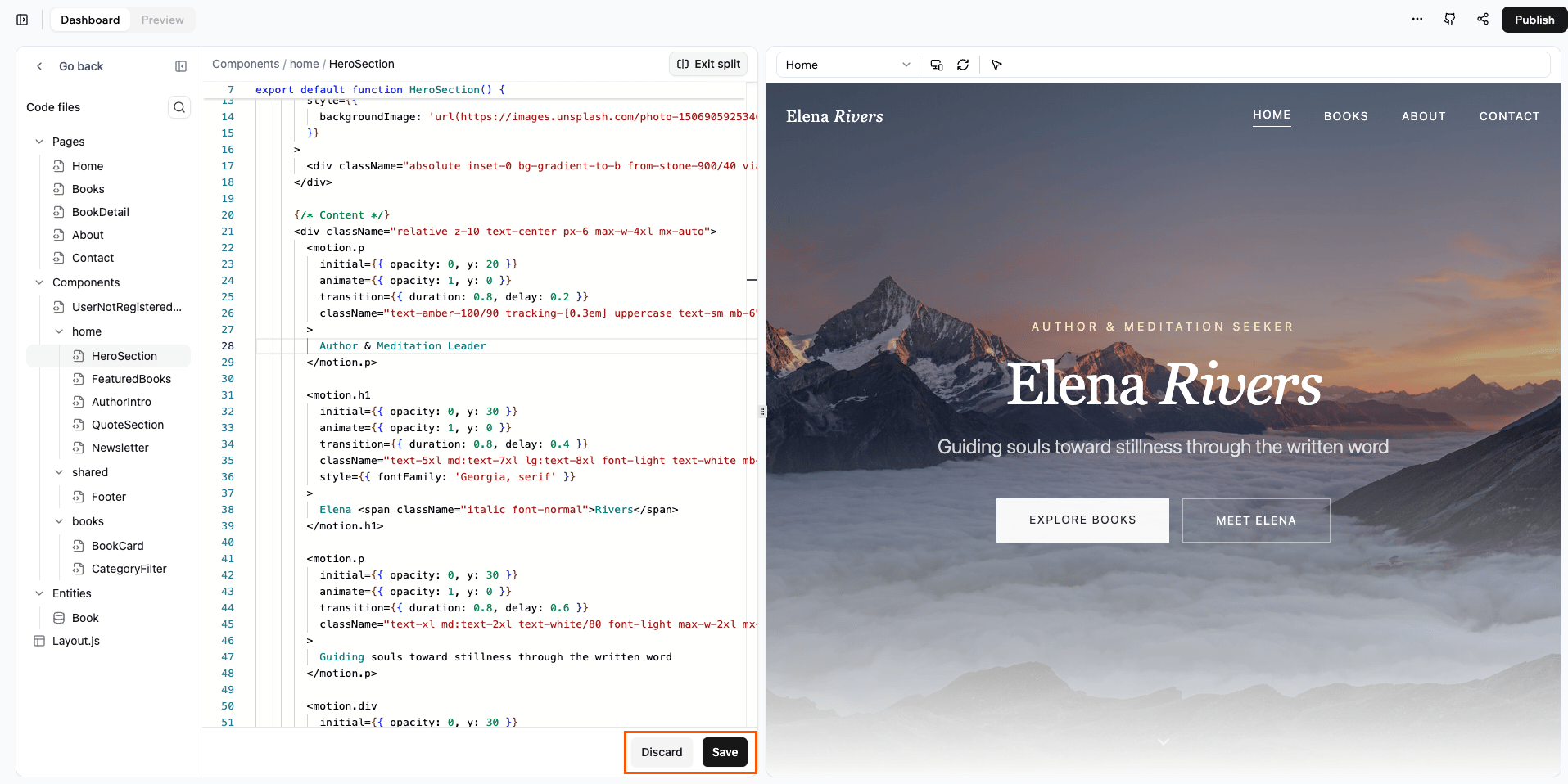
Editing your app's code and instantly previewing the changes
Accessing your app’s code
Open the code editor from your app’s dashboard. From there, you can see your project files on the left and you can jump straight into them and start editing. To access your app’s code:- Go to your app’s dashboard.
- Click Code.
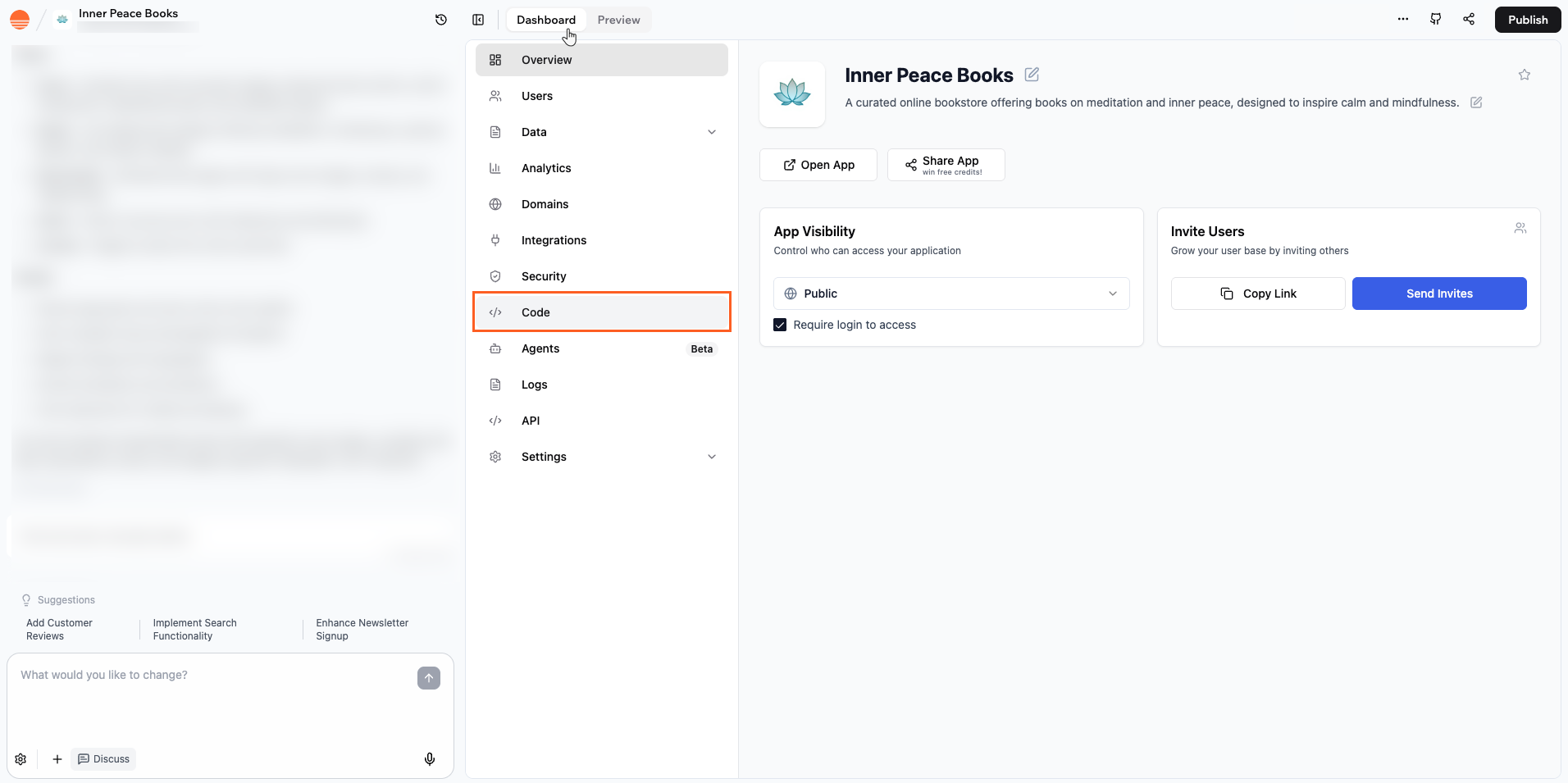
Accessing your app's code in Base44
Previewing changes with split screen
Split screen lets you work in the code editor while your app preview stays visible beside it. You see how your edits affect the page without leaving the code view. Because the preview is always on screen, you do not need to move back and forth to a separate Preview mode. You can keep writing code, save when you are ready, and immediately see how the page looks.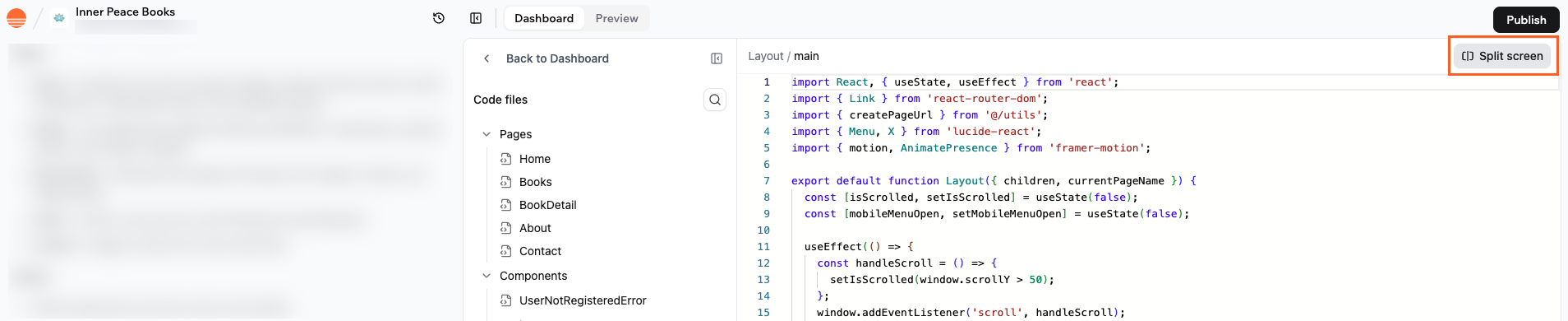
Split screen for previewing code changes
- Click Save at the bottom of the screen to apply your changes and refresh the preview with the latest code.
- Click Discard at the bottom of the screen if you want to drop all unsaved edits and return to the last saved version of the file.
Making changes to code files
The code editor organizes your app into folders and files so you can quickly find what you want to change. You can work in any file in your app and make changes including:- Editing page files in the Pages folder.
- Updating components such as hero sections, feature grids, cards, or footers.
- Changing how your app connects to entities and APIs.
- Adjusting layout and styling classes so sections, typography, and spacing look the way you want.
- Refactoring your app structure by renaming, moving, or reusing components.
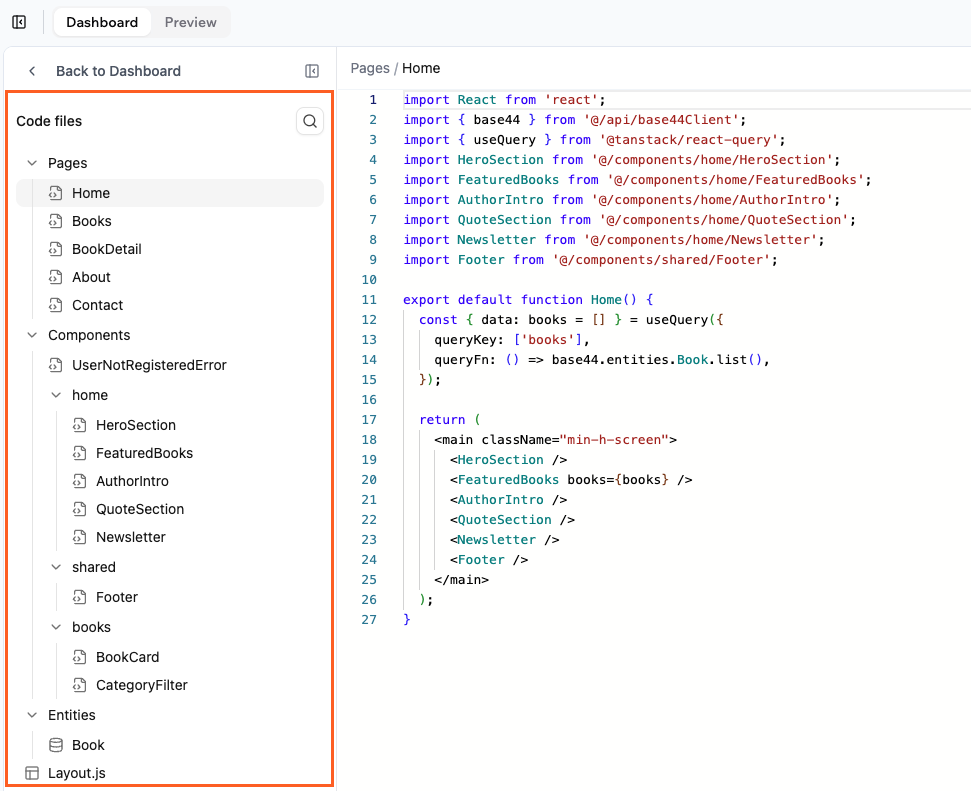
Viewing and navigating your app's code files
FAQs
Click a question below to learn more about editing code in your app.Can I edit every part of my app’s code?
Can I edit every part of my app’s code?
Yes. You can open and edit any code file that appears in the Code files panel, including pages, components, layouts, and entity helpers. If a part of the app is generated for you, it still appears as regular code that you can modify.
Do I need to use split screen to edit code?
Do I need to use split screen to edit code?
No. You can work in the full width code editor if you prefer more space. Split screen is helpful when you want to see the preview next to your code, but you can turn it off at any time and reopen it later.
What happens if I click Discard?
What happens if I click Discard?
Discard removes all unsaved changes in the active file and restores the last saved version. This is useful if you try something that does not work and want to go back quickly. Once you click Discard, you cannot recover the unsaved code from that session.
Do I need to be an experienced developer to edit the code?
Do I need to be an experienced developer to edit the code?
You do not need to be an expert, but basic familiarity with React and JSX helps. You can start with small changes such as updating text, swapping components, or changing simple styles, then move on to more advanced logic as you gain confidence