

bug in the frontend repo and summarize the top 3,” and the AI chat fetches that information from GitHub and summarizes it for you.
Adding a custom MCP server
You can add custom MCP servers from your account settings. Each connection stores the server URL, authentication method, and any headers that need to be sent with every request.Note: MCP connections are configured at the account level. They are used by the Base44 AI chat experience, not by the app itself or its runtime, and are only called when your prompt requires that MCP.
- Click your profile icon at the top-right of Base44.
- Click Settings.
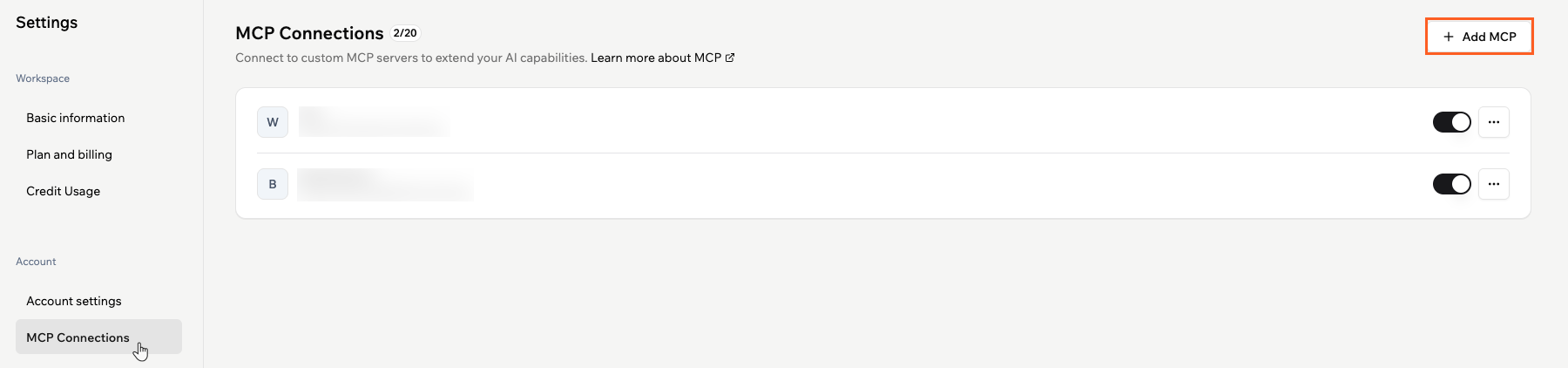
- Click MCP Connections under Account.
- Click Add Custom MCP.
- Enter the details for your MCP:
- Name: Enter a clear name for your MCP server so collaborators can recognize it.
- URL: Enter the MCP server URL.
For example:https://mcp.deepwiki.com/sse - Authentication: Choose how Base44 should connect:
- Not required: Select this option if the server does not require credentials.
- OAuth: Select this option if the server uses OAuth. You complete the authorization in the next step after testing and adding the server.
- Custom headers: Add any headers that need to be sent with every request, such as API keys:
- Click Add header.
- Enter the Header name.
- Enter the Header value.
- Click Test to check that Base44 can reach the MCP server with the configuration you entered.
- Click Test & Add to test the connection and save the new MCP server to your account.
Managing existing MCP connections
After you add MCP servers, you can see them all on the MCP Connections page. From there, you can turn individual servers on or off and manage each connection. To turn an MCP server on or off:- Click your profile icon at the top-right of Base44.
- Click Settings.
- Click MCP Connections under Account.
- Find the relevant MCP server in the list.
- Click the toggle on the right to enable or disable that server for your account.
- Click your profile icon at the top-right of Base44.
- Click Settings.
- Click MCP Connections under Account.
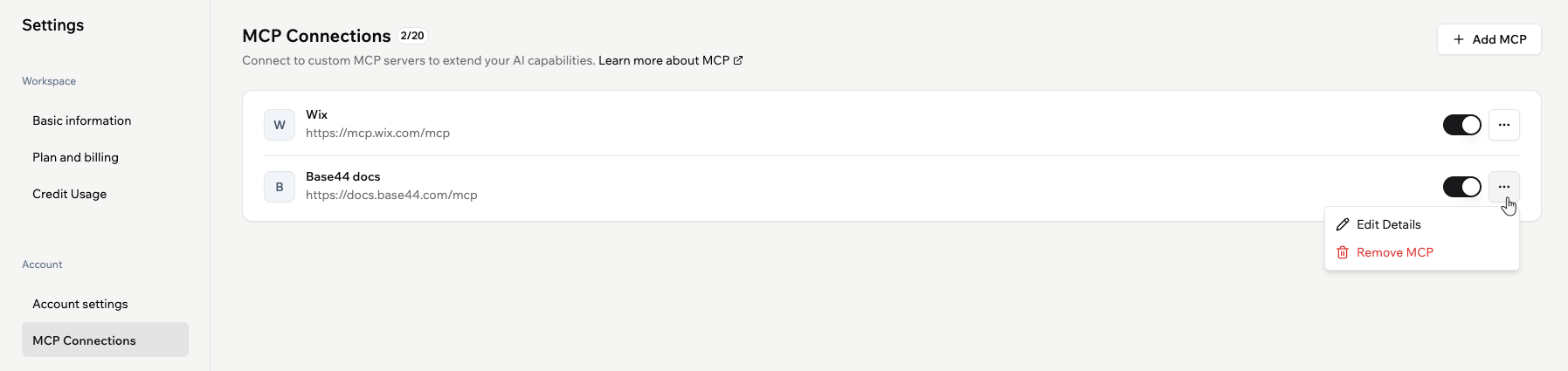
- Next to the relevant MCP server, click the More Actions icon.
- Choose what you want to do:
- Edit Details: Update the server name, URL, authentication, or custom headers.
- Remove MCP: Permanently remove the MCP server from your account.
Tip: Use clear, descriptive names for each MCP server so collaborators can quickly see which external tools or data sources the AI chat can use.
FAQs
Click a question below to learn more.Are MCP connections account-level or app-level?
Are MCP connections account-level or app-level?
MCP connections are managed at the account level, not per app. When you add an MCP server, it becomes available to the Base44 AI chat across apps in your account, rather than being tied to a single app.
Does my app call MCP servers directly?
Does my app call MCP servers directly?
No. MCP connections only control what the AI chat can access. Your app’s code, APIs, and other integrations do not call MCP servers through this settings page. The AI chat uses an MCP server only when your prompt asks for something that requires that server, it does not call every connected MCP for each message.
Can I temporarily disable an MCP server without removing it?
Can I temporarily disable an MCP server without removing it?
Yes. Go to Settings → MCP Connections in your account and use the toggle next to the relevant MCP server to turn it off. When it is off, the AI chat no longer uses that server. You can turn the same server back on later without re-entering its configuration.