Connect your Base44 app to Google Search Console in one click, fix verification problems, and track your clicks, searches, and indexing in your app dashboard.
Google Search Console is a free tool from Google that shows how your app appears in Google Search: which searches bring people to your app, which of your pages Google has indexed, and any problems it finds. When you connect your app to Google Search Console, Base44 sets it up for you and shows your search data right in your app dashboard.
Your Google Search Console data in your app dashboard
Connect your app to Google Search Console in one click, right from your app dashboard. Base44 verifies your site with Google, adds it to Search Console, and submits your sitemap for you. All you do is approve access in a Google window.
Connecting your app to Google Search Console is rolling out gradually. If you do not have it yet, verify your site manually instead.
Before you begin: Publish your app and make sure it is open to the public. Google can only verify an app that is published and public.
To connect your app to Google Search Console:
Click Dashboard in your app editor.
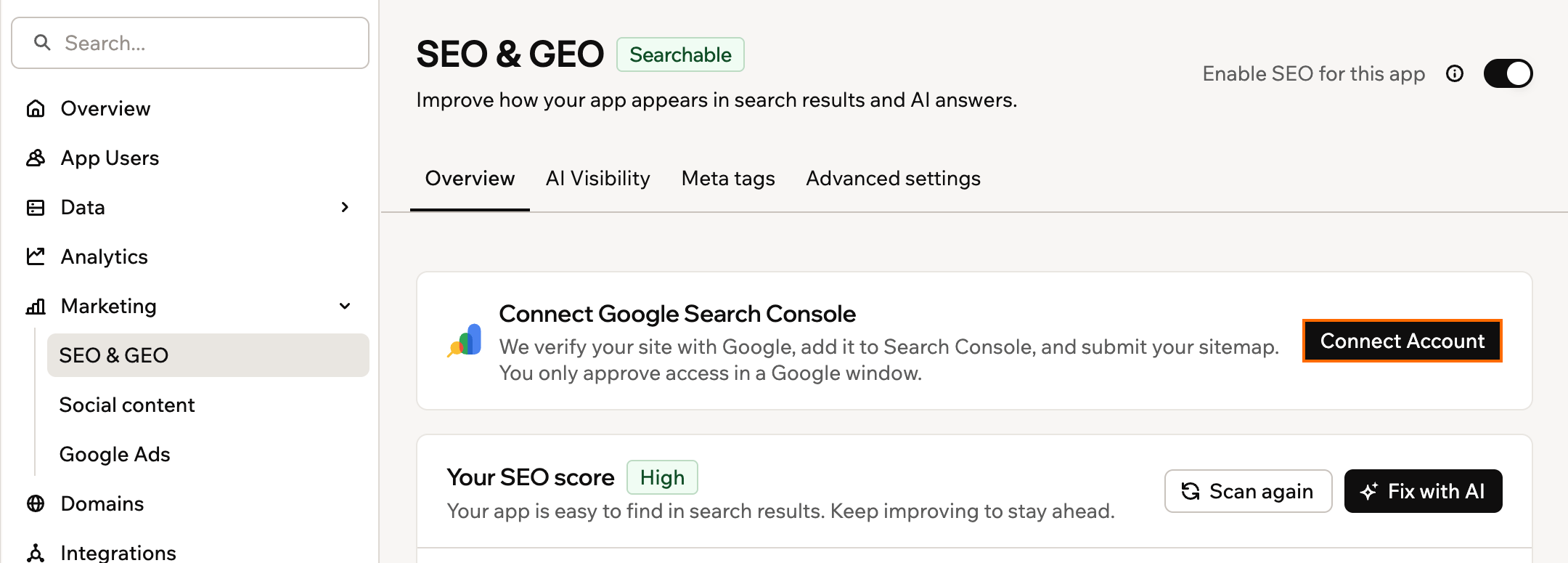
Click SEO & GEO under Marketing.
Click Connect Account in the Connect Google Search Console card at the top of the Overview tab.
Choose your Google account and approve access in the Google window. Base44 verifies your site and submits your sitemap in a few seconds.
Connecting Google Search Console from the Overview tab
If something stops the verification, you see what went wrong at the top of the Overview tab on your SEO & GEO page. The Connect Google Search Console card shows one of these messages, with a button to fix it:
Publish your app first: Click Publish, then click Verify again.
Google can’t reach a private app: Click Change public access to make your app public, then click Verify again.
SEO is turned off: Click Turn on SEO so Base44 can add Google’s verification tag to your app.
Base44 isn’t allowed to add tags: Click Let Base44 add the tag. Google checks your homepage for this tag.
Google permission missing: Click Grant access and approve it in the Google window.
Already verified by another Google account: Click Use my account to verify with your own account. The other account loses access to this property in Search Console.
Google couldn’t verify your site: Wait a moment, then click Verify again.
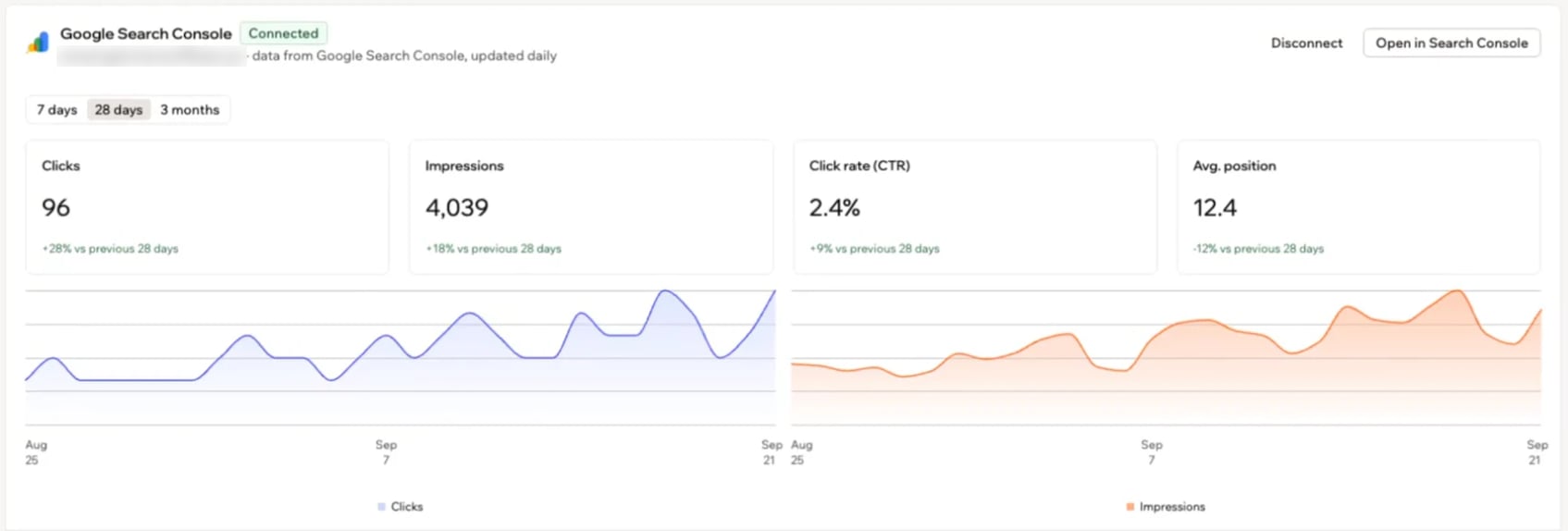
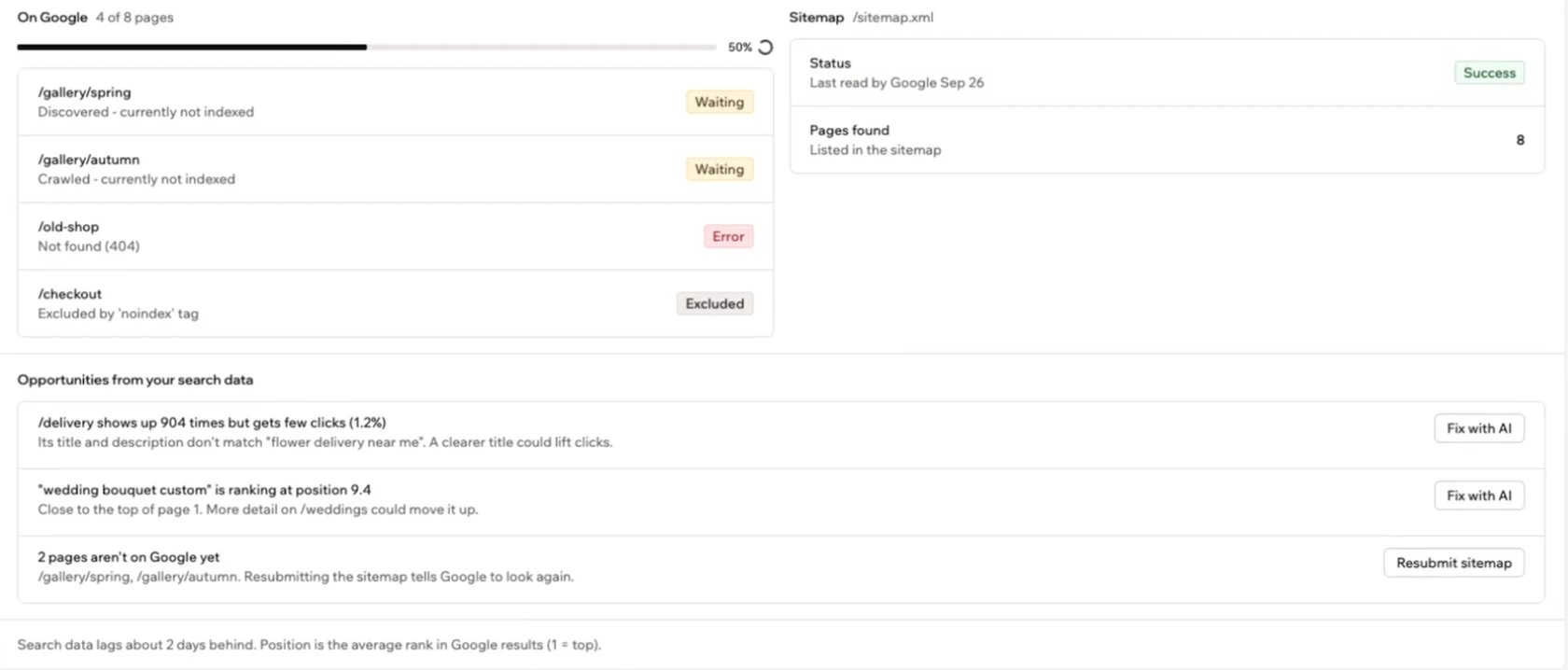
Once your site is verified, the Google Search Console card shows your search data from Google, updated daily.
Waiting on Google:
If your site was already verified in Search Console, your full history shows up right away. For a new property, Search Console usually shows its first data 24 to 48 hours after you connect, and full coverage takes 2 to 4 weeks. Search data always runs about 2 days behind.
To ask Google to check a new or updated page sooner, open URL inspection in Search Console, enter the page’s full URL, and click Request indexing if it is available.
The top of the Google Search Console card on your SEO & GEO page shows how people find your app on Google:
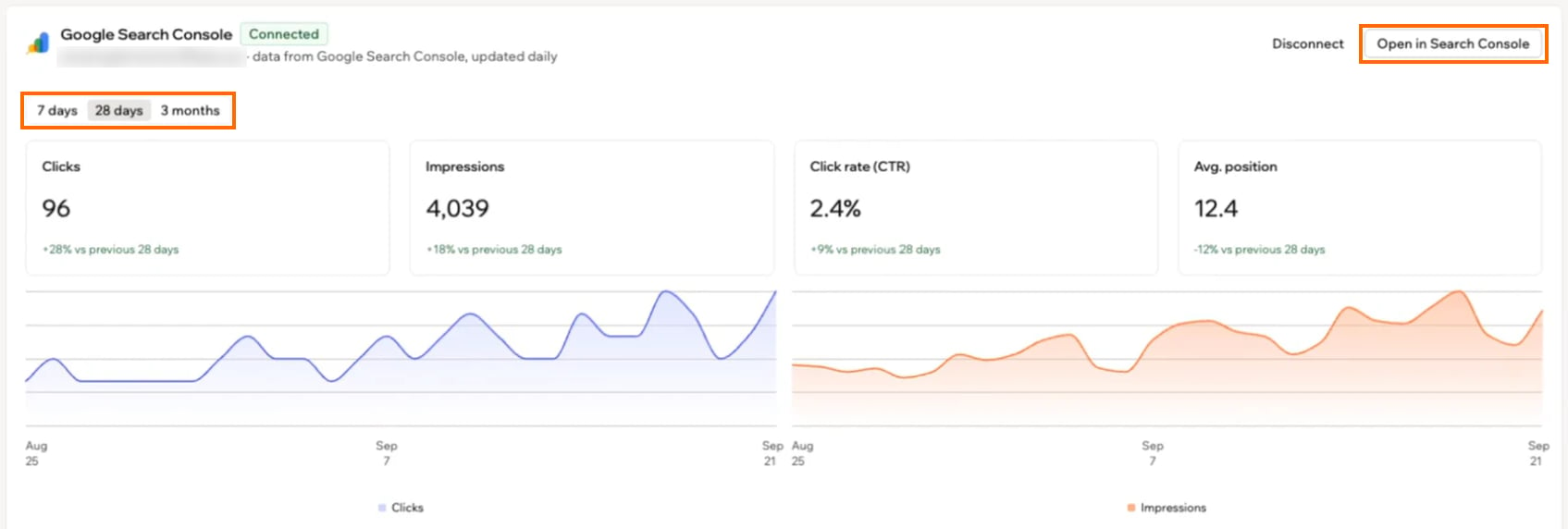
Search performance: Your clicks, impressions, click rate (CTR), and average position, where 1 is the top result. Each is compared with the previous period, with daily charts of clicks and impressions.
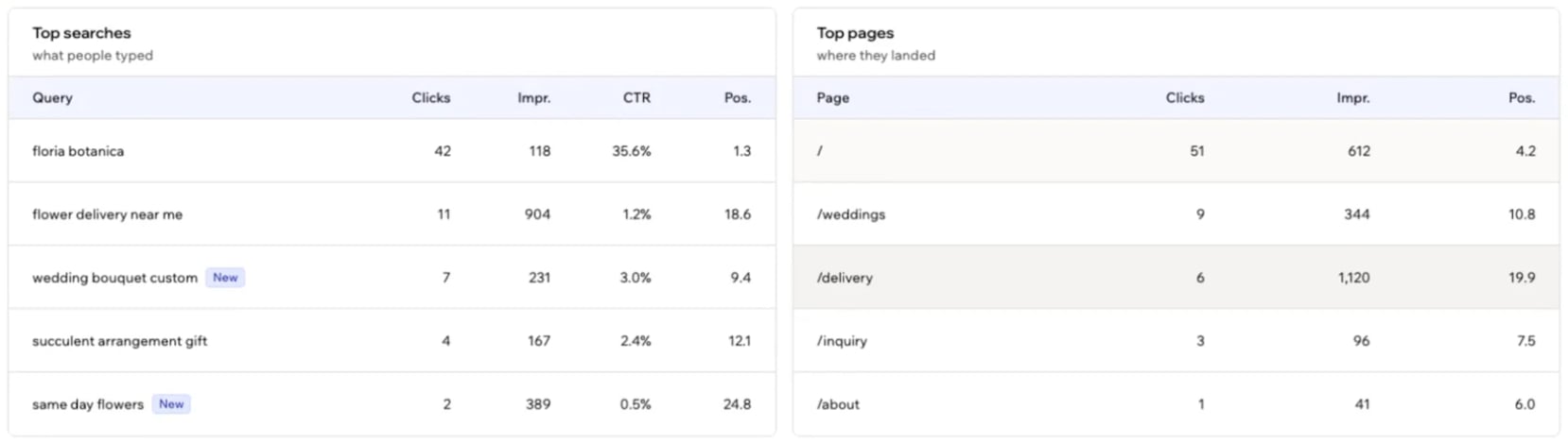
Top searches: What people typed into Google to find your app, with the clicks, impressions, CTR, and position for each. A New badge marks searches that just started showing up.
Top pages: The pages people landed on from Google.
Top searches and top pages on the Google Search Console card
Disconnect Google Search Console to stop showing your search data in Base44. Your site stays verified in your Google Search Console account, so you can still open it there or connect it again later.To disconnect Google Search Console:
Click Dashboard in your app editor.
Click SEO & GEO under Marketing.
Click Disconnect at the top of the Google Search Console card on the Overview tab.
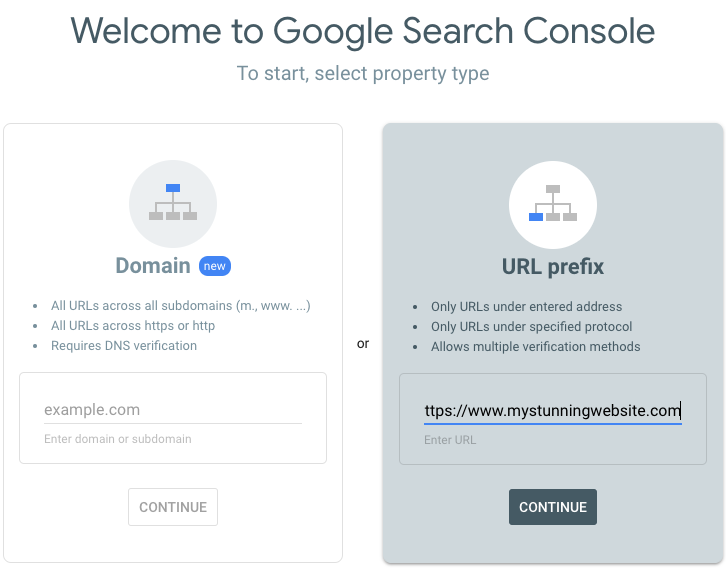
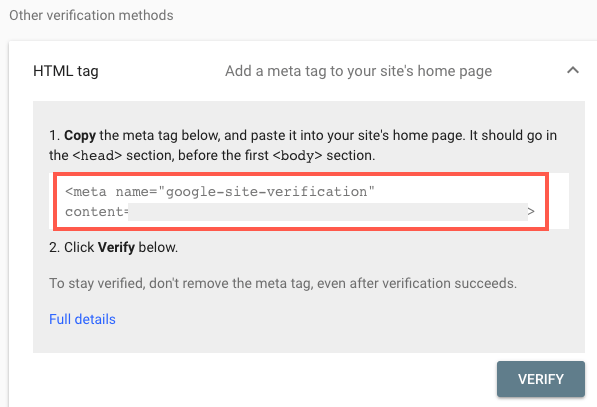
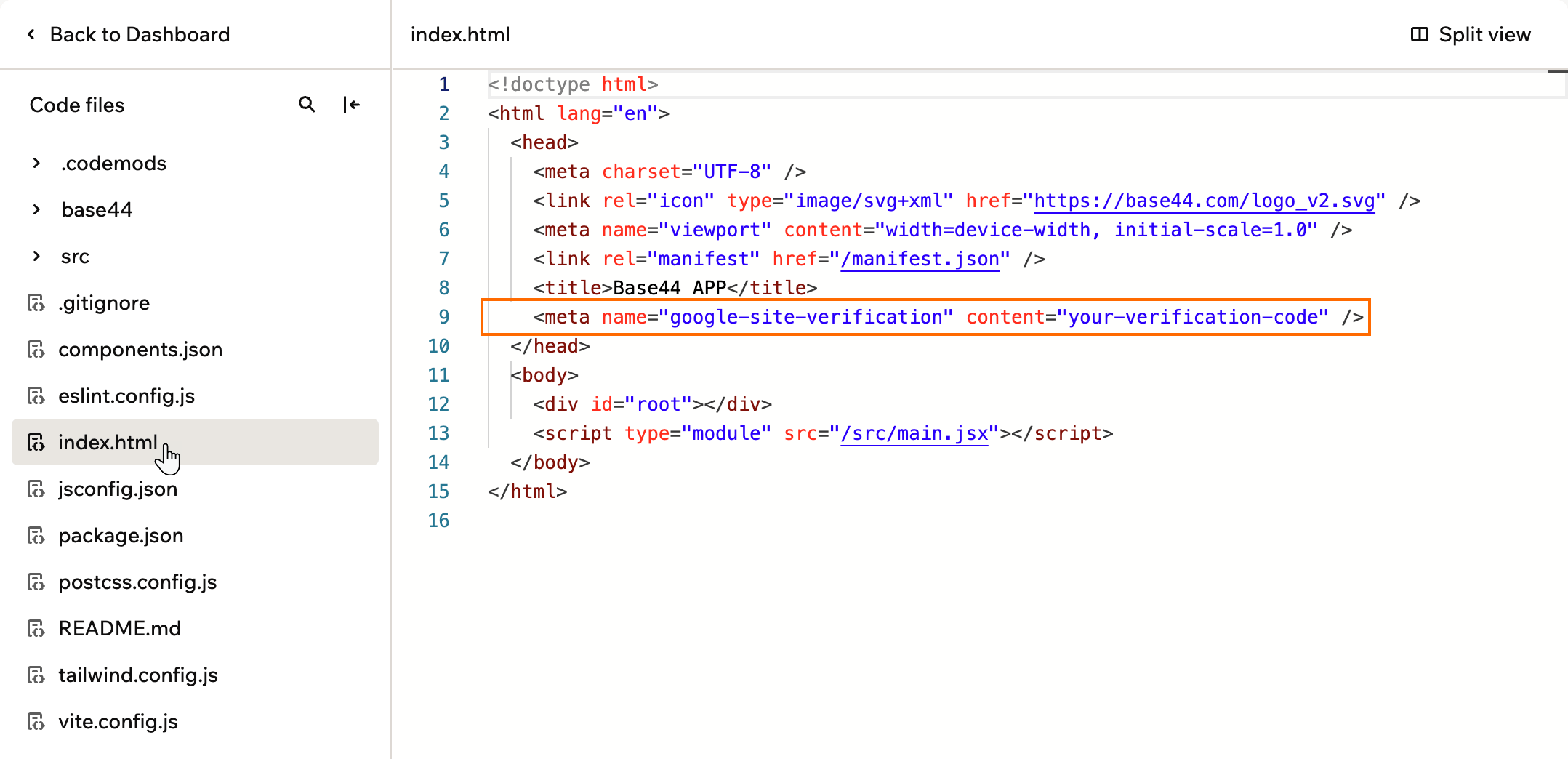
If you do not see the Connect Google Search Console card on the Overview tab of your SEO & GEO page yet, verify your app in Google Search Console yourself. You add Google’s verification tag to your app’s code, then submit your sitemap in Search Console. You can also use this method if you prefer to set up Search Console on your own.Work through each step in order:
Click a question below to learn more about Google Search Console in Base44.
Can I connect a free Base44 URL?
Yes. You can connect both custom domains and free Base44 URLs to Google Search Console.
Can I see Bing search data too?
Search Console only covers Google. To see how Bing indexes your app, set up Bing Webmaster Tools separately. Many AI assistants rely on both Google and Bing, so keeping both healthy also supports GEO.
Was this page helpful?
Assistant
Responses are generated using AI and may contain mistakes.