

Backups are available on the Elite plan and on an Enterprise plan (Business or Enterprise). Elite keeps 7 days of backups, and Business and Enterprise keep 30 days.
How backups work
Backups run automatically on eligible plans, so there is nothing to switch on. As your data changes, Base44 saves the earlier state of your tables so you can review it, download it, or put it back. Backups cover the table data Base44 manages for your app.Viewing your backups
The Backup & Restore tab lists every backup for your app, newest first, with your current data at the top. Each entry shows when it was taken and how many tables changed at that moment, and you can expand it to see the tables themselves. To view your backups:- Click Dashboard in your app editor.
- Click Data, then click the Backup & Restore tab.
- Click the date filter, which reads Last 30 days to begin with, to narrow the list to a period or a custom range.
- Click All tables to limit the list to the tables you care about.
- Click an entry to see which tables changed.
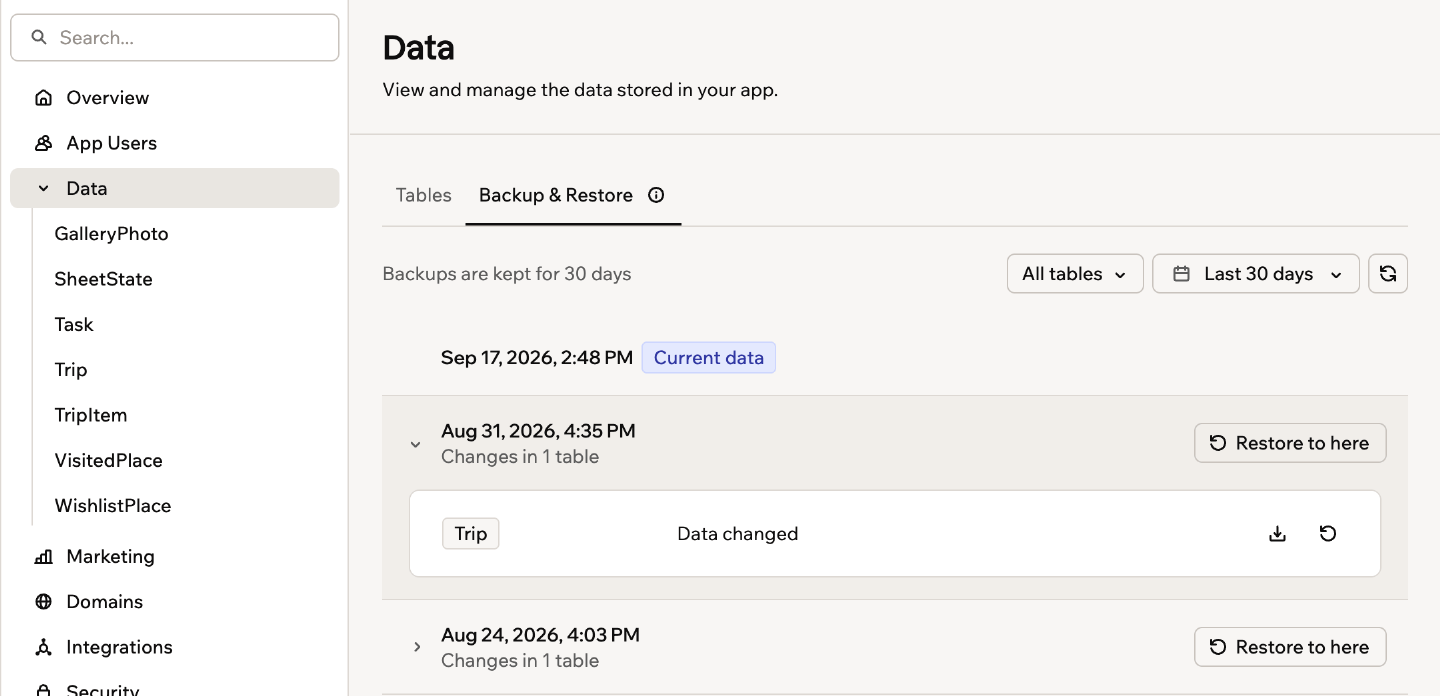
The Backup & Restore tab on the Data page
Restoring your data
Restoring rewrites your records so they match a point in time you choose. You can put back a single table or every table in your app at once, and you can undo a restore afterwards.Restoring one table
Restore a single table when only that table’s data went wrong. Every other table keeps its current data. To restore one table:- Click Dashboard in your app editor.
- Click Data, then click the Backup & Restore tab.
- Find the point in time you want, using the date filter if you need it, then click the entry to expand it.
- Next to the table you want, click the Restore this table icon .
- Review the confirmation, then click Restore table.
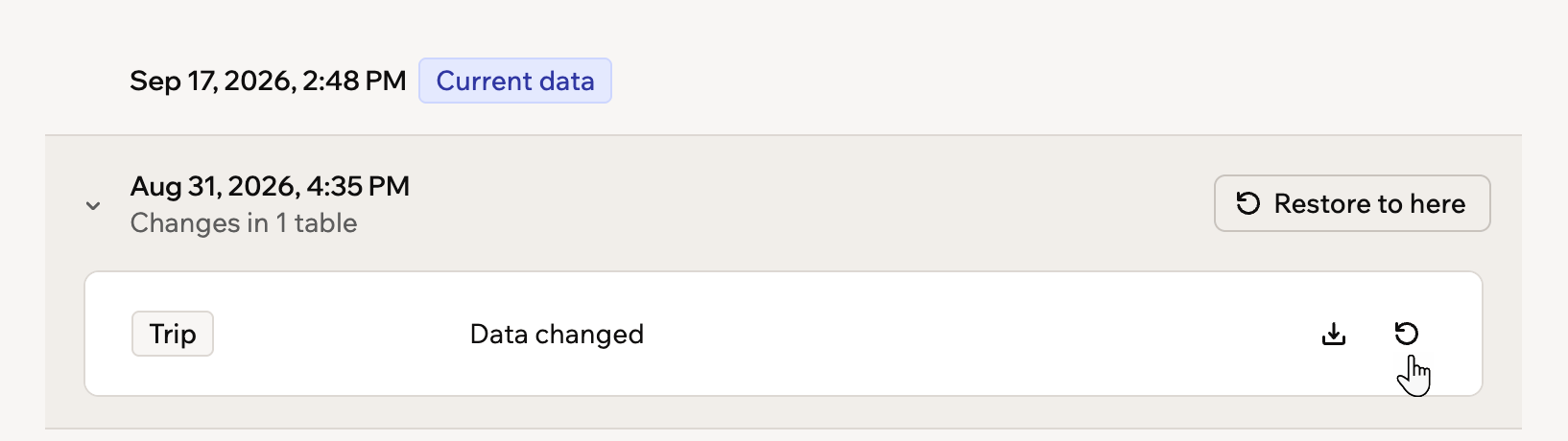
Restoring a single table to an earlier point in time
Restoring every table
Restore everything when a change affected your app as a whole, such as a bad import or a bulk delete that touched several tables. To restore every table:- Click Dashboard in your app editor.
- Click Data, then click the Backup & Restore tab.
- Find the point in time you want, using the date filter if you need it.
- Click Restore to here on that entry.
- Review the confirmation, then click Restore all data.
If your app has a large number of tables, Base44 asks you to restore them one at a time instead. Use the Restore this table icon on each table you need.
Undoing a restore
Base44 saves your current data before a restore starts, so a restore is reversible. The confirmation tells you how long you have to change your mind. To undo a restore:- Click Undo in the message that appears in your app editor when the restore finishes.
- Review the confirmation, then click Undo restore.
If you have closed that message, open the Backup & Restore tab and restore to the point in time just before the restore ran. Records added since the restore are removed when you undo it.
What a restore changes
A restore rewrites the records in the tables you chose so they match the point in time you picked. Nothing else in your app changes.- Record IDs stay the same. Records that were changed or deleted keep the ID they had before, so links from other tables still point to the right record.
- Field values come back exactly as they were at that point, including fields that link to records in other tables.
- Records added after that point go to trash rather than being deleted for good, so you can bring them back from there within 30 days.
- Restoring one table leaves the others alone. If related tables need to match, restore all of them to the same point in time, otherwise a link can end up pointing at a record that no longer exists.
- Restores run on production data only. If you are viewing test data, switch to production first.
If a table’s structure changed after the point you picked, Base44 warns you in the confirmation window. Fields that no longer exist in your table are not restored.
Downloading a backup
Download a table as it was at an earlier point to keep a copy outside Base44, or to check what changed before you decide whether to restore. To download a backup:- Click Dashboard in your app editor.
- Click Data, then click the Backup & Restore tab.
- Find the point in time you want, using the date filter if you need it, then click the entry to expand it.
- Next to the table you want, click the Download CSV icon .
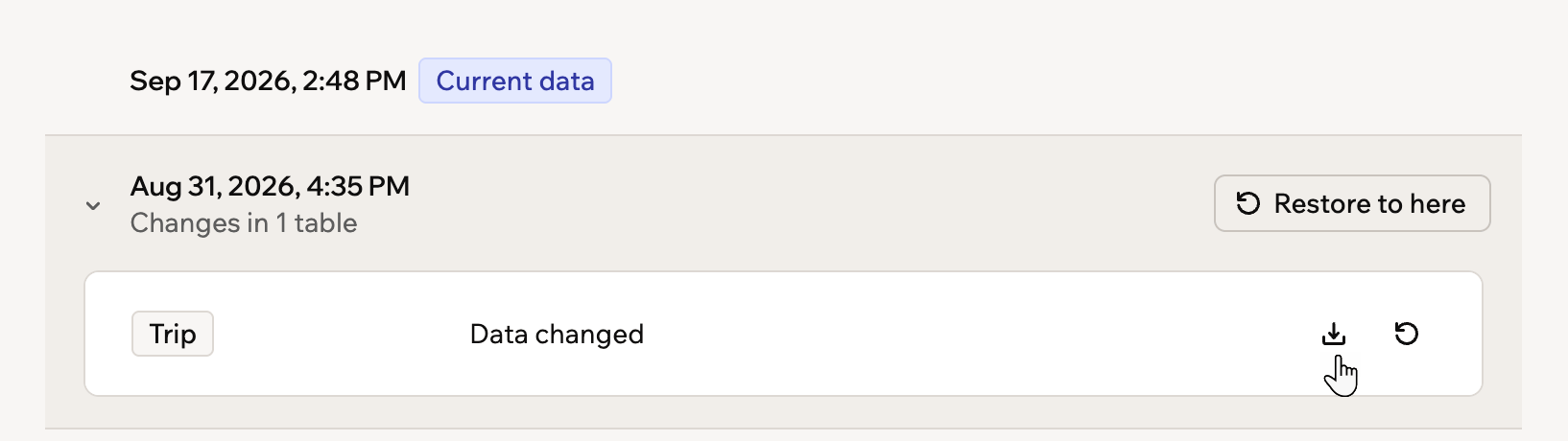
Downloading a table as it was at an earlier point in time
FAQs
A few things people ask about how backups behave.Do backups include my uploaded files and images?
Do backups include my uploaded files and images?
No. Backups cover the records in your tables. When a record points at a file you uploaded, such as an image, the record stores the file’s address rather than the file itself, so restoring puts that address back exactly as it was. The file it points to is stored separately and is not part of the backup.
Does restoring affect the people who use my app?
Does restoring affect the people who use my app?
No. Your app’s users are kept separately from your tables and are left out of backups entirely, so a restore never adds, removes, or changes them. Restoring only rewrites the records in the tables you picked.