

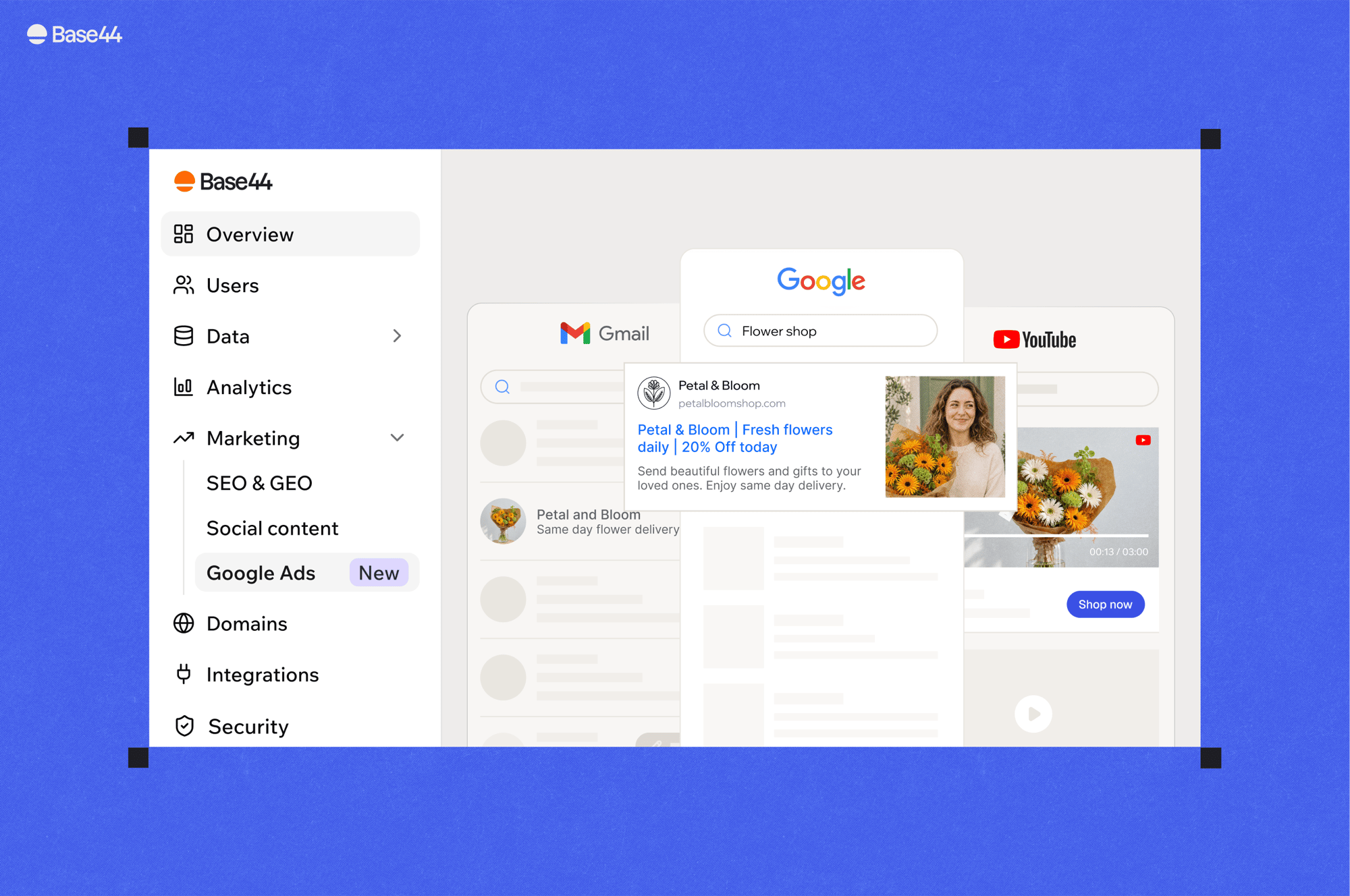
One campaign, running across Google
Open Base44
Open your app’s dashboard to get started.
Before you create a campaign:
- Your app must be published and set to Public to start and run a campaign. If it’s unpublished or blocked, Base44 pauses its campaigns.
- Google Ads campaigns are billed separately from your Base44 subscription.
- Google restricts or prohibits ads for some content and products. Review the Google Ads policies before creating a campaign.
- You need an active payment method to complete setup.
Understanding your campaign
Every campaign you create here is a Google Performance Max campaign. Google chooses where your ads appear across Search, YouTube, Gmail, Display, Discover, and Maps, which assets to combine, and who sees each ad. It also determines what each click costs. What you control:- Your budget, as a daily amount.
- Your assets, meaning the headlines, descriptions, images, and logo Google assembles into ads.
- Keyword themes, which help Google understand which searches are relevant to your ads. Your ads can also appear on related searches you didn’t list.
- Excluded terms, the searches you rule out.
- Locations, so your ads only run where you sell.
- Conversion goals, so Google optimizes for the events that matter to you.
Creating a campaign
Base44 turns your app’s content into a ready-to-launch campaign, so you don’t have to write ads from scratch. You review what it made, set a daily budget, choose where it runs and launch, with a preview of how your ad looks on Search, Gmail, YouTube, Display, and Discover. Before your first campaign, the Google Ads page in your dashboard shows examples of how ads for your app could look. They use your app’s own image, logo, name, and web address, with ad copy written by AI. If your app doesn’t have an image yet, you see sample ads instead.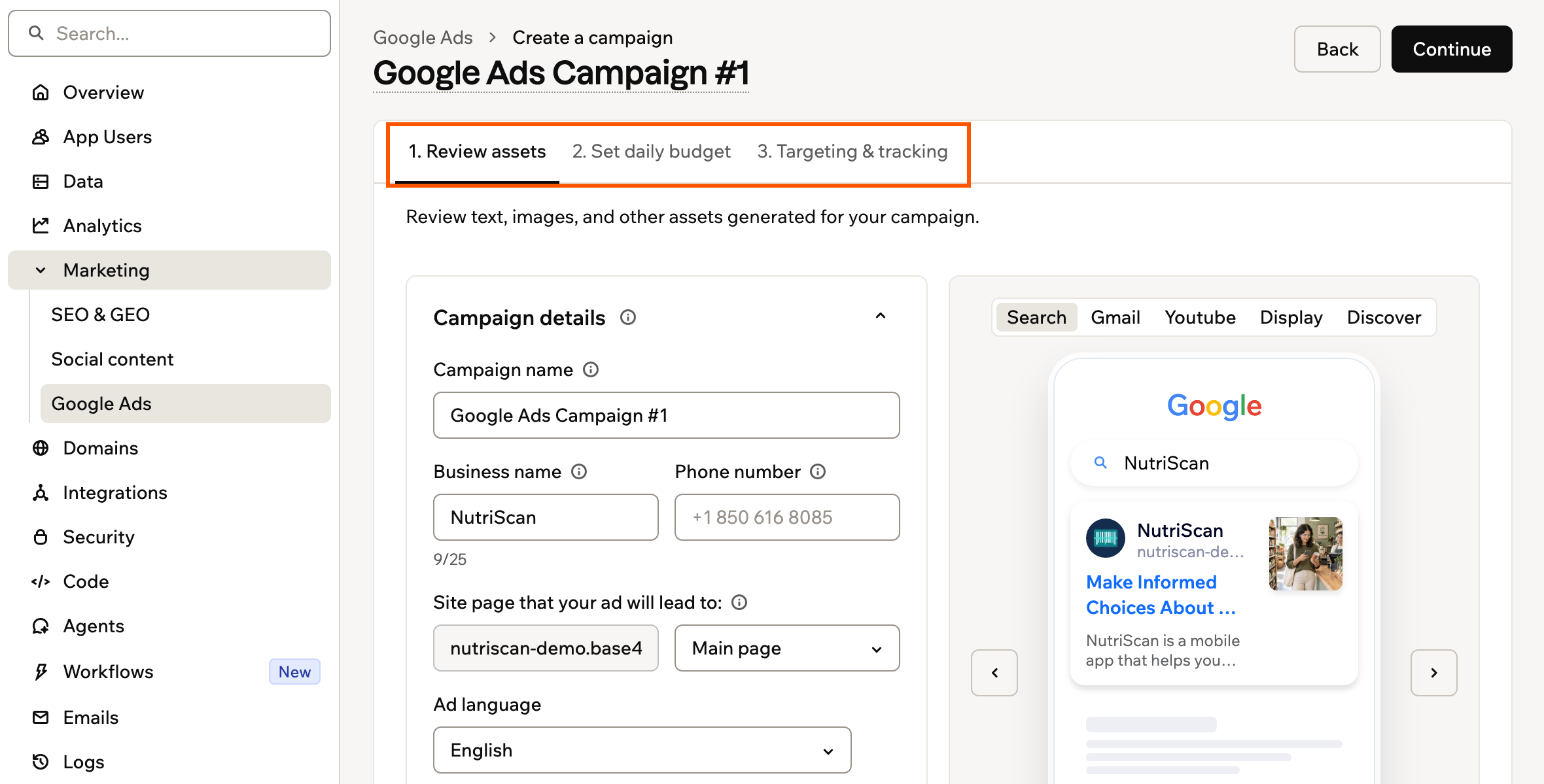
The campaign setup flow
Limits and requirements:
- Active campaigns: 2 to start, rising to 5 as you pay on time. On-time payments also raise your maximum daily budget.
- Total campaigns: Up to 5, active or paused. Archive one to make room.
- Images: Upload a landscape (1.91:1) and a square (1:1) image. Portrait images are optional. Use JPG, PNG, or GIF files up to 5 MB.
- Logo: Your ad needs a square logo, at least 128 × 128 px. Base44 uses your app’s logo if it has one. If not, add one to continue.
- Click Dashboard in your app editor.
- Click Marketing.
- Click Google Ads.
- Click Get started for your first campaign, or New Campaign to add another.
-
Check your campaign details and assets in Review assets:
- Campaign details: Check your campaign name, business name, and phone number. Your business name and phone number can appear in your ads. Ad language sets who sees your ad. Your copy stays in your app’s language.
- Site page that your ad will lead to: Choose the page people land on. Leave it empty to use your main page.
- Site links: Click Add site link to point people to more pages. A site link’s domain is fixed once you create the campaign.
- Short headlines, Long headlines, and Descriptions: Click Add to add a new headline or description, or Regenerate all to replace a whole section.
-
Images and Logo:
- Click Generate more for more image options (images only).
- Click Add and then Regenerate all to replace all images.
- Click the More image actions icon on an image and then Regenerate this image to replace it.
- Click Add and then Upload image or Upload logo to use your own.
- Video (optional): Add up to 5 by clicking Upload a video or pasting a YouTube link and clicking Add. On your first campaign, uploading becomes available later in the flow, so paste a link or add a video after launch.
- Click Continue.
- Choose a preset amount or set your own daily budget in Set daily budget, within the range shown on screen.
- Click Continue. If you haven’t saved a payment method yet, click Validate payment and continue instead.
-
Choose where your ad runs and what people search for in Targeting & tracking (called Targeting if your app already tracks conversions):
-
Under Where your ad runs, choose Specific places or Near an address:
- Specific places: Add or remove locations to match where you sell. With none selected, Google shows your ad worldwide.
- Near an address: Search for the address and choose a radius. Your ads show to people within that distance of the address.
- Under What people search for (keywords), edit the search themes suggested from your app.
- If your app doesn’t already track conversions, click Set up tracking with AI under Track your success, send the prepared message in the AI chat, then publish your app.
-
Under Where your ad runs, choose Specific places or Near an address:
- Click Approve and Launch.
-
If your app tracks results such as sales or sign-ups, Base44 shows the What should your ads bring you? prompt. Choose an option:
- Select a goal, such as Sales, Leads, or Sign-ups, or Count everything, then click Save goal.
- Click Not now to skip this step.
Budget, billing, and credits
Your daily budget sets the pace of your spend. Base44 charges you for the clicks your campaign gets.Understanding your budget
The amount you set is a daily average budget, not a hard daily limit. Google spends more on days when it sees a good opportunity for your app and less on quieter days, so your spend moves up and down from one day to the next. On a busy day, Google can spend up to twice your daily average budget. It balances that out with lower spend on other days.Getting charged
Base44 charges you for estimated ad clicks from your current billing cycle, plus a 15% Base44 service fee. Your billing cycle determines when you pay, not your spending limit. Your ad costs during a billing cycle can exceed your daily average budget multiplied by the number of days in that cycle.- How often: New ad accounts are charged every 3 days, and older accounts once a week. Your budget screen shows how often your account is charged.
- Adjustments: Each month, Google’s final costs may adjust your next payment. VAT may apply based on your billing country.
- Failed payments: These can pause or block your campaign. If your 14-day grace period ends without a successful payment, update your payment method to reactivate Google Ads.
When a payment is overdue
When a payment is overdue, a notice appears on your Google Ads dashboard with a Fix payment link that takes you straight to settling the balance. You keep access to your account while that notice is up:- What you can still see: Your dashboard, your campaign list, and each campaign’s detail and editor all stay open, so you can keep reading performance while you sort the payment out.
- What’s on hold: Everything is read-only until you pay the balance, even if you reach an edit screen another way.
- How far it reaches: The hold applies to the whole workspace. If any Google Ads account in your workspace has an unpaid balance, Google Ads pauses for everyone until you pay every past-due balance.
Tracking your ad credits
When you have ad credits available to spend, your Google Ads dashboard shows your Ad credit balance. Ad credits apply to your Google Ads charges automatically. They’re separate from your Base44 message credits and integration credits. Some campaigns qualify for an offer from Google that adds ad credit once your campaign spends a set amount in its first 60 days. The offer is for new advertisers only, and Base44 shows the reward and the spend it requires before you launch. Google’s terms apply. Your dashboard also shows a notice when ad credits are added, nearing expiration, expired, or fully spent. Once they’re spent, Base44 bills your next charge in full.Monitoring campaign performance
Your Google Ads dashboard shows how all your campaigns are doing together, so you can see which ones are working and what to change next. Pick a date range and everything on the page follows it.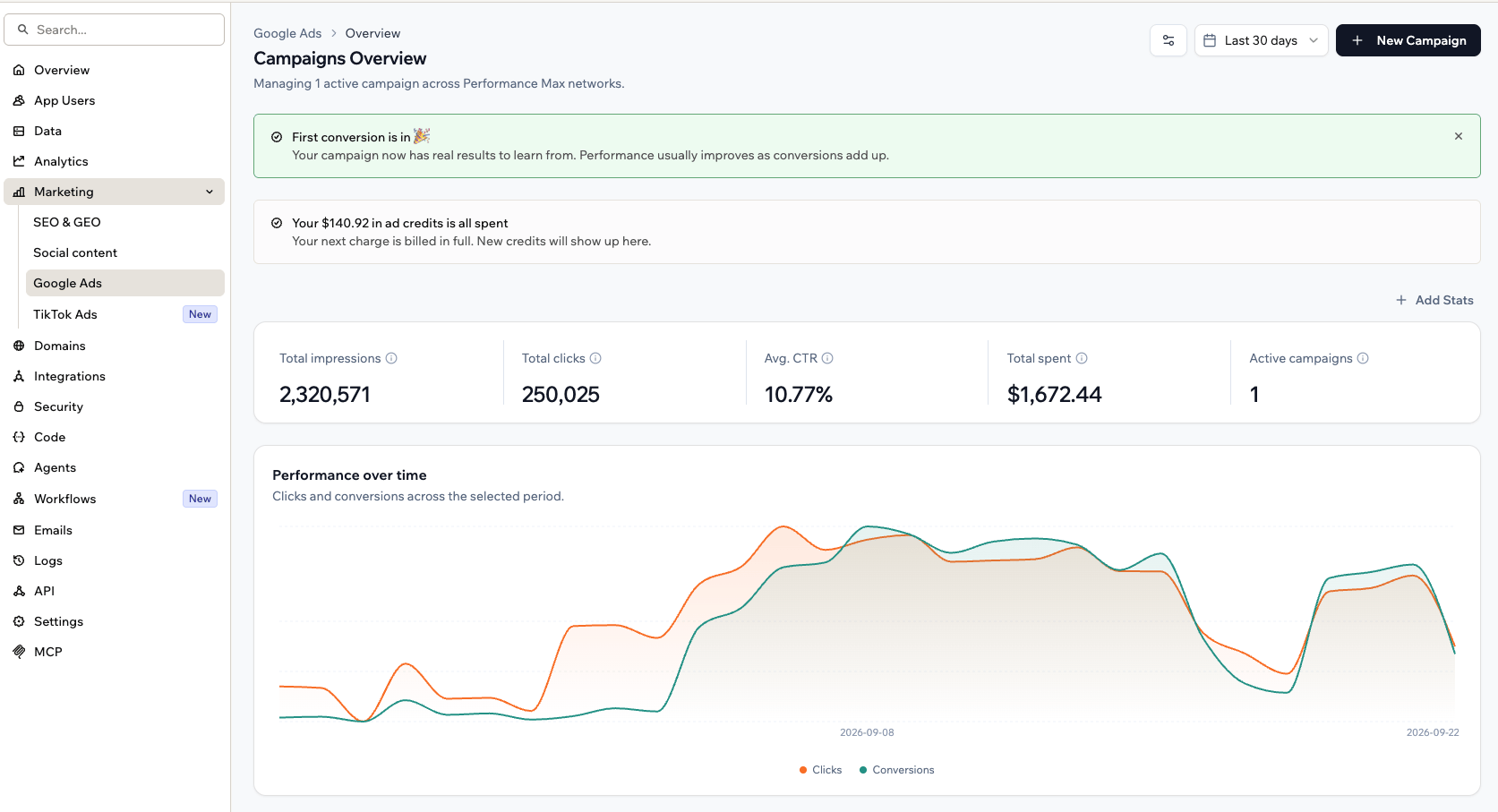
Your Google Ads dashboard
When a campaign needs action, its status changes to Needs attention. Open the campaign to review the issue and follow the steps shown.
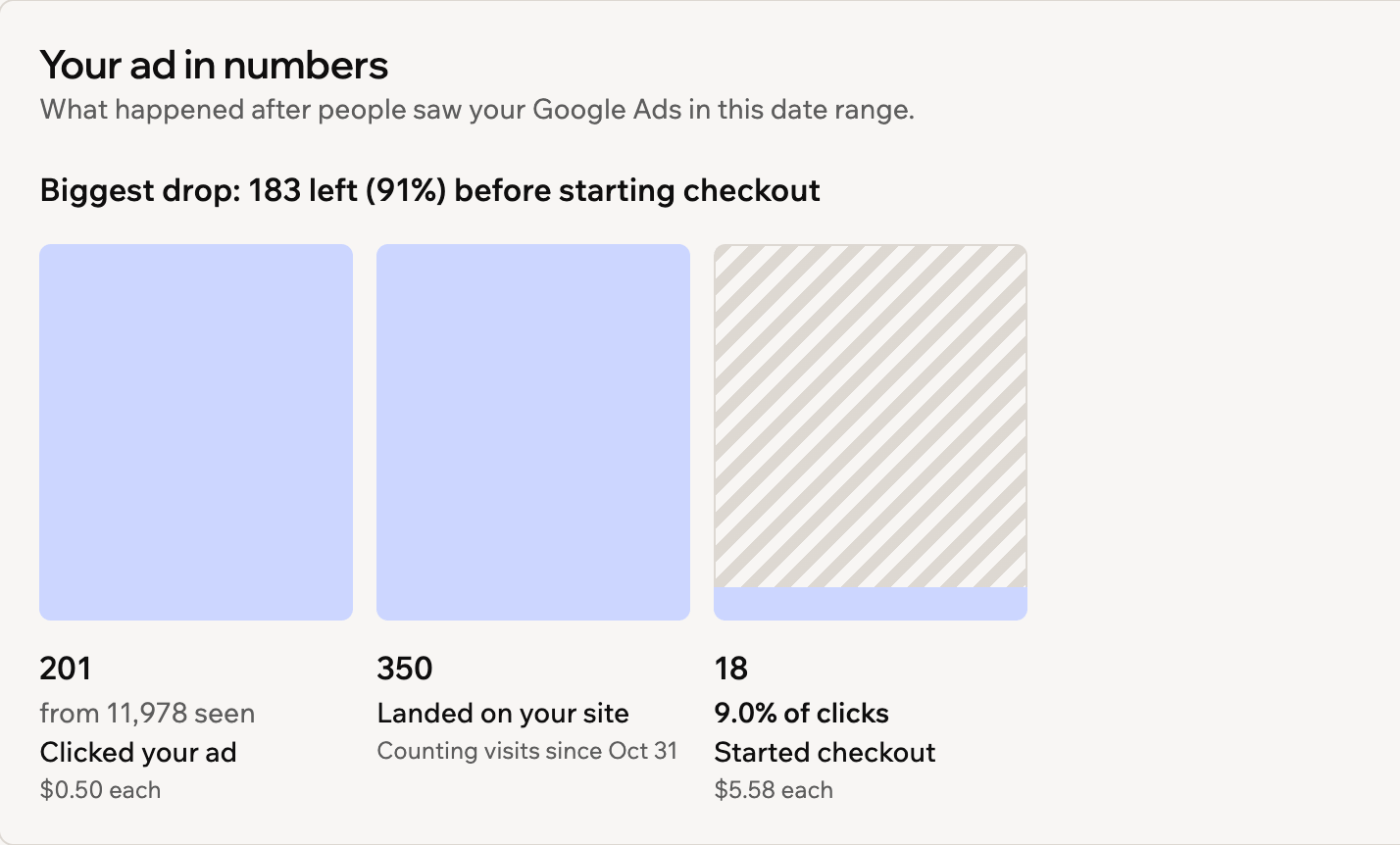
Seeing what happened after people saw your ad
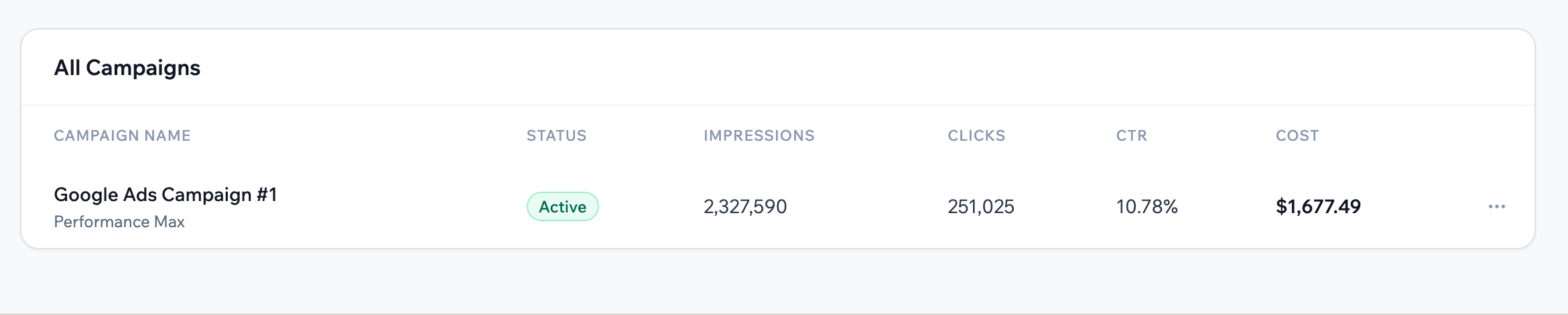
Comparing your campaigns
Choosing your stats
You can choose which numbers appear at the top of your dashboard, so the ones you care most about are the first thing you see. To change the stats you see:- Click Dashboard in your app editor.
- Click Marketing.
- Click Google Ads.
- Click Add Stats.
- Under Customize your key stats, select the stats you want:
- Total impressions: How many times your ads appeared.
- Total clicks: How many times people clicked your ads.
- Avg. CTR: The share of people who saw your ads and clicked them.
- Conversions: The final results your ads bring in, such as purchases, sign-ups, and leads.
- Total spent: The total you’ve spent across your campaigns.
- Active campaigns: How many of your campaigns are running and showing ads.
- Each conversion action your app tracks, such as sign-ups, as its own stat.
- Click Save.
How conversions are counted:
- Only final results count. Steps along the way, like adding to cart or starting checkout, don’t.
- Clicks on a phone number inside your app don’t count, but calls people make from your ads do.
- Every final result your ads bring in counts, not only the one you chose as your campaign’s goal. Your goal tells Google which results to aim for.
- Your dashboard, your campaign pages, cost per conversion, return on ad spend, and the AI chat’s results all use this same count.
Acting on AI suggestions
AI suggestions point out changes likely to improve your results, such as raising a budget that’s holding back delivery, and can often make the change for you. To act on a suggestion:- Click Dashboard in your app editor.
- Click Marketing.
- Click Google Ads.
- Choose an option for the suggestion under AI Insights & Suggestions:
- Fix Now: Make the change.
- Fix with AI: Hand the work to the AI chat. Some suggestions offer this.
- Dismiss suggestion: Clear the suggestion.

Suggestions to improve your campaigns
Improving your landing page
The page your ad leads to plays a big part in whether a click turns into a sale or a sign-up. When you launch the first campaign that leads to a page, AI reviews that page for marketing, usability, and content, and suggests changes that could help more visitors take action. For example, it might point out a headline that doesn’t say what you offer, a vague button label, or placeholder text left on the page. The suggestions appear under AI Insights & Suggestions on your Google Ads dashboard, labeled Site optimization. If you’re the workspace owner, you can also get an email with the top 3 suggestions. Each page is reviewed only once. You can’t run the review again yourself. To fix your landing page with AI:- Click Dashboard in your app editor.
- Click Marketing.
- Click Google Ads.
-
Click Fix with AI next to a suggestion labeled Site optimization.
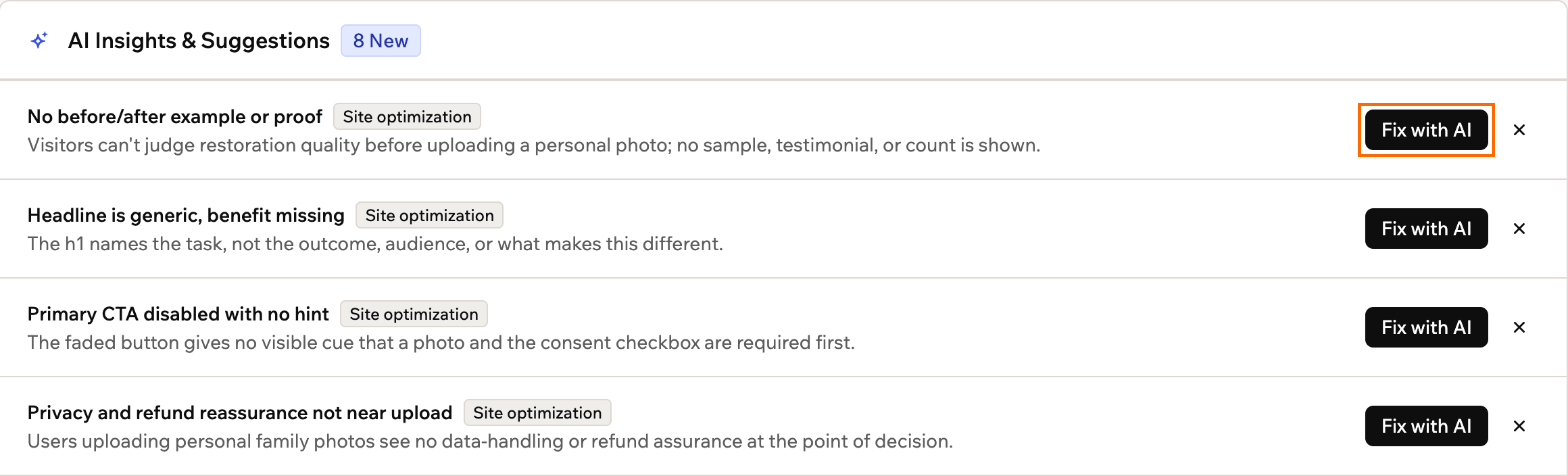
Fixing your landing page with AI
- Review the prepared message in the AI chat and send it.
- Publish your app so people who click your ad see the changes.
Sending the message uses credits like any other message in the AI chat.
Reviewing a campaign
Open a campaign from your Google Ads dashboard to see how it’s performing and what’s driving the results. The performance cards below cover the date range you selected. The Your ad card previews your ad with its targeting and landing page. Google avoids showing ads to their owners, so you may not see your ad when you search for it. After launch, your campaign moves through 3 stages, shown under Campaign setup:- Campaign review: Google checks your ad against its advertising policies. This usually takes 1 to 2 days.
- Campaign optimization: Google learns from your early traffic and tunes delivery. This is the learning period.
- Ongoing AI optimizations: From then on, Google keeps tuning your budget, bids, and creative against real conversions, with nothing needed from you.
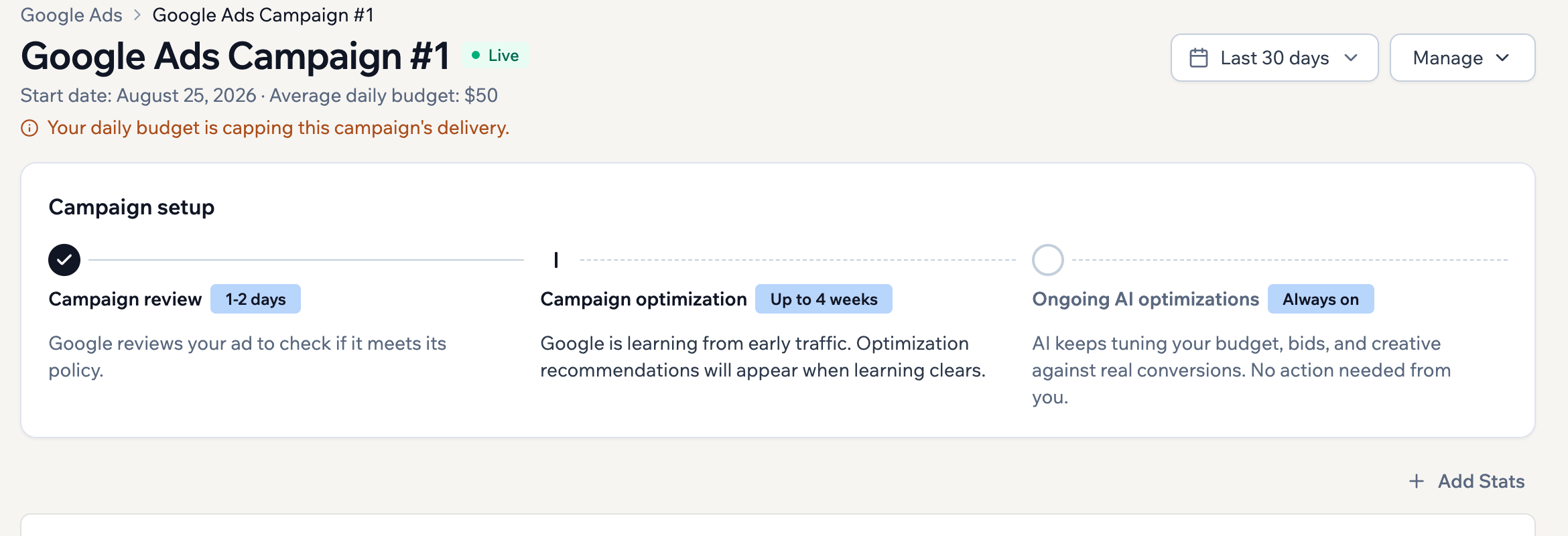
A campaign's 3 stages after launch
Reading campaign impact
The Campaign impact card estimates what a campaign did for your business goals. It splits your conversions into Sales and Leads, and breaks each one down by the individual actions people took. Under Cost per action, every conversion action your campaign recorded gets its own row. If your campaign tracks both sign-ups and quote requests, you see a separate line for each, rather than one figure covering both.Every cost figure on this card divides your campaign’s total spend for the date range by that action’s conversions. Google can’t attribute spend to a single conversion action, so these figures don’t add up to what you spent. Compare them against each other, and read them as a guide rather than as separate costs.
- The tabs you get: Only the goal families your app tracks appear, so a campaign that only generates leads has no Sales tab. When both Sales and Leads tabs appear, select one to see its breakdown.
- A single blended figure: When a family has no individual actions to break out, you get one Cost per sale or Cost per lead covering the whole family instead of the per-action rows.
- Shopping steps: On some older accounts, adding to cart and starting checkout show in a separate Shopping steps section on the Sales tab, each with its own cost per step. They aren’t counted as sales or conversions.
- Conversion value and return on ad spend: These appear only once you track conversion values.
- Conversions Google couldn’t categorize: If your campaign recorded conversions that are neither sales nor leads, the card says so and gives you the total rather than a breakdown.
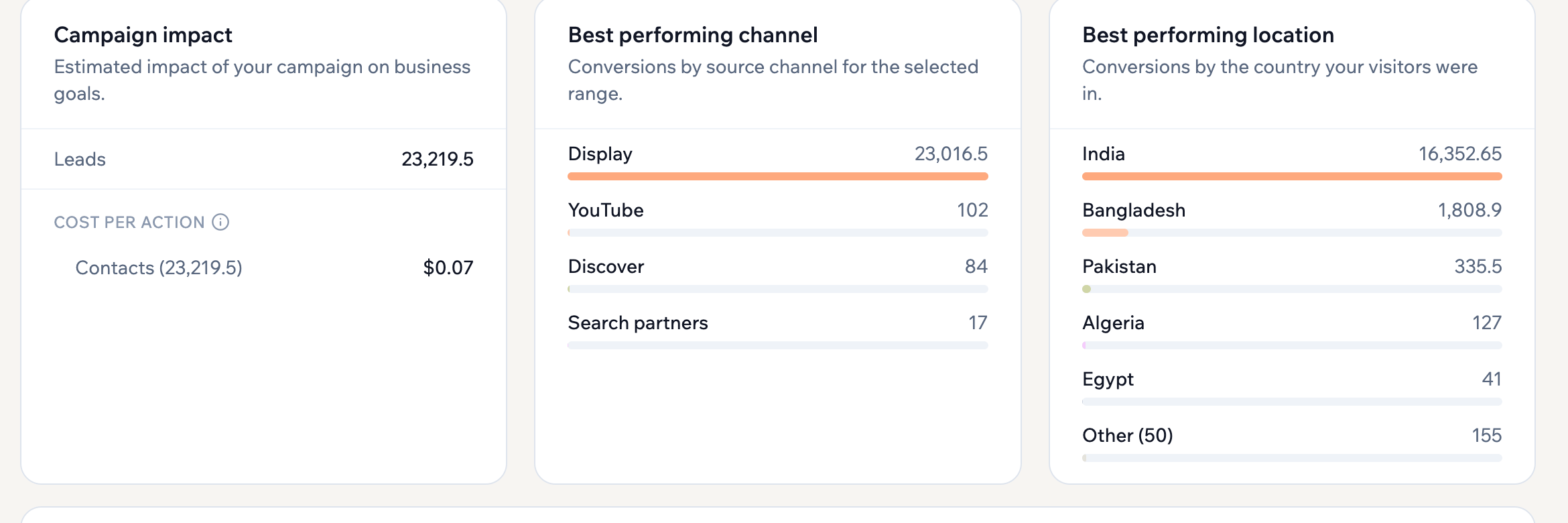
Campaign impact and conversion sources
Reviewing search terms
See the real searches that showed your ads and rule out the ones that don’t fit, so your budget goes to people looking for what you offer. Under Search categories, Google groups related searches and shows their estimated search volume, impressions, clicks, and conversions. Categories appear once your campaign has enough traffic.The Search terms card appears once Google finishes reviewing your campaign.
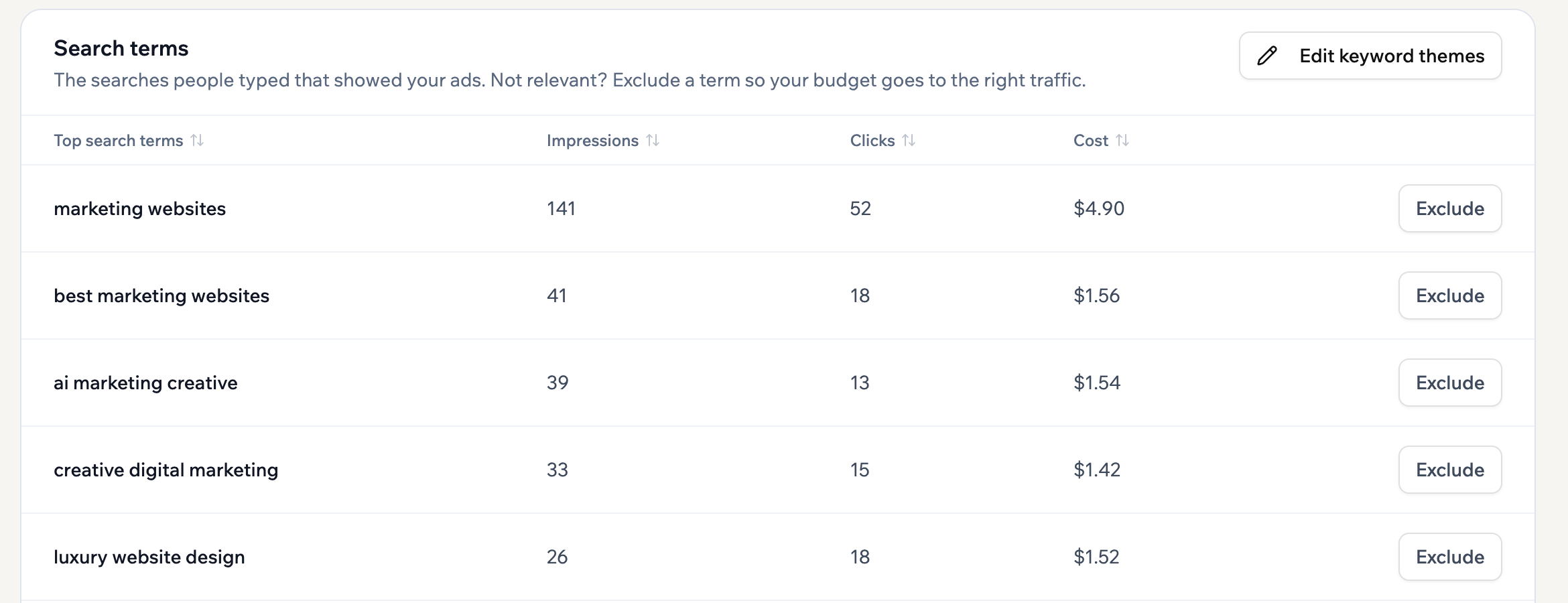
Excluding searches from Search terms
- Click Dashboard in your app editor.
- Click Marketing.
- Click Google Ads.
- Select the campaign you want to update.
- Under Search terms, find the search you want to exclude.
- Click Exclude next to it.
Editing keywords
Keyword themes guide Google toward relevant searches. Excluded terms block searches you don’t want. To edit your keyword themes and excluded terms:- Click Dashboard in your app editor.
- Click Marketing.
- Click Google Ads.
- Select the campaign you want to update.
- Under Search terms, click Edit keyword themes.
- Select a tab:
- Keyword themes: Adjust the searches your ads target. Base44 suggests themes from 3 places: Google keyword ideas, Keyword ideas for your campaign drawn from your app’s content, and Search terms from this campaign. There’s a limit on how many themes you can add, and the dialog shows when you reach it.
- Excluded terms: Add terms that stop your ads showing. An excluded term only blocks that exact search, so add each wording you want to rule out. A term you exclude from the Search terms table appears here too.
- Click Save.
Checking asset status
See which headlines, images and videos Google rates highly and which aren’t running, so you can replace the weak ones. Every asset carries 2 labels:- Performance: How the asset compares with others of its type, as Excellent, Good, or Low. It reads Learning while Google is still testing it, and ratings appear once your campaign has run for about 4 weeks.
- Status: Whether the asset can appear. Eligible assets can run. Hover over any other status to see why.
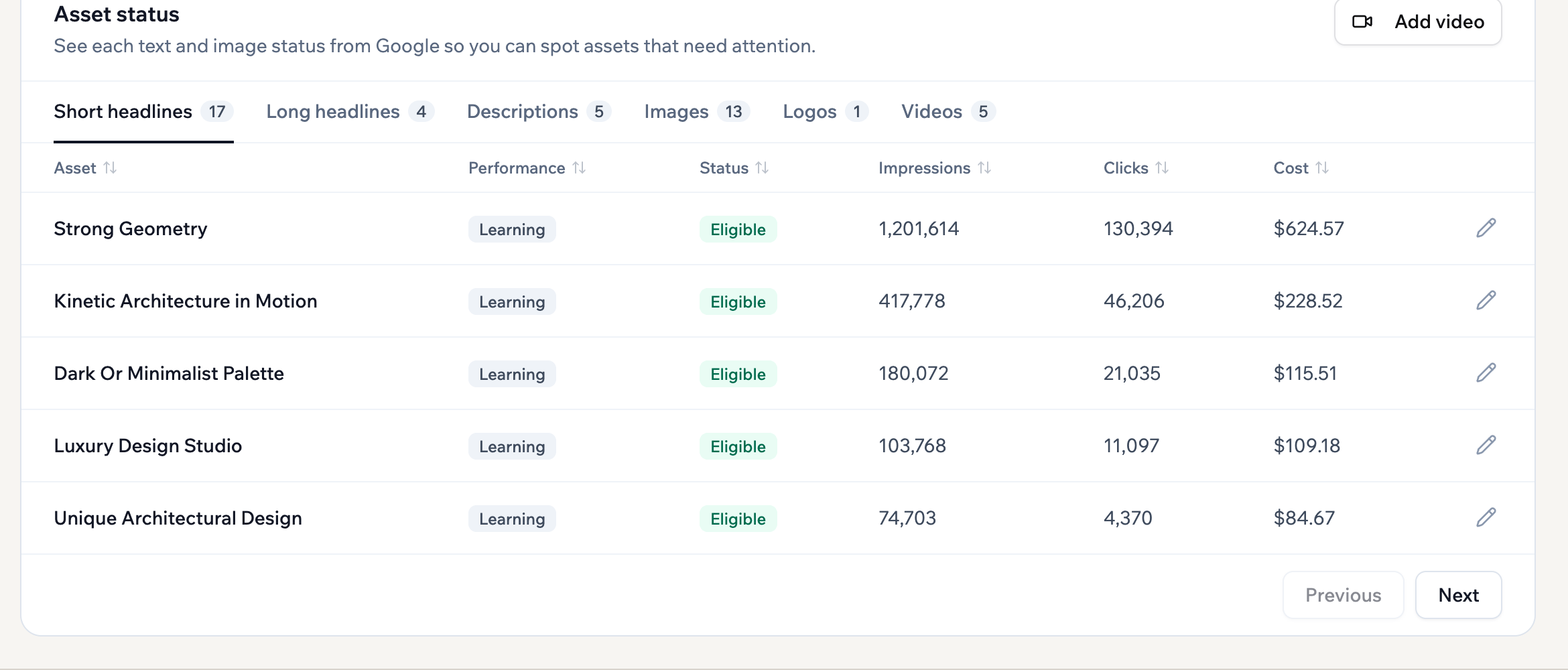
Each asset's rating and status
- Click Dashboard in your app editor.
- Click Marketing.
- Click Google Ads.
- Select the campaign you want to update.
- Under Asset status, select the tab for the asset type you want.
- Next to the asset, click Edit asset for text, Upload image asset or Upload logo asset for a picture, or Change video for a video. When editing text, you can click Generate with AI for a new version.
- Click Save.
- Click Dashboard in your app editor.
- Click Marketing.
- Click Google Ads.
- Select the campaign you want to update.
- Under Asset status, click Fix with AI under the flagged asset’s status.
- Review the new version, then click Save.
Managing your campaign
Change a running campaign as your plans change, adjust its budget, or pause it for a while. To manage your campaign:- Click Dashboard in your app editor.
- Click Marketing.
- Click Google Ads.
- Select the campaign you want to manage.
- Open the Manage menu and then choose what you want to do:
- Click Edit campaign to update your campaign details.
- Click Manage budget to change your daily budget.
- Click Manage conversion goals to choose which of your events this campaign focuses on. Changing this restarts the learning period.
- Click Pause temporarily to pause an active campaign. Before you pause shows your campaign’s numbers first. Click Keep it running if you change your mind.
- Click Resume campaign to resume a paused campaign.
- Click Archive campaign to archive a campaign you no longer need. Archiving stops it for good.
If you pause a campaign during a billing cycle, Base44 still charges you for any campaign activity before the pause.
Updating your campaign videos
Add your own video to show your app on YouTube and other video placements. If you don’t add one, your campaign uses your free video ad on a paid plan, or Google builds a video from your images and text. You can add videos when you create a campaign or any time after it launches.About campaign videos:
- A video you upload goes to YouTube as unlisted, on a channel Google manages for your ads account, so it doesn’t appear on your own channel or in YouTube search.
- Videos must be at least 10 seconds long, and an uploaded file can be up to 64 MB.
- A new upload can take a moment to process on YouTube. If you see that it’s still processing, click Check again. Your video won’t be uploaded twice.
- If you launch before your free video ad is ready, Base44 adds it to that campaign when it’s done. You don’t need to do anything.
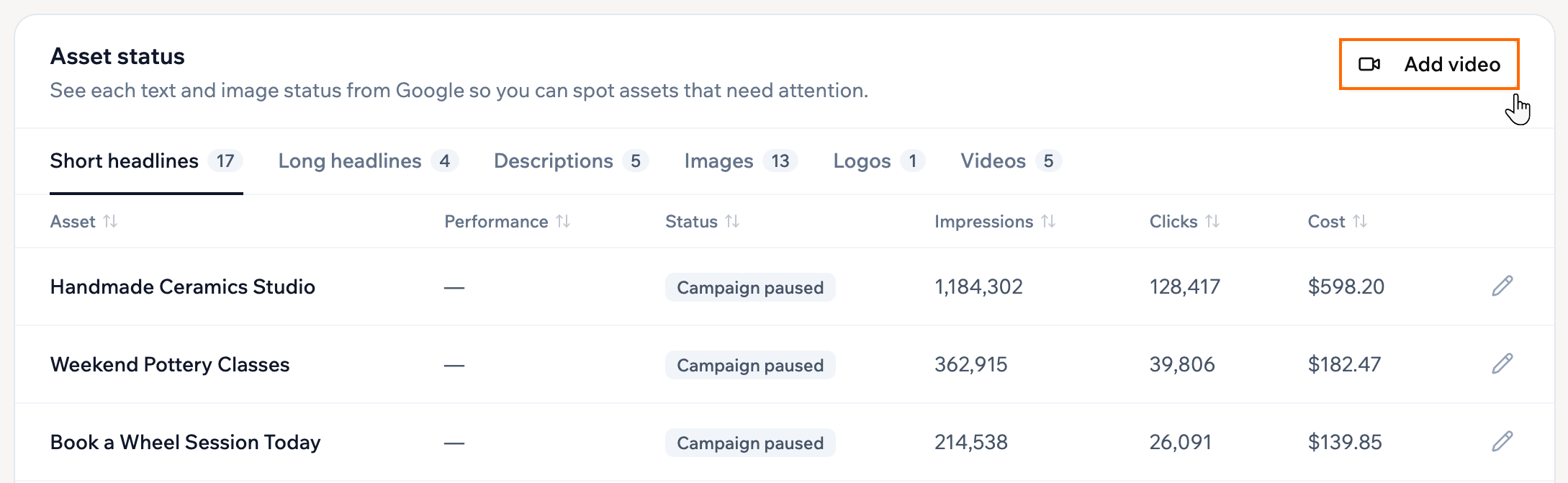
Adding a video from Asset status
- Click Dashboard in your app editor.
- Click Marketing.
- Click Google Ads.
- Select the campaign you want to update.
- Under Asset status, click Add video.
- Click Upload a video and choose a file, or paste a link in YouTube video link.
- Click Save.
Setting up conversion events
Conversion events tell Google Ads which actions count as a win, such as a sign-up, a form submission, or a purchase, so it can spend your budget on the people most likely to take them. You then choose conversion goals to decide which of those events each campaign optimizes for. By default, that’s all of them. You usually set up conversion events when you create a campaign. Use these steps if a running campaign’s setup card asks you to add events, or says the tag in your app doesn’t match the campaign. To set up conversion events on a running campaign:- Click Dashboard in your app editor.
- Click Marketing.
- Click Google Ads.
- Select the campaign you want to update.
- Click Add to chat in the conversion events setup card.
- Send the prepared message in the AI chat to add the required events to your app.
- Publish your app so the events take effect.
Managing your account
Some settings cover every campaign in your app rather than one of them:- Payment method: Update the card Base44 charges for your Google Ads spend and fees.
- Activity: Review what happened on the account, including campaign, billing, and account changes, over the date range you choose.
- Pause all campaigns: Temporarily stop every active campaign. You can resume them at any time, and your account stays connected.
- Cancel all: End the Google Ads account budget and deactivate this app’s ads account.
- Click Dashboard in your app editor.
- Click Marketing.
- Click Google Ads.
- Next to the date range, click the Google Ads settings icon.
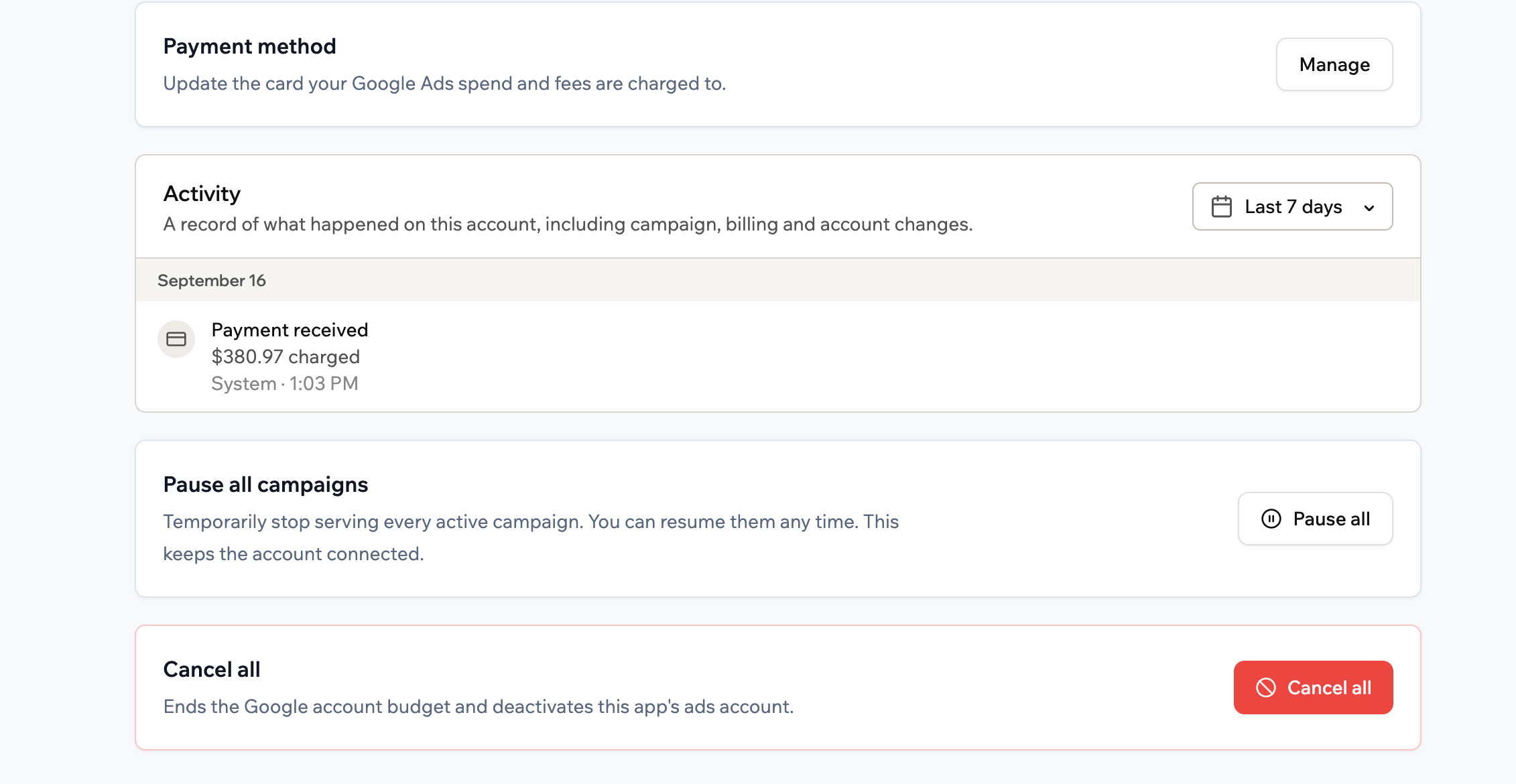
Settings for all your campaigns
FAQs
Do I need a Google Ads account?
Do I need a Google Ads account?
Base44 creates a Google Ads account for your app when you launch your first campaign, so you don’t need one of your own. You can’t connect one you already have.
Does generating campaign assets use credits?
Does generating campaign assets use credits?
You can generate assets for a Google Ads campaign without using message credits or integration credits.
Can I import a campaign from another app?
Can I import a campaign from another app?
Create a new campaign in your app. Base44 doesn’t support importing campaigns from another Base44 app or Google Ads account.
Why was my campaign paused?
Why was my campaign paused?
Check these possible reasons for the pause:
- You paused it yourself.
- A payment failed and the 14-day grace period ended. Update your payment method to reactivate Google Ads.
- Google flagged an ad asset or your landing page for a policy review or disapproval. Your campaign status shows Needs attention in this case, so open the campaign to see what was flagged.
- Your app is unpublished or blocked. Base44 pauses its campaigns until you resume them. Once your app is published and unblocked, click Resume campaign for each campaign you want to resume. Your Google Ads activity records the pause.
What happens when I reach my active campaign limit?
What happens when I reach my active campaign limit?
Base44 asks you to pause one of your active campaigns first. When you start or resume a campaign at your active limit, Base44 lists your active campaigns with each one’s spend, clicks and conversions. Click Pause next to the campaign you want to pause, and Base44 continues with your new or resumed campaign. You can resume the paused campaign later.