

When you begin, you are asked to sign up so your work is saved and you can return to your project anytime.
Using a prompt
Writing what you want in plain language is the simplest way to start. Share as much detail as you like, and refine the design, copy, and structure later. Describe your idea in your own words. For example, “a simple to-do list,” “a client portal where users can log in,” or “a clean one-page site for my photography business with a gallery and a contact form.” This first prompt gets things started, and you can add features or make changes at any time.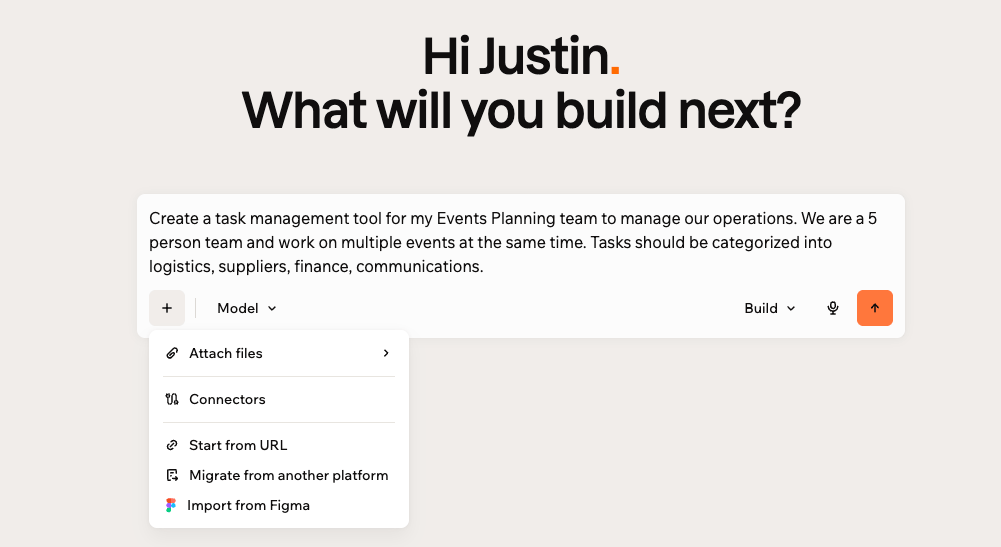
Typing your prompt in Base44 to start building
Using plan mode
Use plan mode when you want help shaping your app or website before you start building. It turns a short conversation into a structured plan you can adjust before Base44 builds anything. Plan mode helps you:- Get a higher-quality first build by aligning it with your intent
- Reduce back-and-forth later by adding key details up front
- Think through your idea without needing to know what to specify in advance
- Capture more complete requirements, including flows, roles, and constraints
- Move faster from idea to execution while staying in a focused flow
- Intent and goal: What the app is for.
- Audience and roles: Who uses it, and who can do what.
- Core flows: The things people actually do in it.
- Design: Visual direction. This one comes last, and you can skip it without holding up the plan.
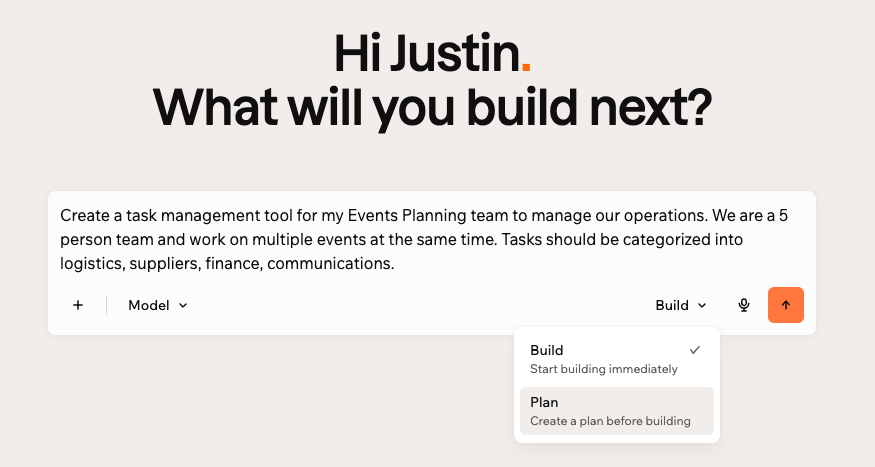
Using plan mode from the first prompt
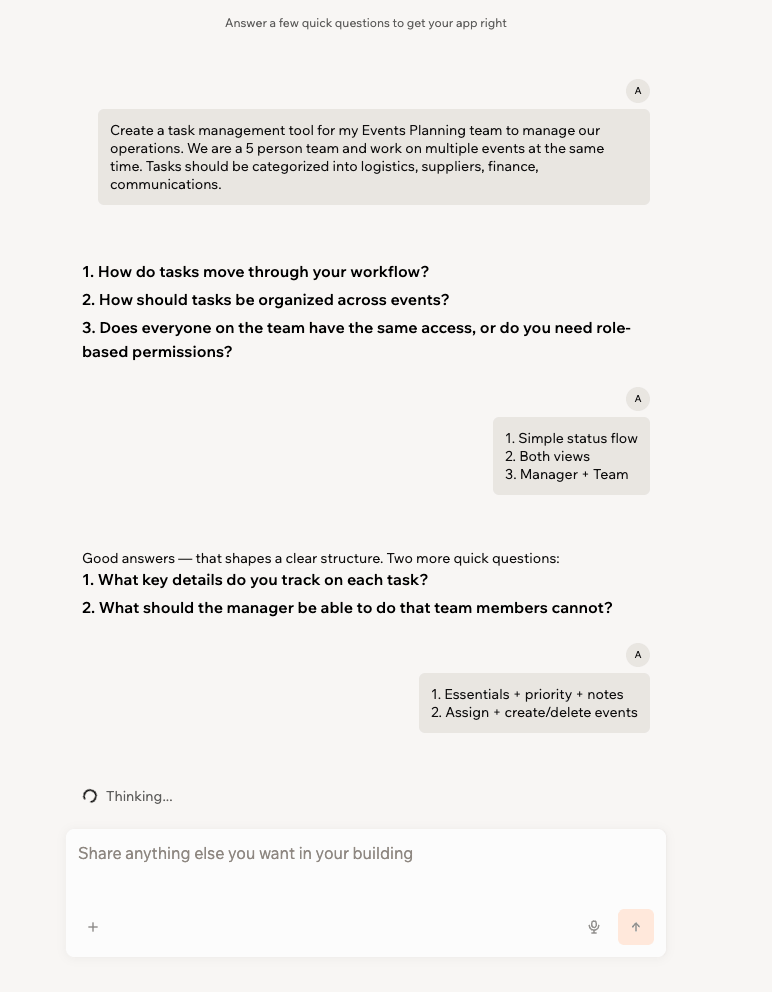
Answering questions in plan mode to shape your plan
- Go to Base44.
- Enter your first prompt, then click the dropdown arrow next to Build in the prompt box and choose Plan.
- Answer the questions and add more details as needed.
- Click Start Building on the plan when you are ready.
Starting from an existing URL
Use Start from URL to begin from a website you already own. Base44 recreates the visible front end, including the page structure, key content sections, visual hierarchy, and familiar UI patterns such as hero sections, cards, and lists. This gives you a recognizable starting point in the app editor to refine with AI instead of rebuilding from scratch. You can choose how Base44 uses the site:- Content & Design: Recreates the site’s content and layout to build a similar site.
- Design only: Uses the site’s visual style to create a new site with the same look and feel.
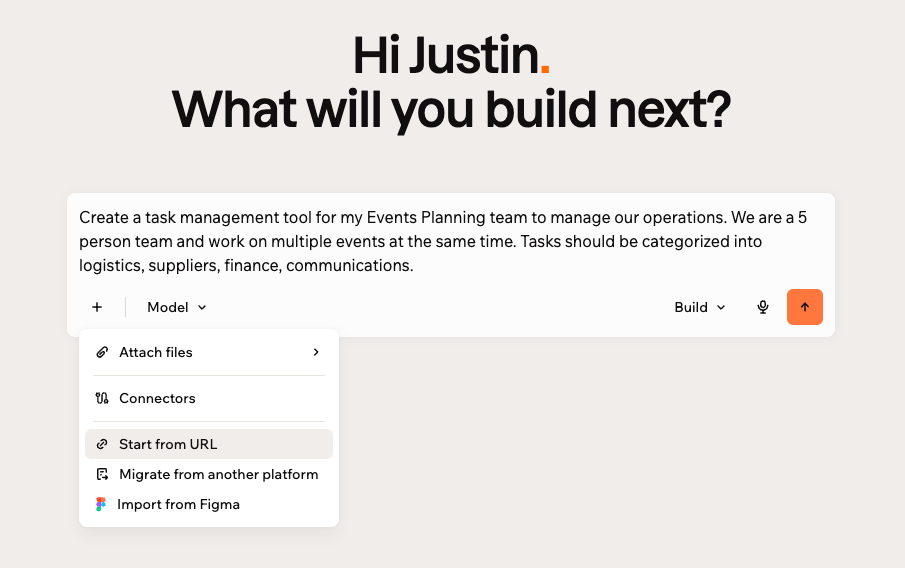
Starting from an existing URL
- Recreate sites you own without redesigning from scratch
- Preserve your brand, layout, and visual hierarchy
- Start migrations with a solid page structure instead of guesswork
- Create high-fidelity prototypes that look and feel real
- Go to Base44.
- Click the + icon in the prompt box.
- Click Start from URL.
- Paste the URL of the website you want to use. Make sure you have the rights to use its content.
- Select Content & Design or Design only, depending on what you want to reuse.
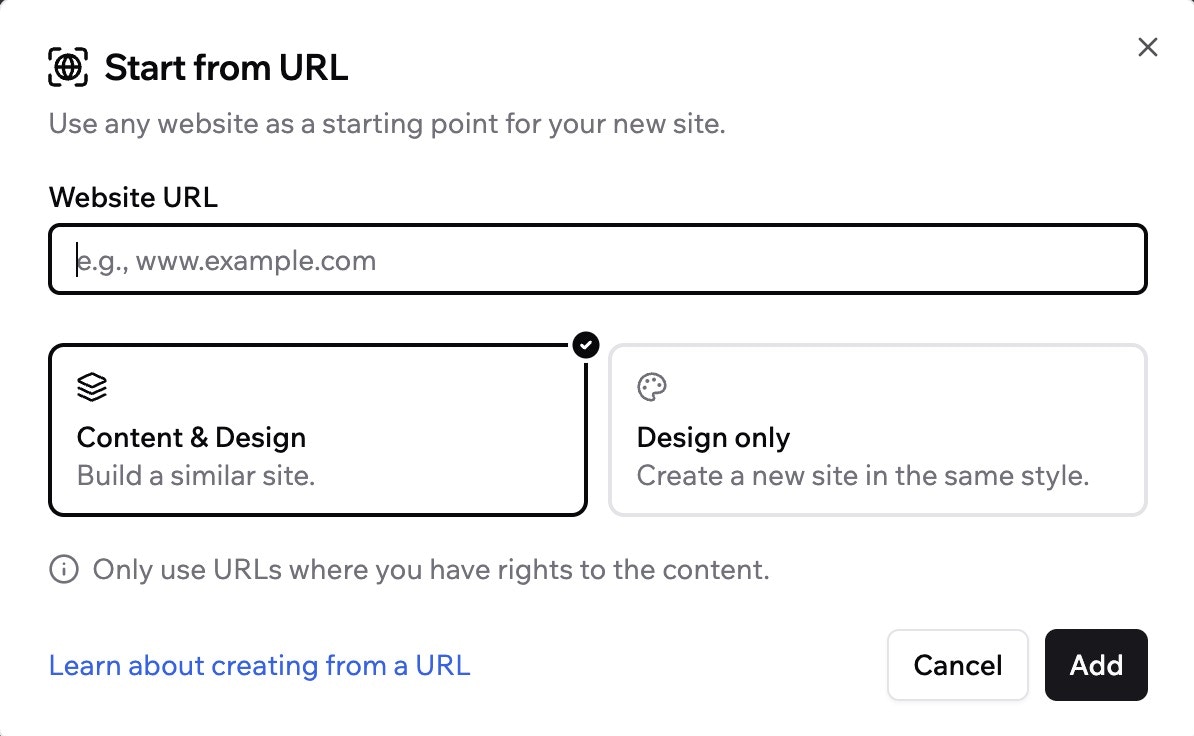
Choosing content and design, or just the design, from a URL
- Click Add.
Starting from a Figma design
Use Import from Figma to turn an existing Figma design into a working app or website. Base44 recreates the layout, structure, and visual style from your frame, so you continue from a familiar starting point instead of rebuilding from scratch.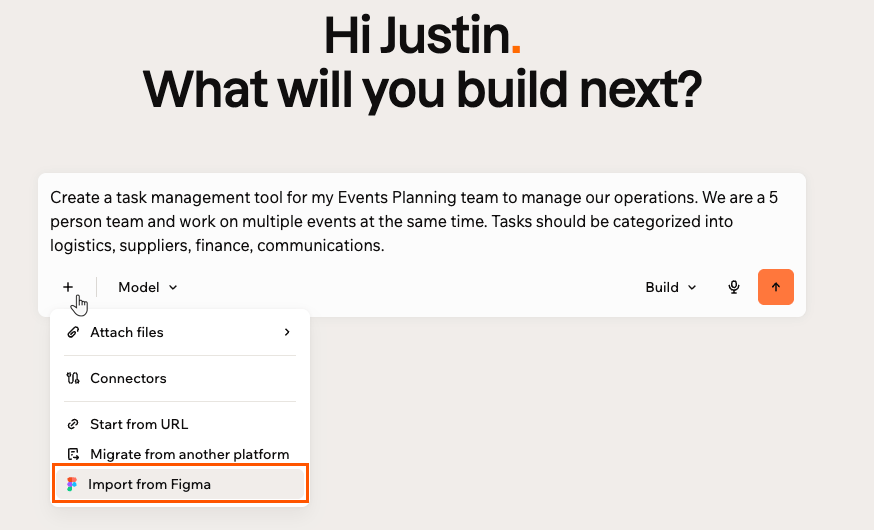
Importing a design from Figma in your first prompt
Attaching files
Attach files to your first prompt so Base44 can build from your own content, data, or reference material instead of starting from a blank page. You can attach images, PDFs, documents, and spreadsheets, among other file types. Base44 uses what you attach as context for your build:- Images and PDFs become visual reference, so Base44 can match a design, a screenshot, or a document.
- Spreadsheets and CSV files are read for their columns and sample data, so Base44 can build around your data.
- Word documents, text, and Markdown files are read to inform your content and structure.
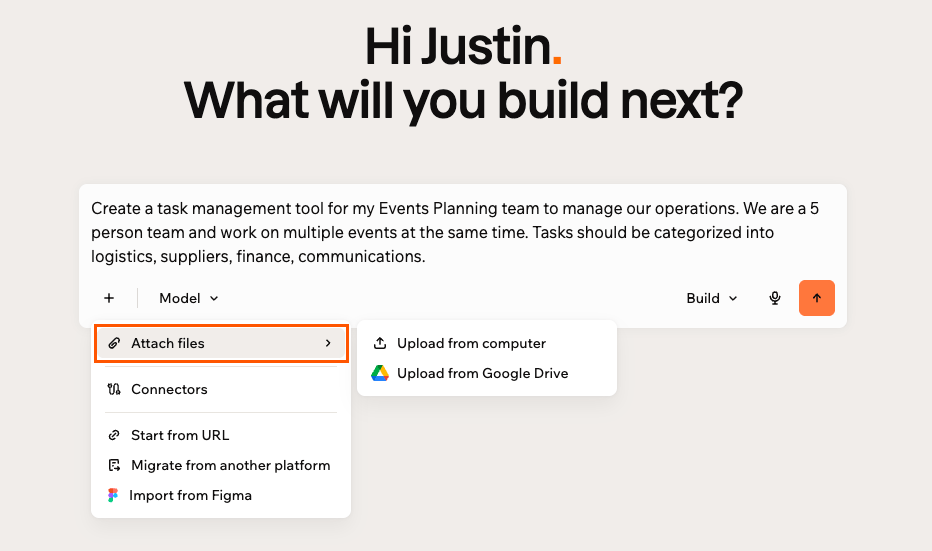
Attaching files to your first prompt
Connecting your tools
You can connect your app or website to tools you already use, like Google Workspace, Slack, and GitHub, so Base44 builds with your data and services in mind from your very first prompt. For example, connect Google Calendar so your app can read and create events, or Slack so it can post updates to your team. Click the + menu in the prompt box, choose Connectors, select the tools you want, then send your prompt. Learn more in Connectors overview.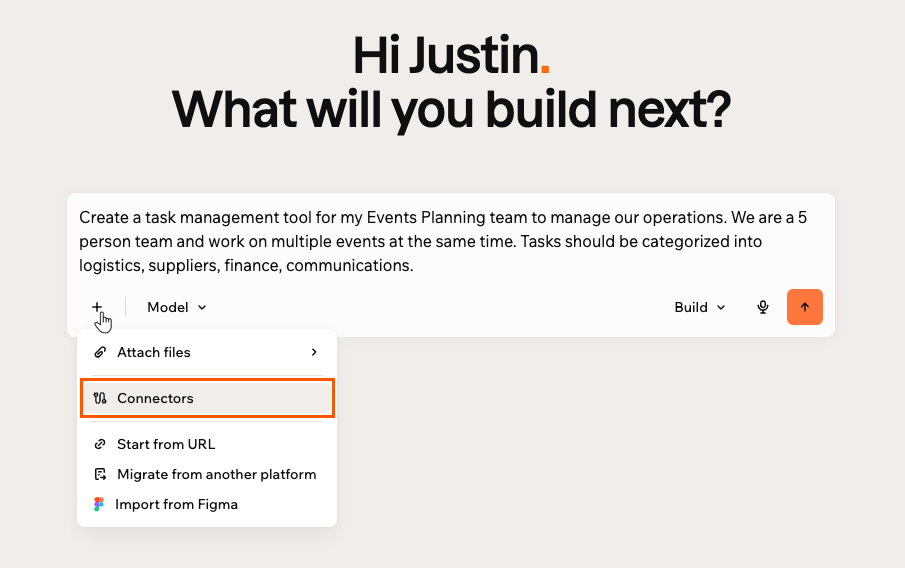
Adding connectors to your first prompt
FAQs
Click a question below to learn more.Can I refine my app or website after the first prompt?
Can I refine my app or website after the first prompt?
Yes. Your first prompt is only the starting point. Once you are inside the app editor, you can keep building and change everything using the AI chat or manual edits. Learn how to work with the AI chat.
Can I choose which AI model builds my app or website?
Can I choose which AI model builds my app or website?
Yes, on a Builder plan or higher. Click the Tools icon in the prompt box to choose which AI model powers your build. Learn more about the AI chat and its controls.