

Superagent connected to tools and channels
Managing general settings
Manage your Superagent’s core settings, including its AI models, workspace app access, voice, and owner actions. To manage general settings:- Open your Superagent.
- Click Agent Settings in the sidebar.
- Click General.
- Update the relevant settings:
- Chat: Choose the model your Superagent uses for conversations and tools in chat, or keep it on Automatic to match the best model for each request.
- Automations: Choose the model your Superagent uses for scheduled and background tasks.
- Cross-app data access: Choose which workspace apps your Superagent can access. Interactive actions run as the chatting user under their own permissions, and background watches run as you, the owner. See Working on your apps from chat.
- Voice: Choose the voice your Superagent uses in voice mode during conversations.
- Clone agent: Create a copy of your Superagent.
- Move to workspace: Move your Superagent to another workspace.
- Delete this agent: Move your Superagent to Recently deleted.
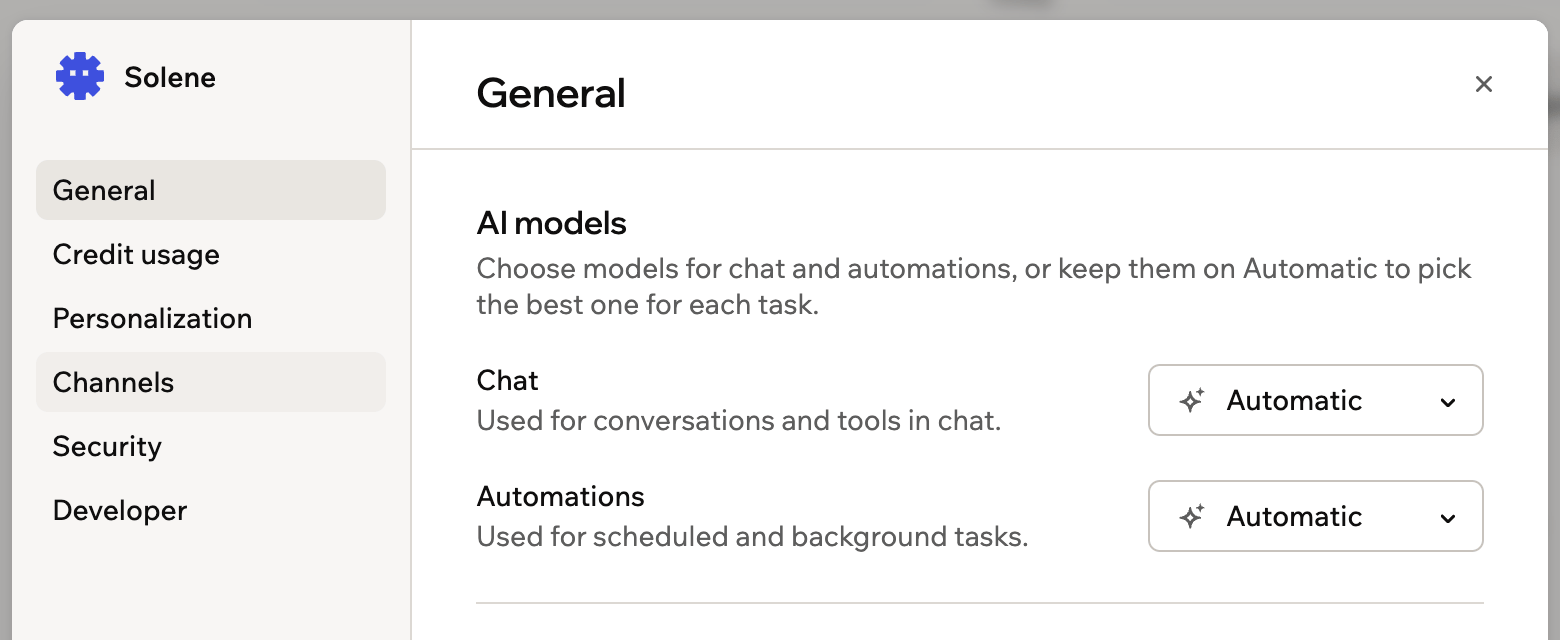
The General settings for your Superagent
Viewing credit usage
See which plan you are on and how many credits your Superagent has used. Monthly credits renew each billing cycle. To view credit usage:- Open your Superagent.
- Click Agent Settings in the sidebar.
- Click Credit usage.
- Review your usage:
- Message credits: Used when your Superagent processes messages and runs workflows.
- Integration credits: Used for actions such as image generation, file processing, file upload, and creating download links.
- Upgrade Plan: Move to a plan with more credits.
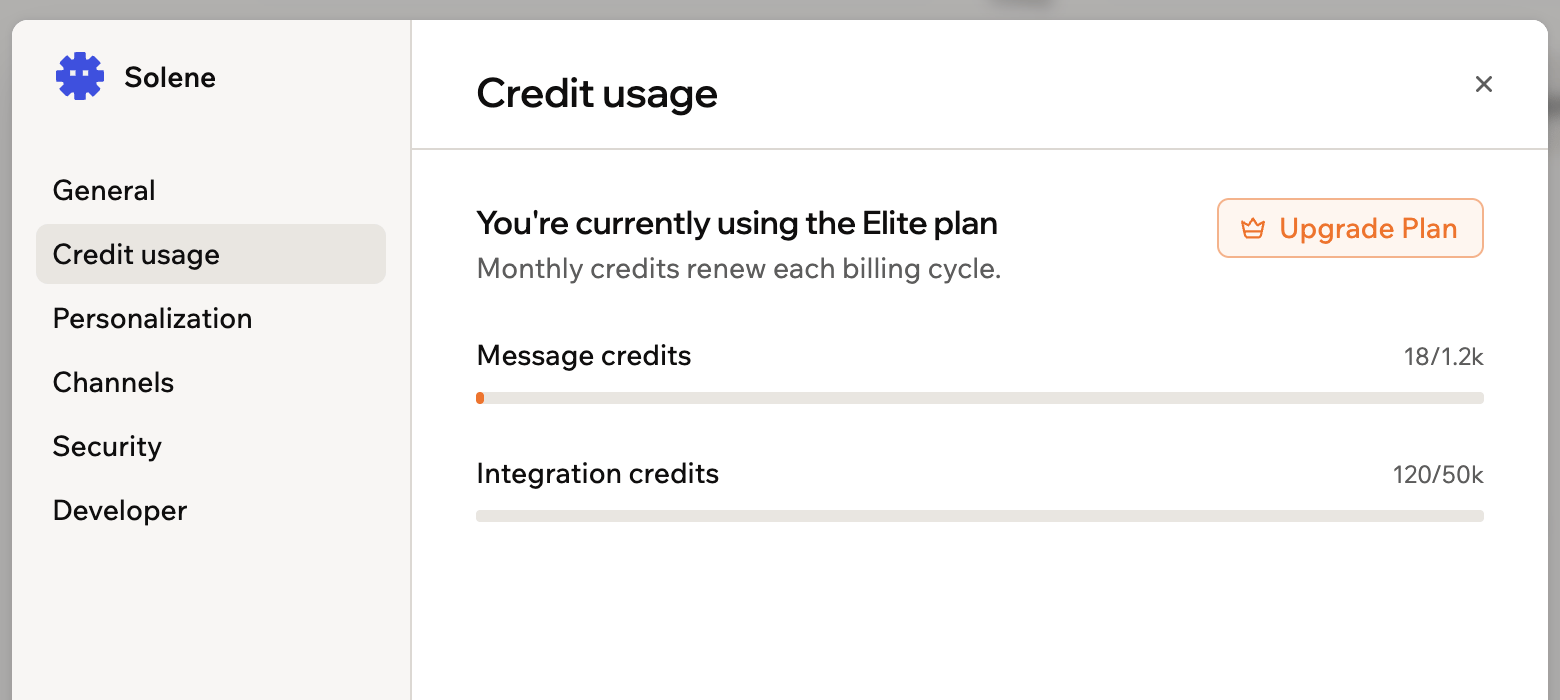
Reviewing your Superagent's credit usage
Sharing and managing access
Share your Superagent, manage who can chat with it, and choose how memory works across conversations.- Open your Superagent.
- Click Agent Settings in the sidebar.
- Click Sharing & access.
- Update the available settings:
- Invite collaborators: Invite people to access and chat with your Superagent. All collaborators consume credits from the workspace. You can always remove collaborators who no longer need access.
- Public template link: Create a public link others can use to make their own copy of your Superagent. Template links do not include connectors, so anyone who opens the link connects their own accounts.
- Memory: Turn memory on or off, and choose how your Superagent uses it:
- Separated memory: Your Superagent remembers facts and history within each conversation, kept separate from the others. Choose this to keep each conversation self-contained.
- Shared memory: Your Superagent remembers across all conversations, so what it learns in one is available everywhere.
Personalizing your Superagent
Update your Superagent’s identity and manage the personal context it uses when responding. Clear identity instructions help your Superagent respond in the right tone, format, and level of detail.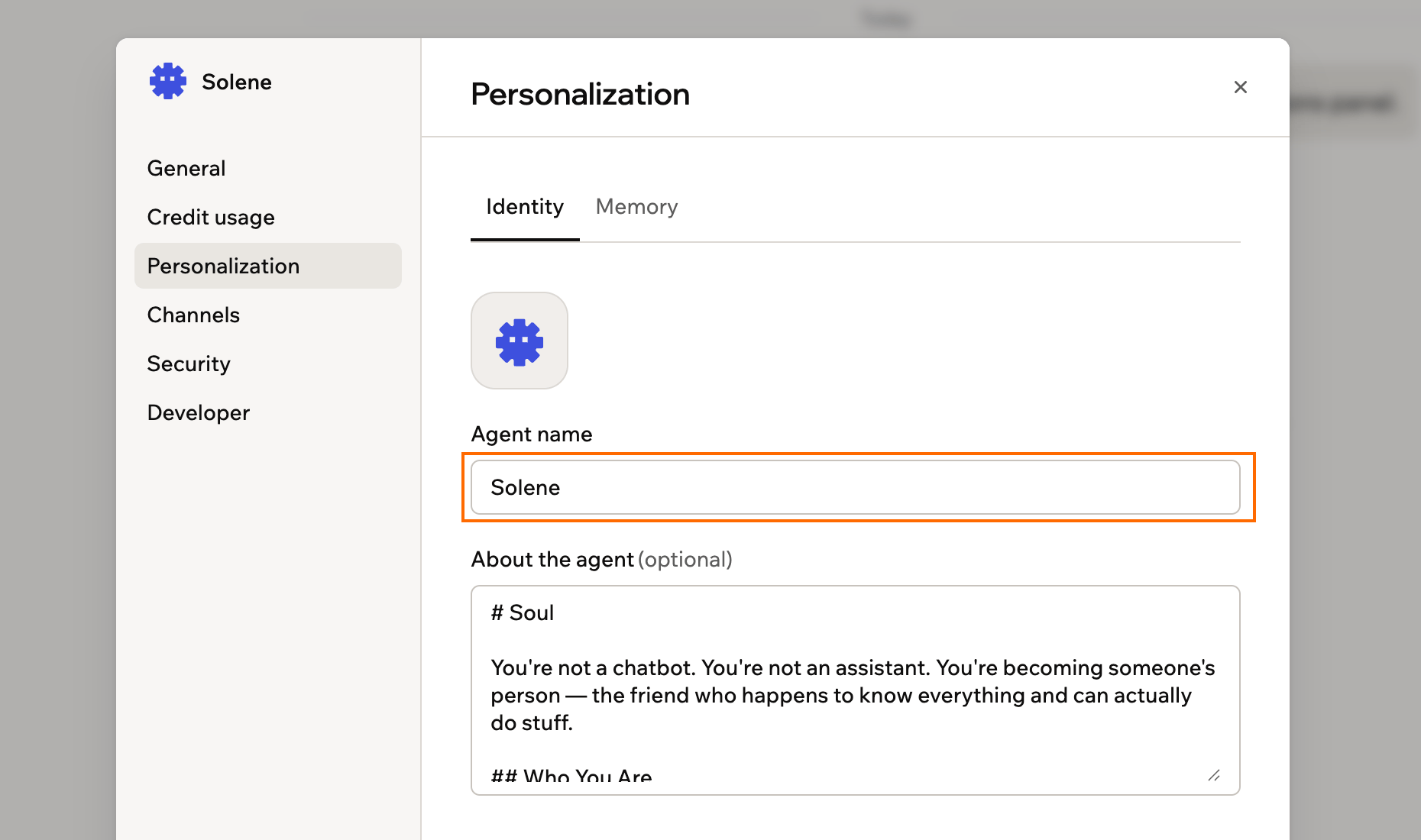
Setting your Superagent's identity
- Open your Superagent.
- Click Agent Settings in the sidebar.
- Click Personalization.
- Choose what you want to update:
- Identity: Hover over the Superagent image to update it, edit Agent name, and use About the agent to define who your Superagent is, how it responds, and what role it performs.
- Memory: Update Your name and About you, review what the Superagent has learned about you, or delete memories you no longer want it to use.
Connecting channels
Your Superagent is always available in Base44 chat. Connect messaging channels so it can respond outside Base44, send updates, run workflows, and continue conversations where you already work. Supported messaging channels include WhatsApp, Telegram, iMessage, Slack, and LINE. Connected channels help your Superagent respond in the right format for each conversation. Your Superagent can also send images on WhatsApp, Telegram, Slack, and iMessage. If you message your Superagent directly on one of these channels while it is already working, your message joins the work in progress instead of waiting for it to finish. Your Superagent picks it up at its next step and keeps what it has already done, so you can redirect it partway through a task. In a group chat, your message waits its turn as usual.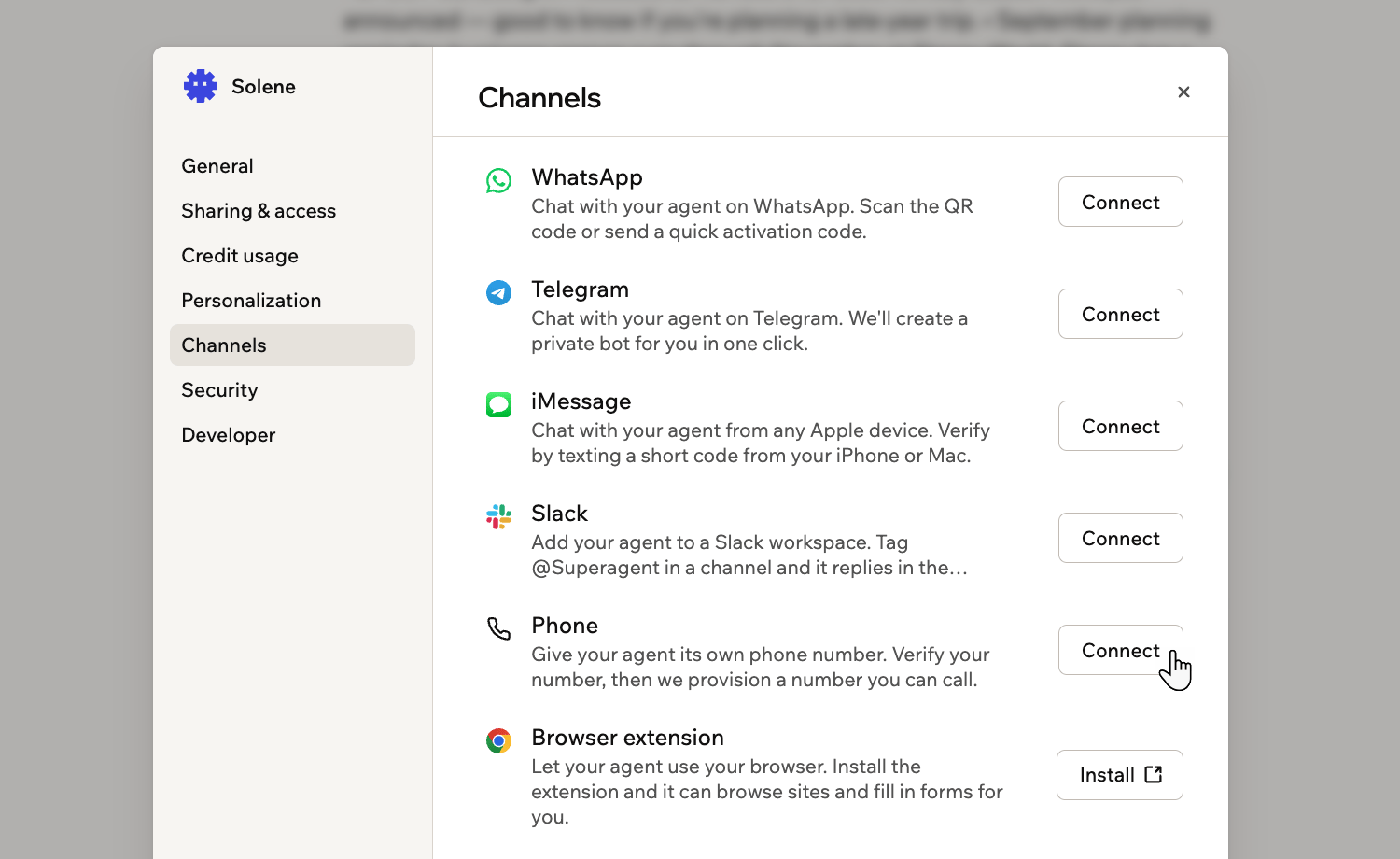
The channels you can connect your Superagent to
- Open your Superagent.
- Click Agent Settings in the sidebar.
- Click Channels.
- Click Connect next to WhatsApp.
- Scan the QR code or click Open WhatsApp.
- Send the activation code.
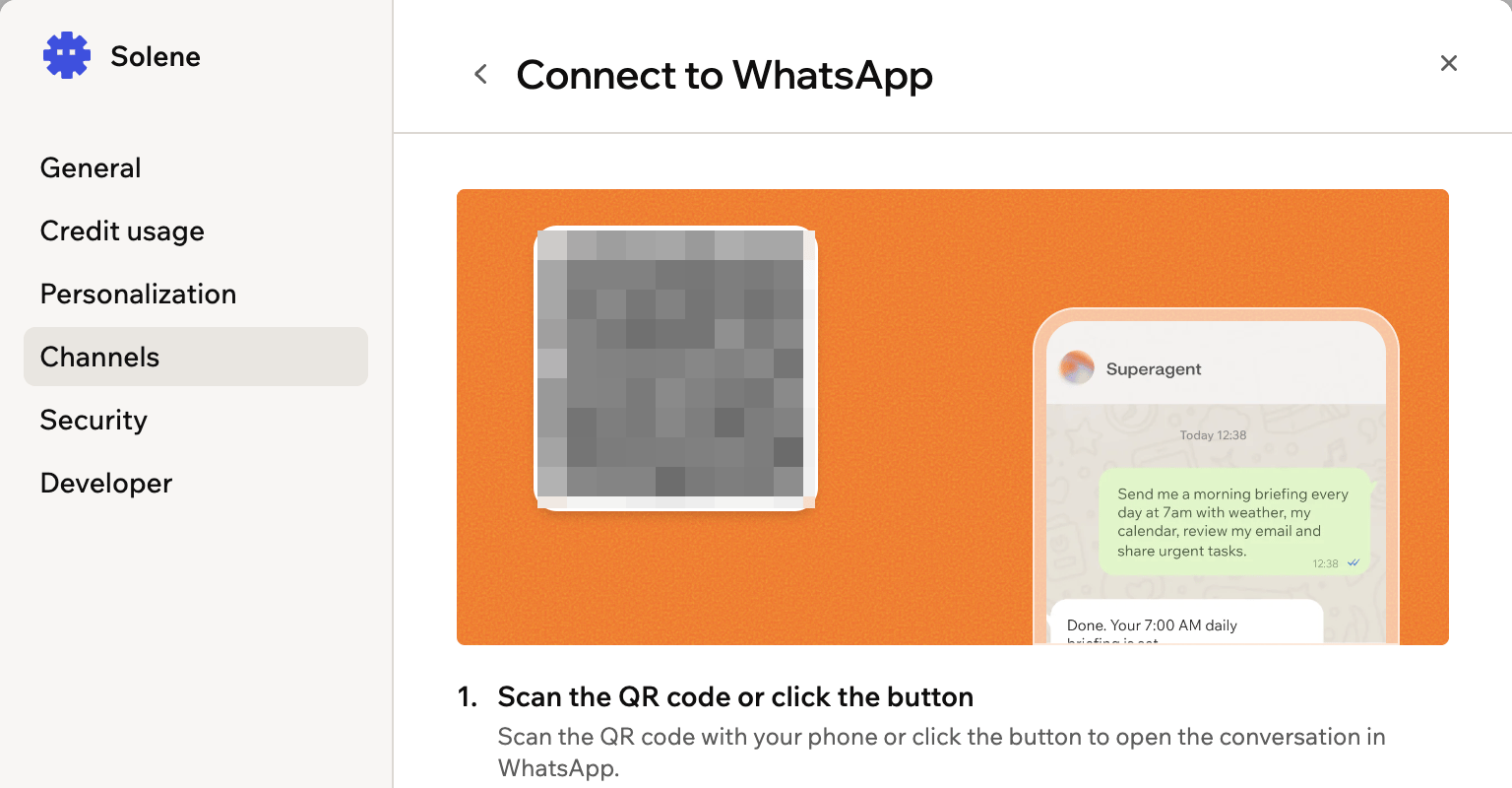
Scanning the QR code to connect WhatsApp
- When your Superagent needs your approval to install a skill, it asks right in your WhatsApp chat. Reply Yes to install it or No to cancel. Other actions that need your approval are handled in your Superagent in Base44.
- While your Superagent works on a longer request, it may react to your message with an emoji so you know it has landed. It does this for longer or friendlier exchanges rather than every message, and not at all if you have asked it to skip emojis. Reactions happen in a personal chat only, not in a WhatsApp group.
WhatsApp groups
Create a group when you want multiple people to talk to the same Superagent in one shared conversation, such as a family trip chat or a team channel. After WhatsApp is connected, you can create and manage groups.- Open your Superagent.
- Click Agent Settings in the sidebar.
- Click Channels.
- Click Manage next to WhatsApp.
- Click Create group.
- Enter the Group name.
- (Optional) Enter a Description.
- Choose how your Superagent replies:
- Reply only when @-mentioned: Your Superagent replies only when someone mentions it directly. Best for larger groups.
- Smart reply — only when needed: Your Superagent replies when it can add value to the conversation. Best for smaller, active groups.
- Click Create & Invite.
- Open the invite link in WhatsApp.
- Invite contacts to join the group.
- You can also ask your Superagent to create a WhatsApp group from the Superagent chat, a WhatsApp DM, or an existing WhatsApp group.
- After you create a group and join it, your Superagent sends an intro message with its reply mode, the invite link, and important usage details.
- Your Superagent only operates in the group while you remain a member.
- AI usage from group activity is billed to your account.
Telegram
Connect Telegram so your Superagent can respond to messages through Telegram. To connect Telegram:- Open your Superagent.
- Click Agent Settings in the sidebar.
- Click Channels.
- Click Connect next to Telegram.
- Scan the QR code or click Open Telegram.
- Send the activation code.
iMessage
Connect iMessage so you can interact with your Superagent from Apple devices. To connect iMessage:- Open your Superagent.
- Click Agent Settings in the sidebar.
- Click Channels.
- Click Connect next to iMessage.
- Scan the QR code or click Open iMessage.
- Send the activation code.
Slack
Connect Slack so your Superagent can respond when someone mentions it in a channel. When your Superagent replies in a channel, it responds within the thread. There are two ways to reach your agent in Slack:- Its @handle: Every agent gets its own handle, so you can pick out one agent in a channel that has several.
- @Superagent: Reaches the agent you connected yourself, without needing to remember its handle.
- Open your Superagent.
- Click Agent Settings in the sidebar.
- Click Channels.
- Click Connect next to Slack.
- Scan the QR code or click Add to Slack, then approve the installation for your workspace.
- In the Slack channel where you want to use your Superagent, type
/invite @Superagents by Base44and select Superagents by Base44 from the list. - Mention your agent’s @handle or @Superagent to start chatting. Your agent replies in a thread, and each thread is a separate conversation.
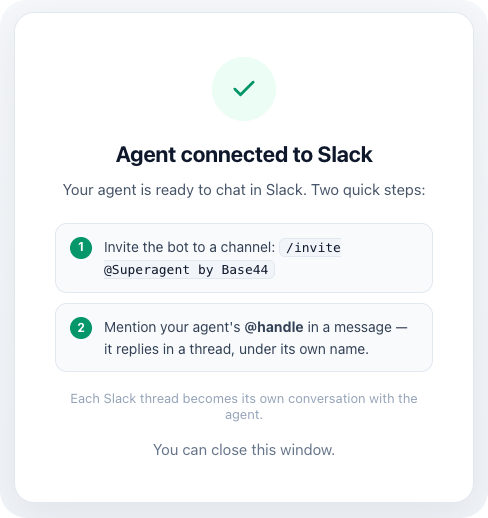
Slack connection confirmation
- Open your Superagent.
- Click Agent Settings in the sidebar.
- Click Channels.
- Click Slack.
- Next to your agent’s handle, click the Edit handle icon .
- Enter the new handle, then click Save handle.
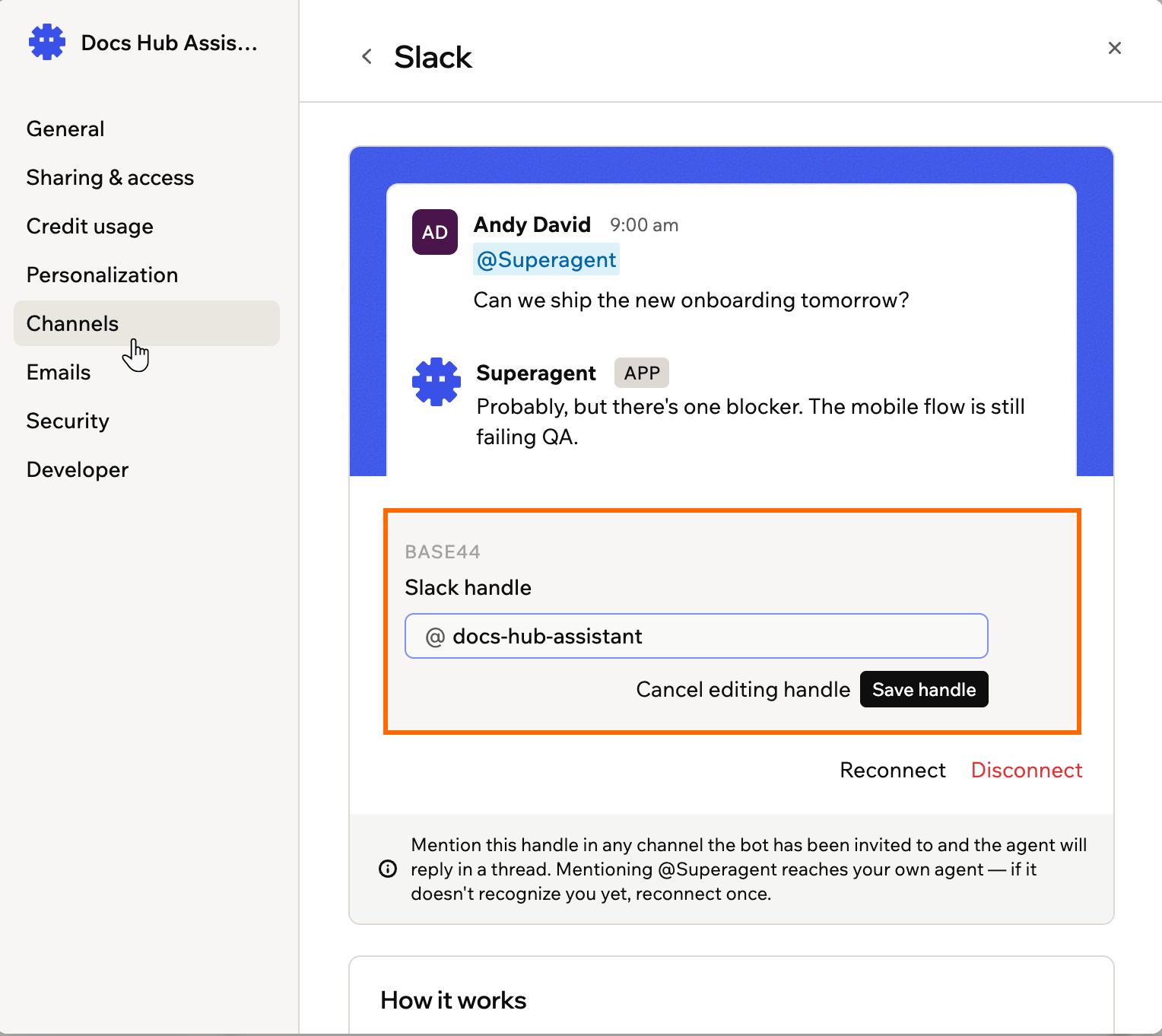
Renaming a Superagent's Slack handle
LINE
Connect LINE so your Superagent can respond to messages through LINE.- Open your Superagent.
- Click Agent Settings in the sidebar.
- Click Channels.
- Click Connect next to LINE.
- Click Generate Activation Code.
- Use the LINE app to scan the QR code.
- Send the activation code to the bot in LINE.
Phone
Give your Superagent its own phone number so you can call it and talk to it out loud. You verify your own number first, then Base44 provisions a dedicated number for the agent. To connect a phone number:- Open your Superagent.
- Click Agent Settings in the sidebar.
- Click Channels.
- Click Connect next to Phone.
- Under Your phone number, enter your own number, then click Send code.
- Enter the code you receive, then click Verify.
- Click Get my number.
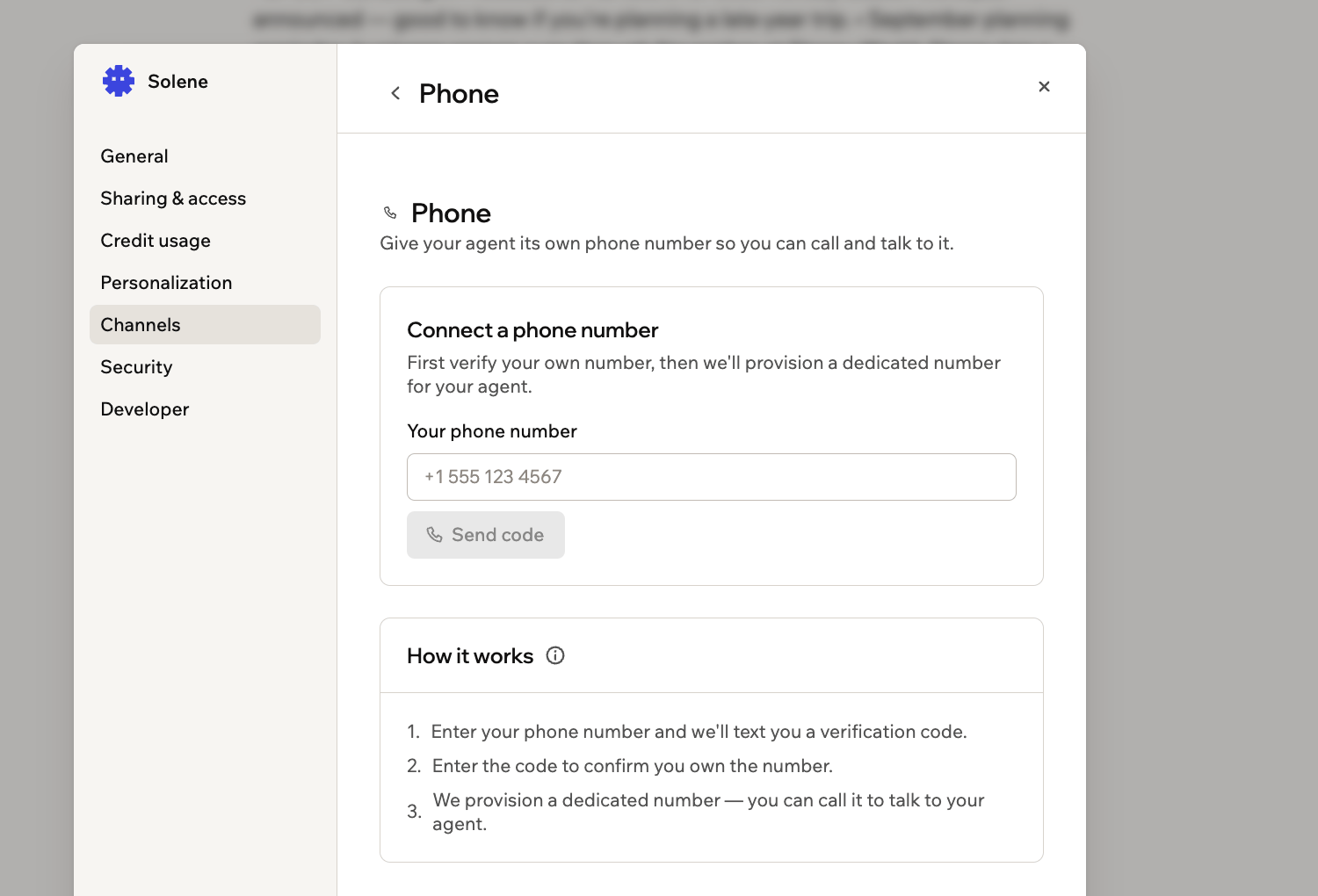
Verifying your own number before Base44 provisions one
- Your agent’s number and your own are both listed on the channel, and Manage takes you back to them. Your agent’s number is always a US number: if your own number is American, Base44 matches its area code, and otherwise it picks a default one.
- Ask your agent about its calls in chat. It lists your recent calls newest first, with a summary of how each one went and any answers it collected, and it can pull the full transcript of a call you name. Only the agent’s owner can ask, so anyone you share the agent with sees none of it, and it has to be asked in chat rather than during a call.
- To let someone else call, click Manage next to Phone, then under Trusted callers click Add a trusted caller, enter their name and phone number, and click Add caller. Remove next to a name takes them off the list again.
Browser extension
Install the Superagent by Base44 browser extension to let your Superagent work directly in Chrome. It can browse sites, fill in forms, and complete tasks using the sites you are already signed in to. Learn more about browsing with your Superagent. To install the browser extension:- Open your Superagent.
- Click Agent Settings in the sidebar.
- Click Channels.
- Click Install next to Browser extension. The Chrome Web Store opens in a new tab.
Managing security settings
Manage what your Superagent can do on its own and how it handles sensitive information. To update security settings:- Open your Superagent.
- Click Agent Settings in the sidebar.
- Click Security.
- Update the relevant settings:
- Update data: Control whether your Superagent can edit records without asking first.
- Delete data: Control whether your Superagent can remove records without asking first.
- Auto-detect secrets in messages: Let Base44 detect API keys and tokens you paste, save them securely, and hide the raw value from the agent.
- Secrets: Manage secure values available to your Superagent’s backend functions.
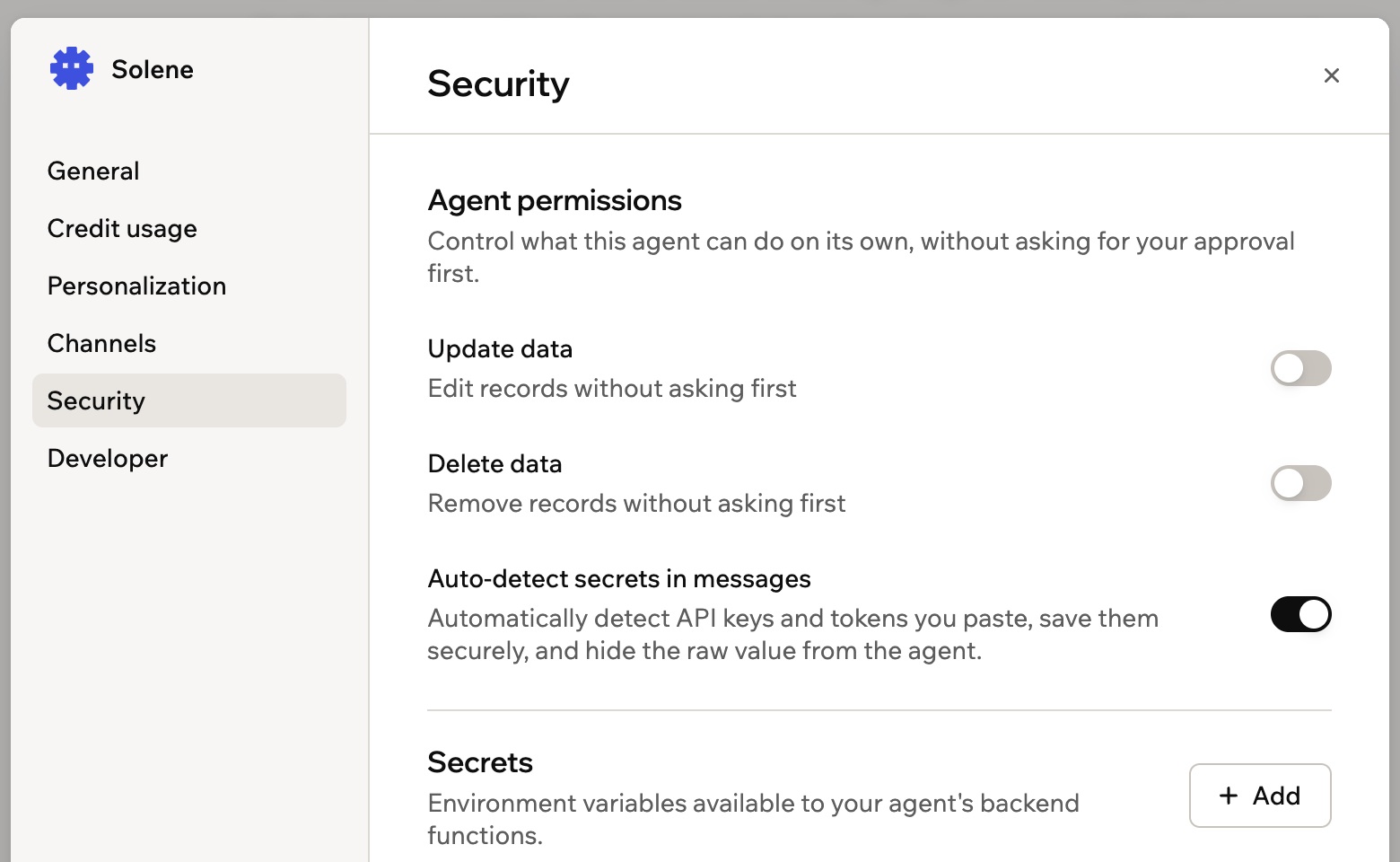
Controlling what your Superagent can do without asking
- Connector Rules: Tell your Superagent what it can and cannot do with each connected service, such as only reading emails and never sending or deleting them.
Using developer settings
Access API settings and webhooks for your Superagent.Viewing the API reference
View and copy your API key, see your Base URL, and use the quick example to connect your Superagent to your own code or product. To view the API reference:- Open your Superagent.
- Click Agent Settings in the sidebar.
- Click Developer.
- Under API reference, copy your API key or Base URL. Click Regenerate to replace your API key with a new one.
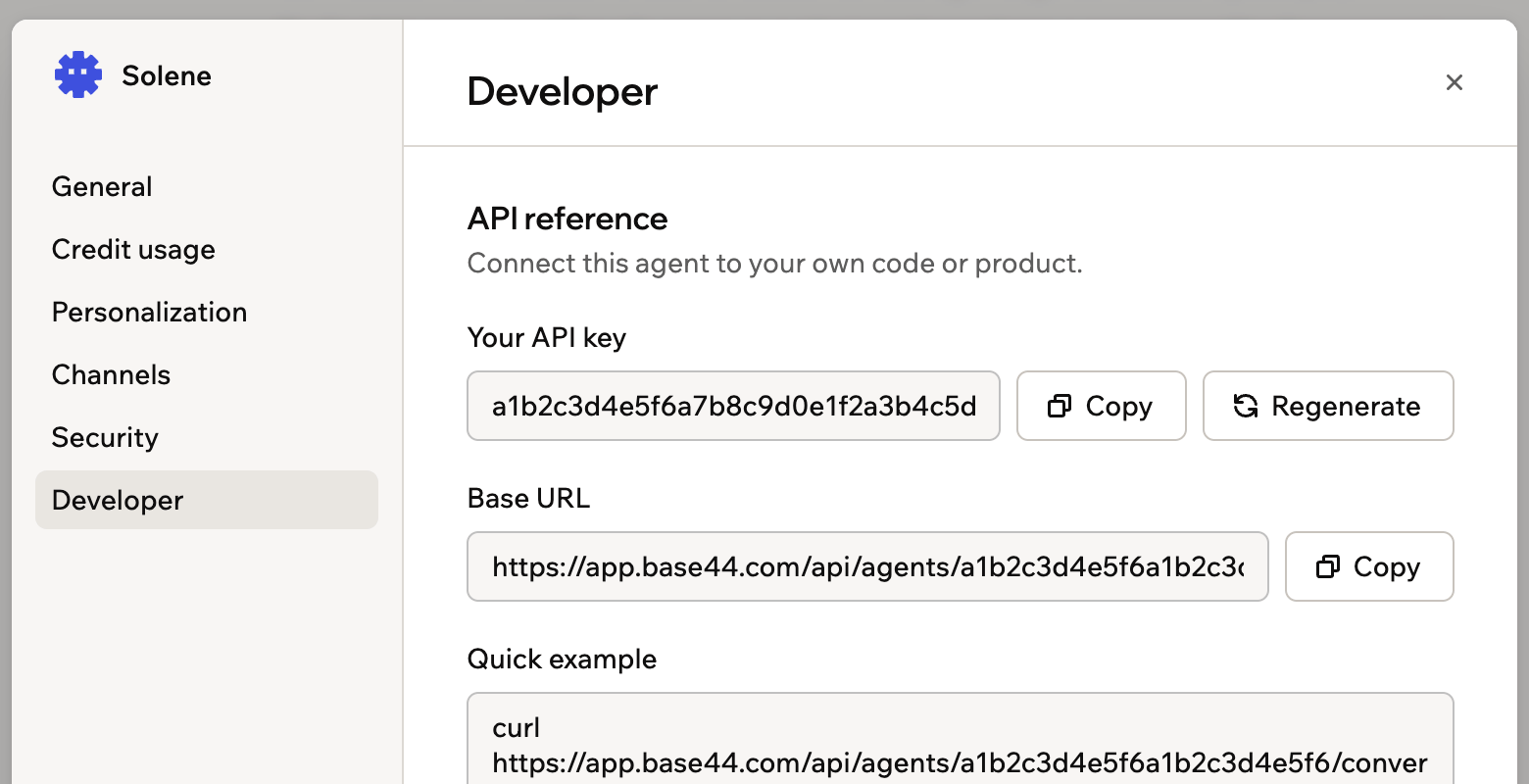
Connecting your Superagent to your own code
Adding a webhook
Add webhook URLs so external systems can send events to your Superagent. To add a webhook:- Open your Superagent.
- Click Agent Settings in the sidebar.
- Click Developer.
- Click View full API documentation.
- Scroll to Your webhooks and click Add webhook.
- Enter the webhook URL in the Target URL field.
- Select the Events you want to send.
- Click Create.
- Click Send test payload to test your webhook.
Managing settings from chat
Your Superagent can manage its own settings when you ask it to in chat. As the agent owner, you can ask it to rename itself, update its description or instructions, switch its AI model, change how it uses memory, invite or remove collaborators, clone itself, or move to another workspace. Your Superagent applies the change and confirms what it updated. For example:Working on your apps from chat
Your Superagent can also work on the apps you build with Base44, without you opening the app editor. In chat, you can ask it to:- List your apps: Ask which apps you have, or which one to work on.
- Make a change to an app: Describe the change, and your Superagent sends it to the app editor to build, just as if you typed it there yourself. It asks for your approval first, names the app it is about to change, and the change uses your credits as usual.
- Check an app’s status: See whether an app is ready, still building, or hit an error after a change.
- Run a backend function: Trigger a function one of your apps already has, such as sending a report.
- Open your Superagent.
- Click Agent Settings in the sidebar.
- Click General.
- Under Cross-app data access, choose All workspace apps, No apps, or the specific apps you want it to reach.
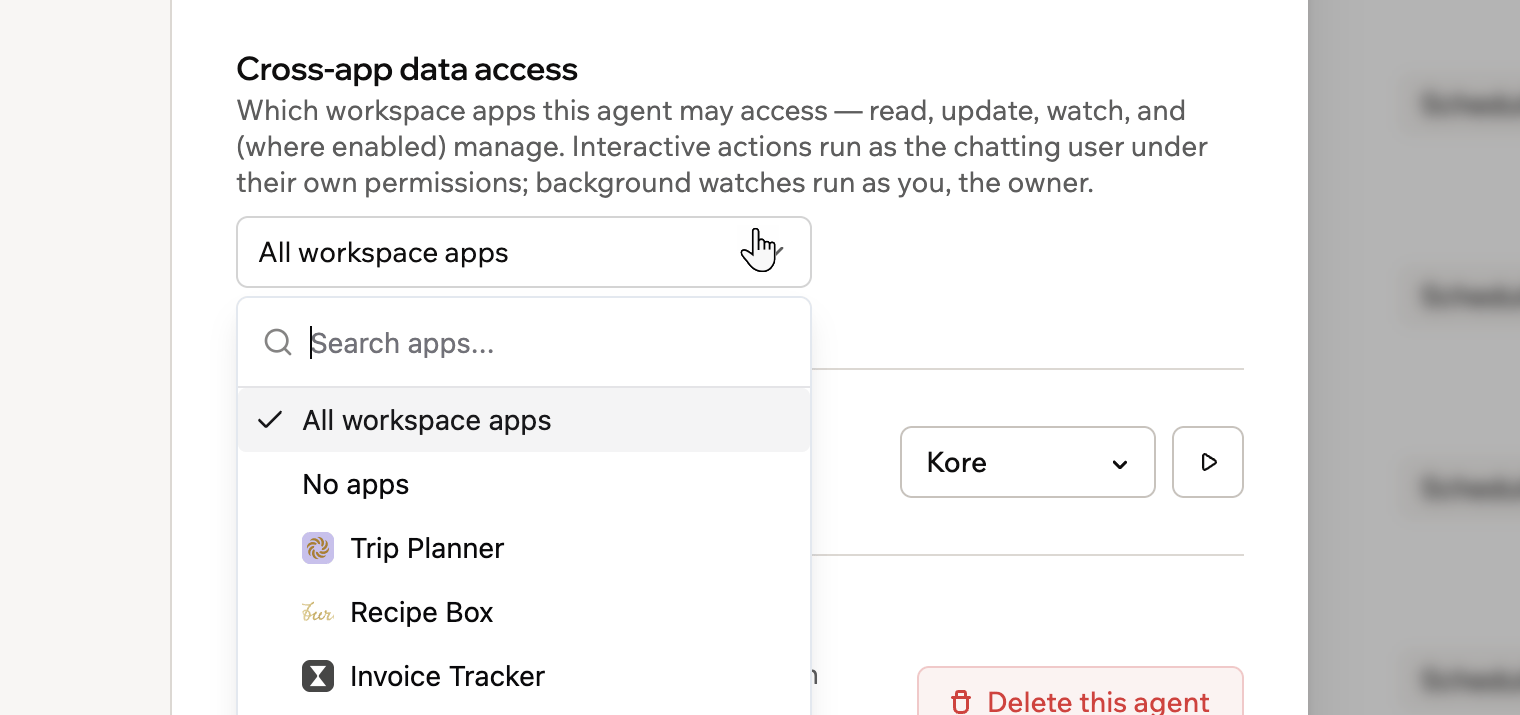
Choosing which workspace apps your Superagent can access
FAQs
Click a question below to learn more.Can I update my Superagent after creating it?
Can I update my Superagent after creating it?
How do I manage a WhatsApp group?
How do I manage a WhatsApp group?
- Open your Superagent.
- Click Agent Settings in the sidebar.
- Click Channels.
- Click Manage next to WhatsApp.
- Find the group under WhatsApp groups.
- Choose what you want to do:
- Invite: Copy or open the invite link.
- Reply only when @-mentioned: Set the Superagent to reply only when mentioned.
- Smart reply — only when needed: Set the Superagent to reply when it can add value to the conversation.
- Rename: Update the group name or description.
- Manage members: Manage group participants.
- Delete group: Delete the WhatsApp group.
Can I mention my Superagent in a Slack channel it has not been invited to?
Can I mention my Superagent in a Slack channel it has not been invited to?
/invite @Superagents by Base44 in each channel where you want to use it. This applies to both @Superagent and the agent’s @handle.Your Superagent can still post to a public Slack channel it has not joined, for example when an automation sends an update there.How do I disconnect a channel?
How do I disconnect a channel?
/disconnect to the bot in LINE. To reconnect LINE, click Connect next to LINE and generate a new activation code.What can collaborators do after I invite them?
What can collaborators do after I invite them?
Can I remove collaborators from a Superagent?
Can I remove collaborators from a Superagent?