

How notes work
Your Superagent organizes what it knows into notes by topic, such as your projects, the people you work with, or your travel plans. Notes link to each other, and each note shows the notes it connects to, so related information stays together. At the top of the list, the pinned For you note tracks your current priorities, anything that needs your attention, and your upcoming calendar items.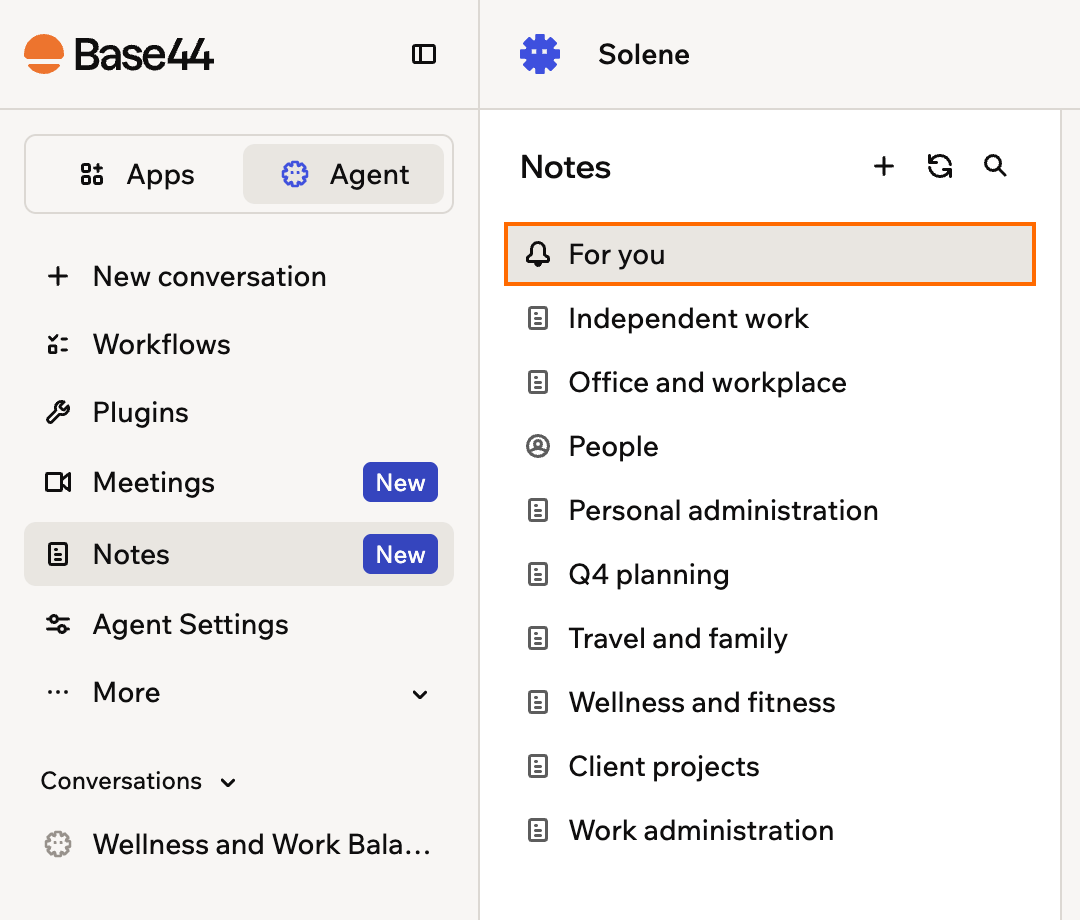
The Notes list, with the pinned For you note at the top
Reviewing your notes
Read through what your Superagent knows, starting from the For you note. To review your notes:- Open your Superagent.
- Click Notes in the sidebar.
- Click a note to open it, or click the search icon to find one by name.
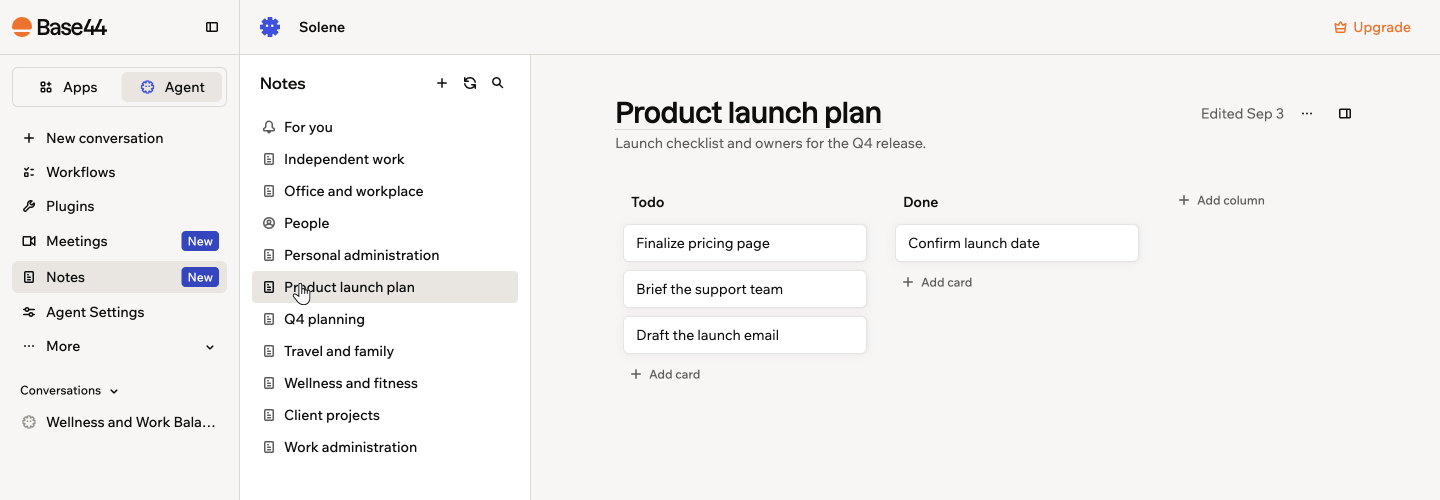
Opening a note from the Notes list
Creating a note
Add your own notes alongside the ones your Superagent creates. Write one from scratch, or keep something your Superagent has already told you.Writing a note yourself
Start a blank note and build it out with the elements you need. To create a note:- Open your Superagent.
- Click Notes in the sidebar.
- Click Add new note.
- Give the note a title, then type its content. Notes save automatically as you write.
- Press
/or click the Add block button to add elements such as headings, lists, images, and tables.
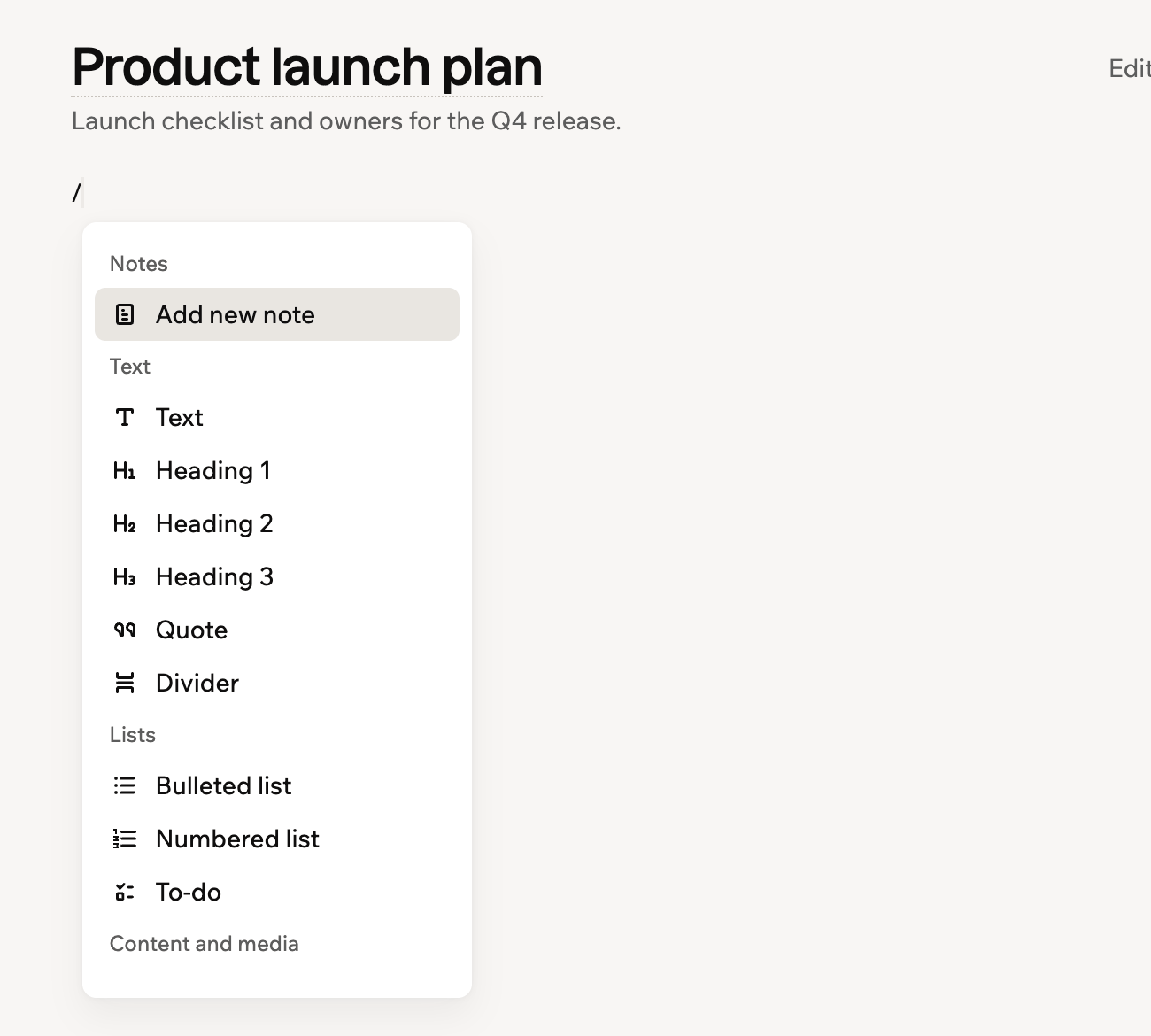
Adding an element to a note from the add block menu
Saving part of a conversation
Keep something your Superagent said without retyping it. To save a selection as a note:- In your Superagent conversation, highlight the text you want to keep.
- Click Add note.
- In Add to note, click Create note, or search for an existing note and select it to add the text there.
- Click View note in the confirmation to open it.
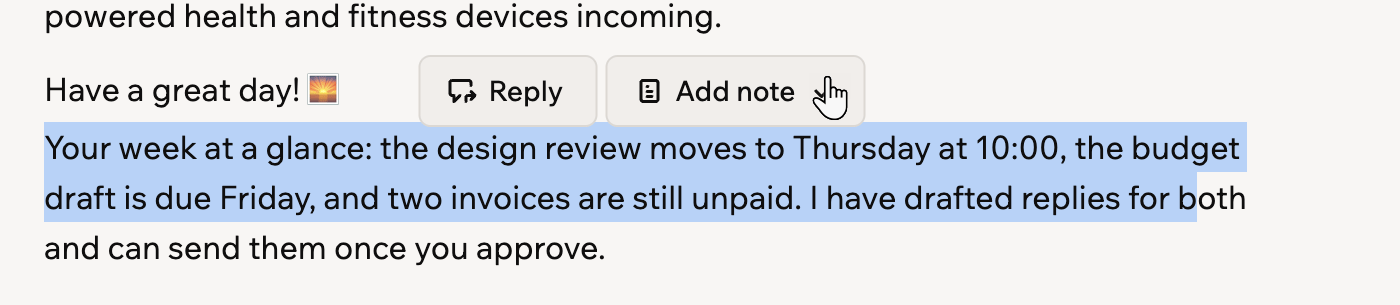
Saving a highlighted passage from a conversation as a note
Adding a kanban board to a note
A note can hold a live kanban board, so you can track work in the same place you and your Superagent keep everything else. A board is text underneath, where each column is a heading and each card is a list item, so you can build it visually or write it out.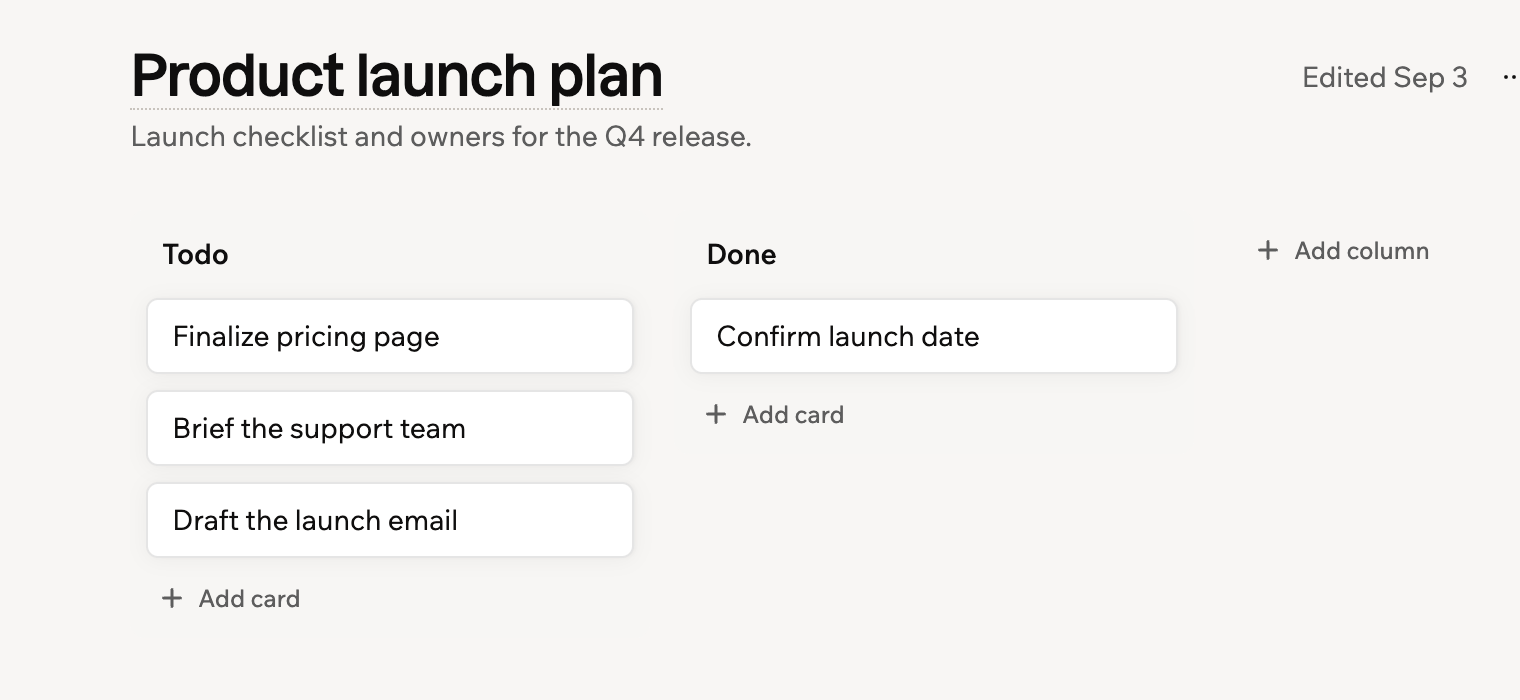
A kanban board inside a note, with Todo and Done columns
- Open the note, then click in its body where you want the board.
- Press
/or click the Add block button, then select Kanban board. The board starts with a Todo and a Done column. - Build it out:
- Add a card: Click Add card in a column, then type the card text.
- Add a column: Click Add column to the right of the board, or select Add column after from a column’s menu. A new column arrives titled New column with your cursor at the end of it, so clear that text before typing your own title.
- Move a card: Drag it to another column, or select Move to from the card’s menu.
- Rename or reorder a column: Select Rename column, Move left, or Move right from the column’s menu.
- Remove something: Select Delete card or Delete column.
- Edit it as text: Click Show raw text on the board, then Hide raw text to go back to the board.
Keeping your notes up to date
Your Superagent keeps notes current as you chat with it. You can also refresh them from your connected data at any time. To refresh your notes:- Open your Superagent.
- Click Notes in the sidebar.
- Click Update notes.
- Click Refresh data. Your Superagent reviews your available email, calendar, and conversation data and updates your notes.
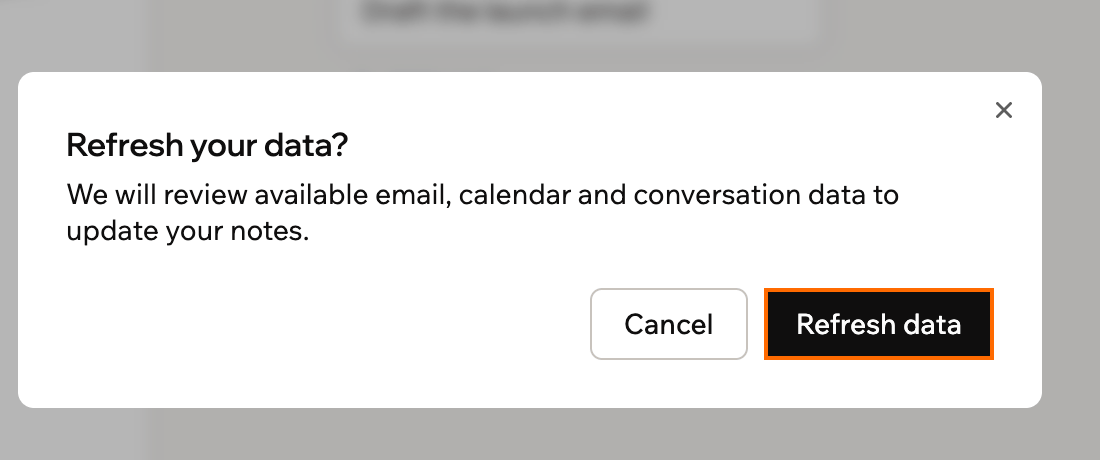
Confirming a refresh of your notes from your connected data
Managing a note
Duplicate, share, or delete a note from its More actions menu. The note’s row in the list has a quick menu for duplicating and deleting, and the open note has the full menu, including sharing. To manage a note:- Open your Superagent.
- Click Notes in the sidebar.
- Open the note, then click the More actions icon at the top right.
- Do one of the following:
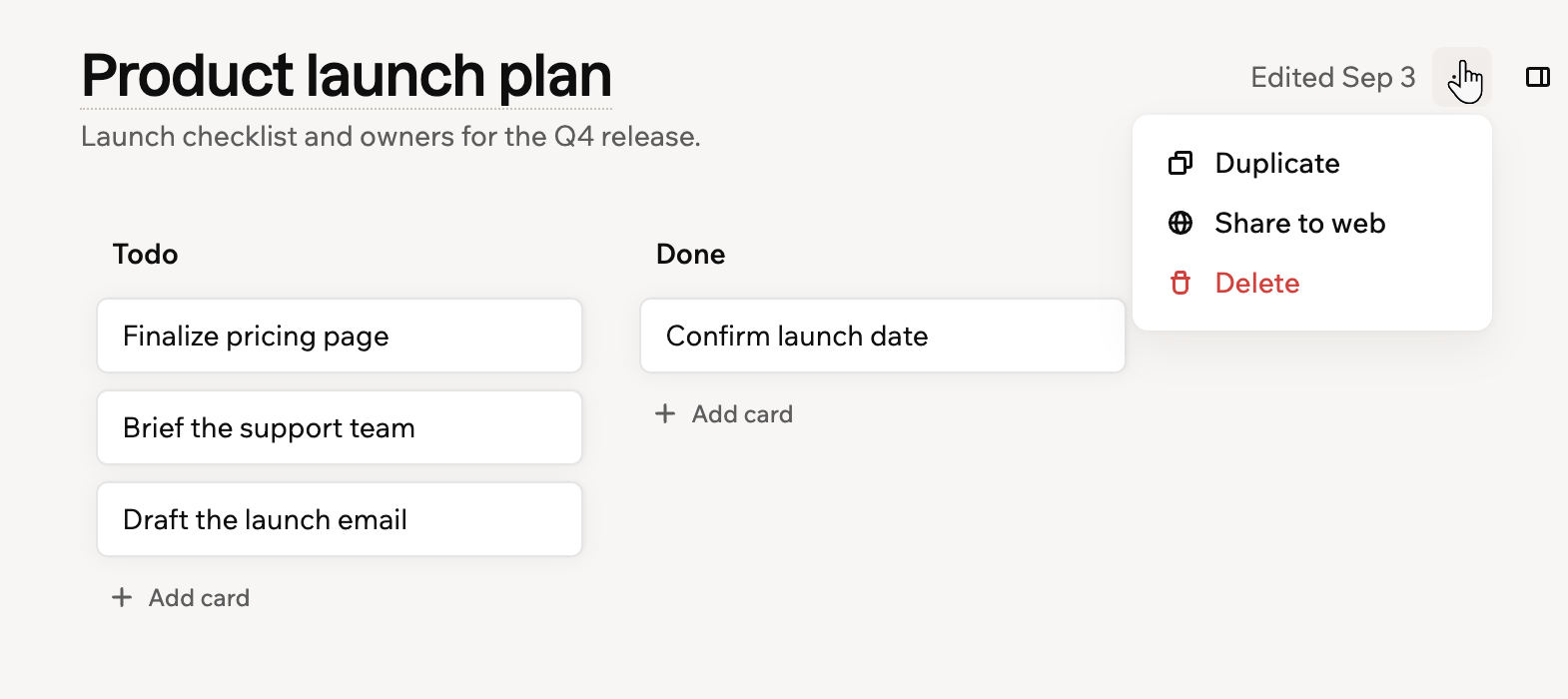
Managing a note from its More actions menu
Duplicate a note
Duplicate a note
Select Duplicate to create a copy of the note.
Delete a note
Delete a note
Select Delete, then confirm. Links to the note stop working, and this cannot be undone. The pinned For you note cannot be deleted.
Opening notes beside your chat
Open the notes panel yourself at any time, without waiting for your Superagent to reference a note. The panel docks beside your conversation, so you can read a note and keep chatting.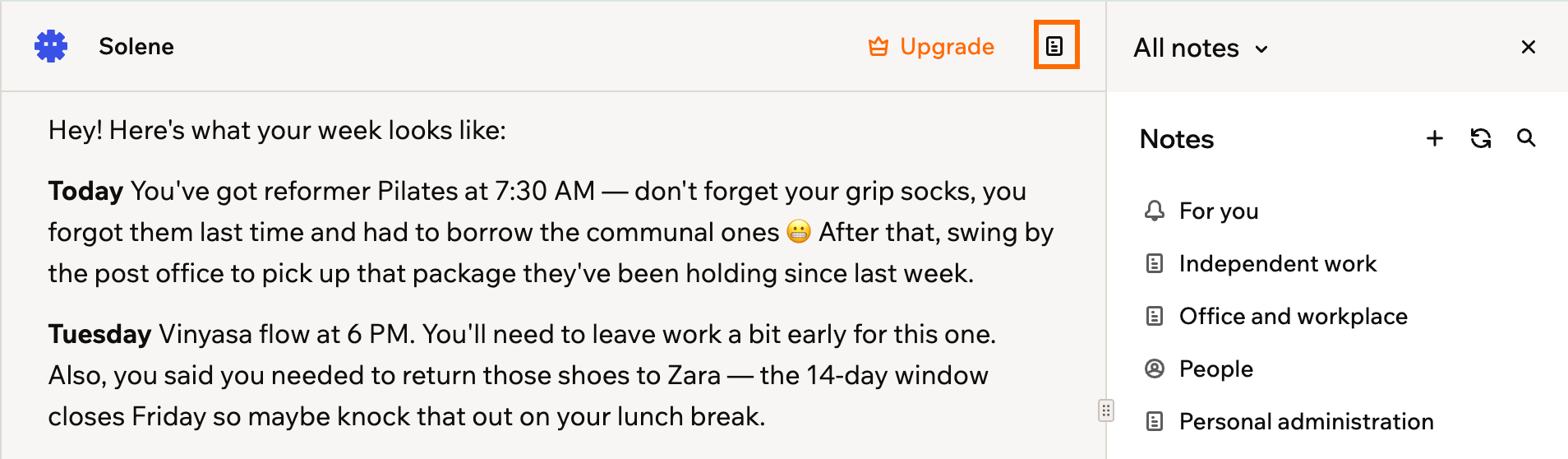
Notes docked beside your conversation
- Open your Superagent.
- Open a conversation, or click New conversation.
- Click the Open notes icon at the top right.
From the docked panel, you can:
- Open a note: Click it in the panel’s list.
- Switch notes: Click the note title at the top of the panel, then select another note, or select All notes to go back to the list.
- Read a note in full: Click the More actions icon, then select Open full page.
- Close the panel: Click the Close note icon, or click the Open notes icon again.
FAQs
Click a question below to learn more about notes.What is the difference between notes and memory?
What is the difference between notes and memory?
Notes are documents you and your Superagent both read and edit, like a shared notebook. Memory is what your Superagent remembers behind the scenes to give better answers, such as saved facts and conversation context. Learn more in Creating a Superagent.
What is the difference between notes, files, and data?
What is the difference between notes, files, and data?
Notes are readable pages your Superagent writes and maintains for you. Files holds documents you upload for it to reference, and Data holds the structured records it stores in tables. All 3 are available from the sidebar.
Who can see my notes?
Who can see my notes?
Only you. Notes are part of your Superagent and stay private unless you share a specific note to the web, which makes that note public and leaves the rest private.
Where do meeting notes go?
Where do meeting notes go?
When your Superagent records a meeting, the notes and action items are saved to your notes library and emailed to you. Learn more in Recording your meetings.