

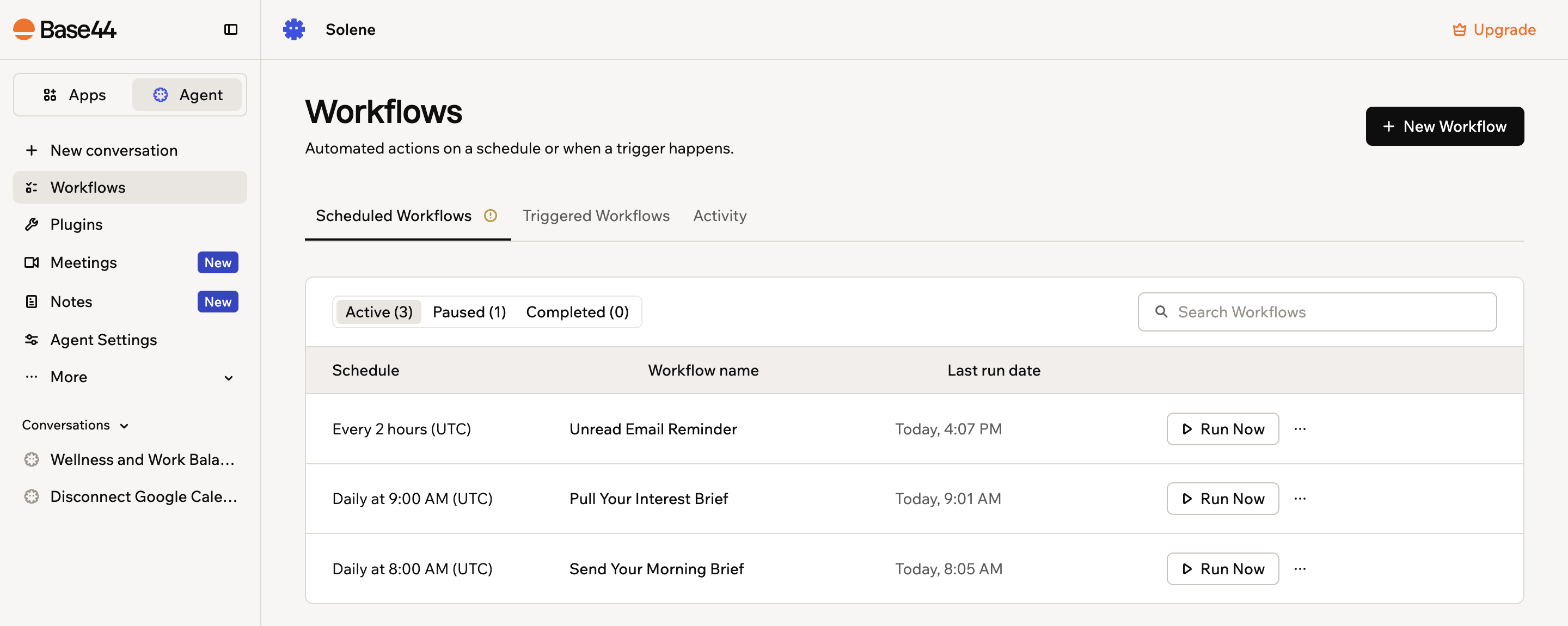
Every workflow your Superagent runs, in one place
What can I use workflows for?
Workflows handle the work you would otherwise repeat yourself. For example:
- Morning briefing: Every morning, summarize your unread emails, today’s meetings, and Slack threads into a digest.
- Unanswered email nudge: When an email sits unread for 24 hours, send a reminder with a one-line summary of what it’s about.
- Meeting prep: 30 minutes before each meeting, pull the invite, find related emails and docs, and send a context summary.
- End of day wrap-up: Every evening, summarize what you got done today and draft a short to-do list for tomorrow.
How workflows work
Every workflow starts from a schedule or a trigger, then runs the actions you described. When you describe what you want in chat, your Superagent builds the workflow for you, asking any questions it needs, and a card for the new workflow appears in the chat. The workflow is saved on the Workflows page under Scheduled Workflows or Triggered Workflows, and every run is recorded so you can review what happened.Choosing a workflow type
It helps to know which type fits your use case when describing what you want.Scheduled
Scheduled workflows run at times you define, such as every morning, every Monday, or at the end of each day. Use these for recurring tasks like daily digests and weekly reports. For example:Triggered
Triggered workflows run when a trigger happens, such as an email arriving in a connected Gmail account or changes to your Superagent’s data. Use these to react to activity as it happens. For example:Creating a workflow
Create a workflow from a suggestion, or describe what you want in your own words. Either way, your Superagent builds the workflow in chat.Starting from a suggestion
Suggested workflows are ready-made ideas, grouped by categories such as work productivity, business growth, and wellness. To create a workflow from a suggestion:- Open your Superagent.
- Click Workflows in the sidebar.
- Click New Workflow.
- Browse the suggested workflows by category.
- Click Send to chat on the workflow you want to set up.
- Review the workflow in chat and complete the setup.
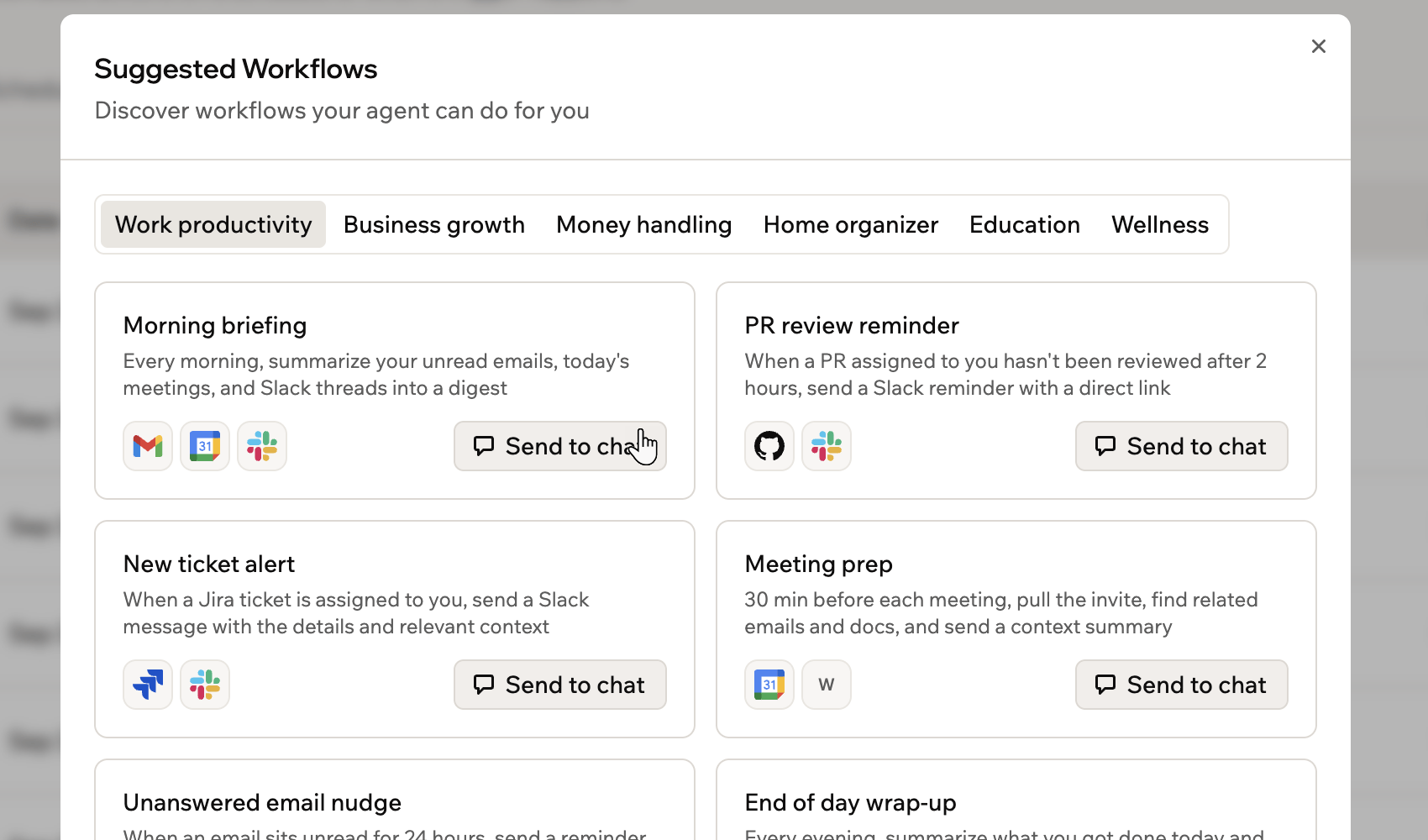
Suggested workflows, grouped by category
Describing it in chat
Describe the workflow directly in chat when you already know what you want. Your Superagent asks follow-up questions when it needs more detail, and you can keep refining the workflow in chat until it works the way you need. For example:Managing workflows
The Workflows page shows each workflow’s schedule or trigger, name, and last run date. Filter workflows by Active, Paused, or Completed, or search for one by name.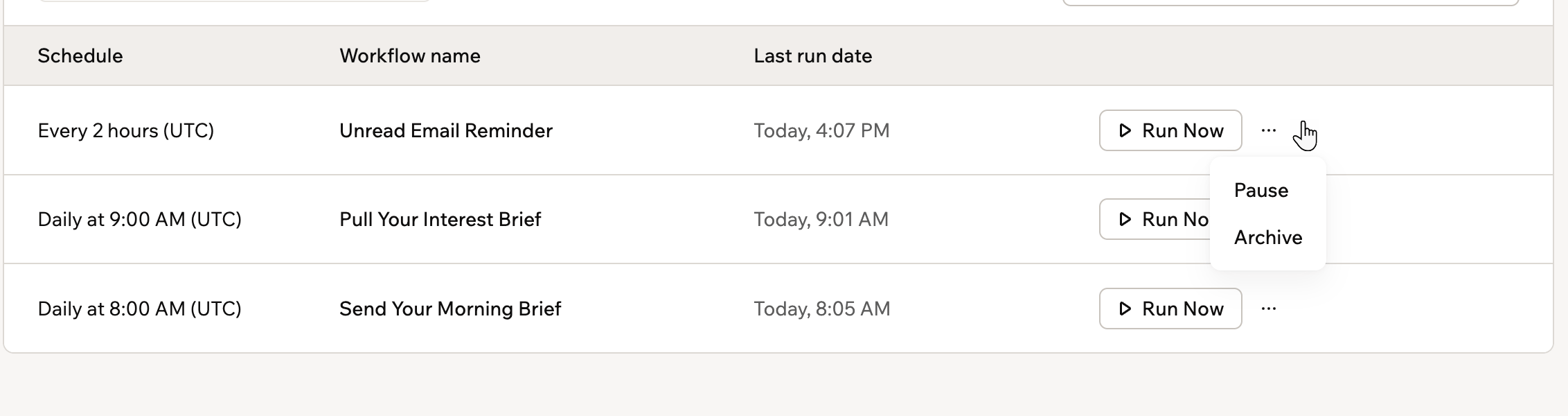
Pausing or archiving a workflow from its More actions menu
- Open your Superagent.
- Click Workflows in the sidebar.
- Do one of the following:
Run a workflow now
Run a workflow now
Click Run Now on the workflow to run it immediately, without waiting for its schedule or trigger.
Pause or resume a workflow
Pause or resume a workflow
- Click the More actions icon on the workflow.
- Select Pause. To start it again, select Resume.
Archive a workflow
Archive a workflow
- Click the More actions icon on the workflow.
- Select Archive. To bring it back, select Restore.
Monitoring runs
Every run is recorded so you can check what your workflows did and when.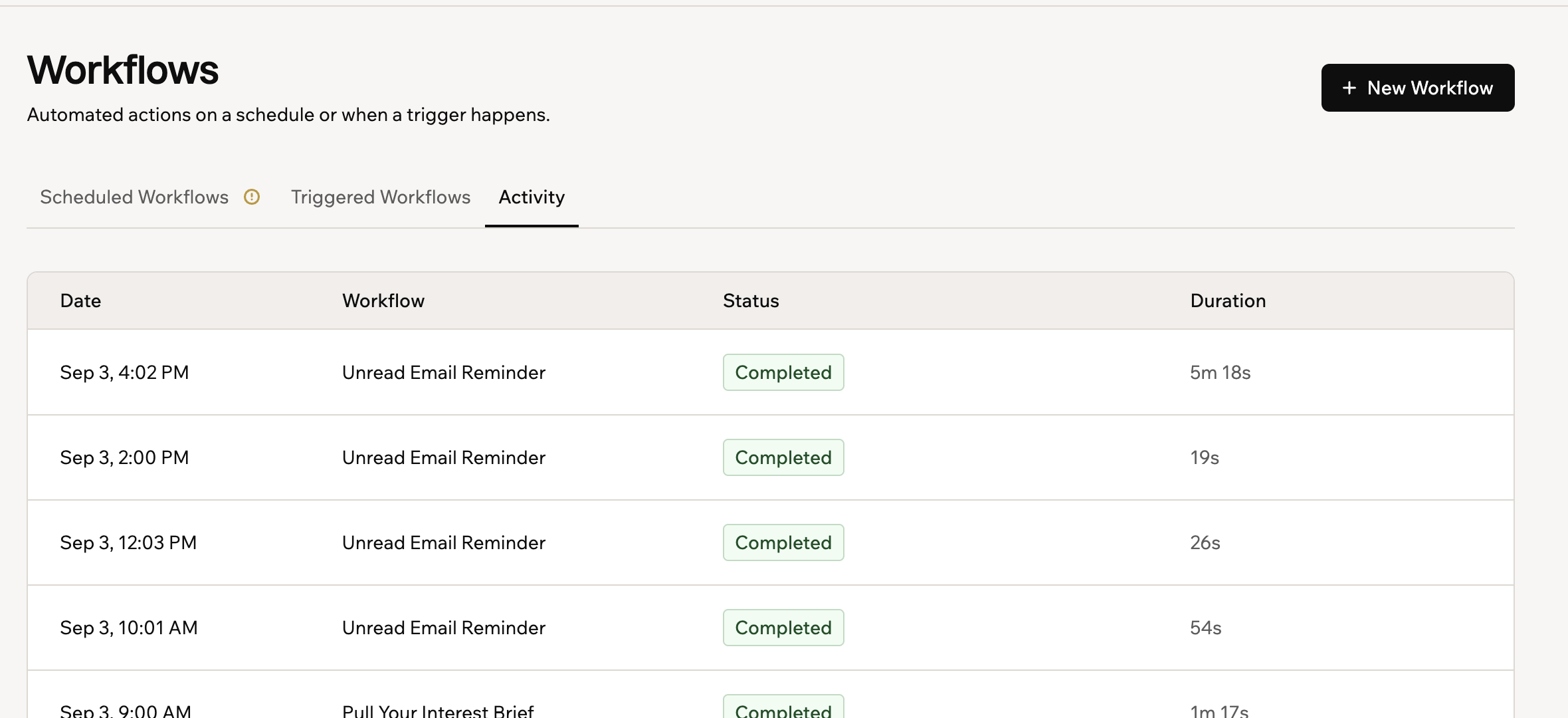
Recent runs across all your workflows
- Open your Superagent.
- Click Workflows in the sidebar.
- Do one of the following:
Review recent runs across workflows
Review recent runs across workflows
- Click the Activity tab.
- Review the list of runs. Each run shows its date, workflow name, status, and duration.
Open a workflow's run history
Open a workflow's run history
- Click the workflow you want to inspect.
- Review its total runs, success rate, average runtime, and run history.
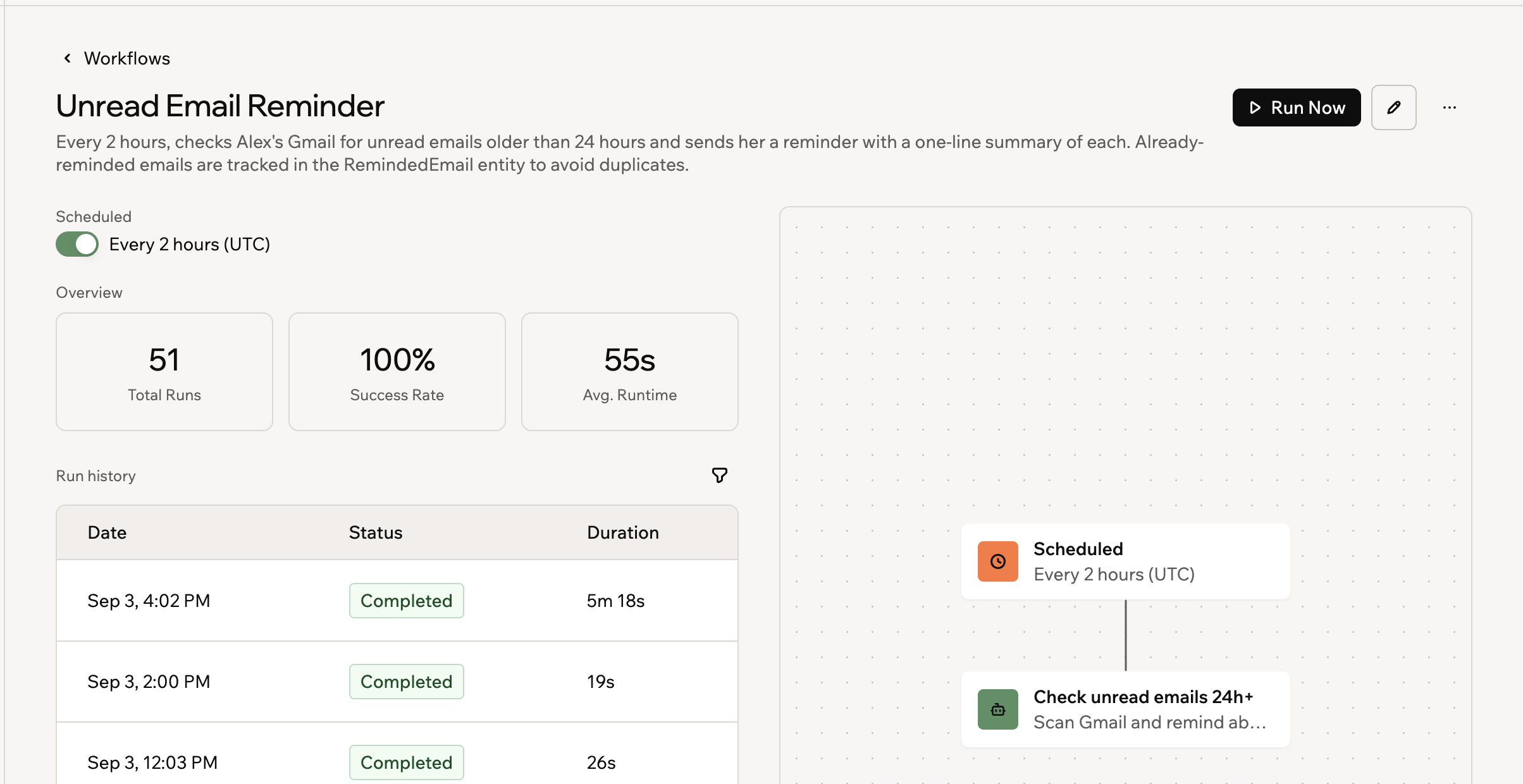
A workflow's run history and success rate
Workflow details are available on desktop. On mobile, open the workflow on desktop to view its details.
Handling failed runs
Your Superagent watches workflow runs while they are in progress. If a workflow is looping or not working as expected, your Superagent can pause or stop the run to prevent unnecessary credit usage. A workflow that fails several runs in a row is paused automatically, whether it runs on a schedule or from a trigger. The person who created the workflow gets an email and a notification in Base44, with steps for fixing it and a link that opens the workflow’s details and run history. A paused workflow shows Paused in place of its schedule, and a warning icon next to its last run date explains why. Runs you start yourself with Run Now don’t count toward pausing.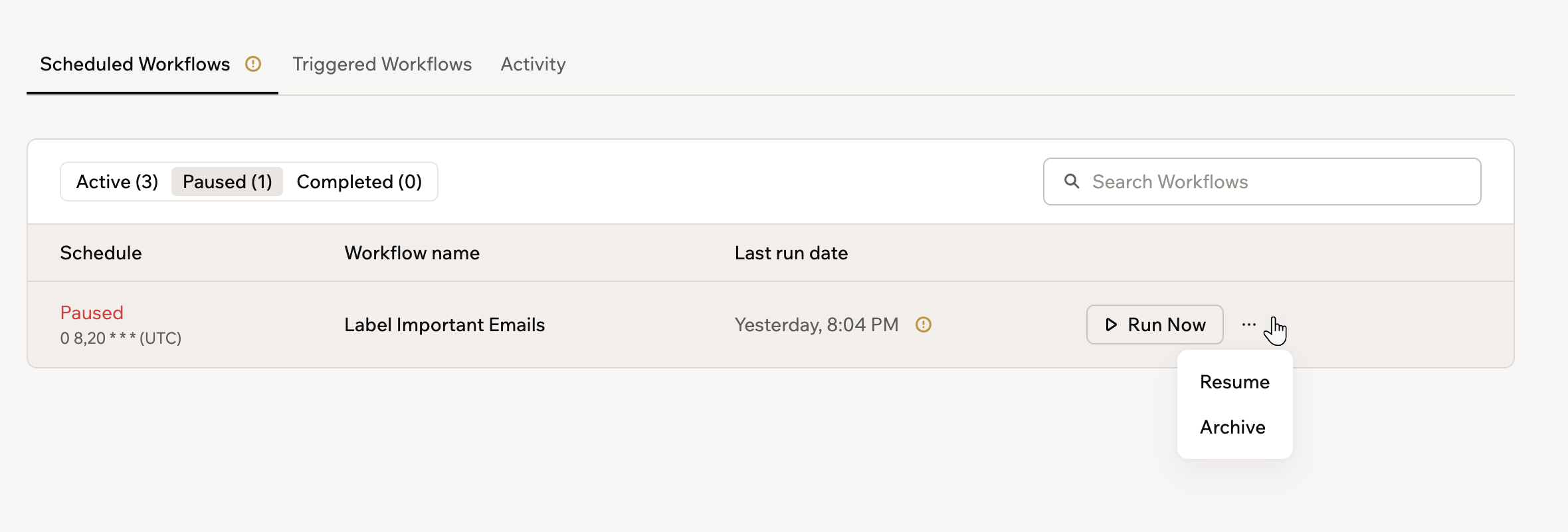
Resuming a workflow that paused itself after repeated failures
- Open your Superagent.
- Click Workflows in the sidebar.
- Click Paused to filter the list to paused workflows.
- Hover over the warning icon next to the last run date to see why the workflow paused, or click the Activity tab to review its failed runs.
- Fix what caused the failures, such as reconnecting an integration the workflow relies on.
- Click the More actions icon on the workflow, then select Resume.
- Click Run Now to check the fix without waiting for the next scheduled run.
Workflows and message credits
Workflow runs use your message credits, the same as chatting with your Superagent. To see how many credits your workflows have used, open Agent Settings in the sidebar and click Credit usage.FAQs
Click a question below to learn more about workflows.What is the difference between Superagent workflows and app workflows?
What is the difference between Superagent workflows and app workflows?
They run on the same system. Superagent workflows belong to your agent, are created in its chat, and are managed from its Workflows page. App workflows belong to a specific app and are created and managed from that app’s dashboard, where they can also react to app events such as data changes, publishes, and payments.To learn about app workflows, see Creating workflows.
Where do I see why a workflow run failed?
Where do I see why a workflow run failed?
Click the Activity tab on the Workflows page to review each run’s status, or ask your Superagent in chat what happened in the run.