

Using connectors in Base44
Adding a connector
You can connect a tool to your app from the AI chat, from the homepage when creating an app, or from your app’s dashboard. Each option follows the same authorization flow.From the AI chat
Base44 suggests connector prompts based on your app’s structure, pages, and data to help you get started faster. You can also describe what you want in your own words. To connect a tool from the AI chat:- In your app editor, open the AI chat.
- Describe what you want the app to do, for example:
- Choose Shared connector when prompted.
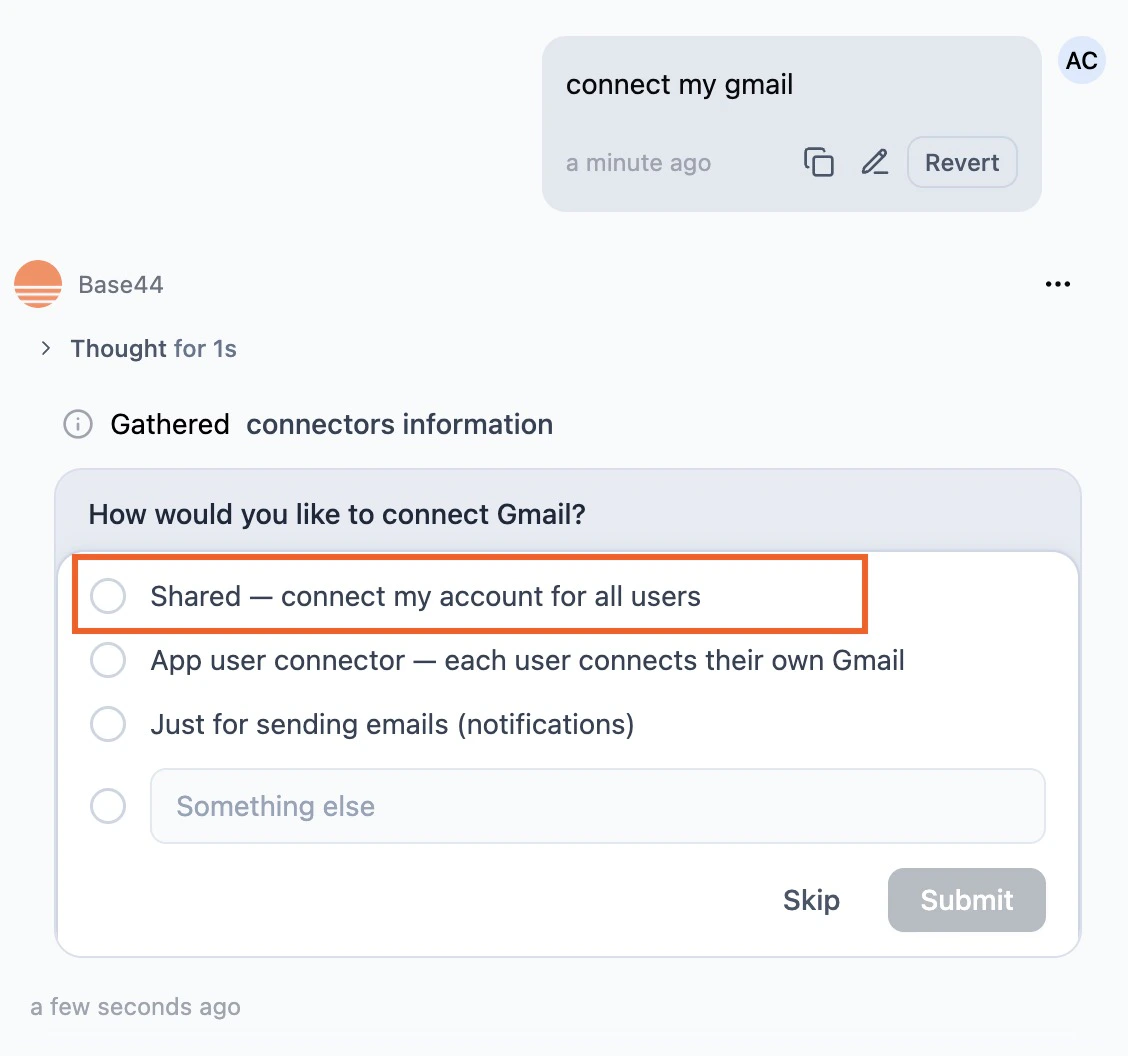
Choosing shared connector in the AI chat
- Review what the AI chat asks for under We need your permission to access.
- Click Connect to [tool].
- Complete the sign-in authorization.
From the homepage
You can also add connectors before creating an app from the homepage. After you send your prompt, Base44 starts building your app and prompts you to connect and approve the selected connectors during the flow.
Building an app with connectors
- From the homepage, click the + menu above the prompt box.
- Select Connectors.
- Choose one or more connectors.
- Describe what you want to build.
- Review what the AI chat asks for under We need your permission to access.
- Click Connect to [tool].
- Complete the sign-in authorization.
From the dashboard
You can also browse all available connectors from your app dashboard and use ready-made prompts to get started.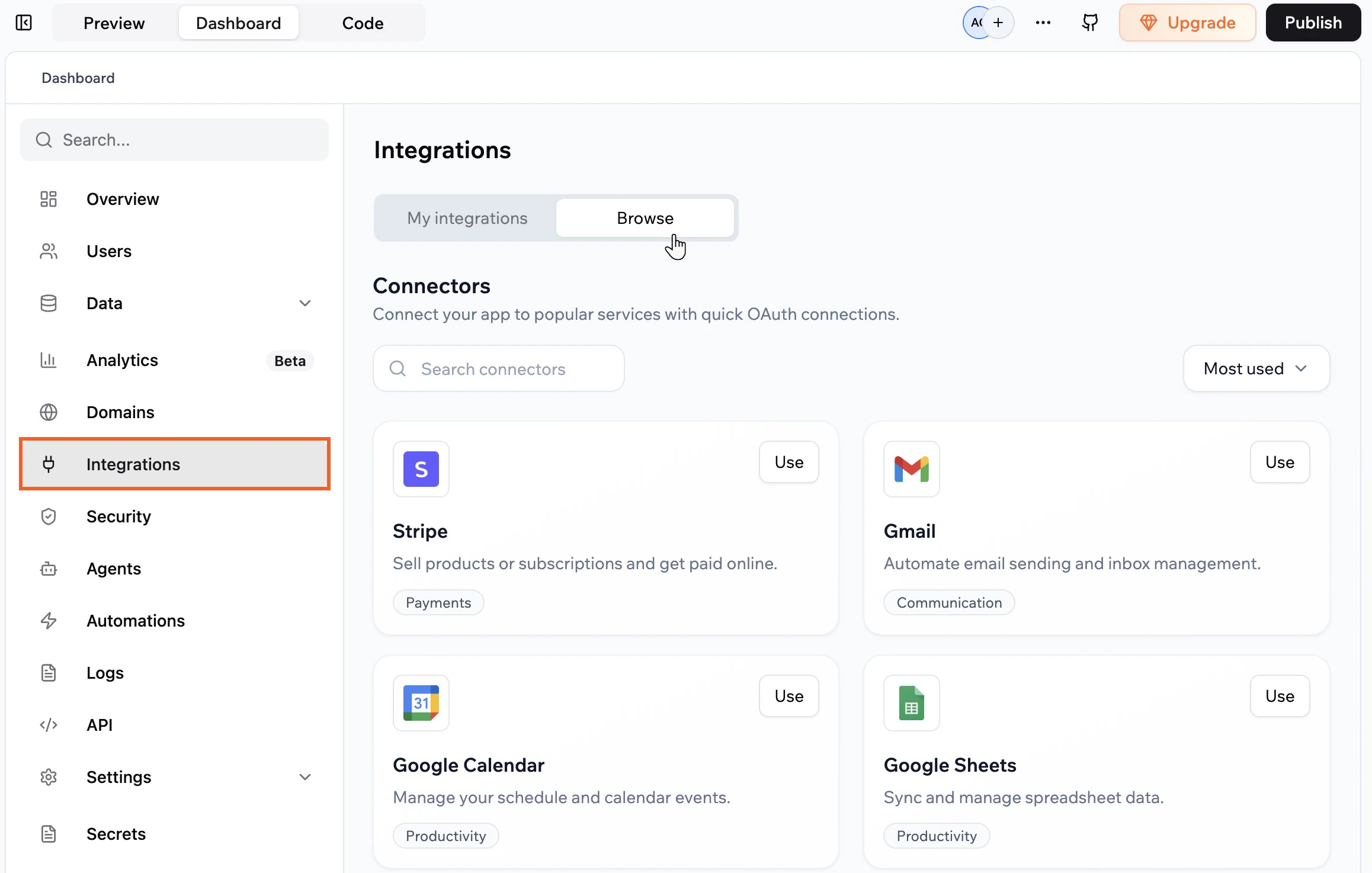
Adding connectors from your app's dashboard
- Go to your app’s dashboard.
- Click Integrations → Browse.
- Click Use on a connector.
- Click an example prompt to add it to the AI chat, then edit it if needed.
- Choose Shared connector when prompted.
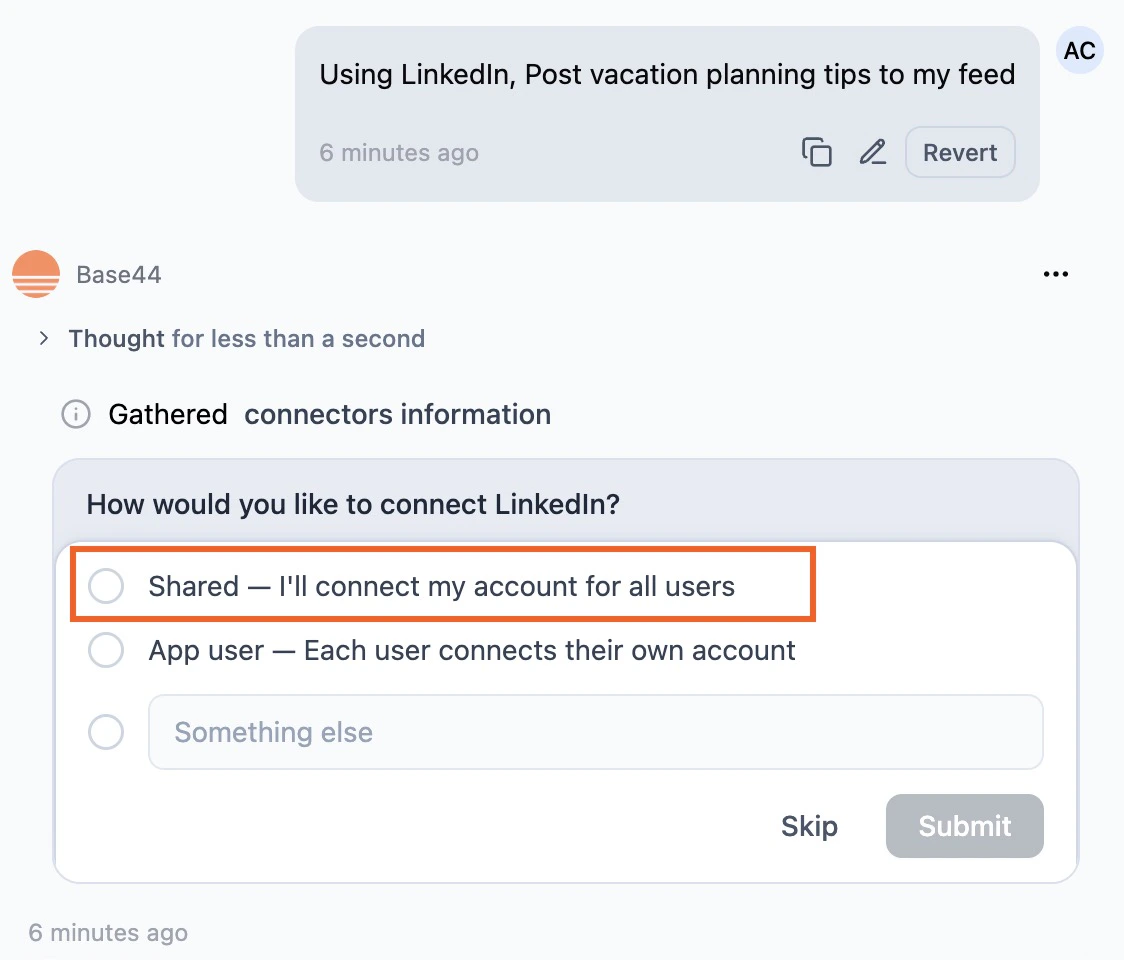
Choosing shared connector from the dashboard flow
- Review what the AI chat asks for under We need your permission to access.
- Click Connect to [tool].
- Complete the sign-in authorization.
Notes:
- If you click Skip in the authorization window, the connector is not added. You can run the connection flow again from the AI chat or from Integrations → Browse.
- Some tools require additional steps on their platform after connecting to your Base44 app.
Managing connectors
View and manage your app’s connectors, review what each can access, and reconnect, switch, or disconnect the connected account per tool as needed.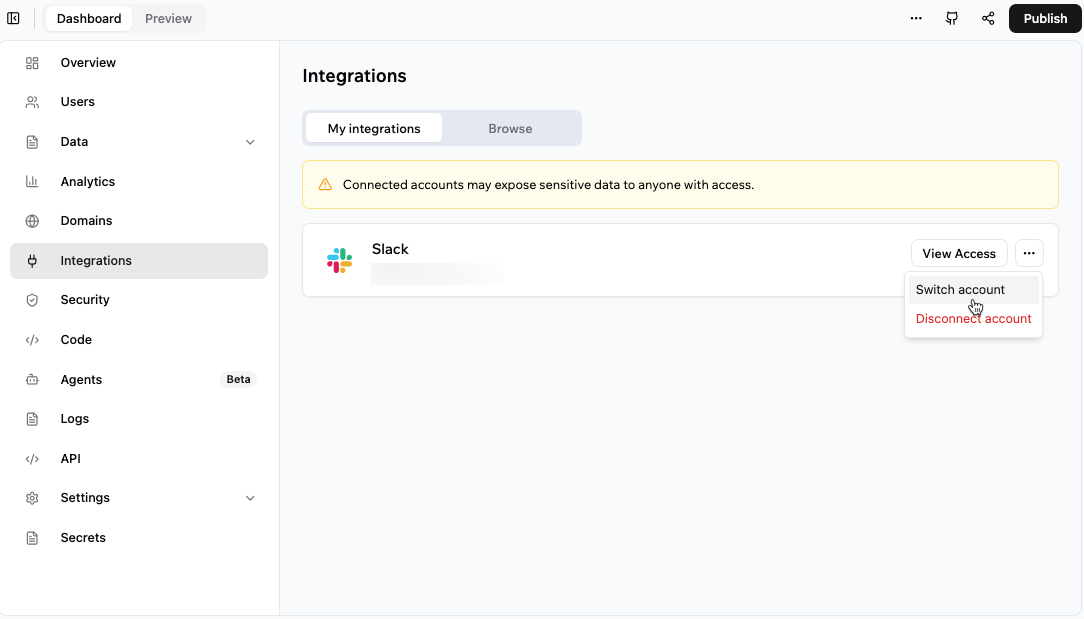
Viewing and managing your app connections
- Go to your app’s dashboard.
- Click Integrations.
- Click the My integrations tab.
- For each connector, choose what you want to do:
- View access: Check the permissions granted to the app.
- More actions: Reconnect, switch, disconnect, or remove a connected account. Available actions depend on the connector status.
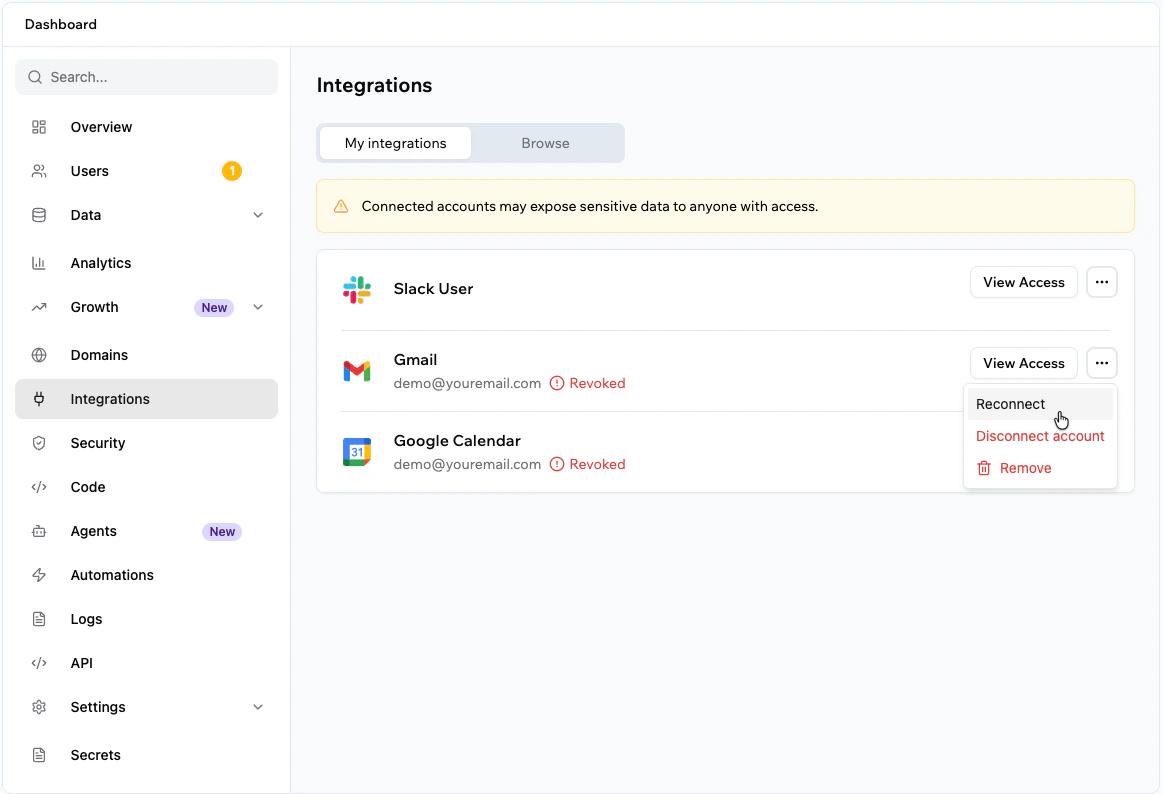
Reconnecting a shared connector
Reconnect a shared connector if the connected account is disconnected, access is revoked in the connected service, or the connected service asks you to authorize access again. To reconnect a shared connector:- Go to your app’s dashboard.
- Click Integrations.
- Click the My integrations tab.
- Find the connector you want to reconnect.
- Click the More actions icon.
- Select Reconnect.
- Review the requested permissions and approve access.
Reconnecting a shared connector
FAQs
Click a question below to learn more about connectors.Which tools can I connect my app to?
Which tools can I connect my app to?
You can connect your Base44 app to Gmail, Google Workspace tools, Google Calendar, Google BigQuery, Google Analytics, Slack, Discord, GitHub, Notion, ClickUp, Wrike, Box, Salesforce, HubSpot, LinkedIn, TikTok, and more.For the full list of available connectors, example prompts, and permissions, see the Connectors catalog.
Can I connect multiple tools to my app?
Can I connect multiple tools to my app?
Yes. You can connect multiple tools to the same app.
Can I connect multiple accounts to the same tool?
Can I connect multiple accounts to the same tool?
Each app uses one account per connector type, for example a single Gmail account for a Gmail connector or a single Slack account for a Slack connector. To connect to a different account, click the More actions icon and choose Switch account.
What happens if a flow needs additional permissions?
What happens if a flow needs additional permissions?
If you build a flow that requires additional permissions from a connector you already connected, Base44 prompts you to review and approve the updated permissions for that tool before the flow can run.
Who can connect an account, and who can use it?
Who can connect an account, and who can use it?
Any teammate who can edit the app can connect an external tool. Once connected, all teammates who can edit the app can use the shared connector. People who use your published app interact with data and actions powered by that connector but do not connect their own accounts.
What is the difference between connectors and integrations?
What is the difference between connectors and integrations?
- Connectors are managed, OAuth-based connections to popular tools that you can set up from the AI chat or the homepage without handling API keys.
- Integrations include custom and manual integrations where you configure API keys and credentials yourself. Use integrations when you need fine-grained control over a specific API or a tool that does not yet have a connector.