

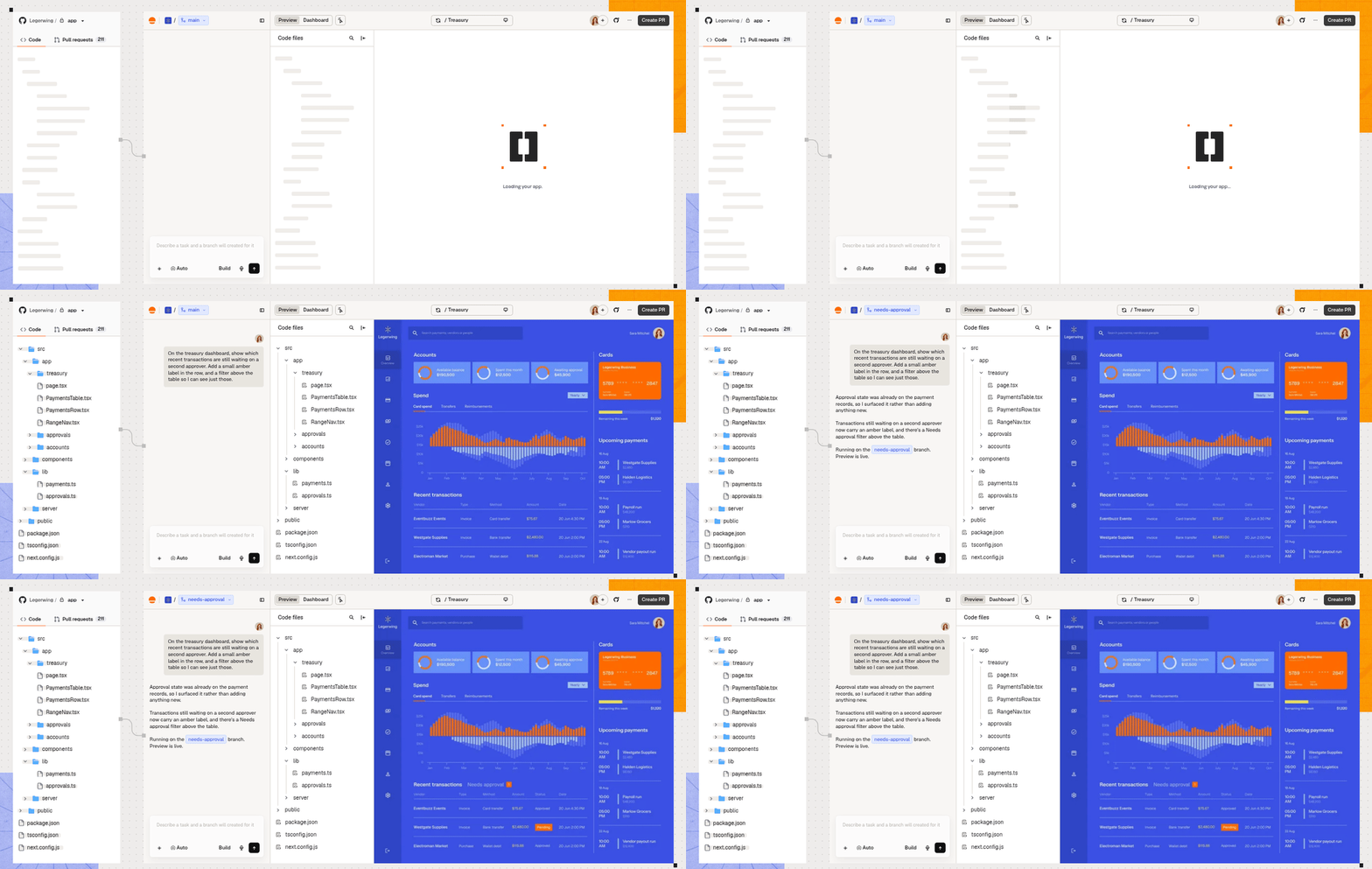
Before you begin:Your project must be a web or full-stack project in a GitHub repository.
Setting up Base Code
Connect the GitHub repository you want to work on. You need to be an owner, admin, or editor in the workspace to connect a repository. For private repositories, make sure the Base44 GitHub App has access. The first time you use Base Code, you can answer how familiar you are with code or skip the question.- From your account
- Paste a link
Connect a repository from your GitHub account. Make sure you have push access to the repository.To connect from your account:
- Go to Base Code.
- If your GitHub account isn’t connected, click Connect GitHub and authorize the repositories you want Base44 to access.
- Click View more to open Connect your repository.
- Click From your account.
- Select the repository.
- If you want to start from a different branch, click the Branch drop-down and select one. Base44 uses the default branch if you don’t choose one.
- Click Connect.
Working on your project
Once your repository is connected, Base Code opens it in the editor so you can preview the project and start making changes.Making your first change
Describe what you want to change, then preview the result on a new working branch. To make your first change:- Go to Base Code.
-
In the prompt box, describe the change you want to make. For example:
- Click Create branch. Base Code opens the new branch in the editor and starts working.
- Check Preview and ask the AI chat for any adjustments.
Base Code runs your project in a development preview. To release your changes to production, use your project’s existing deployment process.
Saving your work
Base44 saves your work as you go. For projects synced to GitHub, it commits and pushes each AI chat change to the branch you’re working on. To bring changes into your default branch, open and merge a pull request that targets it. Base Code uses the Git branches in your repository directly, with Git as the source of truth. Each branch runs in its own sandbox, and deleting a branch in Base Code leaves the branch on GitHub. See working with branches.Opening a pull request
After reviewing and testing your changes, open a pull request to share them for review before merging. Your GitHub account needs write access to the connected repository. Opening a pull request doesn’t merge your changes. To open a pull request:- Click Create PR at the top of the editor.
- Enter a Title and a Description (optional).
- Click Create PR.
Resolving branch conflicts
If GitHub can’t automatically merge your branch into the branch your pull request targets, the pull request has conflicts. A note above the AI chat identifies the pull request and target branch. Click Resolve conflicts to start resolving them. Base44 merges the base branch into your branch, and the AI works through the overlapping changes. Review and test the resolved changes, particularly where each side implemented the same feature differently.Answering review comments
Handle your reviewers’ feedback from the AI chat, without leaving Base44. Ask the AI chat for the review comments on your pull request, and it lists each unresolved thread with the file and line it points at. Tell it what to change, and it drafts a change and a reply for each one. Review each draft before you tell it to post, and ask separately when you want a thread resolved. Anything it posts appears asbase44-builder[bot]. Merging normally happens on GitHub, and there’s no merge button in Base Code, though you can ask the AI chat to merge a pull request for you.
Managing your project
The dashboard gives you access to your project files, secrets, and the services Base44 runs for your development environment.Adding secrets
When your project needs an API key or other secret to run, the AI chat asks you for it. Enter the value when prompted. Base44 stores it encrypted and applies it to your project, including after a rebuild. A secret is never committed to your repository, and it’s shared across all your branches, so you enter each one only once. Changing or removing a secret takes effect on every branch that’s currently running, and any branch that’s asleep picks it up the next time you open it. You can also add and manage secrets in your app’s dashboard. To add a secret:- Go to your app’s dashboard.
- Click Secrets.
- Click Add Secret.
- Enter the Secret Name and Secret Value, then click Add Secret.
Collaborating with teammates
Owners, admins, and editors in the workspace can access the Base Code project without a separate app invitation. For anyone else, invite them as a collaborator from the app editor. Sharing the project link alone doesn’t give someone access. For details on inviting and managing collaborators, see Working with collaborators.FAQs
How many people can use a coupon code?
How many people can use a coupon code?
Each coupon code applies to 10 individual users per workspace.
How do pull requests work in Base Code?
How do pull requests work in Base Code?
Your pull request targets the branch your working branch was created from. For a setup branch created by Base Code, it targets the branch you connected.Further changes to your working branch appear in the same pull request. GitHub runs your repository’s configured checks.Base44 opens the pull request using your GitHub account. Commits list
base44-builder[bot] as the author and you as co-author.How do changes reach my default branch?
How do changes reach my default branch?
Base Code makes changes on working branches. Your default branch is updated when you merge a pull request that targets it.
Why can't Base44 open my pull request?
Why can't Base44 open my pull request?
If Base44 lacks permission to open pull requests, you see Review permissions on GitHub. An owner of the repository’s GitHub account or organization needs to approve the requested access.
What happens if I close Base Code and come back later?
What happens if I close Base Code and come back later?
Your project pauses when you stop working, and picks up where it left off when you return. If it needs rebuilding, Base44 clones your repository again and restarts from the latest commit on that branch. Work that was never committed doesn’t survive a rebuild.
Can I connect a repository I only have read access to?
Can I connect a repository I only have read access to?
Yes. With your GitHub account connected, use Paste a link to connect the repository. Base44 creates a fork or private copy in your GitHub account so you can make changes there. If your workspace limits repositories to approved GitHub organizations, you need push access to a repository in an approved organization.
How do I manage GitHub organization access in my workspace?
How do I manage GitHub organization access in my workspace?
Your workspace settings control who can connect GitHub organizations and which organizations are available for new apps. Workspace members still need permission to connect projects. Changing an organization’s Allowed setting doesn’t affect apps already using it.To manage GitHub organization access:
- Go to your workspace settings.
- Click Build tools.
- Click GitHub.
- Under Who can connect organizations, choose who can add an organization.
- Under Connected organizations, use Allowed to control which organizations are available for new apps.
Why does Base44 say my repository is not in an approved GitHub organization?
Why does Base44 say my repository is not in an approved GitHub organization?
Your workspace doesn’t allow repositories from this GitHub organization. Ask someone who manages your workspace’s GitHub settings to check that the organization is connected and Allowed under Build tools > GitHub, then try again.
My repository is a monorepo. Can I connect it?
My repository is a monorepo. Can I connect it?
Base Code checks the project at the root of the repository, and that project has to be a web or full-stack project. A mobile app in a subfolder doesn’t make the repository ineligible on its own.
Can I connect a mobile or desktop project?
Can I connect a mobile or desktop project?
No. Base Code runs web and full-stack projects only. You get a message naming what it detected as soon as you connect, and nothing is created in your account.
Can I use Base44 entities, login, or the SDK in a connected project?
Can I use Base44 entities, login, or the SDK in a connected project?
Connecting a repository doesn’t automatically add or configure Base44’s built-in services. Your project keeps its existing database, authentication, and routing.
Can I add a database, authentication, or CI/CD to my project?
Can I add a database, authentication, or CI/CD to my project?
Yes. Ask the AI chat and Base44 writes the code in your repository, the same way it makes any other change. You’re building on your own stack, not on Base44 pages, entities, or login, so point your project at your own database or service and add the connection string or API key as a secret. Whatever you add ships through your repository like the rest of your work.
How is this different from connecting my Base44 app to GitHub?
How is this different from connecting my Base44 app to GitHub?
The GitHub integration syncs an app you built in Base44 with a repository. Base Code works the other way around, starting from a repository that already exists. To move a project from another platform such as Shopify or Lovable, see migrating a project to Base44. To link a local Base44 backend project with the CLI instead, see linking an existing project.