

Sync your app with GitHub
Connect your app to GitHub to write code in your local development environment or in Base44 and keep them in sync with each other.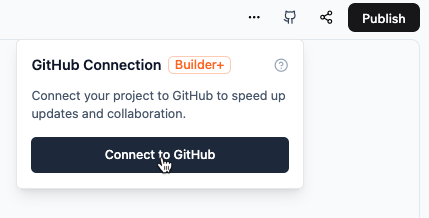
Connect to GitHub for 2-way sync
- From the app editor
- From the Overview page
To sync your app with GitHub:
- Click Dashboard in your app editor.
- Click the GitHub icon at the top-right and click Connect to GitHub.
- Click Connect GitHub.
- Click Authorize Base44 Builder.
- Choose where to install the Base44 Builder:
- Select the GitHub organization or account.
- Choose which repositories to allow access.
- Click Install.
- Create a repository for your app:
- Choose the GitHub organization or account.
- Enter a name for the new repository.
- Click Create Repository.
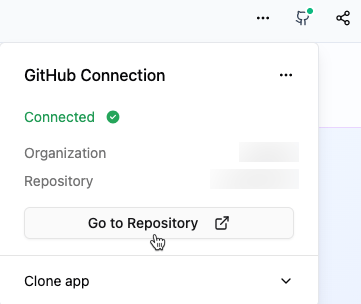
View your connected GitHub repository
How your team writes to GitHub
GitHub connections belong to your workspace, not to one person’s account. Workspace admins manage them in Workspace settings > GitHub, and sync keeps working if the member who connected an organization leaves the workspace. Your workspace admin chooses how members write to GitHub. The setting applies to every app in the workspace that syncs with GitHub:- Shared connection: Everyone writes through the workspace’s connection, without connecting a GitHub account of their own. Commits show Base44 as the author. This is the default.
- Per user connection: Each member connects their own GitHub account and gets the access GitHub already gives them. Members without write access to the repository can’t edit or publish the app. Commits show under the member’s own name.
How organizations work in your workspace:
- When you create a repository, you only see the GitHub organizations your workspace allows.
- By default, only workspace owners and admins can add a new organization. Admins can let Editors add organizations too.
- Connections made before GitHub moved to the workspace were moved automatically, so you don’t need to reconnect.
Set up your local development environment
After connecting to GitHub, set up your local repository to start editing code in your preferred development environment. To set up your local repository:- Clone the repository using the project’s Git URL.
- Navigate to the project directory.
- Install dependencies:
npm install. - Install the Base44 CLI:
npm install -g base44@latest. - Authenticate:
base44 login. - Link the clone to its app:
base44 link. Thebase44/.app.jsonclink pointer is gitignored, so every fresh clone needs this step.
/api requests are proxied to the local backend. See Local development for what runs locally.
To work on only the frontend against your app’s live hosted backend, run base44 dev --remote instead.
For details on the exported file structure, see Project Structure.
Sync local changes to Base44
To sync your local changes to Base44, merge the changes to the main git branch. This branch must be namedmain. Other default branch names, such as master, currently aren’t supported. The changes will then be visible on your Base44 app.
After syncing, click Publish in the top right corner of your Base44 app to
make the changes live for users.
Disconnect from GitHub
You can disconnect a specific app from its GitHub repository, or disconnect a GitHub organization from your whole workspace. Moving an app to another workspace also disconnects its GitHub sync, and Base44 warns you before it does.If you don’t see Disconnect in the GitHub panel, it isn’t enabled for your account yet. Sync can’t be paused, so the only states are connected and disconnected.
Disconnect your repository
Disconnect your app from its GitHub repository if you no longer want to sync changes. Only the app owner or the member who connected the repository can disconnect it. To disconnect your repository:- Open the code tab.
- Click GitHub.
- Click the More actions icon .
- Click Disconnect.
Reconnect your repository
Reconnect your app to the repository it was disconnected from to resume syncing. Only the app owner can reconnect. To reconnect your repository:- Click the GitHub icon at the top-right and click Connect to GitHub.
- In the Reconnect Repository dialog, click Reconnect.
Disconnect an organization from your workspace
Disconnect a GitHub organization if you no longer want apps in your workspace to sync with it. Every app that syncs through the organization stops syncing, and the Base44 GitHub App stays installed on GitHub. Workspace owners, admins, and Editors can disconnect an organization. To disconnect an organization:- Go to Workspace settings.
- Click GitHub.
- Under Connected organizations, click the More actions icon next to the organization.
- Click Disconnect organization.
- Click Disconnect to confirm.