

The Code tab is for developers who want more control. For simpler changes, use
Base44’s visual editor and AI tools.
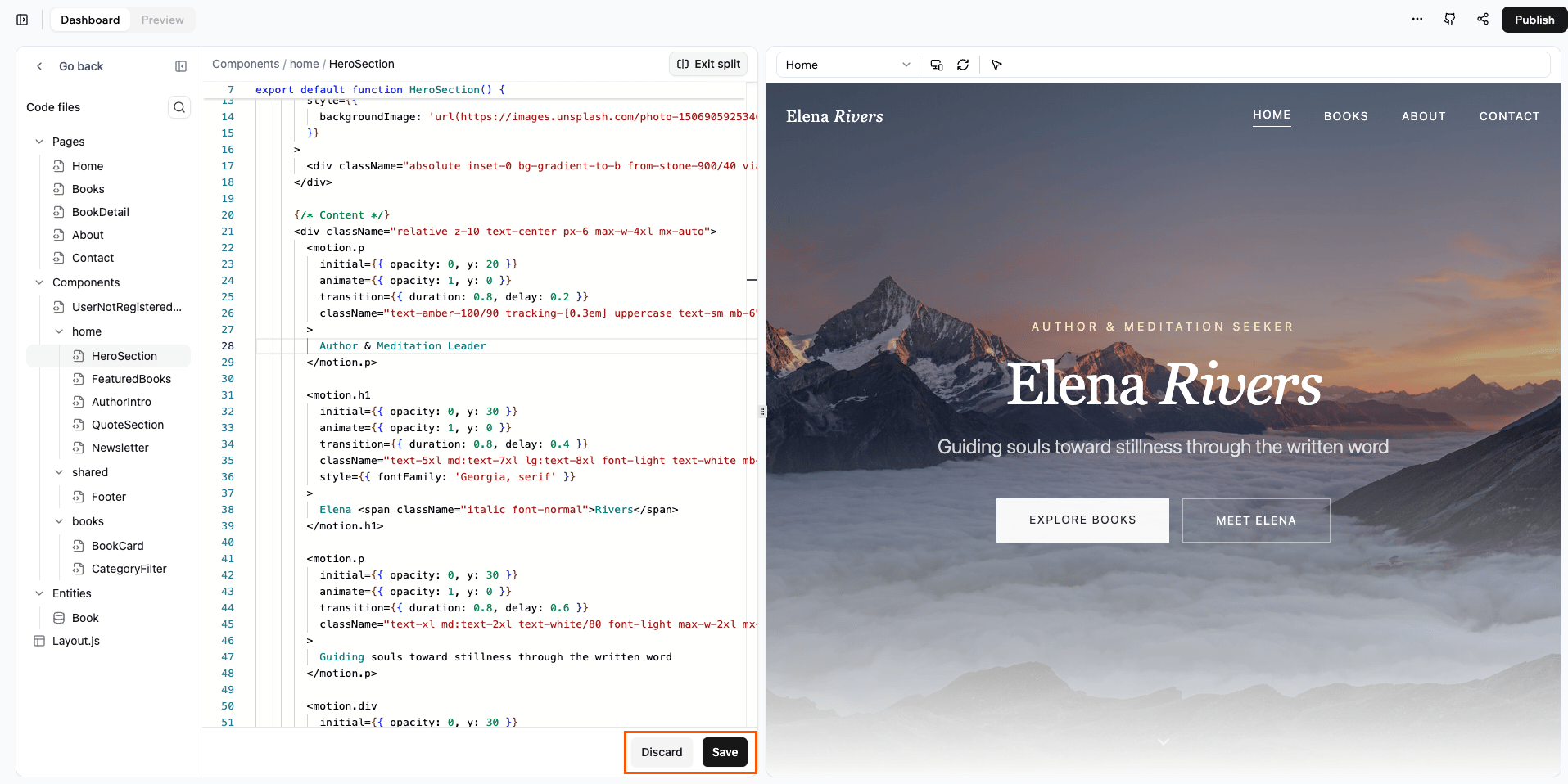
The Code tab interface showing your app's source code
Access the Code tab
To open the Code tab:- Go to your app’s dashboard.
- Click the Code tab.
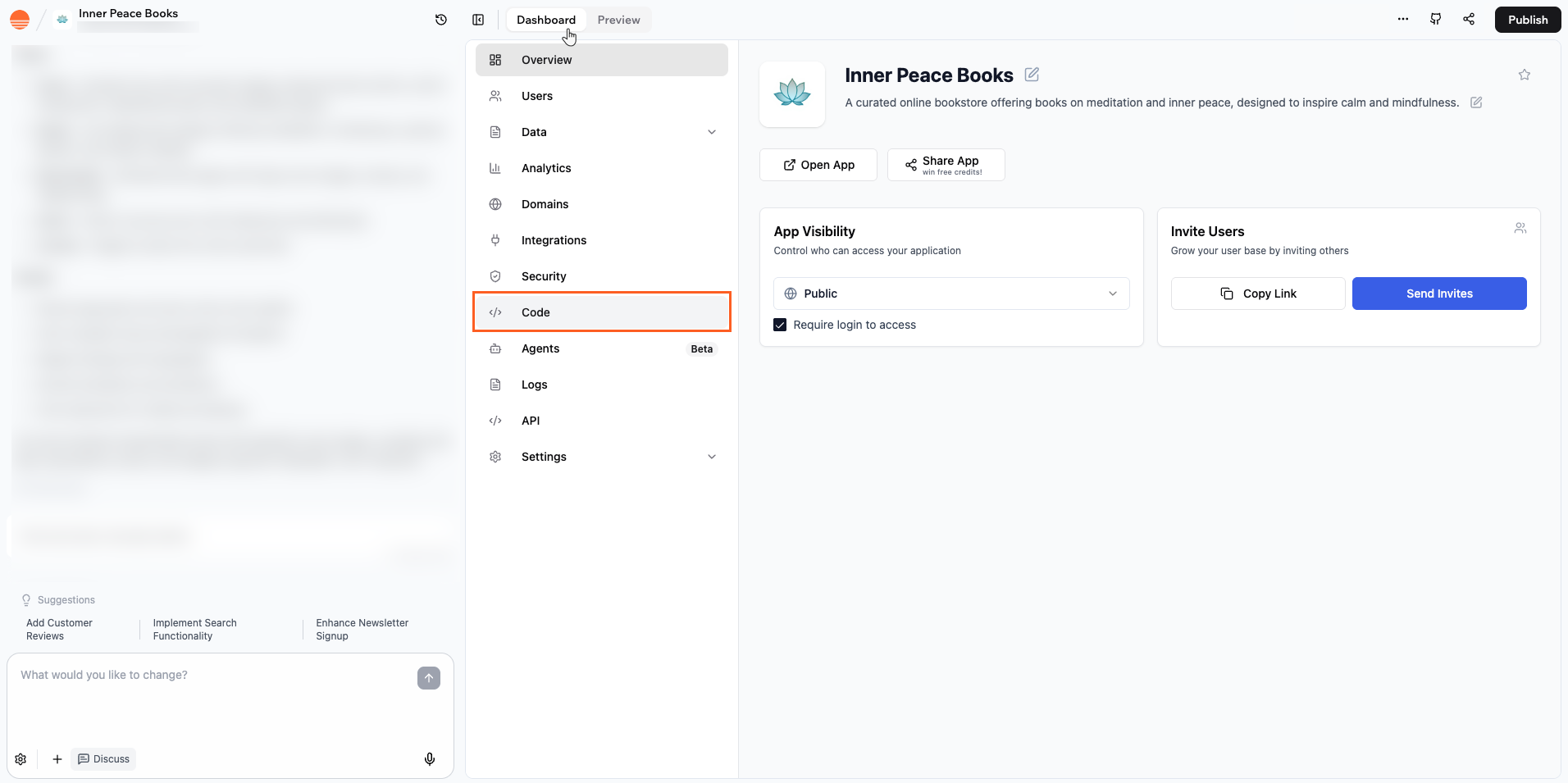
Accessing the Code tab from your app dashboard
Navigate your codebase
Use the Files used in this page feature to see which files power the page you’re previewing. This shows you exactly which code files are running, so you know where to go when you want to edit the page or investigate an issue. Each entry in the list shows the file name and its folder path, grouped by location in your project such as pages or components. To view files used on a page:- Go to your app editor.
- Click the More actions icon at the top right.
- Click Files used in this page.
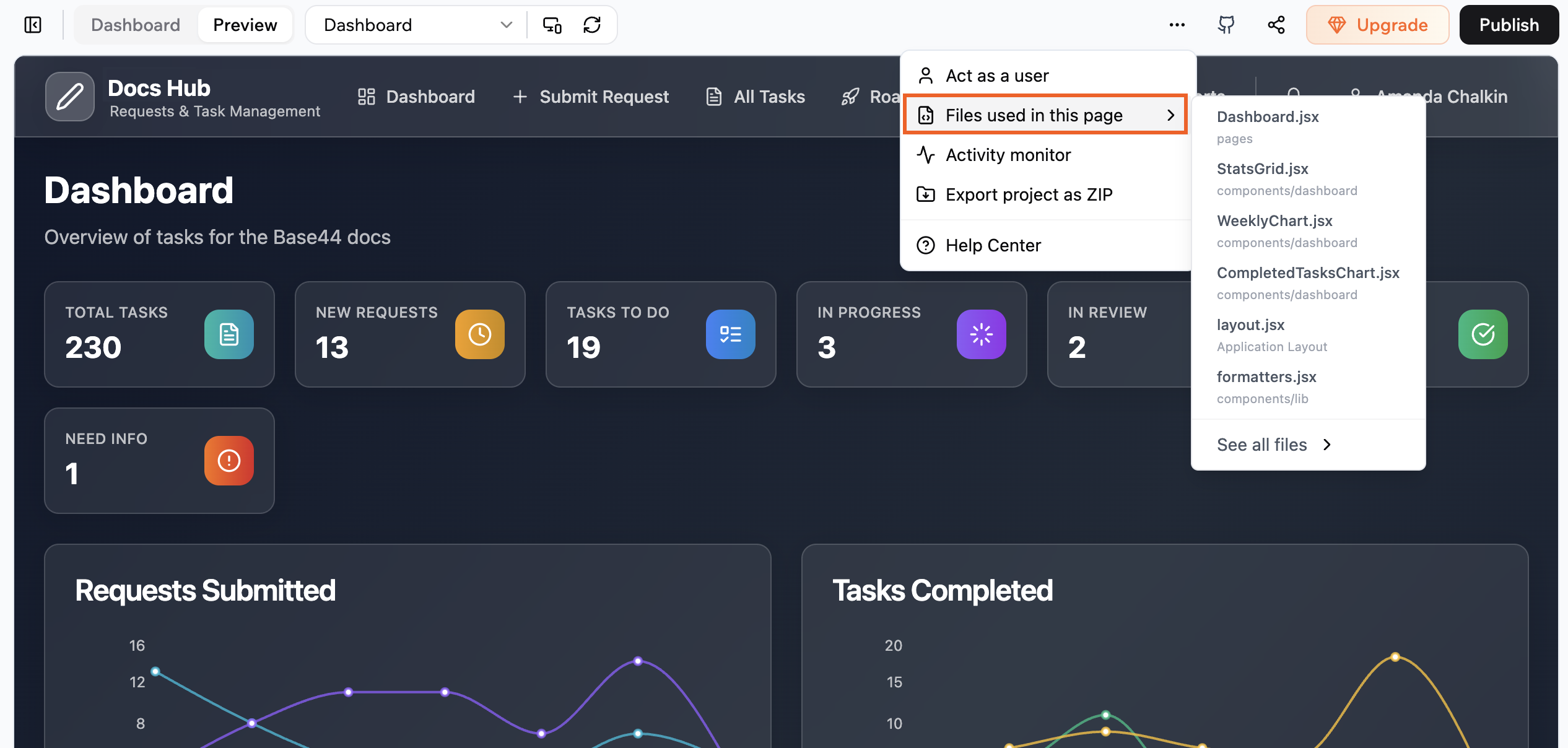
Viewing files used on a page of your app
Edit with live preview
The Code tab offers a split-screen view that shows your code on one side and a live preview of your app on the other. This lets you see changes instantly without switching contexts.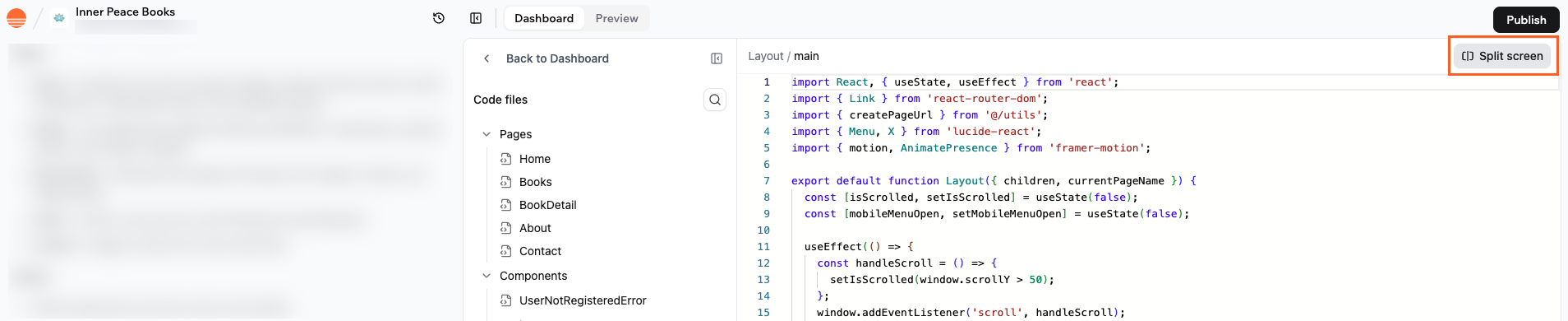
Split screen view showing code and live preview
- Open a file in the Code tab.
- Click the split-screen toggle in the top right corner.
- Edit your code on the left and see your changes on the right.
- Click Save at the bottom of the screen to apply your changes and refresh the preview with the latest code.
- Click Discard at the bottom of the screen if you want to drop all unsaved edits and return to the last saved version of the file.
Review AI code changes
When the AI edits your app, you can open the Code changes modal to see exactly what it changed before publishing. The modal shows every file the AI touched, grouped by folder, with a diff view for each one. To open the Code changes modal:- Go to the AI chat in your app editor.
- Hover over a message where the AI edited or created a file.
- Click the three dots icon next to that change and select View Changes.
- Green for newly added files.
- Amber for modified files, which open in a side-by-side diff view.
- Red for deleted files.
FAQs
Can I edit every part of my app's code?
Can I edit every part of my app's code?
Yes. You can open and edit any code file that appears in the Code files
panel, including pages, components, layouts, and entity helpers. If a part
of the app is generated for you, it still appears as regular code that you
can modify.
Do I need to use split screen to edit code?
Do I need to use split screen to edit code?
No. You can work in the full width code editor if you prefer more space.
Split screen is helpful when you want to see the preview next to your code,
but you can turn it off at any time and reopen it later.
What happens if I click Discard?
What happens if I click Discard?
Discard removes all unsaved changes in the active file and restores the last
saved version. This is useful if you try something that does not work and
want to go back quickly. Once you click Discard, you cannot recover the
unsaved code from that session.
Do I need to be an experienced developer to edit the code?
Do I need to be an experienced developer to edit the code?
You don’t need to be an expert, but basic familiarity with React and JSX
helps. You can start with small changes such as updating text, swapping
components, or changing simple styles, then move on to more advanced logic
as you gain confidence