

The Secrets page appears in your dashboard once your app uses backend functions.
Getting an API key
An API key acts like a private password between your app and an external service. It proves the account is yours and keeps the connection secure. You create the key in the service itself, then add it to your app. To get an API key:- Sign in to the external service, for example OpenAI, Resend, or Stripe.
- Open its Developer, API, or Integrations section.
- Create a new API key or token.
- Copy the key.
- Add the key to your app as a secret. You can add it on the Secrets page or paste it into the AI chat.
Adding secrets
Add a secret when a service gives you a key your app needs. If the AI chat needs a key, it shows a form where you can enter it, and the key is saved as a secret for you. Your backend functions find each secret by its exact name. If the AI chat already wrote a function that expects a key, use the name it gave you.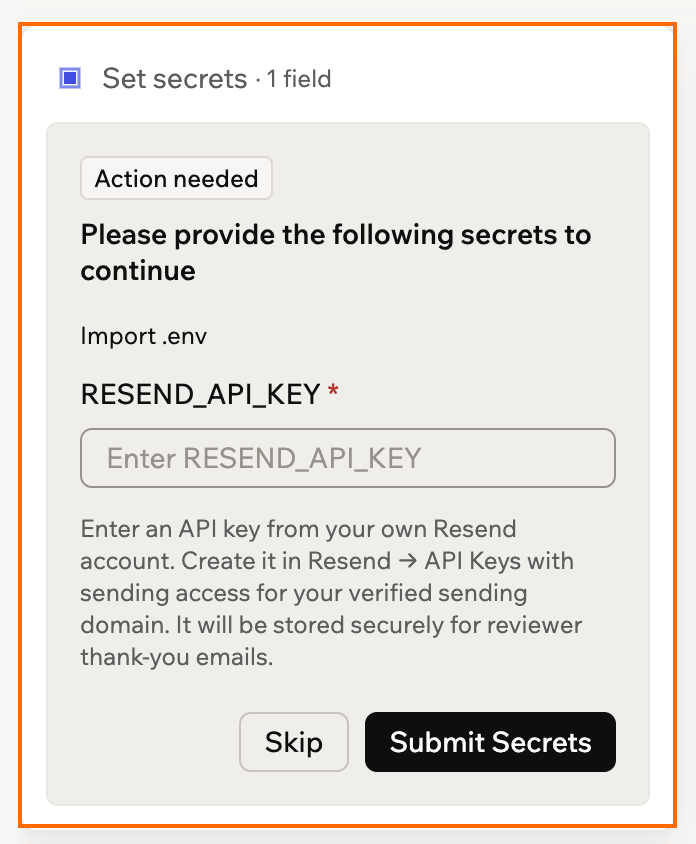
The AI chat asking for a secret
- Go to your app editor.
- Click Dashboard.
- Click Secrets.
- Click Add Secret.
- Enter the Secret Name, for example
STRIPE_API_KEY. Names can’t contain spaces, so use underscores. - Paste the key into Secret Value.
- Click Add Secret.
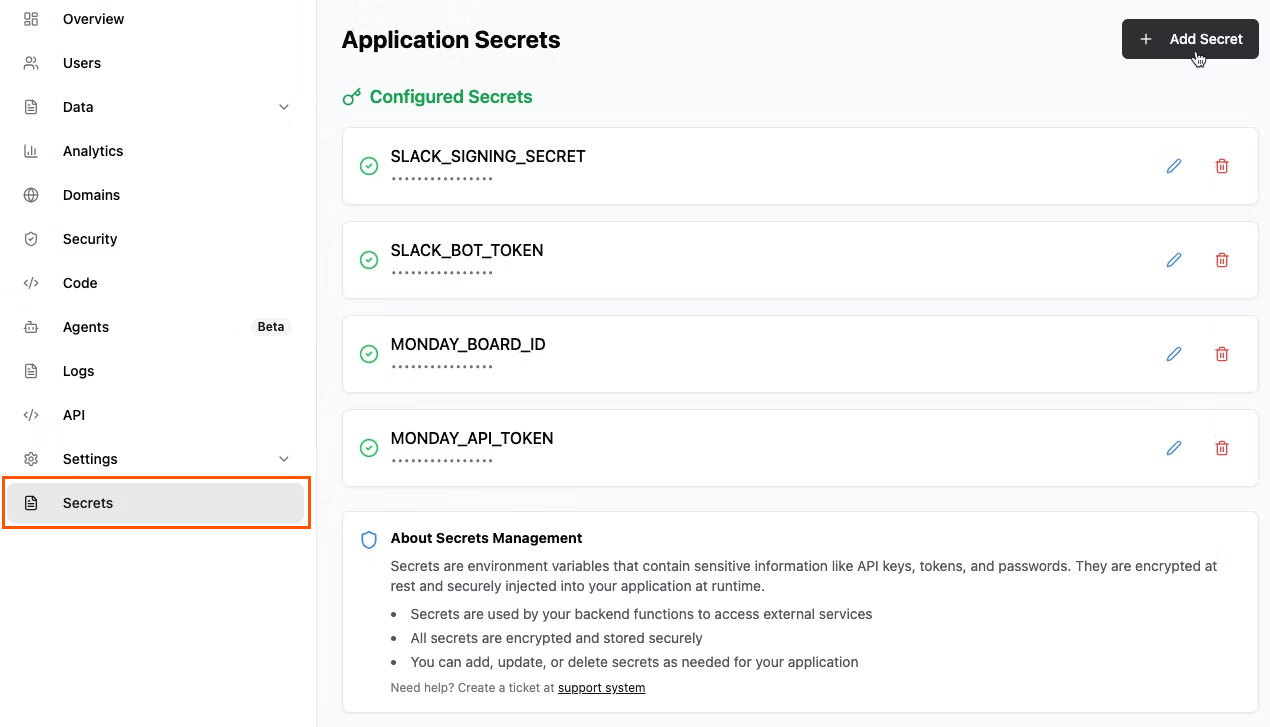
Your app's saved secrets
Pasting keys in chat
When you paste an API key into a message in the AI chat, Base44 saves it as a secret for you and takes it out of the message before the AI reads it. This happens in every chat mode, and the AI works with the secret’s name, never the key itself. In your message, the key is replaced with a line that starts with “Secret detected and saved as” and gives the secret’s name, such as$STRIPE_SECRET_KEY. The secret then appears on the Secrets page, where you can change or delete it like any other secret.
Base44 recognizes keys from OpenAI, Anthropic, Stripe, AWS, GitHub, Google, and Slack, bot tokens from Telegram and Discord, and JSON Web Tokens. For keys from other services, add them as secrets yourself instead of pasting them into the chat.
Changing or deleting secrets
Update a secret when you regenerate a key in the service it comes from, and delete it when your app no longer uses that service. Choose what you want to do:Change a secret's value
Change a secret's value
You can replace a secret’s value, but you can’t rename it. To use a different name, add a new secret and delete the old one.To change a secret’s value:
- Go to your app editor.
- Click Dashboard.
- Click Secrets.
- Click the edit icon next to the secret.
- Paste the new value.
- Click Save.
Delete a secret
Delete a secret
Deleting happens straight away, with no confirmation, and you can’t undo it. A function that still reads the secret gets no value, so ask the AI chat to remove or update that code too.To delete a secret:
- Go to your app editor.
- Click Dashboard.
- Click Secrets.
- Click the delete icon next to the secret.