

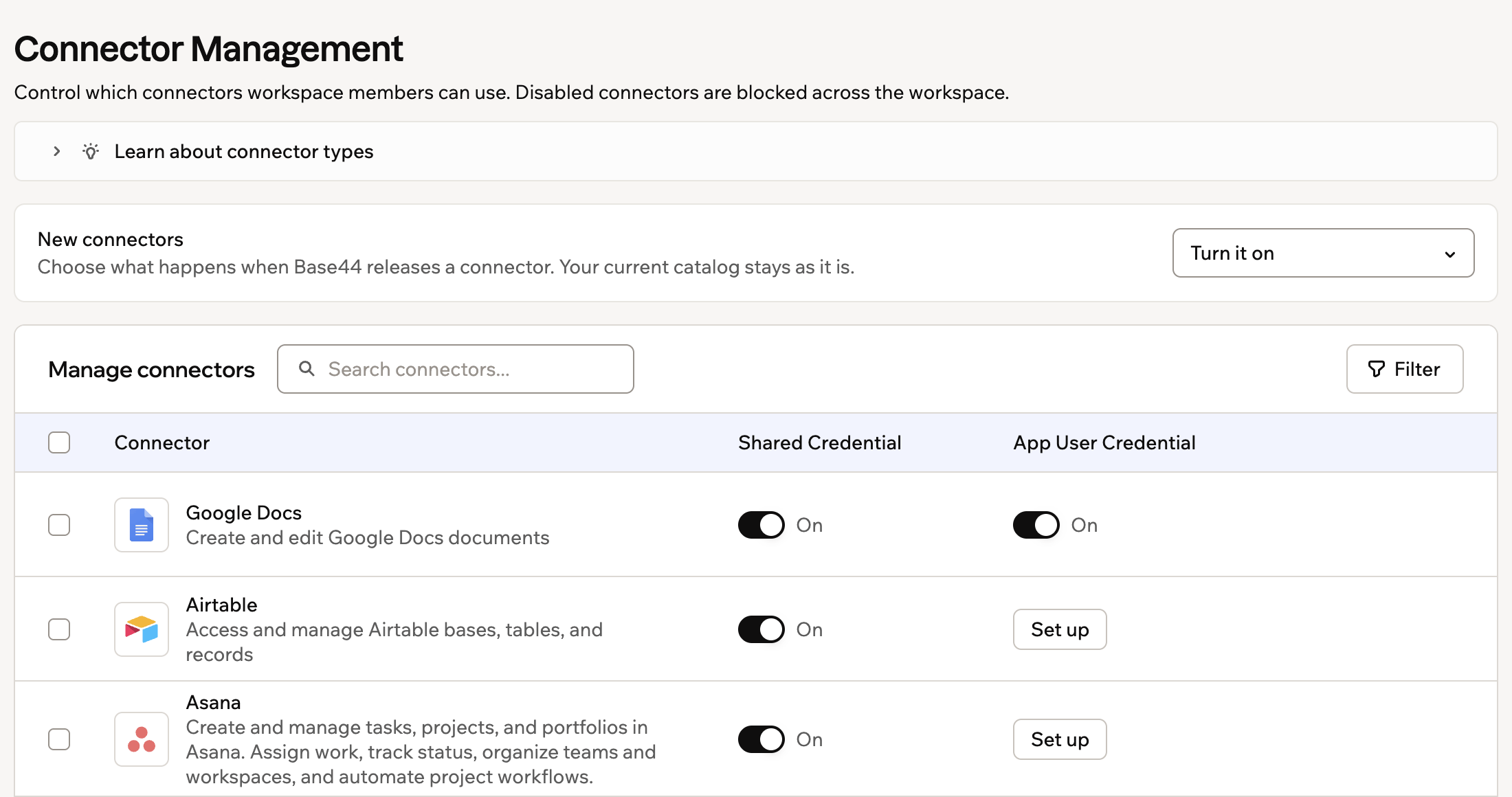
Control connector availability across your workspace
Connector types
Connectors have 2 credential types you can manage separately, depending on how apps in your workspace should connect to external services. You can enable both credential types for the same connector.Shared Credential
One account connects the app to an external service. Everyone who uses the app uses that same connected account for connector actions.Use this when an app should work from a team or company account, such as a shared Slack channel or company email account.
App User Credential
Each person connects their own account to the app. The app uses that person’s connected account for connector actions.Use this when each person should work with their own data, such as calendar events, files, or inbox.
Managing workspace connectors
Set workspace-level rules for connector access. Choose which external services are available to builders, and block connectors that should not be used in your workspace. You can manage both credential types separately for each connector, so apps can authenticate with one shared account, each app user’s own account, or both. To manage workspace connectors:- Click your workspace name at the bottom left of your account.
- Click Settings.
- Under Build tools in the left sidebar, click Manage connectors.
- Find the connector you want to manage.
- Choose what you want to do:
- Shared Credential: Click the toggle to enable or disable shared credentials. To disable shared credentials, review the confirmation message and any affected apps, Superagents, or in-app agents, then click Disable to confirm.
- App User Credential: Click the toggle to enable or disable app user credentials. If Set up appears instead, click Set up to add this connector as an app user connector to your workspace. To disable app user credentials, review the confirmation message and any affected apps, Superagents, or in-app agents, then click Disable to confirm.
If your sidebar shows Connectors instead of Manage connectors, click it, then click Manage connectors at the top right.
Setting up app user connectors
Set up an app user connector when each person using an app should connect their own account to an external service. Setting up an app user connector needs a Builder plan or higher, and the Managed by Base44 option needs a Pro plan or higher. To set up an app user connector:- Click your workspace name at the bottom left of your account.
- Click Settings.
- Under Build tools in the left sidebar, click Manage connectors.
- Find the connector you want to set up.
- In the App User Credential column, click Set up.
- Complete the setup dialog:
- Enter a name in the Connector name field.
- Under How should users connect?, choose one. This choice appears only for connectors that support it, and Google Calendar supports it today.
- Managed by Base44: Your app’s users connect through Base44’s own OAuth app, so there is no developer account to open and no client ID or secret to create, and the 2 fields below do not apply. The service’s consent screen shows Base44 rather than your own brand.
- Use your own OAuth client: You supply the client ID and secret below, and the consent screen shows your own brand.
- Enter the client ID in the Client ID field.
- Enter the client secret in the Client Secret field.
- Select the scopes your app needs in the Scopes field.
- (Optional) Add extra scopes in the Additional scopes field.
- Click Add Connector.
Managing app user connectors
After an app user connector is set up, click View Connections to add another OAuth credential configuration or edit an existing one. To manage an app user connector:- Click your workspace name at the bottom left of your account.
- Click Settings.
- Under Build tools in the left sidebar, click Manage connectors.
- Find the connector you want to manage.
- On the connector’s row, click View Connections.
- Choose what you want to do:
- Add a connection: Click Add Connection.
- Edit a connection: Click Edit next to the connection, update its details, then click Save Changes.
Managing connectors in bulk
Use bulk actions to allow or block multiple connectors across your workspace at once. To manage connectors in bulk:- Click your workspace name at the bottom left of your account.
- Click Settings.
- Under Build tools in the left sidebar, click Manage connectors.
- Select the checkbox next to each connector you want to manage. To select all visible connectors, click the checkbox at the top of the list.
- In the bulk action bar at the bottom, choose what you want to update:
- Set shared credential: Choose whether to enable or disable shared credentials for the selected connectors.
- Set app user credential: Choose whether to enable or disable app user credentials for the selected connectors.
- Click Apply.
- If you are disabling credentials, review the confirmation message and any affected apps, Superagents, or in-app agents, then click Disable to confirm.
Handling new connectors
Choose what happens when Base44 releases a new connector. By default, new connectors are turned on, so members can use them right away. You can keep them off instead, until an admin reviews and allows each one.This setting only applies to connectors released after you change it. Connectors already in your catalog keep their current state when you switch either way. For example, if you switch back to Turn it on, connectors that arrived while new connectors were off stay off until you turn them on.
- Click your workspace name at the bottom left of your account.
- Click Settings.
- Under Build tools in the left sidebar, click Manage connectors.
- Next to New connectors, select an option:
- Turn it on: Members can use new connectors right away.
- Keep it off: New connectors stay blocked for both credential types until an admin allows them.
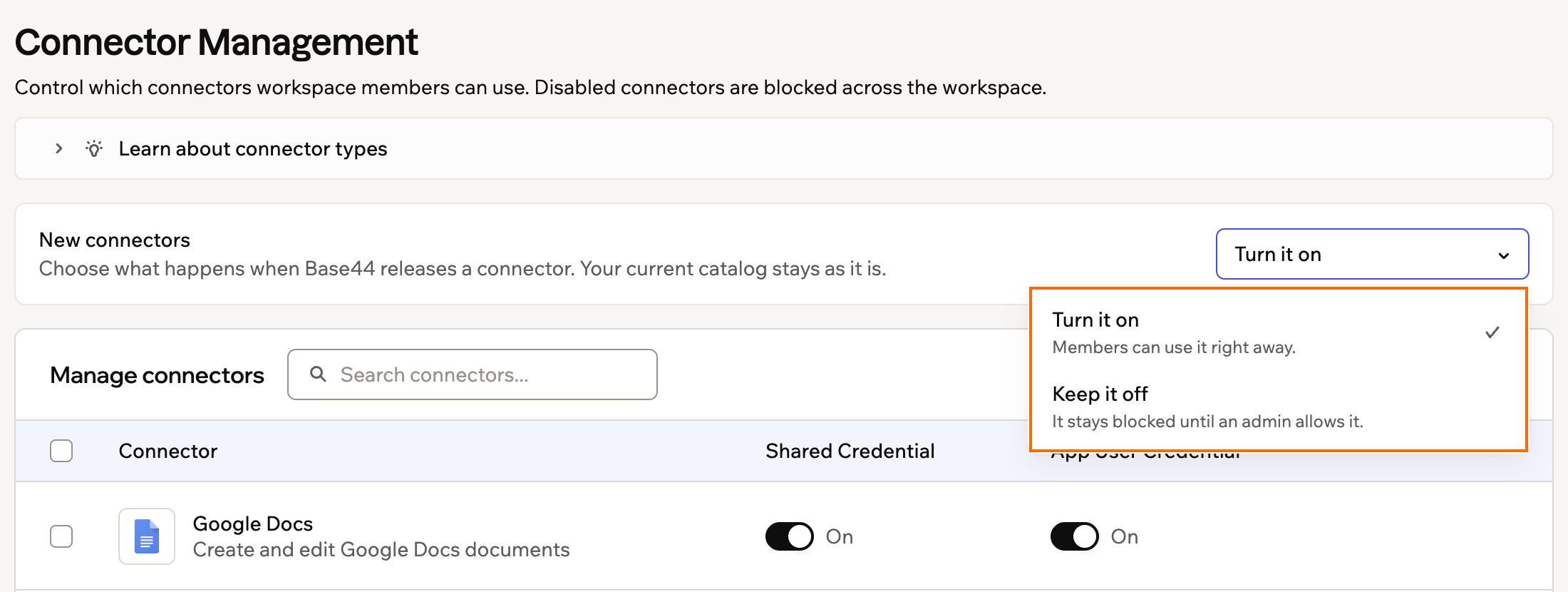
Choosing how new connectors start in Base44
FAQs
Click a question below to learn more about managing connector availability.Who can manage connector availability in a workspace?
Who can manage connector availability in a workspace?
Workspace owners and admins on an Enterprise plan (Business or Enterprise) can manage connector availability from Connector Management.
Can I add multiple connections for the same app user connector?
Can I add multiple connections for the same app user connector?
Yes. After the app user connector is set up, click View Connections, then click Add Connection to add another OAuth app credential configuration.
What happens when I disable a connector in my workspace?
What happens when I disable a connector in my workspace?
When you disable a connector, Base44 shows a confirmation message before applying the change. If the connector is already used, you can review the affected apps, Superagents, in-app agents, and active connections before disabling it.After you disable the connector, it becomes unavailable across the workspace immediately. This includes apps, Superagents, and in-app agents that use it.
What happens when I set up an app user connector?
What happens when I set up an app user connector?
After you set up an app user connector, workspace members can use it in apps. The App User Credential column shows a toggle, so you can turn app user credential access on or off. View Connections is a separate action on the connector’s row. It opens the connection list, where you can manage its OAuth configuration.