

Accepting your invitation
Your workspace admin sends you an invitation by email. Invitation links are valid for 60 days. To join your workspace:- Open the invitation email and click Accept Invitation.
- Sign in to Base44 or create an account if you do not have one.
If your workspace uses Single Sign-On (SSO), you sign in with your company credentials instead of a Base44 password. Your admin can confirm which sign-in method to use. If SSO is enabled, you may be added to the workspace automatically the first time you sign in with no invite needed.
Accessing your workspace
Once you have accepted your invitation, click your workspace name at the bottom left of Base44, click your workspace name again at the top of the menu, and select your enterprise workspace from the list.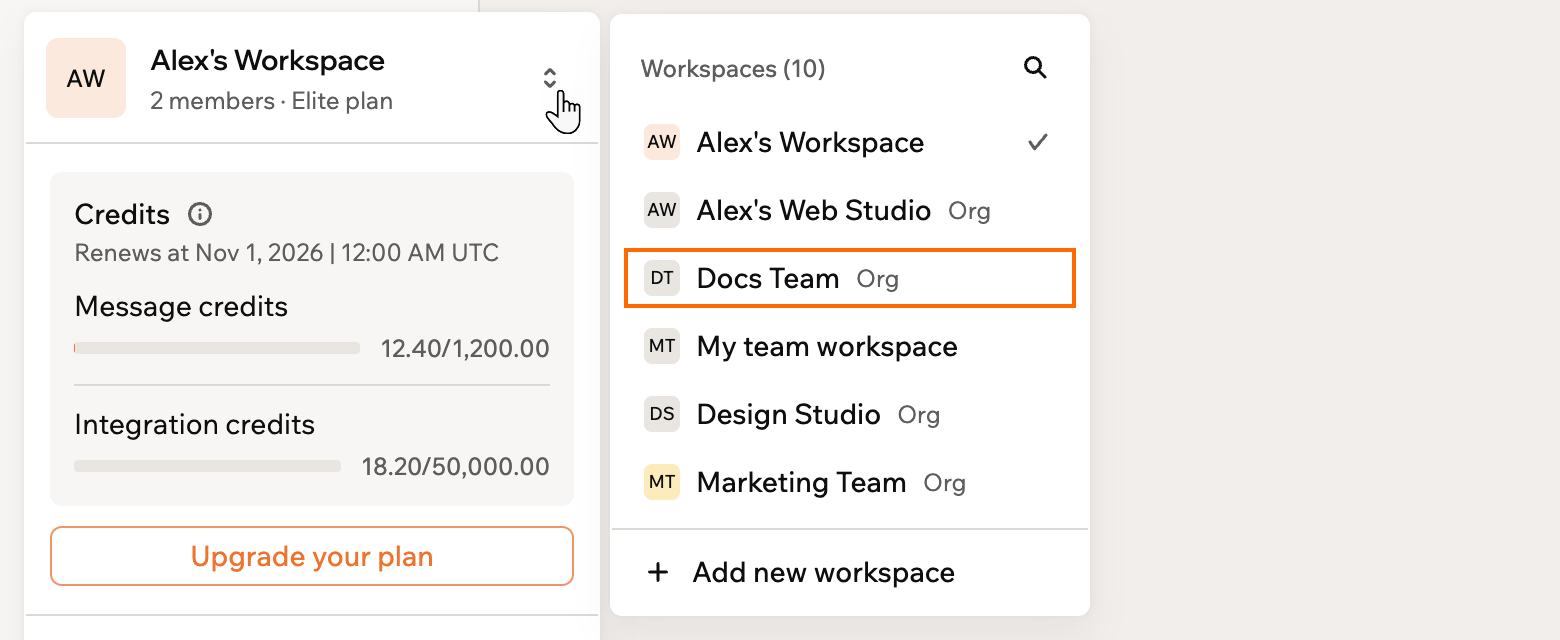
Switching to your enterprise workspace
Understanding your role
Your role controls what you can see and do in the workspace.
If you need a different level of access, contact your workspace admin.
Your admin may have set a monthly credit limit for your account. If you reach your limit before the end of the month, contact your admin to request an increase.
Building and accessing apps
As an Editor, you can create new apps from the Base44 home screen and collaborate on apps that others invite you to. Each app you build or run uses credits from the shared workspace pool. As a Viewer, you can only access apps that you have been specifically invited to collaborate on. Your admin or the app owner sends you an invitation to each app. Once you have access to an app, it appears on your Base44 home screen.Using Superagents
If your workspace has Superagents enabled, you can create and interact with AI agents directly from the Base44 home screen. Select the Superagents tab to get started.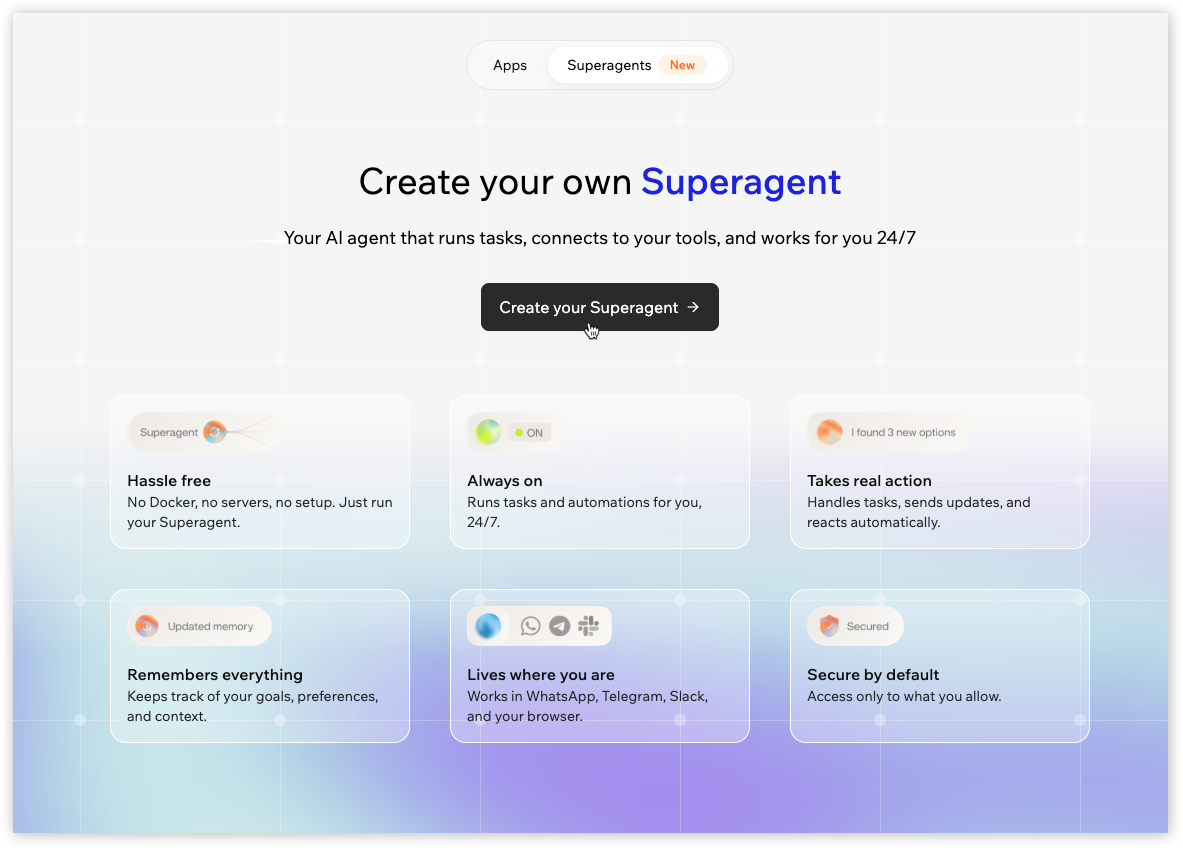
Starting a new Superagent
Getting help
If you run into issues or have questions, here are the best ways to get support.- Documentation: Browse guides at docs.base44.com
- Support: Open a ticket from the Help menu inside Base44 for bugs, troubleshooting, or app-building questions
- Your admin: For workspace access, role changes, or credit limit increases, contact your workspace admin directly
Next steps
Build your first app
Follow the quick start guide to create and launch your first Base44 app.
Explore Superagents
Learn how to create an AI agent that runs tasks and works for you around the clock.
Get help
Find support options and contact the Base44 team.