

Before you begin
Make sure you have:- Owner or admin access to your Base44 enterprise workspace.
- Admin access to the Microsoft Entra admin center.
- Your SCIM Base URL, found in Settings > Authentication.
- A Workspace API key, found in Settings > Secrets.
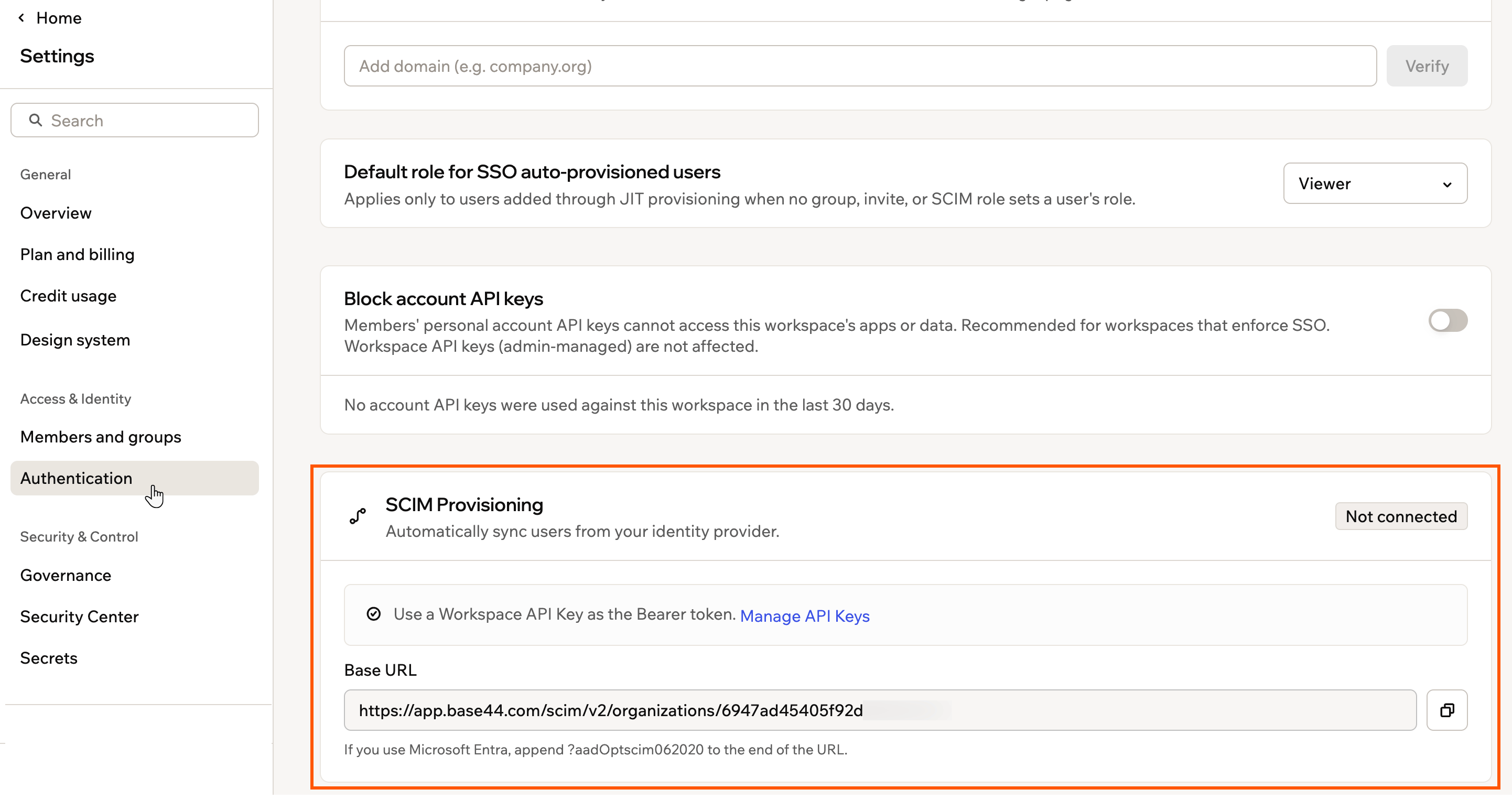
The SCIM Base URL lives in Settings > Authentication
Set up SCIM provisioning
Create a dedicated Entra enterprise application, connect it to Base44, map your roles and attributes, then turn on automatic syncing.Step 1: Create the SCIM app
Create a separate, non-gallery enterprise application for provisioning. To create the SCIM app:- In the Microsoft Entra admin center, go to Identity > Applications > Enterprise applications.
- Click New application, then Create your own application.
- Enter a name (for example,
Base44 SCIM Provisioning) and select Integrate any other application you don’t find in the gallery. - Click Create.
Step 2: Connect to Base44
Point Entra at your Base44 workspace using your SCIM Base URL and a Workspace API key. If you do not have an API key yet, create one first. To create a Workspace API key:- In your workspace Settings, click Secrets.
- Click Create API Key.
- Enter a name (for example,
Entra SCIM), add an optional description, then click Create Key.
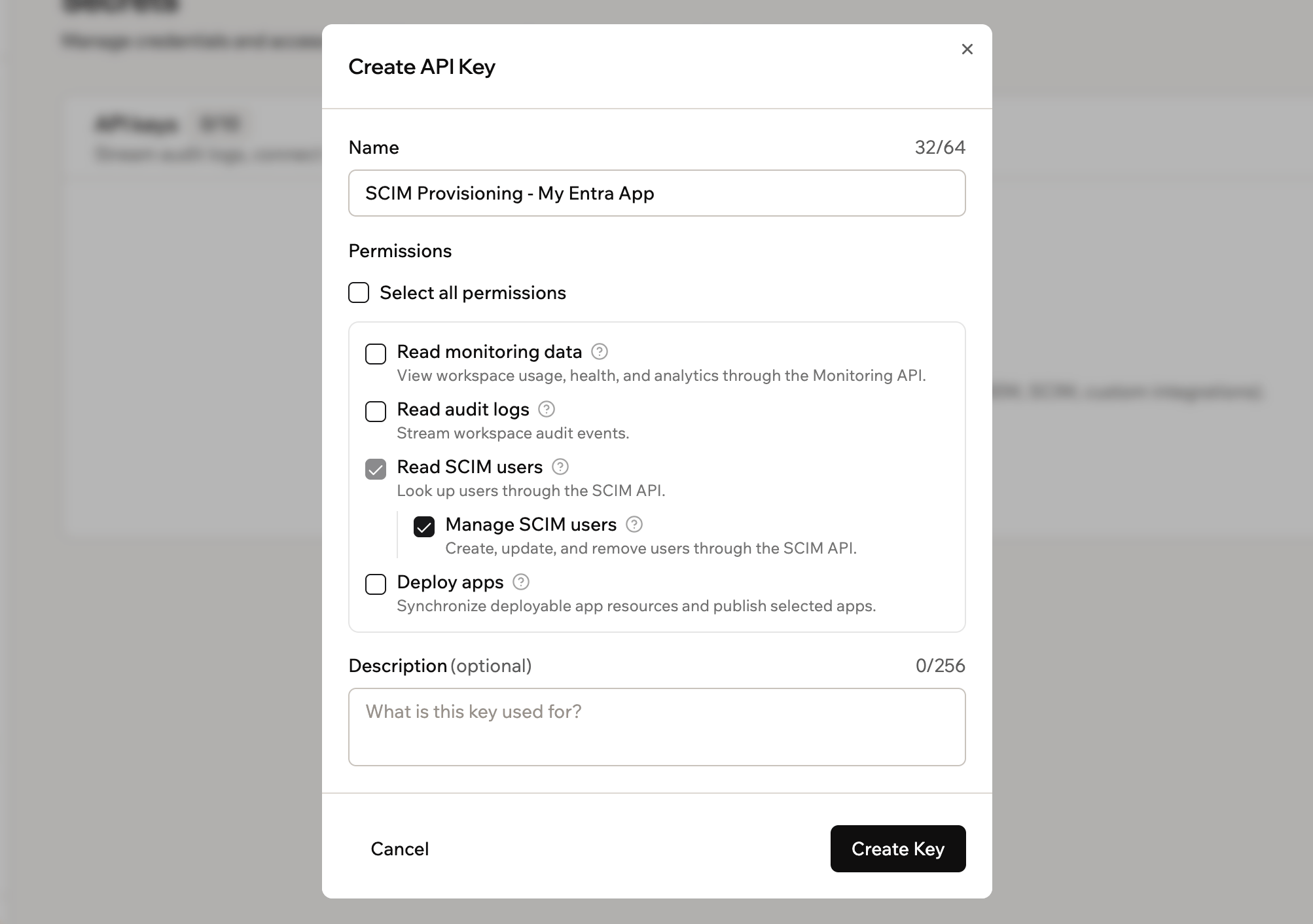
Naming the new API key in Settings > Secrets
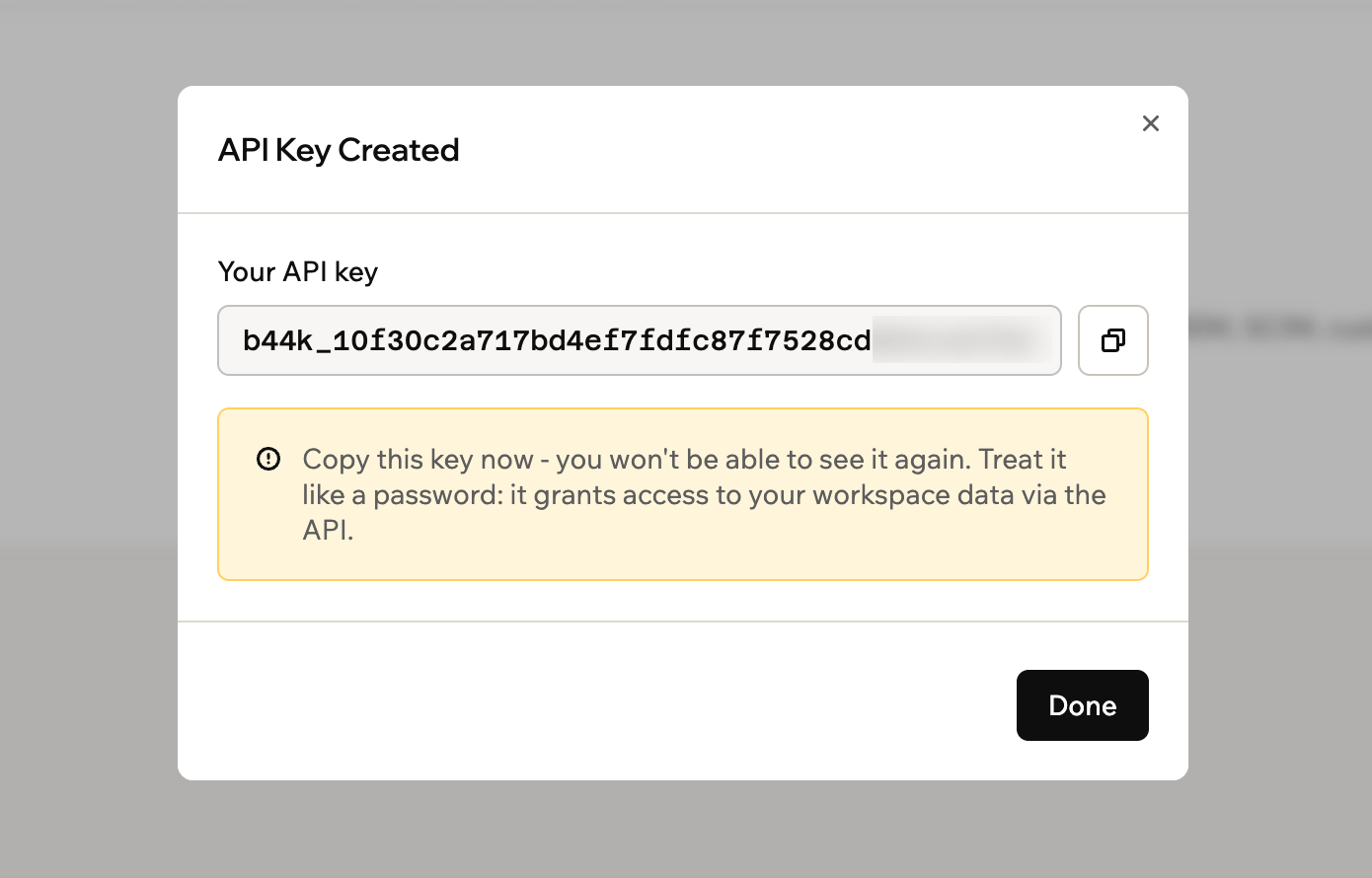
Copy the key while it is shown. You cannot view it again after closing the dialog.
- Open the app and go to Provisioning, then click Get started.
- Set Provisioning Mode to Automatic.
- Under Admin Credentials, set:
- Tenant URL: Your SCIM Base URL with
?aadOptscim062020added to the end. The result looks likehttps://app.base44.com/scim/v2/organizations/{{WORKSPACE_ID}}?aadOptscim062020. - Secret Token: Your Workspace API key.
- Tenant URL: Your SCIM Base URL with
- Click Test Connection to confirm a successful connection.
- Click Save.
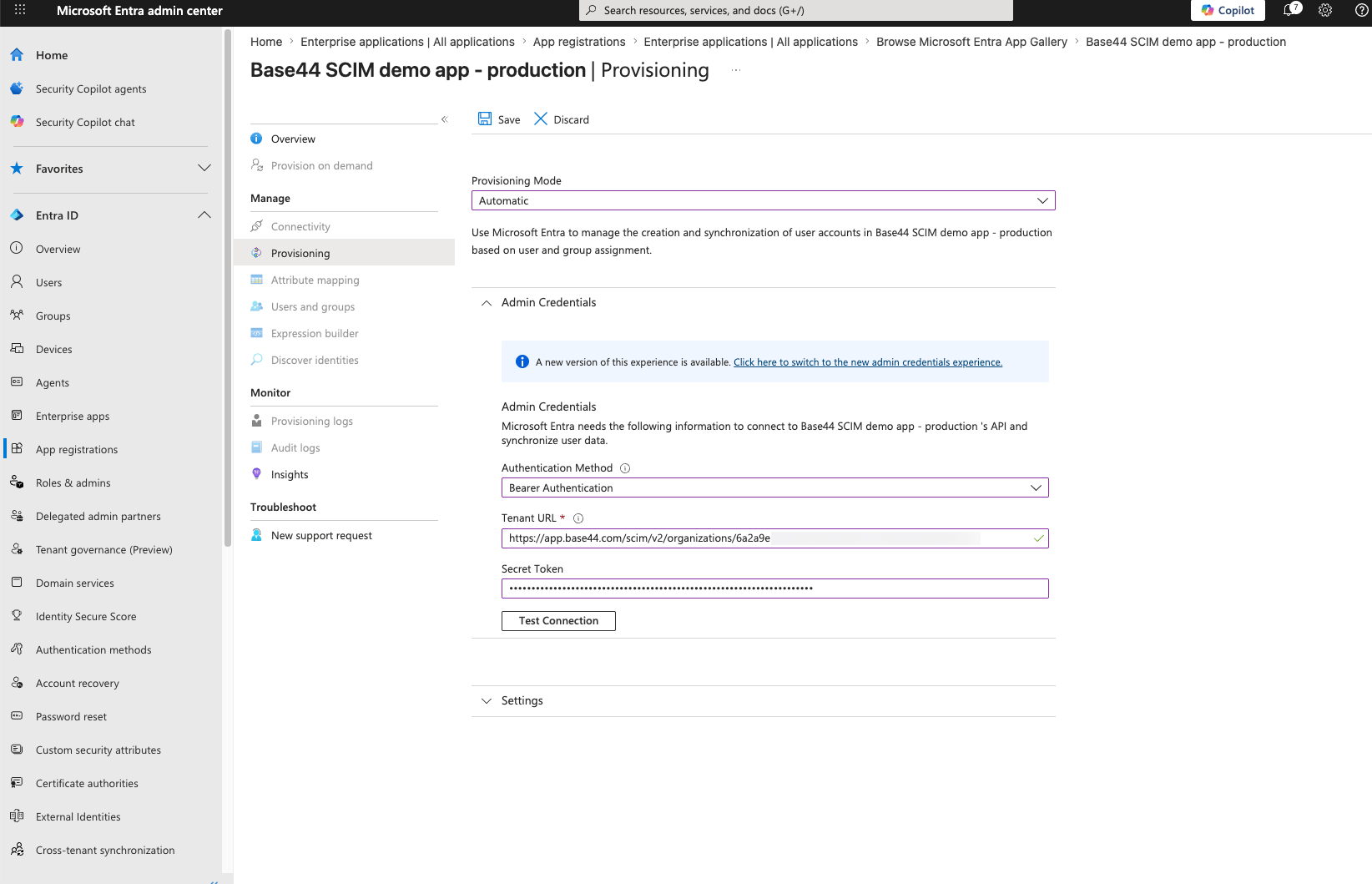
Setting the Tenant URL and Secret Token on the Entra Provisioning screen
Step 3: Map externalId
By default Entra matches users on a value that can change. MappingexternalId to objectId, a stable unique identifier, lets Base44 reliably match each user for updates and deactivation.
To update the mapping:
- Under Mappings, click Provision Microsoft Entra ID Users.
- In the mapping table, find the row where the Target attribute is exactly
externalId. - Click that row and change the Source attribute to
objectId. - Click Ok, then Save.
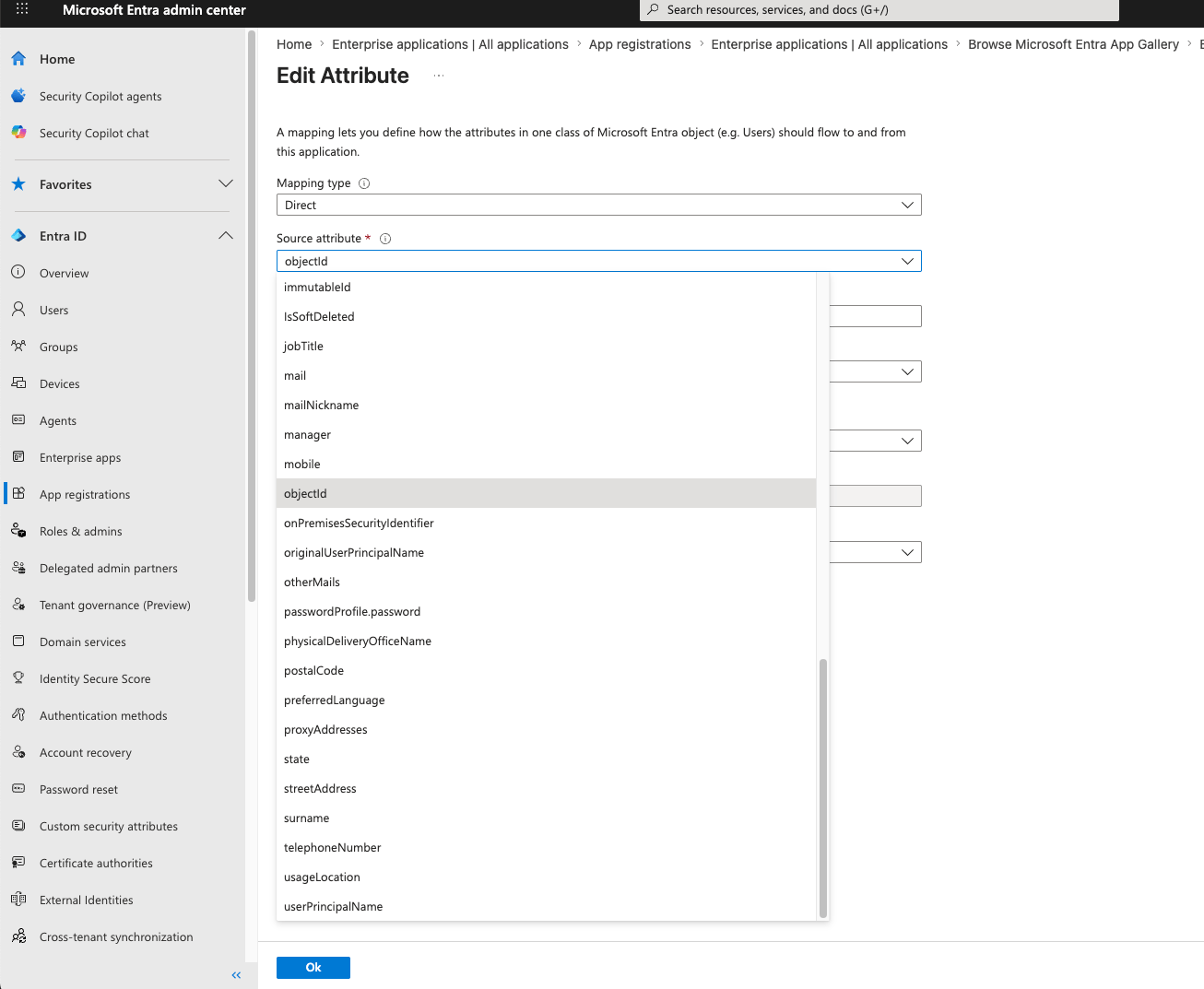
Selecting objectId as the source attribute for externalId
externalId mapped to objectId.
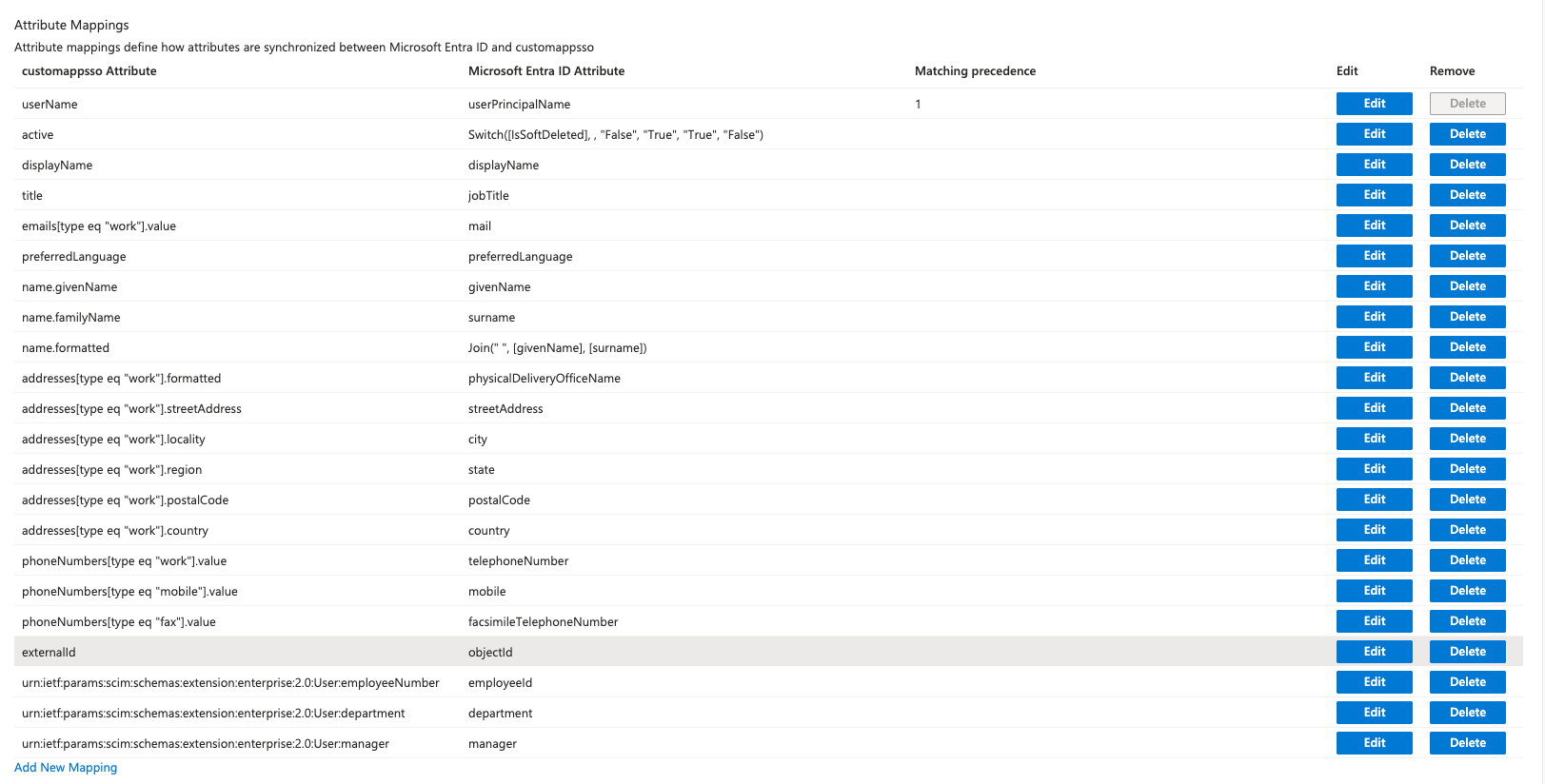
externalId mapped to objectId on the Provision Microsoft Entra ID Users screen
Step 4: Add custom attributes
Base44’s role and credit limit fields are not in Entra’s default target list, so add them before you can map them. To add the attributes:- On the Provision Microsoft Entra ID Users mapping screen, scroll to the bottom and check Show advanced options.
- Click Edit attribute list for your app.
- At the bottom of the list, add:
- Role:
urn:base44:params:scim:schemas:extension:user:2.0:role, with Type set toString. - Credit limit (optional):
urn:base44:params:scim:schemas:extension:user:2.0:creditLimit, with Type set toInteger.
- Role:
- Click Save and confirm the change.
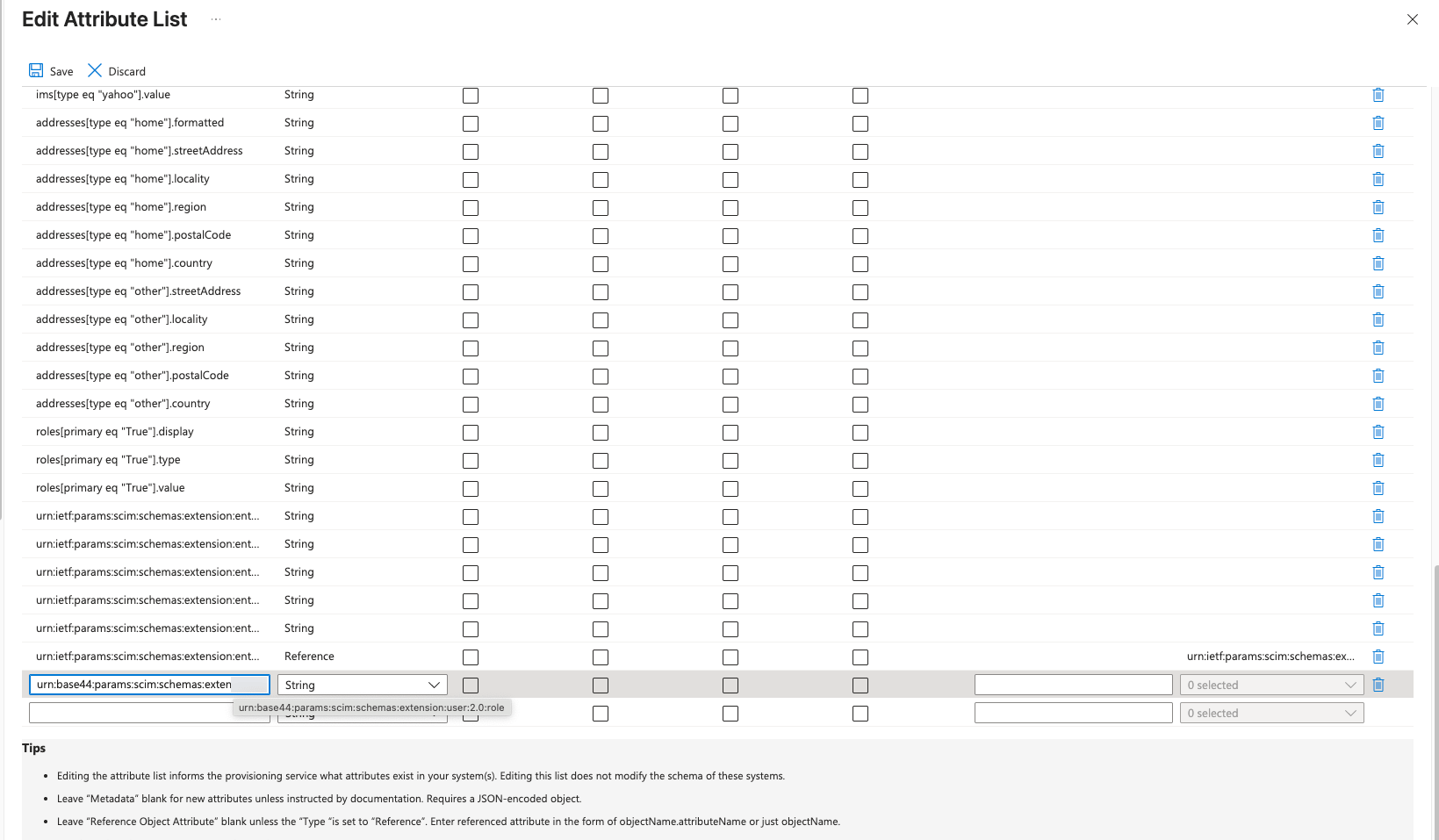
Adding the Base44 role attribute in the Edit attribute list
Step 5: Create app roles
You create roles in App registrations, not in Enterprise applications. Enterprise applications are only where you assign them. To create app roles:- In the Microsoft Entra admin center, go to App registrations and open the All applications tab.
- Select your SCIM app.
- Click App roles, then Create app role.
- Create a separate role for each Base44 permission level:
admin,editor, andviewer. - In the Value field, type the exact lowercase string Base44 expects (
admin,editor, orviewer). - Click Apply.
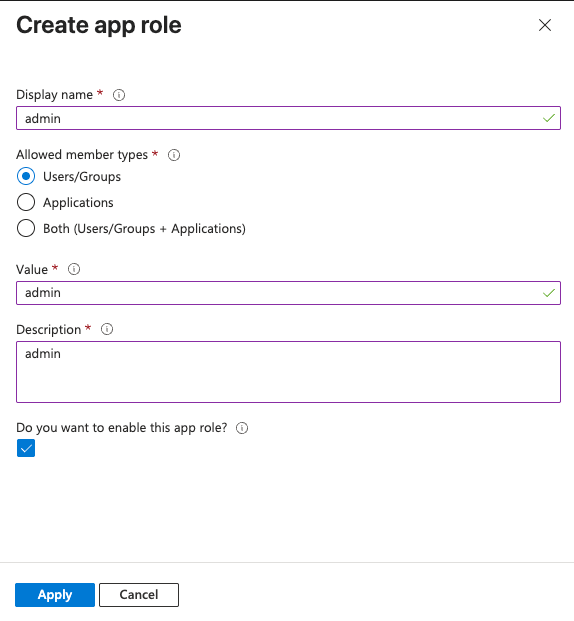
Creating an app role for a Base44 permission level
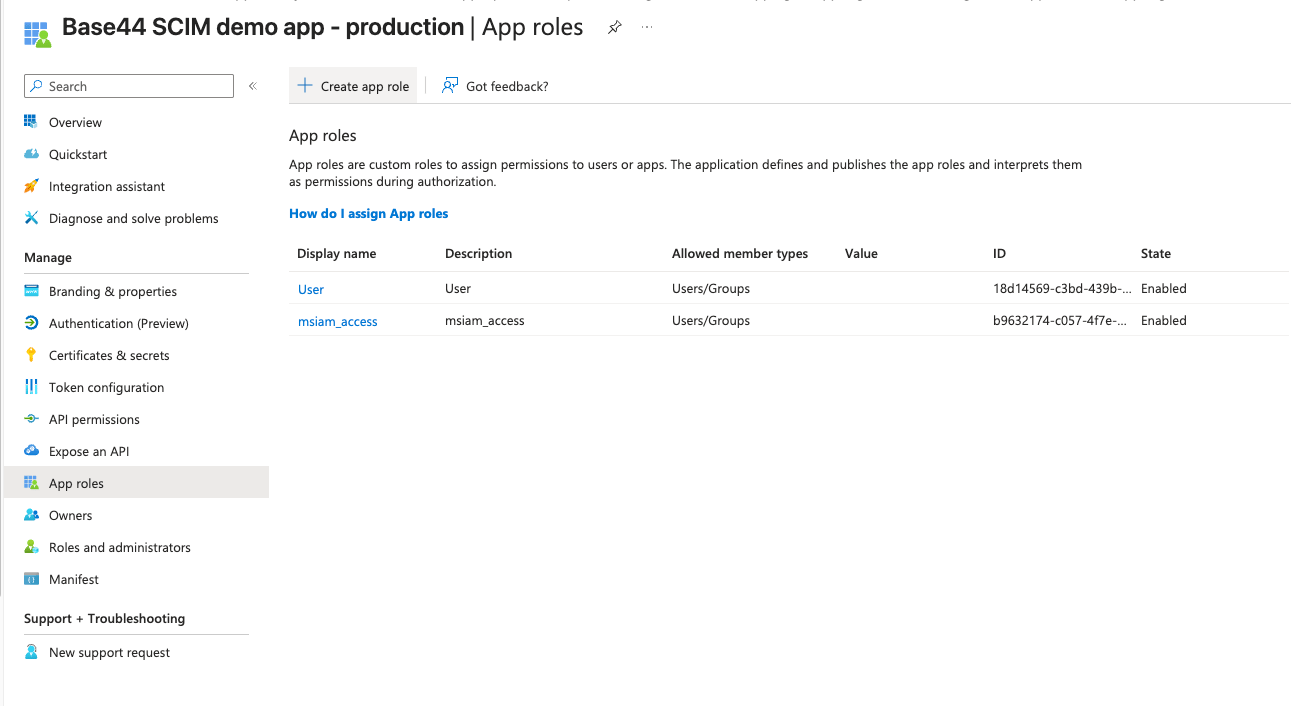
The admin, editor, and viewer app roles in Entra
Step 6: Map role and credit limit
Entra stores roles as an array, but Base44 expects a single text value, so the role must be mapped with an expression rather than a direct mapping. To map the role:- Go to Enterprise applications > your SCIM app > Provisioning > Edit attribute mapping > Provision Microsoft Entra ID Users.
- Click Add New Mapping, or edit the existing role row.
- Set Mapping type to Expression.
- In the Expression field, enter:
SingleAppRoleAssignment([appRoleAssignments]) - Set Target attribute to
urn:base44:params:scim:schemas:extension:user:2.0:role. - Set Match objects using this attribute to No, and Apply this mapping to Always.
- Click Ok.
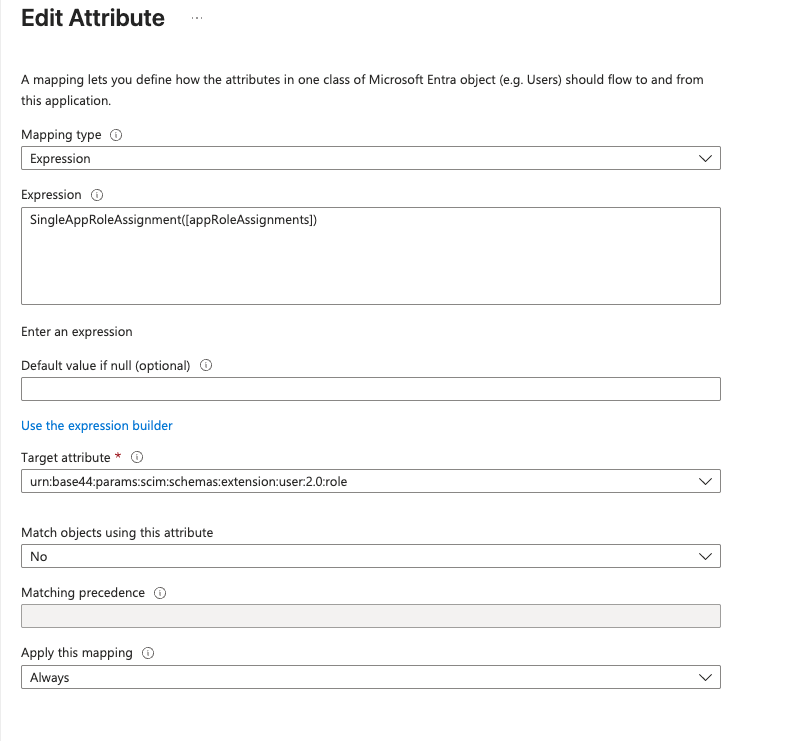
Mapping the role with the SingleAppRoleAssignment expression
- Enter the credit limit value in the user’s Entra profile under a built-in extension field, for example
extensionAttribute1. - Click Add New Mapping and set Mapping type to Direct.
- Set Source attribute to
extensionAttribute1. - Set Target attribute to
urn:base44:params:scim:schemas:extension:user:2.0:creditLimit. - Click Ok, then Save.
Step 7: Assign and provision
Choose who to provision, give them a role, and start the sync. To assign users:- Go to Enterprise applications > your SCIM app > Users and groups.
- Click Add user/group and select the users or groups to provision.
- Under Select a role, choose the role you created (
admin,editor, orviewer), then click Assign.
- Go to Provisioning.
- Set Provisioning Status to On.
Step 8: Refresh existing users
If you changed theexternalId mapping after some users were already provisioned, refresh their records so they pick up the correct objectId.
To update existing users:
- Go to Provisioning > Provision on demand.
- Search for the user and run provisioning to patch their record.
- To apply this to everyone, go back to the main Provisioning page and click Restart provisioning.
Roles and credit limits
Base44 accepts only the following roles via SCIM. Map your Entra app roles to these exact values.admin and editor roles, since viewers do not consume credits. Setting a credit limit of 0 is treated as no cap. You can also set credit limits directly in your workspace, without SCIM. See Managing enterprise workspace members.
FAQs
Select a question below to learn more about Entra SCIM provisioning.Do I need separate Entra apps for SSO and SCIM?
Do I need separate Entra apps for SSO and SCIM?
Why does the SCIM connection test fail?
Why does the SCIM connection test fail?
?aadOptscim062020 and that the Secret Token is your Workspace API key from Settings > Secrets. Verify the SCIM Base URL was copied from Settings > Authentication and has not been changed.Why is the role not syncing, or why does provisioning fail on the role field?
Why is the role not syncing, or why does provisioning fail on the role field?
SingleAppRoleAssignment([appRoleAssignments]). Make sure each app role’s Value is exactly admin, editor, or viewer in lowercase.Why is my Base44 custom attribute not in the Target attribute dropdown?
Why is my Base44 custom attribute not in the Target attribute dropdown?
urn:base44:params:scim:schemas:extension:user:2.0:role), then save. The field becomes available in the dropdown afterward.Why are users updated to the wrong record after re-provisioning?
Why are users updated to the wrong record after re-provisioning?
externalId is mapped to objectId. If users were provisioned before you changed this mapping, use Provision on demand to refresh each user, or Restart provisioning to refresh everyone.