

Before you begin
Make sure you have:- Owner or admin access to your Base44 enterprise workspace.
- Admin access to your Okta organization.
- Your SCIM Base URL, found in Settings > Authentication.
- A Workspace API key, found in Settings > Secrets.
Set up SCIM provisioning
Create a SCIM app in Okta, connect it to Base44, map your roles and attributes, then turn on provisioning.Step 1: Create a SCIM app
Okta OIDC apps do not support SCIM, so you need a separate SCIM app. To create the SCIM app:- In the Okta Admin Console, go to Applications > Browse App Catalog.
- Search for SCIM 2.0 Test App (Header Auth).
- Click Add Integration.
- Name the app (for example,
Base44 - SCIM Provisioning), then click Done.
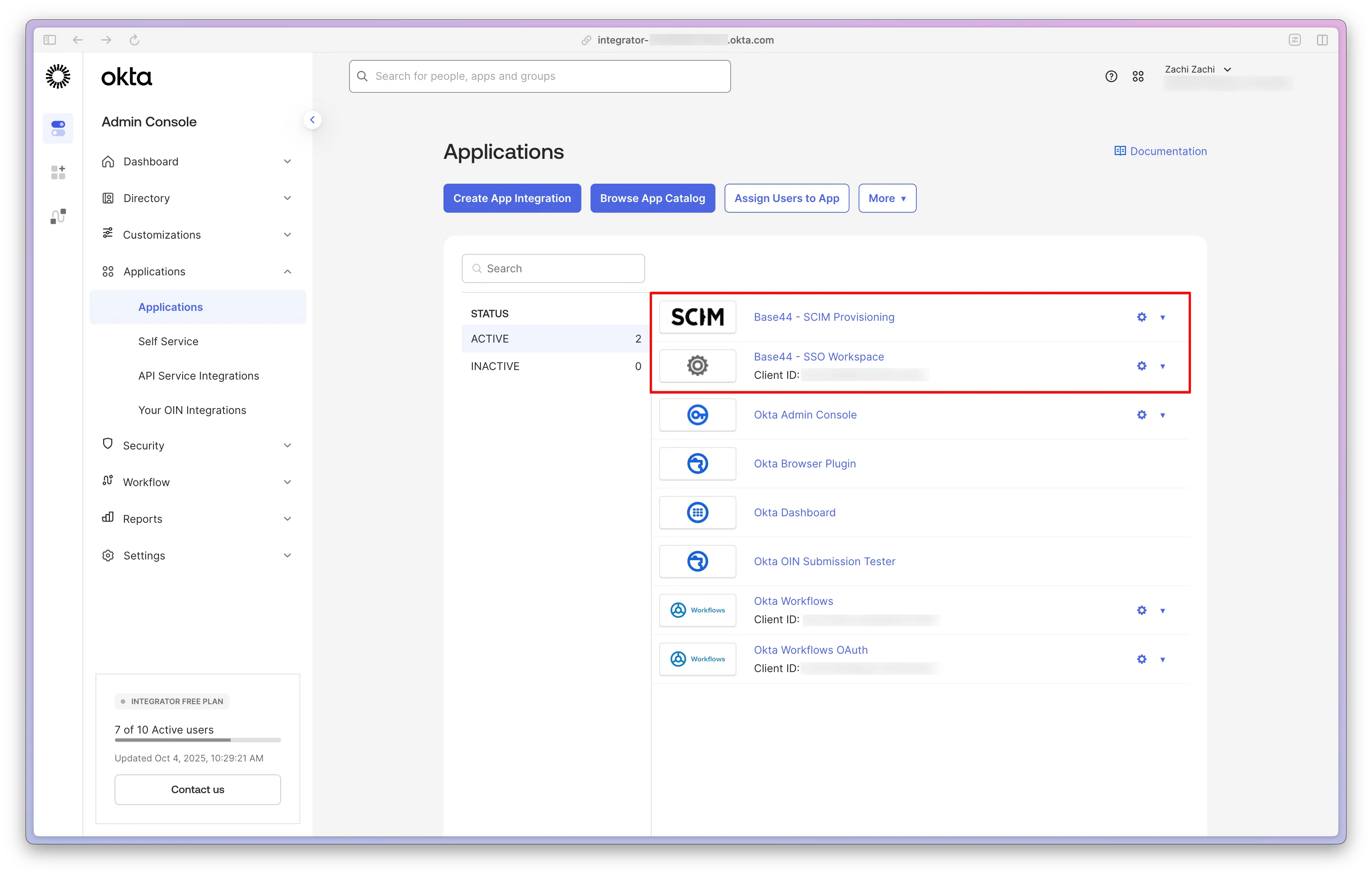
Finding the SCIM 2.0 Test App in the Okta App Catalog
Step 2: Connect to Base44
Point Okta at your Base44 workspace using your SCIM Base URL and Workspace API key. To configure the API integration:- Open your new SCIM app and go to the Provisioning tab.
- Click Configure API Integration, then check Enable API integration.
- Set SCIM 2.0 Base URL to your SCIM Base URL from Settings > Authentication.
- Set API Token to your Workspace API key, with no
Bearerprefix. - Click Test API Credentials. You should see a success confirmation.
- Click Save.
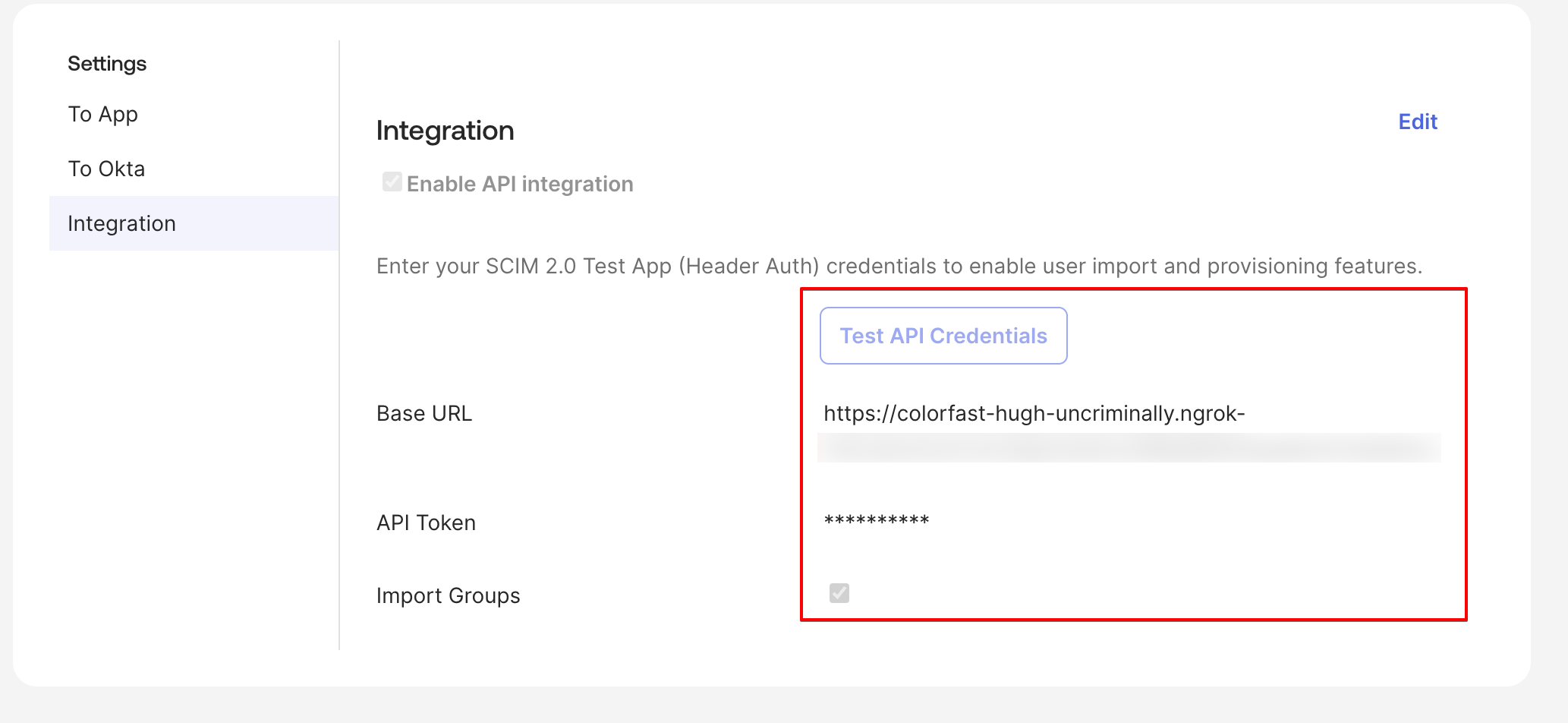
Entering your Base44 SCIM Base URL and API key in Okta
Step 3: Enable provisioning actions
Choose which actions Okta can perform on your Base44 workspace members. To enable provisioning:- In the Provisioning tab, click To App, then Edit.
- Enable Create Users, Update User Attributes, and Deactivate Users.
- Click Save.
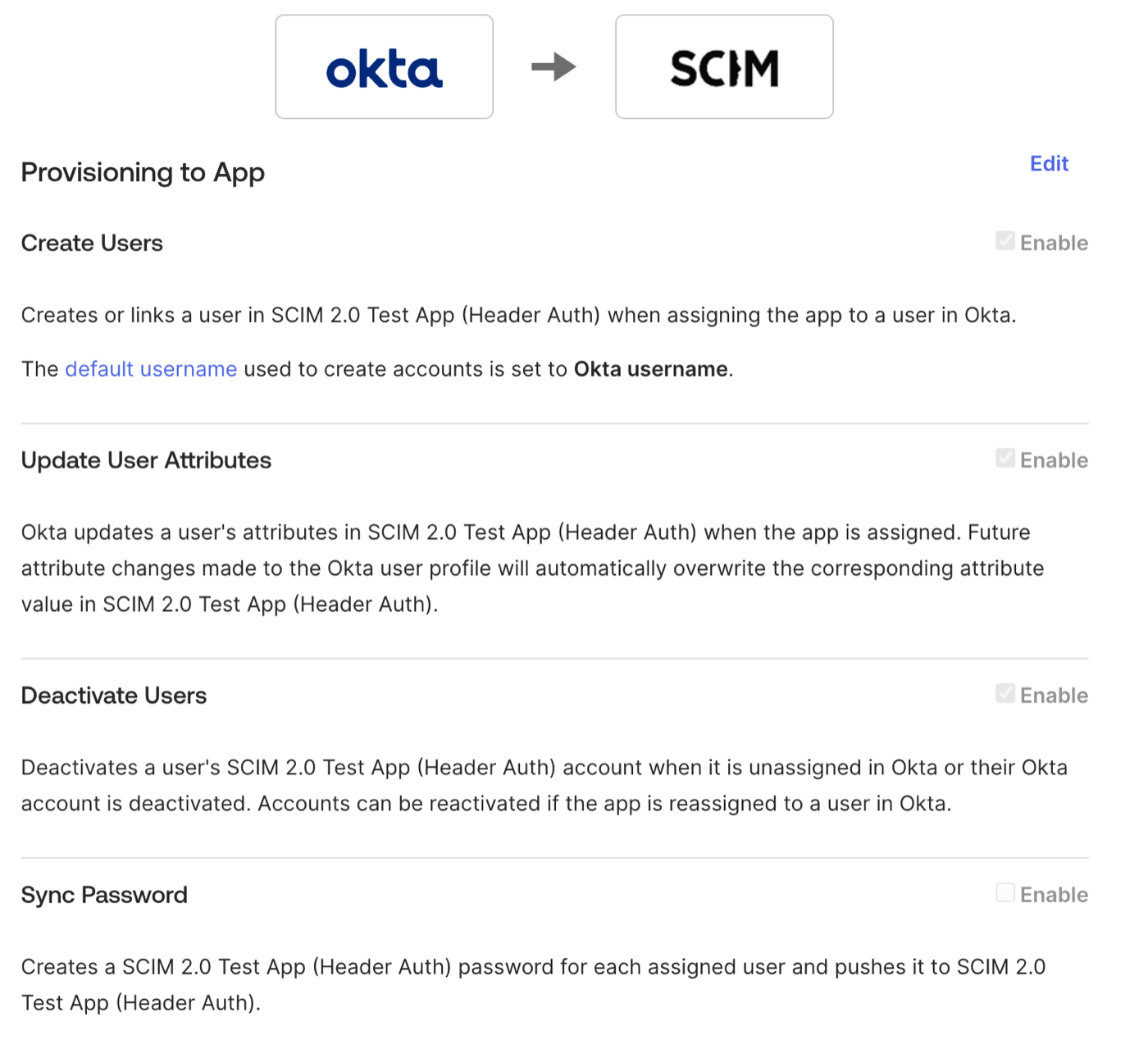
Enabling Create, Update, and Deactivate in Okta
Step 4: Add custom attributes
Base44’s role and credit limit fields are not in Okta’s default profile, so add them first. In the Profile Editor you can also remove attributes Base44 does not use, keepinguserName, givenName, and familyName.
To add the role attribute:
- Go to Directory > Profile Editor and open your SCIM app.
- Click Add Attribute and set:
- Data type: String
- Display name: Role
- Variable name:
role - External name:
role - External namespace:
urn:base44:params:scim:schemas:extension:user:2.0 - Enum: Check Define enumerated list of values and add
admin,editor, andviewer. - Attribute required: No
- Click Save.
creditLimit attribute (optional):
Skip this if you do not want per-member credit caps. The default is no cap.
- In the same Profile Editor, click Add Attribute and set:
- Data type: Integer
- Display name: Credit Limit
- Variable name:
creditLimit - External name:
creditLimit - External namespace:
urn:base44:params:scim:schemas:extension:user:2.0 - Attribute required: No
- Click Save.
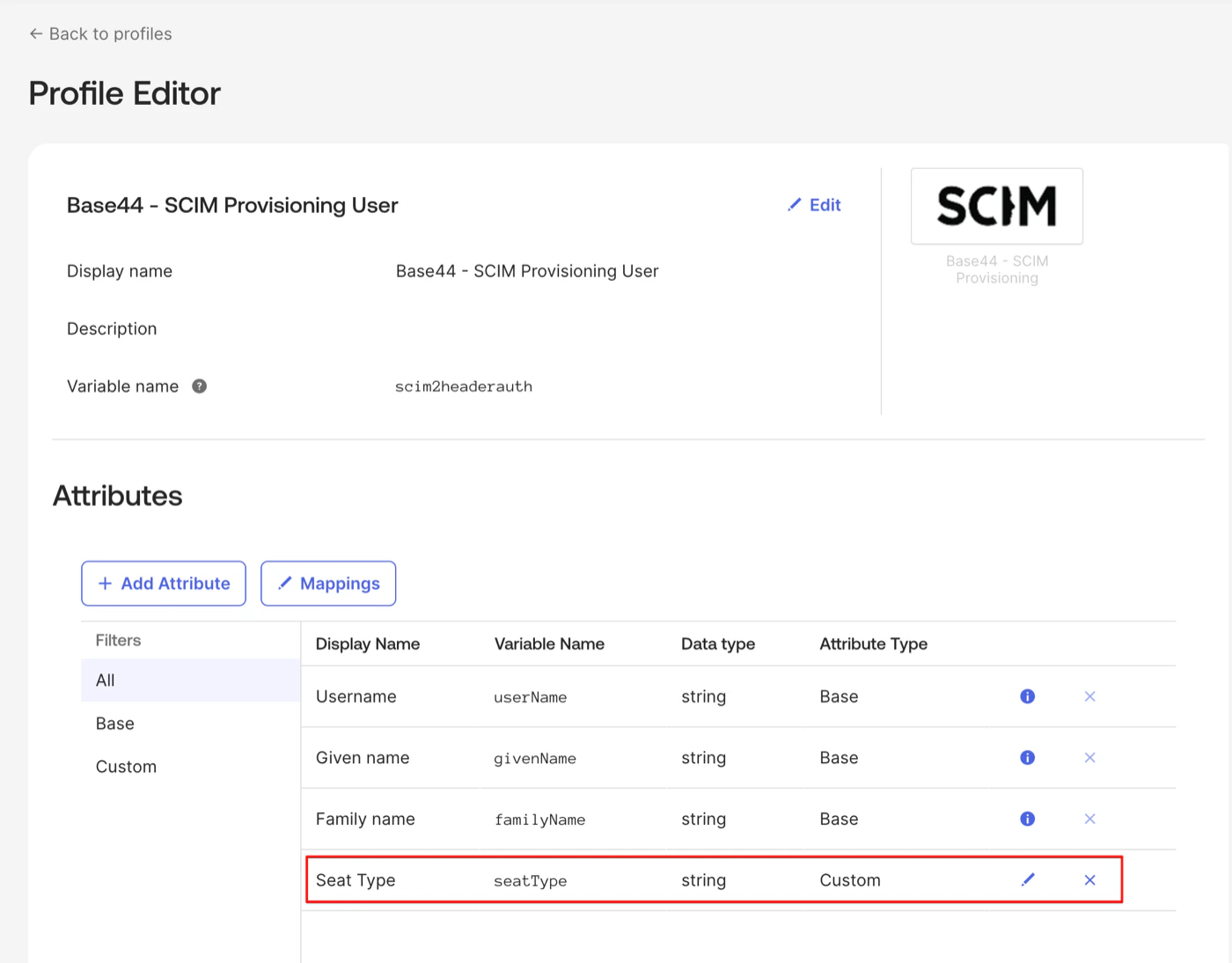
Adding the Base44 attributes in the Okta Profile Editor
Step 5: Map attributes and assign users
Map the Base44 attributes, then assign users so they are provisioned. To map the attributes:- Go to your SCIM app > Provisioning > To App > Attribute Mappings.
- Set:
userNametouser.emailroleto"editor", or map it from your IdP’s role attributecreditLimitto your preferred value or IdP attribute, if you added it
- Remove any unsupported mappings, such as
firstName,lastName, anddisplayName. - Click Save.
- Go to the Assignments tab, click Assign, then Assign to People.
- Select a user, set their
roleand optionally theircreditLimit, then click Save and Go Back and Done. - Check your Base44 workspace members to confirm the user appears.
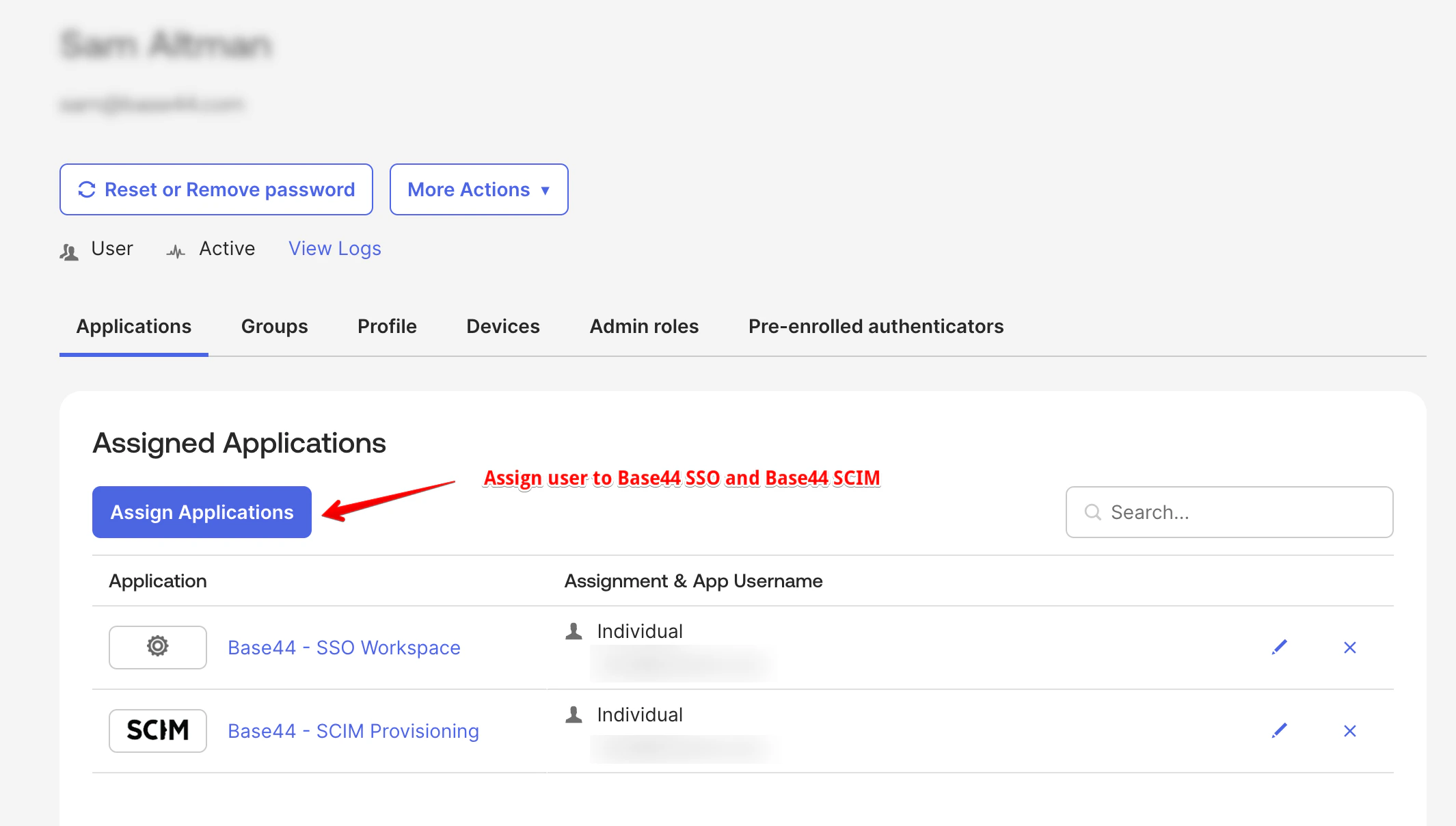
A user assigned to both the SSO and SCIM apps in Okta
- On the Assignments tab, click Unassign next to the user, then confirm.
- Check that the user is no longer an active member in Base44 and their seat is released.
Assign each user to both your Okta SSO app and your SCIM app. Assigning to the SCIM app only provisions the user but does not let them sign in.
Roles and credit limits
Base44 accepts only the following roles via SCIM. Map your Oktarole attribute to these exact values.
owner, member, and guest cannot be assigned via SCIM. Credit limits apply only to admin and editor roles, since viewers do not consume credits. Setting a credit limit of 0 is treated as no cap. You can also set credit limits directly in your workspace, without SCIM. See Managing enterprise workspace members.
Workspace owners cannot be updated or deactivated through SCIM. Promote or demote owners from your workspace settings instead.
FAQs
Select a question below to learn more about Okta SCIM provisioning.The API credentials test failed
The API credentials test failed
Check that your API token is your Workspace API key with no
Bearer prefix, and that the SCIM Base URL was copied from Settings > Authentication with the correct workspace ID.The Deactivate Users option is missing
The Deactivate Users option is missing
Okta OIDC apps do not support SCIM. Use the SCIM 2.0 Test App (Header Auth) from the App Catalog instead.
A user is not being provisioned
A user is not being provisioned
Check your Okta provisioning logs for errors, and confirm
role is one of admin, editor, or viewer. owner, member, and guest are rejected.Why must I assign users to both apps?
Why must I assign users to both apps?
The SCIM app provisions the member, and the SSO app lets them sign in. Assigning to only one means they either cannot sign in or are not provisioned.