

Before you start
Make sure your workspace is on an Enterprise plan (Business or Enterprise) and that you have owner or admin access to it. On Enterprise, your Base44 account manager confirms this for you.
1. Invite your team
Start by adding your team members to the workspace. You can invite people individually or upload a CSV to invite in bulk. Each person is assigned a role that controls what they can do.
To invite members:
- Click your workspace name at the bottom left.
- Click Settings.
- Click Members and groups.
- Click Invite Members, then select Invite by email to add someone individually or Bulk invite (CSV) to upload a CSV.
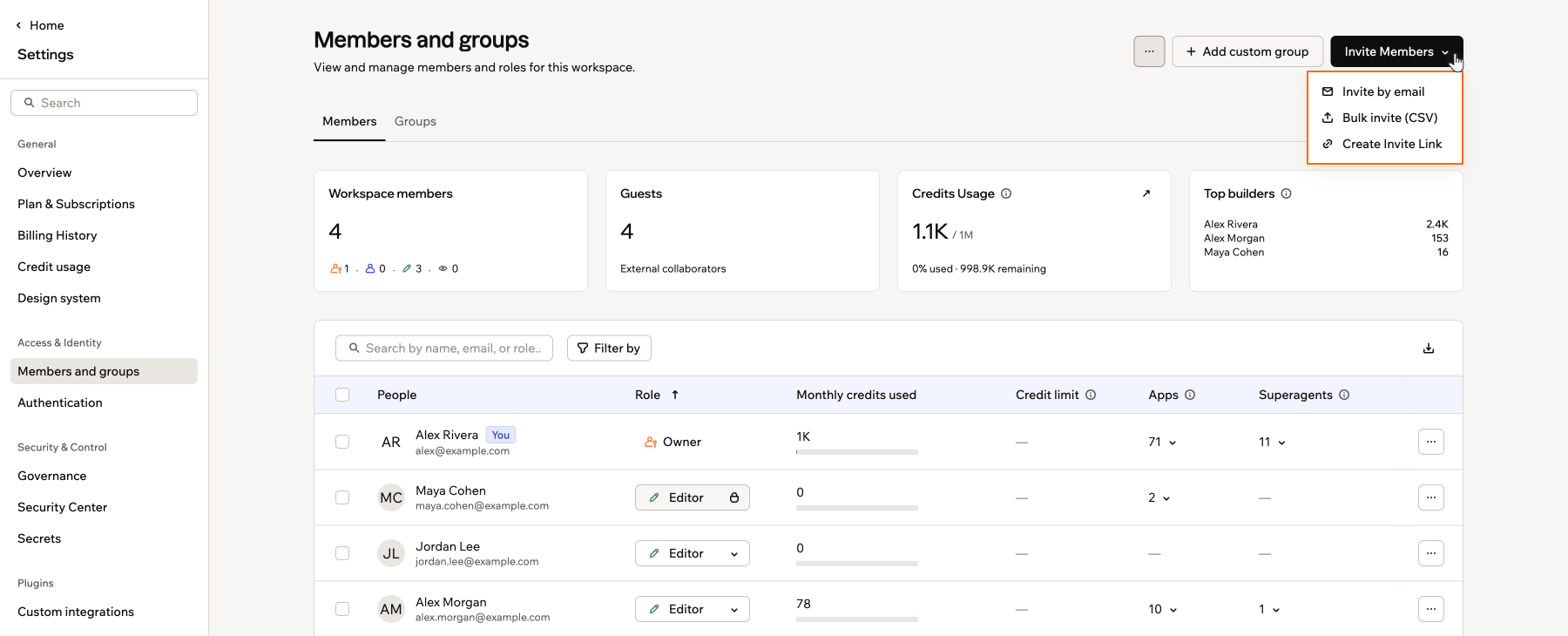
Choosing how to invite people to your enterprise workspace
If you plan to use SCIM provisioning to sync members automatically from your identity provider, you can skip manual invites for those members. See step 5.
2. Connect your workspace domain
Connect your organization’s domain to your workspace for a branded address and domain-based access control. Your domain also enables domain-based access rules with SSO, so people who sign in with your approved email domain can join your workspace automatically. If your organization uses more than one email domain, you can connect several domains to the same workspace. Learn how to connect your workspace domain.3. Set up single sign-on
Enable SSO so your team signs in with their existing company credentials. Once enabled, anyone with your approved email domain is added to the workspace automatically when they first sign in, using the default role you set for SSO (Viewer by default). Learn how to set up SSO for your workspace.4. Configure workspace policies
Control how apps, Superagents, connectors, and external access behave for everyone in the workspace.- Require SSO for all workspace members: Require every workspace member to sign in through your SSO provider to access the workspace
- Enforce SSO for all apps: Require app users to authenticate through your SSO provider
- Publishing permissions: Control who can publish apps and which visibility levels each role can use
- Connector management: Control which external services are available in your workspace, and whether apps can use shared credentials, app user credentials, or both
- Disable Superagents: Hide Superagents from all workspace members if your organization has not approved AI agents for use
- External collaborators: Control whether any member or only admins can invite people from outside the workspace to collaborate on apps
- App transfers: Choose who can move apps out of the workspace: Workspace admins and owners, Workspace owners only, or Disabled
5. Set up automated provisioning (optional)
If your organization uses Okta or Microsoft Entra ID, set up SCIM to automatically sync workspace membership. When someone joins or leaves your organization in your identity provider, their Base44 access updates automatically. Learn how to set up automated provisioning with SCIM.6. Set credit limits (optional)
Set a default monthly credit limit that applies to all workspace members, with the option to override the limit for specific individuals. This is useful for preventing any one member from consuming a disproportionate share of the workspace credit pool. Learn how to set credit limits for your members.7. Move existing apps (optional)
If you or your team have apps in another workspace that you want to bring into the enterprise workspace, you can move them from the app’s dashboard. Because the app owner needs the right role in the enterprise workspace before the move, this is often a 2-step process between you and each app owner.Before anyone can move an app:
- App transfers must be enabled in the source workspace (Settings → Governance → App transfers).
- On most plans, a workspace owner moves the app out of the source workspace.
- In a source workspace on an Enterprise plan (Business or Enterprise), workspace admins can also move apps out by default, unless the workspace owner restricts this to owners only.
- The person performing the move must have an editor role or higher in the target workspace.
- If someone else owns the app, the app owner must also have an editor role or higher in the target workspace.
- Purchased apps cannot be moved.
- Click your workspace name at the bottom left.
- Click Settings → Members and groups → Invite Members → Invite by email.
- Enter the app owner’s email address.
- Assign a role. Editor or higher is recommended so the app owner can build and contribute in the workspace.
- Click Invite.
- Go to your app’s dashboard.
- Click Overview.
- Click the More actions icon next to View usage.
- Click Move app.
- Select the enterprise workspace from the Target Workspace drop-down.
- Click Move App to confirm.
Workspace owners and admins on an Enterprise plan (Business or Enterprise) can restrict who’s
allowed to move apps out of the workspace. Go to Settings →
Governance → App transfers and choose Workspace admins and
owners, Workspace owners only, or Disabled. By default, both
owners and admins can move apps out. On other plans, only workspace
owners can.After the move, the app uses the enterprise workspace’s credit pool. The app owner and published app URL do not change. App data and media remain intact. Some workspace-owned connectors and integrations may need to be reconnected after the move.
8. Explore more enterprise features
Once the basics are in place, explore additional security and access controls.- IP allowlist: Restrict workspace access to approved IP addresses and networks
- Workspace secrets: Create and manage API keys for programmatic access to your workspace, including audit logs, the Monitoring API, SCIM, and app deployment
- Connector management: Manage connector availability across your workspace, review affected apps before disabling access, and control how apps connect to external services
Setup checklist
Setup checklist
Invite your team: Add members by email and assign each the right role
Connect your workspace domain: Give your workspace a branded address and domain-based access control
Set up Single Sign-On: Let your team sign in with your company’s identity provider
Configure workspace policies: Control publishing permissions, app visibility, Superagents, external collaborators, and app transfers
Configure connector management: Choose which external services apps can use and how they connect
Set up the IP allowlist: Restrict workspace and app access to your trusted networks
Manage workspace secrets: Create API keys for programmatic access to your workspace
Set up automated provisioning: Sync workspace membership from Okta or Entra with SCIM (optional)
Set credit limits: Set a monthly credit limit per member (optional)
Move existing apps: Bring apps from personal workspaces into the enterprise workspace (optional)
Connect your workspace domain: Give your workspace a branded address and domain-based access control
Set up Single Sign-On: Let your team sign in with your company’s identity provider
Configure workspace policies: Control publishing permissions, app visibility, Superagents, external collaborators, and app transfers
Configure connector management: Choose which external services apps can use and how they connect
Set up the IP allowlist: Restrict workspace and app access to your trusted networks
Manage workspace secrets: Create API keys for programmatic access to your workspace
Set up automated provisioning: Sync workspace membership from Okta or Entra with SCIM (optional)
Set credit limits: Set a monthly credit limit per member (optional)
Move existing apps: Bring apps from personal workspaces into the enterprise workspace (optional)
Getting help
On an Enterprise plan, you get priority support. On the Enterprise plan, you also get a dedicated account manager, which isn’t included in the Business plan.- Dedicated account manager: Your account manager is your main point of contact for guidance and ongoing support
- Priority support: Use the Help menu inside Base44 to open a support ticket and get prioritized responses