Documentation Index

Fetch the complete documentation index at: https://docs.base44.com/llms.txt

Use this file to discover all available pages before exploring further.

SCIM (System for Cross-domain Identity Management) lets your identity provider (IdP) automatically manage Base44 workspace members. When someone joins or leaves your organization in your IdP, Base44 is updated automatically, with no manual invites or removals needed.
SCIM provisioning is available on enterprise workspaces only. Contact your account manager to enable it.

Workspace version

Base44 recently released an updated workspace version. The version your workspace is on affects how you configure SCIM, so it is important to know which one you have before getting started.
V1 workspacesV2 workspaces
Member attributeseatTyperole and creditLimit
Access modelPer-seat plansShared credit pool with role-based access
Capacity check on addYes, fails if no seats are availableNo, members are added without a capacity limit
If you are not sure which version your workspace is on, ask your workspace owner or check your Base44 workspace settings.
Do not mix V1 and V2 attributes in the same request. Sending seatType to a V2 workspace (or role to a V1 workspace) returns an error. This check is strict, and even sending the field with an empty value causes the request to fail.

Before you begin

Before setting up SCIM, make sure you have:
  • An enterprise workspace with SCIM enabled
  • Admin access to your Base44 workspace
  • Your workspace ID (the string after /workspace/ in your Base44 workspace URL)
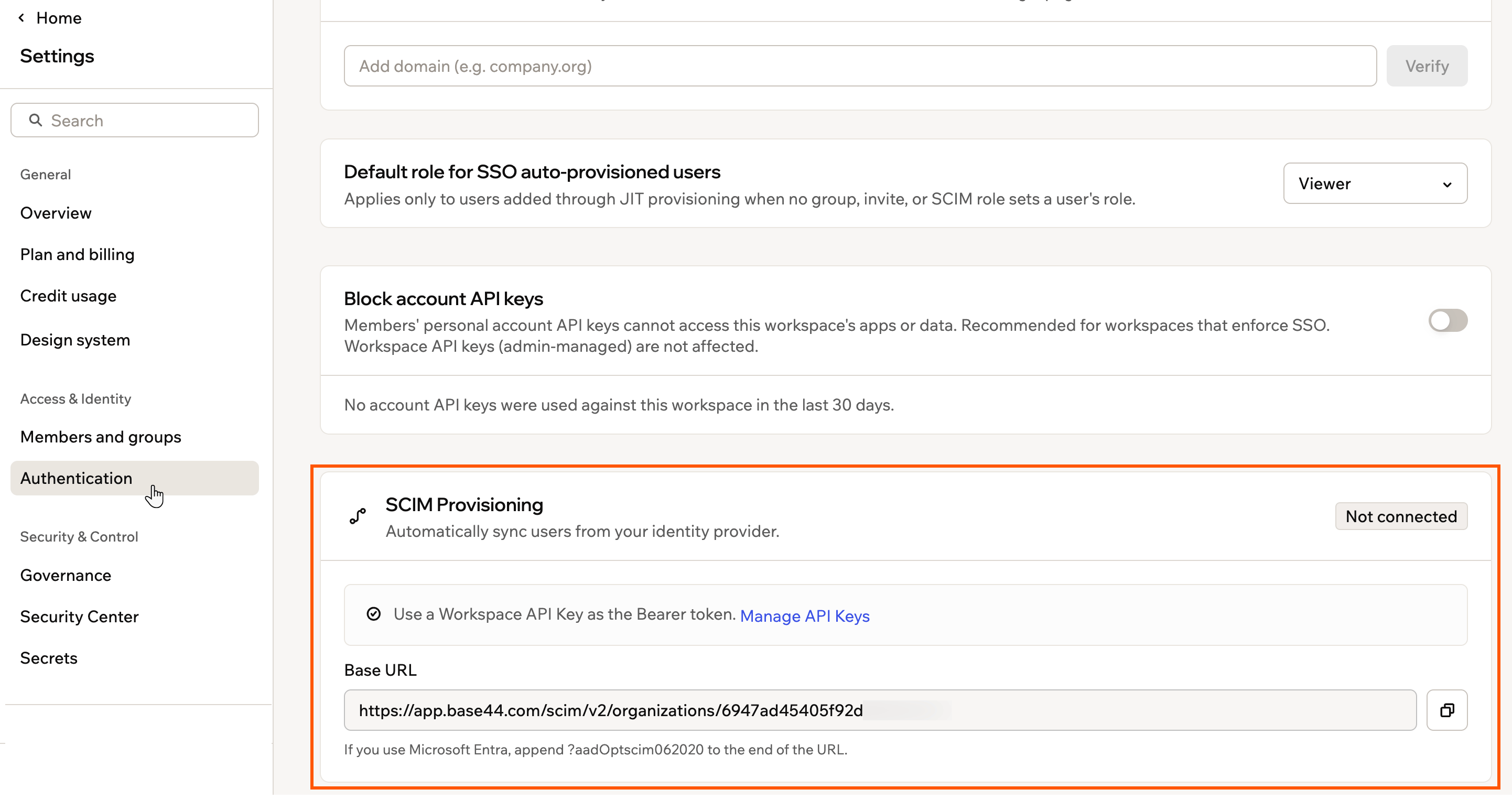
  • A Base44 API key (found in SettingsAPI keys in your workspace)

Setting up SCIM with Okta

Okta is the recommended identity provider for SCIM provisioning with Base44.
Auth0 does not support SCIM on the free tier. Use Okta if you need to test SCIM provisioning.

Step 1: Create a SCIM app in Okta

Okta OIDC apps do not support SCIM directly, so you need a separate SCIM app. To create a SCIM app:
  1. In Okta, go to ApplicationsBrowse App Catalog.
  2. Search for SCIM 2.0 Test App (Header Auth).
  3. Click Add Integration.
  4. Name the app (for example, Base44 - SCIM Provisioning).
  5. Click Done.
Okta App Catalog showing SCIM 2.0 Test App

Step 2: Connect the app to Base44

Point Okta to your Base44 workspace by entering your SCIM base URL and API key. To configure the API integration:
  1. Open your new SCIM app and go to the Provisioning tab.
  2. Click Configure API Integration.
  3. Check Enable API integration.
  4. Set the SCIM 2.0 Base URL to:
    https://app.base44.com/scim/v2/organizations/{your-workspace-id}
    
    Replace {your-workspace-id} with your actual workspace ID.
  5. Set API Token to your Base44 API key (without a “Bearer” prefix).
  6. Click Test API Credentials. You should see a success confirmation.
  7. Click Save.
Okta SCIM Integration settings

Step 3: Enable provisioning actions

Choose which actions Okta can perform on Base44 workspace members. To enable provisioning:
  1. In the Provisioning tab, click To App.
  2. Enable:
    • Create Users
    • Update User Attributes
    • Deactivate Users
  3. Click Save.
Okta provisioning settings showing create, update, and deactivate toggles

Step 4: Set up custom attributes

The custom attributes you create depend on your workspace version.

V2 workspaces: role and credit limit

To add the role attribute:
  1. Go to DirectoryProfile Editor and find your SCIM app.
  2. Click Add Attribute.
  3. Fill in the settings:
    • Data type: String
    • Display name: Role
    • Variable name: role
    • External name: role
    • External namespace: urn:base44:params:scim:schemas:extension:user:2.0
    • Enum: Check Define enumerated list of values and add admin, editor, viewer
    • Attribute required: No
  4. Click Save.
To add the creditLimit attribute (optional): Skip this if you do not want per-member credit caps. The default is no cap.
  1. In the same Profile Editor, click Add Attribute.
  2. Fill in the settings:
    • Data type: Integer
    • Display name: Credit Limit
    • Variable name: creditLimit
    • External name: creditLimit
    • External namespace: urn:base44:params:scim:schemas:extension:user:2.0
    • Attribute required: No
  3. Click Save.
To map the attributes:
  1. Go to your SCIM app → ProvisioningTo AppAttribute Mappings.
  2. Set:
    • userNameuser.email
    • role"editor" (or map from your IdP’s role attribute)
    • creditLimit ← your preferred value or IdP attribute (if you added it)
  3. Remove any unsupported mappings (firstName, lastName, displayName, seatType).
  4. Click Save.

V1 workspaces: seat type

To add the seatType attribute:
  1. Go to DirectoryProfile Editor and find your SCIM app.
  2. Click Add Attribute.
  3. Fill in the settings:
    • Data type: String
    • Display name: Seat Type
    • Variable name: seatType
    • External name: seatType
    • Enum: Check Define enumerated list of values and add starter, builder, pro, elite, elite_2, elite_3
    • Attribute required: No
  4. Click Save.
To map the attribute:
  1. Go to your SCIM app → ProvisioningTo AppAttribute Mappings.
  2. Set:
    • userNameuser.email
    • seatType"builder" (or map from your IdP’s attribute)
  3. Remove any unsupported mappings (firstName, lastName, displayName, role, creditLimit).
  4. Click Save.
Okta Profile Editor with custom attribute configuration

Step 5: Test provisioning

Assign a test user to confirm that provisioning and deactivation work as expected.
Each user must be assigned to both your Base44 SSO app and your Base44 SCIM Provisioning app in Okta. Assigning to SCIM only will provision the user but they will not be able to log in via SSO.User assigned to both Base44 SSO and SCIM apps in Okta
To test that provisioning works:
  1. In Okta, go to DirectoryPeople.
  2. Click on your test user.
  3. Go to the Applications tab.
  4. Click Assign Applications.
  5. Select Base44 - SSO Workspace and Base44 - SCIM Provisioning, then click Assign.
  6. Set the required attribute:
    • V2: Set role to editor, admin, or viewer. Optionally set creditLimit.
    • V1: Set seatType to a valid value (for example, builder).
  7. Click Save and Go BackDone.
  8. Check your Base44 workspace members to confirm the user appeared.
To test deactivation:
  1. In the Assignments tab, click Unassign next to the test user.
  2. Confirm the removal.
  3. Check that the user no longer appears as an active member in Base44.
Okta showing user provisioned status

Managing your members

Once SCIM is set up, Okta handles membership changes automatically. Here is what happens in Base44 for each action.

Adding members

When you assign a user to your SCIM app in Okta, Base44 creates their workspace membership automatically. The user can sign in to Base44 using SSO once they are provisioned.

Updating members

When you update a user’s attributes in Okta (such as their role or credit limit), Base44 updates their workspace membership to match.
Workspace owners cannot be updated or deactivated via SCIM. Owners must be promoted or demoted from the Base44 dashboard directly.

Removing members

When you unassign a user from your SCIM app, Base44 removes them from the workspace. Their platform-wide Base44 account is not deleted, and they retain access to any other workspaces they belong to. If you need to re-add a previously removed member, re-assign them in Okta. Base44 will create a new workspace membership.

Roles (V2 workspaces)

V2 workspaces use roles instead of seat types to control what each member can do. You assign a role when provisioning a user via SCIM, and you can update it at any time.
RoleWhat they can do
adminManage members, billing, and workspace settings
editorBuild, edit, and run apps; uses credits from the workspace pool
viewerRead-only access to apps; does not consume credits
owner, member, and guest roles cannot be assigned via SCIM. If your IdP has groups mapped to those roles, update the mapping to use admin, editor, or viewer instead.

Per-member credit limits

On V2 workspaces, you can optionally cap how many credits a single member can use per month. Set creditLimit to a positive integer to apply a cap, or leave it empty for no limit. Credit limits only apply to admin and editor roles. Viewers cannot consume credits, so setting a credit limit on a viewer returns an error. You can also set credit limits directly from your workspace settings without going through SCIM. To set a credit limit for a member:
  1. Click your profile icon in your workspace.
  2. Click Settings.
  3. Click Members.
  4. Click the More Actions icon ••• next to the relevant member.
  5. Click Set credit limit, enter the limit, and click Save.
Members settings showing Set credit limit option

Troubleshooting

If provisioning is not working as expected, the steps below cover the most common errors and how to fix them.
Check that your API key is correct and does not include a “Bearer” prefix. Verify the SCIM base URL contains the correct workspace ID. If you are testing locally, confirm ngrok is running and the URL is up to date.
Check the Okta provisioning logs for specific errors. For V2 workspaces, confirm role is set to admin, editor, or viewer. For V1 workspaces, confirm seatType is a valid value and that your workspace has available seats of that type.
Your Okta profile is sending seatType to a V2 workspace. Remove the seatType attribute from the Profile Editor for your SCIM app and add role instead. Even sending seatType with an empty value causes this error.
Your Okta profile is sending role to a V1 workspace. Remove the role and creditLimit attributes from the Profile Editor and add seatType instead.
This is by design. Workspace owners must be promoted or demoted from the Base44 dashboard. SCIM cannot modify owner memberships.
creditLimit can only be set on admin or editor roles. Either change the role to editor or admin, or remove the creditLimit value.