

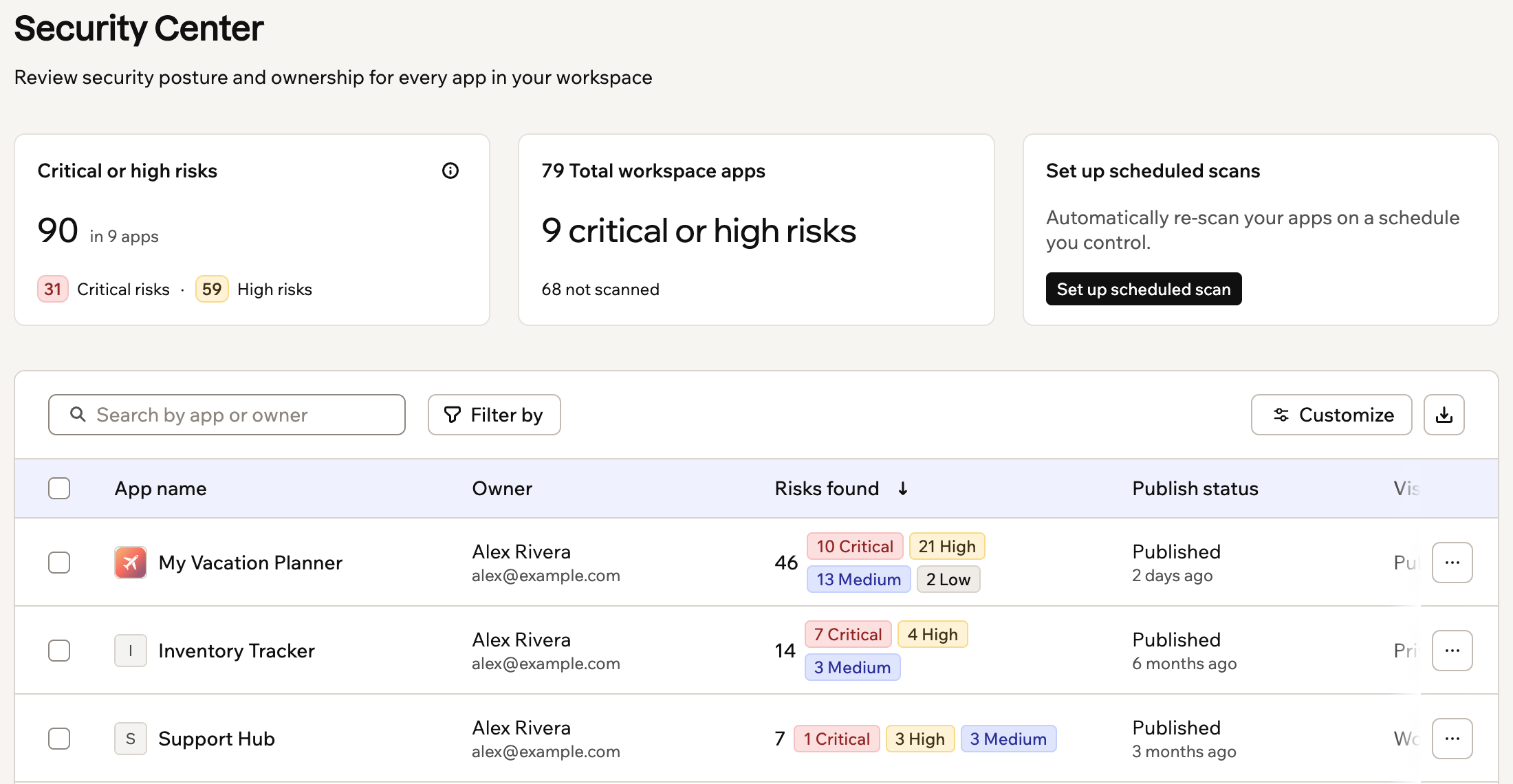
The security center shows open risks, scan status and every app in the workspace
Reviewing app security
Review detailed security data for the apps in your workspace. The cards at the top show your workspace’s open critical and high risks, how many apps are at critical or high risk, how many apps haven’t been scanned, and when your next scheduled scans run. The inventory opens with the riskiest apps first. Each row shows the app’s owner, the risks found, its publish status and visibility, when it was last scanned, when it was last used, and whether it has a publish request waiting for approval. Hover over a value to see more details. Use search, filters, and sorting to find the apps you’re looking for:- Search: Enter an app name, owner name, or owner email.
- Filter: Filter workspace apps by risk level, risk category, scan state, visibility, publish status, active users, SSO, publish requests, ignored risks, AI use, stored secrets, connectors, or connector type.
- Sort: Sort workspace apps by name, publish status, risks found, last scan, last active, or publish request. You can also sort by most of the extra columns, such as ignored risks, connectors, credits, and views.
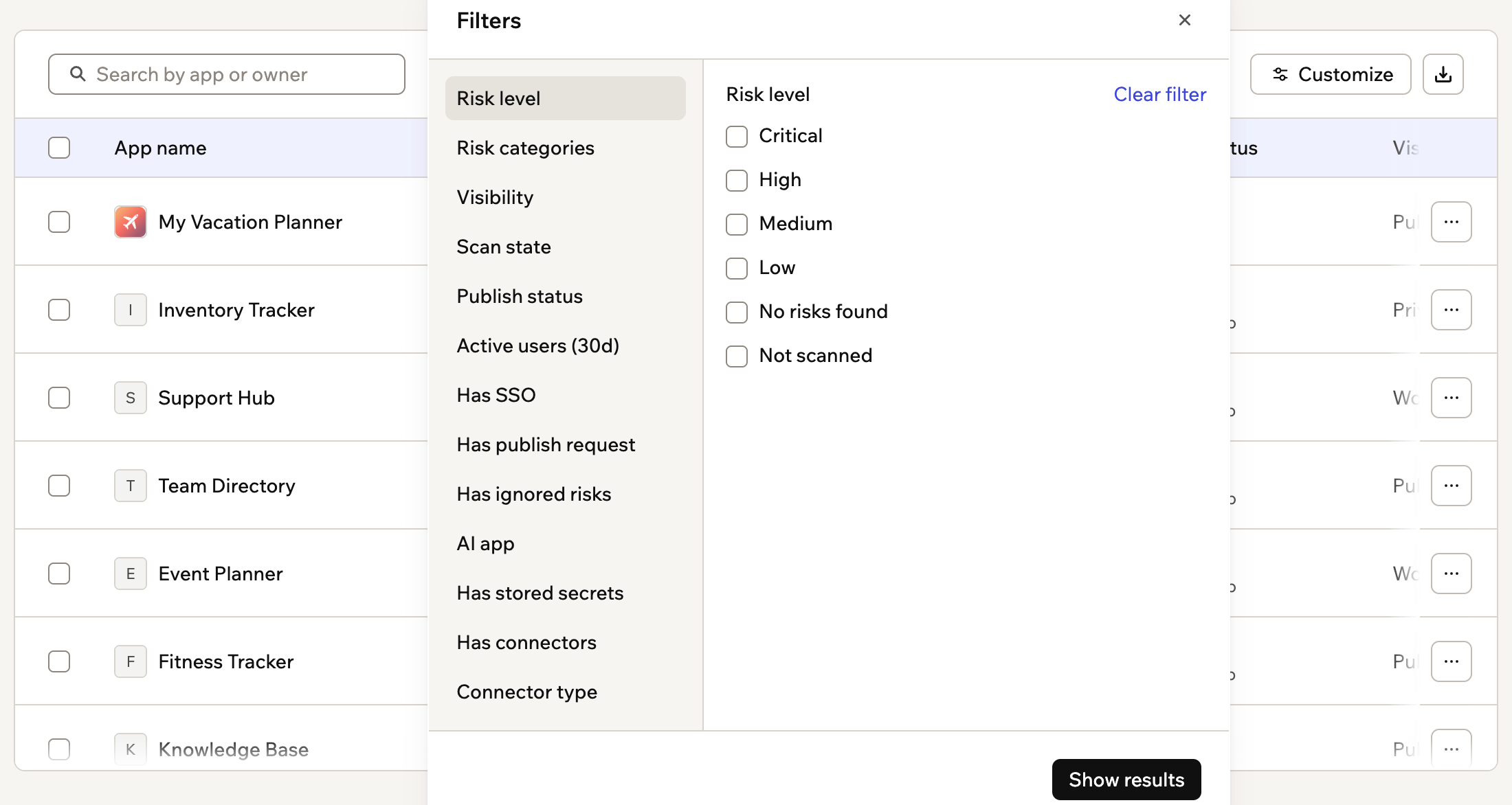
Filtering workspace apps by risk level, risk category, scan state and more
- Click your workspace name at the bottom left.
- Click Settings.
- Click Security Center under Security & Control.
Customizing columns
Show more columns to see what each app connects to, stores, and uses. Extra columns include collaborators, a column for each risk category, ignored risks, stored secrets, AI use, connectors, credits used this billing period, and usage such as views, unique visitors, live users, and app users. The app name always stays visible. Your filters, sorting, and column choices persist after you reload the page, and Reset to default brings back the original layout. To customize columns:- Click your workspace name at the bottom left.
- Click Settings.
- Click Security Center under Security & Control.
- Click Customize above the app inventory.
- Select the columns you want to show, or drag them into a different order.
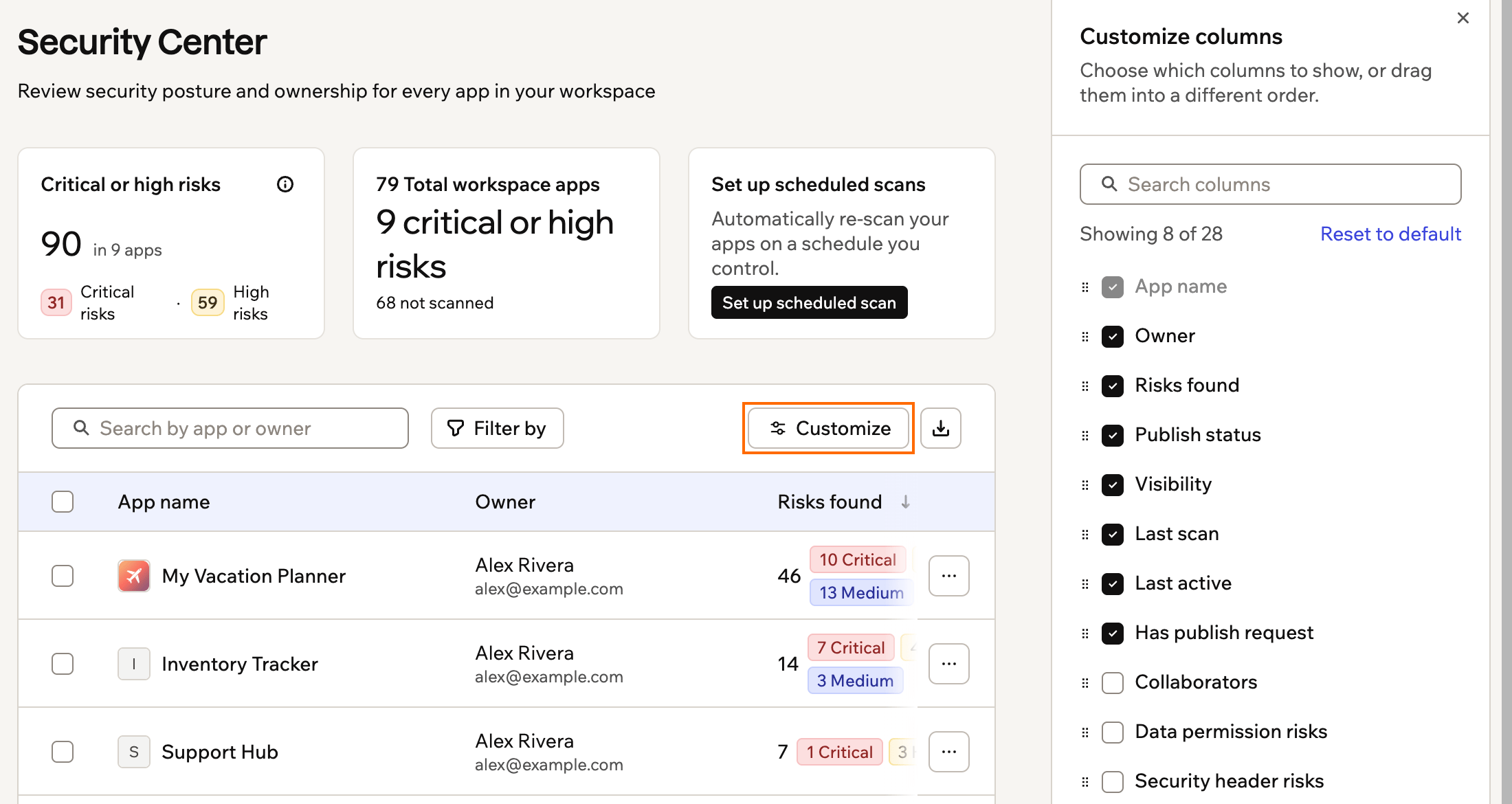
Choosing which columns to show in the app inventory
Scanning workspace apps
Security scans identify data permission risks, exposed secret risks, backend function risks, app dependency risks, code risks, security header risks, and integration credit risks. If you connect a Wiz tenant, Wiz risks appear here too. While a scan is running, its status updates in the inventory. Findings appear when the scan finishes. To scan workspace apps:- Click your workspace name at the bottom left.
- Click Settings.
- Click Security Center under Security & Control.
- Find the app or apps you want to scan.
- Choose what you want to do:
- Scan one app: Hover over the relevant app and click Scan.
- Scan apps in bulk: Select the apps you want to scan, or click Select all apps, then click Run scan.
Scheduling scans
Scheduled scans re-scan your workspace apps automatically every week, every month, or both, so your security results stay current without you starting each scan. Each run scans only the apps that changed since their last scan, starting with the riskiest.Setting up a schedule
Your workspace has a weekly scan and a monthly scan, and both are off until you turn them on. A weekly run scans up to 200 apps and a monthly run up to 500. If more apps changed than a run can scan, the rest go first in the next run. Scheduled scans don’t include agents, Superagents, or Base Code apps. Your changes save as soon as you make them.Each app a scheduled scan scans typically uses ~1 to 2 credits, based on the app’s size. Apps that haven’t changed since their last scan are skipped and don’t use credits. If the workspace runs out of credits, the run pauses and the schedule stays on.
- Click your workspace name at the bottom left.
- Click Settings.
- Click Security Center under Security & Control.
- Click Set up scheduled scan.
- Turn on Weekly scan or Monthly scan.
- Under Start from, pick the date of the first scan, or leave it empty to start tomorrow.
- Choose which apps to include:
- By type: Select the visibility and publish status of the apps to scan, or leave them as Any to include every app. Click Show apps to see which apps match right now.
- Specific apps: Click Choose apps, select the apps, and click Save.
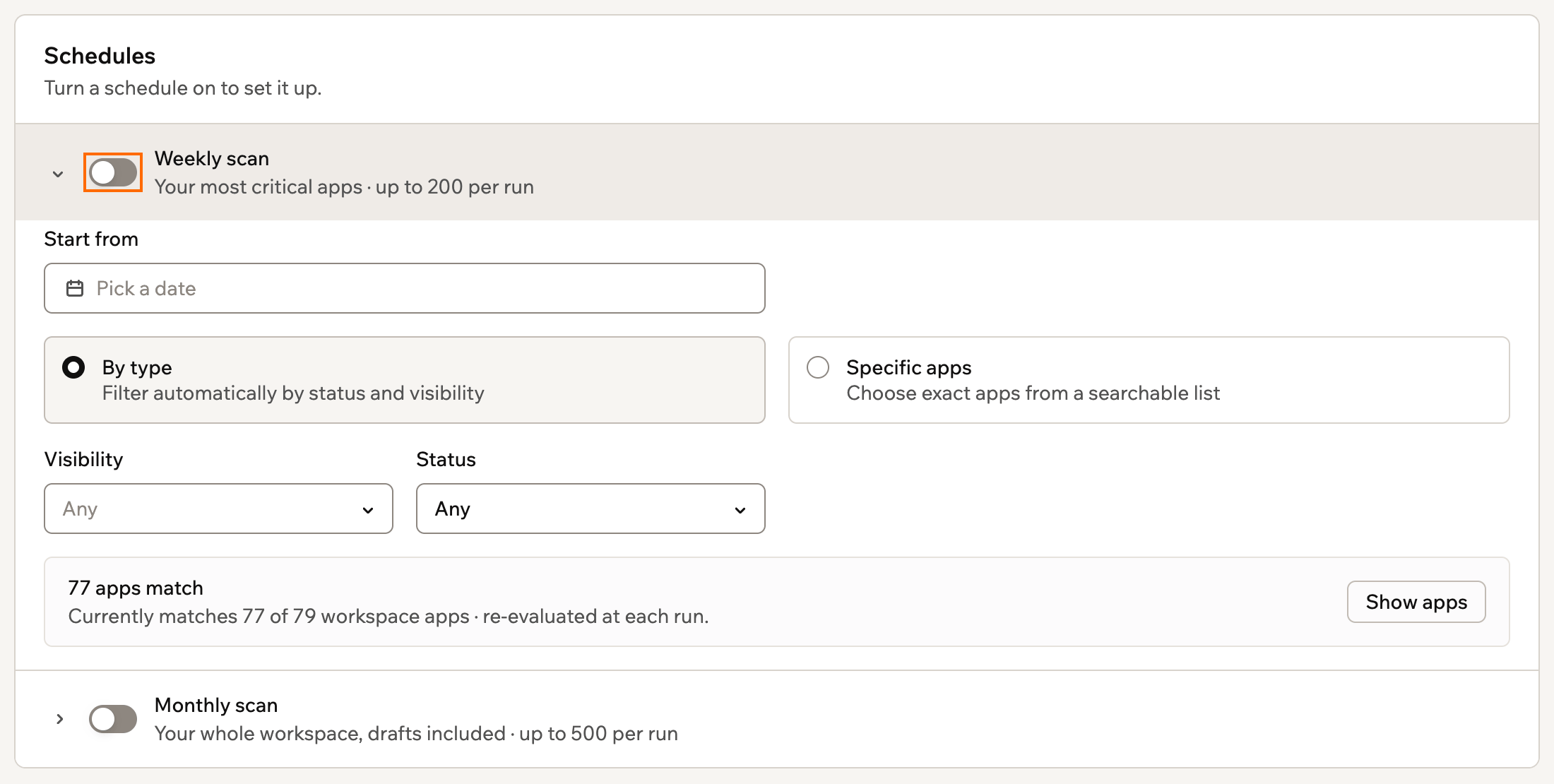
Setting up a weekly scan, with a start date and the apps it scans
Changing a schedule
You can change a schedule’s start date or the apps it scans, or turn it on or off at any time. To change or turn off a schedule:- Click your workspace name at the bottom left.
- Click Settings.
- Click Security Center under Security & Control.
- Click Open on the Scheduled scans card.
- Do one of the following:
- Change a schedule: Expand the schedule and update its start date or the apps it scans.
- Turn a schedule on or off: Turn Weekly scan or Monthly scan on or off.
Viewing run history
Run history lists each scheduled run with its schedule, status, the number of apps scanned, and the credits it used. You can filter runs by schedule or status, and results are kept for 90 days. A run shows one of these statuses:- Running: The run is in progress.
- Completed: The run scanned every app that needed a scan.
- Completed, app limit reached: More apps changed than the run could scan. The rest go first in the next run.
- Paused, out of credits: The workspace ran out of credits during the run.
- Paused, no workspace owner: The workspace has no owner to charge the credits to.
- Didn’t finish: The run stopped before it scanned every app.
- Click your workspace name at the bottom left.
- Click Settings.
- Click Security Center under Security & Control.
- Click Open on the Scheduled scans card.
- Under Run history, find the run and click View results.
Taking action on apps
Use the app inventory to review detailed findings, open or preview apps, transfer ownership, and unpublish published apps. Click an app’s name to open its workspace overview. For everything else, click the More actions icon on the app’s row and select an option:- View app security: Review detailed findings or apply fixes.
- Notify owner: Tell the app’s owner and collaborators about its open risks.
- Go to app preview: Open the app preview.
- Transfer ownership: Assign the app to another workspace member. Only workspace owners, admins, and editors can receive app ownership. Ownership transfers immediately, and the current owner remains a collaborator by default.
- Unpublish: Take a published app offline immediately.
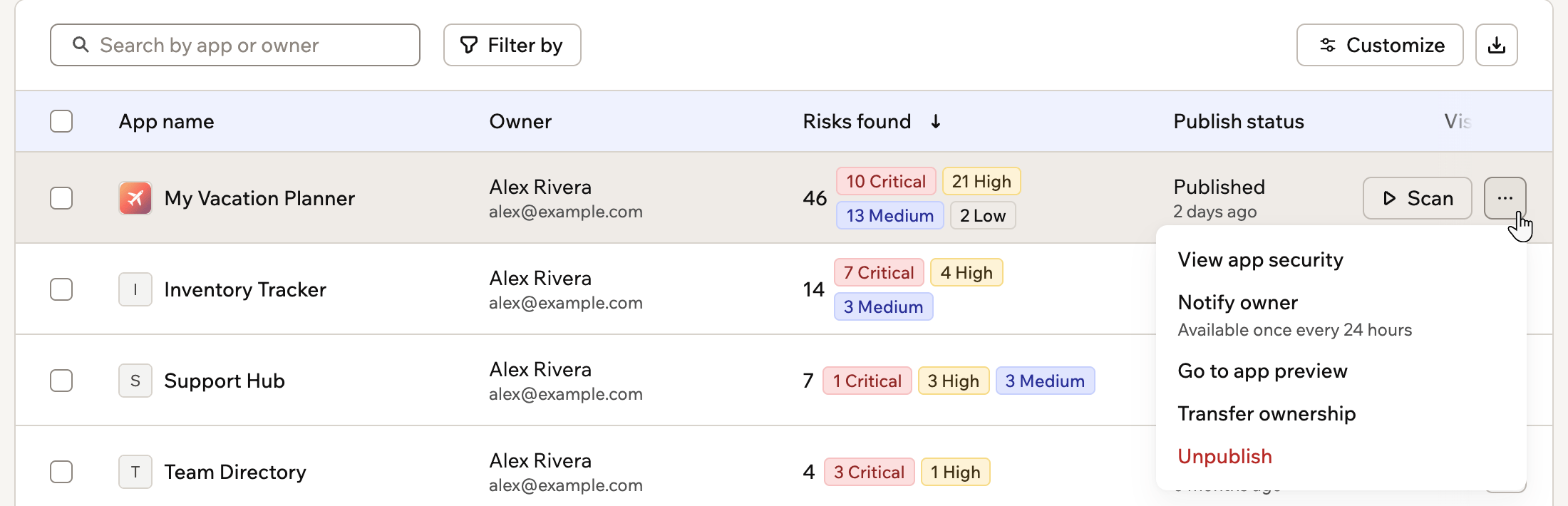
The More actions menu on an app row in the inventory
Notifying app owners
Ask app owners to fix their open risks. The app’s owner and collaborators get an email and an in-app notification with your message, the app’s risk level, its open risks by severity and category, and a link to the app’s security page. The notification shows how many risks the app has, never the details of each risk. You can notify each app’s owners once every 24 hours, and up to 20 apps at a time in bulk. You can’t notify the owners of an app that hasn’t been scanned or has no open risks. To notify app owners:- Click your workspace name at the bottom left.
- Click Settings.
- Click Security Center under Security & Control.
- Choose what you want to do:
- Notify the owner of one app: Click the More actions icon for the app and select Notify owner.
- Notify owners in bulk: Select the apps, then click Notify owner.
- Edit the subject and message if you want to.
- Click Notify owners.
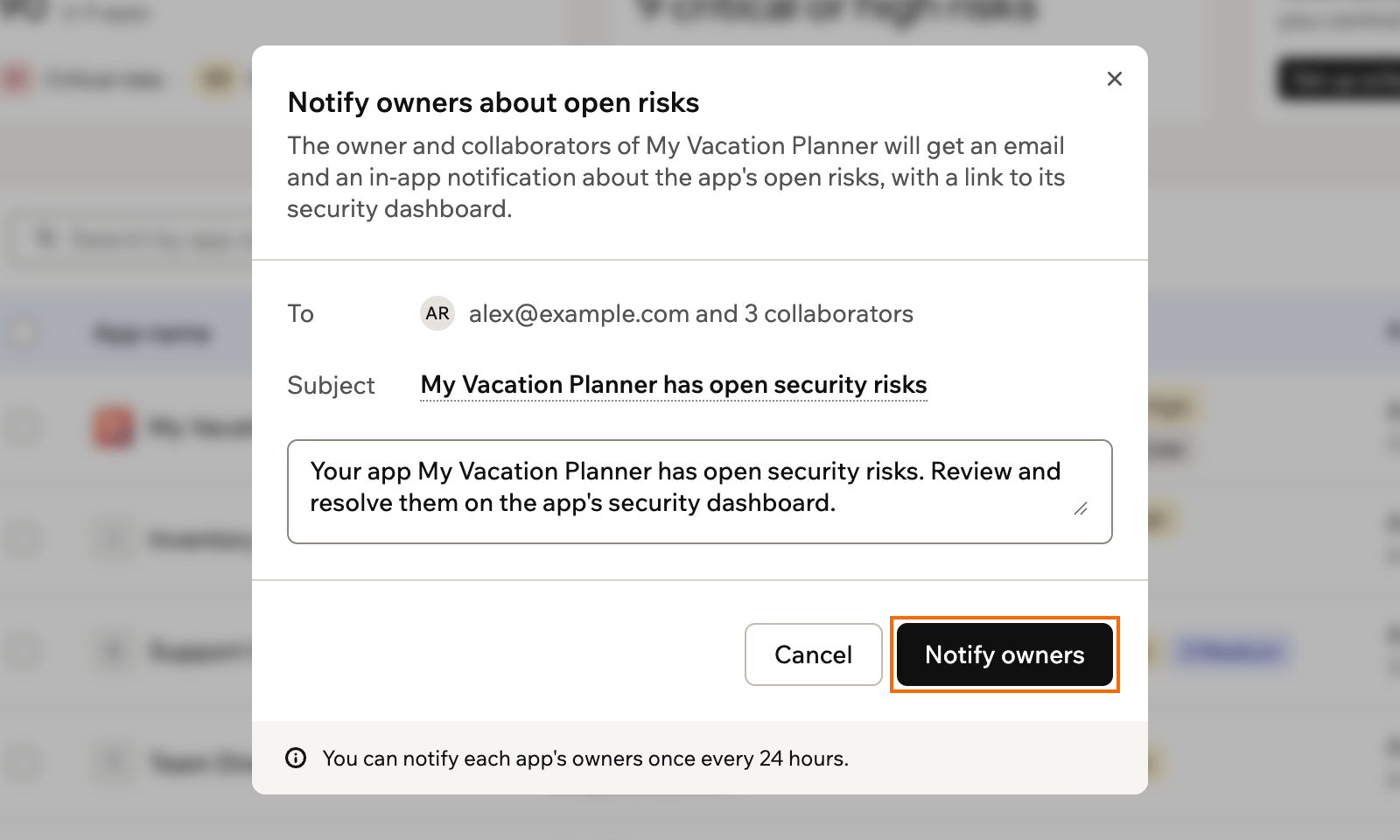
Editing the subject and message before notifying an app's owners
Exporting app inventory
Export the inventory as a CSV file to review or share workspace security data outside the security center. The inventory includes each app’s:- Owner and collaborators
- Risk level, risks per category, and ignored risks
- Scan status and latest scan timing
- Visibility and publish status
- Activity and usage, such as active users, views, and credits used
- AI use, stored secrets, and connectors
- Click your workspace name at the bottom left.
- Click Settings.
- Click Security Center under Security & Control.
- Apply any search or filters you want to include.
- Click the export icon above the inventory.
- Select a scope:
- All apps
- Current filter
- Selected apps
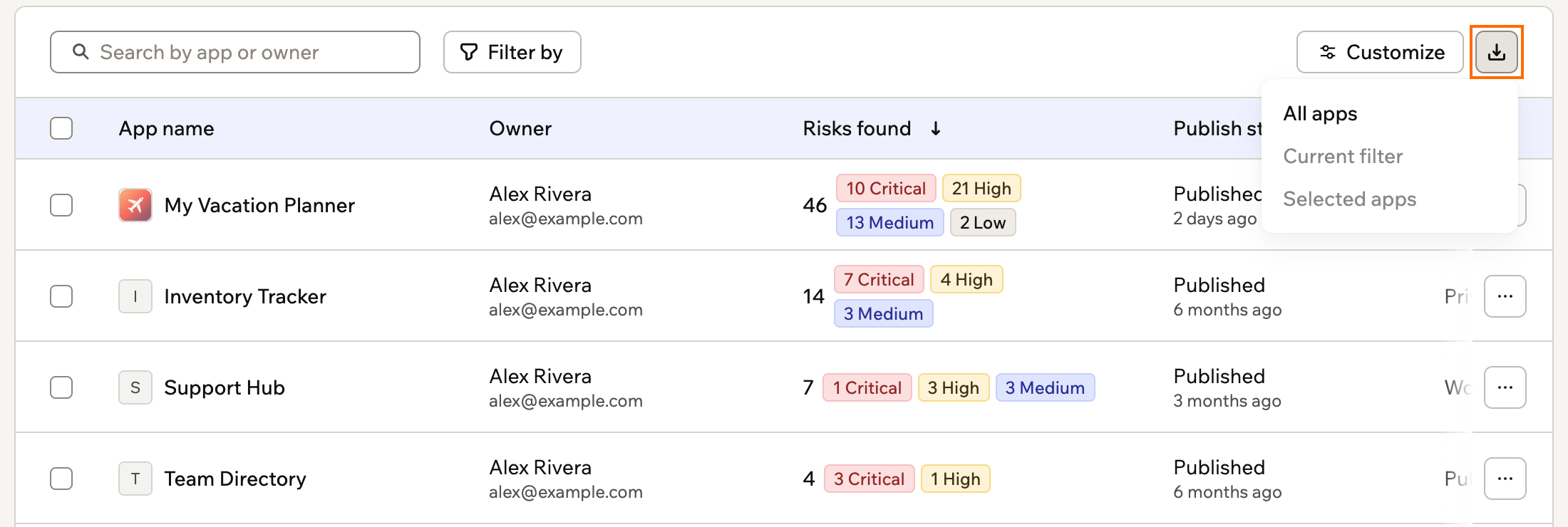
Choosing which apps to include when you export the inventory
FAQs
Find answers to common questions about the security center and how it relates to each app’s security scan.What is the difference between the security center and an app's Security page?
What is the difference between the security center and an app's Security page?
The security center provides a workspace-wide view for comparing risk and managing multiple apps. An app’s Security page shows detailed findings for that app and lets you apply fixes. Learn more about running a security scan on your app.
What does it mean when an app has never been scanned?
What does it mean when an app has never been scanned?
No security scan has been completed for the app, so no findings are available yet. Run a scan from the security center or the app’s Security page to generate results.