

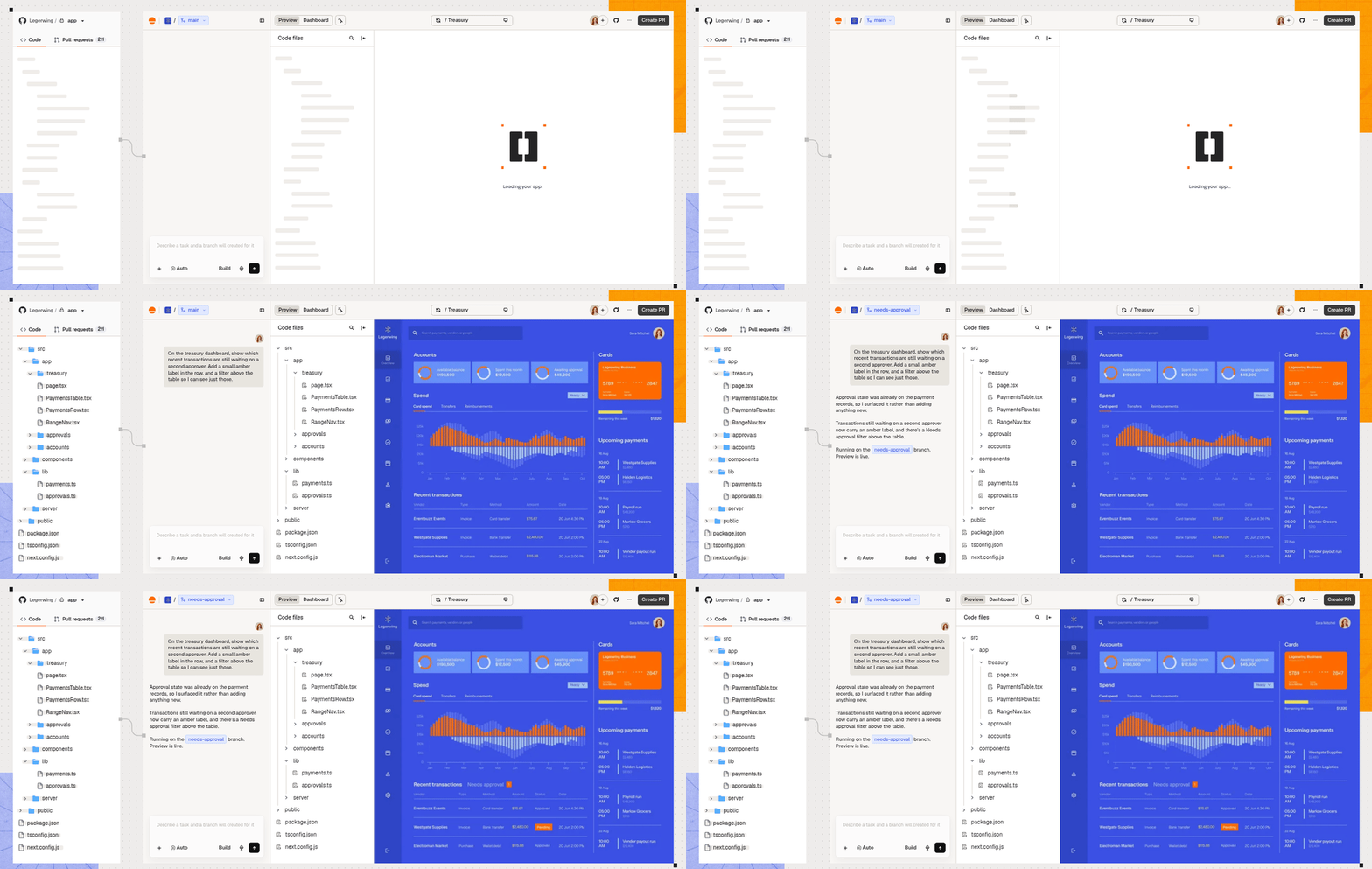
Using Base Code
Ready to get started?
Open Base Code and sign in to Base44, or create a free account.
Step 1 | Connect your GitHub account
Base Code works directly in your GitHub repositories, so it needs access to the ones you want to work on. If your GitHub account is already connected, continue to choosing a repository. To connect your account:- Go to Base Code and sign in to Base44, or create a free account.
- Click Connect GitHub.
- Sign in to GitHub if prompted, then authorize Base44 Builder.
-
Select the GitHub account or organization, then follow the prompts to install or configure Base44 Builder. Choose which repositories it can reach:
- All repositories: Every repository in the account, including new ones. Choose this on your own GitHub account if you plan to fork or copy repositories, so Base44 can reach each new copy.
- Only select repositories: Only the repositories you pick. Include each repository you want to work on.
If you aren’t an owner of the GitHub organization, GitHub sends your request to the organization’s owners and you see Waiting for approval. After an owner approves it, click Connect GitHub again.
Step 2 | Choose a repository
Pick the repository you want to work on in Connect your repository. If you can’t push to it, Base Code can make your own copy of it on GitHub.Setting up your project doesn’t change your repository. Base Code keeps its setup files on the Base44 side, so it doesn’t commit them or create a setup branch.
- From your account
- Paste a link
To choose a repository from your account:
- Open Connect your repository in Base Code:
- Your first repository: If your repository isn’t among the ones shown, click Other repos.
- Another repository: Click the repository drop-down at the top of the sidebar, then click Add repository. On mobile, it’s called Add new repository.
- Select a repository.
- Keep the selected Branch or select another.
- Click Connect.
My repository isn't listed
My repository isn't listed
If your repository isn’t listed in Connect your repository, give Base44 access to it on GitHub.To update repository access:
- Give Base44 Builder access to the repository on GitHub.
- Reopen Connect your repository in Base Code.
My repository's organization isn't approved
My repository's organization isn't approved
If you see “Your workspace’s GitHub policy doesn’t allow this import”, or Base44 says your repository isn’t in an approved GitHub organization, your workspace doesn’t allow repositories from that organization. Ask someone who manages your workspace’s GitHub organizations to connect the organization and mark it Allowed, then try again.The same rule applies to a fork or private copy. Base Code creates it in your own GitHub account, so that account must also be in your workspace’s connected organizations and marked Allowed.
I can't make changes or create a branch
I can't make changes or create a branch
If your project shows a Read only badge, or Base Code asks for GitHub access when you click Create branch, your GitHub account isn’t connected or doesn’t have write access to the repository. In a read-only project, you can still discuss it in the AI chat and switch branches.To connect your GitHub account:
- Go to Base Code.
- Click the connect button Base Code shows you:
- In a read-only project: Open the project, then click Connect account in the Connect your GitHub account banner.
- When you create a branch: Click Connect to GitHub.
- Authorize Base44 Builder on GitHub.
- (Optional) If you were creating a branch, click Create branch again.
If you see GitHub write access required or “Your GitHub account can’t push to this repo”, your account is connected but doesn’t have write access. Ask a repository admin to give your GitHub account write access, then click Recheck permissions, or try creating the branch again. You can also connect your own copy of the repository instead.
Step 3 | Make your first change
After you connect a repository, your project opens in the Base Code editor, and the AI sets it up on the branch you connected, showing each step as it goes. Setup is done when your project appears in Preview. If a step fails, click Fix setup to have the AI fix it. Then describe your first change on the Base Code start screen. Base Code creates a branch for it and names it for you. Setup is free. After that, each request uses your workspace’s credits. To make your first change:- Go to Base Code when setup finishes in the AI chat.
- If you’ve connected several repositories, select the one you want to change in the repository drop-down at the top of the sidebar.
- (Optional) Select the branch to start from in the drop-down next to Create new branch from.
-
Describe the change you want to make in the prompt box. For example:
-
Click Create branch. If Base Code asks for GitHub access, see I can’t make changes or create a branch.
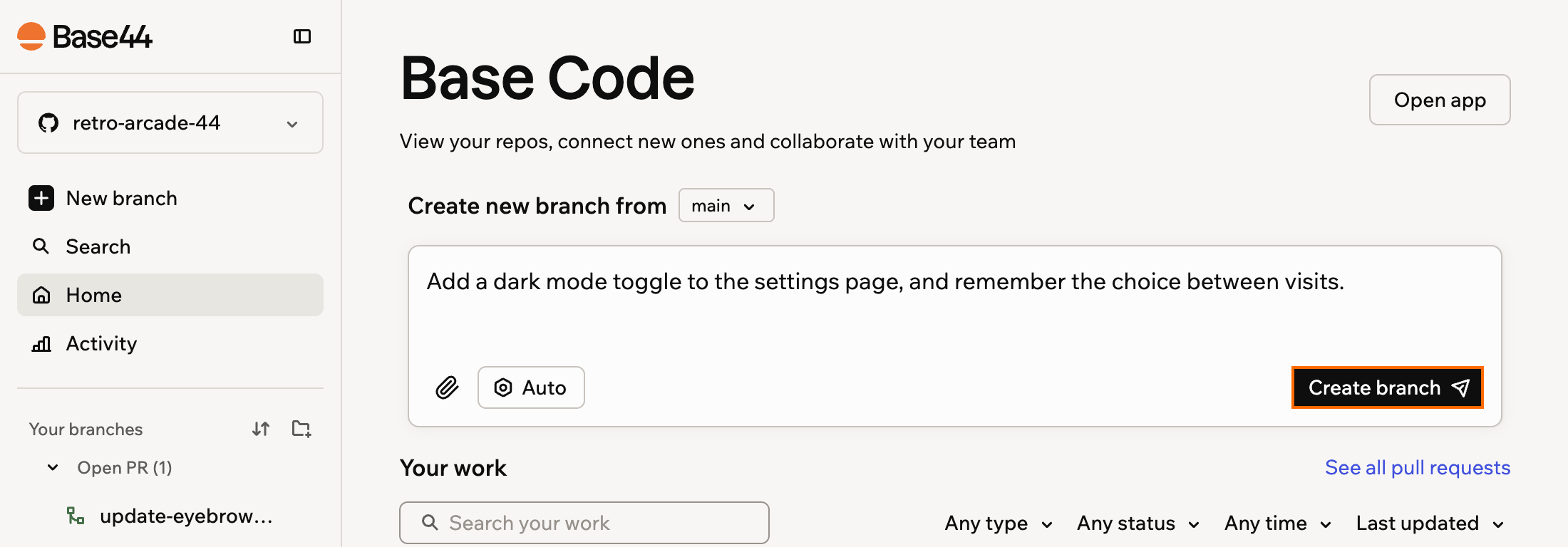
Creating your first branch
- Review the change in Preview once it appears, then ask the AI chat for any adjustments.
- When you’re happy with the change, open a pull request so your team can review it on GitHub.
How your project runs:
- Saved after each reply: When the AI finishes each reply, Base Code commits and pushes its changes to your working branch on GitHub.
- Preview, not hosting: Base Code provides a development preview, not production hosting. To release your changes or connect a custom domain, use your project’s existing deployment process and hosting provider.
- Your own stack: Your project keeps its own database, authentication, and routing. Connecting a repository doesn’t add any Base44 database, login, or code to your project. To add a database, authentication, or CI/CD, ask the AI chat to add it with your project’s own stack, and add any connection strings or API keys as secrets.
- Coming back: When you come back to Base Code, your project environment starts back up. If it needs rebuilding, Base Code rebuilds it from the latest commit on your GitHub branch, so you only get back the changes that reached GitHub. Before you leave, let the AI finish its reply.
Managing GitHub organizations
Connect your team’s GitHub organizations to your workspace so everyone in it can work on their repositories. Connected organizations belong to your workspace, so apps keep syncing even if the person who connected one leaves. In Base Code, everyone works through their own GitHub connection, so the Choose how your team writes to GitHub setting in your workspace settings doesn’t apply. To add a GitHub organization:- Click your workspace name at the bottom left of your account.
- Click Settings.
- Click GitHub under Build tools.
- Click Add organization under Connected organizations.
- Sign in to GitHub if prompted, then authorize Base44 Builder.
-
Choose the account or organization, then install Base44 Builder.
If you aren’t an owner of the GitHub organization, GitHub sends your request to the organization’s owners. After an owner approves it, click Add organization again.
- Click your workspace name at the bottom left of your account.
- Click Settings.
- Click GitHub under Build tools.
- Choose what you want to do:
- Filter organizations: Use the filter in Connected organizations to show All, Active, or Disconnected organizations.
- Choose which organizations new apps can use: Use Allowed next to each organization. Once any organization isn’t allowed, members can connect repositories only from organizations that are, and you and other owners and admins can still connect any repository. Changing Allowed doesn’t affect apps already using that organization.
- Disconnect an organization: Click the Actions icon next to the organization, click Disconnect organization, then click Disconnect. Apps tied to that organization’s workspace connection stop syncing with GitHub, and the confirmation lists them. Base44 Builder stays installed on GitHub, so you can reconnect the organization later.
FAQs
How do I apply a coupon code?
How do I apply a coupon code?
A Base Code coupon makes AI chat requests free for everyone in your workspace for 30 days, while the model is set to Auto. You can apply it before or after connecting a repository.You can apply 1 coupon per workspace. Each code also works in only a limited number of workspaces, so if you see “This code has reached its redemption limit”, try another code.To apply a coupon:
- Go to Base Code.
- Enter your coupon code:
- Before connecting a repository: Click Have a coupon? at the top right, then enter your code in the dialog.
- After connecting a repository: Enter your code in the field under Have a coupon?.
- Click Apply.
Why isn't my repository in All apps?
Why isn't my repository in All apps?
You’ll find each repository you connect in the repository drop-down at the top of the Base Code sidebar, not in All apps. A repository shows in All apps only if you add it to a folder.
Where can I learn about privacy and data use?
Where can I learn about privacy and data use?
Base44’s Privacy Policy explains how personal information is collected and used. Privacy and security covers AI model training and your data controls.