Connect Base44 to Google Search Console to access search performance data, sitemaps, URL inspection, and indexing status for your sites.
Connect your Base44 app to Google Search Console to access search performance data, sitemaps, URL inspection, and indexing status for your sites. Use Search Console to build dashboards on top of clicks, impressions, and CTR, to check whether pages are indexed, and to list and submit sitemaps, either from one Search Console account for the whole app or from each person’s own account.
Which type should you use? Use a connector for app builders when your app reads Search Console data from one Google account for everyone, for example a dashboard that tracks your own site. Use a connector for app users when each person connects their own Google account and sees their own verified sites.
You need a Builder plan or higher to use connectors in your app.
Before you begin: your site must already be verified as a property in Google Search Console. Search Console only returns data for verified properties, so connecting an account that does not own the property returns nothing. If you have not verified your site yet, see Getting your app found in search.
For app builders
For app users
Connect one Google account that all flows in your app use. Start from the AI chat, or from Integrations → Browse in your app’s dashboard.To connect Google Search Console:
Go to your app editor.
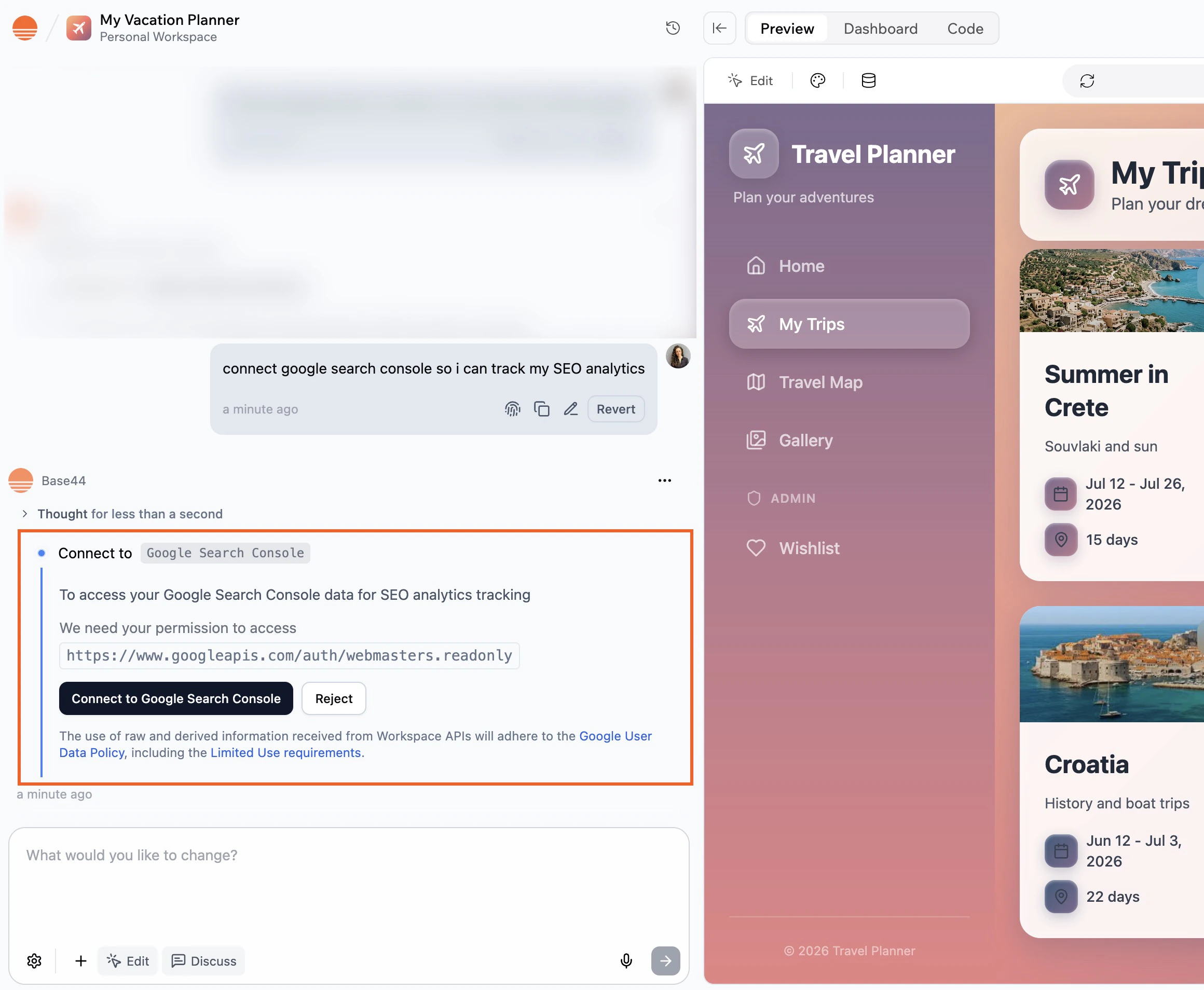
Describe what you want to do with Search Console in the AI chat, for example: Sync search performance data from Google Search Console into my app.
Review what the AI chat asks for under We need your permission to access.
Click Connect to Google Search Console.
In the Google window, select the account that has access to your Search Console property, review the permissions, and click Allow.
Return to the editor and let the AI finish creating the flows that use Search Console.
Connecting Google Search Console from the AI chat
After connecting, test the connector by asking the AI chat about your search data, for example your top queries from the last 7 days, and confirm the answer matches what you see in Search Console.
Let each person using your app connect their own Google account. An admin sets up the connector once at the workspace level, then each person connects their own account inside your app.
Treat your Client Secret like a password. Do not share it or include it in screenshots. Only enter it when Base44 asks for it during setup.
Register your callback URL with the OAuth app. See the card below.
Register your callback URL
Register this callback URL with your Google OAuth app. It works for every app in your workspace, including your live, preview, share, and custom domain URLs:https://connectors.base44.com/api/oauth/callbackIf you set this connector up before Base44 moved to a single callback URL, it still uses a separate URI for each app host. Open Workspace Settings → Connectors, click View redirect URIs for your apps under Connectors For App Users, select your app, and register every URI listed under Per-app URLs (for legacy connectors). Base44 uses the URI for whichever host a person is on when they authorize, so skipping one breaks the connection for anyone on that host.
Each person connects their own Google account inside your app. Prompt the AI chat to add a feature where people connect Search Console, then each person connects their own account when they use it. Each person sees only the properties their own Google account is verified for.
Once Google Search Console is connected, your backend functions can retrieve an access token and call the Search Console API directly. Base44 handles the OAuth flow and token storage.
For a shared connection, use getConnection() to retrieve the token.
For an app user connection, use getCurrentAppUserConnection() so each request uses the signed-in person’s token.
// Shared connection: one account the whole app usesconst connection = await base44.asServiceRole.connectors.getConnection("google_search_console");// Use the connection's access token to call the Search Console API.
Shared connectors
Configure, deploy, and call a shared connection from a backend function.
App user connectors
Retrieve a per-user token and call the API as the signed-in person.
When you connect Google Search Console, the connector requests permissions (scopes) that control what your app can do with your Search Console data. Below is the current list of Google Search Console scopes the connector may request.
Google Search Console scopes
email: Identify the Google account being connected.
https://www.googleapis.com/auth/webmasters: View and manage Search Console data, including sitemaps.
https://www.googleapis.com/auth/webmasters.readonly: View Search Console data without making changes.
email is added for you and appears under Always included, so you do not need to enter it. Select the webmasters scopes your app needs from the suggested scopes drop-down.
Scope lists may change over time. Always review the permissions shown during the connection flow. If you need a scope that is not listed here, share your feedback with us.
The connector is listed under My integrations and shows as connected.
The Google account you used has access to the Search Console property for your app’s domain.
Your app’s domain is verified in Search Console.
If the issue continues, try disconnecting and reconnecting the connector.
The connection fails with a redirect URI error
Check that https://connectors.base44.com/api/oauth/callback is registered in your Google OAuth app, exactly as shown. If the connector still uses per-app URLs, the URI in your OAuth app must instead match one shown under Per-app URLs (for legacy connectors) in View redirect URIs for your apps, so register every URI listed there for the app you are connecting.
Some people cannot connect their account
If your Google OAuth app is in testing mode, only approved test users can connect. Publish or move your OAuth app out of testing mode so anyone using your app can connect their own account.
The connector returns an empty result for a site
Search Console only returns data for properties the connected account is verified for, and new properties can take a few days to collect data. Confirm the property is verified, then check the same date range directly in Search Console.
Use the Google account that has owner or full access to the Search Console property for your app’s domain. If you are not sure which account has access, check the users list in Search Console under Settings > Users and permissions.
Can I connect more than one Search Console property?
Each app connects to one Google account at a time. If you manage multiple properties under the same Google account, the AI chat can query data across them when you specify which property you want.
Where is my app's sitemap?
Base44 generates your sitemap at /sitemap.xml. When you describe sitemap tasks in the AI chat, you can reference this path directly.
Can each person using my app connect their own Search Console property?
Yes. Use a connector for app users so each person connects their own Google account. See the connectors overview.
How do I change which Google account is connected?
Go to your app’s dashboard.
Click Integrations.
Click the My integrations tab.
Find Google Search Console and click the More actions icon , then Switch account.
How do I manage the Google Search Console connector in my app?
Click the More actions icon on the connector in your app’s Integrations tab, then choose an option such as switch account, reconnect, or disconnect. Learn more about managing connectors.
Was this page helpful?
Assistant
Responses are generated using AI and may contain mistakes.