

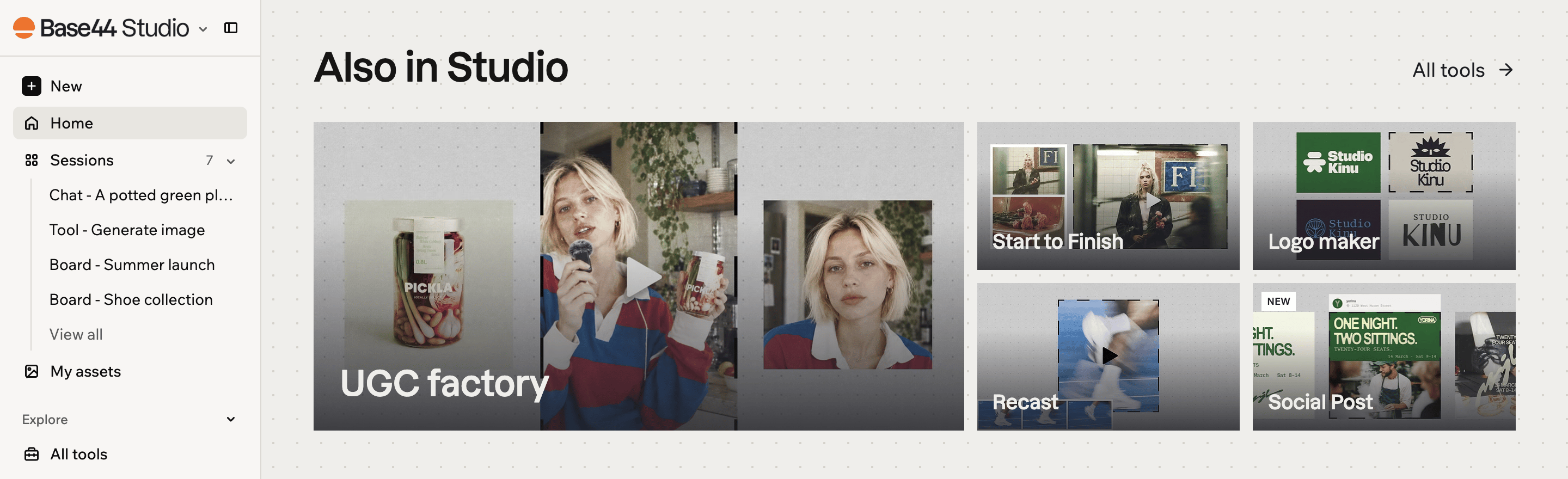
The Base44 Studio home page
Opening Base44 Studio
Studio uses your Base44 account, so there’s nothing new to sign up for. You pick a workspace at the bottom left of Studio. That workspace’s credits pay for what you make, and your work is kept for that workspace’s apps. To open Studio, go to studio.base44.com and sign in with your Base44 account if you’re asked to.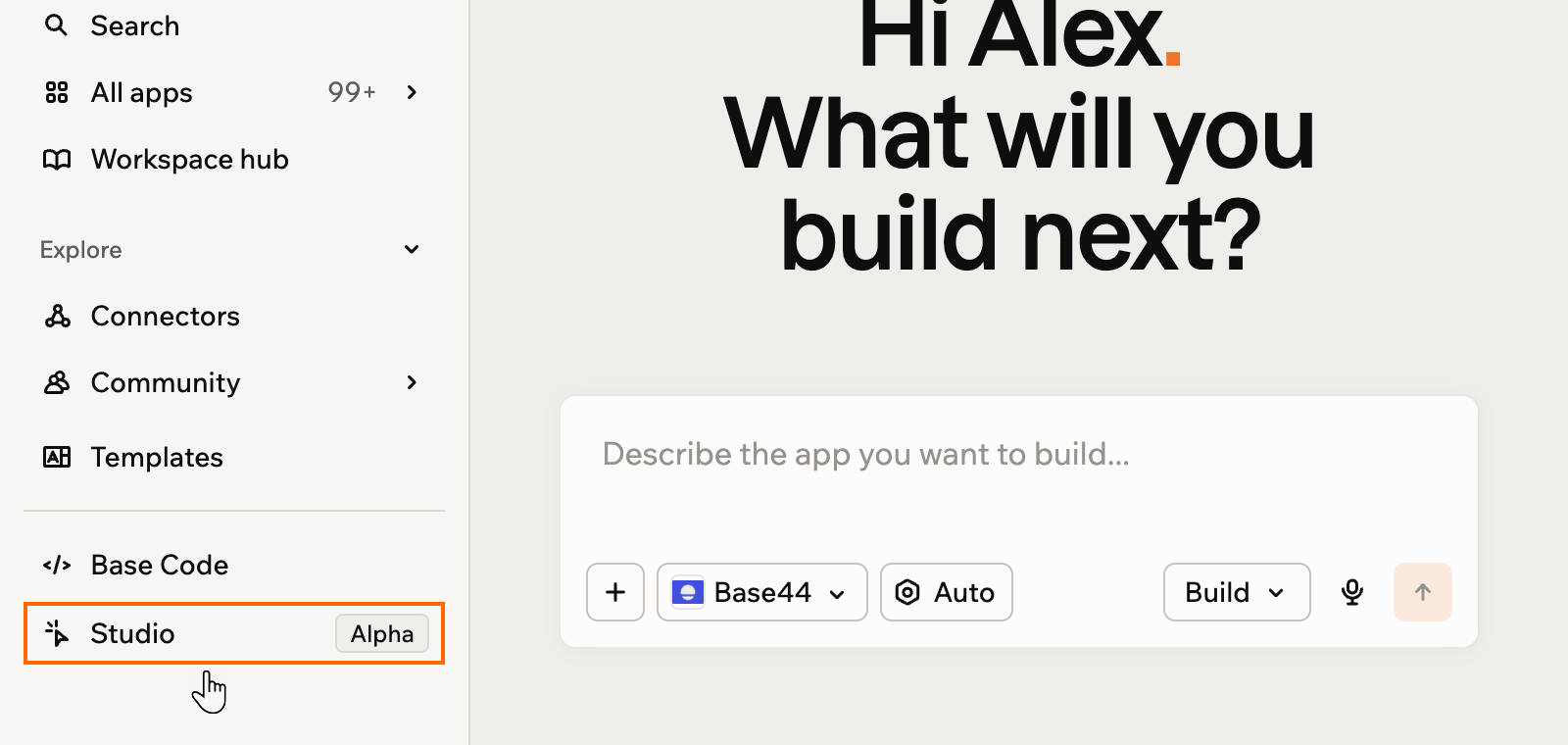
Opening Studio from your workspace sidebar
What you can make
Studio has a tool for almost any image or clip your app or brand needs, from a logo on day one to a launch video and the ads that go with it. Here are some ideas to start from.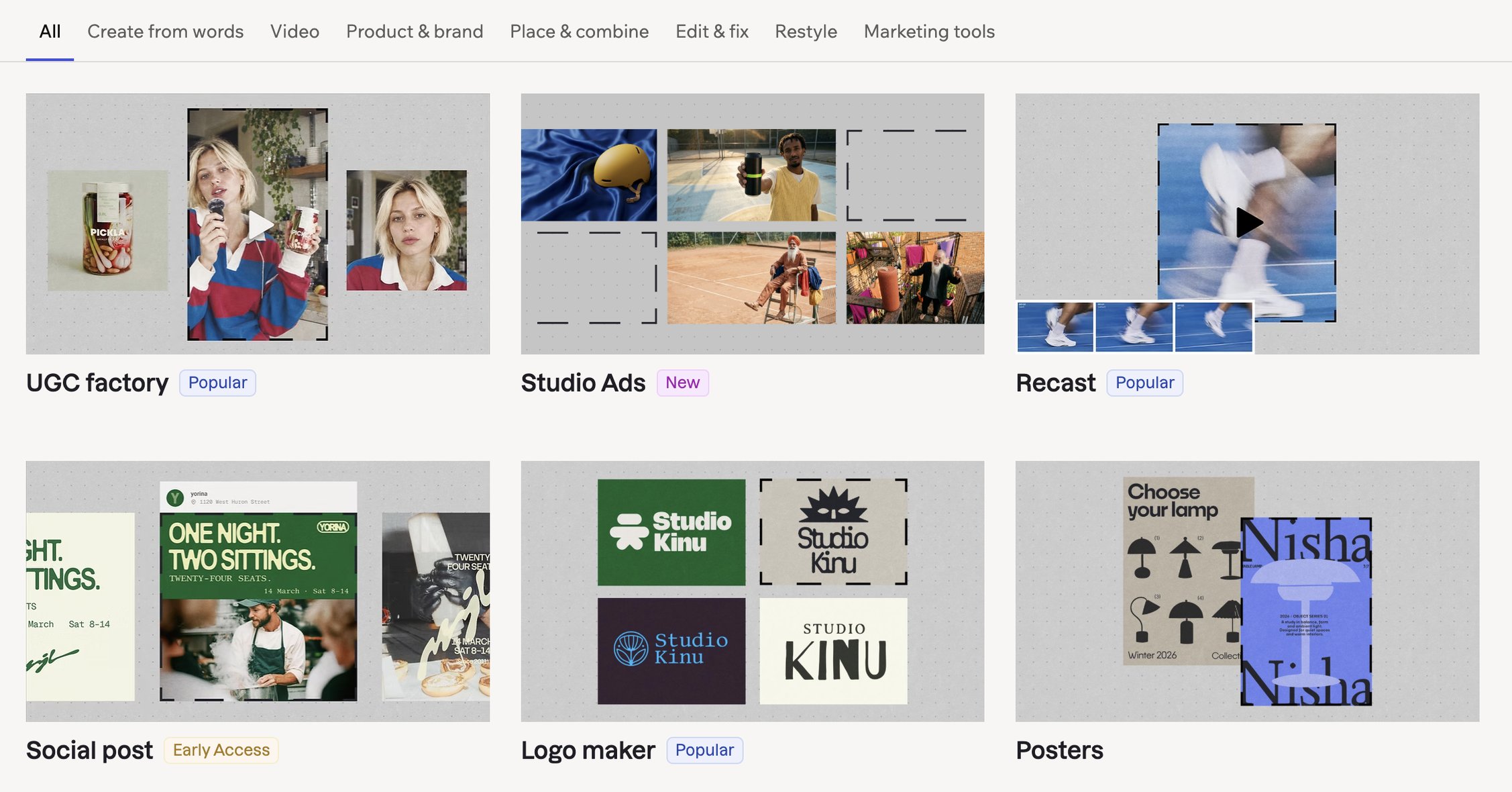
Browsing Studio's tools
- Images and designs: Describe an idea and get an image. You can also design a logo for your brand, turn a photo into a poster, plan a social carousel from a topic, or turn a story into a storyboard of matching scenes.
- Videos: Make a video from a description or bring a still photo to life. You can also animate from one picture to another, continue a clip from its last frame, or make a creator-style video for social. With Recast, you keep a video’s motion and change who or what’s in it.
- Product and brand shots: Shoot a matching set of product photos, build a collection of images in one style, see your product from new angles, or zoom in on close-up details.
- Scenes and mashups: Place your subject in a new scene, blend it into another photo, or bring 2 objects together in one picture.
- Quick fixes: Cut a subject out of its background, or enlarge an image with sharper detail. You can also change its colors or lighting, replace one thing and keep the rest, or split it into layers.
- Fresh styles: Make new versions of an image, restyle it in another image’s look, or redraw it as clean vector art. For something playful, rebuild it in LEGO bricks, pick a year and see your photo in that era’s style, or design a tattoo and see it on skin.
- Ads and social posts: In Studio Ads, which you’ll find in All tools, start from ready-made ads and swap the person in the ad, the product, or the app screen, for anything from a billboard to a social video. You can also create social posts with captions.
Making images and videos
You can make an image or video in 2 ways. Describe what you want on the home page and Studio picks the right tool for you, or open a specific tool when you know what you need. Everything you make is saved to My assets, and your recent work is listed under Sessions in the sidebar. A session is one chat, tool or board you worked in. A board is a canvas where you lay out several images and videos side by side.Describing what you want
The prompt box on the home page is the quickest way in. It opens a chat with Studio, and after a few moments your image or video appears there, with suggestions for what to try next. You can keep asking for changes in plain words. To describe what you want:- Go to Base44 Studio.
- Click Home in the sidebar.
- Under What will you create?, choose Image or Video.
- Describe what you want to see.
- (Optional) Choose the AI model, size, and shape below the box.
- Click the send arrow.
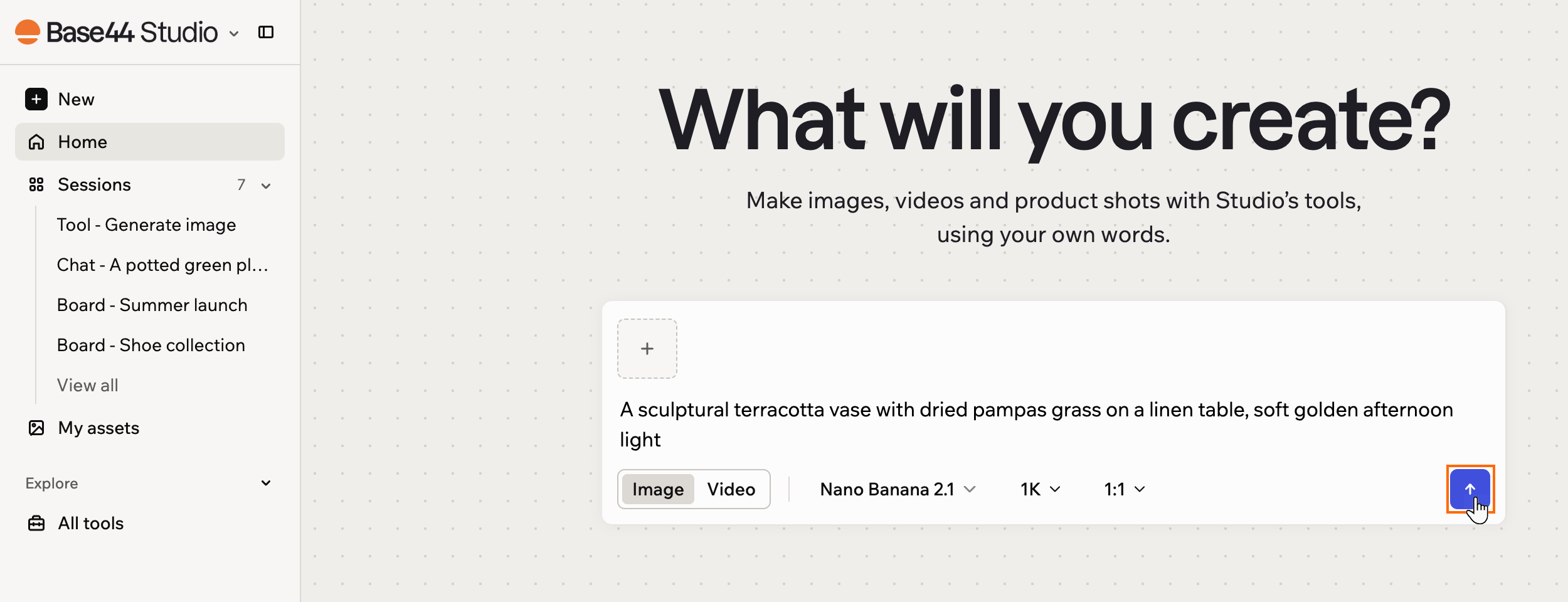
Describing what you want on the Studio home page
Using a tool
Each tool does one job well, such as making a product shot, removing a background, animating a picture, or turning a script into a storyboard. Tools are grouped by the kind of job they do, and each one shows how it works before you start. Your result appears in the middle of the tool, where you can download it, edit it, or open it on a board to keep working on it. To use a tool:- Go to Base44 Studio.
- Click All tools in the sidebar.
- Click the tool you want. You can search for it or filter by category.
- Fill in what the tool asks for, such as a description or a picture to start from.
- Click Run.
The Run button shows how many credits the run will use, so you know the cost before you start.
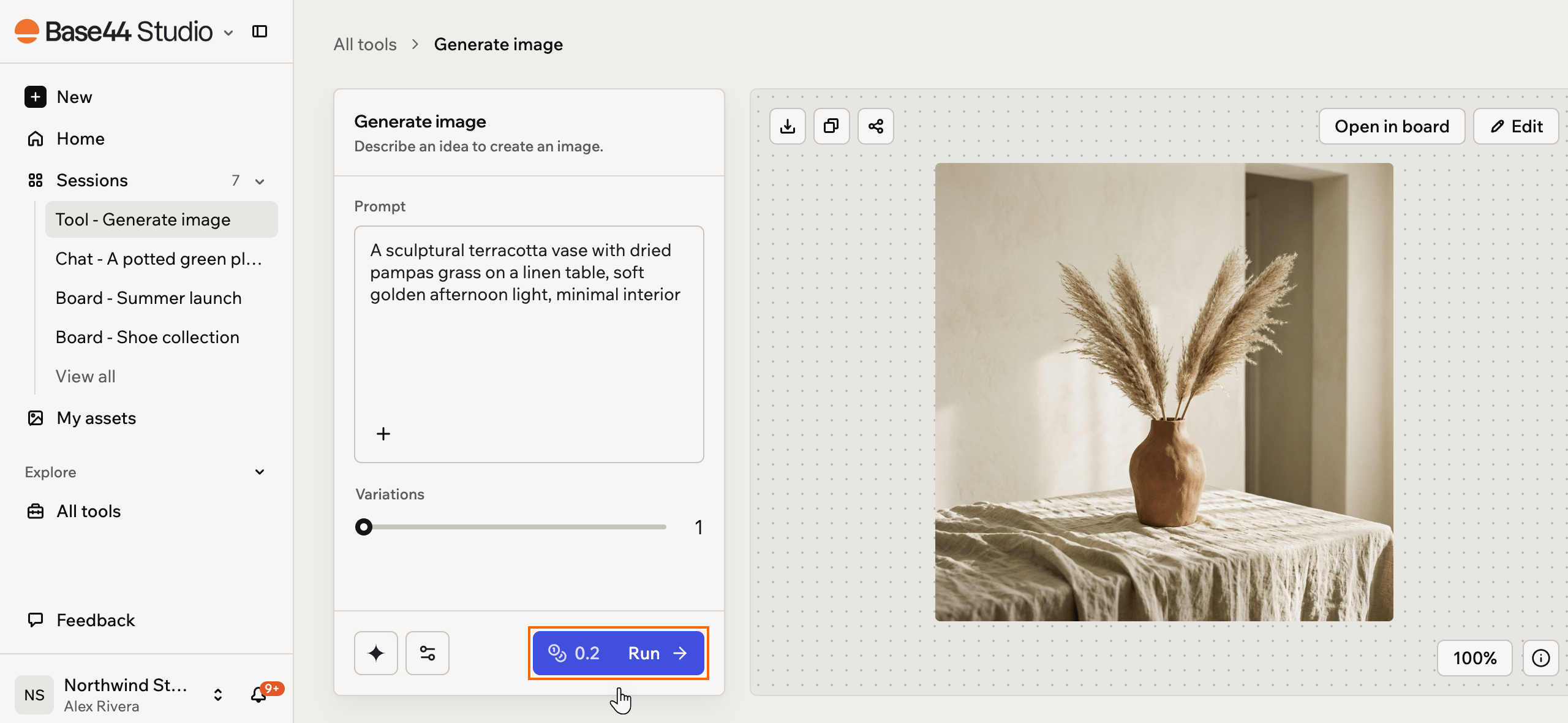
Running the Generate image tool
Finding your work
Every image and video you make or upload is in My assets, where you can search, filter, download, and organize your work. To manage an asset:- Go to Base44 Studio.
- Click My assets in the sidebar.
- Hover over the asset and click the More actions icon .
- Choose what you want to do:
- Download file: Saves a copy to your computer.
- Open in board: Opens it on a board so you can keep working on it.
- See history chain: Shows the steps that led to it.
- Add into a folder: Keeps related work together.
- Clone into a new board: Starts a new board with a copy of it.
- Remove from library: Takes it out of My assets right away, without asking you to confirm.
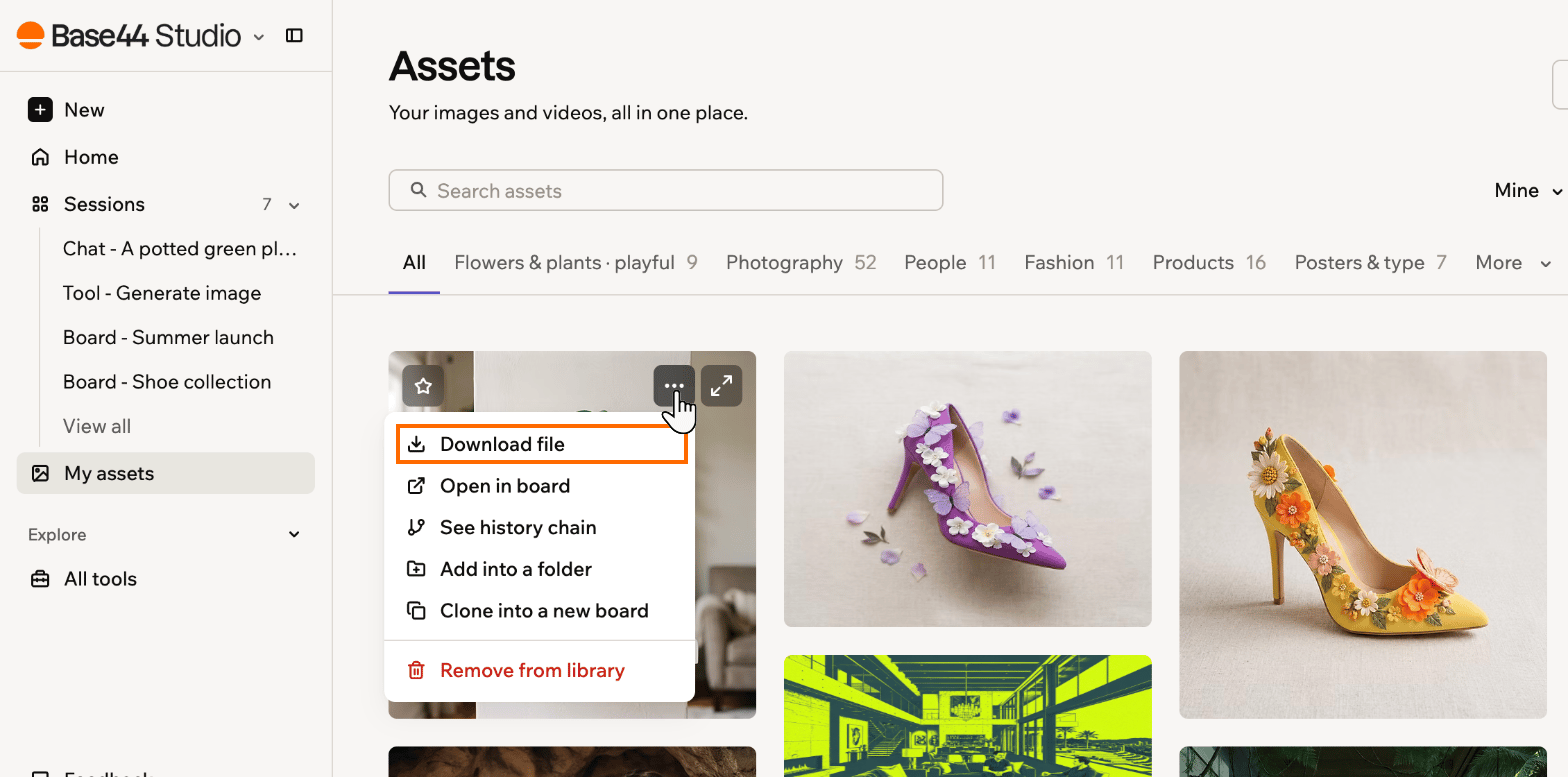
Managing an asset in My assets
Using Studio in apps
The images you make in Studio are ready to use in your Base44 apps, so you don’t need to download and upload them again. The Studio tab shows the Studio work from the same workspace as your app. To use a Studio image in your app:- Click Select at the top of your app editor.
- Click the image you want to replace.
- Click Replace.
- Click the Studio tab.
- Click the image you want to use.
Understanding credits
Studio uses the credits of the workspace you’re working in, the same credits you use to build your apps. Videos use more credits than images. You can see your remaining balance at the top right of every tool. Learn more about how credits work.FAQs
Click a question below to learn more about Base44 Studio.Can I use Base44 Studio on my phone?
Can I use Base44 Studio on my phone?
Yes. Open studio.base44.com in your phone’s browser. Some tools are easier to use on a bigger screen.
Why can't I find something I made in My assets?
Why can't I find something I made in My assets?
It may be in a different view. In My assets, choose Mine next to the search box to see everything you made, or Workspace to see only what’s saved to the workspace you’re in.
Can I work on images from my apps in Studio?
Can I work on images from my apps in Studio?
Yes. In My assets, choose Apps next to the search box, then click an app to see its images.
What files can I upload to Studio?
What files can I upload to Studio?
You can upload images and videos, up to 20 files at a time. Each image can be up to 50 MB, and each video up to 70 MB. Upload only files you have the rights to use.