

A video made from a travel planning app
Making your video
Base44 captures screens from the app you choose. You decide which ones go in your video and in what order. To make your video:- Click your workspace name at the bottom left of your account.
- Click View profile.
- Click Show off an app above your apps.
- Click Get my video.
- Select your app.
- Click Next. Base44 takes a moment to capture screens from your app.
-
Review your screens and change them if you want:
- Swap a screen: Hover over it and click its swap icon to pick another page of your app.
- Remove a screen: Hover over it and click its remove icon.
- Move a screen: Drag it to a new place.
- Add your own screenshot: Click Upload an image.
What your screens need:- Your video needs 4 to 8 screens.
- Uploads must be PNG, JPG, or WebP images. For the best results, use images at least 1280 by 720 pixels.
- Click Create video. Your video takes about a minute to make.
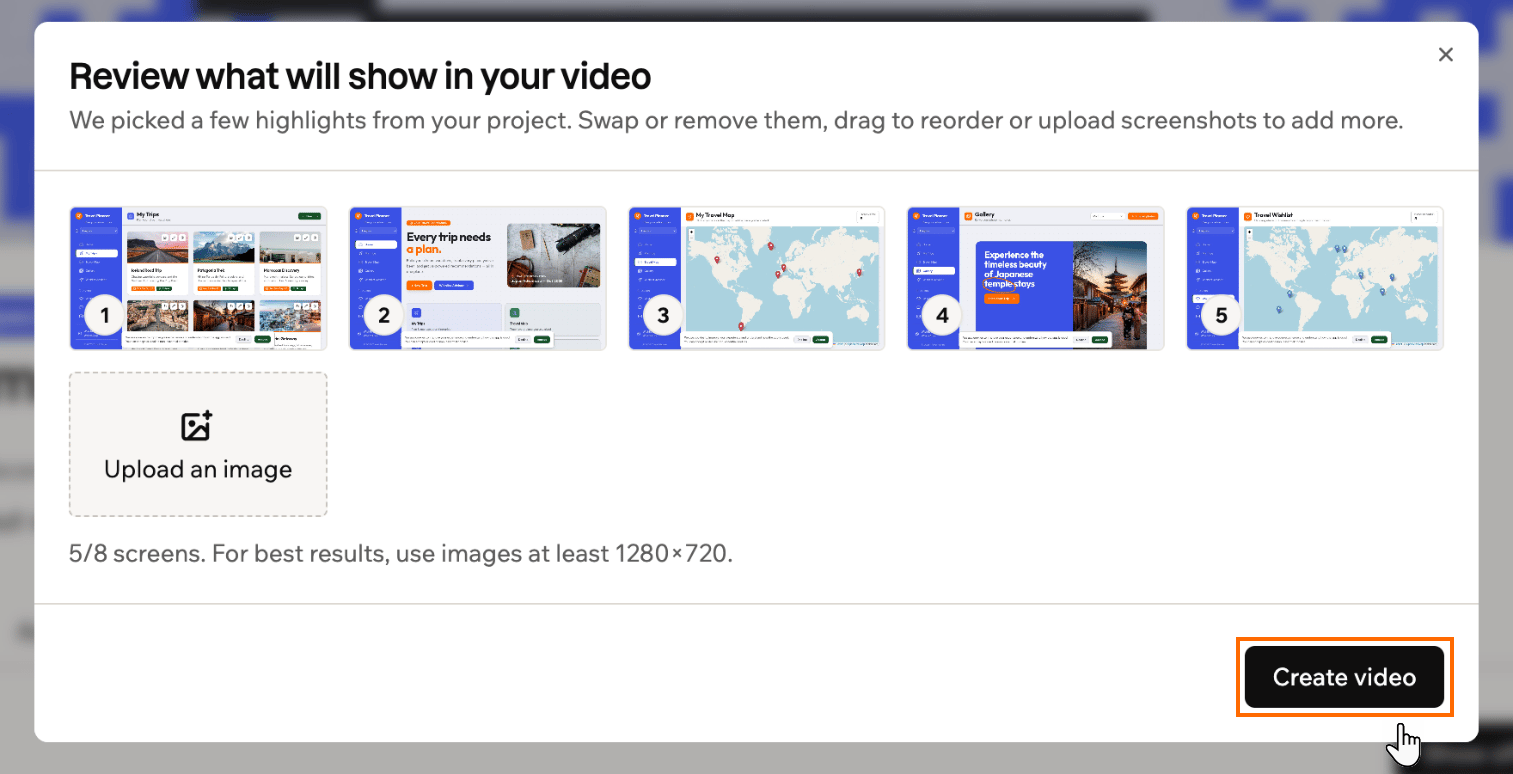
Reviewing your screens before you create the video
Sharing your video
When your video is ready, you can download it or post it to social media. To change your screens first, click Edit video. To download your video, click Download. You usually get a full HD landscape MP4 file. Some browsers save a smaller WebM file instead. To post your video to social media:- Click Share under your finished video.
- Select the site you want to post on. Your video saves to your downloads, and the site opens in a new tab.
- LinkedIn or X: A new post opens with text already written for you.
- Instagram: Instagram opens so you can start a new post.
- Facebook: A new post opens with a link to your published app. To post the video itself, start a new post on Facebook and attach the video from your downloads.
- On LinkedIn, X, or Instagram, attach the video from your downloads to your post.
- Publish your post.
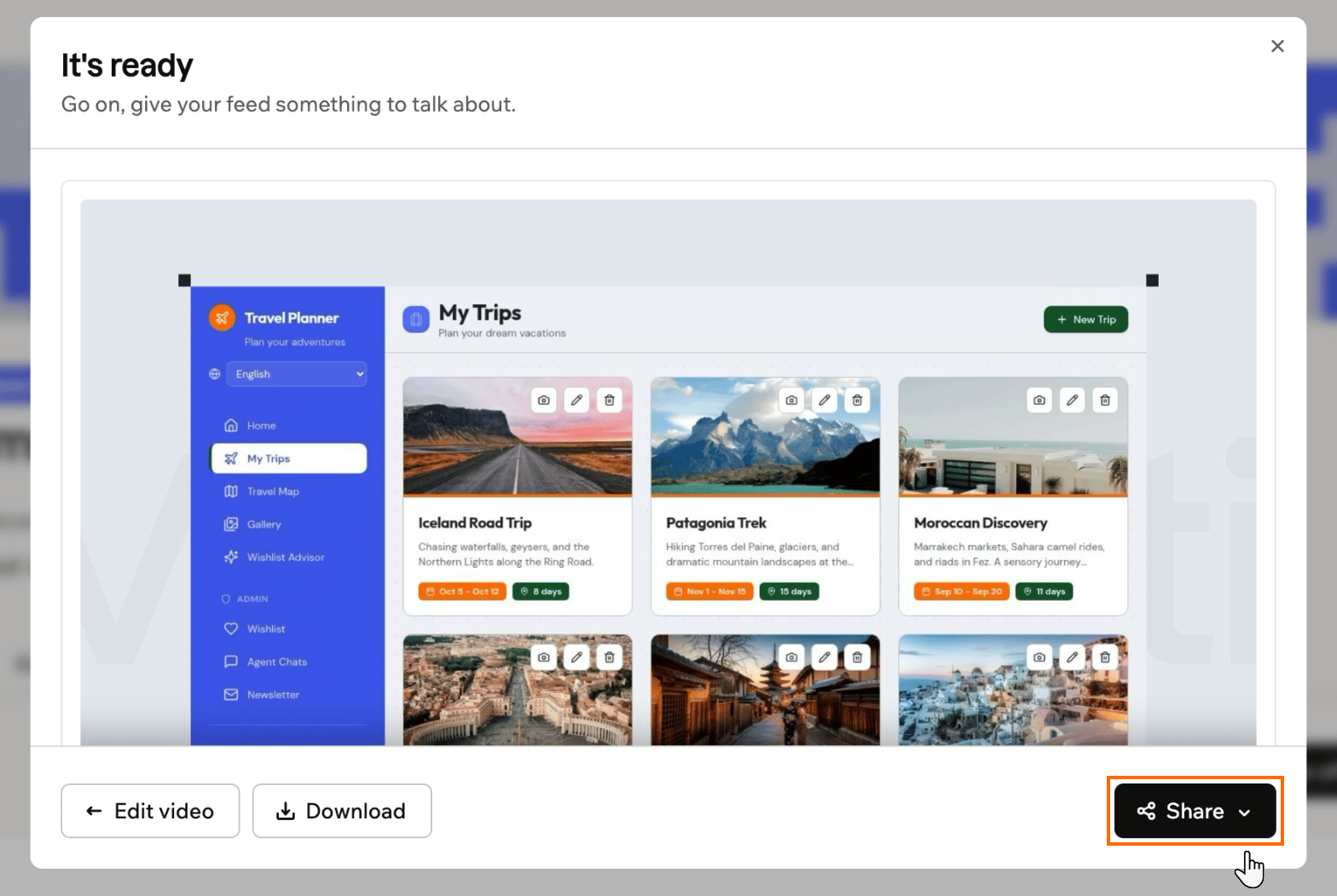
Sharing your finished video
FAQs
Click a question below to learn more about making app videos.How many videos can I make?
How many videos can I make?
You can make up to 10 videos with each account.
Can I remove the Base44 logo from my video?
Can I remove the Base44 logo from my video?
No. Every video ends with the Base44 logo.
Can I get my last video back?
Can I get my last video back?
Yes. When you choose the same app again in the same browser you used before, your latest video for that app opens.
Base44 couldn't capture my app's screens. What can I do?
Base44 couldn't capture my app's screens. What can I do?
Click Try again. If Base44 still can’t capture them, add 4 or more screenshots of your app with Upload an image instead.