

Before you import from Figma
Preparing your Figma file correctly helps Base44 read your design and recreate it as a working layout.- Make sure you are working in a Figma Design file. FigJam, Slides, and other file types are not supported.
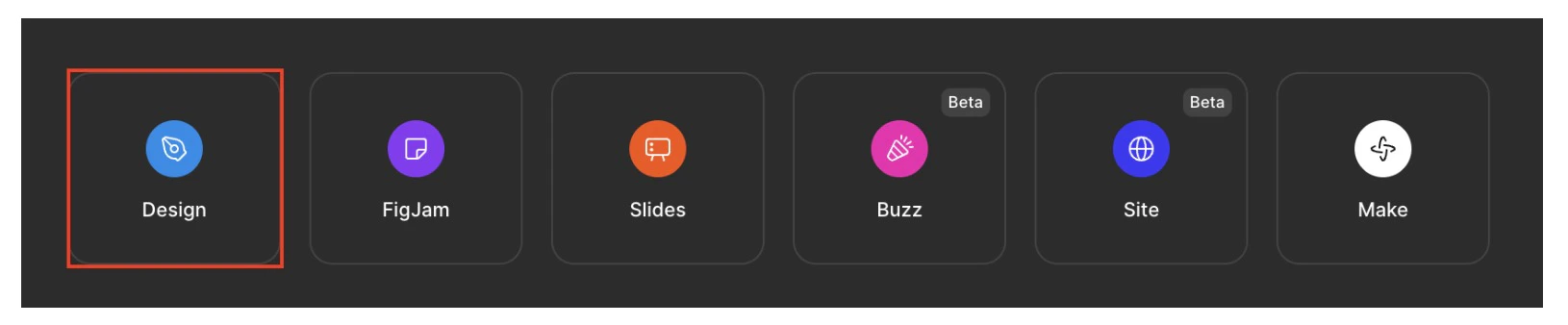
Figma Design file type
- Select a single frame or section that you want to import. Do not use a full document or page-level link.
- In Figma, click Share and under Who has access, set the link to Anyone with the link – Can view. Copy the link for the selected frame or section and paste it into Import from Figma in Base44. After the import is complete, you can set the Figma file permissions back to private if you prefer.
Import from Figma focuses on the selected frame or section. Other parts of the Figma file are not brought into Base44 unless you import them separately.
Structuring your Figma layout
A clear structure in Figma makes it easier for Base44 to build a responsive layout that matches your intent.- Divide the page into logical sections: Wrap related content (for example, a hero, feature row, or footer) inside frames or groups so each area of the page is clearly defined.
- Use auto layout for hierarchy: Apply
Auto Layoutto components such as cards, navigation bars, and repeating content blocks. For example, an info card with an image, title and description should be grouped asFrameorGroup, or preferablyAuto Layout. This helps Base44 understand how elements relate to each other and how they should resize.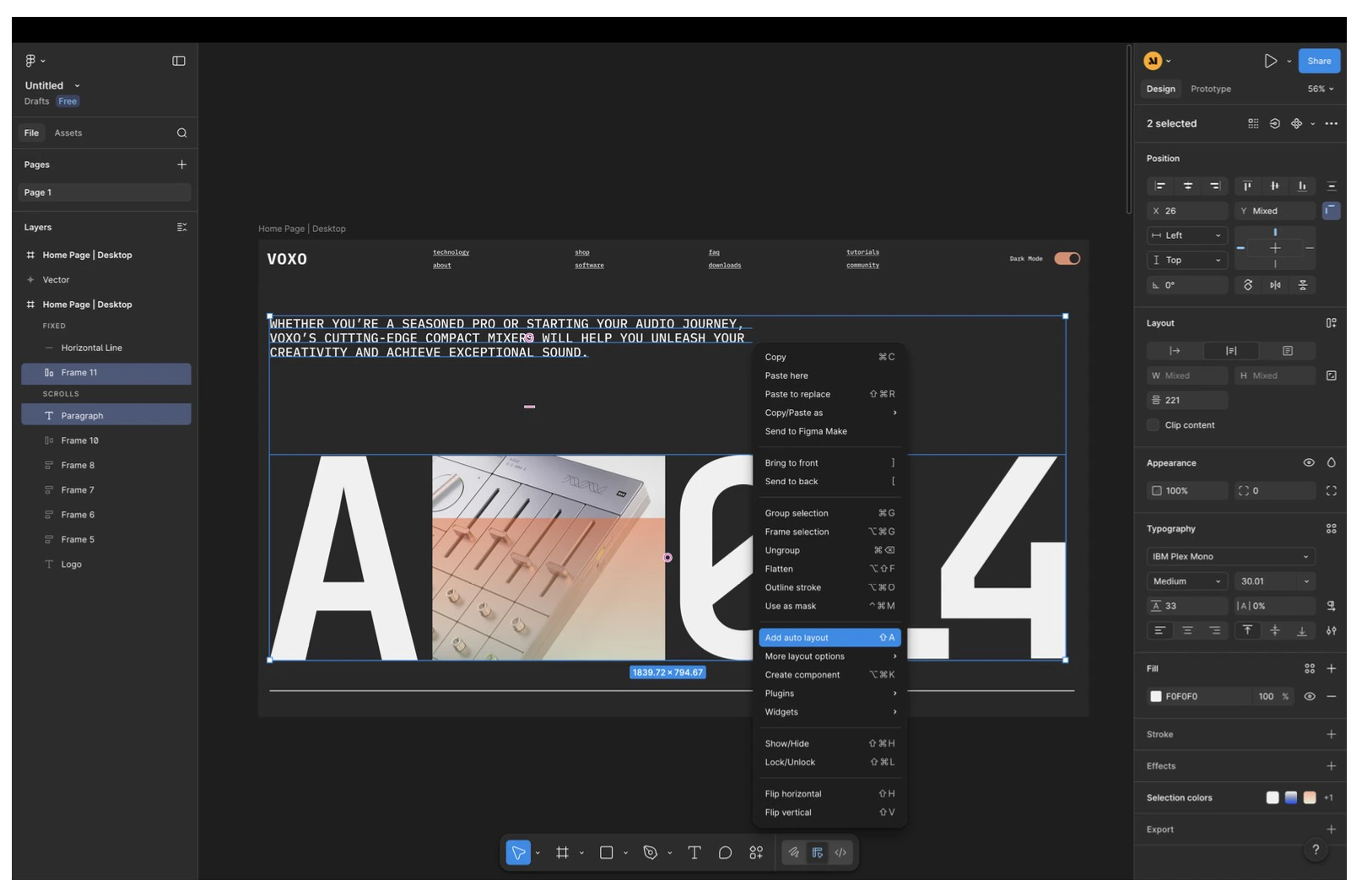
Adding auto layout to two selected elements
- Keep nesting meaningful: Group elements that belong together (for example, image + title + description in a card), and avoid deep, unnecessary nesting that does not reflect the visual structure.
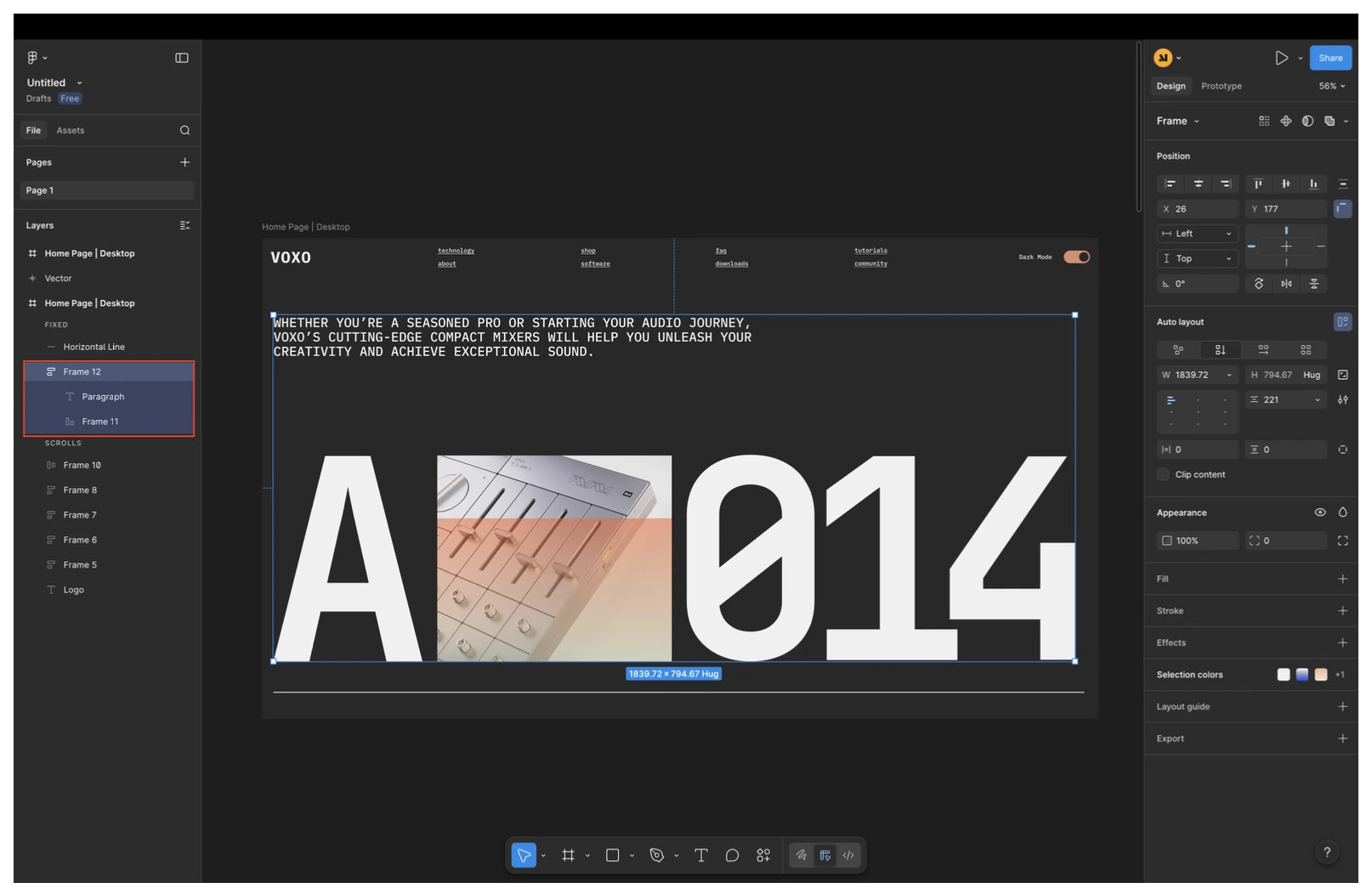
The frame group after auto layout is applied
- Align and space consistently: Use consistent padding, gaps, and alignment inside your frames so Base44 can preserve your spacing and hierarchy.
Working with vectors and shapes
Cleaning up vector elements before import makes positioning and rendering more accurate. Flattening and simplifying vectors reduces surprises in how elements align, scale, and render once they are in Base44.- Flatten complex vectors: If a vector is built from many separate paths (for example, an icon made from multiple shapes), flatten it into a single vector whenever you can.
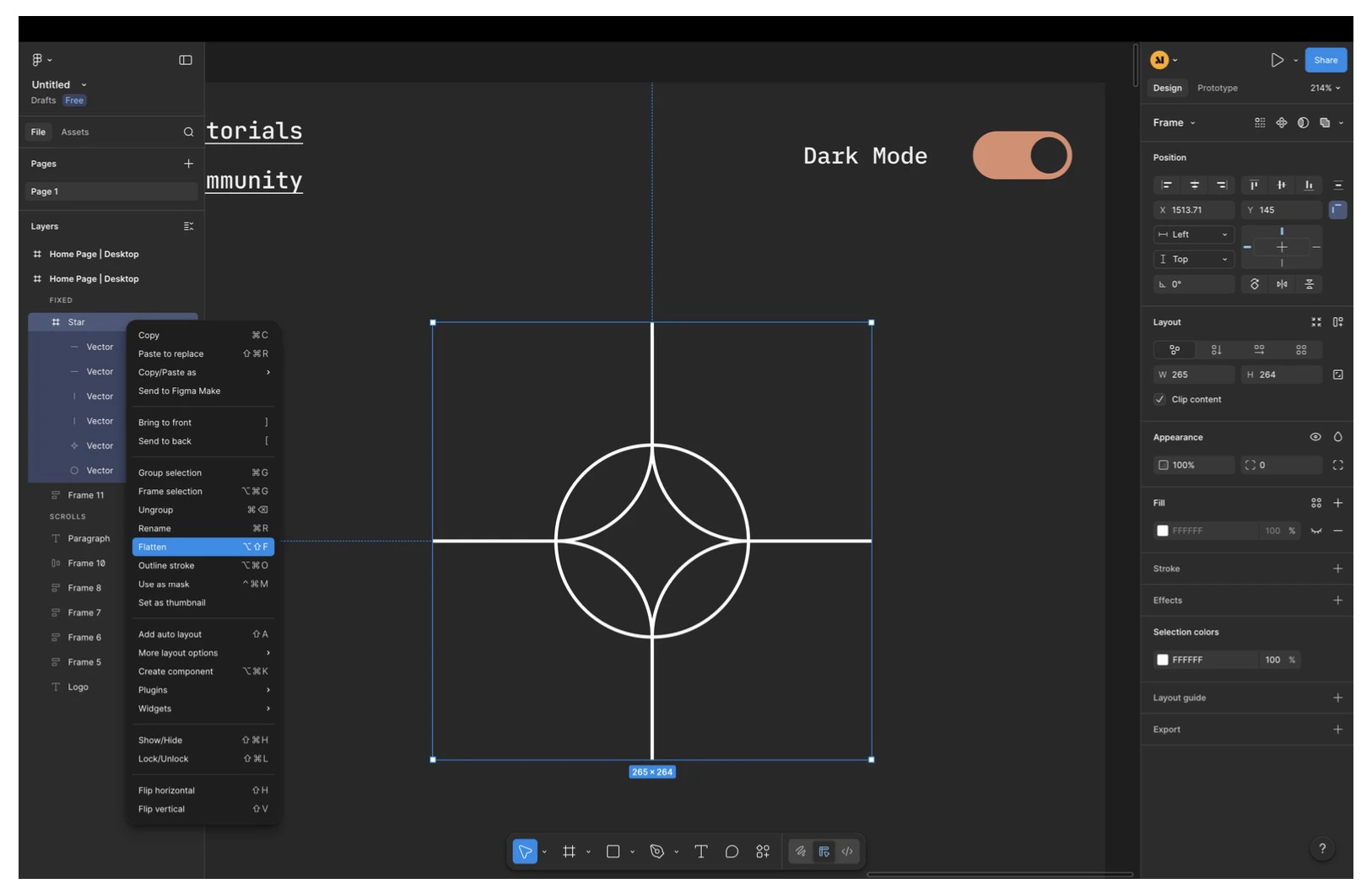
Flattening a multi-path icon into one vector
- Outline strokes before flattening: For lines, circles, stars, and similar shapes:
- Use Outline Stroke then flatten the result into a single vector element.
- Remove hidden elements: Delete layers that are completely hidden or pushed far off canvas so they do not interfere with the imported layout.
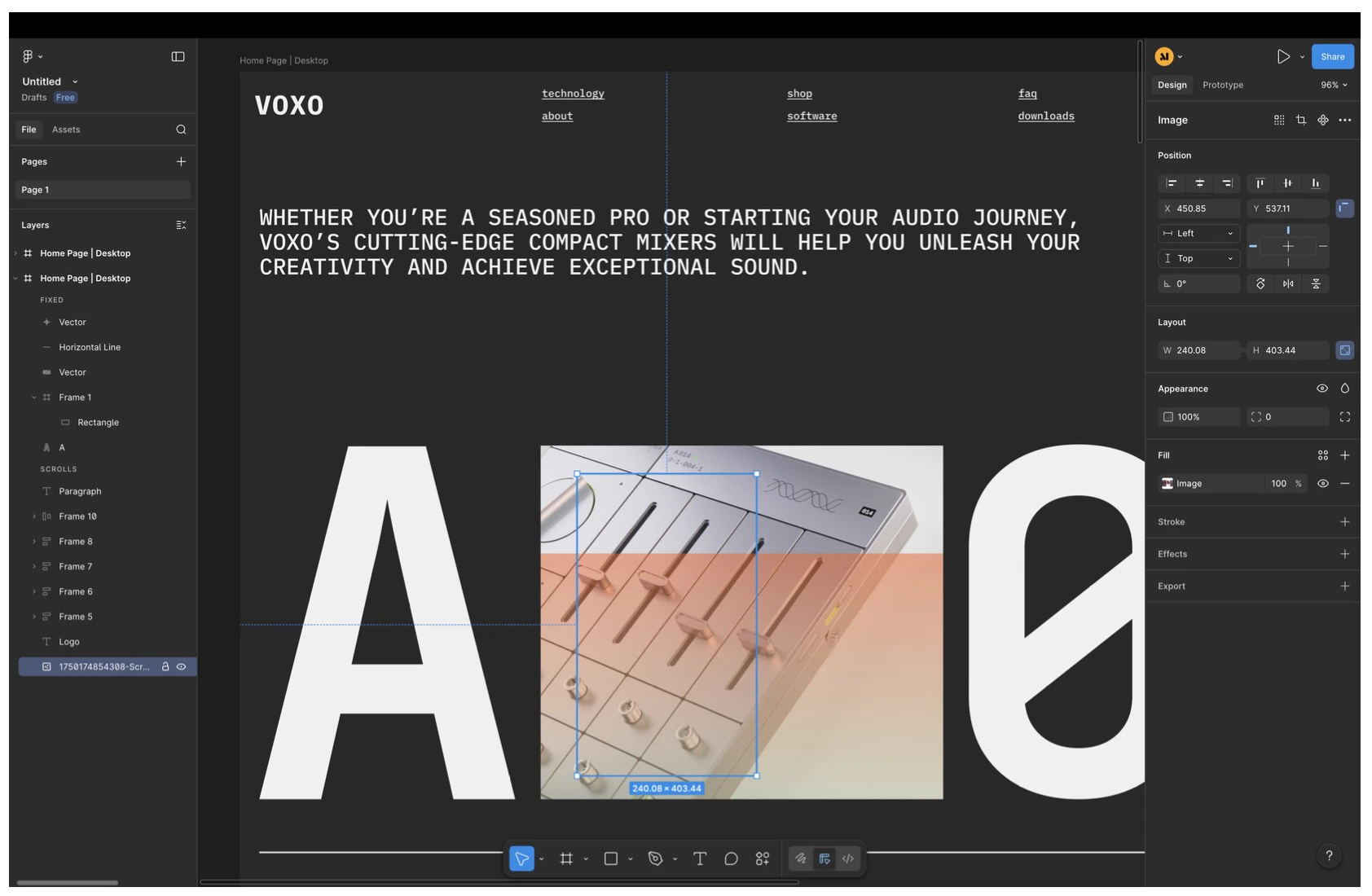
An image layer selected in Figma
- Simplify fills: If an element has multiple fills, keep only what you actually need. Base44 only imports the last fill on an element.
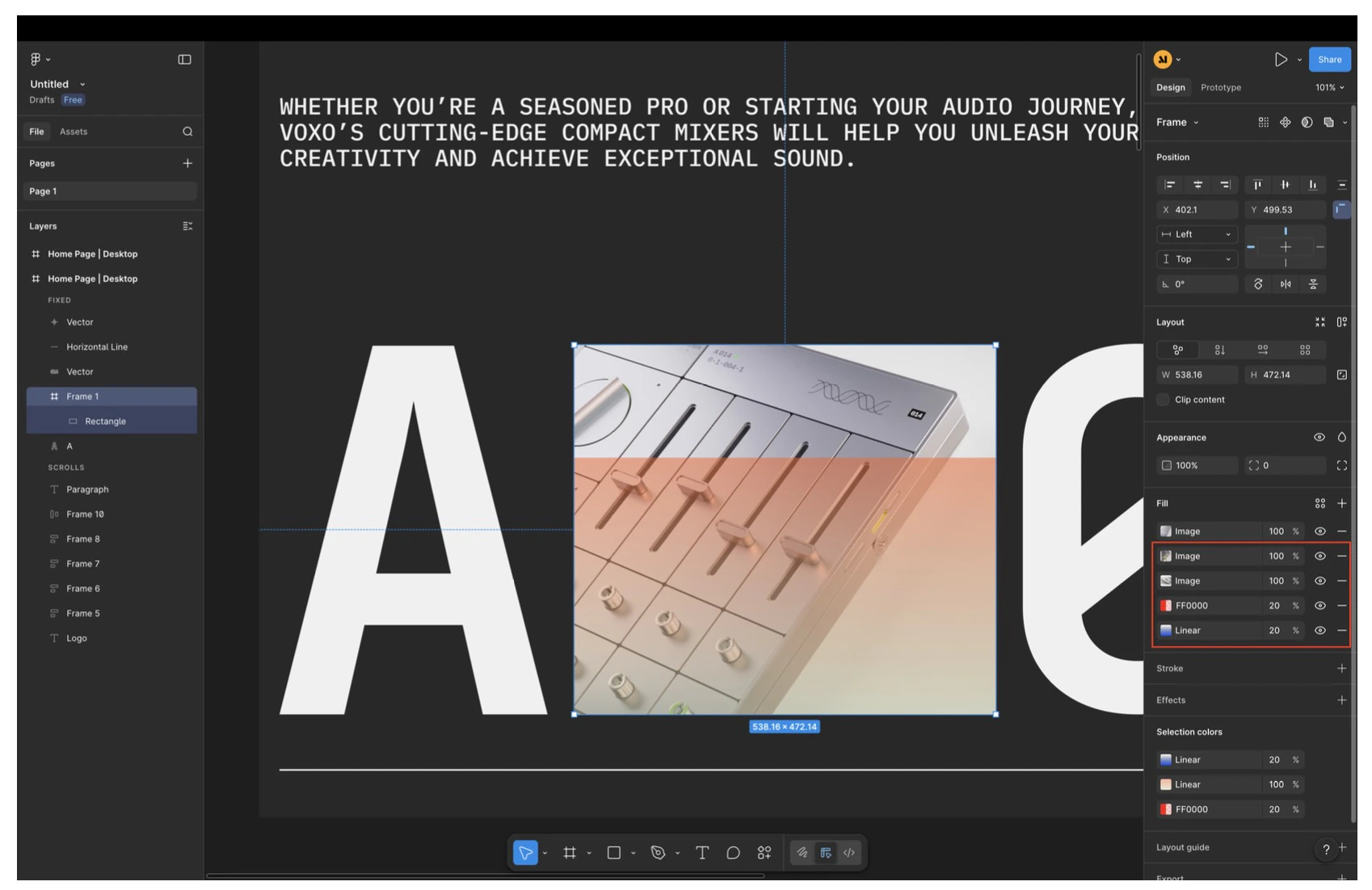
An element carrying five stacked fills
Fonts, effects, and other limitations
Some parts of your Figma design are adapted during import so the resulting layout works reliably in Base44.- Fonts:
- Only Google Fonts are fully supported.
- Custom fonts are replaced with a default font during import. You can update typography later inside Base44.
- Design effects that may not be preserved exactly:
- Image filters
- Multiple background layers on a single element
- Variables and variable-driven styles
- Layout refinements:
- Fine-tune spacing, responsiveness, and interactions after import using the AI chat or Edit mode.
- If something does not look right, adjust the structure directly in Base44 or update your Figma file and import again from a cleaner frame.
Adding a page from Figma
Once your app is in the app editor, you can keep adding Figma frames as new pages. You are not limited to the initial import: each frame you add becomes a new page in your app. To add a page from Figma:- Open your app in the app editor.
- In the chat input, click the + icon.
- Select Add page from Figma.
- Paste a link to the Figma frame you want to import.
- Click Add page.
Editor access is required to add pages from Figma. Viewers cannot add pages. The app also cannot be processing another prompt at the same time. Wait for any active generation to finish before adding a page.
Building the rest of your app
Once your Figma frame is imported, you can treat the new page as the foundation for a full app or website.- Use the imported page as your home page and main reference for structure, layout, and visual language.
- Ask the AI chat to:
- Identify which additional pages are missing (for example, About, Pricing, Blog, or Contact).
- Create new pages that follow the same design language and layout principles.
- Connect buttons, menus, and links on the home page to the new internal pages.
Review the home page carefully, including both its content and its design style. Use the home page as the main reference to understand the website’s structure and design language. Identify which additional pages are needed to create a complete website. Create the missing pages while maintaining the same design language, layout principles, and visual style as the home page, so they feel like a direct continuation and not disconnected. When finished, return to the home page and connect all relevant buttons and links so each one navigates to the appropriate internal page.