How to use Base44

Base44 is an AI-powered app and website builder. You do not need any coding or tech skills. Just describe what you want to build, and Base44 will bring your idea to life.
Getting started with a prompt in Base44
You can build something simple for yourself or create a full product for your business. Base44 takes care of everything behind the scenes, including design, databases, signups, user permissions, and hosting.

Examples of what you can build on Base44

  • Prototype a new business idea
  • Create a personal to-do list
  • Set up an event signup page with reminders
  • Build a survey and see answers instantly
  • Track projects or sales on a dashboard
  • Create a secure booking system or CRM
  • Share files privately with clients
  • Launch a community site with chat and analytics

Ready to bring your idea to life?

Build my app now

Step 1 | Describe your idea

Start by going to Base44 and telling it what you want to build in your own words. When you begin, you will be asked to sign up. This makes sure your work is saved, so you can return to your app anytime.

Use a prompt

Simply write in your own words what app you want to build. For example, you can type “a simple to-do list,” “a client portal where users can log in,” or anything else you have in mind. Share as many details as you like. This first prompt helps get your app started, and you can add more features or make changes later.
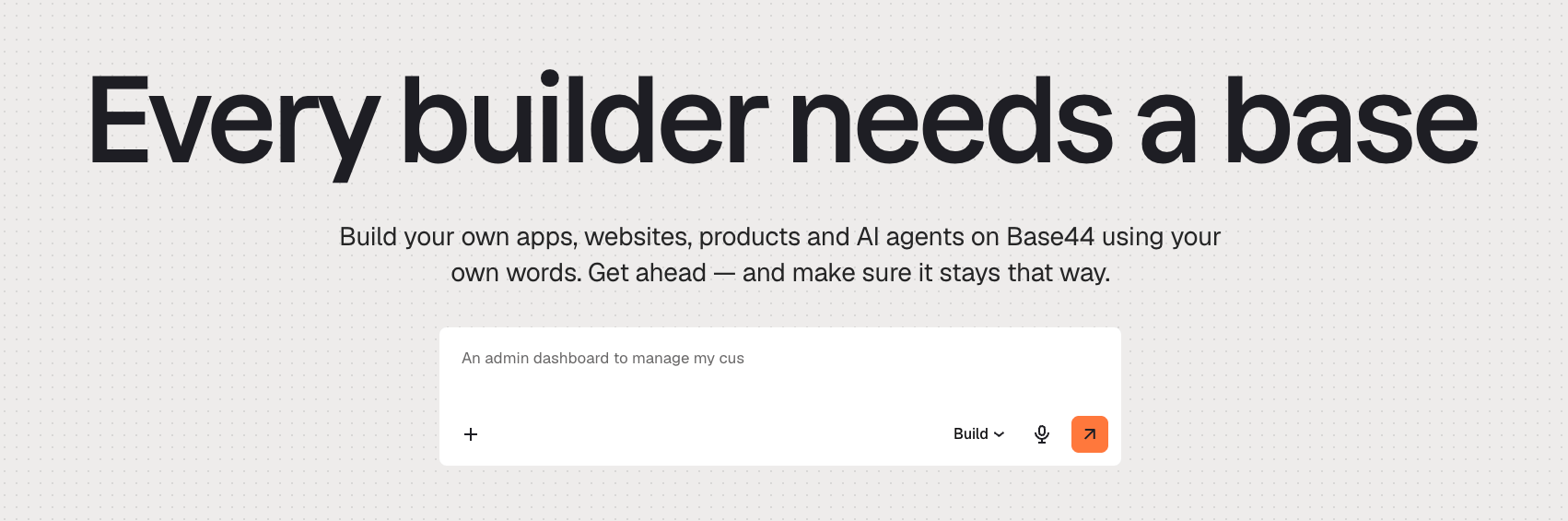
Writing your prompt in Base44 to start building your app
Use our Prompt guide to help you write your first prompt and get more out of the AI chat.

Use plan mode

Use plan mode when you want help planning your app before you start building. Turn on Plan under the first prompt to start a focused conversation about what you want to build. The AI asks questions about your app, such as who it is for, what it should do, and what you want to include. As you answer, it turns your ideas into a structured plan you can adjust as you go. Plan mode helps you:
  • Get a higher-quality first build by aligning the app with your intent
  • Reduce back-and-forth later by adding key details up front
  • Think through your idea without needing to know what to specify in advance
  • Capture more complete requirements, including flows, roles, and constraints
  • Move faster from idea to execution while staying in a focused flow
Using plan mode from the first prompt
When the plan appears, review sections like the problem, audience, core flows, and design preferences. If something is missing or needs to change, keep typing in the same conversation to add more details or update what is there. Plan mode keeps you in planning, so you can explore different options and refine the plan until it feels right.
Answering questions in plan mode to shape your plan
When you are ready to turn the plan into an app, click Start building. Your final plan is sent into the AI chat in the app editor, so you can always scroll back to it later. The app editor opens and Base44 starts building your app from the plan. When the build is complete, you see a live preview and can refine layouts, copy, data, and flows with additional prompts or manual edits.
Important:
  • Plan mode does not use credits. Once you click Start Building, credits are consumed during the app creation process. The amount of credits used for the build depends on the complexity of your app.
  • You can continue editing your app after it is built inside the app editor using prompts and manual changes.
  • To use plan mode again, start a new app from the home screen with Plan turned on.
To start a new app using plan mode:
  1. Go to Base44.
  2. Enter your first prompt and turn on the Plan toggle in the prompt box.
  3. Answer the questions and add more details as needed.
  4. Click Start Building on the plan when you are ready.

Start from an existing website

Use Capture from a URL to start a new Base44 app from an existing website. It gives you a pixel-level starting point of the visible public page, focusing on the front end, including the overall page structure, key content sections, visual hierarchy, and familiar UI patterns such as hero sections, cards, and lists. This gets something recognizable into the app editor right away so you can iterate with AI instead of rebuilding everything from scratch.
Starting your app from an existing URL
Capture helps you:
  • Recreate existing sites you own without redesigning from scratch
  • Preserve your brand, layout, and visual hierarchy
  • Start migrations with a solid page structure instead of guesswork
  • Create high-fidelity prototypes that look and feel real
For example, you can recreate a personal website, upgrade a small-business site into a smarter app with entities like Orders and Customers, turn a landing page into a product with authentication and dashboards, or convert a public concept page into an internal tool. After capture finishes, you can refine your app with prompts: adjust the structure, connect it to entities and APIs, and add flows and logic.
Important:
  • This feature is currently in Beta and not open to all users yet.
  • This feature is available for Starter plans and higher.
  • Using capture consumes 1 credit per app generation.
  • You must be the rightful owner of the website you capture or have full rights to its content, design, and images. Do not capture third-party or copyrighted sites without permission.
  • Capture does not copy private backend code, hidden data, or third-party integrations, so you still need to set up those parts manually inside your Base44 app.
To start a new app from an existing website:
  1. Go to Base44.
  2. Click the + icon in the prompt box.
  3. Click Capture from URL.
  4. Paste the URL of the website you want to capture. Make sure you have the rights to use the content at the URL you provide.
  5. Type your prompt and start building.
On a Builder plan or higher, you can choose which AI model powers your request directly from the prompt menu.

Step 2 | See your app come to life

Once you share your idea, Base44’s AI handles the rest. It automatically designs your app’s appearance, choosing colors, arranging buttons, and organizing menus to make everything look clean and function smoothly. If you need special pages or features like a calendar, forms, or a task list, Base44 adds those right away so your app is ready to use. All the complex parts are also taken care of for you in the background. Base44 securely stores all your app’s data, manages account and login systems if you need them, and keeps the technology that powers your app running smoothly. You do not need to set up or manage anything yourself; Base44 handles every detail so you can focus on your ideas.
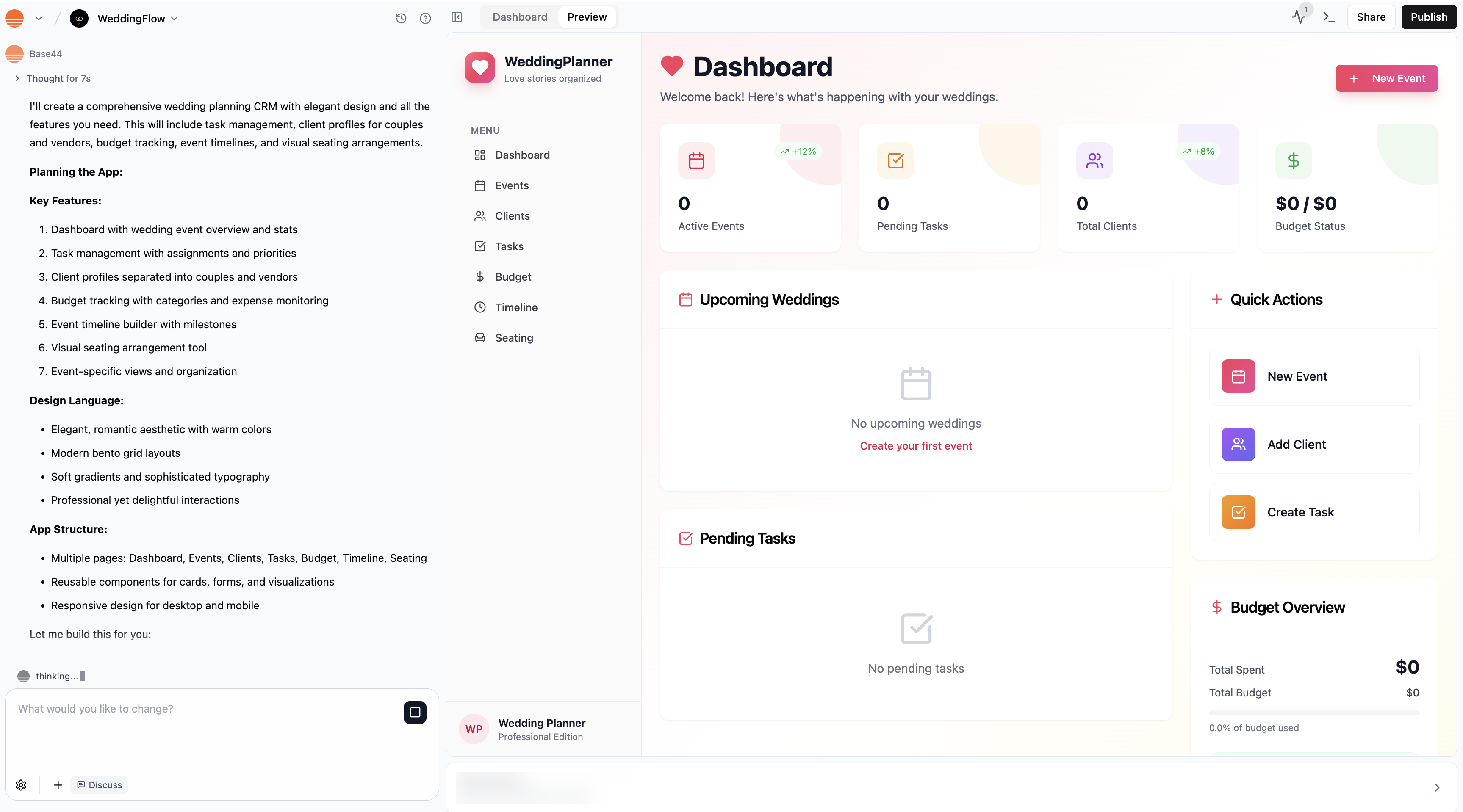
An app being built on Base44
Watch your app appear in the preview window as Base44 works. You can explore your app right away and try out any features by clicking the preview.

Step 3 | Customize your app

Once your app is built, you can make it truly your own. The easiest way is with the AI chat. Just type what you want to change or add, and Base44 updates your app for you. For example, you can say “Change the main color to green,” or “Add a signup page that collects full name and company.”
If you want to brainstorm or ask questions first, use Discuss mode in the AI chat. Discuss mode lets you talk about your ideas without making changes until you are ready. This mode also uses less credits. Learn more about the different AI chat modes.
There are lots of ways you can change and improve your app to fit your needs. You can:
Add new features or change how your app works. With the AI chat, you can:
  • Add buttons or forms for users to interact with
  • Create automated workflows, like sending a welcome email when someone signs up
  • Set up notifications, reminders, or automated messages
  • Ask the AI to add or update pages (for example, “Add a calendar page for events”)
  • Adjust the logic behind how your app responds to users or manages different tasks
Customize the colors, layout, and style of your app just by chatting with the AI. You can:
  • Change the background color, text color, or font style
  • Rearrange sections, move buttons, or update images and icons
  • Apply changes globally or on just one page (for example, “Apply this new font to every screen,” or “Change only the login page background”)
You can also use Visual Edit mode to manually make changes to specific elements of your app.
Decide what information your app uses and collects.
  • Use the AI chat to build or change data flows (for example, “Add a field to the signup form for company name”).
  • Create or update forms to collect details from users, like signups, feedback, or orders.
  • From Data in your app’s dashboard, you can organize the data that your app collects, set rules for who can add, edit, or see information, and export your data to use elsewhere.
Learn more about managing your app’s data
Control who can access your app and what they can do. From Settings in your app’s dashboard, you can:
  • Set permissions so only certain people or roles can see or edit information (like making some pages visible only to admins)
  • Decide if your app is public, invite-only, or restricted to specific users or workspace members
  • Set up secure login and registration, including social logins like Google
  • Add custom user roles and specify exactly what each role can do (for example, “Create a role called Event Organizer who can add and edit events, but not change app settings”)
  • Adjust privacy and security rules to keep sensitive data safe
You can review and update settings at any time to match your needs as your app grows.

Step 4 | Test your app

Before you share your app with others, it’s important to test how everything works. There are several ways to explore and check your app from different perspectives:
  • Interact with the preview like an end user. Click, fill out forms, and check every feature.
  • Ask the AI chat to test your app as a certain user, such as “Test as a guest” or “See what an admin can do.”
  • Create test user profiles with different roles or permissions to review what each can access.
  • Use an incognito or private browser window to see what a first-time visitor would experience.
  • Check your app on both desktop and mobile to catch layout or navigation issues.

Step 5 | Share and publish your app

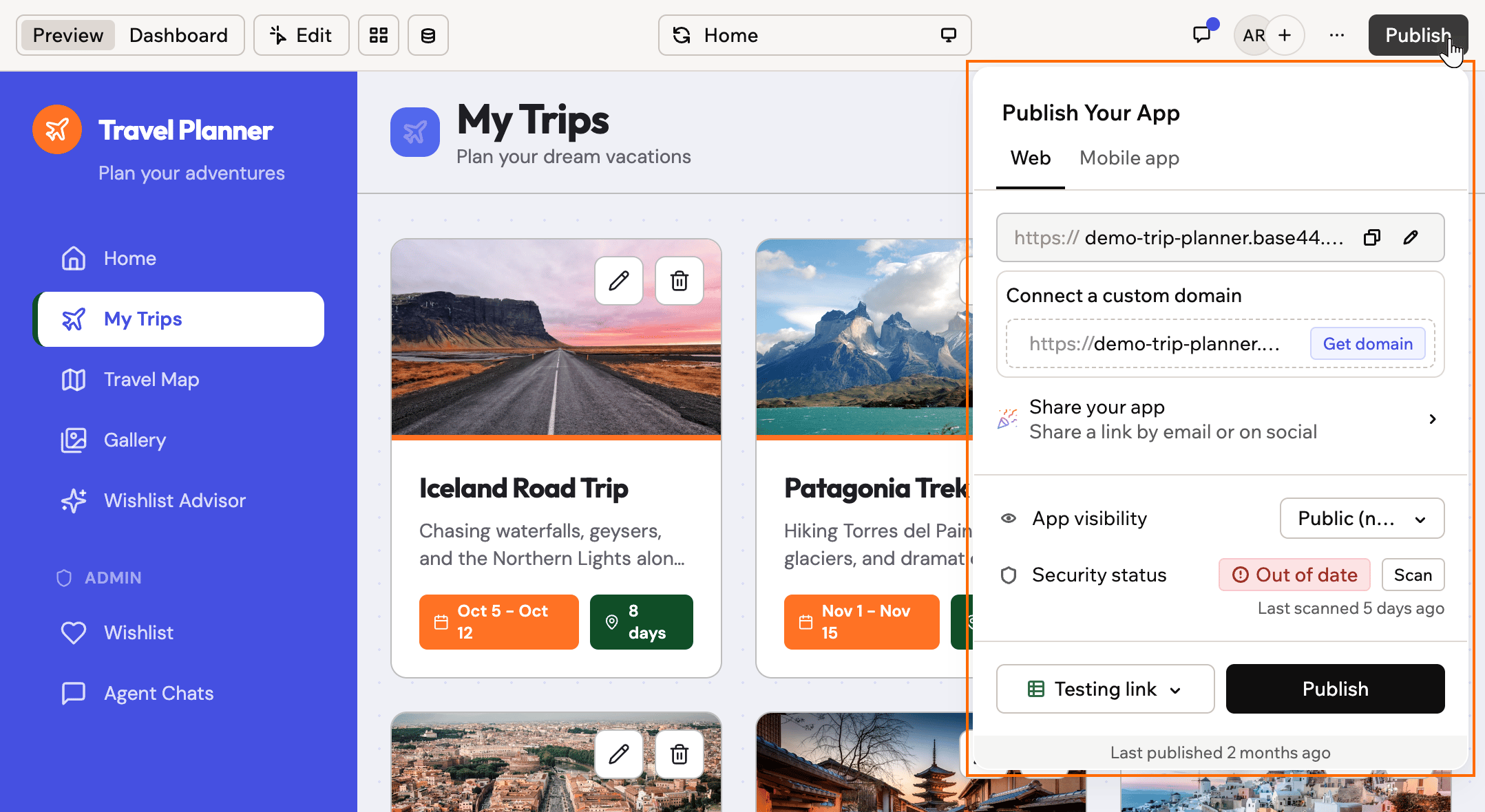
When you’re ready to show your friends or colleagues, you can click the Share icon at the top right of the screen. This will generate a link that can allow users to access your app. To make your app public, click Publish. This creates a live link anyone can access.
Sharing and publishing your Base44 app

Guided tour of the app editor

There are 3 main areas inside the app editor - the AI chat, the preview and your app’s dashboard.

AI chat

This is where you chat to Base44. Simply type what you want into the chat on the left side of the app editor, and Base44 turns your ideas into reality.
The AI chat inside the Base44 app editor.
You can use different AI chat modes, including Discuss and Visual Edit, depending on how you want to work and use credits. Learn more about the AI chat modes
If you ever need to undo a prompt, find that message in the chat and click the Revert icon under it to take your app back to just before that step. You can also click the Edit icon on an earlier message and resend it. When you resend, Base44 reverts any changes made after that message and applies your updated request.

Preview

On the right side of your screen, you see a preview version of your app as it updates in real time. You can use the preview to interact with your app exactly as your users will. Click the different parts of your app to see how it works, or make design changes using Visual Edit.
Preview in the Base44 app editor

App dashboard

Go to your app’s dashboard whenever you want to manage your app. In the dashboard, you can invite teammates, track analytics and user activity, control access, set your app to public or private, add a custom domain, and more.
Accessing your app's dashboard in the Base44 app editor
Use the sidebar search in your app’s dashboard to quickly find pages, sections, entities, and connectors. Results update as you type and support dynamic keywords, including entity and connector names.

Getting started with credits and plans

Base44 uses credits whenever the AI makes changes or builds something for you. You get free credits for signing up, and credits are used when you ask the AI to update, create, or customize your app. Previewing and interacting with the preview does not use any credits. If you need more credits, or want features like higher usage or advanced tools, you can upgrade your plan at any time. Learn more about credits and plans.

FAQs

Click a question below to learn more.
Yes. Base44 automatically adapts your app for mobile devices. Click the mobile icon at the top to check how everything appears and make sure your layout, buttons, and text are easy to use on any screen size. If you want to make any changes to the mobile layout, simply ask the AI chat to do it for you.
The activity monitor displays the latest actions and requests made by your app. You can use it to view user activity, track performance, and troubleshoot any issues in real time.
Click the “See all files” icon above your app preview to browse all your app’s files and components. You can download everything as a zip file or connect your project to GitHub for advanced version control.
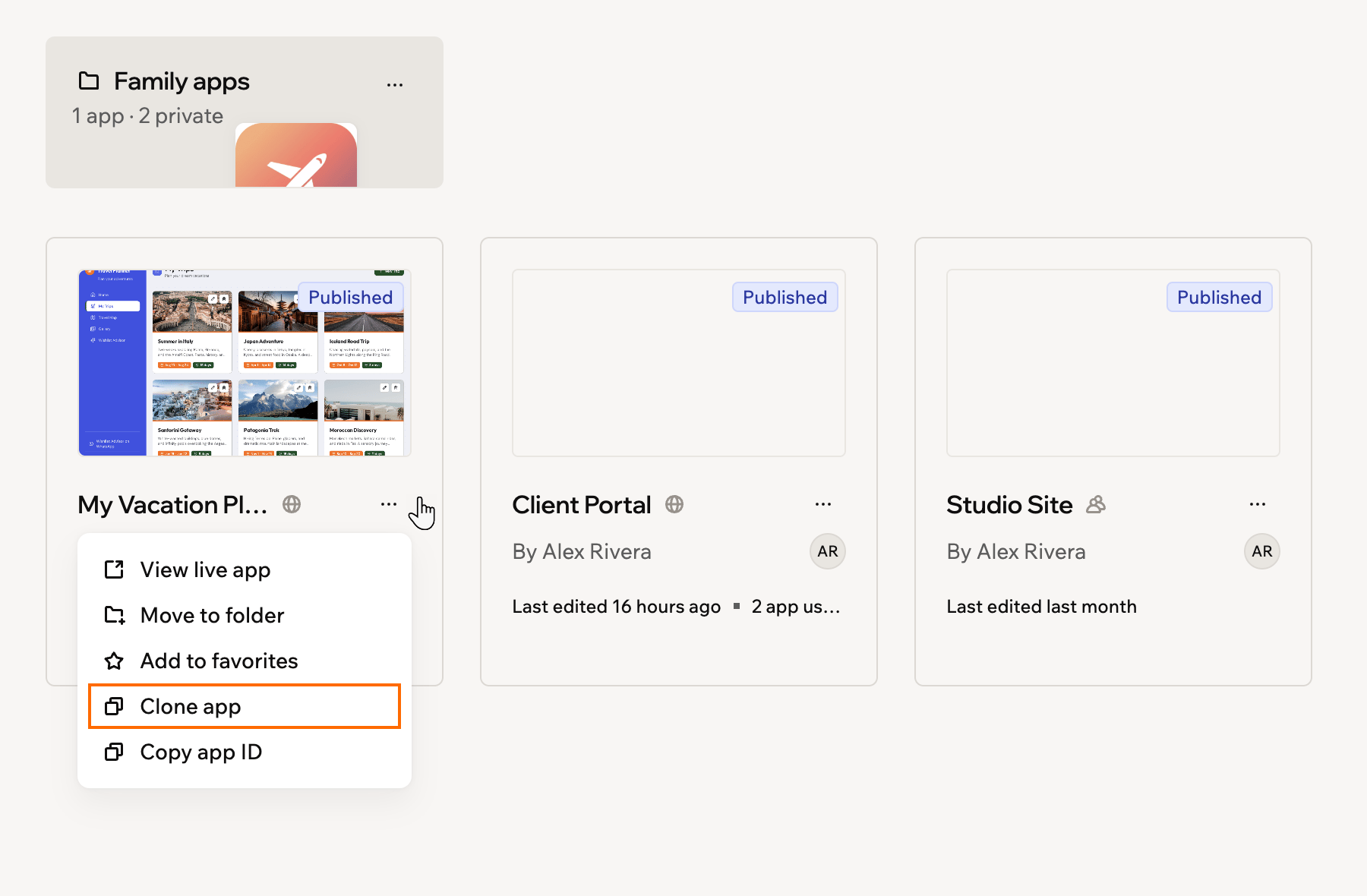
Yes. You can clone your app at any time. This is useful if you want to test major changes without affecting your live app, or use an existing app as the starting point for a new project.To clone from your Apps page:
  1. Go to your Apps page.
  2. Click the More actions icon on the app card.
  3. Click Clone App.
Cloneapp 1
To clone from the app dashboard:
  1. Go to Settings in your app dashboard.
  2. Click App Settings.
  3. Click Create Copy next to Clone App.
The cloned app opens automatically and includes the suffix (Copy).
We take care of it automatically. Base44 comes with built-in hosting, so there’s no deployment process. When your app is created, it’s instantly live and shareable.
Yes. You can export your app’s code at any time.
  • Export as a ZIP file: Click the More actions icon in the top bar and select Export project as ZIP.
  • Export to GitHub: Click the GitHub icon in the top bar and follow the setup flow.
You need a Builder plan or higher to export to GitHub.
Yes, you have a few options to get expert help with your Base44 app.You can work with a Base44 Partner for tailored, one-on-one support on larger or ongoing projects. Partners can help you plan and build full apps, handle complex integrations, and provide long-term strategic guidance. Choose your partnerYou can also connect with an expert at Fiverr directly from the Base44 Partners page. This experience is powered and provided by Fiverr, not Base44. It is designed for faster, short-term help, such as quick reviews, targeted troubleshooting, or small changes. You can chat instantly or schedule a time soon, and get offers at a fixed hourly rate shown in Fiverr.
The Fiverr option is not open to everyone yet.
If you’d like feedback from other people building with Base44, you can also join our Discord community. It’s a great space to connect with others who can share advice, help, and tips from their own projects.
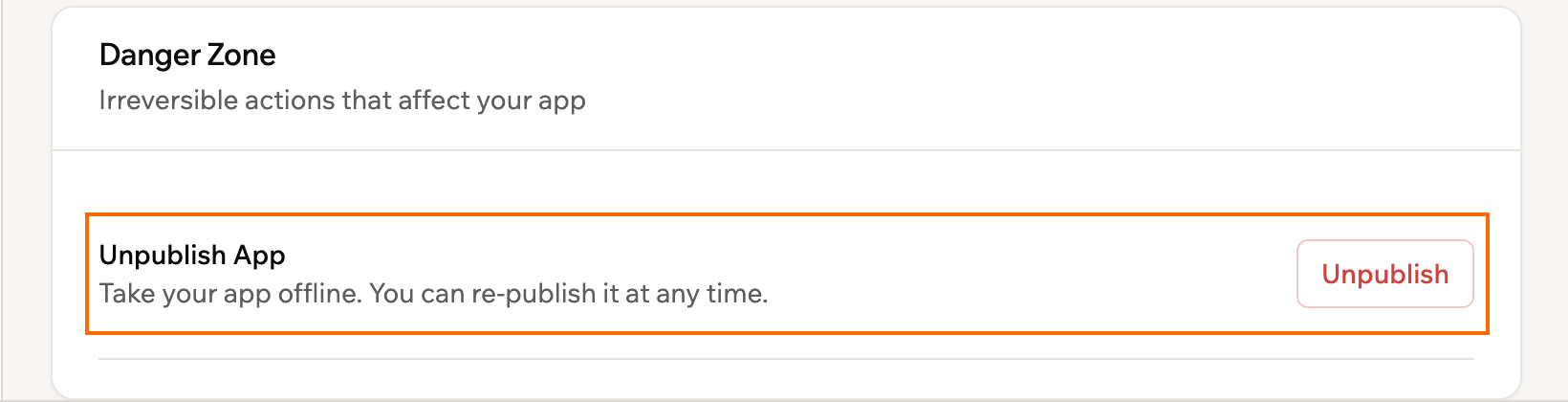
No, you can’t unpublish an app in Base44. You can clone your app and then delete the original if needed. This way, your changes won’t affect the original app that’s already published.
Base44 is built to work smoothly on all major modern browsers that support ES6+ JavaScript, CSS Grid, Flexbox, and modern DOM APIs. You can use Base44 with current and recent versions of the following browsers:
  • Google Chrome (version 51 and above for ES6, 57+ for CSS Grid, 29+ for Flexbox)
  • Mozilla Firefox (version 54 and above for ES6, 52+ for CSS Grid, 28+ for Flexbox)
  • Microsoft Edge (Chromium-based) (full support since launch)
  • Safari (version 10.1+ for CSS Grid, 9+ for Flexbox, 10+ for ES6)
  • Opera (version 38+ for ES6, 44+ for CSS Grid, 12.1+ for Flexbox)
There is limited or no support for Internet Explorer 11 and earlier, and some older Android WebView or legacy browsers may not display content correctly.As a general guideline, you are covered if you use a modern, auto-updating browser. Internet Explorer 11 is outdated and not recommended for Base44.
Yes, you can charge people to use your app if you are on the Builder plan or higher. You can connect a payment provider, such as Stripe or another service that supports APIs, to accept payments from your app users. Use the Secrets tab to securely store your API keys.If you need help setting up payments, ask the AI chat for assistance with your chosen provider, or follow the Stripe setup guide for step-by-step instructions.
The platform badge is a label that appears at the bottom right of your live app with the text ‘Edit with Base44’. It lets people know that you built your app with Base44, and allows anyone to create a copy of your app into their own account so that they can edit their own version.
Notes:
  • You can only hide the badge if you have purchased a plan.
  • If your app is set to private, the badge is not displayed.
  • If your app is set to public, everyone can see the badge. If somebody clicks it, it creates a copy of your app into their own account so that they can edit their own version of the app.
Base44badge PnTo show or hide the badge:
  1. Go to your app’s dashboard and click Settings.
  2. Click App Settings.
  3. Enable or disable the Platform Badge toggle.
Base44 supports apps with up to 600 pages. If your app has more than 600 pages, you may experience issues such as the builder becoming unavailable or your app not working properly. We recommend keeping your app below this limit for the best experience.
As a U.S.-based company, we comply with requirements issued by the U.S. Office of Foreign Assets Control (OFAC). These regulations prohibit us from providing services to certain individuals, entities, or jurisdictions that appear on OFAC sanctions lists. The following countries and regions are restricted:
  • Iran
  • North Korea
  • Syria
  • Cuba
  • The region of Crimea
  • The so-called Donetsk People’s Republic
  • The so-called Luhansk People’s Republic
There are also substantial limitations on activity from the Russian Federation.If you are in any of the restricted countries or regions:
  • You cannot register for or use Base44 services, including Base44 sites.
  • You cannot connect domains with the following extensions to Base44 (by pointing or name servers):
    • Cuba: .cu
    • Iran: .ir, .xn—mgba3a4f16a (ایران.)
    • North Korea: .kp
    • Syria: .sy, .xn—ogbpf8fl (سورية.)
Need more help or inspiration?Explore Base44’s templates to get ideas or start with a base for your app.