

Skills
Skills are saved instruction sets that shape how the AI builds your apps. They activate when needed so the AI can follow your rules and best practices automatically. Skills are configured at the workspace level and apply to all apps in that workspace for anyone who can work in that workspace. You can use skills to give the AI specialized abilities for different kinds of work, for example:- Design skill: Help the AI think like a designer by applying layout logic, spacing rules, hierarchy, and component best practices as it builds your UI.
- Copy skill: Help the AI focus on writing clear headlines, product descriptions, landing pages, and in-app text that matches your tone and goals.
- Data skill: Help the AI behave like an analyst, interpret metrics, spot patterns, and reason about decisions using your structured data.

Adding a skill
You can create skills from scratch or start from our built-in templates.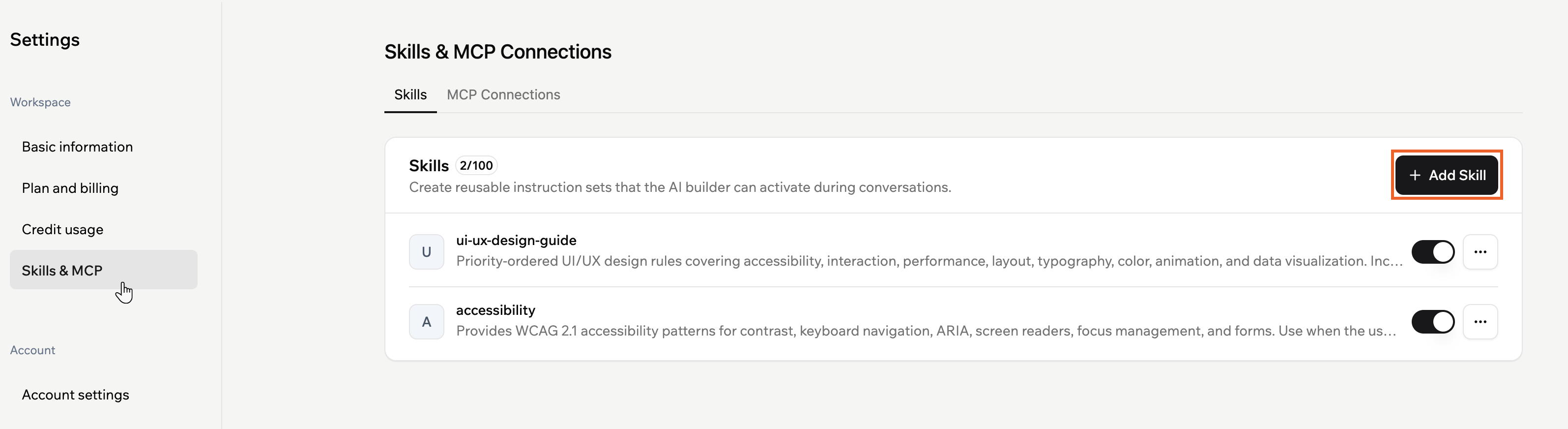
- Click your profile icon at the top-right of Base44.
- Click Settings.
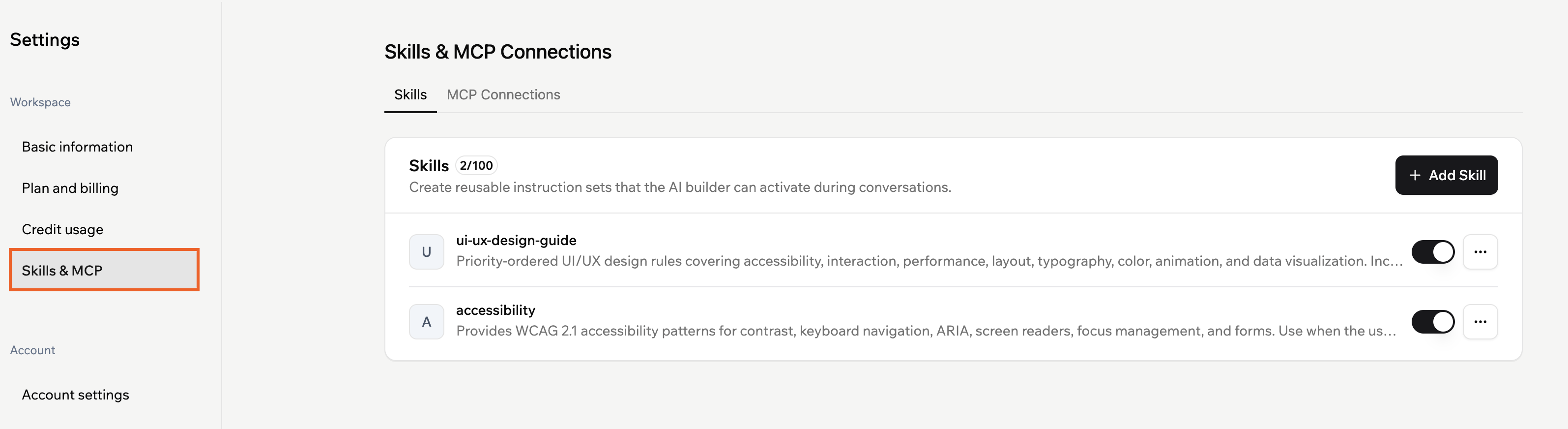
- Under Workspace, click Skills & MCP.
- Make sure the Skills tab is selected.
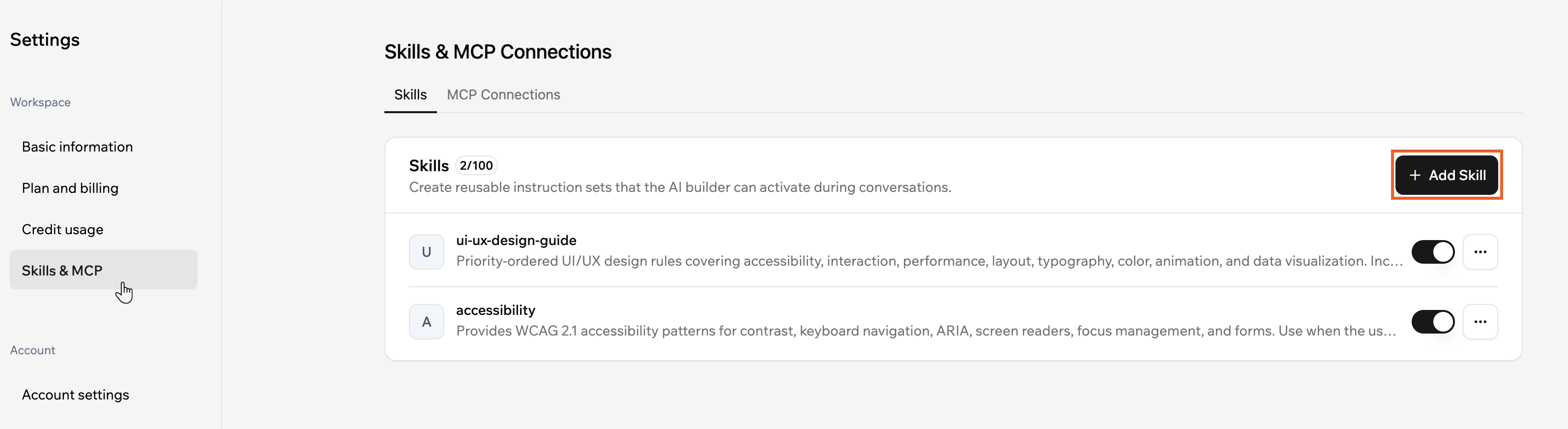
- Click Add Skill.
-
In the Add skill or start from scratch window, choose how you want to start:
- Start from scratch: Create a completely custom skill.
- Preset skill: Under Presets, click Add on a template.
-
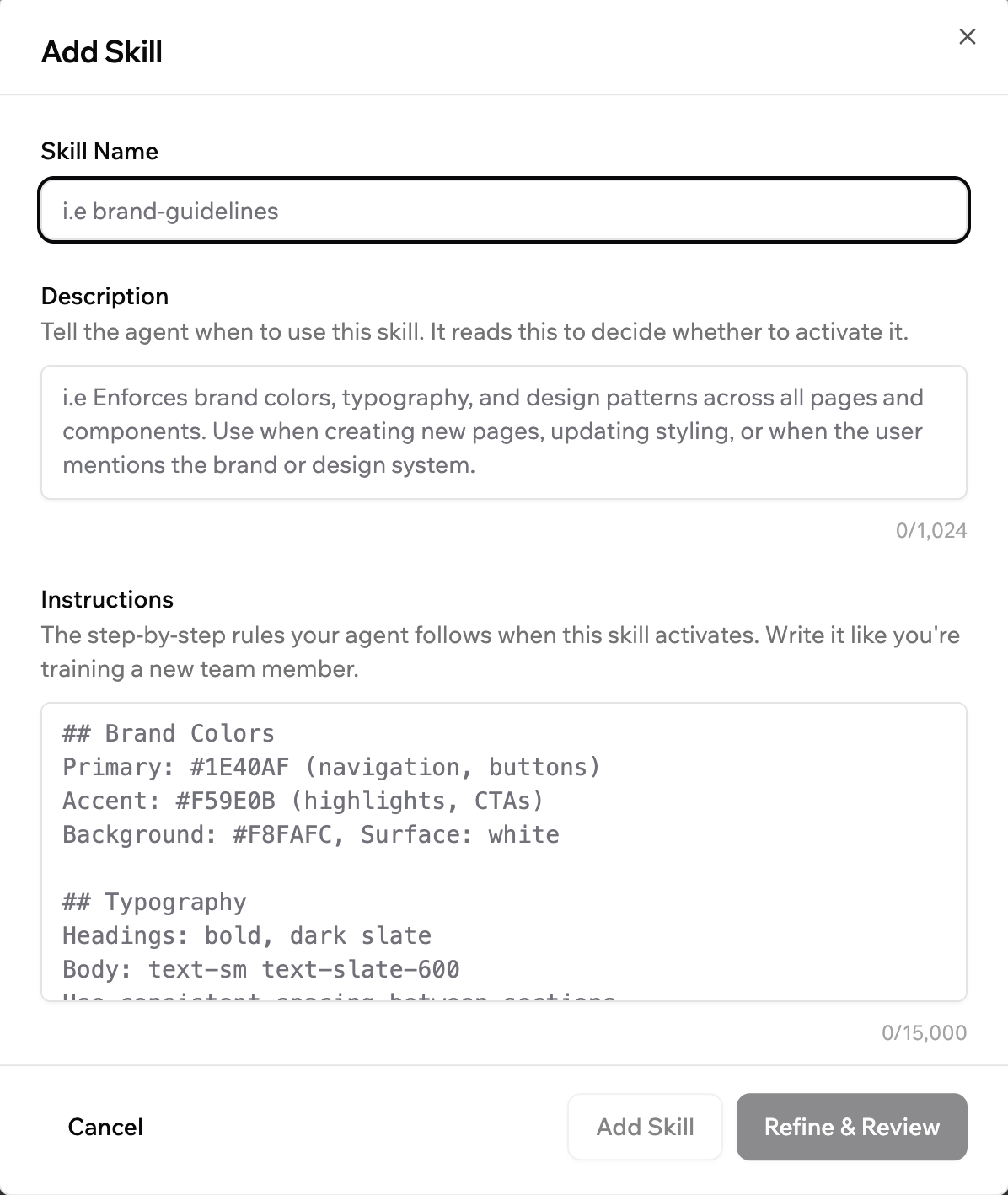
In the Skill Name field, enter a short, recognizable name. For example:
brand-guidelinesorcheckout-copy-style. - In the Description field, describe when the AI should use this skill. For example, explain which pages or tasks it applies to, or which team or brand it belongs to.
-
In the Instructions field, add the step-by-step rules the AI should follow when the skill activates. Treat this like training a new team member, with clear headings, examples, and priorities.
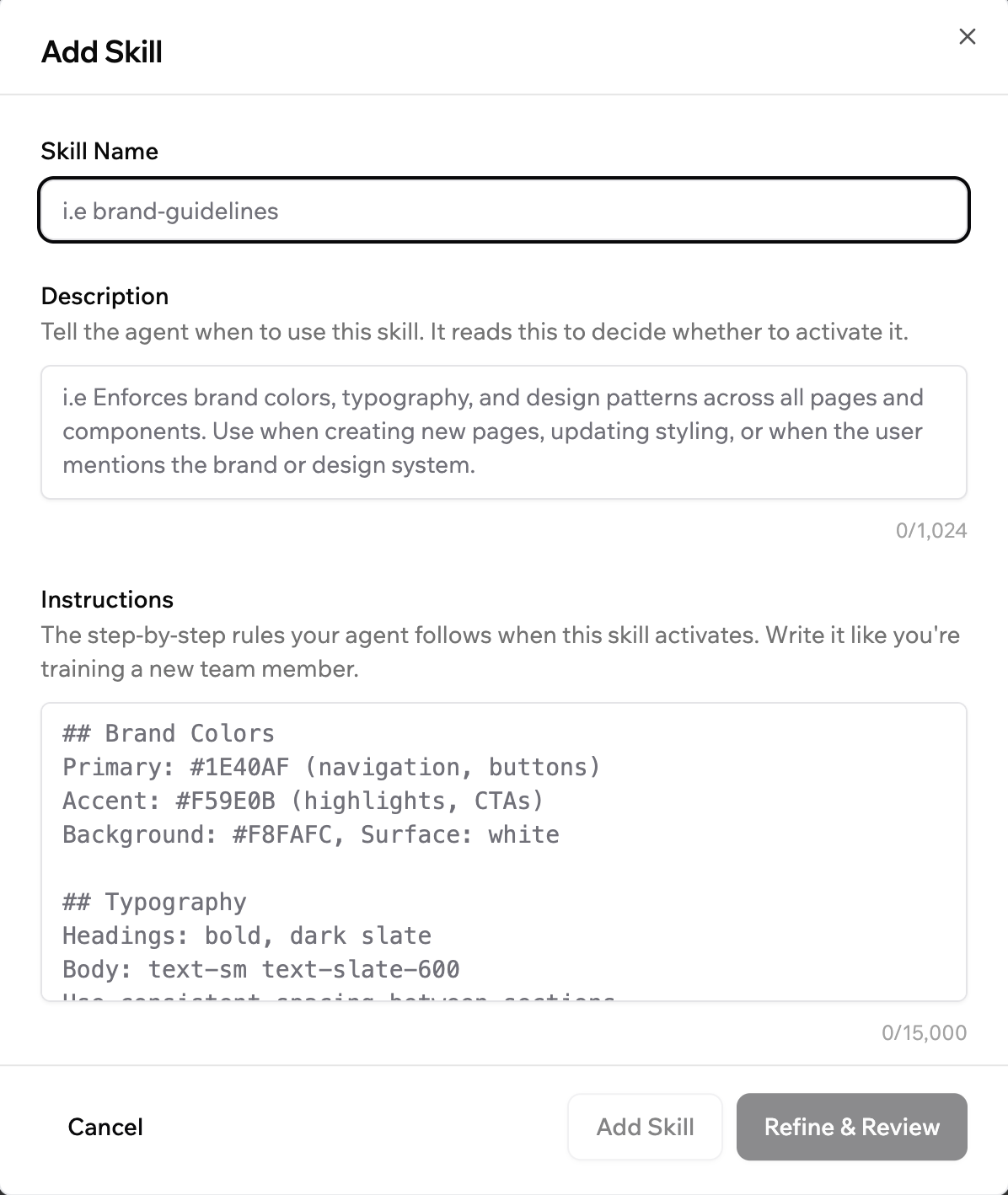
- (Optional) Click Refine & Review to have the AI refine and perfect the skill description and instructions while keeping your intent.
-
In the Review your skill window, compare the refined version with your original text:
- Click Back to Original if you prefer your original version.
- Click Save Skill to save the refined version, or Cancel to close the review window without saving changes.
- Click Add Skill to add the skill to your workspace.
Turning a skill on or off
You can temporarily disable a skill without deleting it. When a skill is off, the AI ignores its rules during conversations. To turn a workspace skill on or off:- Click your profile icon at the top-right of Base44.
- Click Settings.
- Under Workspace, click Skills & MCP.
- Make sure the Skills tab is selected.
- Click the toggle on the relevant skill to enable or disable that skill.
Editing or deleting a skill
If your guidelines change, you can update or remove an existing skill.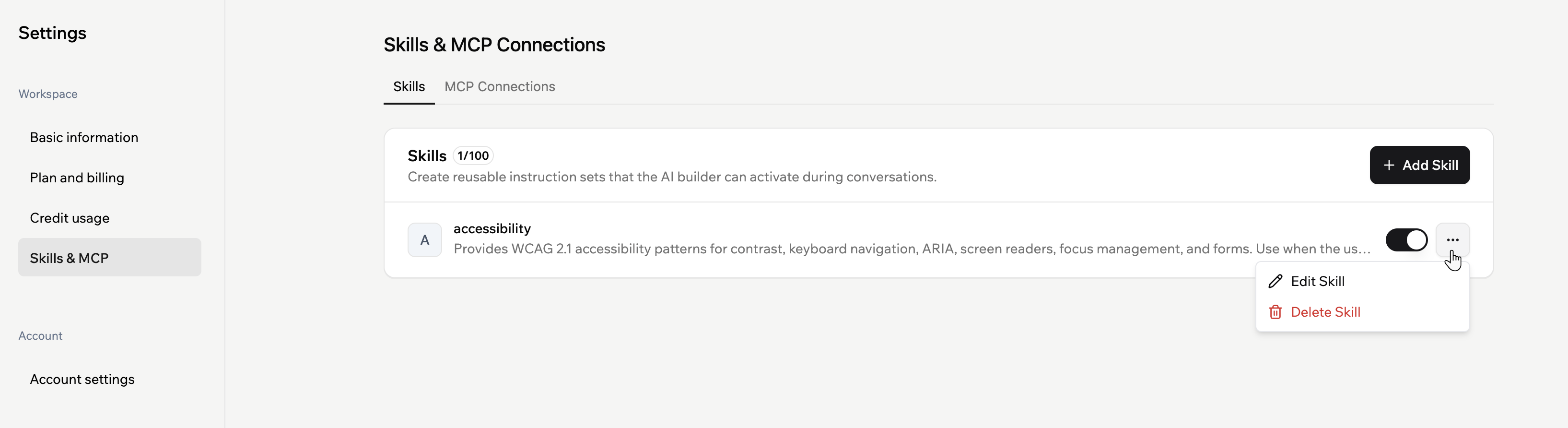
- Click your profile icon at the top-right of Base44.
- Click Settings.
- Under Workspace, click Skills & MCP.
- Make sure the Skills tab is selected.
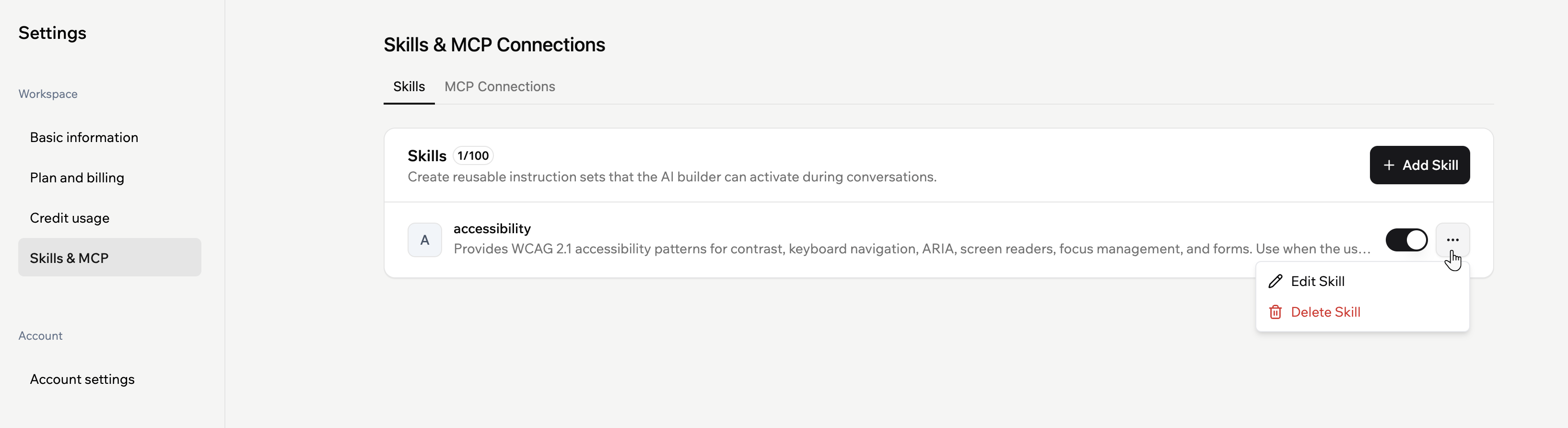
- Next to the relevant skill, click the More Actions icon .
- Choose what you want to do:
- Edit Skill: Open the skill editor to make changes. You can update the Skill Name, Description, or Instructions, and optionally click Refine & Review again to have the AI improve your updates before you save.
- Delete Skill: Remove the skill from your workspace.
Custom MCP connections
MCP connections let you connect custom MCP servers to your Base44 account so the AI chat can access external tools and data for context while you build. Each connection stores the server URL, authentication method, and any headers that need to be sent with every request. You manage MCP connections from your account settings. This means they are available in the AI chat for all apps you can access across workspaces. If you can open the AI chat for an app, your MCP connections can be used in that app’s chat. Base44’s AI treats MCP connections as tools it can call when your request requires external data or actions. It decides when to use them based on your prompt and the MCP’s description.Adding a custom MCP
Add up to 20 MCP servers that can be accessed from all the apps you can work on.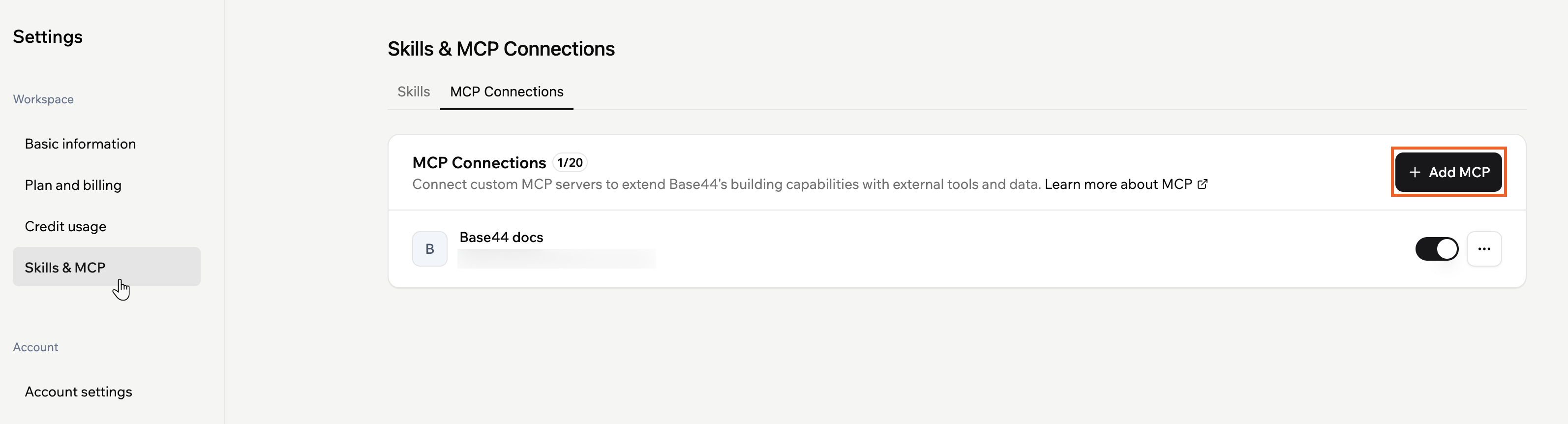
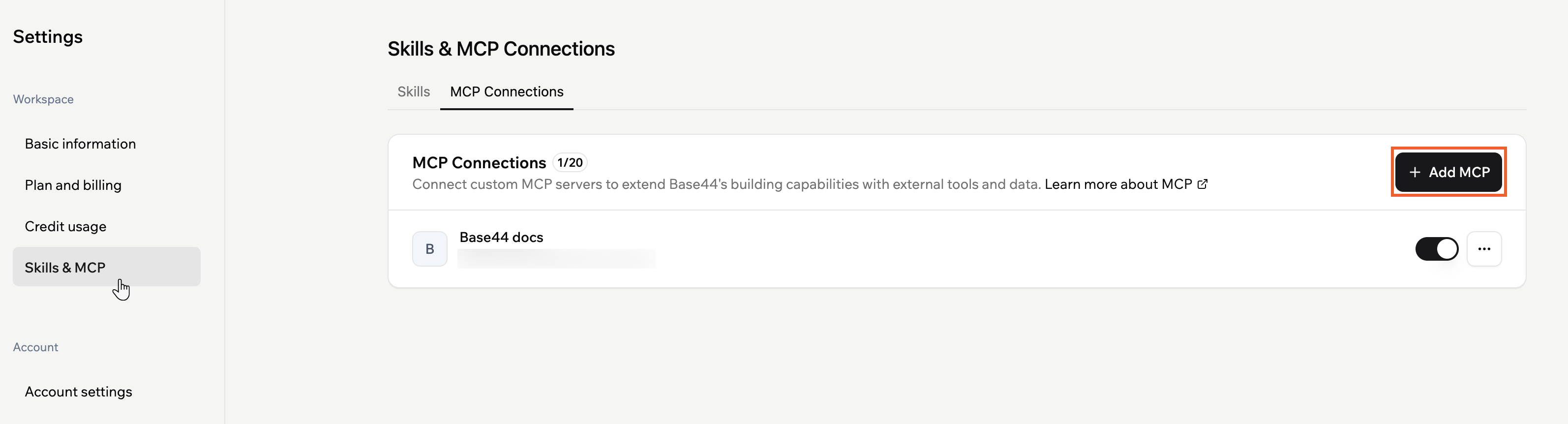
- Click your profile icon at the top-right of Base44.
- Click Settings.
- Under Workspace, click Skills & MCP.
- Click the MCP Connections tab.
- Click Add Custom MCP.
- Enter the details for your MCP:
- Name: Enter a clear name for your MCP server so collaborators can recognize it.
- URL: Enter the MCP server URL.
For example:https://mcp.deepwiki.com/sse - Authentication: Choose how Base44 should connect:
- Not required: Select this option if the server does not require credentials.
- OAuth: Select this option if the server uses OAuth. You complete the authorization in the next step after testing and adding the server.
- Custom Headers (optional): Add any headers that need to be sent with every request, such as API keys:
- Click Add header.
- Enter the Header name.
-
Enter the Header value.
Note: Add a header only if your MCP server requires one, such as an API key or bearer token. Check your MCP server or API documentation to see if a header is needed. If nothing is mentioned, leave this section empty and test the connection.
- Click Test to check that Base44 can reach the MCP server with the configuration you entered.
- Click Test & Add to test the connection and save the new MCP server to your account.
Turning an MCP on or off
Turn an MCP connection on or off as needed. To turn a custom MCP connection on or off:- Click your profile icon at the top-right of Base44.
- Click Settings.
- Under Workspace, click Skills & MCP.
- Click the MCP Connections tab.
- Find the relevant MCP server in the list.
- Click the toggle on the right to enable or disable that server for your account.
Editing or removing an MCP
Make changes to an existing MCP connection or remove it completely from your account. To edit or remove a custom MCP connection:- Click your profile icon at the top-right of Base44.
- Click Settings.
- Under Workspace, click Skills & MCP.
- Click the MCP Connections tab.
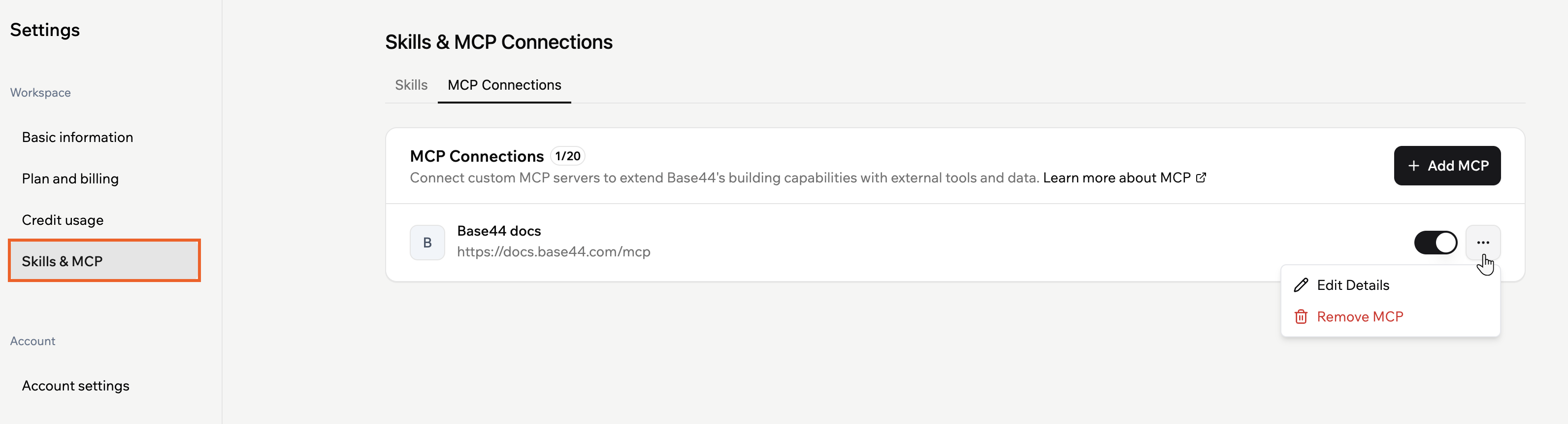
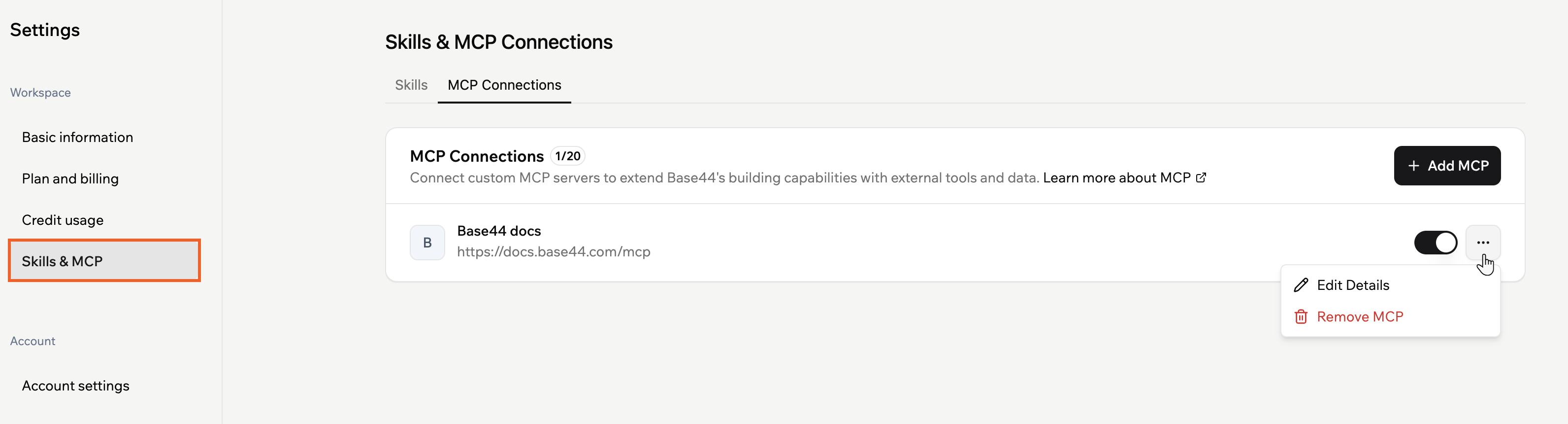
- Next to the relevant MCP server, click the More Actions icon .
- Choose what you want to do:
- Edit Details: Update the server name, URL, authentication, or custom headers.
- Remove MCP: Permanently remove the MCP server from your account.
Tip: Use clear, descriptive names for each MCP server so collaborators can quickly see which external tools or data sources the AI chat can use.
FAQs
Click a question below to learn more.When does the AI use a skill?
When does the AI use a skill?
The AI decides whether to use a skill based on your prompt and the skill’s Description and Instructions. It can invoke relevant skills automatically when they match what you are trying to do. For best results, mention the skill or its purpose directly in your prompt, such as “Apply our accessibility skill to this form.”
Does my app call MCP servers directly?
Does my app call MCP servers directly?
No. MCP connections only control what the AI chat can access while you build. Your app code, APIs, and other integrations do not call MCP servers through this settings page. The AI chat uses an MCP server only when your prompt asks for something that requires that server, it does not call every connected MCP for each message.
Can I temporarily disable an MCP server without removing it?
Can I temporarily disable an MCP server without removing it?
Yes. Go to Settings → Skills & MCP → MCP Connections and use the toggle next to the relevant MCP server to turn it off. When it is off, the AI chat no longer uses that server. You can turn the same server back on later without re-entering its configuration.